Interactive Touchscreen Yearbooks: The Complete Guide
Intent: Define — Understand how touchscreen yearbook displays work and where they fit in your school.
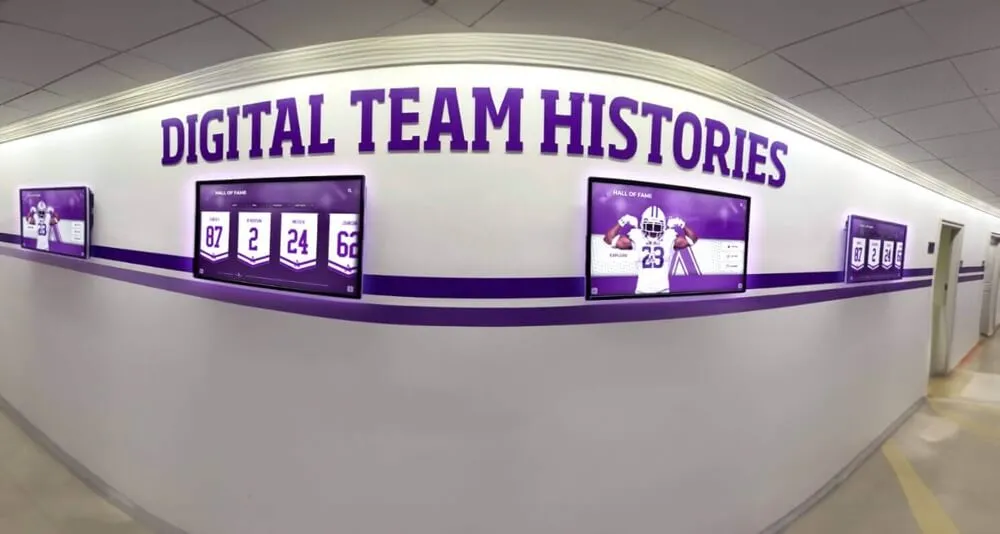
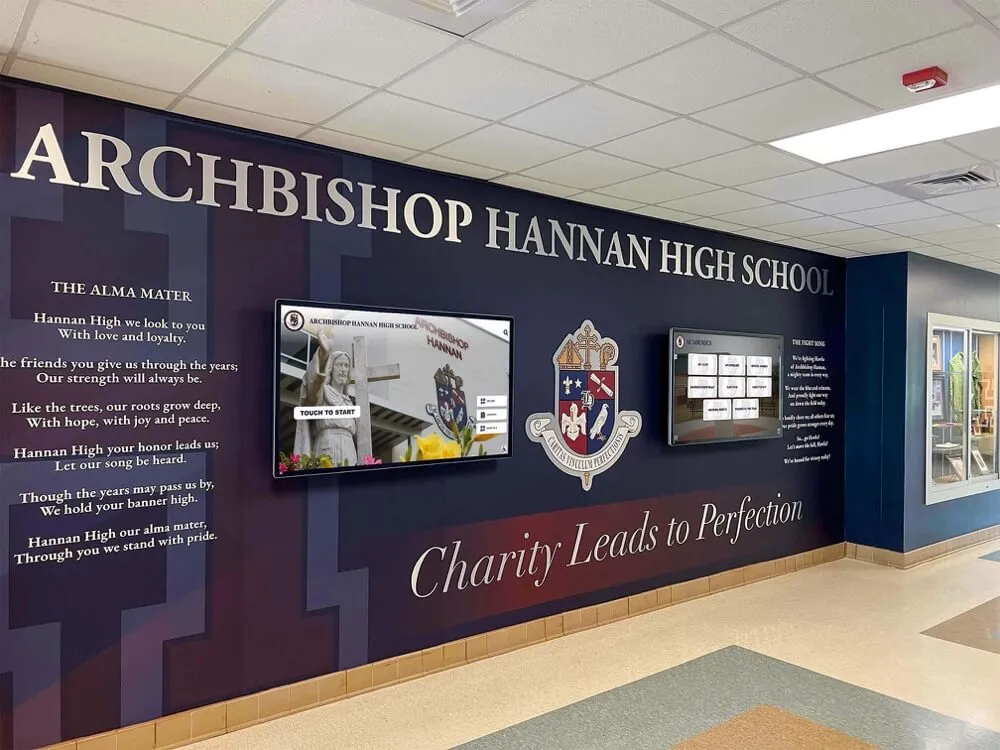
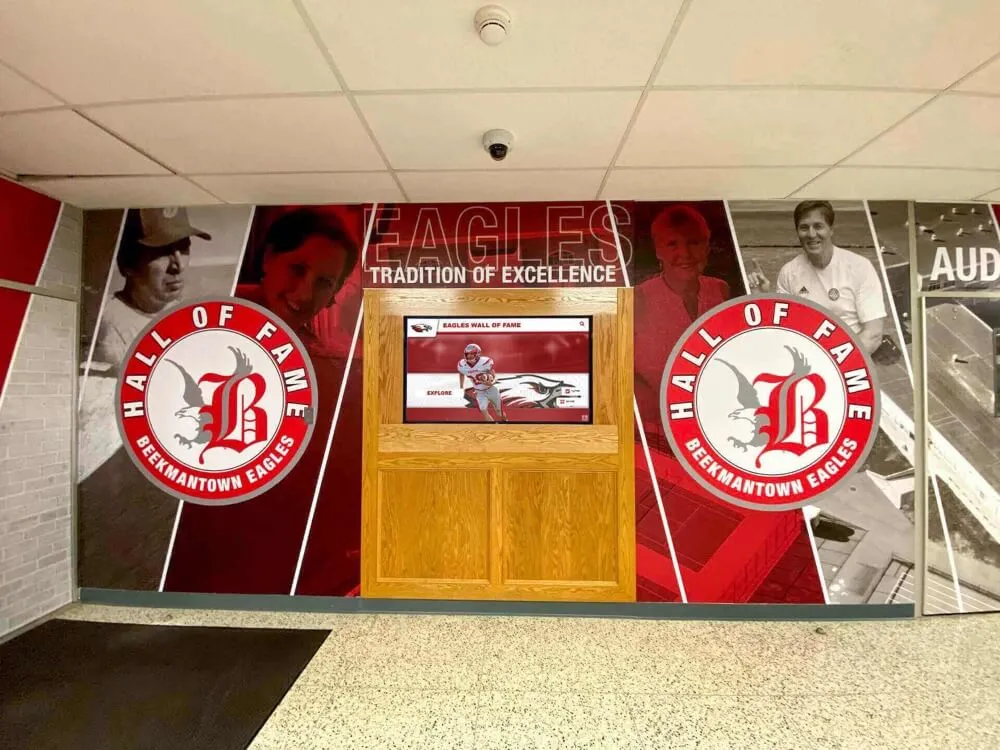
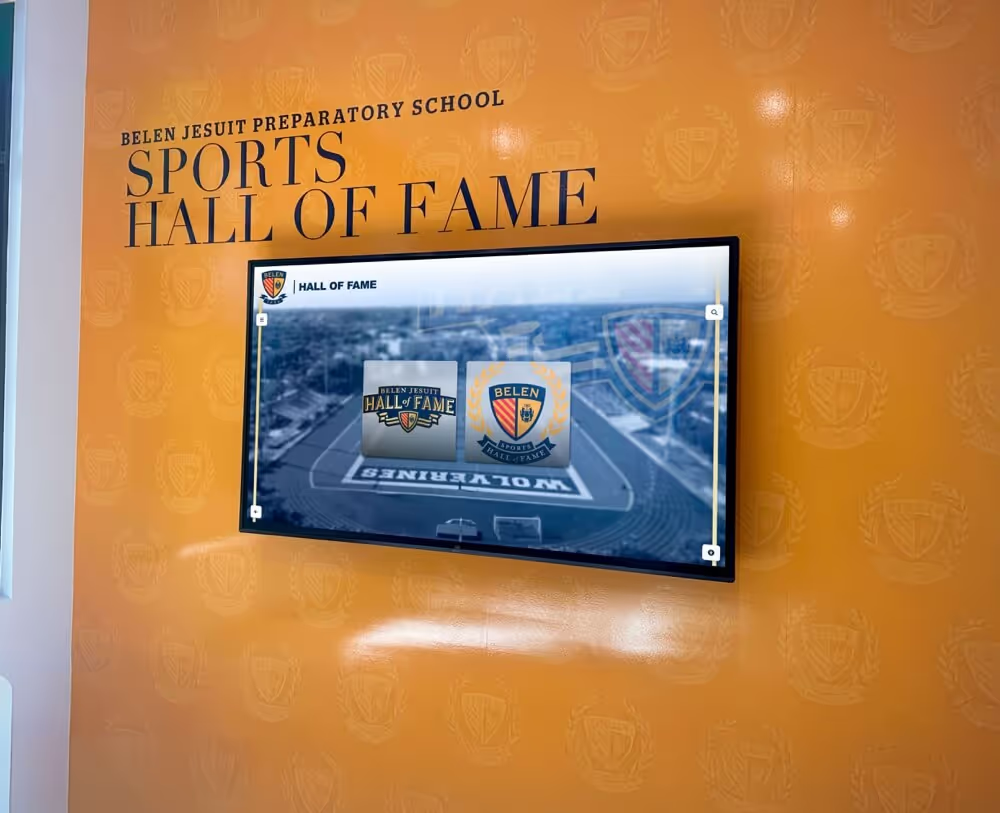
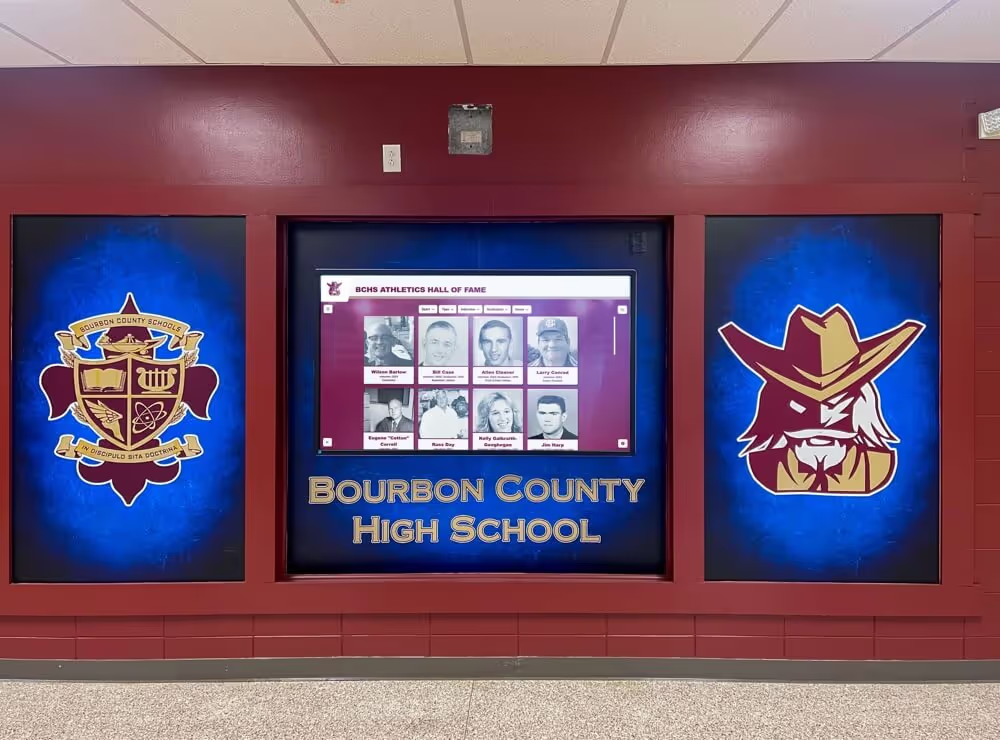
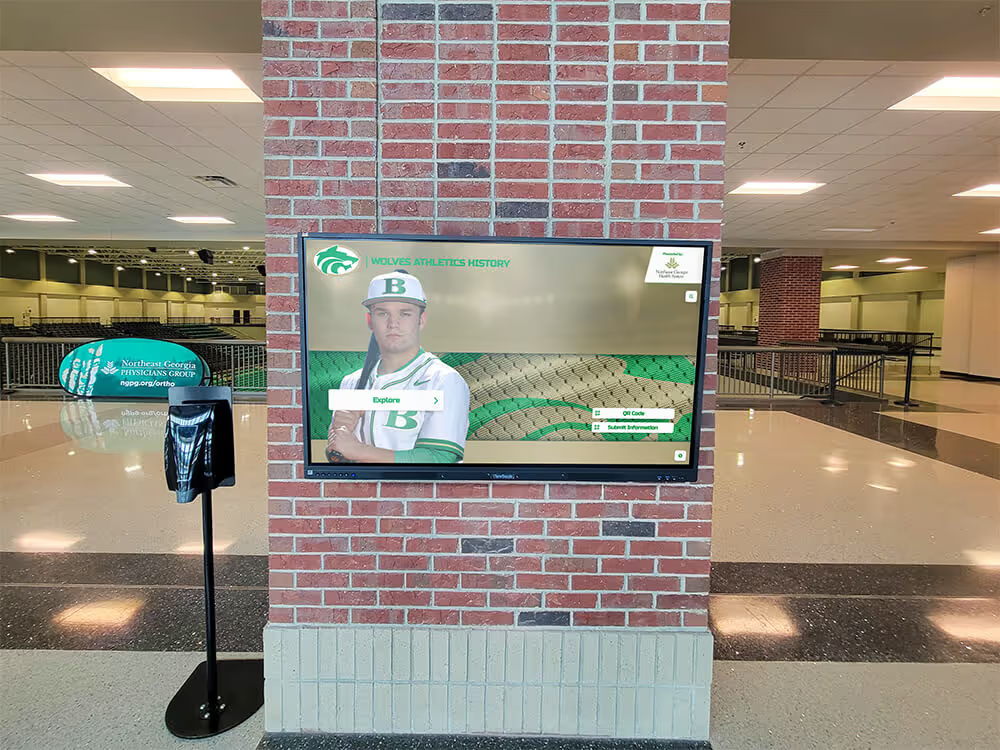
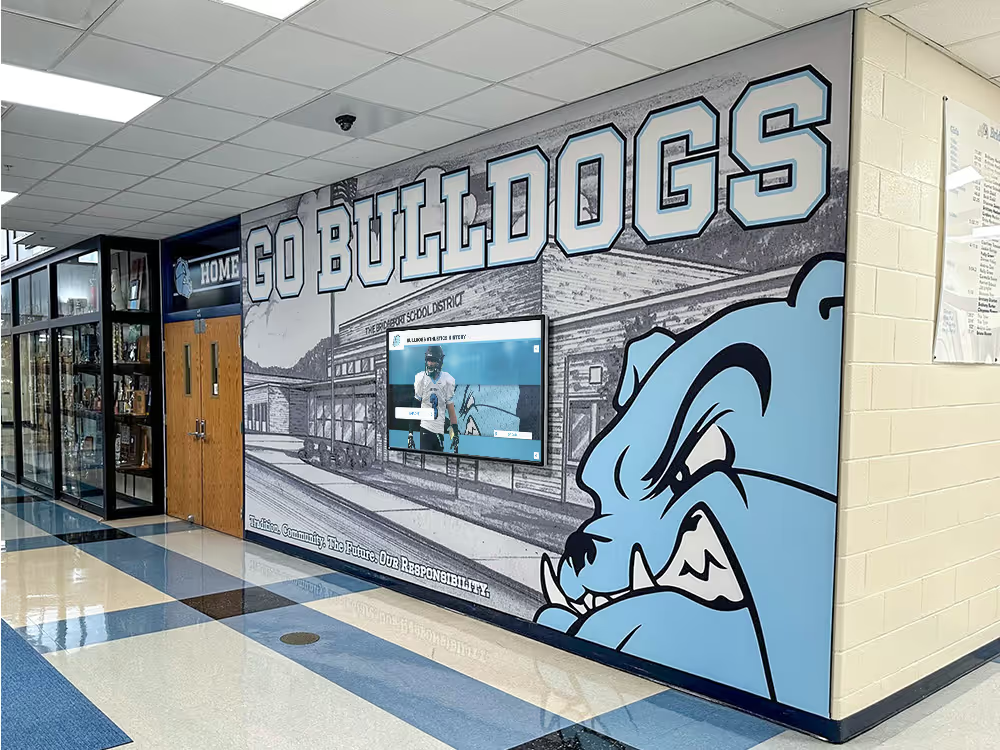
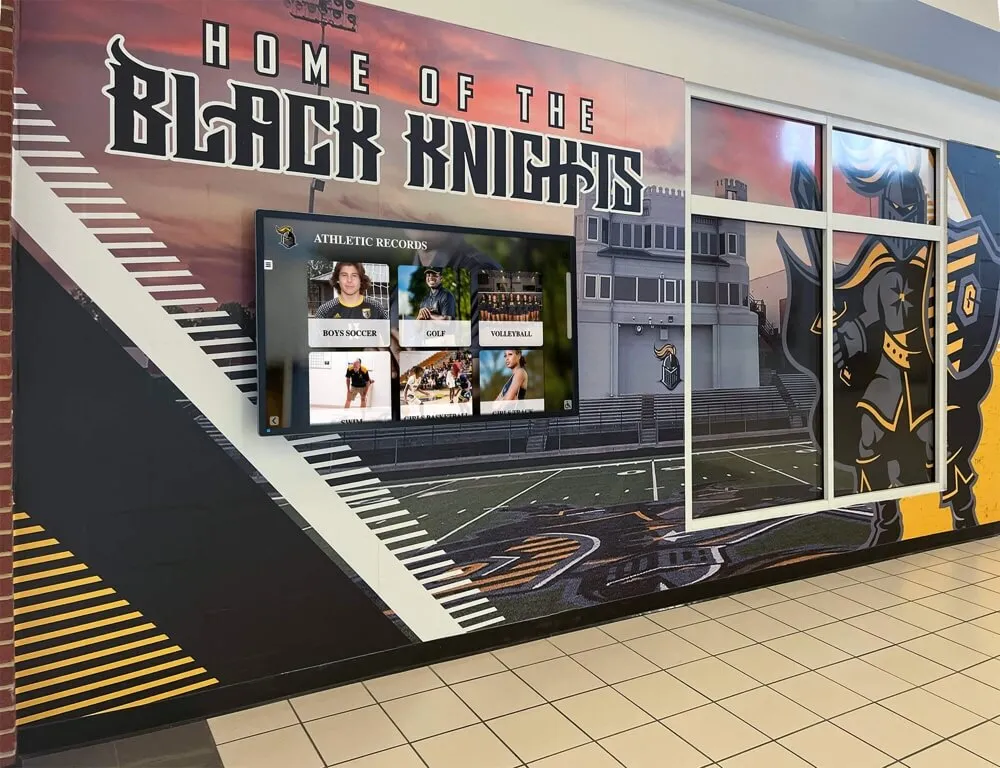
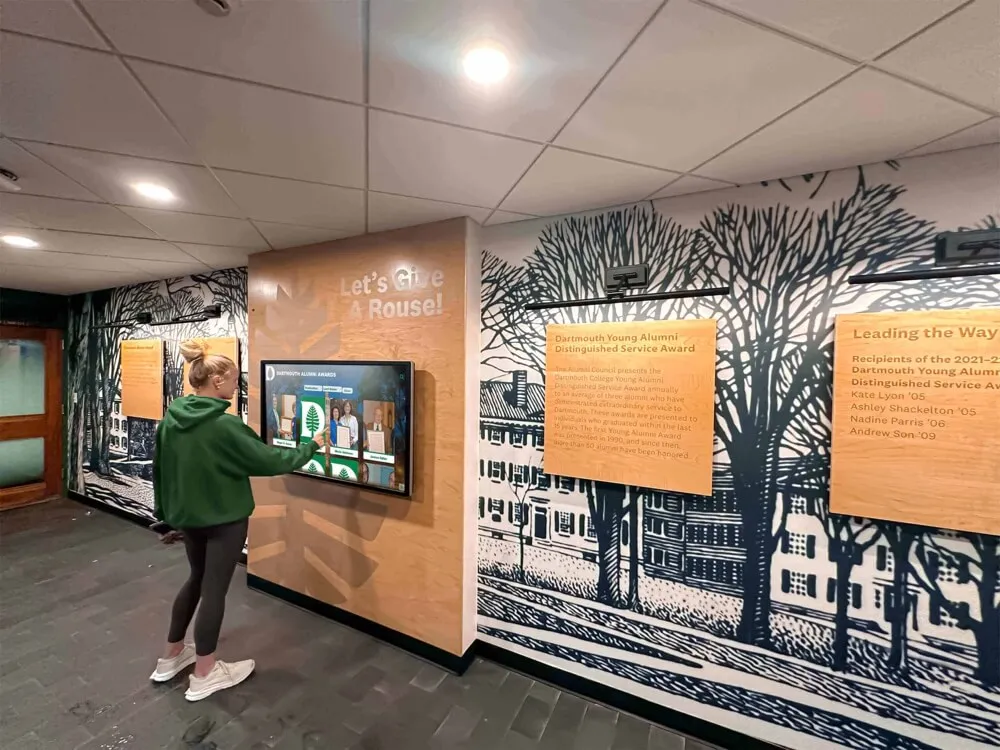
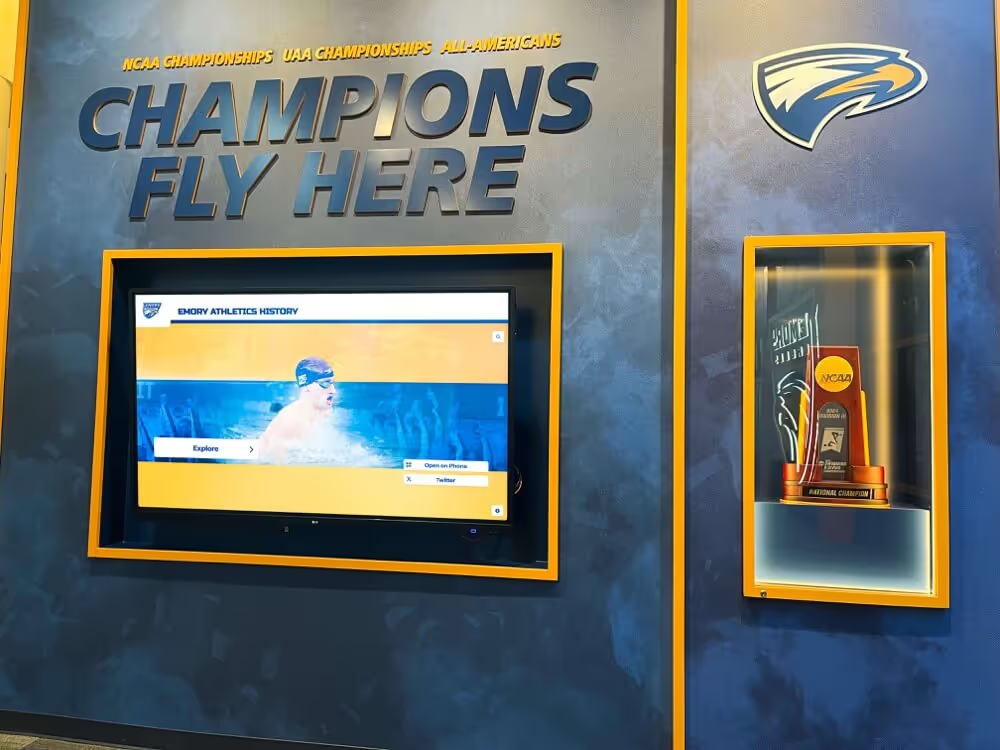
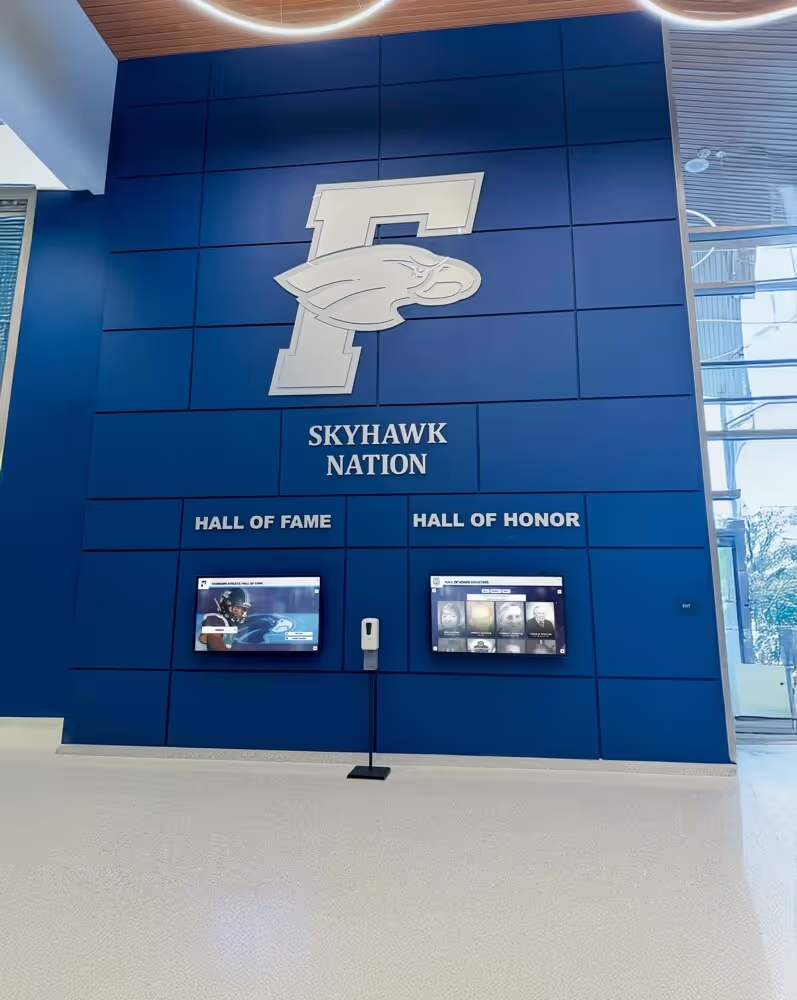
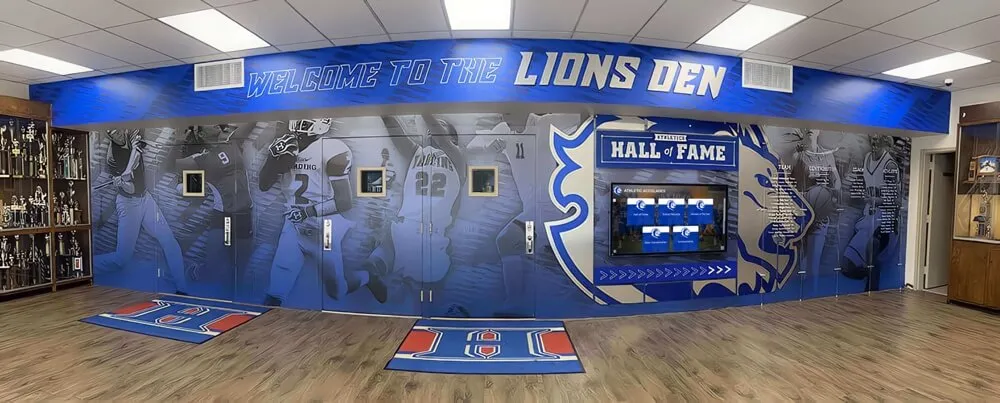
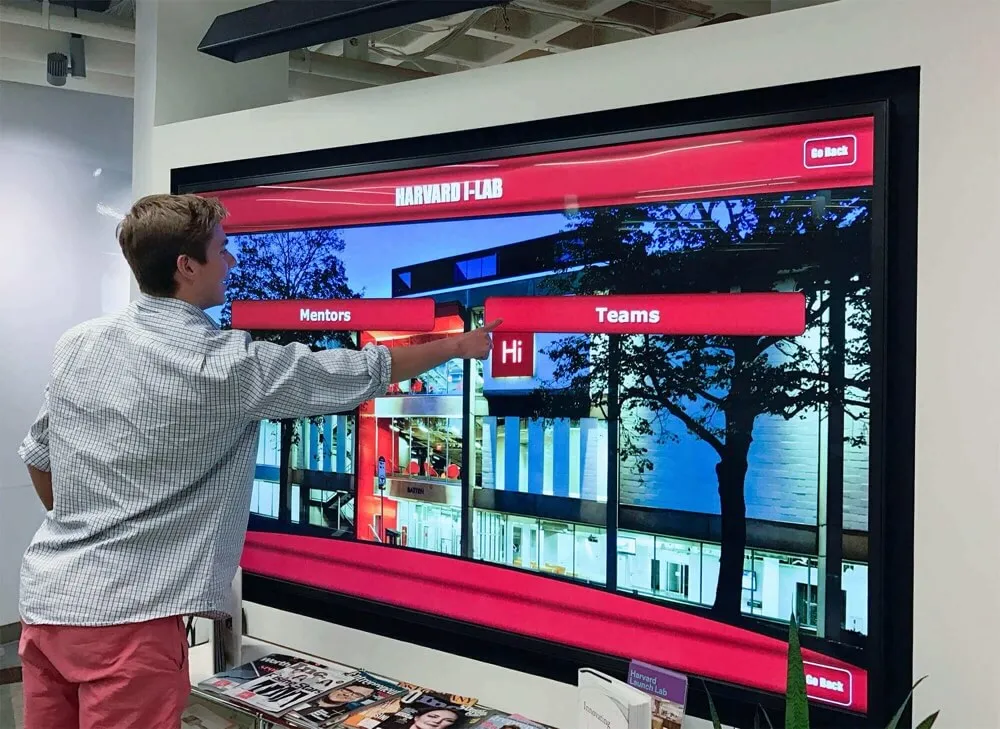
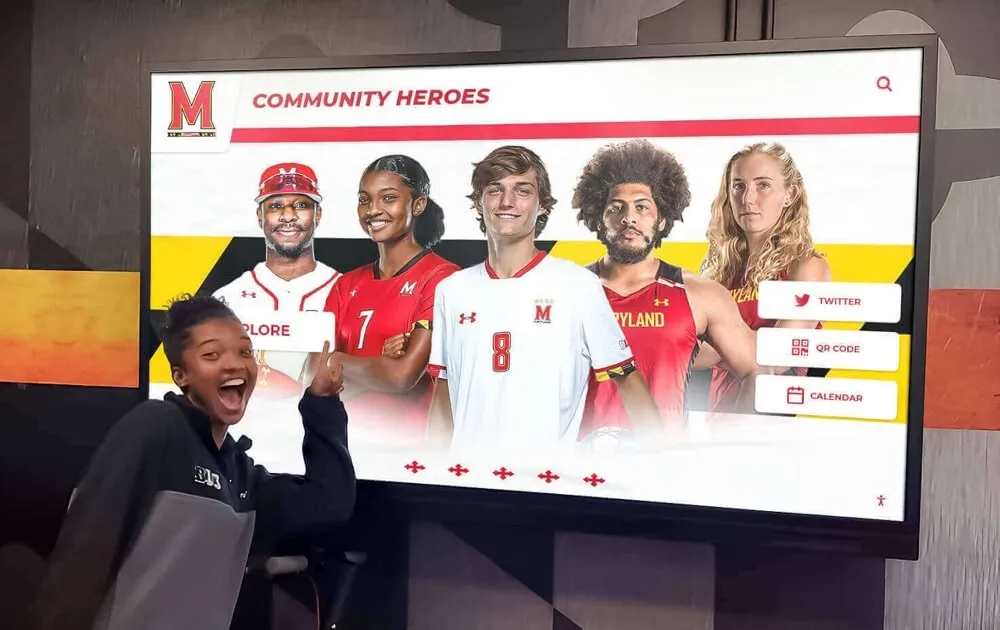
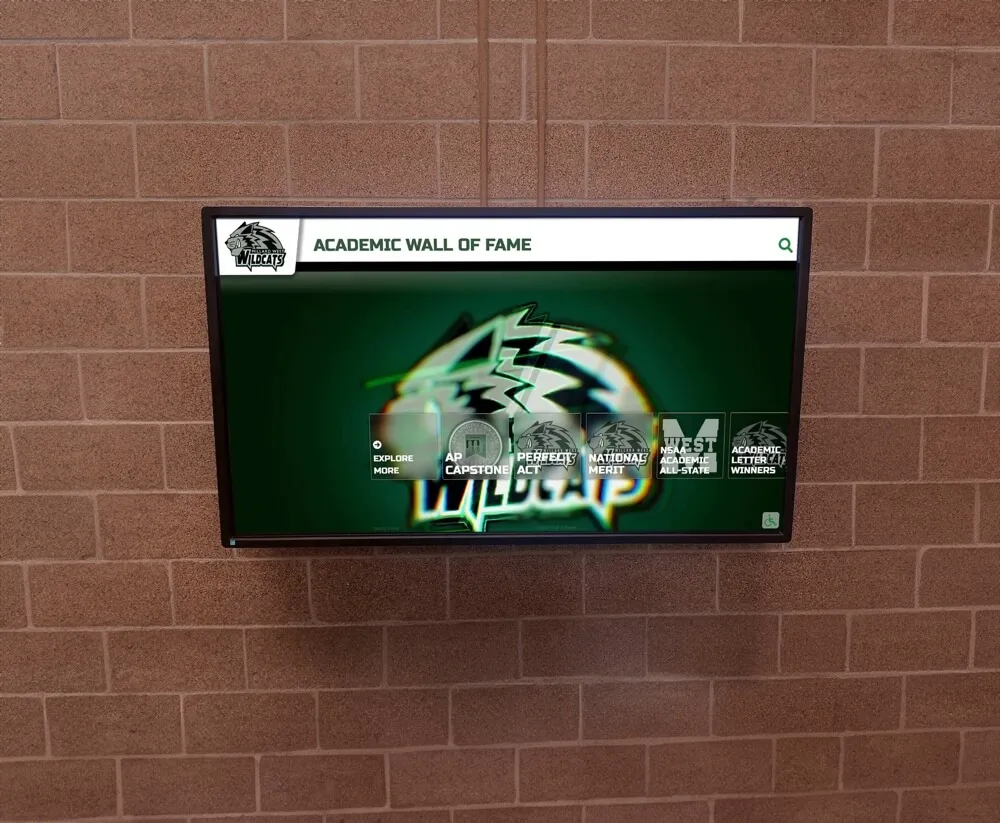
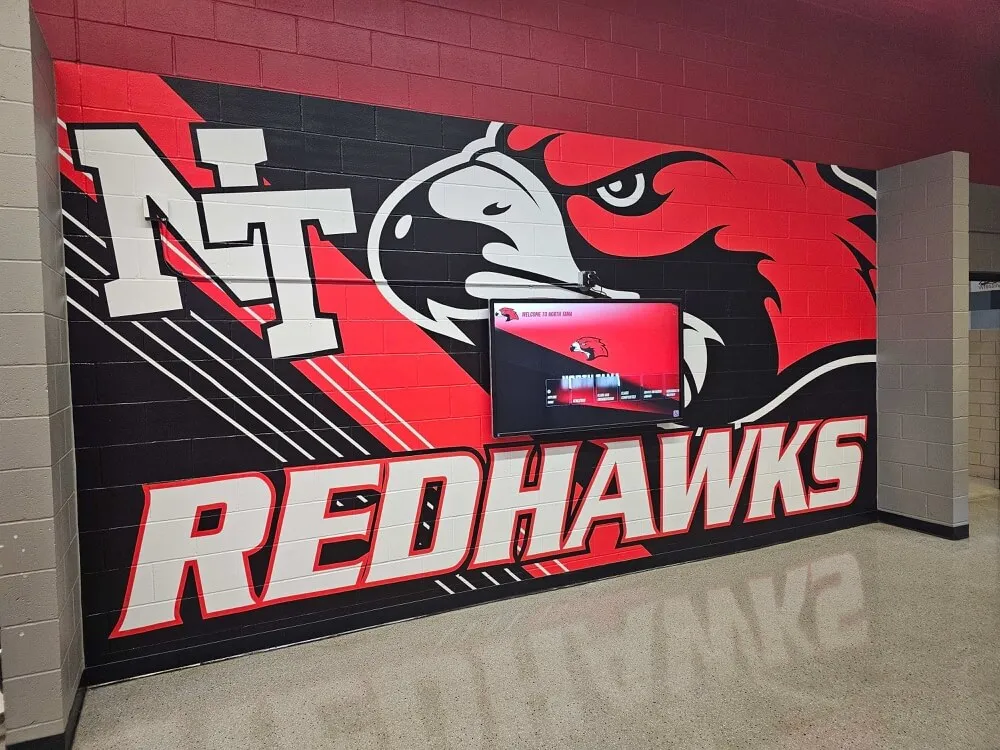
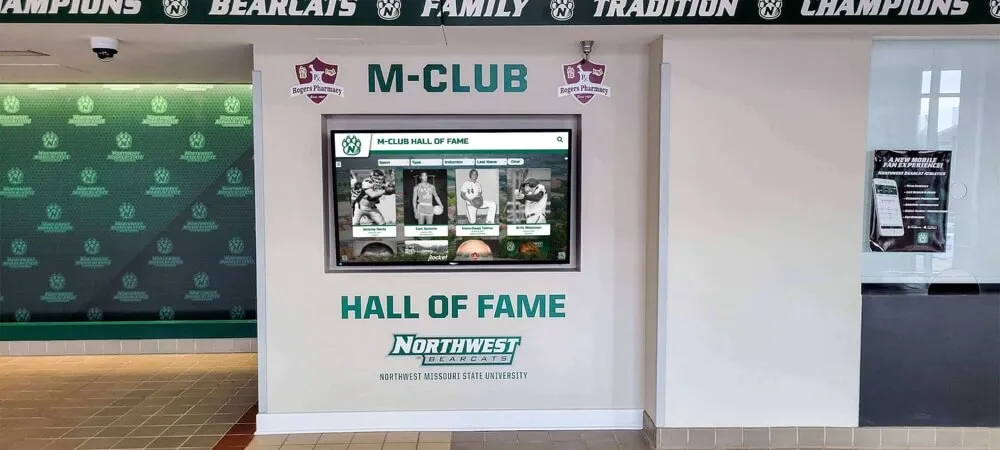
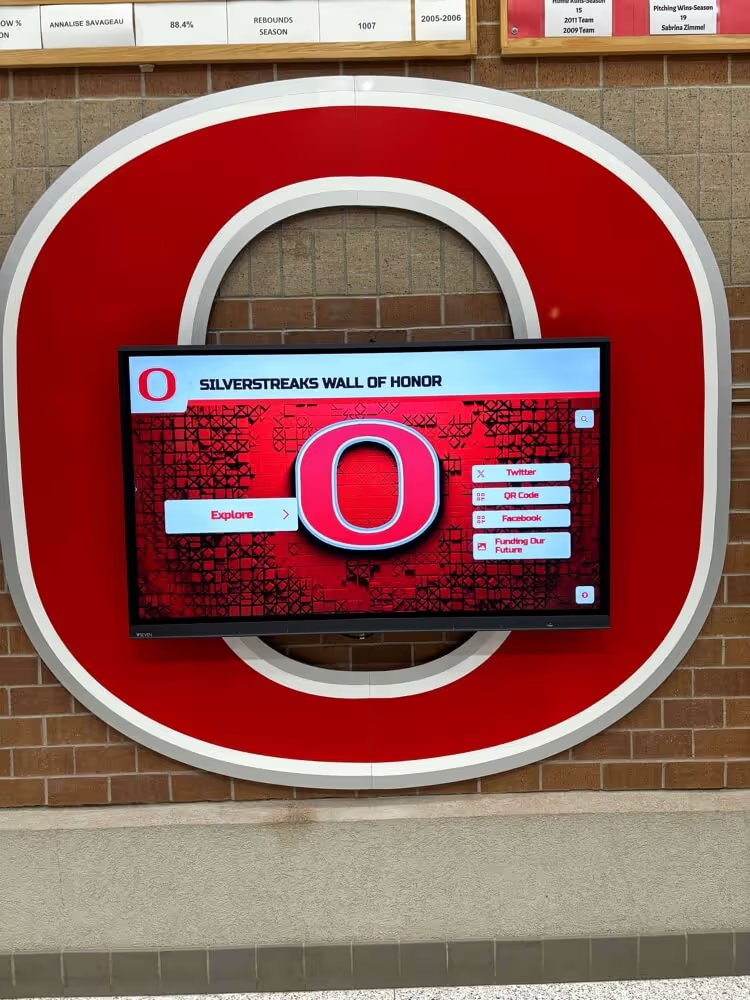
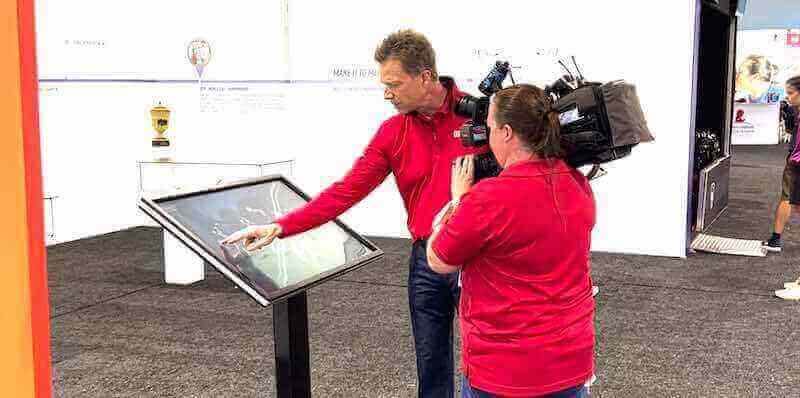
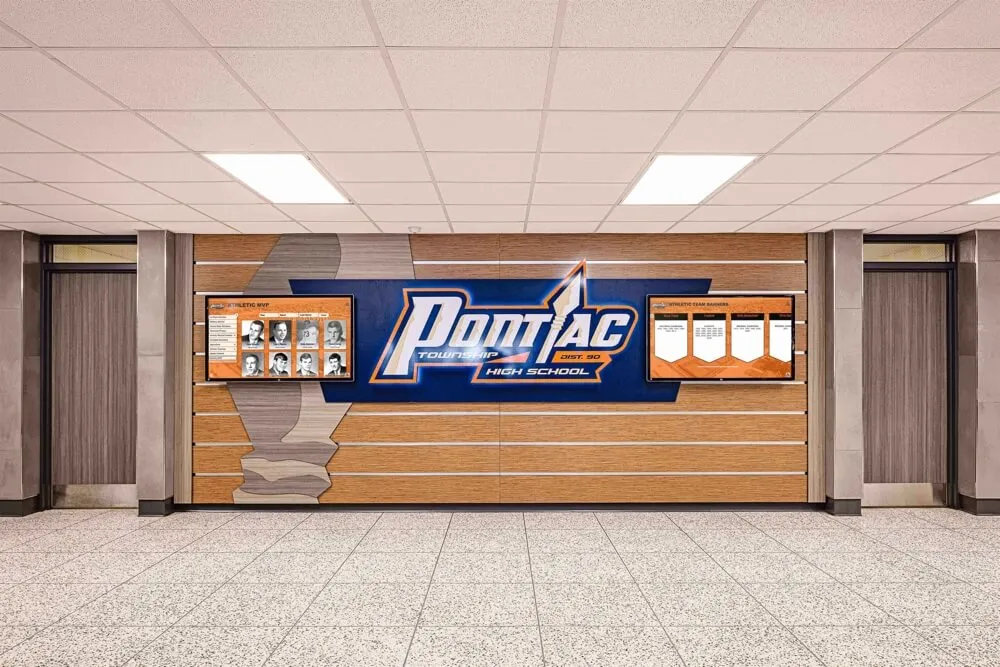
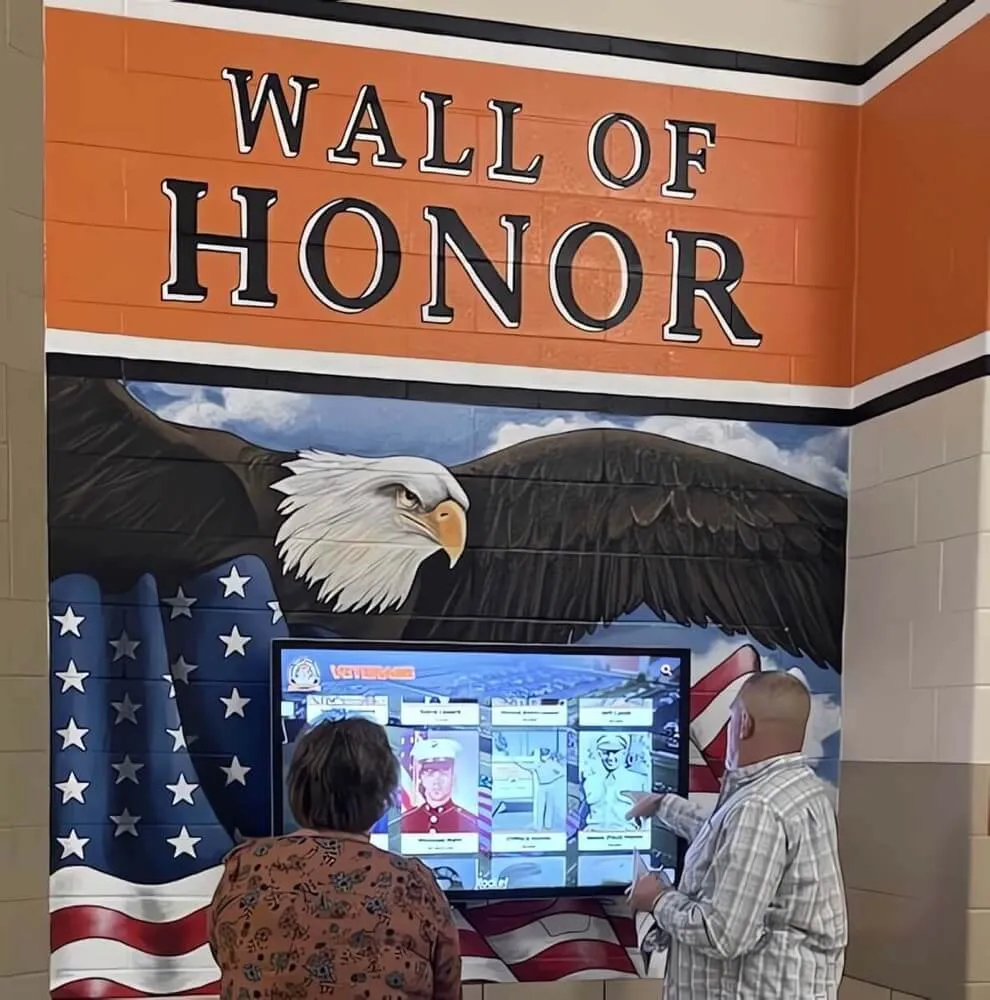
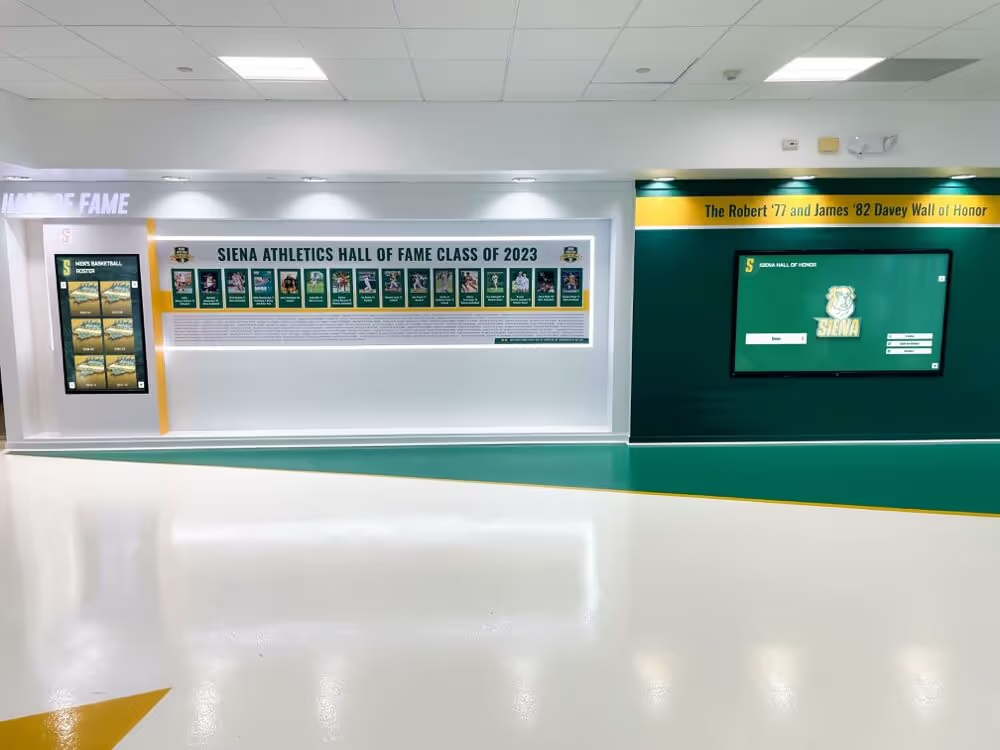
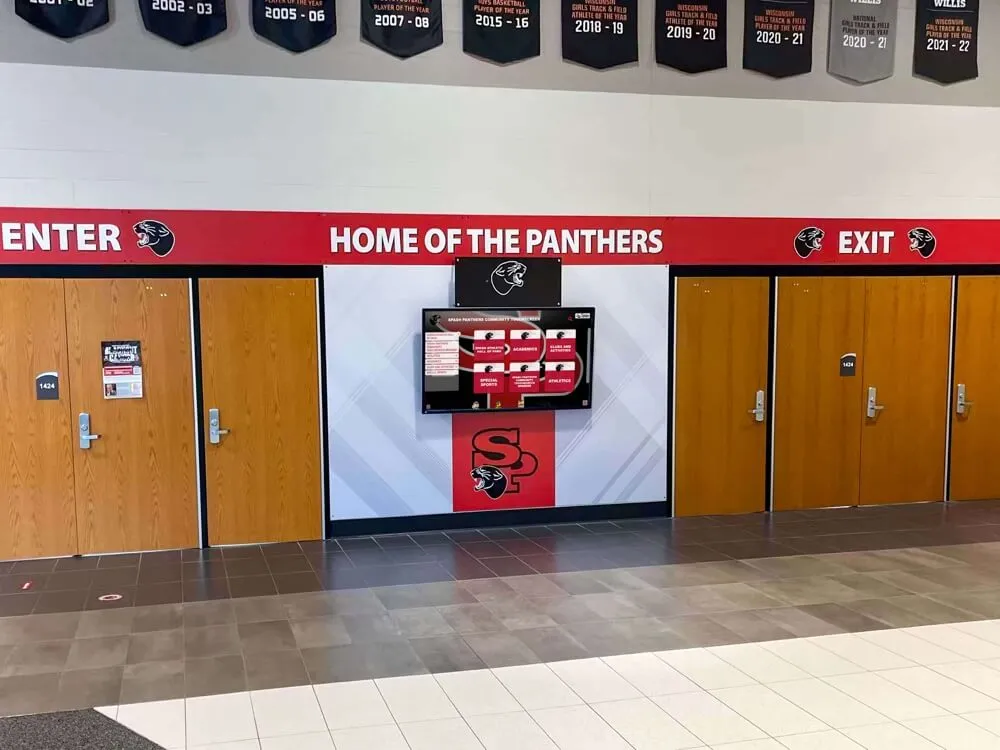
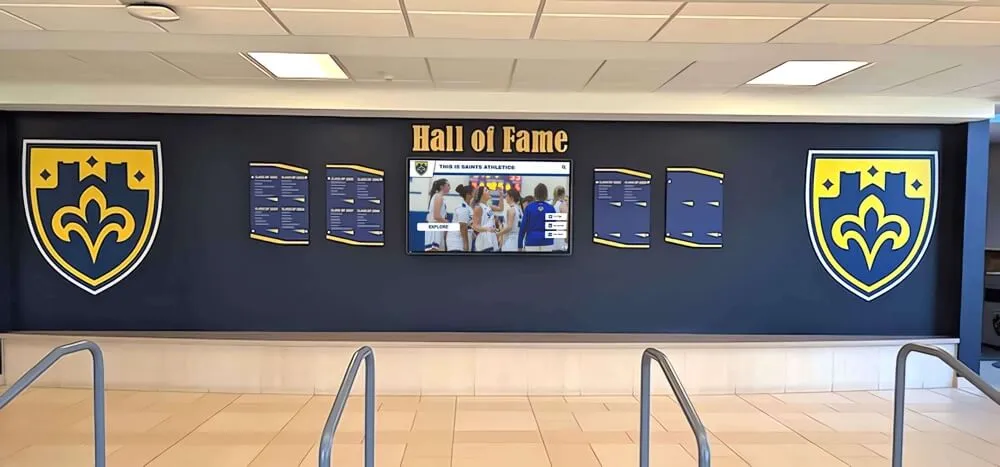
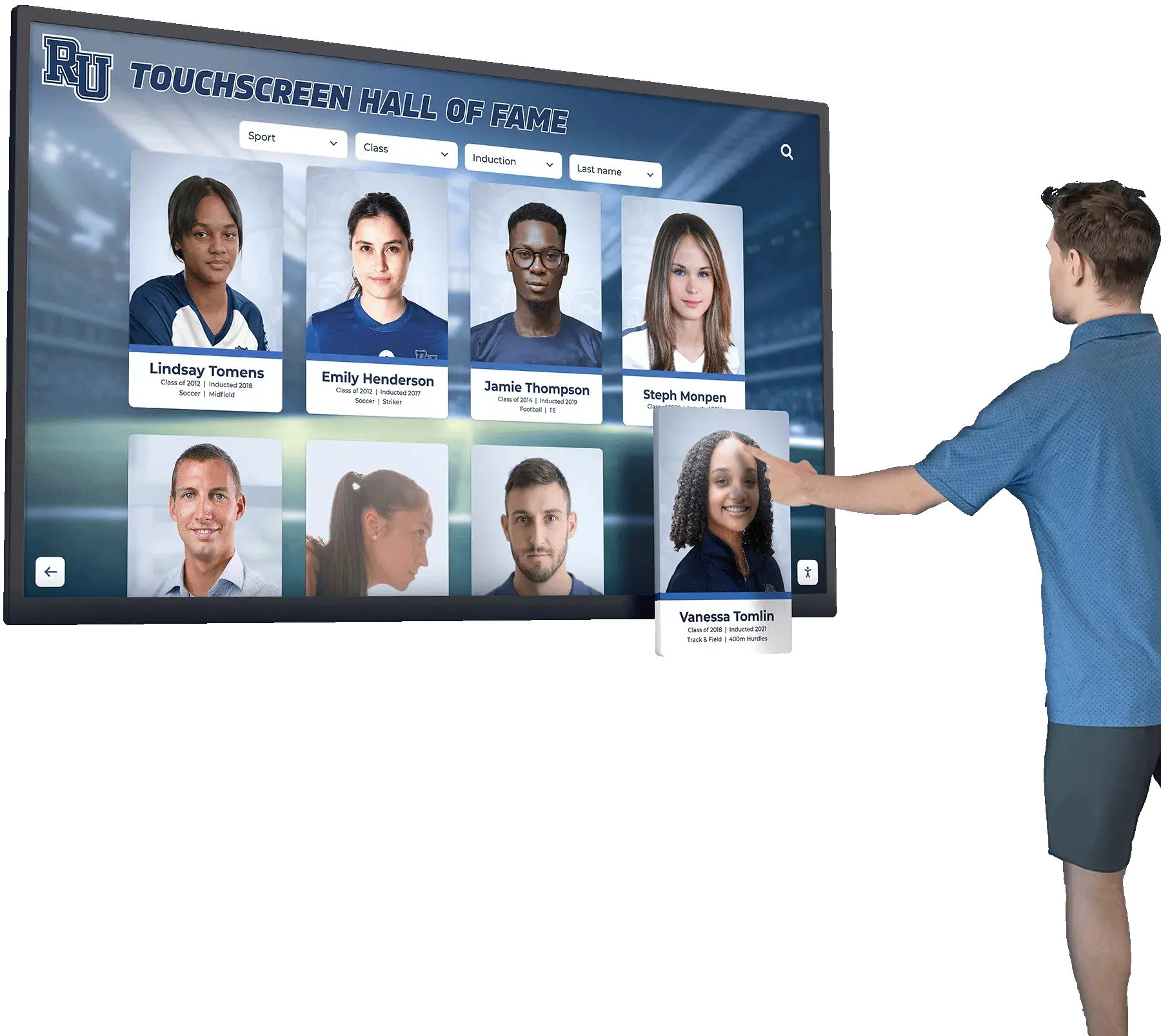
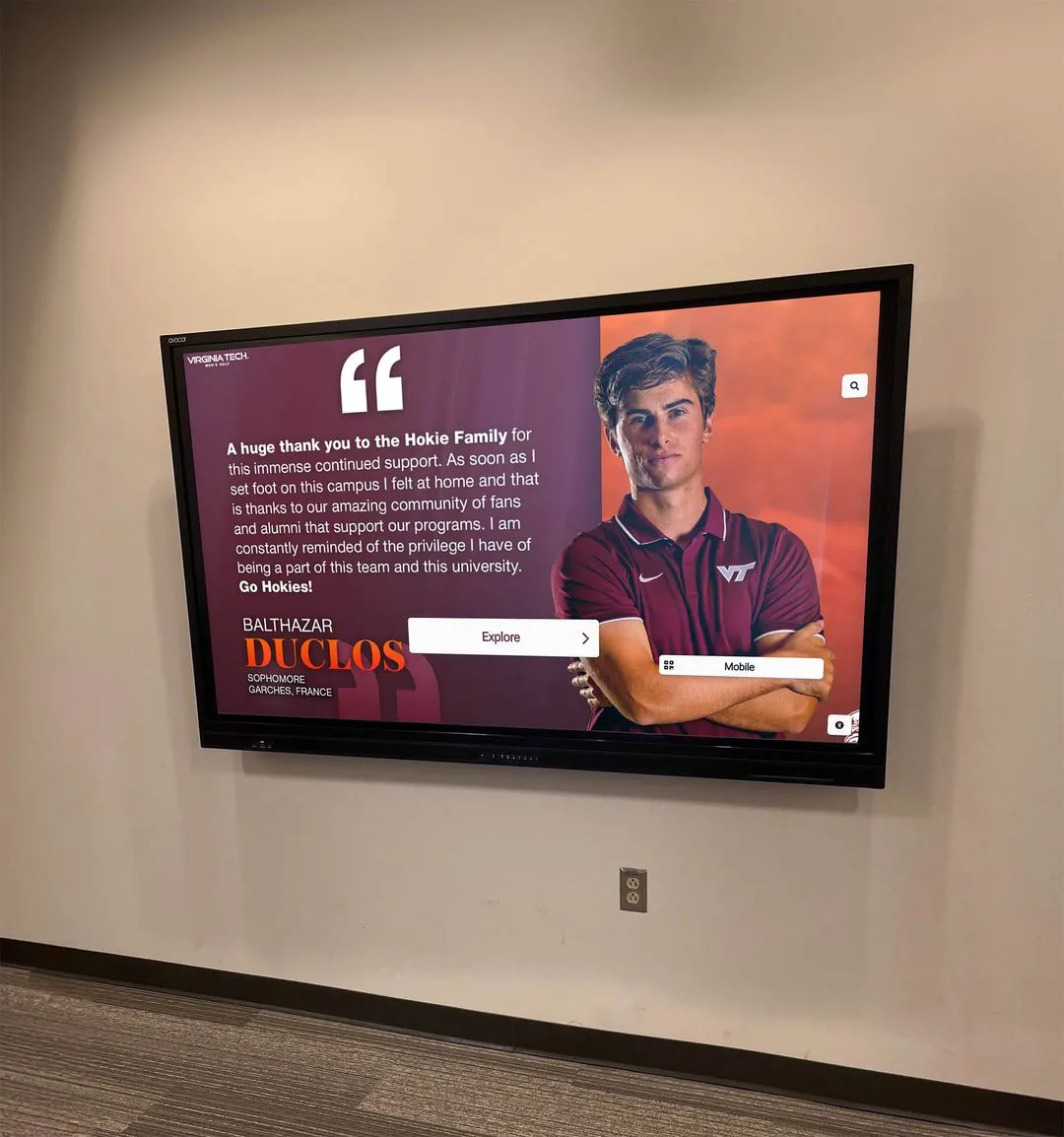
Imagine a 55-inch touchscreen in your lobby where visitors can browse decades of yearbooks, search for alumni, and explore your school’s history — all with a simple touch. That’s what interactive touchscreen yearbooks deliver.
What Makes Touchscreen Yearbooks Special
Unlike a poster or trophy case, a touchscreen yearbook display is:
| Characteristic | Why It Matters |
|---|---|
| Interactive | Visitors explore at their own pace |
| Searchable | Find any student, team, or event in seconds |
| AI-Powered | Semantic search understands natural language |
| Updatable | Add new content remotely, anytime |
| Engaging | Average session time: 4-6 minutes |
| Space-Saving | One screen holds unlimited content |
| Accessible | ADA compliant, works for everyone |
AI Features on Touchscreen Kiosks
AI makes touchscreen yearbooks smarter and easier to use:
| AI Feature | How It Helps Visitors | School Controls |
|---|---|---|
| Semantic Search | Visitors type natural queries like “basketball championship 2019” and get relevant results | Respects all visibility and privacy settings |
| Auto-Tagging | Photos are tagged automatically, making content discoverable across thousands of images | All tags reviewed by staff before publishing |
| Face Grouping | Alumni can find every photo they appear in across decades | Opt-in only; schools control whether grouping is enabled |
| Content QA | AI flags blurry images, duplicate entries, and missing captions before they go live | Staff reviews suggestions; nothing changes automatically |
| Archive OCR | Scanned historical yearbooks become searchable text | Schools choose which archives to process |
Privacy first: AI features respect your school’s visibility settings. Face data stays on the platform, and all suggestions require staff approval.
Touchscreen UX Best Practices
Designing for touch is different from designing for mouse and keyboard. Here’s what works:
| Best Practice | Why It Matters |
|---|---|
| Large Touch Targets | Buttons should be at least 44×44 pixels for easy tapping |
| Minimal Typing | Use category browsing, filters, and voice search to reduce on-screen keyboard use |
| Clear Navigation | Prominent “Home” and “Back” buttons so visitors never feel stuck |
| Visual Hierarchy | Large photos and bold headings guide attention |
| Timeout & Reset | Auto-reset to home screen after inactivity to protect privacy |
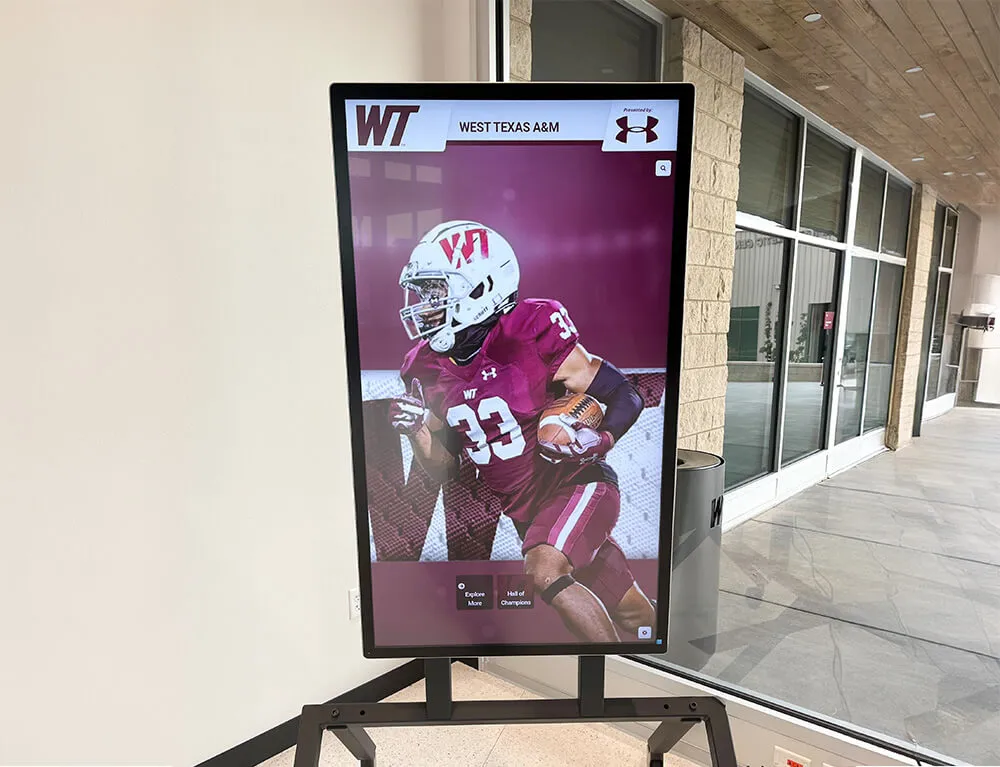
| Orientation Support | Content adapts to portrait or landscape mounting |
Hardware Buyer Checklist
Use this checklist when selecting touchscreen hardware:
| Requirement | Recommended Spec | Notes |
|---|---|---|
| Screen Size | 55" (lobby), 32–43" (smaller spaces), 65–86" (large entryways) | Measure wall space and viewing distance |
| Resolution | 4K (3840×2160) | Ensures crisp text and photos |
| Touch Type | Capacitive (10+ touch points) | More responsive than infrared for high-traffic use |
| Brightness | 500+ nits | Important if near windows or bright lights |
| Durability | Commercial-grade, 50,000+ hour rating | Consumer TVs are not designed for 24/7 use |
| Enclosure | Tempered glass, metal frame, ventilation | Protects screen, manages heat |
| Mounting | Wall mount, floor stand, or recessed enclosure | Match your space and accessibility needs |
| Connectivity | WiFi + Ethernet, USB, HDMI | Ethernet preferred for reliability |
| Power | Standard outlet; consider UPS for protection | Surge protection recommended |
| Warranty | 3+ years commercial warranty | Consumer warranties often void for commercial use |
We can recommend specific hardware partners, or you can source your own.
Display Options
Choose the setup that fits your space:
| Type | Best For | Considerations |
|---|---|---|
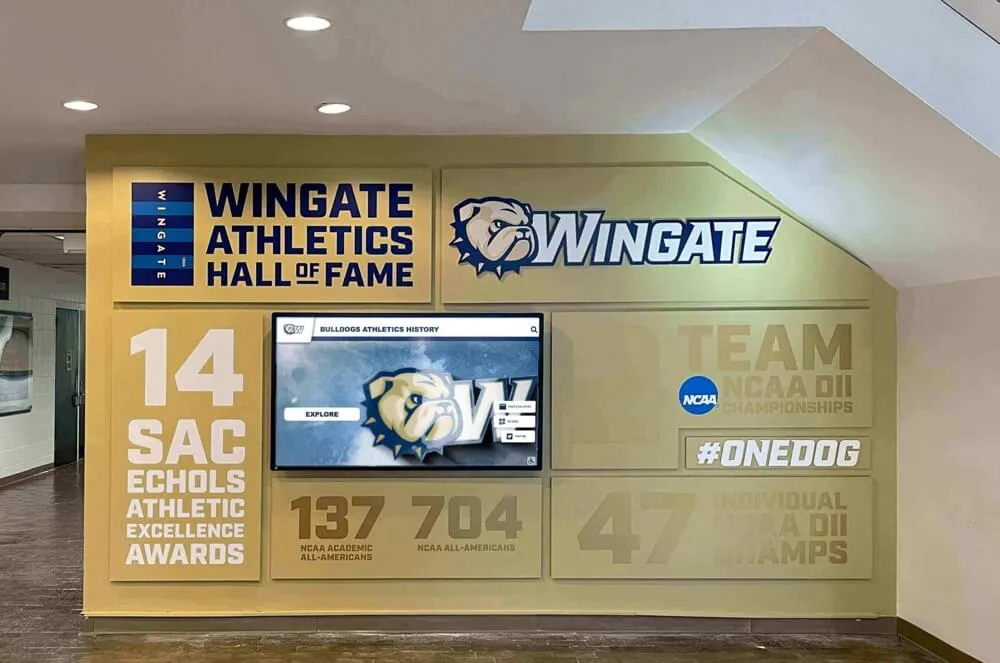
| Wall Mounted | Lobbies, hallways, common areas | Needs wall space, power outlet, WiFi |
| Freestanding Kiosk | Open areas, events, reunions | Mobile, doesn’t need wall mounting |
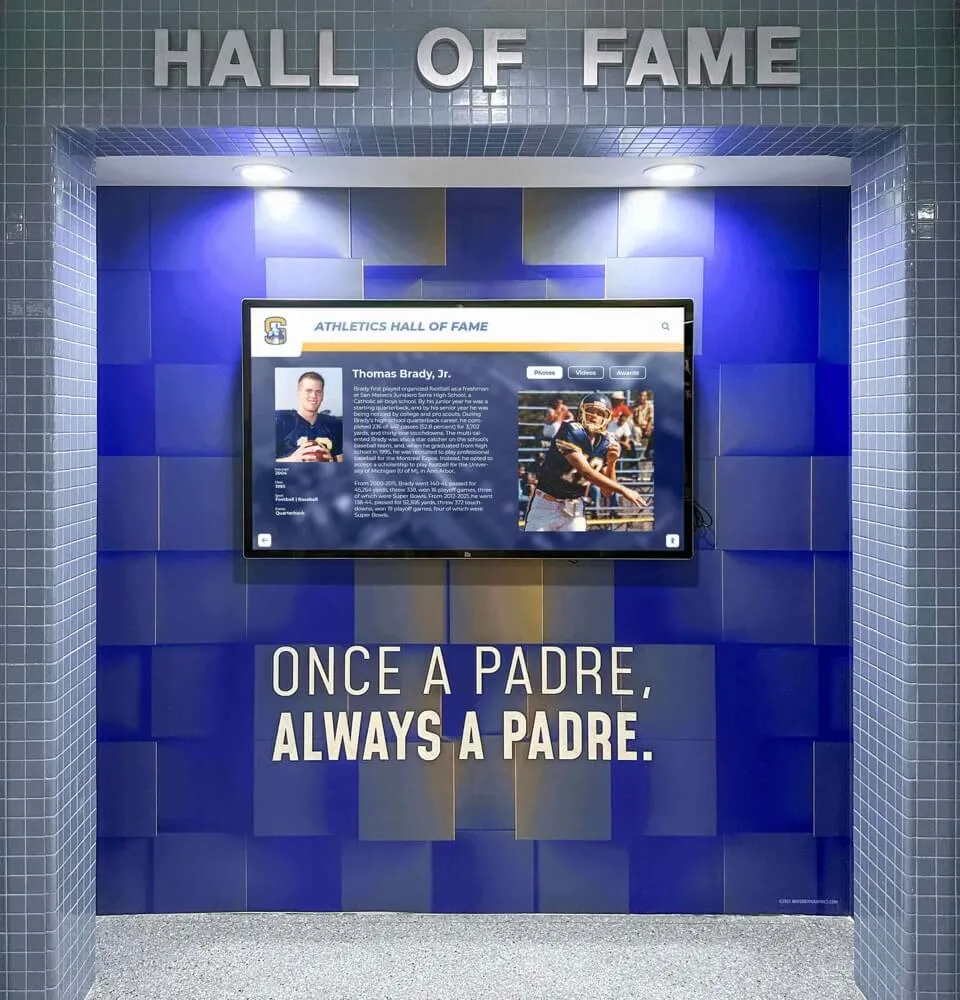
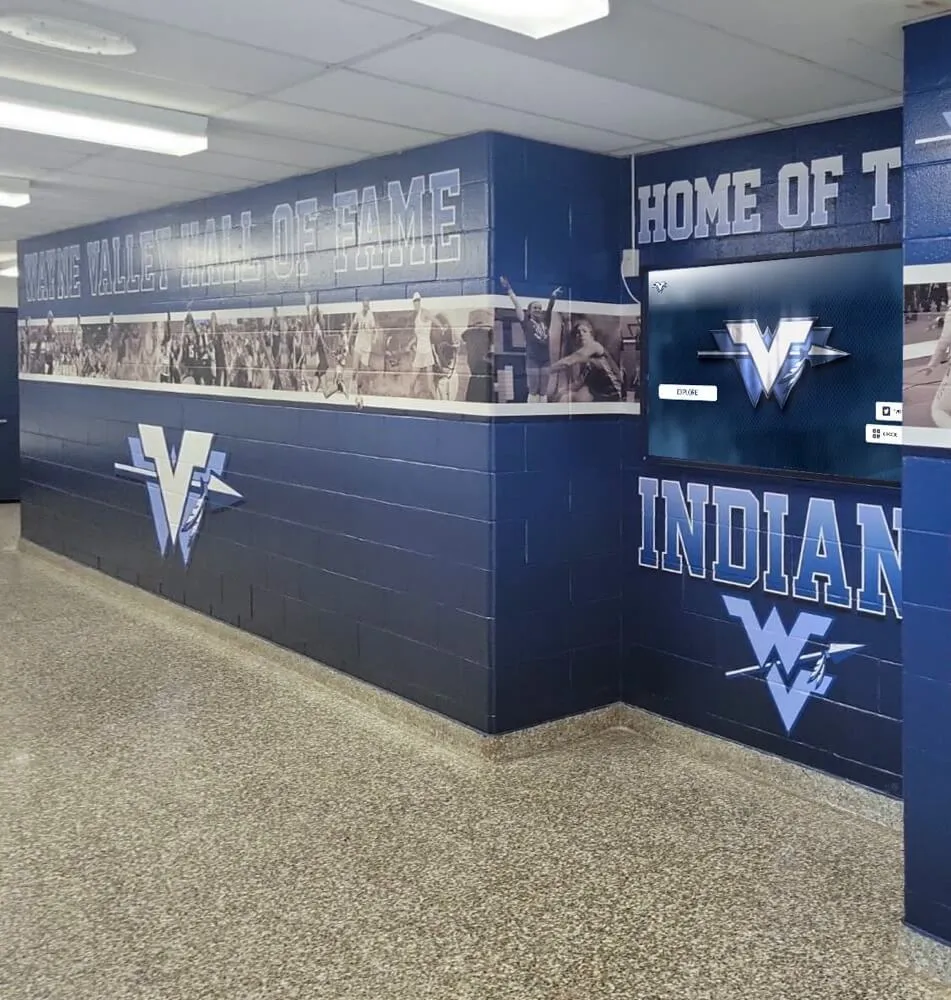
| Recessed Enclosure | High-traffic areas, permanent installations | Built into wall, protected screen |
| Table/Podium | Libraries, reception desks | Lower profile, accessible height |
Where Schools Install Touchscreen Yearbooks
High Schools
- Main lobby / reception area
- Athletic hallway near gym
- Library or media center
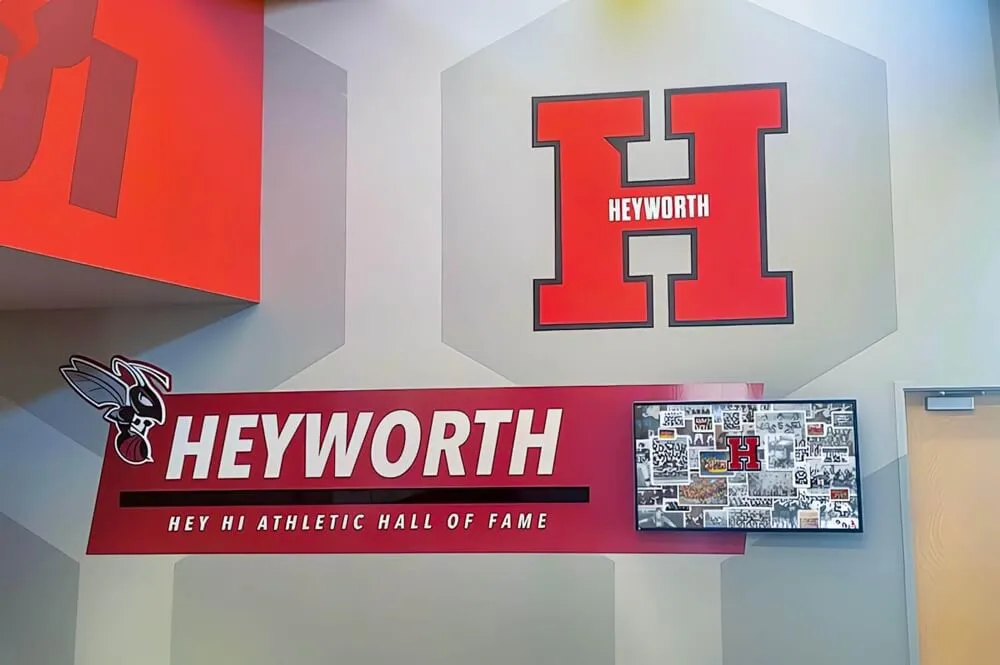
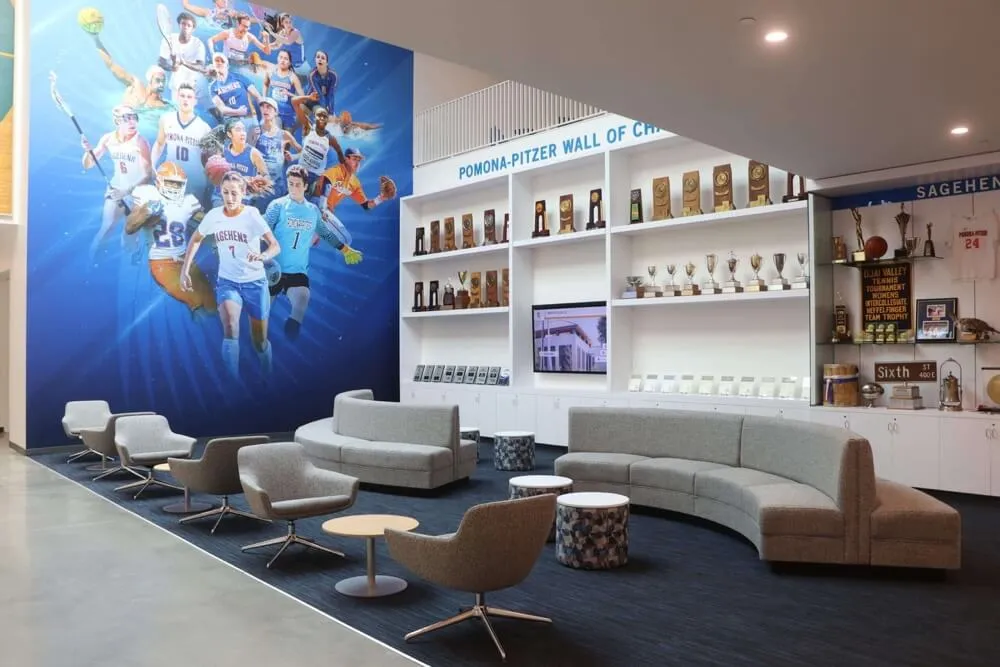
- Alumni/donor recognition wall
Universities
- Student union building
- Alumni center
- Athletic facilities
- Admissions welcome center
K-12 Districts
- District office lobby
- Community room
- Board meeting space
Implementation Timeline
| Phase | Duration | Activities | AI Assists |
|---|---|---|---|
| Planning | 2 weeks | Site survey, display selection, content strategy, ADA review | — |
| Content Prep | 4–6 weeks | Gather photos, videos, student data, scan archives | Photo tagging, face grouping, OCR |
| Hardware Setup | 1–2 days | Mount display, connect power/network, configure system | — |
| Software Launch | 1 day | Load content, test functionality, verify accessibility | Semantic search, content QA |
| Training | 1 hour | Show staff how to update content remotely | — |
| Graduation QR Campaign | Ongoing | Print QR codes linking to yearbook; distribute at events | — |
ROI: Why Schools Invest in Touchscreen Yearbooks
| Benefit | Impact |
|---|---|
| Visitor Engagement | 85% of visitors stop to interact |
| Alumni Connection | Alumni search for themselves, classmates, and memories |
| Recruitment | Impresses prospective families during tours |
| Donor Recognition | Dynamic donor walls with photos and stories |
| Space Efficiency | Replaces dozens of trophy cases and banners |
| Longevity | Content lives forever; hardware upgrades easily |
Touchscreen Yearbook vs. Traditional Displays
| Factor | Trophy Case | Banner | Touchscreen Yearbook |
|---|---|---|---|
| Capacity | 20–50 items | 1 item | Unlimited |
| Updates | Manual, costly | Replace entire banner | Remote, instant |
| Search | None | None | Full-text + AI semantic |
| Engagement | Passive viewing | Passive viewing | Active exploration |
| Accessibility | Limited | Limited | ADA compliant |
| Video | No | No | Yes |
| Analytics | None | None | Views, searches, popular content |
ADA Accessibility for Touchscreen Kiosks
Touchscreen yearbooks can meet ADA requirements when properly configured:
| Accessibility Requirement | How We Address It |
|---|---|
| Reach Height | Mount at 48" max operable height; consider adjustable stands |
| Touch Target Size | 44×44 pixel minimum for all buttons and links |
| Text Size | Adjustable; default 16pt+ for body text |
| Color Contrast | WCAG 2.1 AA compliant color schemes |
| Video Captions | All videos include closed captions |
| Keyboard/Switch Access | Interface supports external keyboard and switch devices |
| Screen Reader | Content structure supports assistive technology |
Learn more: ADA Accessibility Compliance →
Related Topics
- Touchscreen Yearbook Content Collection →
- Digital Yearbook Software Features →
- QR Code Access for Events →
- ADA Accessibility Compliance →
- AI Yearbook Tools →
See It For Your School
We’ll create a custom mock-up showing how a touchscreen yearbook would look with your school’s branding and content.
Frequently Asked Questions
FAQ
Quick answers to common questions about digital yearbooks and touchscreen displays.