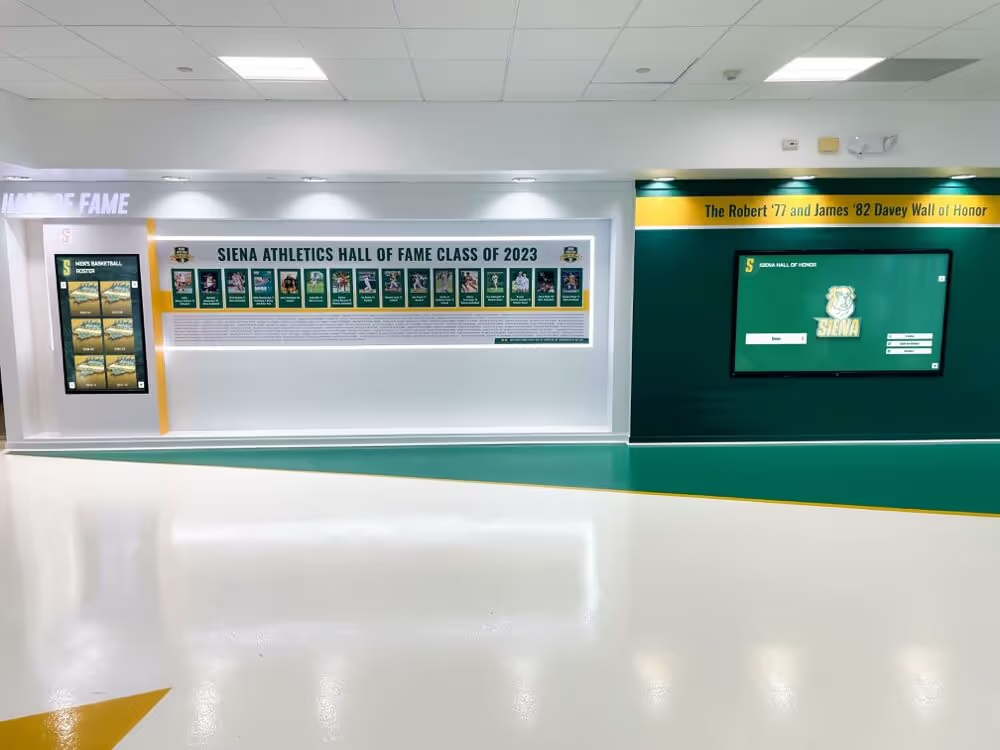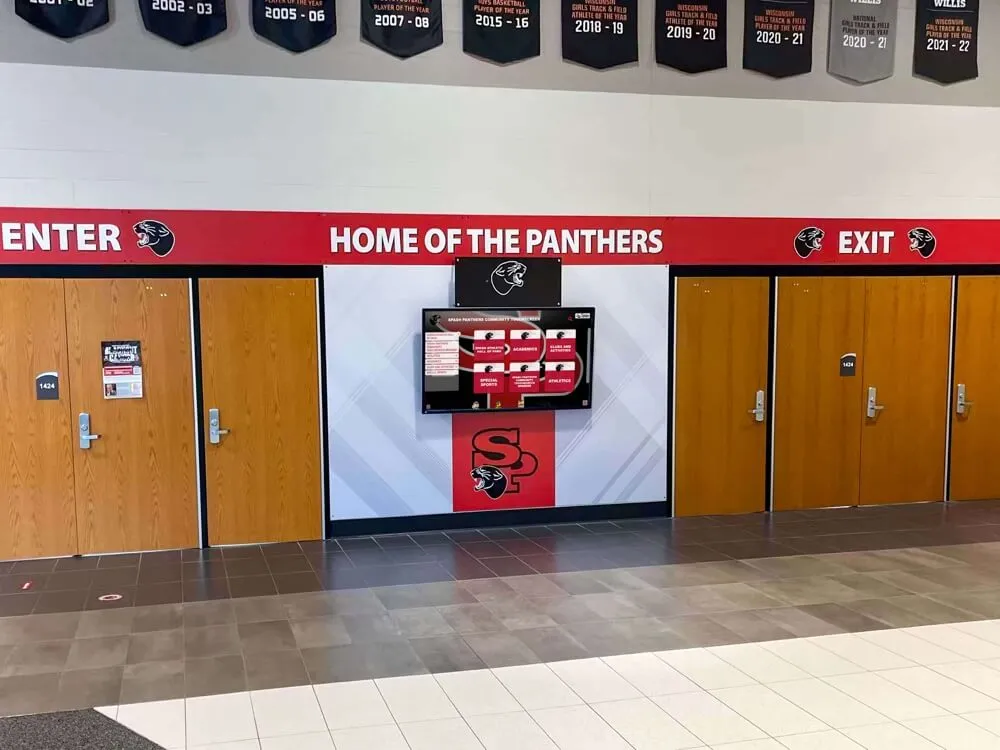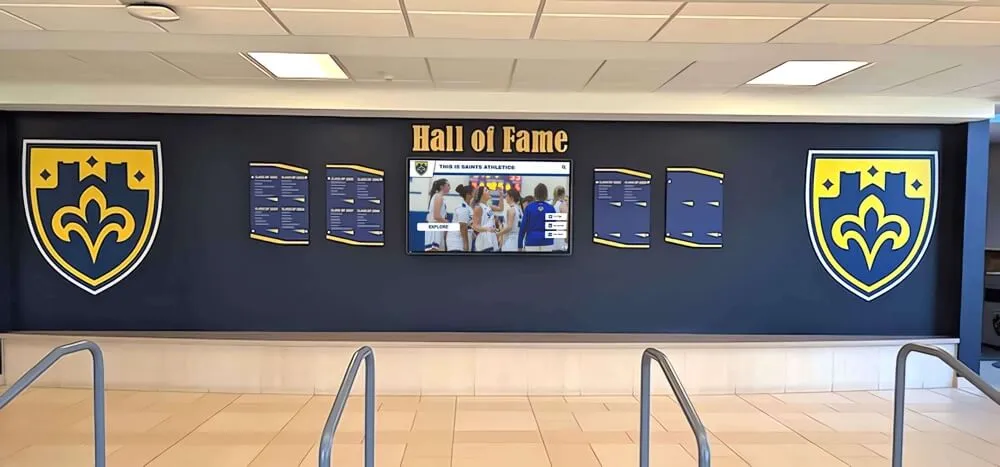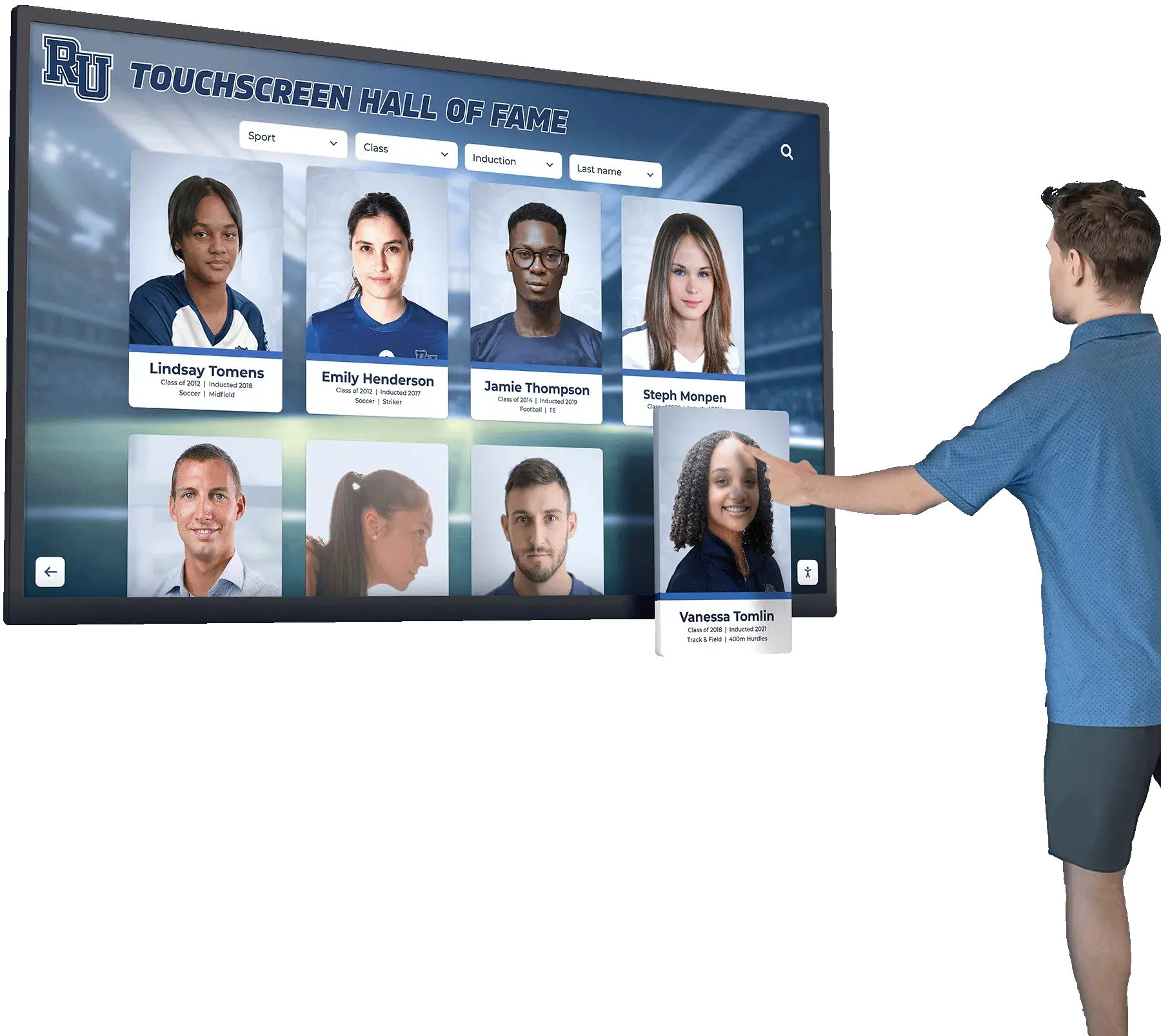




Touchscreen functionality depends entirely on driver software that translates physical touch into digital commands—and while modern operating systems include basic touch support, sophisticated installations like interactive kiosks, digital signage, industrial control panels, and specialized displays often require more comprehensive solutions. UPDD (Universal Pointer Device Driver) from Touch-Base Ltd stands as one of the most versatile and powerful touchscreen driver platforms available, supporting virtually any touch hardware across Windows, macOS, Linux, and Android operating systems.
Whether you’re deploying interactive recognition displays in educational institutions, configuring multi-touch kiosks for public spaces, integrating legacy touchscreen hardware with modern operating systems, or managing networks of touchscreen devices across diverse platforms, understanding UPDD Touch Software capabilities, installation procedures, and configuration options ensures optimal touchscreen performance and unlocks advanced features impossible with standard drivers.
This comprehensive guide explores everything about UPDD Touch Software—from fundamental driver architecture and hardware compatibility through detailed installation procedures, advanced gesture configuration, troubleshooting techniques, and real-world applications where UPDD’s universal approach solves touchscreen challenges that standard drivers cannot address.
Touchscreen driver software creates the critical bridge between physical touch detection hardware and operating system input systems. While native operating system drivers provide basic functionality for common HID (Human Interface Device) compliant touchscreens, specialized driver solutions like UPDD offer extended capabilities including legacy hardware support, advanced calibration, sophisticated gesture recognition, comprehensive diagnostics, and unified management across diverse hardware platforms—capabilities essential for professional installations demanding reliability and flexibility.

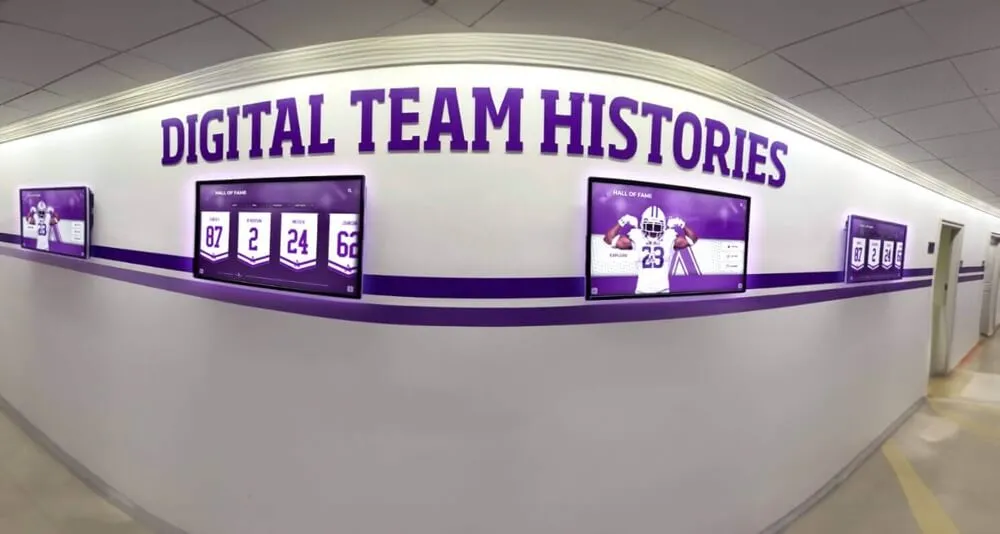
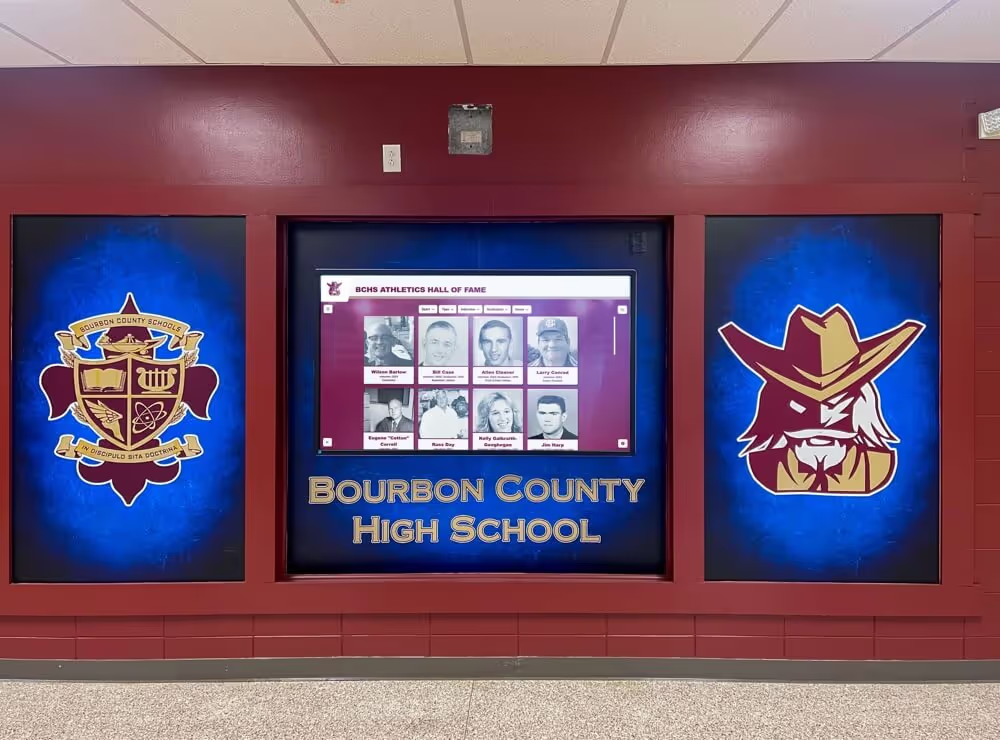
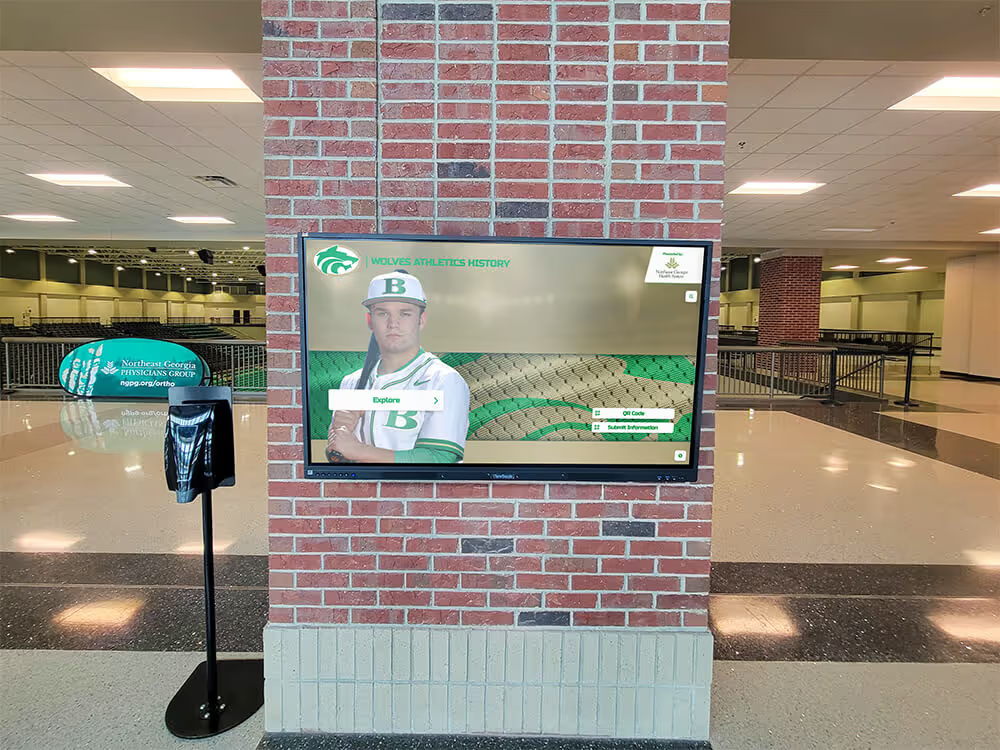
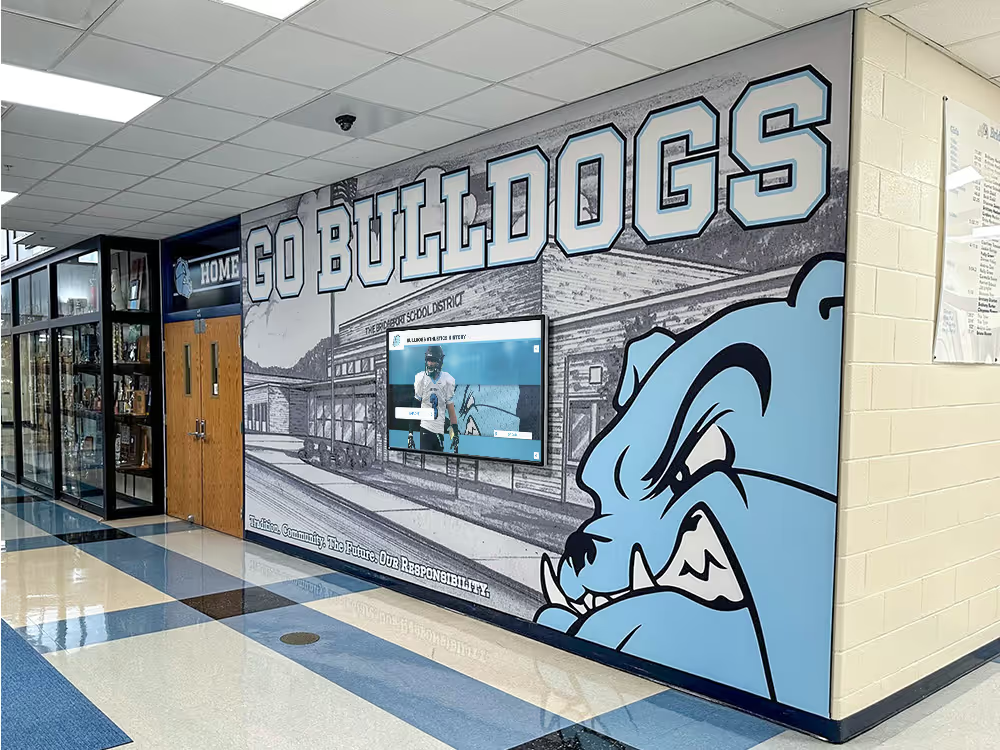
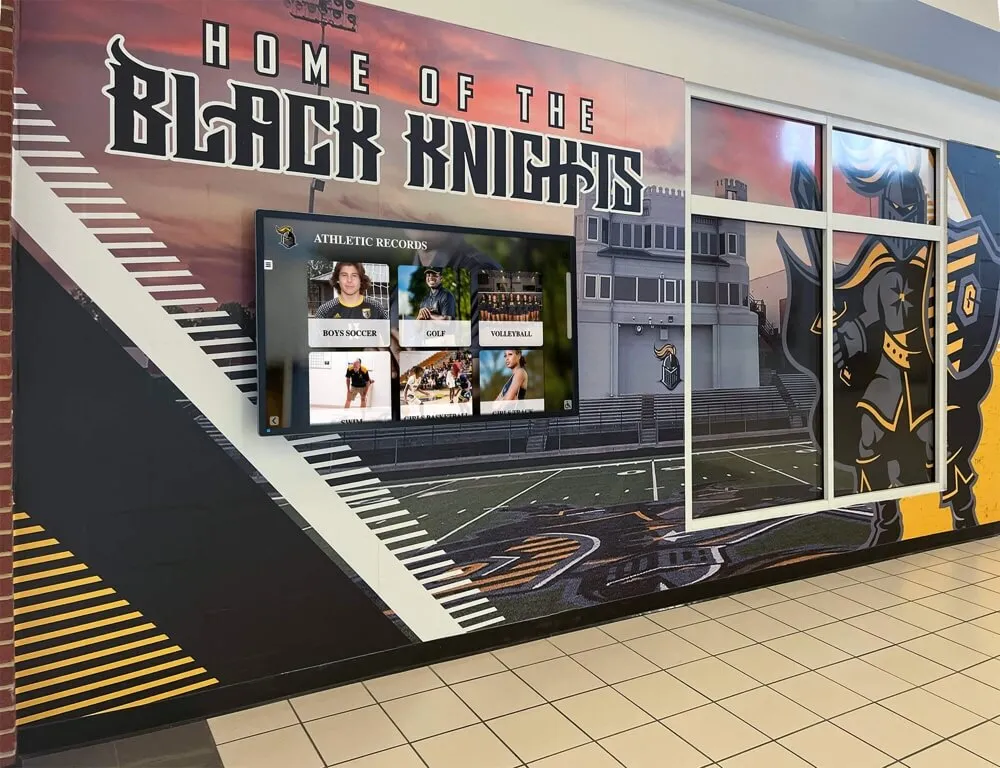
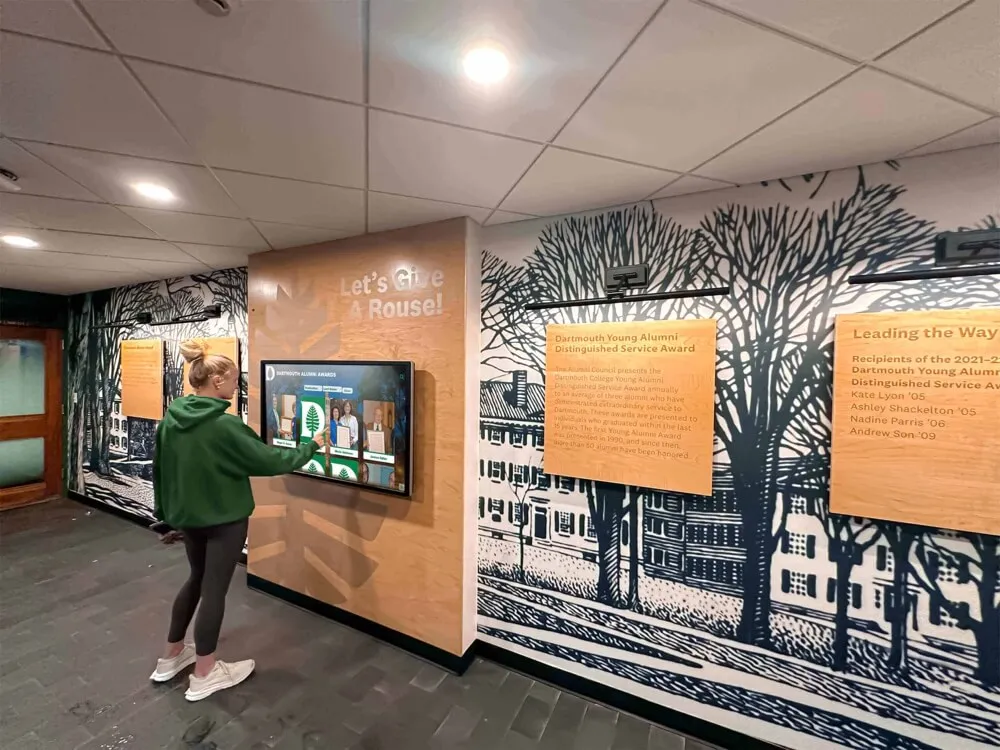
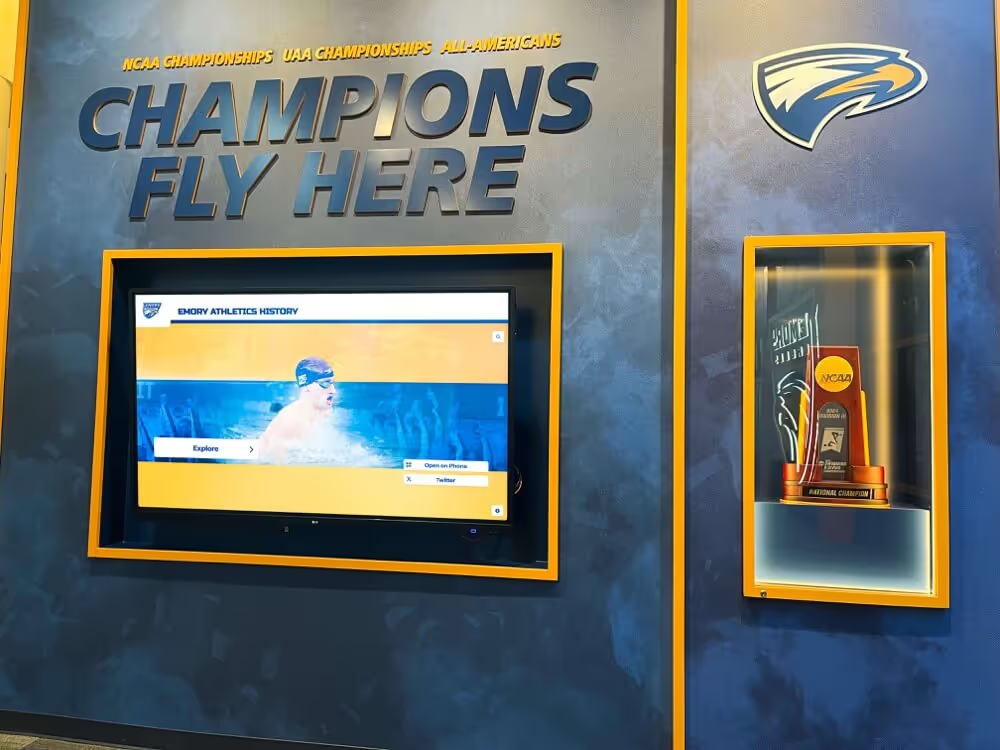
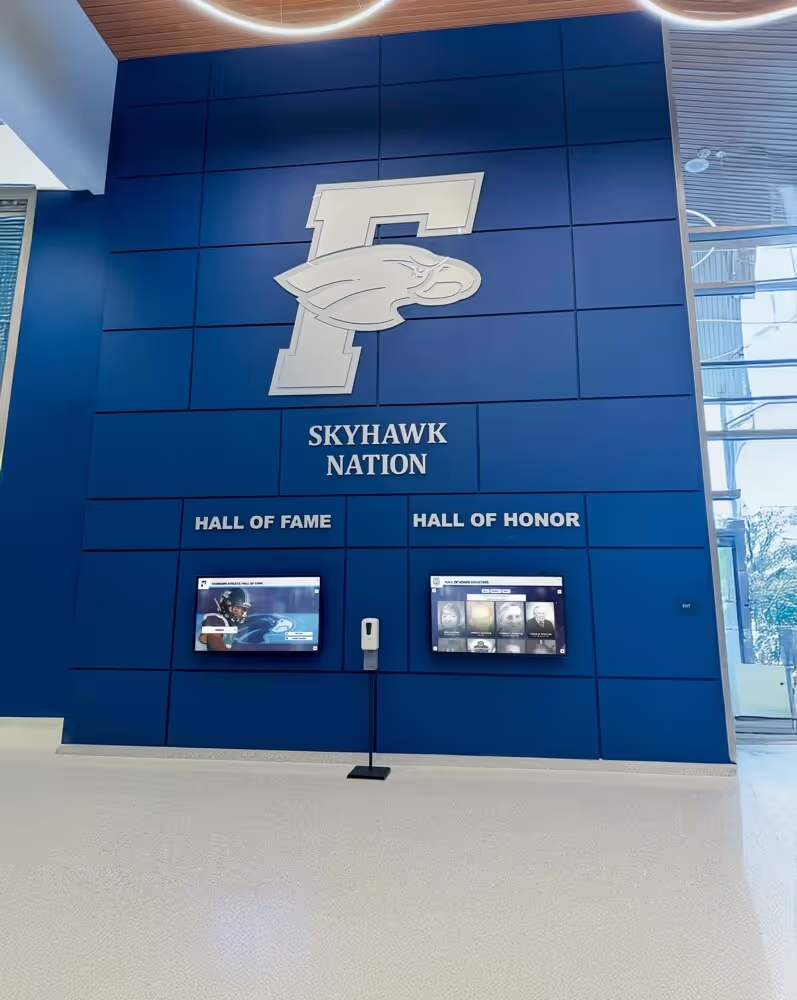
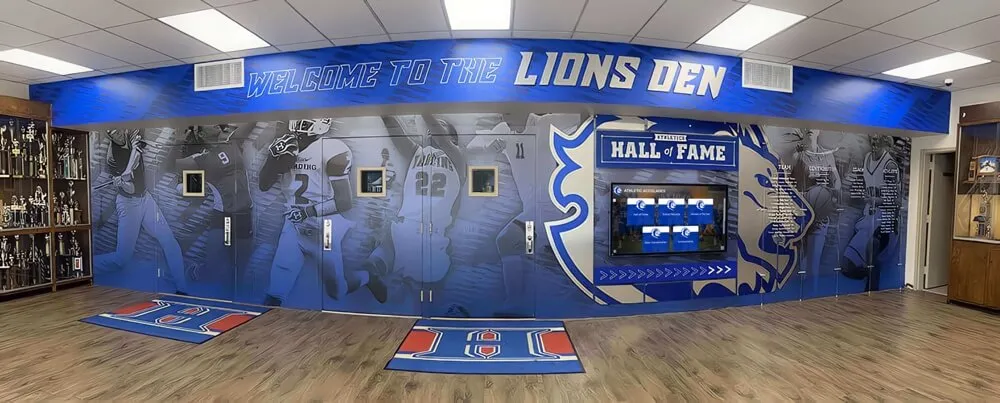
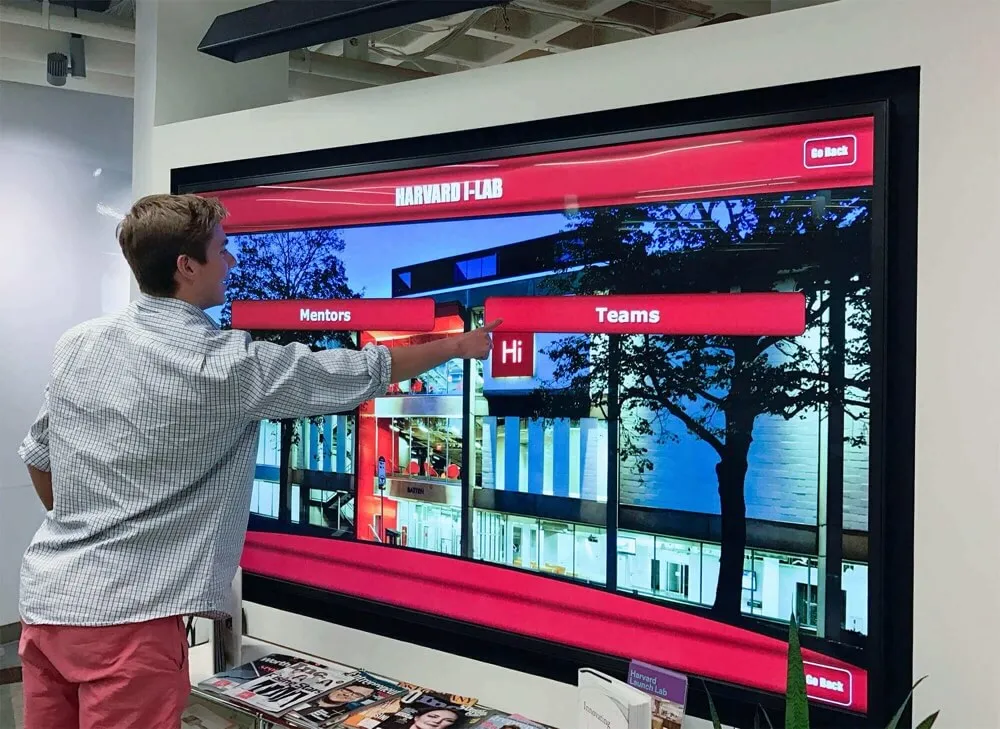
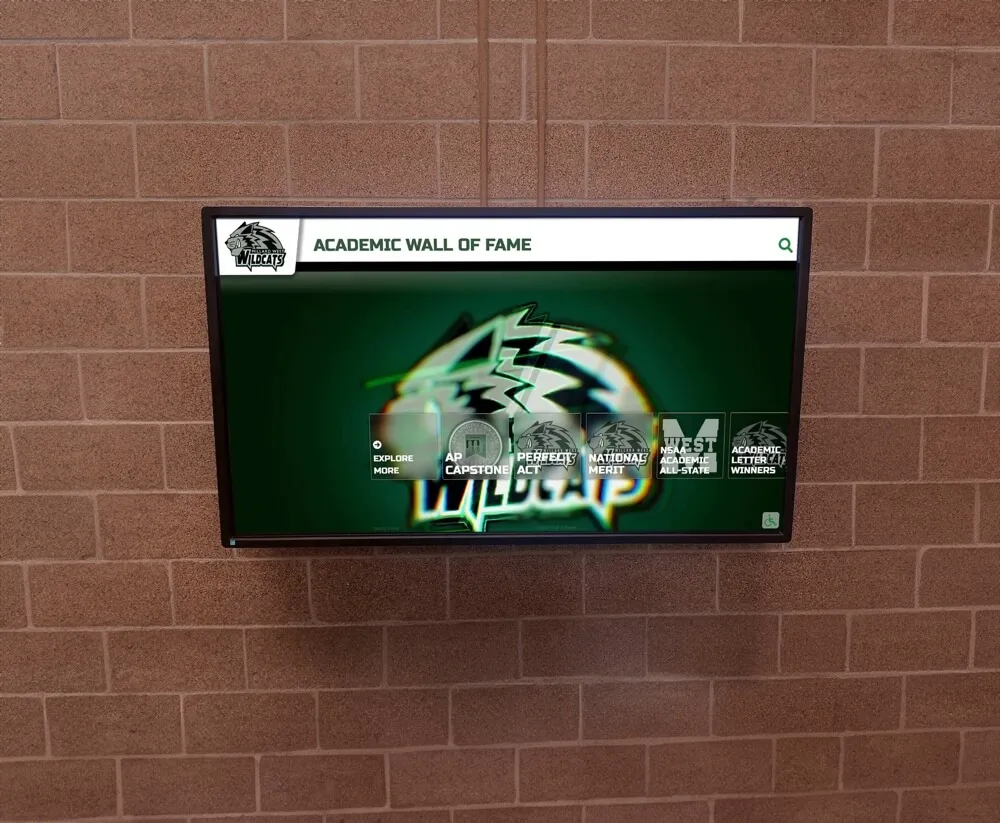
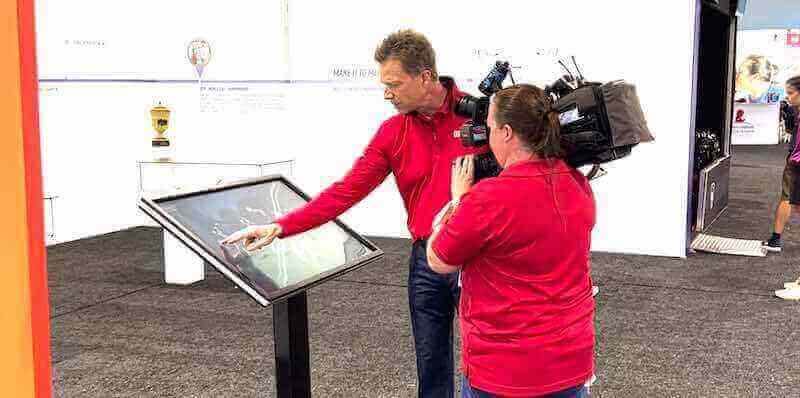
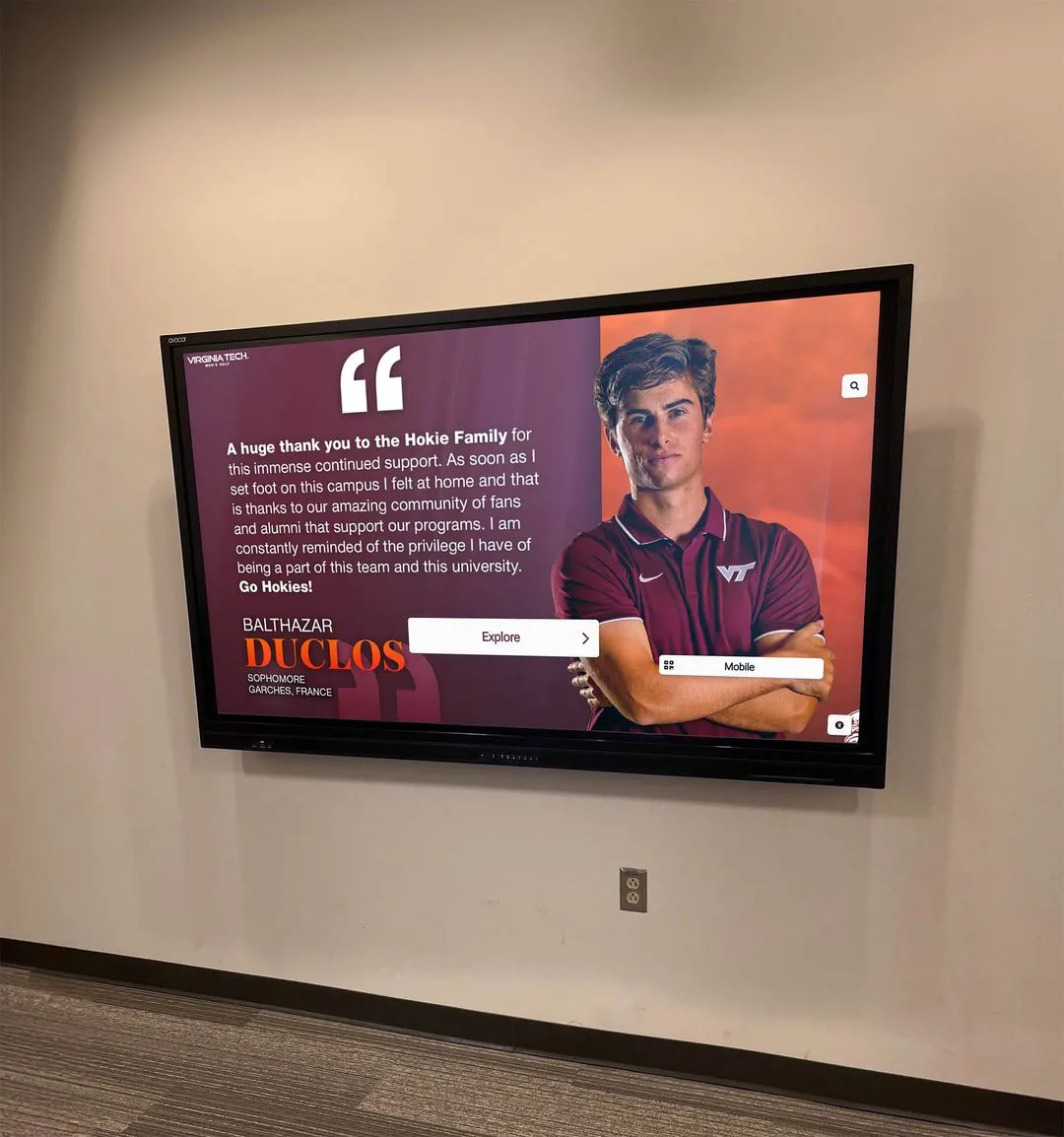
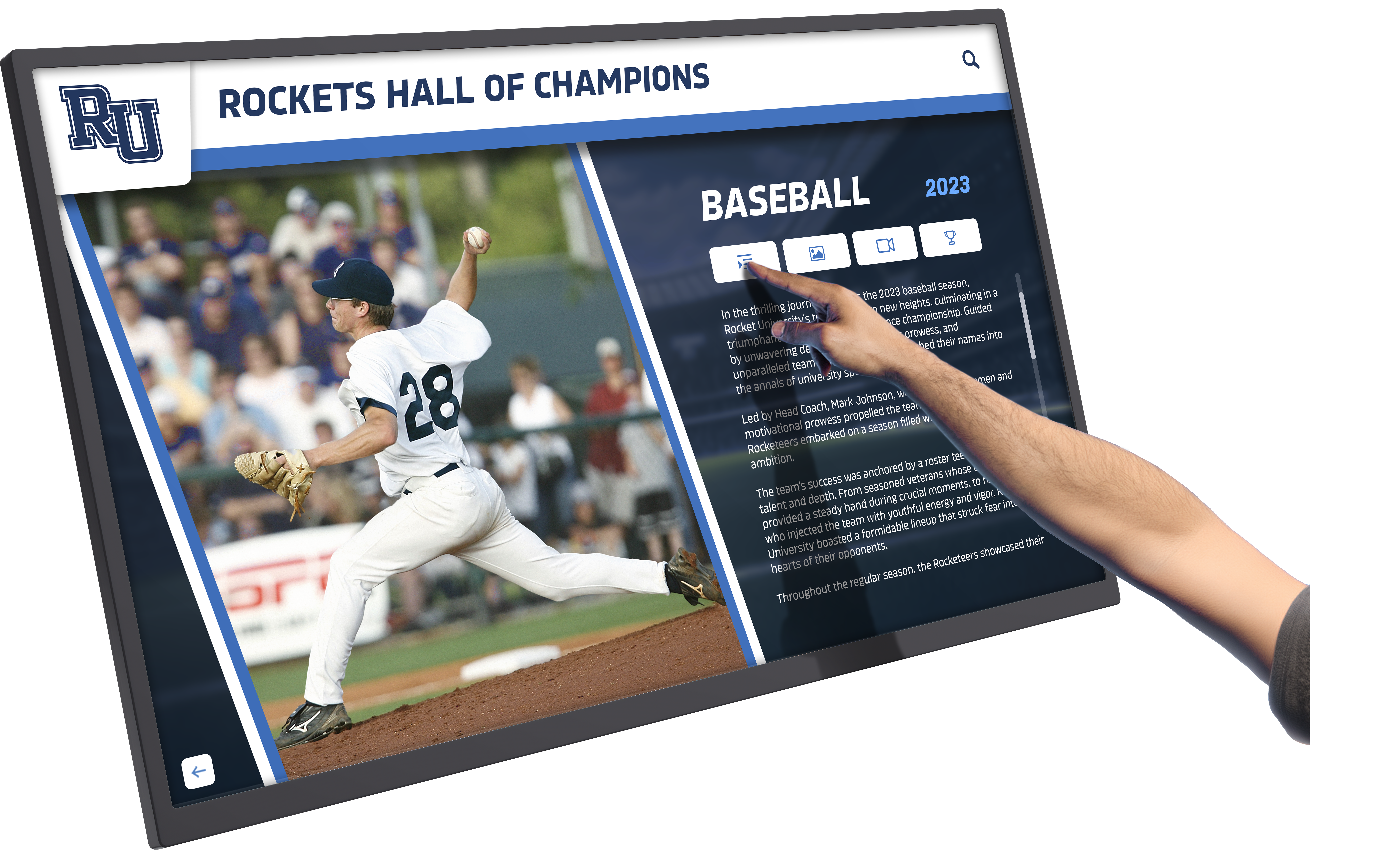
Professional touchscreen installations rely on robust driver software enabling precise, responsive interaction across diverse hardware and operating systems
Understanding UPDD Touch Software: Universal Driver Architecture
Before diving into installation and configuration, understanding UPDD’s fundamental architecture and design philosophy clarifies why this driver solution excels in scenarios where standard operating system touch support proves inadequate.
What Is UPDD Touch Software?
UPDD (Universal Pointer Device Driver) represents a comprehensive touchscreen driver platform developed by Touch-Base Ltd, designed to provide consistent, advanced touchscreen functionality across all major operating systems and virtually any touch hardware.
Core Design Philosophy
- Universal hardware support accommodating modern HID devices and legacy non-HID controllers
- Cross-platform consistency providing similar functionality across Windows, Mac, Linux, and Android
- Extended capabilities beyond native OS touch support
- Professional-grade features for commercial, industrial, and institutional applications
- Comprehensive API enabling custom application integration
- Extensive diagnostic and troubleshooting tools supporting complex deployments
Primary Problem Solving UPDD addresses critical touchscreen challenges including:
- Legacy hardware support: Enabling older serial and non-HID USB touchscreens to function with modern operating systems
- Advanced feature access: Providing calibration, gesture recognition, and configuration options unavailable in standard drivers
- Cross-platform consistency: Ensuring similar touchscreen behavior across different operating systems
- Multi-touch gestures: Enabling sophisticated multi-touch interactions on hardware and systems with limited native support
- Professional diagnostics: Offering tools identifying and resolving hardware and software touch issues
- API integration: Allowing applications to interface directly with touch hardware beyond standard mouse emulation
Organizations implementing interactive touchscreen software for recognition displays, kiosks, exhibits, or digital signage often discover native touch support lacks capabilities their applications require—UPDD fills these gaps with comprehensive, professional-grade touch functionality.
UPDD Driver Components and Architecture
Understanding UPDD’s modular architecture helps users leverage appropriate components for their specific needs.
Core Driver Engine The foundation UPDD driver provides fundamental touch detection and coordinate translation:
- Hardware communication interfacing with touchscreen controllers
- Coordinate processing converting raw touch data to screen positions
- Calibration algorithms ensuring accurate touch-to-display alignment
- Multi-touch processing handling simultaneous touch points
- System integration translating touches to operating system input events
- Device management supporting multiple simultaneous touchscreens
- Configuration storage persisting settings across reboots
UPDD Commander Advanced management application providing gesture control and extended configuration:
- Multi-touch gesture recognition and customization
- Application-specific gesture profiles
- TUIO protocol support for specialized applications
- Per-application touch behavior customization
- Advanced settings beyond basic driver configuration
- Gesture debugging and analysis tools
- Profile import/export for consistent multi-device deployment
Available for Windows and macOS platforms where advanced gesture support proves most valuable.
UPDD Console/Daemon System monitoring and configuration utility providing:
- Real-time touch connection status monitoring
- Calibration interface for touch accuracy adjustment
- Touch testing utilities verifying proper operation
- Hardware detection and identification
- Driver version information and update checking
- Settings access for driver parameter adjustment
- Diagnostic data collection for troubleshooting
UPDD API Interface Comprehensive programming interface enabling applications to:
- Direct hardware communication bypassing mouse emulation
- Custom touch data processing for specialized applications
- Gesture recognition integration within applications
- Calibration control from within software
- Device enumeration discovering available touchscreens
- Event handling for sophisticated touch interactions
- Cross-platform consistent API across operating systems
Libraries available for Windows (.DLL), Linux (.so), and macOS (.dylib) enable developers to create sophisticated touch-enabled applications leveraging UPDD’s capabilities directly.
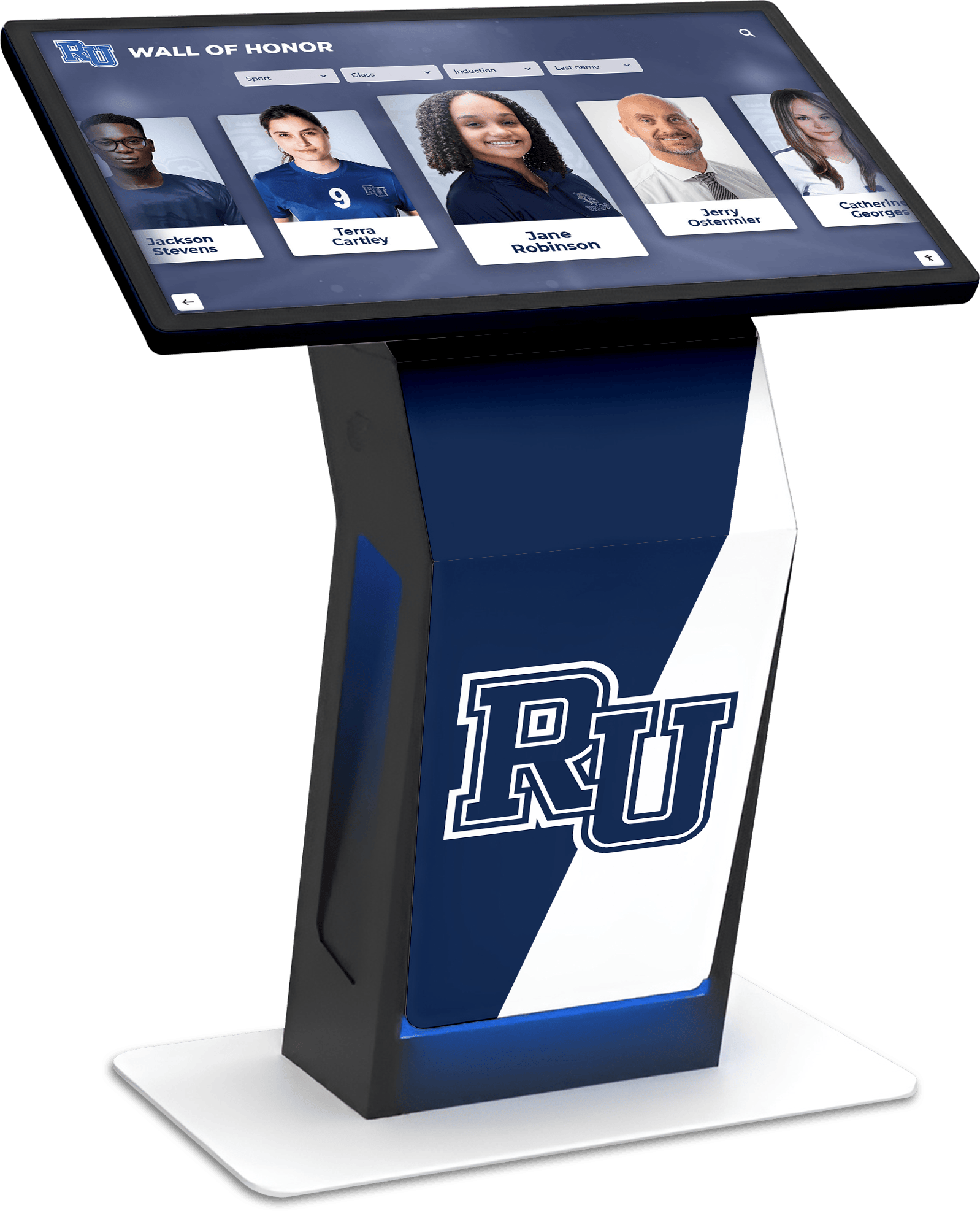
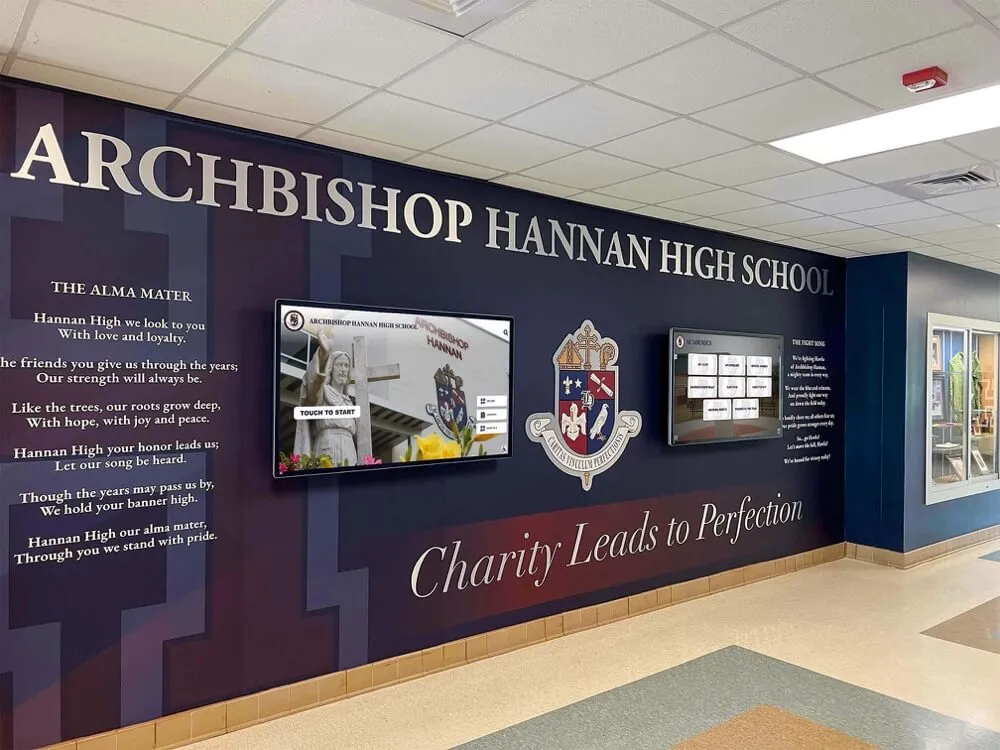
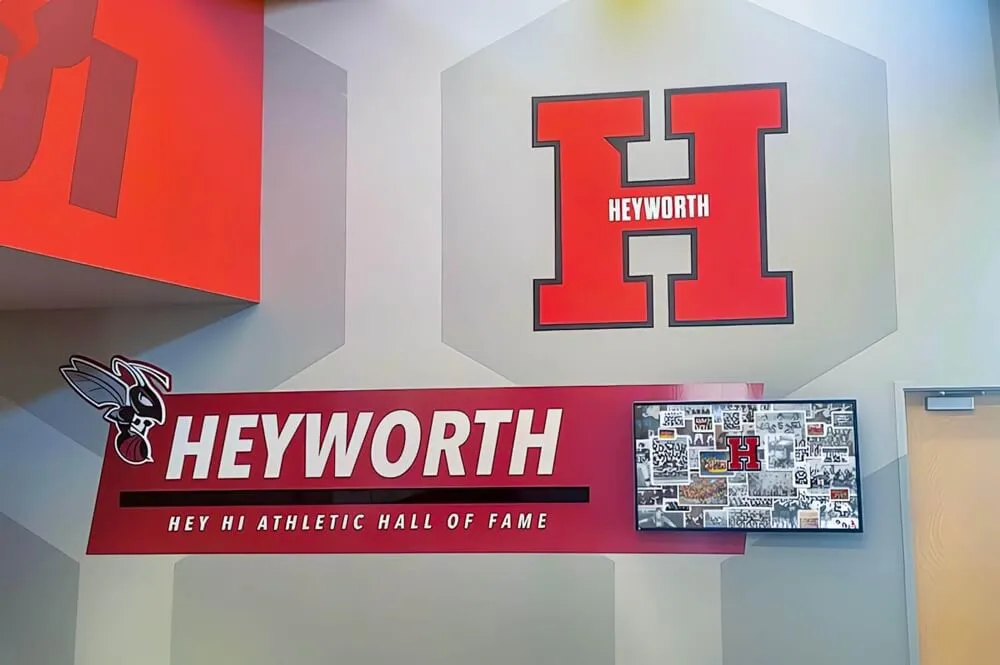
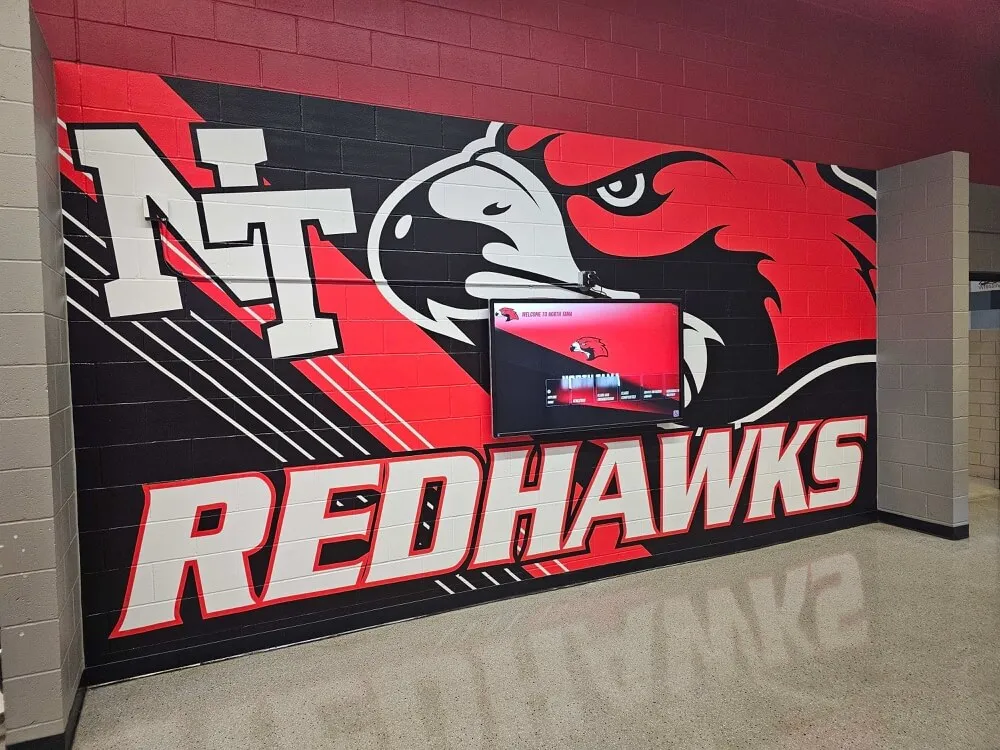
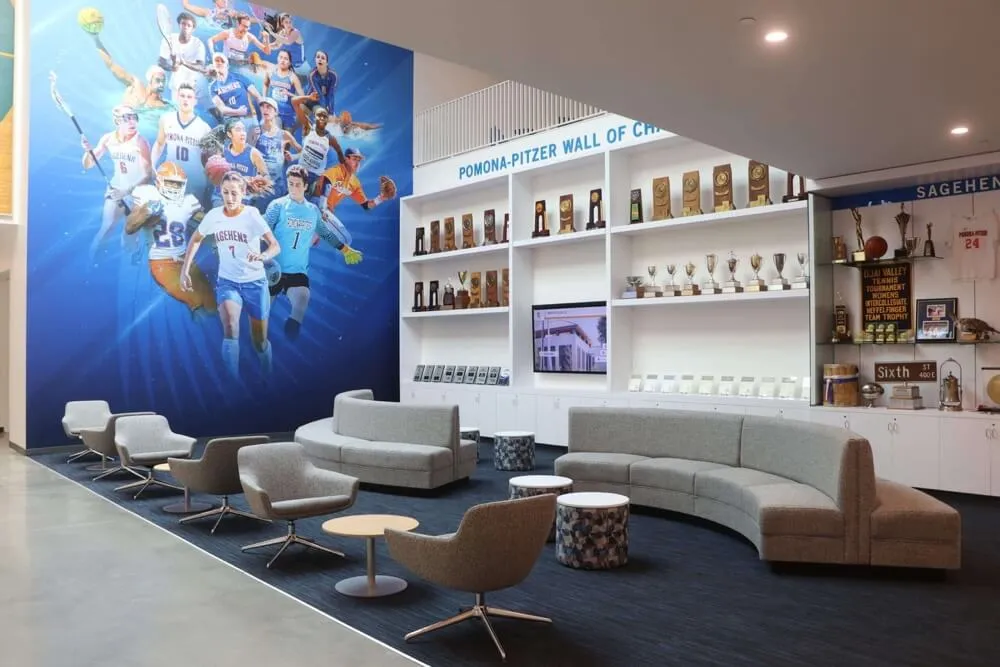
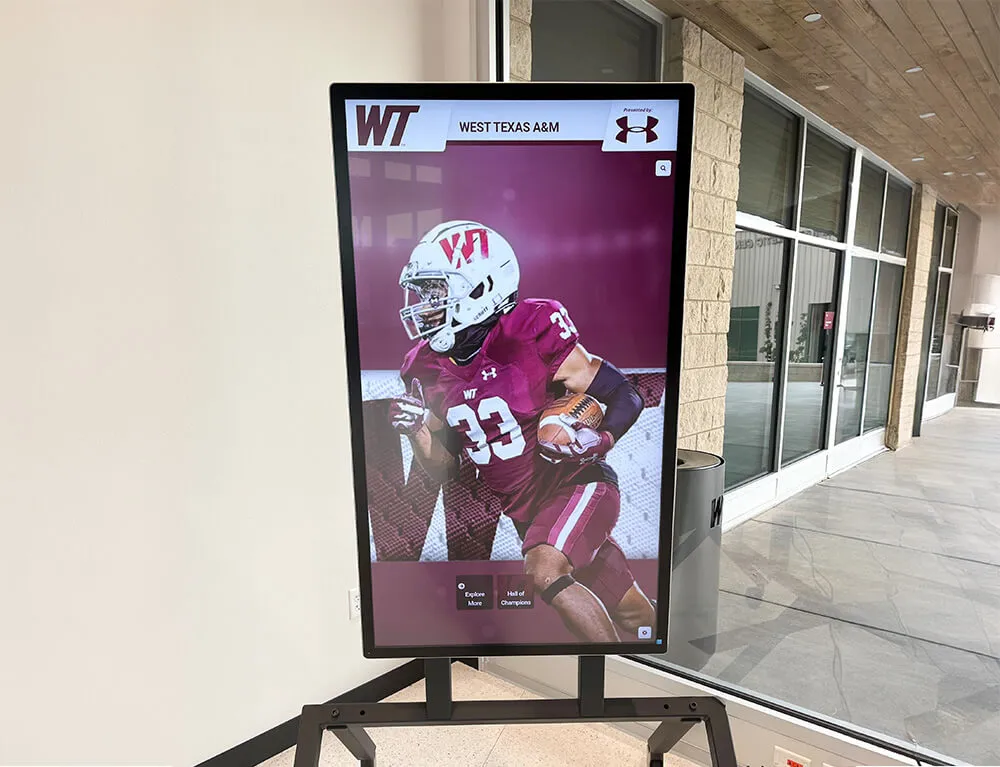
Professional kiosk installations benefit from universal driver support ensuring consistent touchscreen operation across hardware platforms
Operating System and Platform Support
UPDD’s universal approach supports touchscreen deployments across virtually all modern computing platforms and many legacy systems.
Windows Platform Support Comprehensive Windows compatibility spanning multiple versions:
- Windows 11: Full support with latest UPDD V7 driver
- Windows 10: Complete functionality including multi-touch gestures
- Windows 8.1/8: Full feature support for touch-optimized Windows versions
- Windows 7: Complete support including multi-touch on capable hardware
- Windows Vista: Legacy support for older deployments
- Windows XP: Enabling modern multi-touch hardware on legacy XP systems
- Windows Embedded: Support for specialized embedded and kiosk operating systems
UPDD allows modern multi-touch monitors to function in older XP systems while enabling legacy touch hardware to operate in current Windows 11 environments—extending hardware investment lifespans significantly.
macOS Platform Support Native Apple Silicon and Intel support across modern macOS versions:
- macOS 14 Sonoma: Latest macOS support
- macOS 13 Ventura: Full M1/M2 and Intel compatibility
- macOS 12 Monterey: Universal binary support
- macOS 11 Big Sur: Native Apple Silicon support
- macOS 10.15 Catalina: Security hardened macOS compatibility
- macOS 10.14 Mojave through 10.8 Mountain Lion: Extended legacy support
UPDD V7 provides universal binary architecture with native support for both Intel and Apple Silicon (M1/M2/M3) processors—ensuring optimal performance across Mac hardware generations.
Linux Platform Support Broad Linux distribution compatibility supporting enterprise and embedded deployments:
- Ubuntu and Debian-based distributions
- Red Hat Enterprise Linux and Fedora
- SUSE and openSUSE platforms
- Embedded Linux for specialized applications
- Custom distributions with standard kernel versions
Linux support enables touchscreen functionality in industrial control systems, embedded devices, digital signage players, and specialized computing environments where Linux provides optimal platform characteristics.
Android Platform Support UPDD extends to Android devices enabling unified touchscreen management:
- Android tablets for kiosk applications
- Custom Android-based digital signage players
- Industrial Android systems
- Specialized embedded Android devices
Cross-platform UPDD deployment allows organizations to standardize on single driver platform regardless of underlying operating system—simplifying management, training, and troubleshooting across heterogeneous device fleets.
Explore comprehensive approaches to touchscreen kiosk software that leverage universal driver capabilities.
Hardware Compatibility: Touchscreen Controllers and Displays
UPDD’s “universal” designation reflects exceptional hardware compatibility supporting virtually any touchscreen technology and controller interface.
Supported Touch Technologies
UPDD works with all major touchscreen sensing technologies, each offering distinct characteristics suitable for different applications.
Capacitive Touch (PCAP) Most common modern touchscreen technology:
- Multi-touch capability supporting sophisticated gestures
- Excellent touch sensitivity requiring minimal pressure
- Clear display visibility with minimal light transmission loss
- Durability suitable for high-frequency public use
- UPDD support: Complete including advanced multi-touch gestures
- Common applications: Tablets, smartphones, interactive kiosks, modern displays
Resistive Touch Pressure-sensitive technology common in industrial and legacy applications:
- Works with any input (finger, stylus, gloved hand)
- Excellent for harsh environments and industrial use
- Lower cost than capacitive alternatives
- Typically single-touch operation
- UPDD support: Full functionality including calibration
- Common applications: Industrial controls, healthcare equipment, outdoor kiosks
Infrared Touch Optical beam technology detecting touch by interruption:
- Large format scalability up to massive displays
- Excellent durability with no touch surface overlay
- Works with any input including gloved hands
- Multi-touch support available on modern controllers
- UPDD support: Complete including large-format installations
- Common applications: Large displays, outdoor installations, public kiosks
Surface Acoustic Wave (SAW) Ultrasonic wave technology offering excellent image clarity:
- Superior image quality and light transmission
- Durable glass surface suitable for public use
- Sensitive touch detection
- Typically single-touch operation
- UPDD support: Full functionality
- Common applications: Information kiosks, point-of-sale, ATMs
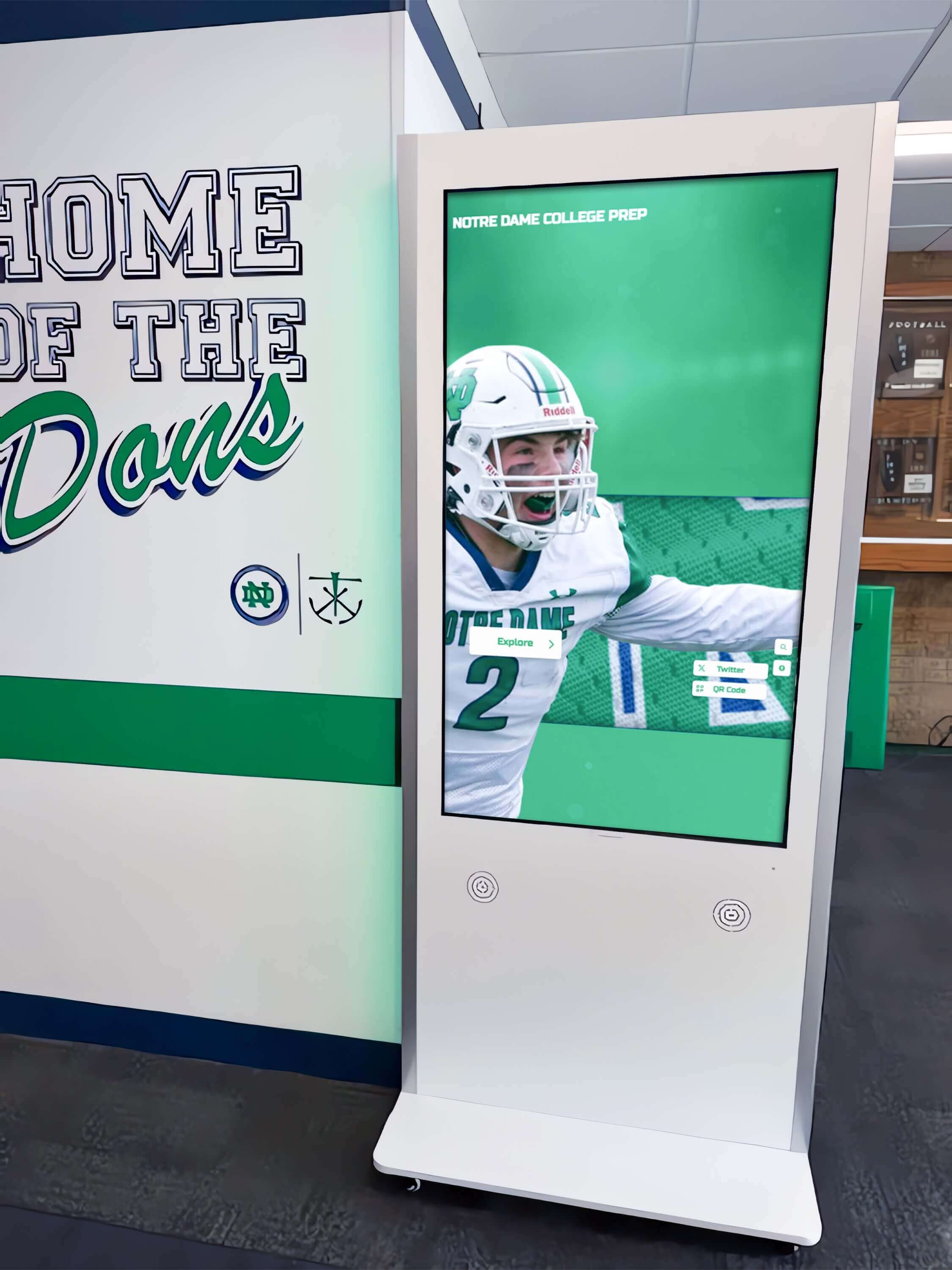
UPDD supports diverse touchscreen technologies from capacitive multi-touch displays to legacy resistive panels
Optical Touch Camera-based detection systems recognizing touch through image analysis:
- Scalable to very large formats
- No overlay affecting display image quality
- Multi-touch capability on modern systems
- UPDD support: Available for compatible controllers
- Common applications: Interactive whiteboards, large displays
Interface and Connection Support
UPDD accommodates virtually any touchscreen controller connection method including modern and legacy interfaces.
Modern HID USB Touch Controllers Standard USB Human Interface Device compliant controllers:
- Plug-and-play functionality requiring minimal configuration
- Multi-touch support on capable hardware
- UPDD provides enhanced features beyond standard HID drivers
- Most common interface for modern touchscreens
- Cross-platform compatibility simplifying multi-OS deployments
Non-HID USB Controllers Proprietary USB touchscreen controllers:
- Require specific drivers typically unavailable for all operating systems
- UPDD provides universal support across platforms
- Enables touchscreens with proprietary protocols to function widely
- Common in specialized industrial and legacy equipment
Serial (RS-232) Touch Controllers Legacy interface common in older installations:
- Serial COM port connection
- Typically single-touch operation
- UPDD enables serial touchscreens to function with modern operating systems
- Extends hardware lifespan avoiding replacement costs
- Common in industrial equipment, medical devices, legacy kiosks
Proprietary and Specialized Interfaces Custom controller interfaces specific to manufacturers:
- Touch-Base develops UPDD support for numerous proprietary protocols
- Enables rare and specialized hardware to function broadly
- Particularly valuable for legacy equipment no longer manufacturer-supported
- Contact Touch-Base for specific controller compatibility verification
Organizations implementing touchscreen displays for schools benefit from UPDD’s compatibility with diverse display manufacturers and touch technologies.
Multi-Display and Multi-Touch Support
Professional installations often require multiple displays or sophisticated multi-touch interactions—UPDD provides comprehensive support for complex configurations.
Multiple Touchscreen Management
- Simultaneous support for unlimited touchscreen devices
- Independent calibration and configuration per display
- Coordinate mapping ensuring touches register on correct screens
- Display identification and automatic configuration
- Hot-plugging support for connect/disconnect without reboot
- Portrait and landscape orientation support per display
- Extended desktop and video wall configurations
Multi-Touch Gesture Recognition When using multi-touch touchscreens, UPDD supports:
- Simultaneous multi-finger touch point tracking
- Pinch-to-zoom gestures for image and content scaling
- Two-finger rotate gestures for content manipulation
- Swipe gestures for navigation and content dismissal
- Press-and-hold for contextual menus
- Custom gesture definition for specialized applications
- Application-specific gesture profiles adapting to software context
Multi-touch gesture support mimics trackpad and Magic Mouse functionality on touchscreens, creating intuitive interaction models users understand instinctively from mobile device experience.
TUIO Protocol Support UPDD Commander includes TUIO (Tangible User Interface Objects) protocol support:
- Industry-standard protocol for multi-touch and tangible interfaces
- Enables UPDD to interface with creative coding environments
- Supports interactive installations and exhibits
- Compatible with Processing, openFrameworks, Unity, and similar platforms
- Broadcasts touch data for application consumption
- Useful for art installations, museum exhibits, and creative applications
UPDD Installation: Step-by-Step Procedures Across Platforms
Proper UPDD installation ensures reliable touchscreen operation and access to full driver capabilities—procedures vary by operating system with platform-specific considerations.
Windows Installation Process
Installing UPDD on Windows systems follows straightforward procedures with important security and permission considerations.
Pre-Installation Preparation Before beginning installation:
- Verify administrator access: Installation requires administrator privileges
- Disable antivirus temporarily: Some security software may interfere with driver installation
- Document current touch functionality: Test existing touch operation to compare post-installation
- Backup current configuration: If replacing existing drivers, document current settings
- Download appropriate UPDD version: Obtain latest UPDD V7 driver from Touch-Base website or license portal
Installation Steps Windows UPDD installation procedure:
- Run installer executable: Double-click downloaded UPDD installation file
- User Account Control prompt: Approve administrator elevation when prompted
- License acceptance: Review and accept software license agreement
- Component selection: Choose installation components (typical installation recommended for most users)
- Installation location: Accept default location or specify custom directory
- Driver installation: Windows may display driver installation prompts—approve all
- Completion: Restart computer when prompted to complete driver installation
Post-Installation Verification After restart, verify proper installation:
- System tray icon: UPDD Console icon should appear in system notification area
- Touch functionality: Test touchscreen operation across display surface
- Device detection: Open UPDD Console to verify driver recognizes touchscreen hardware
- Calibration check: Verify touch accuracy matches visual cursor position
- Gesture testing: If multi-touch hardware, test pinch and swipe gestures
Windows-Specific Considerations Important Windows platform notes:
- Windows Precision Touchpad interference: Disable Windows built-in touch drivers if conflicts occur
- Multiple display coordination: Configure display arrangement before final calibration
- Startup configuration: UPDD Console and Daemon should start automatically
- Firewall exceptions: Add UPDD components to firewall allowed list if network features used
- Group Policy considerations: Enterprise environments may require GPO modifications
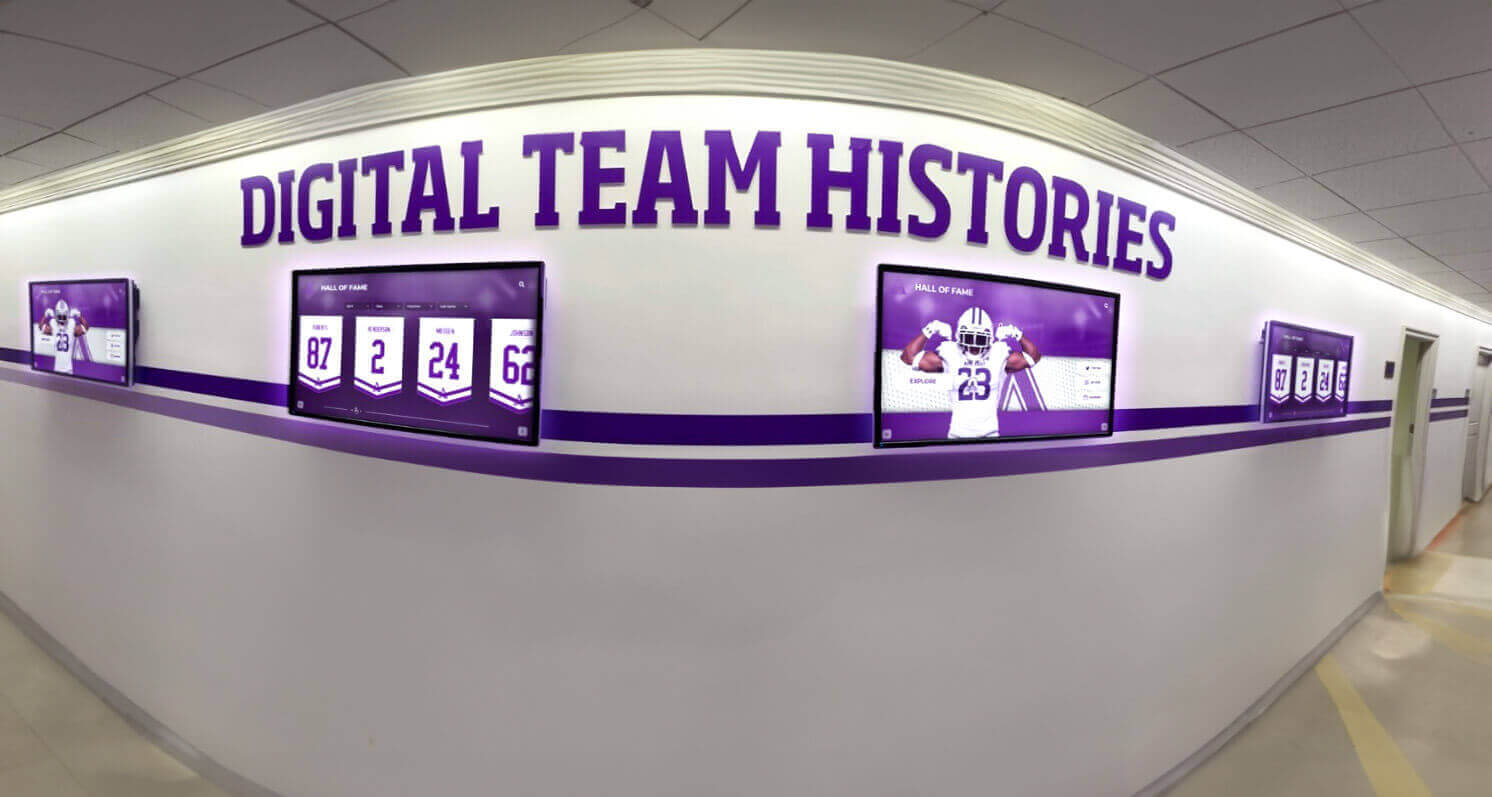
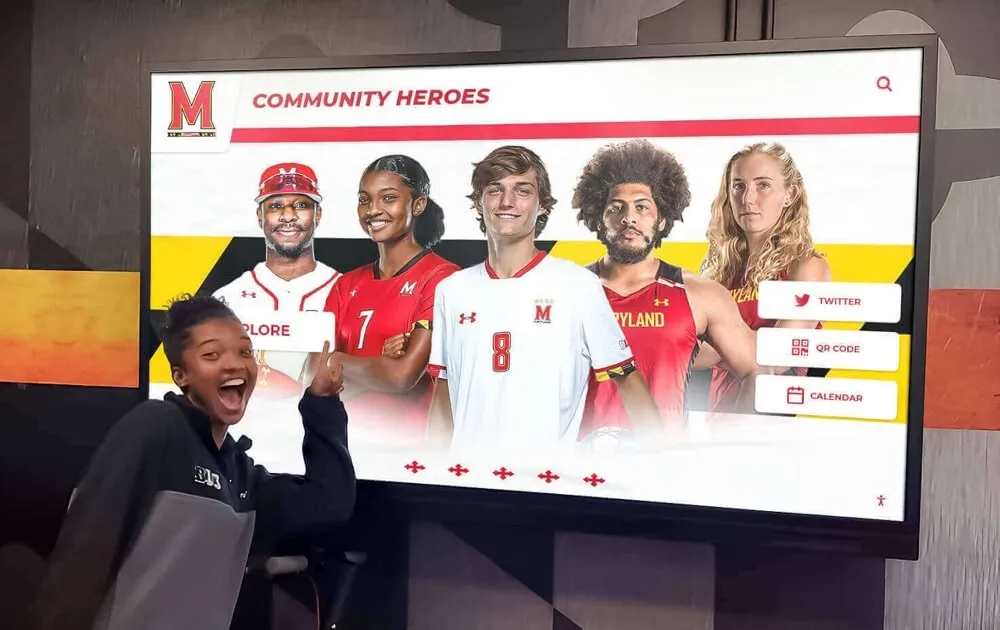
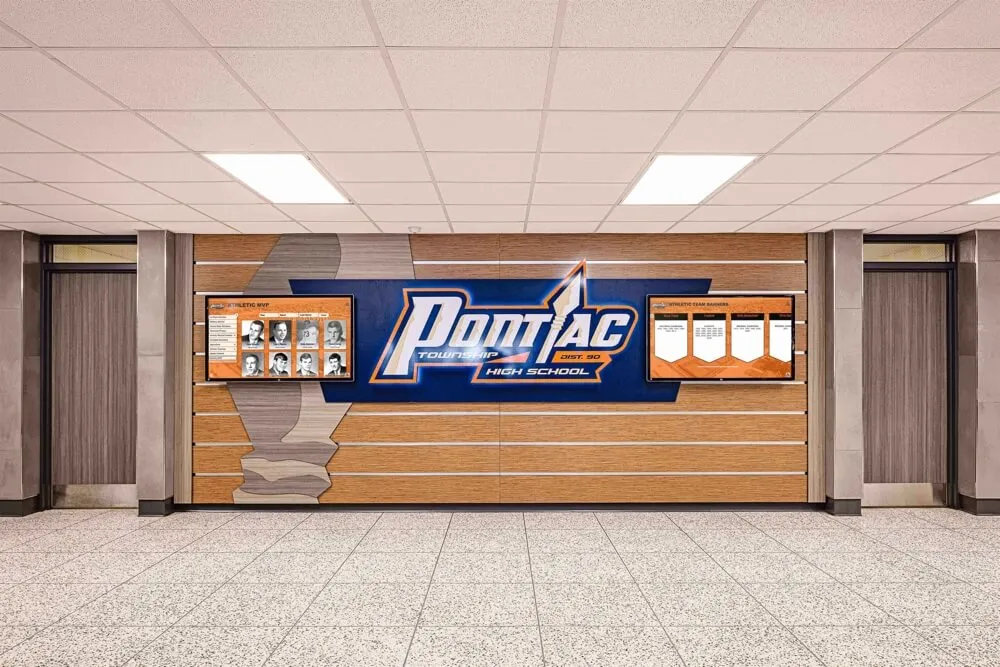
Professional installations often deploy multiple touchscreens requiring coordinated driver configuration
macOS Installation Process
Mac installation requires careful attention to system security permissions—modern macOS versions implement strict controls over kernel extensions and accessibility.
Pre-Installation Requirements Before installing UPDD on macOS:
- Download macOS disk image: Obtain updd_06_xx_xx.dmg or updd_07_xx_xx.dmg from Touch-Base
- Verify macOS version: Ensure compatibility with your macOS version (10.8 and above supported)
- Check Apple Silicon vs Intel: UPDD V7 supports both architectures with universal binary
- Administrator access: Ensure you have administrator privileges
- Disable existing touch software: Remove conflicting touch drivers if present
Installation Steps macOS UPDD installation procedure:
- Mount disk image: Double-click downloaded .dmg file
- Run installer application: Launch UPDD Installer from mounted volume
- Authenticate: Enter administrator credentials when prompted
- Allow kernel extension: Critical step—System Preferences will prompt for kernel extension approval
- Open System Preferences > Security & Privacy
- Click Allow for Touch-Base system extension
- macOS 10.13+ requires this approval or touch will not function
- Accessibility permissions: Grant accessibility permissions to UPDD applications
- Open System Preferences > Security & Privacy > Privacy > Accessibility
- Add UPDD Commander and UPDD Daemon to allowed applications
- Check boxes enabling permissions
- Complete installation: Close installer when complete
- Restart if required: Some macOS versions require restart
Critical macOS 10.13+ Requirement If you do not follow the installation steps completely, especially on macOS 10.13 and above, touch will not work. It is essential that you:
- Allow the kernel/system extension file to be installed during setup
- Give accessibility permissions to UPDD applications
Failing to complete these steps results in non-functional touchscreen despite successful installation.
Post-Installation Configuration After installation completes:
- Launch UPDD Commander: Access gesture settings and advanced configuration
- Launch UPDD Daemon: Check touch connection status and perform calibration
- Test touch operation: Verify touchscreen responds across entire surface
- Configure gestures: Customize multi-touch gestures as desired for your applications
Learn about touchscreen technology history and driver development evolution informing modern solutions like UPDD.
Linux Installation Process
Linux UPDD installation varies by distribution but follows general patterns with package-based deployment.
Pre-Installation Considerations Before installing UPDD on Linux:
- Identify distribution: Determine your Linux distribution and version
- Package format: Identify whether your distribution uses DEB (Debian/Ubuntu) or RPM (Red Hat/Fedora)
- Kernel version: Note kernel version for compatibility verification
- Download appropriate package: Obtain correct UPDD Linux package from Touch-Base
- Root access: Ensure you have root/sudo privileges
Installation Steps Linux UPDD installation procedure (example for Debian/Ubuntu):
# Download UPDD .deb package
wget https://path-to-updd-package/updd-vX.X.X.deb

# Install package using dpkg
sudo dpkg -i updd-vX.X.X.deb

# Resolve any dependency issues
sudo apt-get install -f

# Start UPDD service
sudo systemctl start updd

# Enable automatic startup
sudo systemctl enable updd

# Verify installation
updd-version
Configuration and Testing After installation:
- Launch UPDD configuration utility
- Verify hardware detection
- Perform calibration if needed
- Test touch functionality
- Configure for X11 or Wayland as appropriate
Linux-Specific Considerations
- X Server configuration: May require X11 configuration modifications
- udev rules: Proper device permissions through udev rules
- Wayland support: Verify Wayland compatibility for recent distributions
- Custom kernels: Non-standard kernels may require driver recompilation
- Embedded systems: Lightweight configurations available for resource-constrained devices
Android Installation Process
Android UPDD deployment typically occurs in specialized applications like digital signage and kiosk systems.
Installation Approach Android UPDD installation follows app deployment procedures:
- Obtain UPDD Android application: Download from Google Play or receive APK from Touch-Base
- Install application: Standard Android app installation procedure
- Grant required permissions: Accessibility and overlay permissions typically required
- Configure touchscreen mapping: Adjust settings for display configuration
- Test functionality: Verify proper touch operation
Android Deployment Scenarios
- Kiosk lockdown solutions: Integration with kiosk management software
- Digital signage players: Android-based commercial display systems
- Custom OEM devices: Specialized hardware with Android operating system
- MDM deployment: Enterprise mobile device management distribution
Organizations implementing interactive digital displays across platforms benefit from UPDD’s consistent cross-platform functionality.
UPDD Configuration and Calibration: Optimizing Touch Performance
After installation, proper configuration and calibration ensure accurate, responsive touchscreen operation meeting application requirements.
Touch Calibration Procedures
Calibration aligns touchscreen coordinate reporting with visual display positioning—essential for accurate touch-to-cursor correspondence.
When Calibration Is Required Calibration becomes necessary when:
- Touch cursor appears offset from actual touch position
- After initial driver installation
- When rotating displays between landscape and portrait
- After display resolution or scaling changes
- When experiencing drift or inconsistent touch accuracy
- After hardware repair or touchscreen replacement
- For legacy or non-HID touchscreen controllers
Windows and Linux Calibration Process UPDD Console provides calibration interface:
- Open UPDD Console: Launch from system tray or applications menu
- Access calibration: Select Calibration option from menu
- Touch calibration points: Follow on-screen prompts touching indicated points accurately
- Typical pattern: Four-corner and center point calibration most common
- Extended calibration: More points provide higher accuracy for large displays
- Test results: Verify accuracy across display surface after calibration
- Save calibration: Confirm to persist calibration data
macOS Calibration Process UPDD Daemon on macOS provides calibration:
- Launch UPDD Daemon: Open from Applications folder
- Select calibration: Access calibration interface
- Follow calibration sequence: Touch indicated points precisely
- Verify accuracy: Test touch-to-cursor alignment
- Adjust if needed: Recalibrate if accuracy insufficient

Proper calibration ensures precise touch response creating intuitive, frustration-free user experiences
Advanced Calibration Options UPDD supports sophisticated calibration scenarios:
- Per-display calibration: Independent calibration for each display in multi-monitor setups
- Rotation compensation: Automatic calibration adjustment for display orientation changes
- Edge accuracy tuning: Enhanced calibration for touch accuracy at display edges
- Linearization: Advanced algorithms correcting non-linear coordinate mapping
- Export/import calibration: Transferring calibration between identical hardware configurations
Gesture Configuration and Customization
UPDD Commander provides comprehensive gesture recognition and customization capabilities for multi-touch displays.
Default Gesture Set UPDD Commander includes predefined gestures mimicking standard trackpad interactions:
- Single tap: Standard click/selection
- Two-finger tap: Right-click/context menu
- Pinch: Zoom in/out (two fingers moving together/apart)
- Rotate: Rotation gesture (two fingers rotating around point)
- Swipe: Scrolling and navigation (one or multiple fingers)
- Press and hold: Contextual actions
Default gestures work immediately after installation, providing familiar interaction patterns users understand from tablet and smartphone experience.
Customizing Gestures UPDD Commander enables extensive gesture customization:
- Open UPDD Commander: Launch application from Applications folder or Start menu
- Access Gesture Settings: Select gesture configuration interface
- Choose gesture to customize: Select from list of recognized gestures
- Define action: Specify what occurs when gesture is performed:
- Keyboard shortcut simulation
- Mouse button clicks
- Application launching
- System commands
- Custom scripts
- Test gesture: Perform gesture to verify proper recognition and action
- Save configuration: Persist customized gesture settings
Application-Specific Gesture Profiles UPDD Commander supports different gesture behaviors per application:
- Application detection: Automatically identifies active application
- Profile switching: Loads appropriate gesture set when application gains focus
- Per-app customization: Different gestures for different software
- UI element gestures: Specific gestures within application dialog elements
- Profile management: Create, save, and switch between gesture profiles
This enables gestures optimized for each application—CAD software might use different gestures than web browsers or creative applications.
TUIO Protocol Configuration For applications supporting TUIO protocol:
- Enable TUIO: Activate TUIO support in UPDD Commander settings
- Configure network: Set IP address and port for TUIO data broadcasting
- Application connection: Configure receiving application to listen on specified port
- Test connection: Verify application receives touch data
- Adjust settings: Fine-tune TUIO parameters for application requirements
TUIO support enables UPDD to interface with creative coding platforms, interactive installations, and specialized multi-touch applications.
Explore designing engaging touchscreen experiences leveraging advanced gesture capabilities.
UPDD Console Settings and Advanced Configuration
UPDD Console provides access to extensive driver settings beyond basic calibration.
Touch Settings Fine-tuning touch behavior:
- Touch sensitivity: Adjusting activation threshold
- Touch timeout: Duration for touch detection
- Debounce settings: Eliminating false touches from hover or near-proximity
- Right-click emulation: Configuring press-and-hold for right-click
- Double-click timing: Adjusting double-tap speed recognition
- Drag threshold: Distance before touch becomes drag operation
- Edge rejection: Ignoring accidental touches near display edges
Display and Rotation Settings Configuring display relationships:
- Display identification: Identifying which touchscreen corresponds to which display
- Rotation handling: Automatic coordinate rotation for portrait mounting
- Display order: Sequence for multi-monitor extended desktops
- Resolution scaling: Coordinate mapping for high-DPI displays
- Offset adjustment: Fine-tuning coordinate positioning
- Aspect ratio compensation: Correcting for non-standard aspect ratios
Device Management Managing multiple touchscreens:
- Device enumeration: Listing all connected touchscreens
- Device selection: Choosing which device to configure
- Device naming: Assigning descriptive names to touchscreens
- Enable/disable devices: Selectively activating touchscreens
- Device profiles: Saving and loading device-specific configurations
- Hot-plug handling: Automatic recognition of newly connected devices
Advanced Driver Settings Technical parameters for specialized scenarios:
- Polling rate: Frequency of hardware communication
- Coordinate filtering: Smoothing or processing raw touch data
- Multi-touch tracking: Touch point identification algorithms
- Palm rejection: Ignoring large touch areas from resting hands
- Stylus support: Enabling and configuring pen input
- Button mapping: Configuring hardware buttons on touch controllers
- API settings: Configuring application programming interface behavior
Most users never need to adjust advanced settings—default configurations work well for standard deployments. Advanced parameters support specialized requirements and troubleshooting scenarios.
Real-World UPDD Applications and Use Cases
Understanding where UPDD excels clarifies when this universal driver solution provides advantages over standard operating system touch support.
Interactive Kiosks and Digital Signage
UPDD commonly powers touchscreen kiosks in public spaces, retail environments, and institutional settings.
Advantages for Kiosk Applications
- Legacy hardware support: Extending life of older kiosks with modern OS upgrades
- Calibration tools: Ensuring accuracy for heavy public use
- Diagnostic capabilities: Remotely troubleshooting touch issues
- Multi-touch gestures: Enabling intuitive pinch-zoom in wayfinding and catalogs
- Cross-platform consistency: Same driver across Windows, Linux, and Android kiosks
- API integration: Applications directly interfacing with touch hardware
- Reliability features: Comprehensive error handling for 24/7 operation
Common Kiosk Implementations
- Campus directories and wayfinding systems
- Retail product information and catalog kiosks
- Museum and exhibit interactive displays
- Transportation terminal information kiosks
- Healthcare patient check-in systems
- Corporate lobby directories
- Self-service ordering and payment terminals
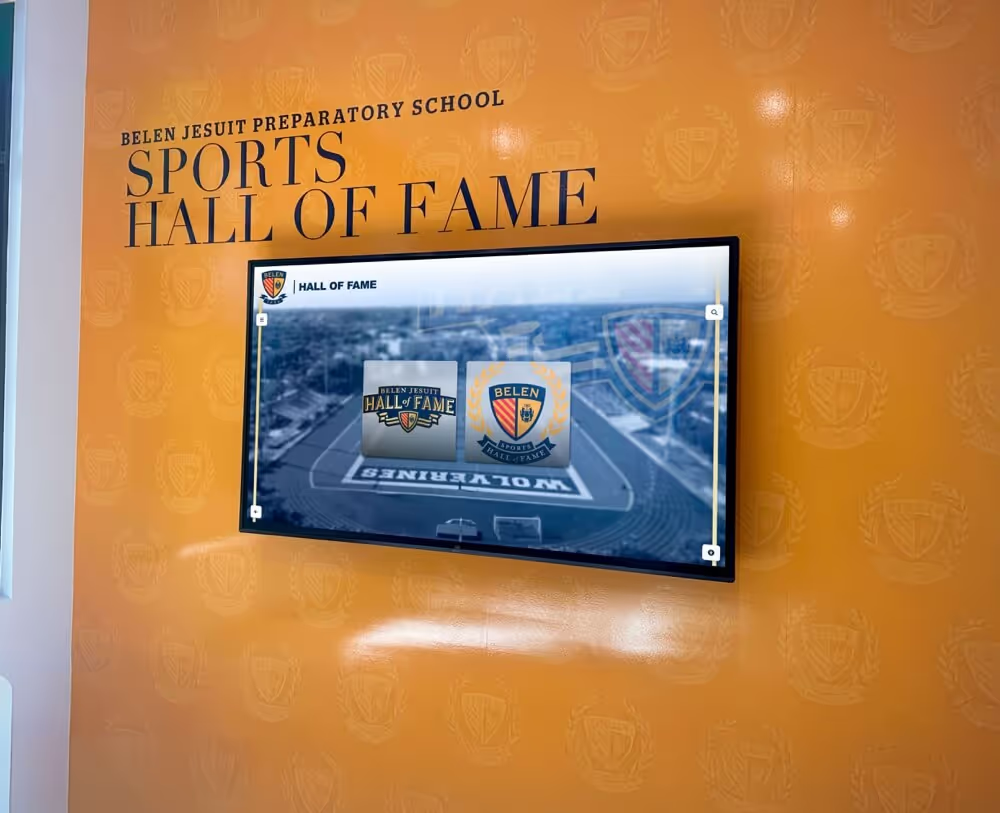
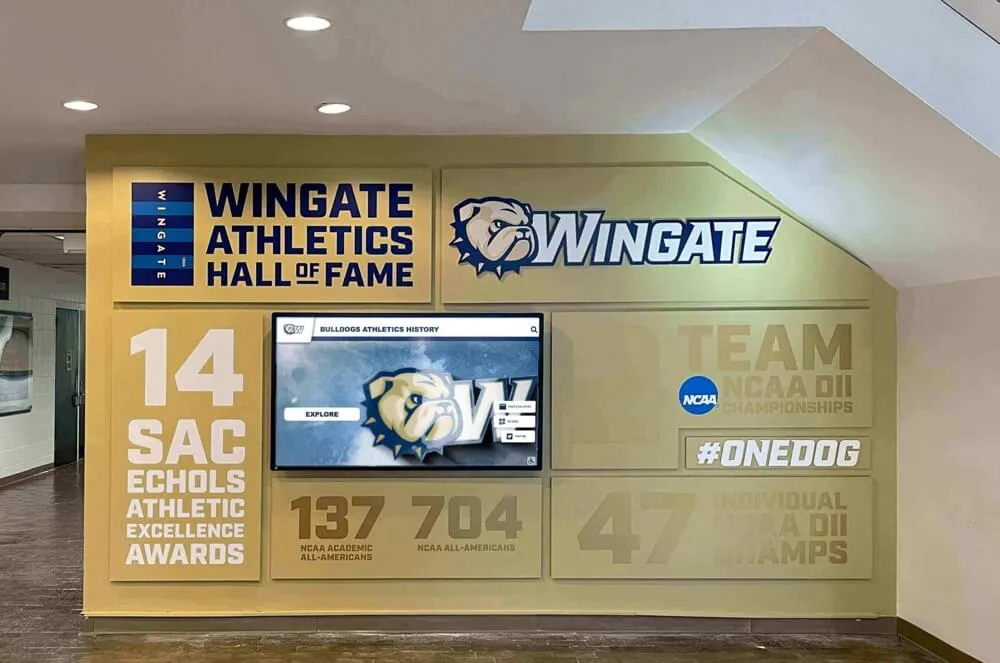
Organizations implementing digital recognition displays for schools and institutions often deploy UPDD-driven touchscreens, leveraging reliable cross-platform support and advanced touch capabilities enhancing user engagement with recognition content, searchable databases, and multimedia presentations.
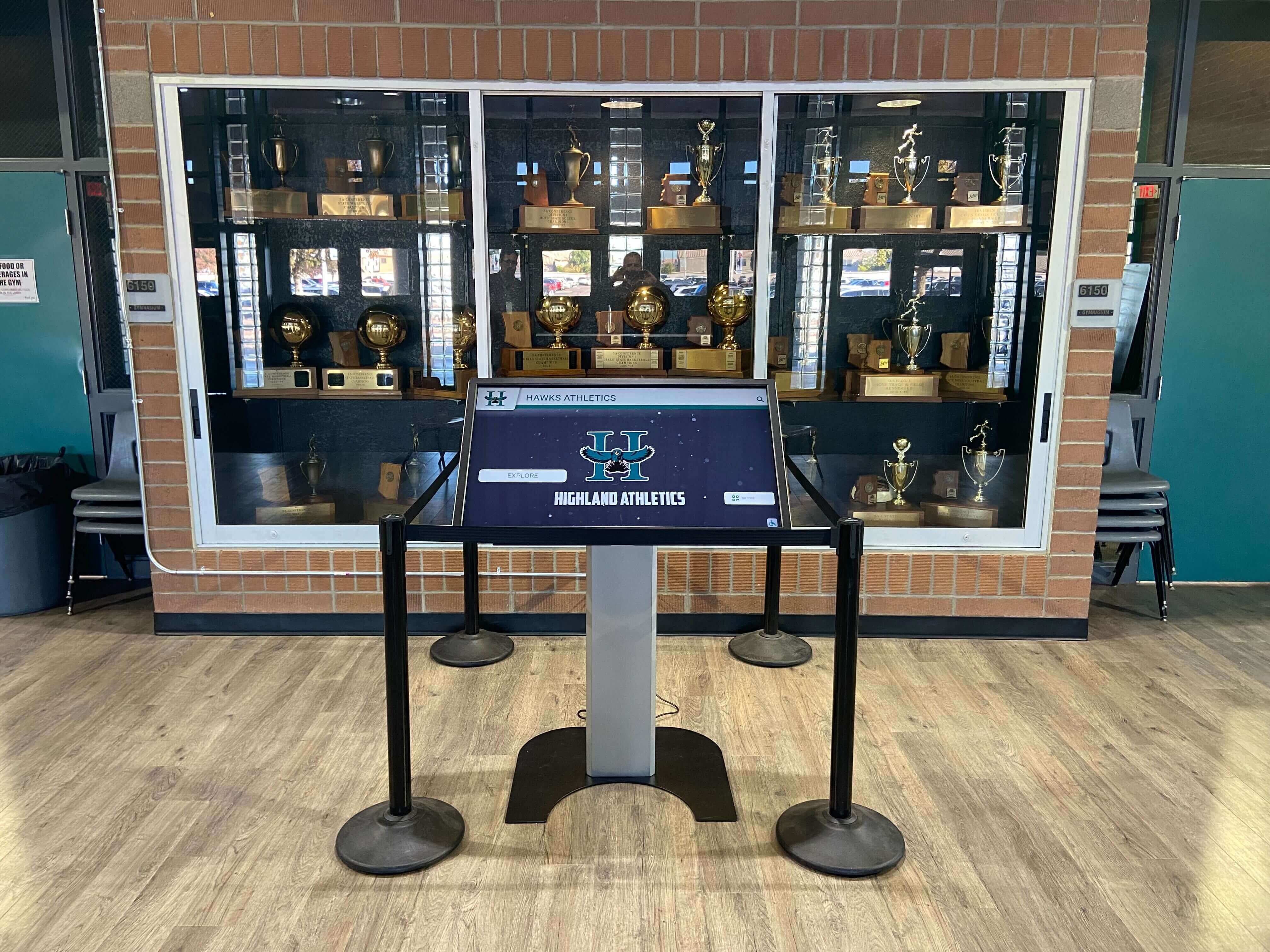
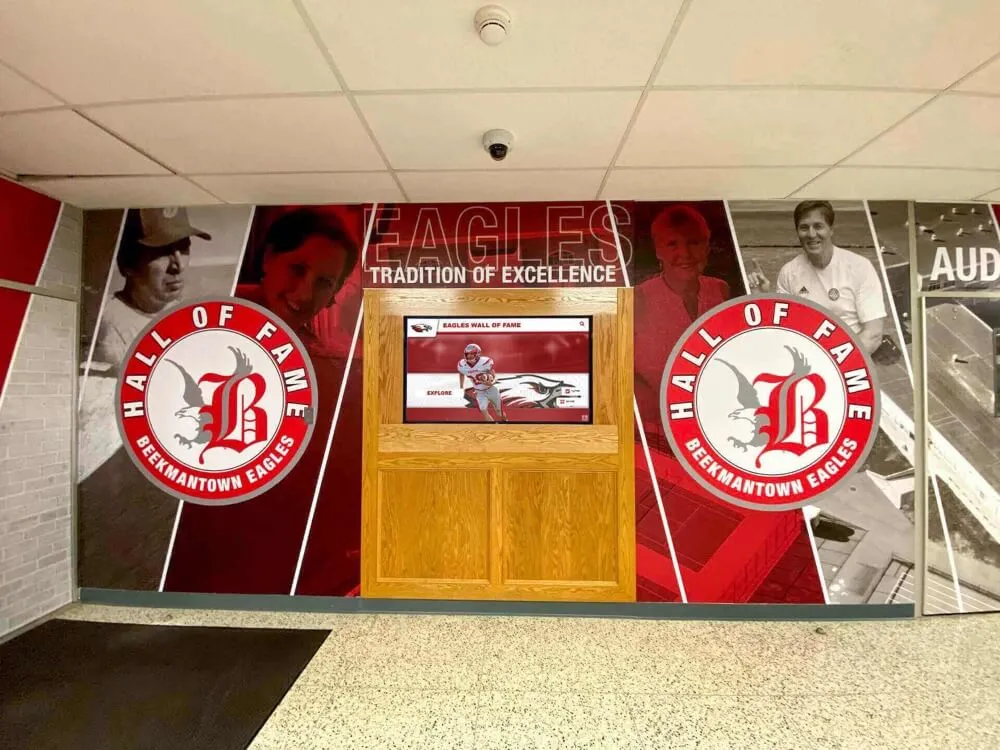
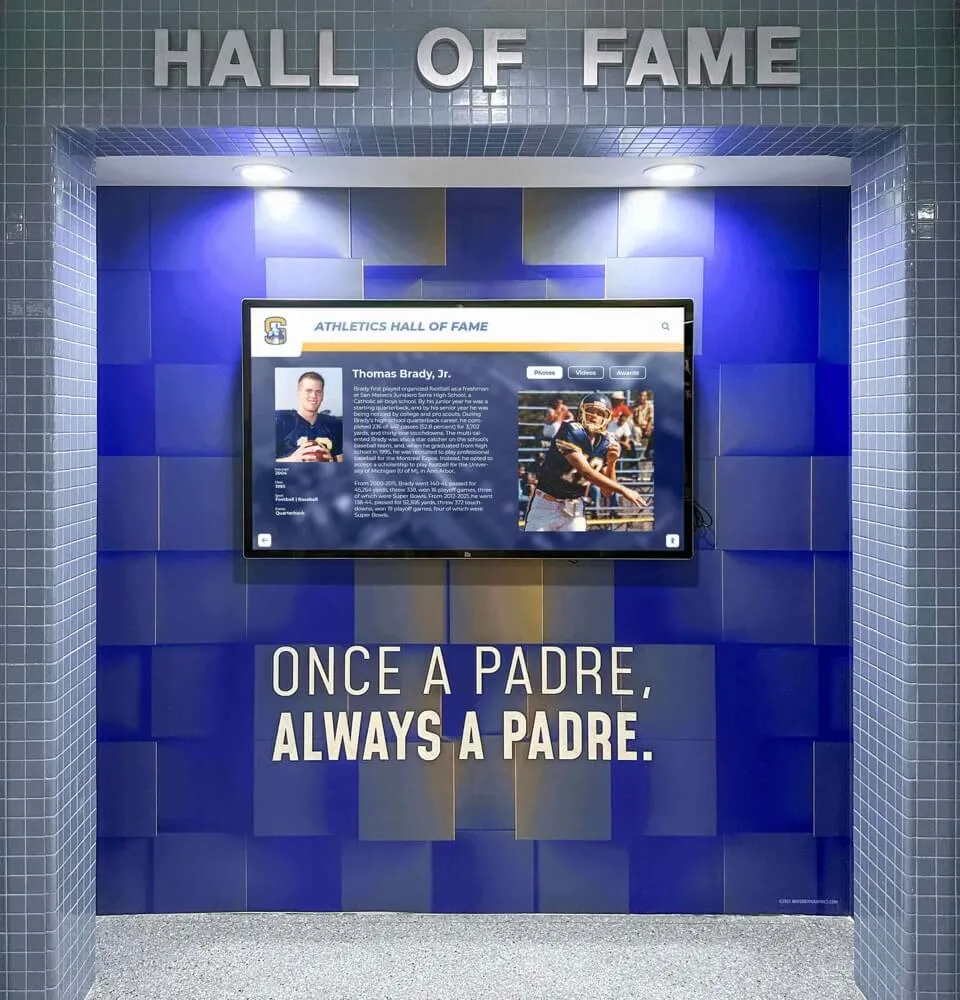
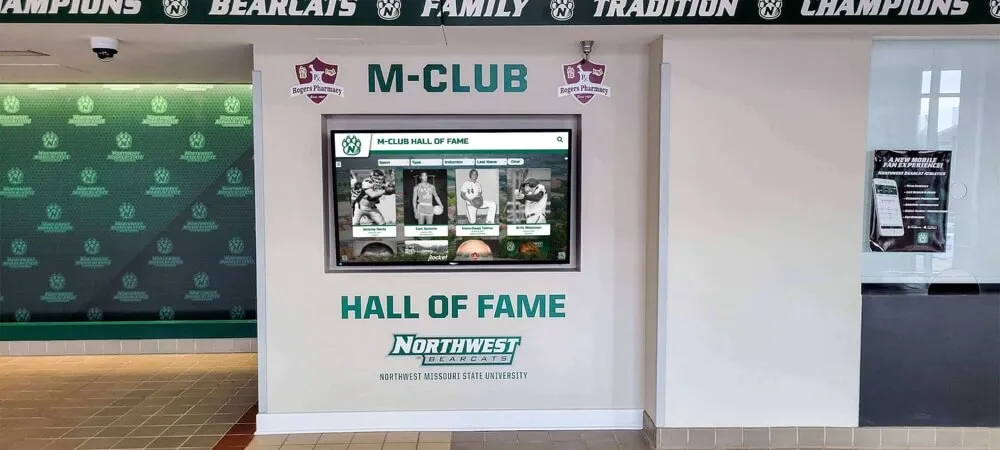
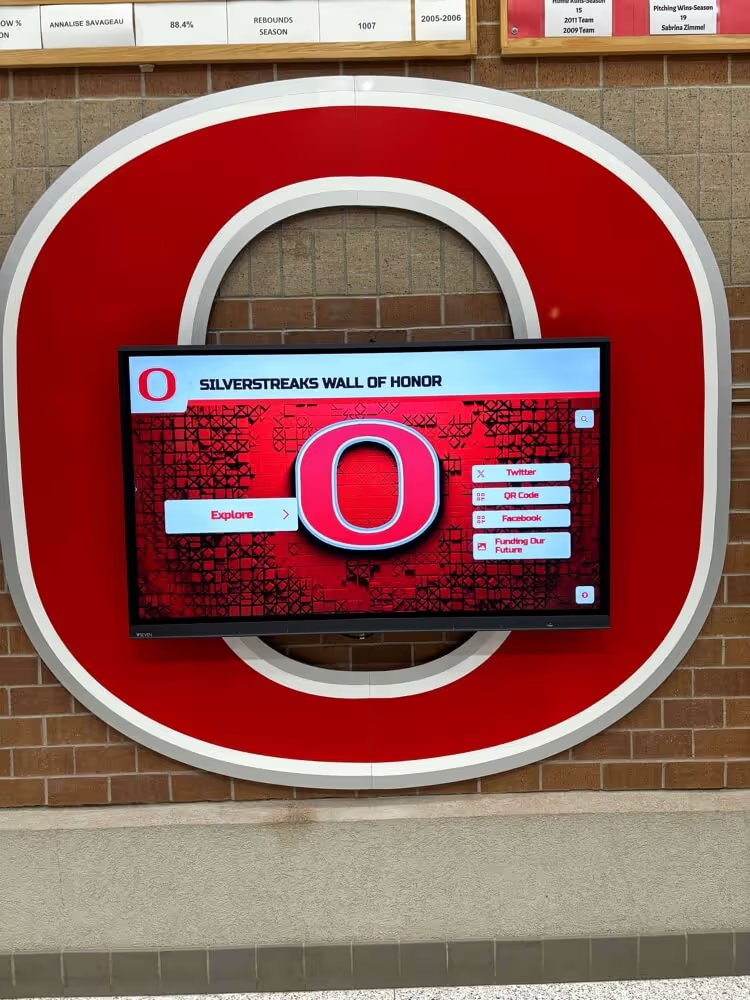
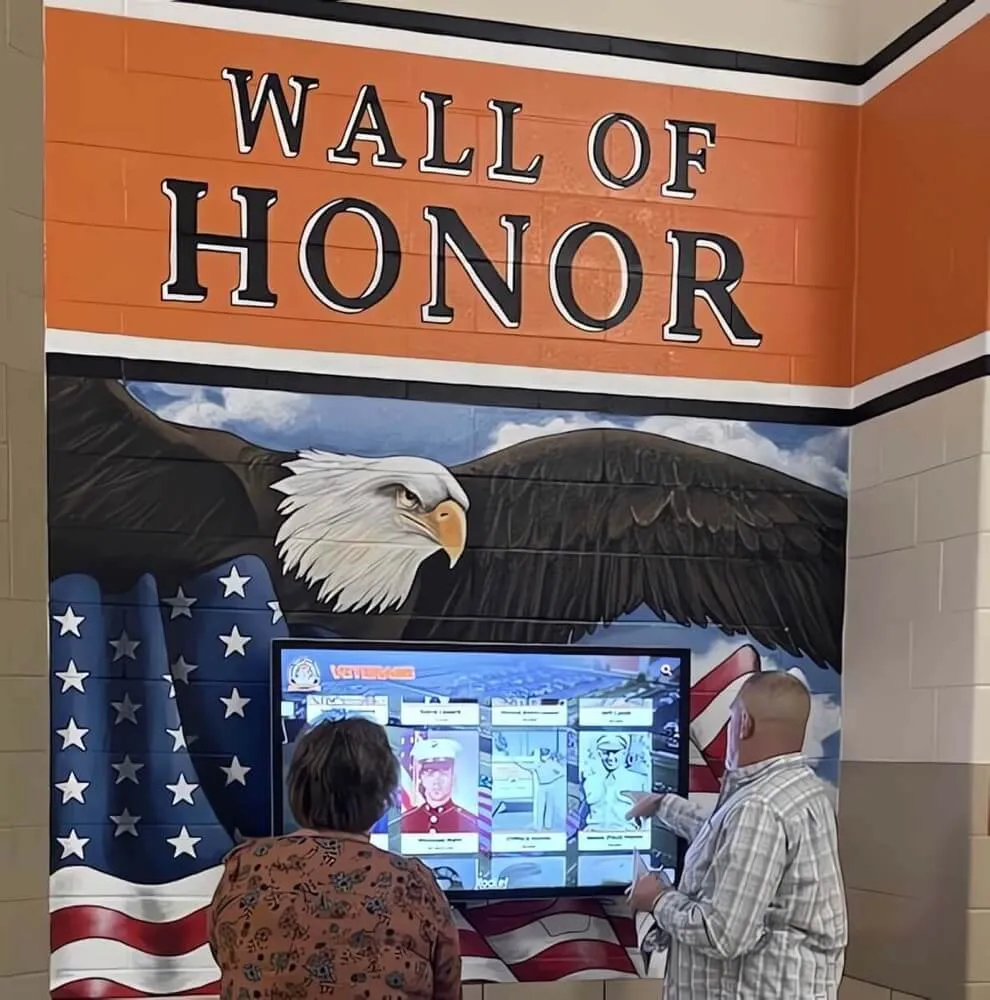
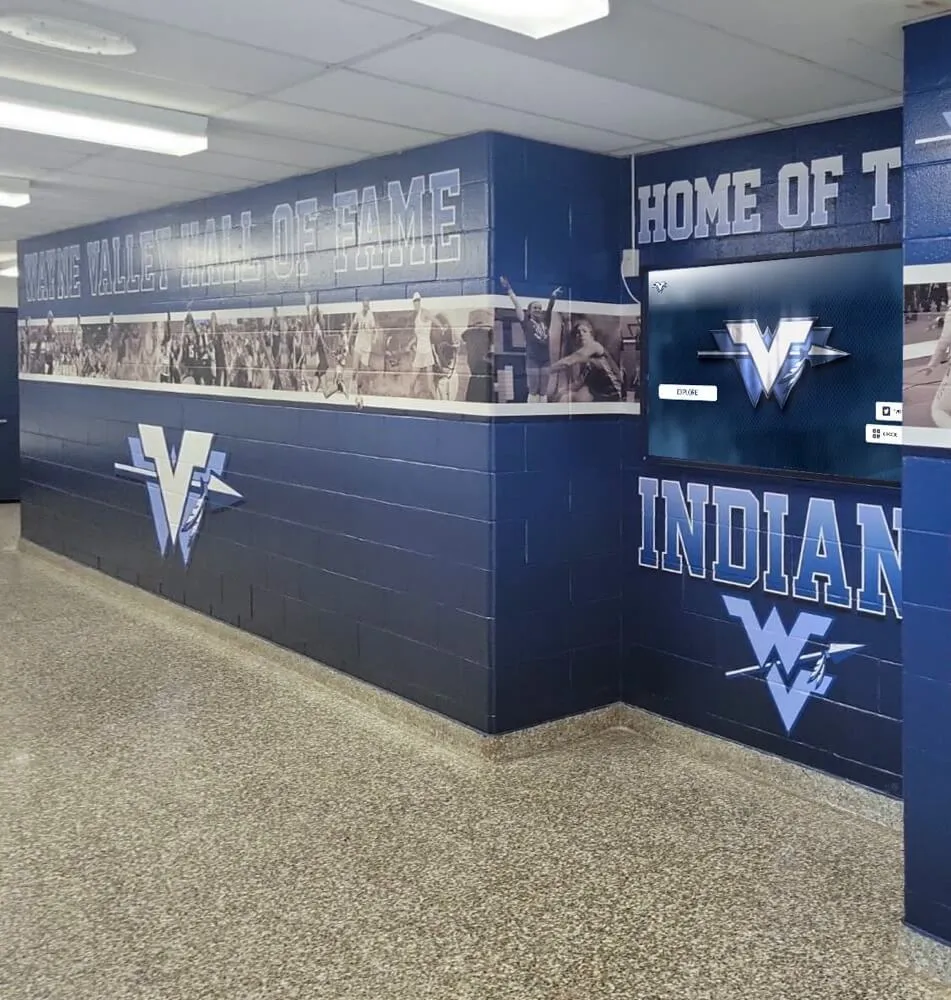
Educational recognition displays leverage UPDD's robust touch capabilities creating engaging interactive experiences
Industrial Control Panels and Embedded Systems
Industrial environments frequently utilize UPDD for touchscreen human-machine interfaces.
Industrial Application Requirements
- Harsh environment operation (temperature extremes, vibration, contaminants)
- Legacy controller support (many industrial touchscreens use serial or proprietary interfaces)
- Reliability and uptime criticality
- Custom Linux and embedded operating systems
- Specialized calibration for unique mounting configurations
- Integration with industrial automation software
- Long-term hardware lifecycle support
Industrial Use Cases
- Manufacturing equipment control interfaces
- Process monitoring and SCADA systems
- Industrial automation touchscreen HMIs
- Transportation system controls
- Energy management interfaces
- Medical equipment touchscreens
- Laboratory instrument interfaces
UPDD’s ability to support legacy serial touchscreens on modern operating systems proves particularly valuable in industrial environments where equipment remains in service for decades—replacing only the computing hardware while retaining existing touch panels.
Educational Interactive Displays
Schools and universities deploy UPDD-powered touchscreens for diverse educational applications.
Educational Use Cases
- Interactive whiteboards and flat panel displays for classrooms
- Recognition walls celebrating student achievements and institutional history
- Campus wayfinding and information kiosks
- Library catalog and research terminals
- Athletic record boards and hall of fame displays
- Donor recognition walls
- Museum and archive interactive exhibits
- STEM lab interactive demonstrations
Educational Environment Benefits
- Cross-platform support (schools often have mixed Windows, Mac, Linux environments)
- Multi-touch gesture support for collaborative learning
- Calibration tools maintaining accuracy despite heavy use
- Diagnostics simplifying maintenance for IT departments
- Cost savings extending hardware lifecycles
- API enabling custom educational software integration
Learn about interactive displays for educational institutions that leverage robust touch technology.
Legacy Hardware Modernization
UPDD’s most unique value proposition lies in enabling older touchscreen hardware to function with modern operating systems.
Legacy Support Scenarios
- Windows XP to Windows 10/11 upgrades: Maintaining existing touchscreens when upgrading operating systems
- Serial touchscreen support: Enabling decades-old serial COM port touchscreens with modern computers
- Proprietary controller support: Supporting touch controllers where manufacturers no longer provide drivers
- Cross-platform migration: Moving from Windows to Linux or vice versa with same hardware
- Discontinued hardware: Supporting touchscreens from defunct manufacturers
Cost Savings from Legacy Support Rather than replacing complete touchscreen systems costing thousands per installation, UPDD enables organizations to upgrade only computing hardware while retaining functional touch panels—resulting in:
- 50-70% cost savings versus complete replacement
- Reduced electronic waste and environmental impact
- Faster upgrades without physical installation time
- Minimal disruption to operations
- Extended return on original hardware investment
Organizations with fleets of installed touchscreens from previous decades find UPDD indispensable for modernization projects where complete hardware replacement budgets prove prohibitive.
Creative Installations and Art Exhibits
Artists and exhibit designers leverage UPDD for sophisticated interactive installations.
Creative Application Features
- TUIO protocol support: Interfacing with creative coding platforms
- Multi-touch tracking: Sophisticated multi-user interaction
- API integration: Custom application development
- Gesture customization: Creating unique interaction models
- Cross-platform deployment: Consistent behavior across diverse hardware
Creative Use Cases
- Museum interactive exhibits
- Art installations responding to touch
- Experiential marketing activations
- Themed entertainment attractions
- Architectural interactive surfaces
- Trade show exhibits and demonstrations
- Cultural heritage digital displays
Creative applications often require unique interaction models impossible with standard touch drivers—UPDD’s comprehensive API and gesture customization enable artists and designers to create novel touch experiences.
Troubleshooting UPDD Touch Software Issues
Despite robust design, touchscreen systems occasionally experience issues requiring systematic troubleshooting.
Common Installation and Configuration Issues
Touch Not Working After Installation Most common problem with straightforward solutions:
- macOS kernel extension not approved: System Preferences > Security & Privacy > Allow kernel extension
- macOS accessibility permissions not granted: Privacy settings must allow UPDD applications
- Wrong driver for hardware: Verify UPDD recognizes specific touch controller
- Hardware connection issue: Check USB connection or serial cable
- Conflicting drivers: Disable or uninstall competing touch drivers
- Driver not started: Ensure UPDD service/daemon is running
Touch Accuracy Problems When cursor doesn’t align with touch position:
- Calibration needed: Run calibration procedure through UPDD Console/Daemon
- Display resolution changed: Recalibrate after resolution modifications
- Display rotation: Ensure rotation settings match physical orientation
- Multiple displays misconfigured: Verify correct display-to-touchscreen mapping
- Edge accuracy: Calibration drift common at display edges—advanced calibration helps
Intermittent Touch Operation When touch works inconsistently:
- USB connection: Try different USB port or cable
- USB hub issues: Connect directly to computer rather than through hub
- Power management: Disable USB selective suspend in power settings
- Driver conflicts: Check for competing touch drivers causing interference
- Hardware failure: Test touchscreen on different computer to isolate hardware issues
Multi-Touch Gestures Not Working When gestures fail despite working single-touch:
- Hardware capability: Verify touchscreen supports multi-touch
- UPDD Commander installed: Gesture support requires Commander component
- Gesture settings: Verify gestures are enabled and configured
- Application support: Some applications don’t respond to gesture input
- Operating system interference: Disable competing gesture recognizers
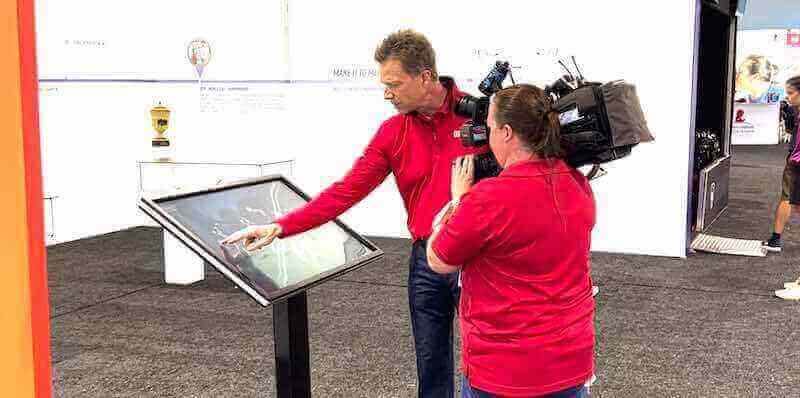
Systematic testing and troubleshooting ensures reliable touchscreen operation in professional deployments
Diagnostic Tools and Techniques
UPDD includes comprehensive diagnostic capabilities supporting troubleshooting.
UPDD Console Diagnostic Features
- Hardware detection: Verifying driver recognizes touchscreen
- Touch testing: Visual feedback showing touch points and coordinates
- Connection status: Real-time hardware communication status
- Driver information: Version numbers and configuration details
- Event logging: Detailed logs of touch events and driver activity
- Calibration verification: Testing accuracy across display surface
Touch Testing Procedure Systematic approach to diagnosing touch issues:
- Visual inspection: Check physical connections and cable condition
- Device Manager check (Windows): Verify hardware recognized by operating system
- UPDD Console verification: Confirm driver detects touchscreen
- Touch test utility: Use built-in testing showing touch registration
- Calibration test: Verify touch accuracy across display area
- Application testing: Test in multiple applications to isolate software issues
- Alternative computer: If possible, test touchscreen on different computer
Log File Analysis UPDD generates detailed logs supporting advanced troubleshooting:
- Location: Log files stored in UPDD installation directory
- Content: Hardware communication, driver events, errors, warnings
- Analysis: Review for error messages indicating specific problems
- Support assistance: Logs invaluable when working with Touch-Base technical support
Organizations implementing comprehensive digital signage networks benefit from UPDD’s robust diagnostic capabilities simplifying fleet management.
Support Resources and Assistance
When self-troubleshooting proves insufficient, multiple support resources provide assistance.
Touch-Base Support Resources
- Documentation portal: Comprehensive guides at support.touch-base.com
- Knowledge base: Searchable articles addressing common issues
- Video tutorials: Visual guides for installation and configuration
- Driver downloads: Access to current and legacy driver versions
- Contact support: Direct assistance from Touch-Base technical team
- Community forums: User discussions sharing experiences and solutions
Support Ticket Submission When contacting support, provide:
- UPDD driver version and operating system details
- Touchscreen hardware manufacturer and model
- Detailed description of issue and when it occurs
- Steps already attempted for resolution
- UPDD log files demonstrating problem
- Screenshots or videos showing issue
Licensing and Updates
- License management: Portal for license activation and management
- Update notifications: Alerts when new driver versions release
- Version history: Access to previous versions if needed
- Beta programs: Early access to upcoming features and fixes
UPDD Alternatives and Comparison
While UPDD offers comprehensive capabilities, understanding alternative touchscreen driver solutions clarifies when UPDD proves most valuable.
Native Operating System Touch Support
Modern operating systems include built-in touchscreen support—understanding limitations clarifies when UPDD adds value.
Native Support Capabilities
- HID compliance: Works with standard USB HID touchscreen controllers
- Basic multi-touch: Supports gestures on compatible hardware
- Plug-and-play: No driver installation required for compatible devices
- Zero cost: Included with operating system license
Native Support Limitations
- HID-only: Non-HID devices unsupported (serial, proprietary USB)
- Limited calibration: Basic or no calibration tools
- No legacy support: Older touchscreens unsupported
- Limited customization: Minimal gesture or behavior configuration
- Platform-specific: Different touch behavior across operating systems
- No advanced diagnostics: Limited troubleshooting capabilities
- API limitations: Application integration more restricted
When Native Support Suffices Organizations can rely on native operating system touch support when:
- Using modern HID-compliant touchscreen hardware
- No calibration or customization required
- Single operating system deployment
- Basic touch functionality adequate
- No legacy hardware support needed
- Standard applications without specialized touch requirements
Manufacturer-Specific Touch Drivers
Many touchscreen manufacturers provide their own driver software for specific hardware.
Manufacturer Driver Characteristics
- Hardware-specific optimizations
- Calibration tools designed for specific touch technology
- Firmware update capabilities
- Typically free for hardware owners
- Support directly from hardware manufacturer
Manufacturer Driver Limitations
- Single manufacturer/model support only
- May not support all operating systems
- Discontinued for older hardware
- Inconsistent quality and feature sets
- No cross-platform consistency
- Limited when mixing hardware brands
UPDD Advantages Over Manufacturer Drivers
- Universal support across hardware brands and models
- Consistent experience across diverse hardware
- Continued support for discontinued hardware
- Same driver across all platforms
- Superior diagnostics and troubleshooting tools
- Comprehensive API for application integration
- Professional-grade features optimized for commercial deployment
Organizations with multiple touchscreen brands or models benefit significantly from UPDD’s universal approach versus managing multiple manufacturer-specific drivers.
Specialized Kiosk Software Solutions
Some kiosk software packages include integrated touchscreen functionality.
Integrated Kiosk Software
- Complete kiosk solution including touch, browser lockdown, content management
- Simplified deployment with single vendor
- Optimized integration between components
- Typically cloud-managed for remote administration
When Separate UPDD Proves Better
- Greater hardware compatibility and flexibility
- Superior calibration and diagnostic tools
- API enabling custom application development
- Existing non-kiosk applications requiring touch
- Mixed kiosk and non-kiosk touchscreen uses
- Legacy hardware support needs
UPDD complements kiosk software by handling low-level touch functionality while specialized kiosk solutions manage content, security, and administration.
Learn about touchscreen software creation approaches comparing integrated versus specialized driver solutions.
Future Developments and UPDD Roadmap
Touch technology continues evolving—understanding UPDD’s development direction informs long-term planning decisions.
Emerging Touch Technologies
Next-generation touchscreen technologies that UPDD may support include:
Advanced Multi-Touch
- Higher touch point counts (20+ simultaneous touches)
- Faster touch sampling rates
- Improved palm rejection algorithms
- Stylus pressure and tilt sensitivity
- Haptic feedback integration
Alternative Input Methods
- Gesture recognition from cameras and depth sensors
- Touchless interaction through motion sensing
- Voice control integration
- Eye tracking capabilities
- Brain-computer interfaces for accessibility
Enhanced Displays
- Transparent touchscreens
- Flexible and curved touch surfaces
- Higher resolutions and pixel densities
- Ultra-large format installations
- Projection-based touch detection
Platform Evolution
Operating system changes require ongoing UPDD development:
macOS Development
- Continued Apple Silicon optimization
- Future macOS version support
- Enhanced privacy and security compliance
- Native M-series processor performance
Windows Evolution
- Windows 12 preparation when released
- ARM-based Windows support expansion
- Enhanced security compliance
- Modern UI framework integration
Linux Advancement
- Wayland protocol optimization
- Expanded distribution support
- Container and virtualization compatibility
- Embedded Linux optimizations
Android Updates
- Latest Android version support
- Automotive and specialized Android variants
- Enhanced security implementations
- 5G and edge computing integration
API and Integration Enhancements
Future UPDD versions may expand application integration capabilities:
- Web browser JavaScript API for web-based kiosks
- Cloud-based configuration and management
- Advanced analytics and usage reporting
- Machine learning touch prediction
- Enhanced TUIO and OSC protocol support
- WebSocket real-time communication
- REST API for remote administration
Organizations planning long-term touchscreen deployments benefit from UPDD’s commitment to ongoing platform and technology support—ensuring investments remain viable as technologies evolve.
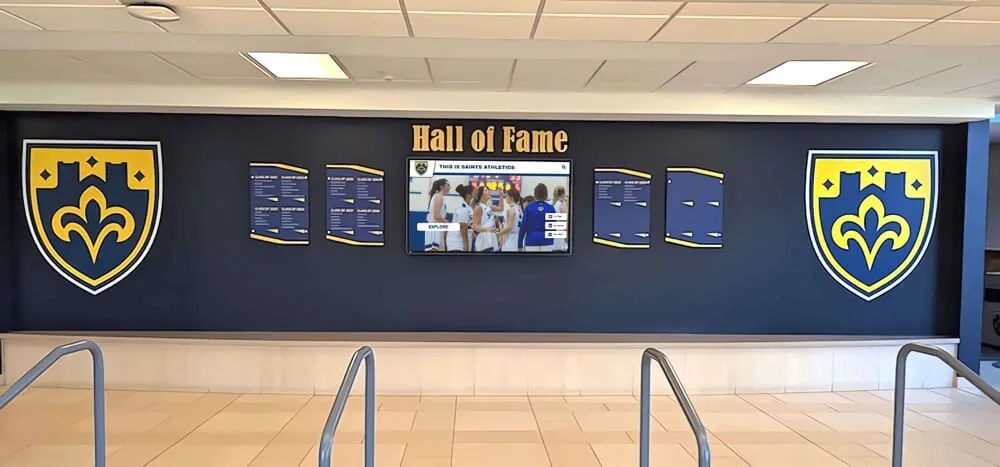
Forward-looking touchscreen solutions combine proven technologies with flexibility adapting to emerging capabilities
Conclusion: When UPDD Touch Software Delivers Maximum Value
UPDD Touch Software from Touch-Base Ltd represents the most comprehensive, versatile touchscreen driver platform available—providing universal hardware support, cross-platform consistency, advanced features, and professional-grade capabilities impossible with standard operating system touch drivers. Yet UPDD isn’t necessary for every touchscreen deployment, and understanding when this universal driver solution provides genuine advantages versus when native touch support suffices ensures optimal technology and budget allocation.
UPDD excels in specific scenarios where its unique capabilities solve problems that simpler alternatives cannot address: enabling legacy touchscreen hardware to function with modern operating systems extends hardware lifecycles saving thousands in replacement costs; supporting proprietary and non-HID touch controllers ensures older industrial equipment and specialized devices remain functional; providing consistent touch behavior across Windows, macOS, Linux, and Android simplifies management in heterogeneous environments; offering advanced calibration, gesture customization, and diagnostic tools supports sophisticated professional installations; and delivering comprehensive APIs enables custom application development leveraging full touchscreen capabilities.
Organizations implementing interactive recognition systems for schools, universities, athletic programs, and corporate environments benefit from UPDD’s robust touch support ensuring reliable operation of digital displays celebrating achievements and preserving institutional history. Professional kiosk deployments, industrial control systems, educational interactive displays, museum exhibits, and creative installations all leverage UPDD’s advanced capabilities creating engaging, reliable touchscreen experiences impossible with basic touch drivers.
Transform Your Touchscreen Displays with Professional Recognition Software
Discover how comprehensive touchscreen solutions combined with specialized recognition software create engaging interactive experiences that celebrate achievements, preserve history, and captivate audiences.
Explore Interactive Recognition SolutionsModern touchscreen deployments demand reliable, feature-rich driver software supporting diverse hardware, enabling sophisticated interactions, and providing tools for configuration, calibration, and troubleshooting. UPDD delivers these capabilities through mature, proven technology serving thousands of installations worldwide across education, industry, retail, hospitality, healthcare, and creative sectors.
Successful touchscreen implementations begin with appropriate hardware selection matching application requirements, continue with proper driver software ensuring optimal touch performance, and depend on well-designed applications creating intuitive user experiences. UPDD provides the critical software foundation connecting hardware capabilities to application needs—enabling accurate, responsive touch interaction that users expect from modern devices.
Whether modernizing legacy touchscreen equipment, deploying professional kiosk networks, implementing industrial control interfaces, creating educational interactive displays, or developing custom touch-enabled applications, UPDD Touch Software provides the universal driver platform supporting your touchscreen needs across hardware platforms, operating systems, and applications. The comprehensive capabilities, professional-grade features, and exceptional hardware compatibility explored throughout this guide empower you to leverage touchscreen technology fully—creating engaging interactive experiences that inform, educate, entertain, and inspire your audiences.
Ready to explore comprehensive touchscreen solutions? Discover digital recognition display systems or learn about interactive exhibit technologies leveraging advanced touch capabilities.