



Intent: Compare & Download — This comprehensive guide helps schools, museums, libraries, businesses, and organizations evaluate the best free touchscreen kiosk browser apps available in 2025. You’ll discover fully locked down kiosk software alternatives to popular paid solutions like Fully Kiosk Browser, understand essential lockdown features, compare Android and Mac options, and learn deployment best practices—enabling you to transform tablets, touchscreens, and computers into secure public kiosks without expensive software licenses.
Touchscreen kiosks have become essential for modern organizations—from school recognition displays and museum exhibits to library computers and retail information stations. Yet deploying secure, fully locked down kiosk systems traditionally required expensive commercial software licenses, complex IT configuration, or both. The challenge intensifies when organizations need multiple kiosks across locations while maintaining tight budgets that don’t accommodate per-device licensing fees.
The kiosk software landscape in 2025 offers unprecedented free and low-cost options that rival expensive commercial solutions. New lightweight kiosk browsers provide complete lockdown functionality, prevent unauthorized access to system functions, automatically reset between sessions, and support remote management—all at zero or minimal cost. Understanding these alternatives empowers budget-conscious organizations to deploy professional touchscreen kiosks matching the security and functionality of premium solutions while preserving resources for content and hardware.
This guide explores the complete spectrum of touchscreen kiosk browser apps available for free download in 2025, examining Android solutions, Mac alternatives, cross-platform options, and comprehensive comparison frameworks ensuring you select optimal software matching your security requirements, technical capabilities, and budget constraints.
Deploying touchscreen kiosks no longer requires choosing between expensive commercial software and inadequate browser-based workarounds. Modern free kiosk apps deliver enterprise-grade lockdown, session management, remote monitoring, and content control—democratizing professional kiosk technology for schools, nonprofits, small businesses, and organizations managing multiple public-access displays across distributed locations.

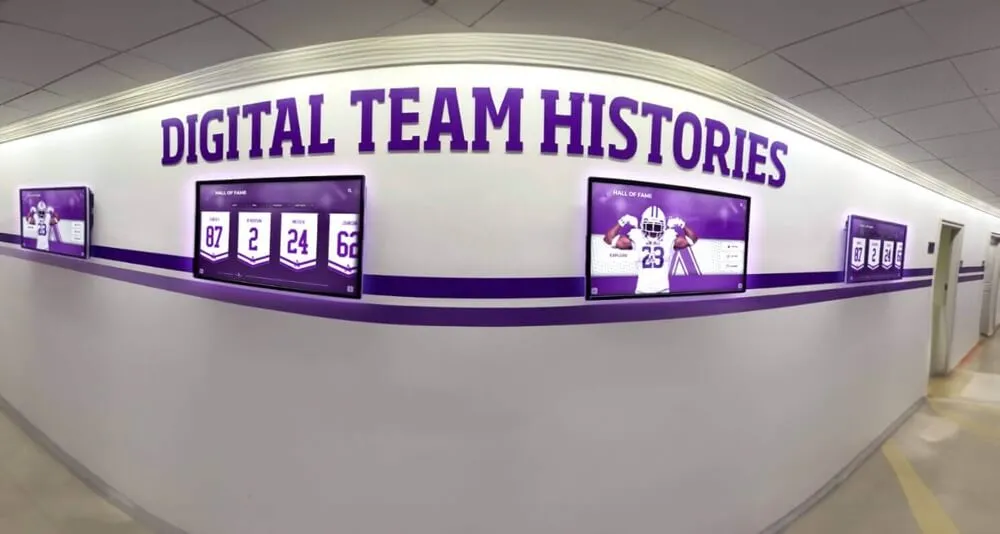
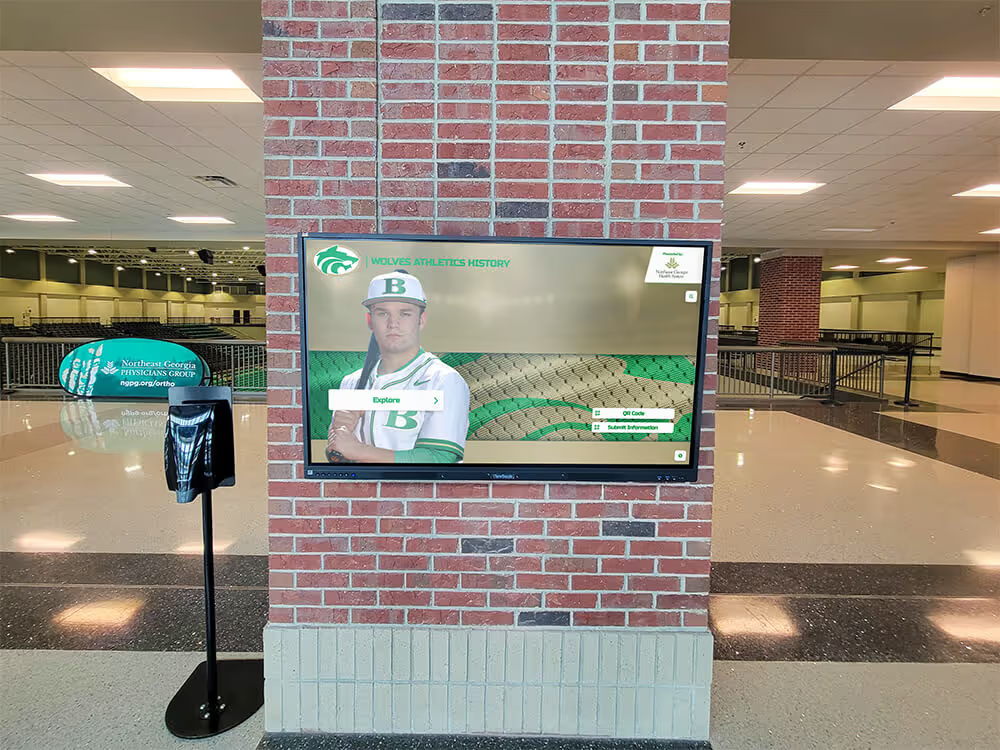
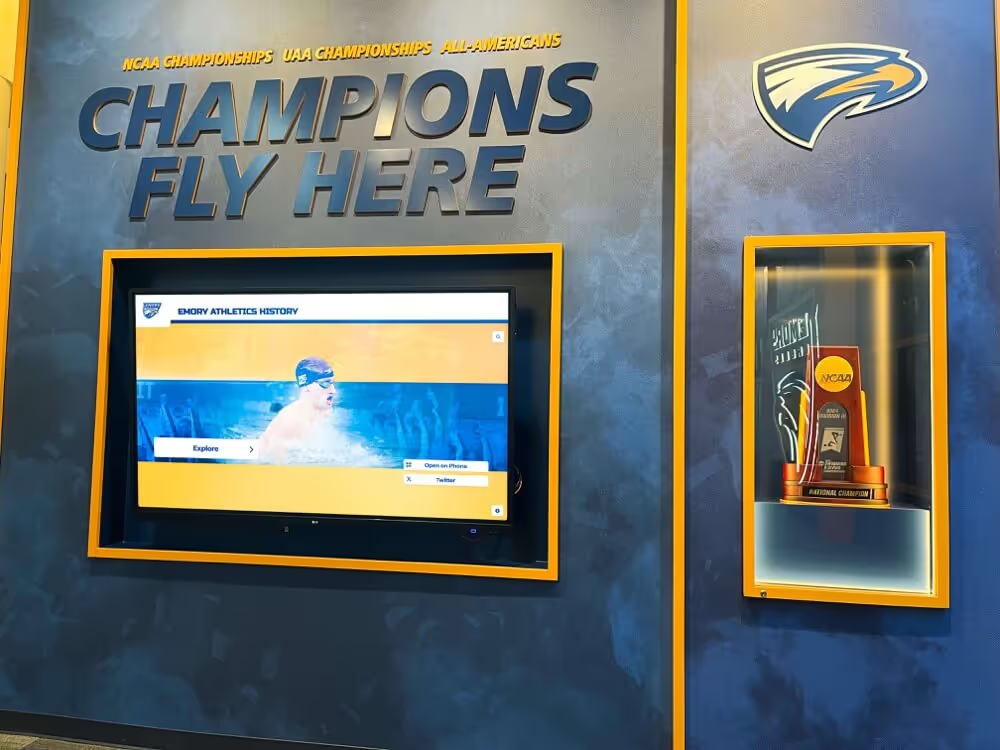
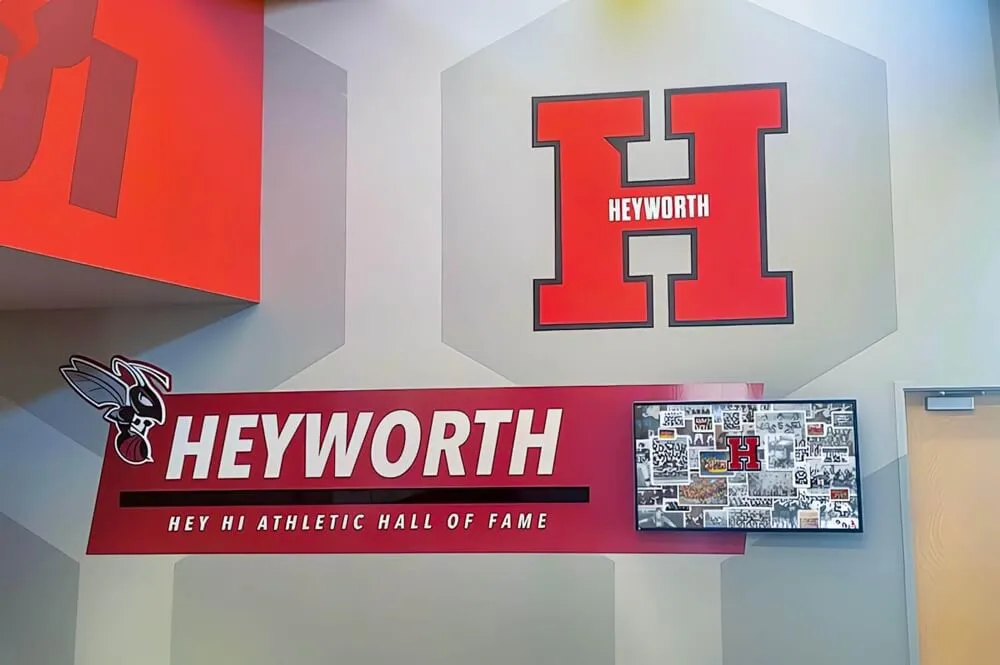
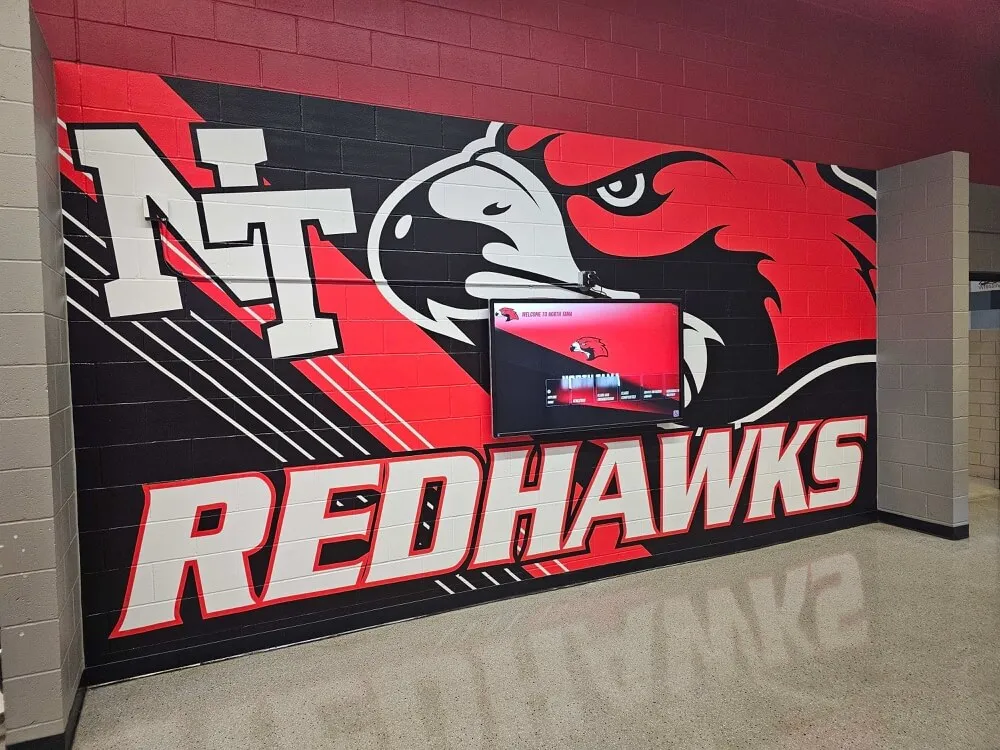
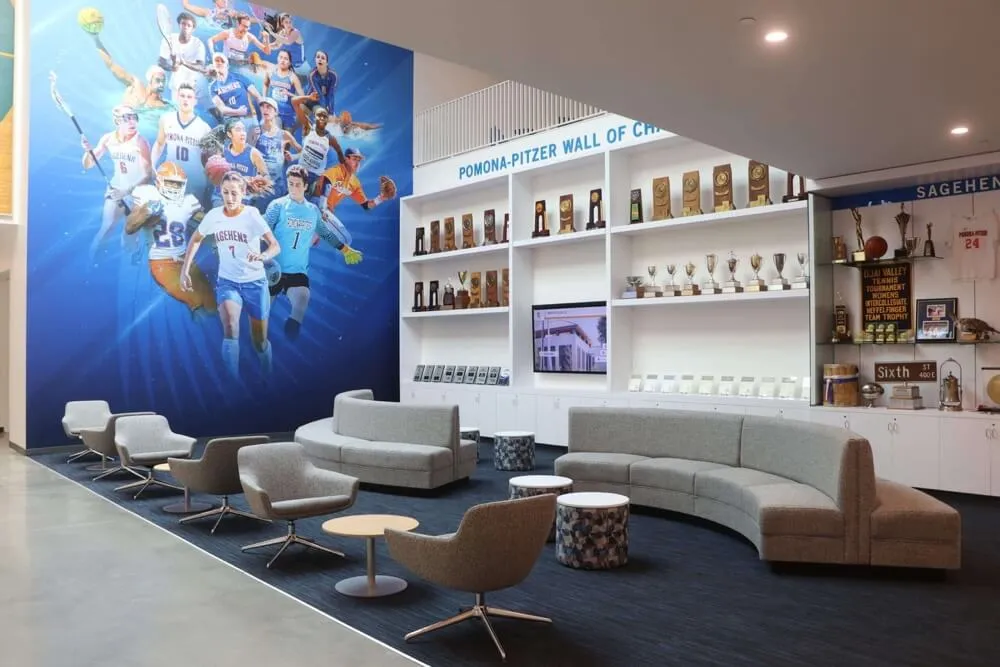
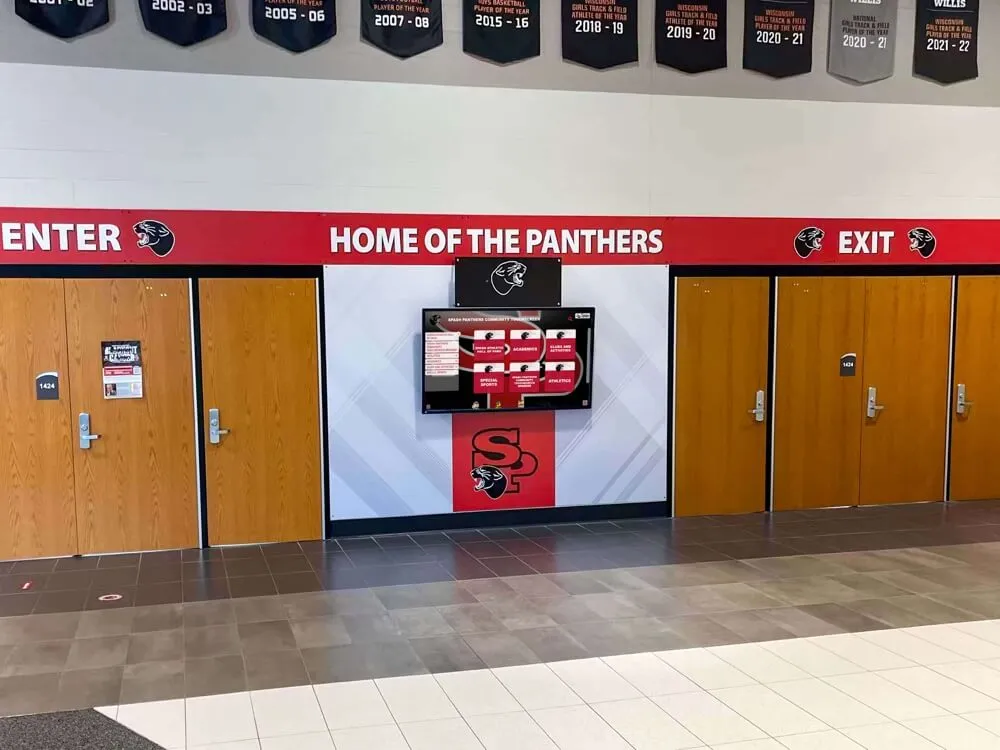
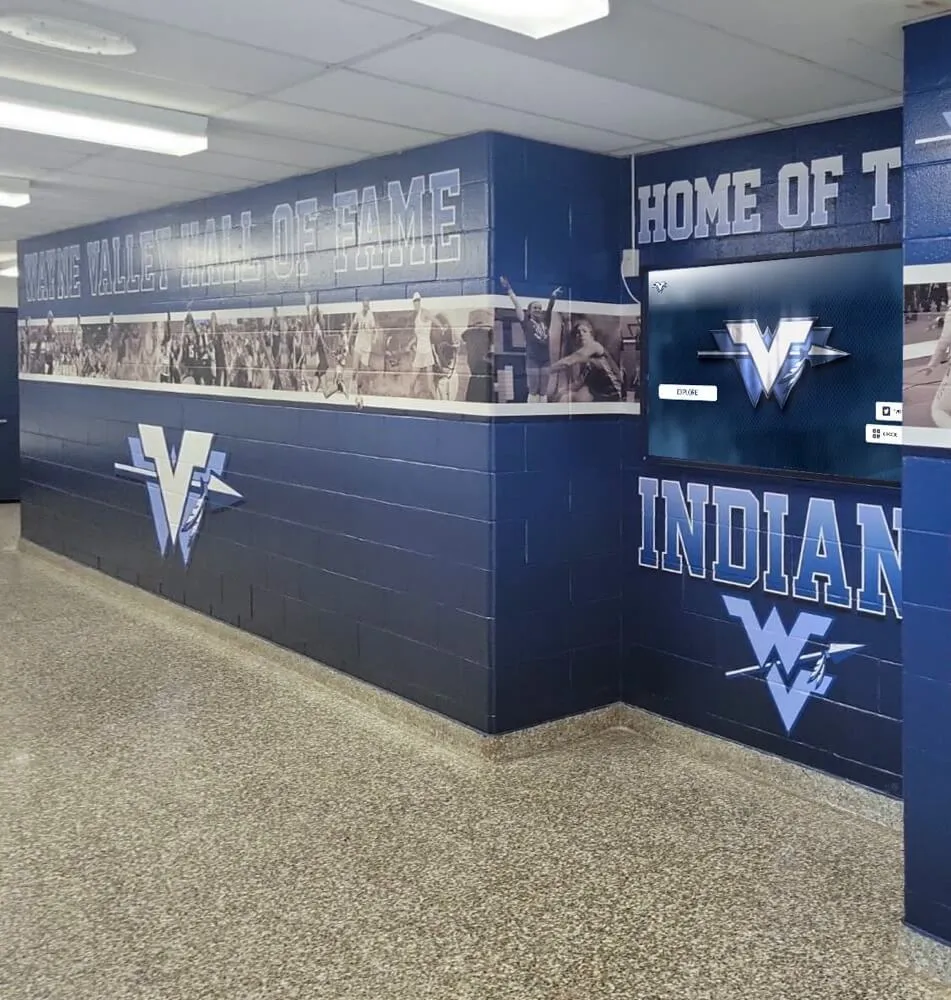
Modern touchscreen kiosks combine secure lockdown software with professional hardware creating safe, engaging public access systems
Understanding Touchscreen Kiosk Browser Requirements
Before exploring specific kiosk apps, understanding essential lockdown features and security requirements helps evaluate whether free solutions adequately address your deployment needs.
Essential Kiosk Lockdown Features
Effective touchscreen kiosk software must prevent unauthorized access while maintaining usability for legitimate purposes:
System Access Prevention
- Block access to device settings and system preferences
- Disable home button preventing exit to launcher or app drawer
- Prevent application switching and multitasking views
- Restrict keyboard shortcuts that bypass lockdown
- Block notification shade preventing system access
- Disable power button to prevent shutdowns or restarts
- Lock device orientation preventing rotation issues
According to kiosk deployment best practices, comprehensive lockdown requires addressing every potential exit point that visitors might discover—intentionally or accidentally. A single missed access method compromises the entire kiosk security model.
Browser Control and Navigation Restrictions
- Whitelist mode limiting navigation to approved websites only
- Blacklist functionality blocking specific unauthorized domains
- URL filtering preventing access to file downloads and local content
- Disable browser controls like bookmarks, history, and settings
- Prevent JavaScript popups from escaping lockdown
- Block external links opening outside allowed domains
- Force homepage return after period of inactivity
Educational institutions implementing interactive touchscreen displays for student access require robust navigation controls ensuring visitors cannot browse inappropriate content while allowing legitimate access to educational resources.
Session Management and Privacy Protection
- Automatic cleanup clearing browsing history, cookies, and cache
- Configurable timeout periods resetting to homepage when idle
- Session isolation preventing data persistence between users
- Temporary file deletion removing downloaded content
- Form data clearing protecting previous user information
- Authentication reset requiring fresh login credentials
- Privacy compliance with data protection regulations
Public kiosks in libraries, schools, and museums must protect visitor privacy by thoroughly cleaning all session data—ensuring subsequent users cannot access previous visitors’ browsing history, login credentials, or personal information.
Security Considerations for Public Kiosks
Physical Security Integration
- Tamper-proof hardware enclosures preventing device removal
- Secure cable management and port access control
- Screen protectors maintaining touch sensitivity while preventing damage
- Mounting solutions appropriate for traffic levels and user demographics
- Ventilation ensuring proper cooling during continuous operation
- Power backup preventing data loss during outages
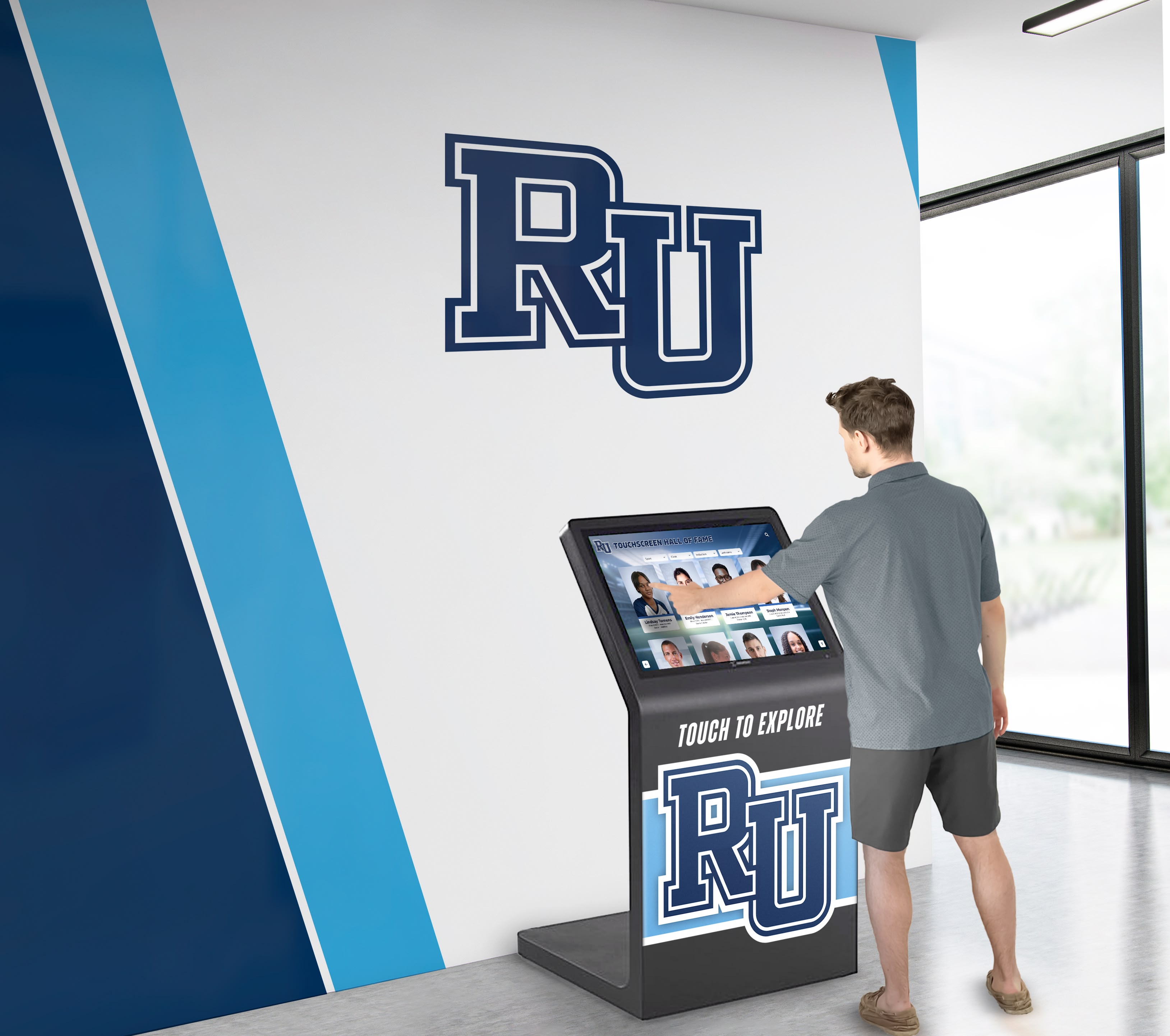
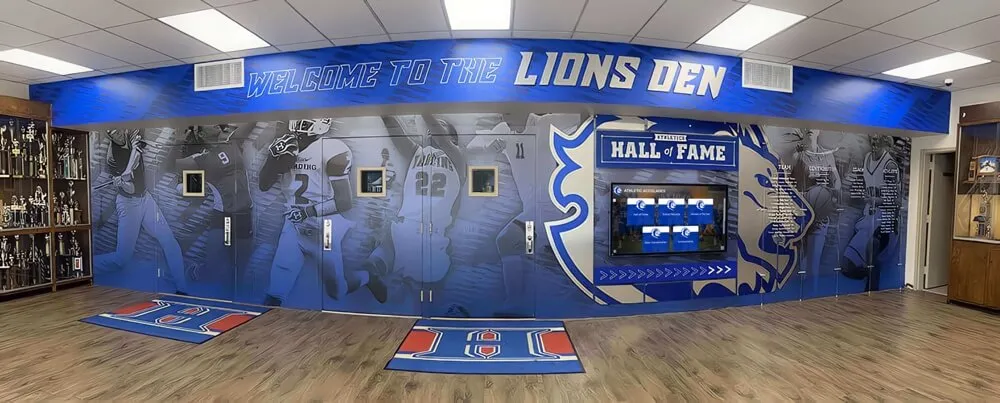
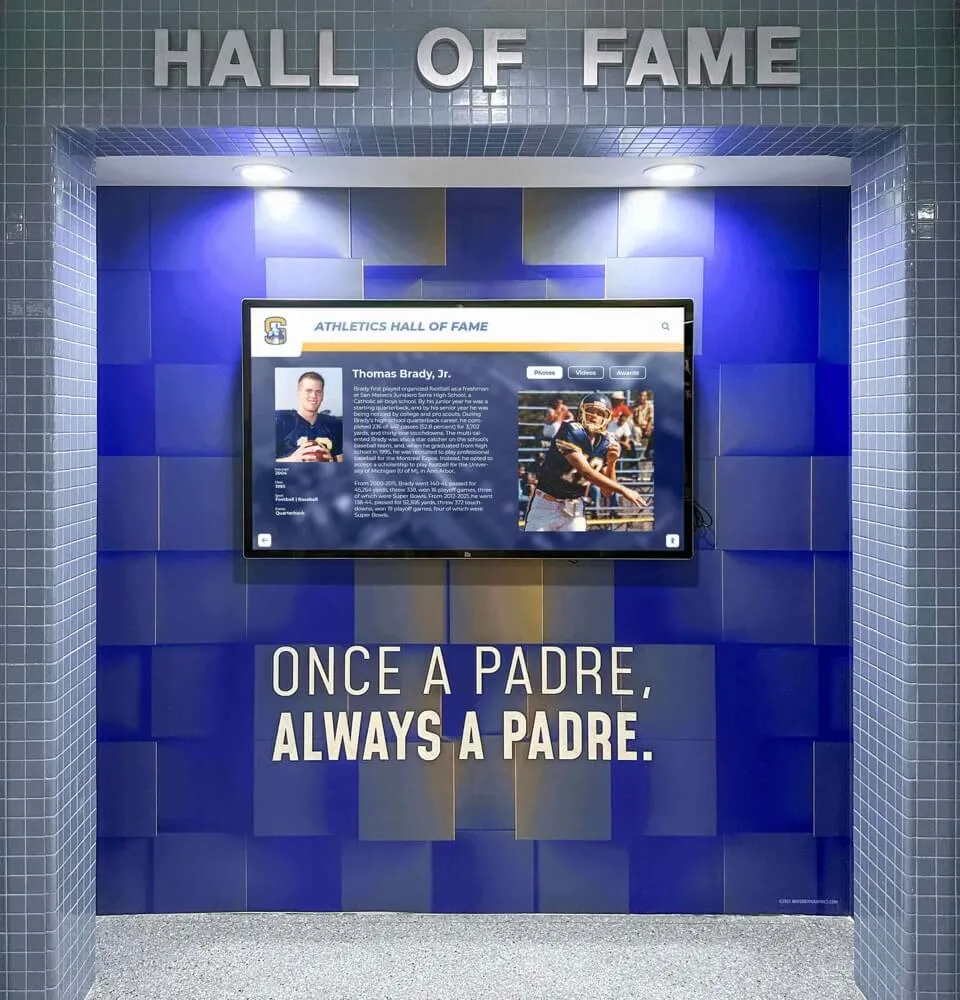
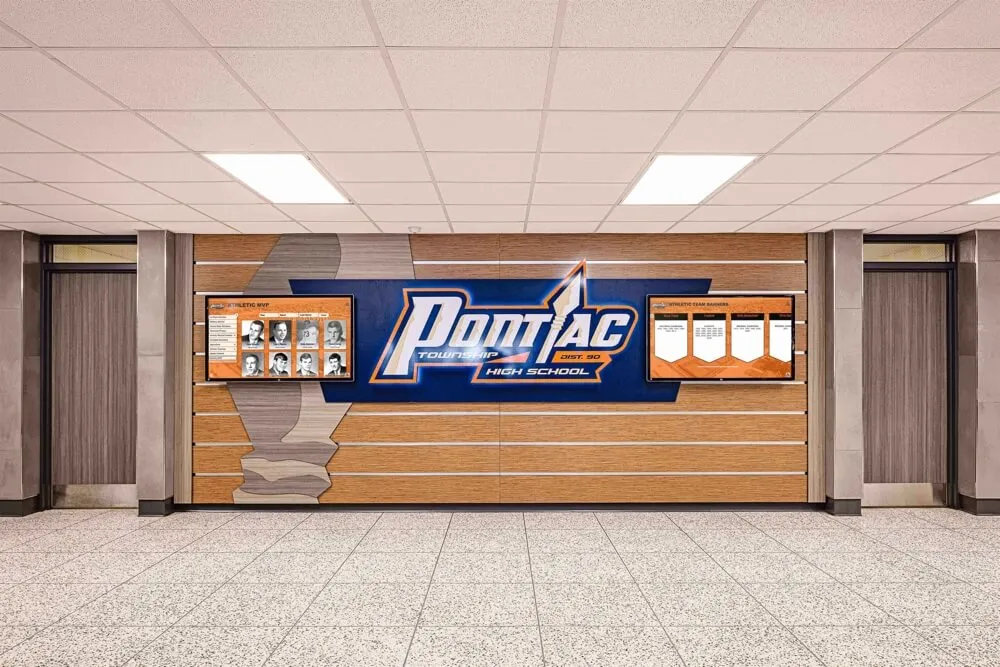
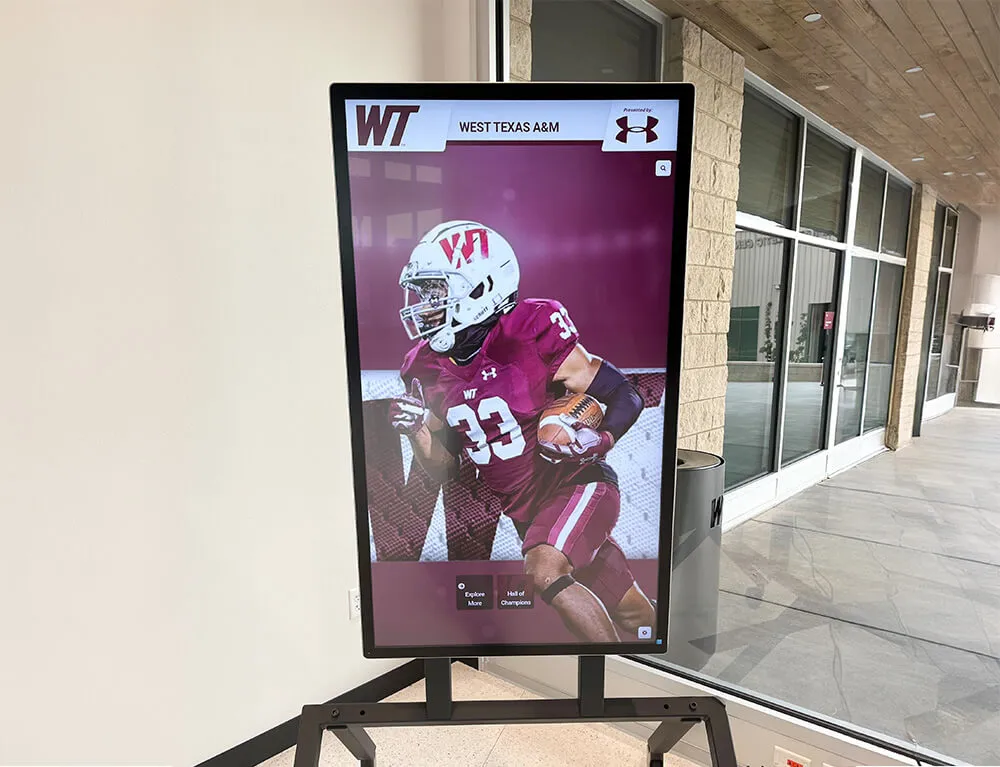
Professional kiosk deployments combine secure software with appropriate hardware enclosures protecting equipment while enabling user access
Content Security and Compliance
- HTTPS enforcement preventing insecure content access
- Certificate validation ensuring legitimate website connections
- Content filtering blocking inappropriate material
- Accessibility compliance supporting users with disabilities
- Age-appropriate content restrictions for educational settings
- Copyright compliance for displayed media and information
- Terms of use presentation informing users of acceptable use policies
Schools and public institutions must carefully consider content filtering requirements ensuring kiosk access aligns with organizational policies, legal requirements, and community expectations—particularly important when minors may access systems.
Remote Management and Monitoring Capabilities
Organizations deploying multiple kiosks across locations require efficient remote administration:
Centralized Management Features
- Cloud-based configuration pushing settings to distributed devices
- Group policies applying consistent settings across kiosk fleets
- Remote content updates modifying displayed information without physical access
- Status monitoring tracking online/offline status of each kiosk
- Usage analytics revealing visitor engagement and popular content
- Remote troubleshooting diagnosing issues without site visits
- Automated reporting documenting kiosk uptime and usage patterns
Schools implementing networks of digital recognition displays across multiple buildings benefit enormously from remote management capabilities—enabling single administrators to maintain dozens of kiosks efficiently without requiring physical access to each location for routine updates.
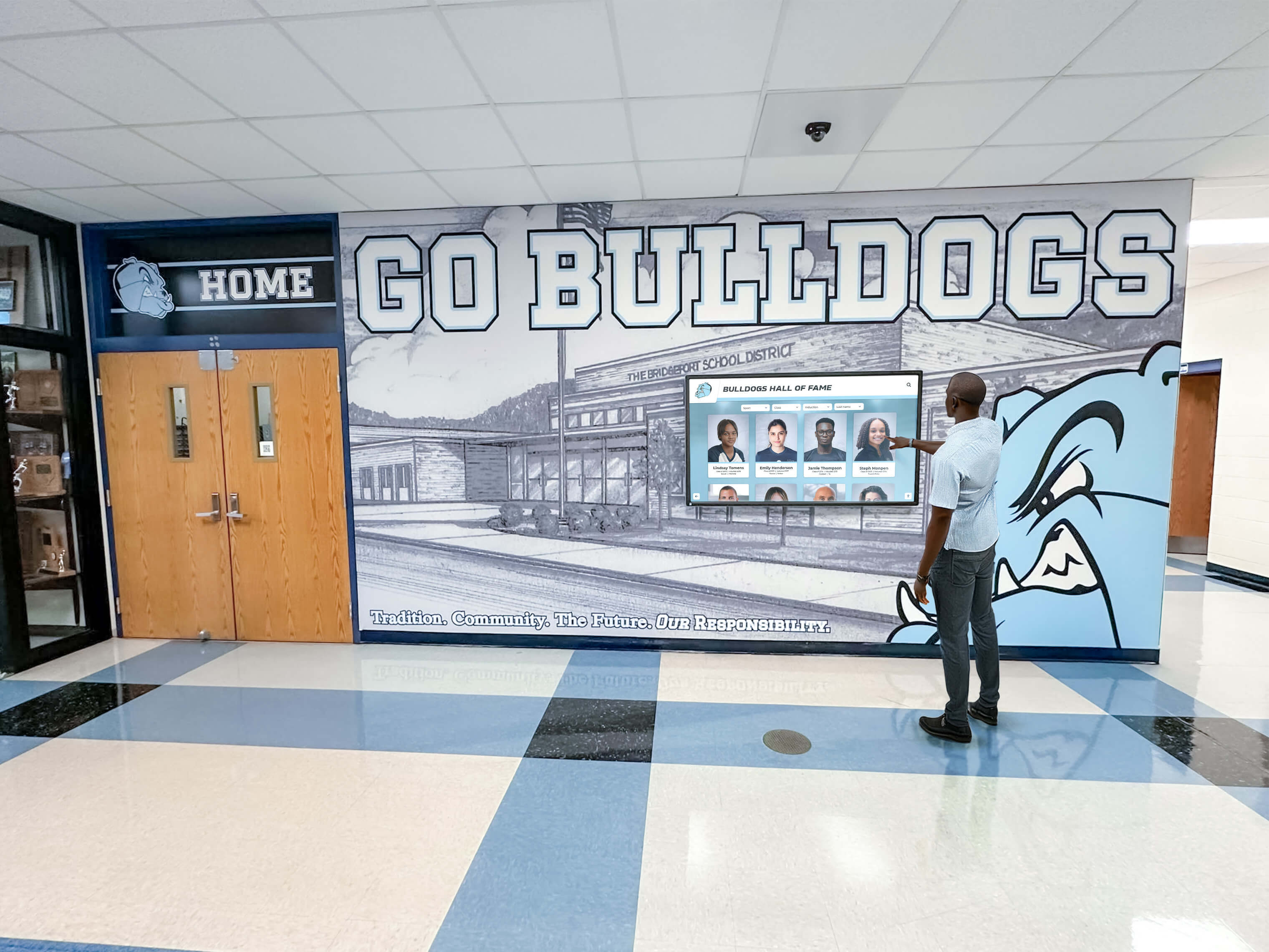
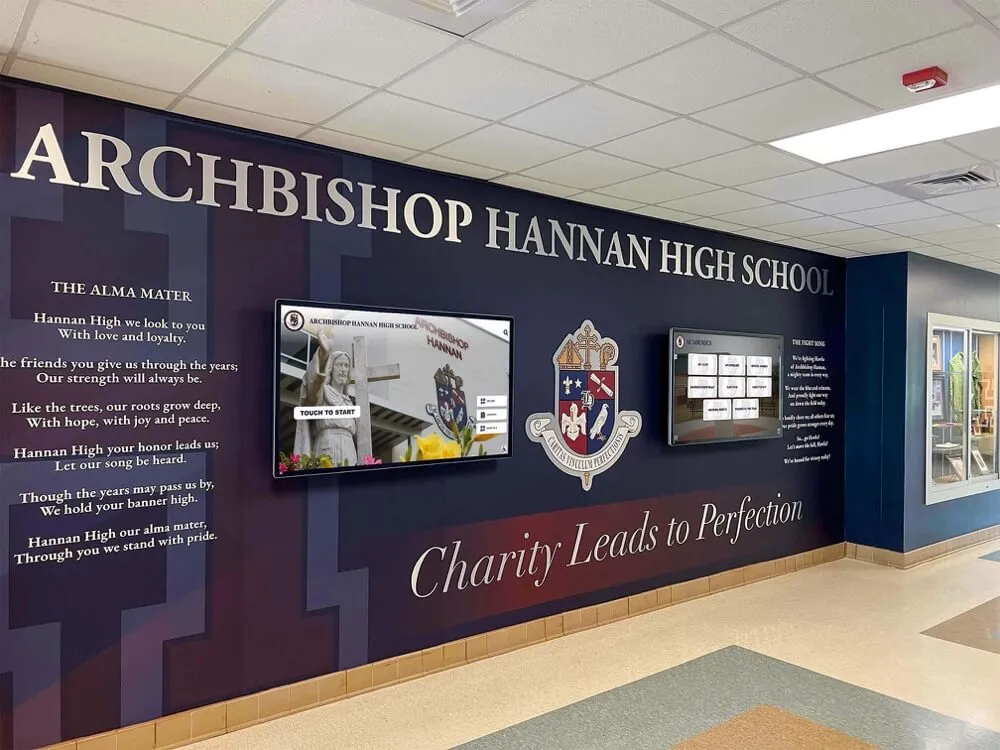
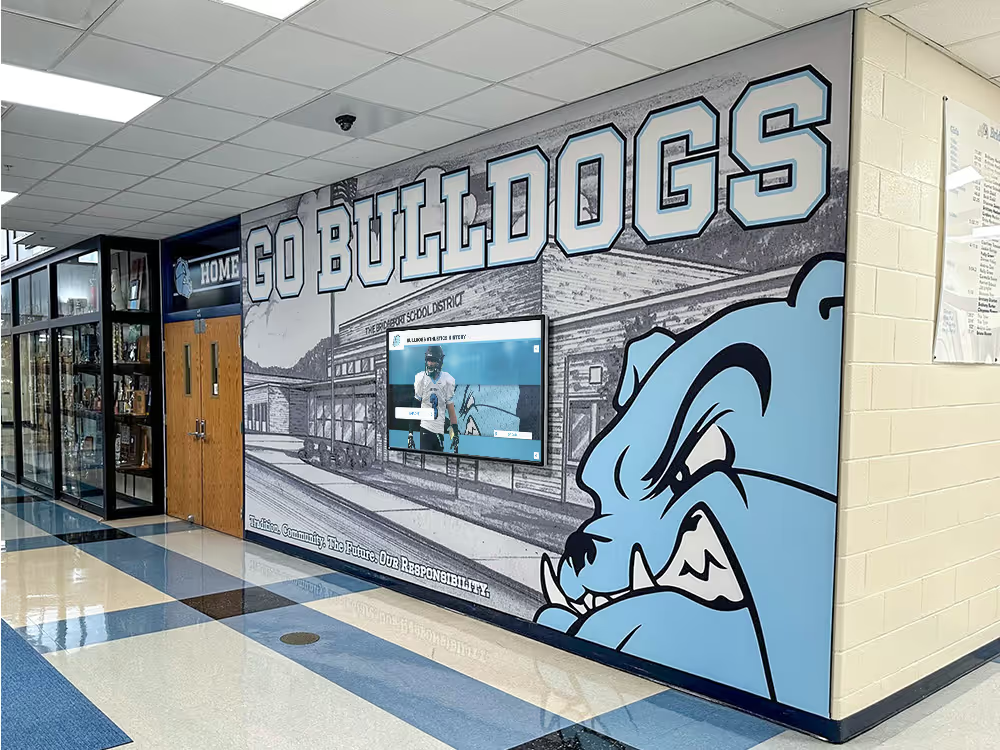
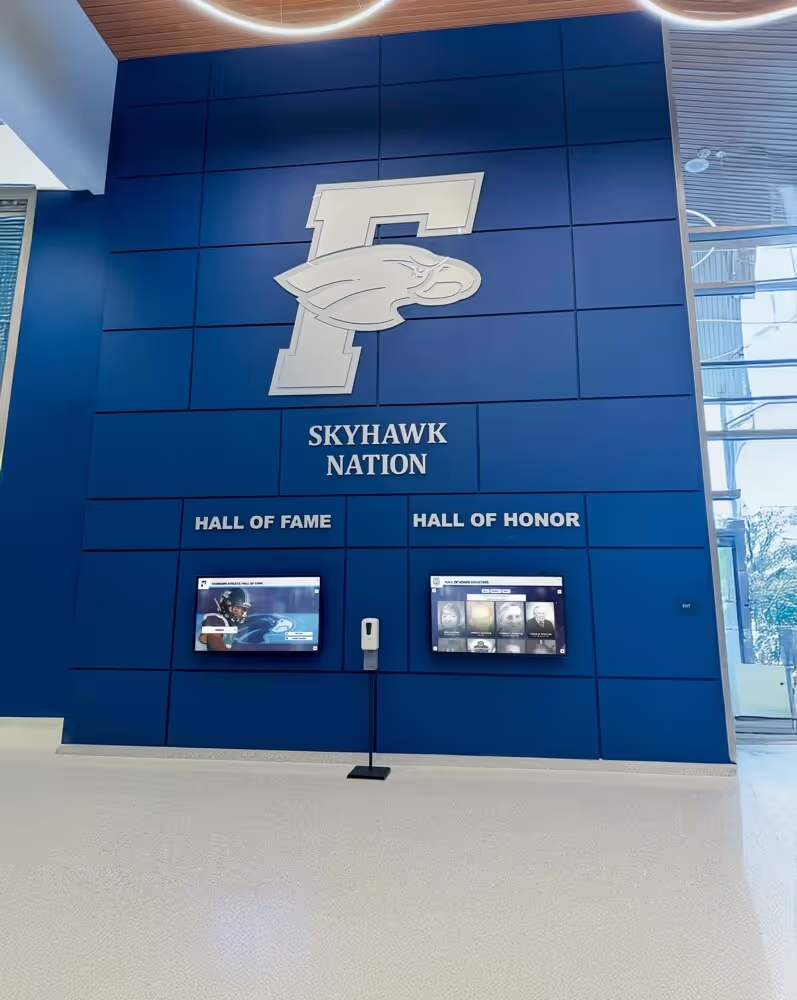
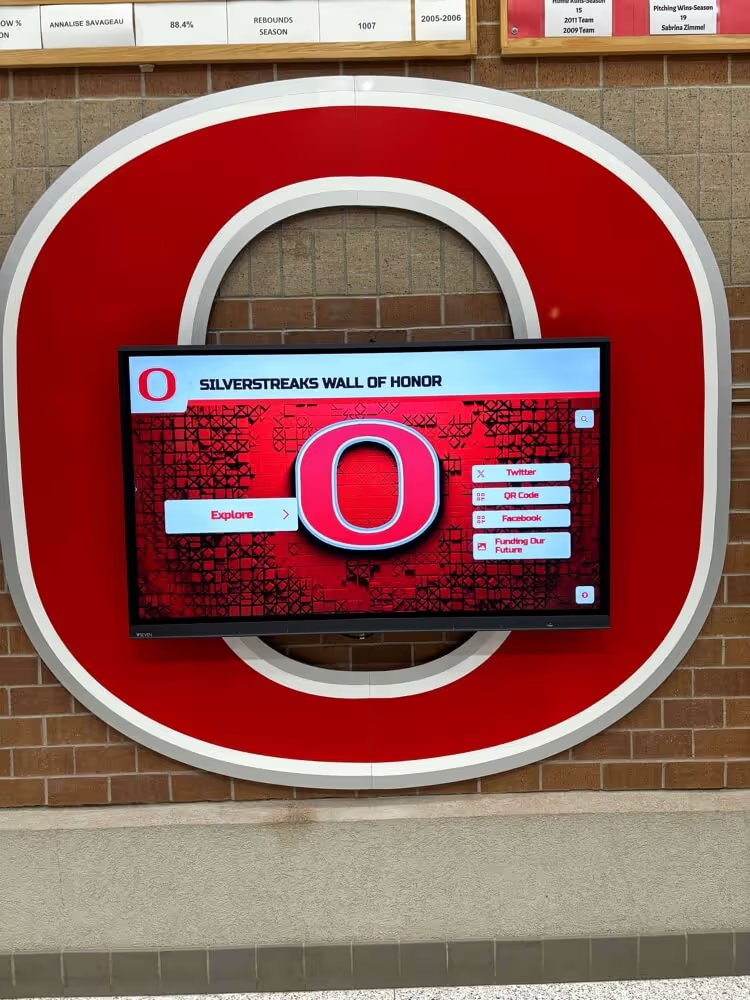
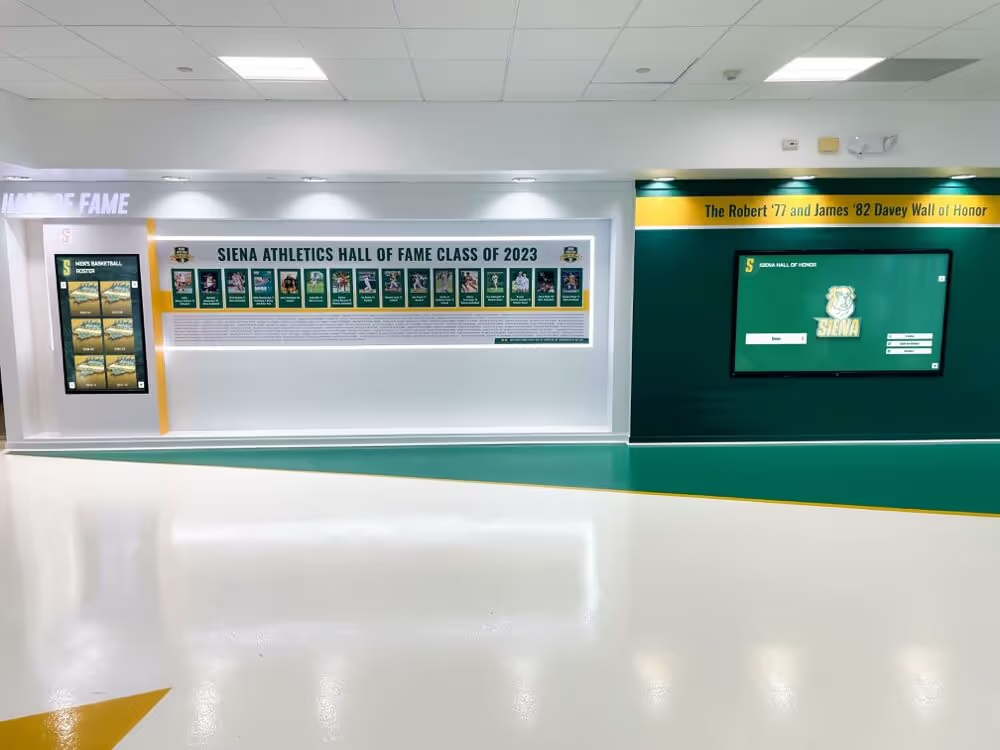
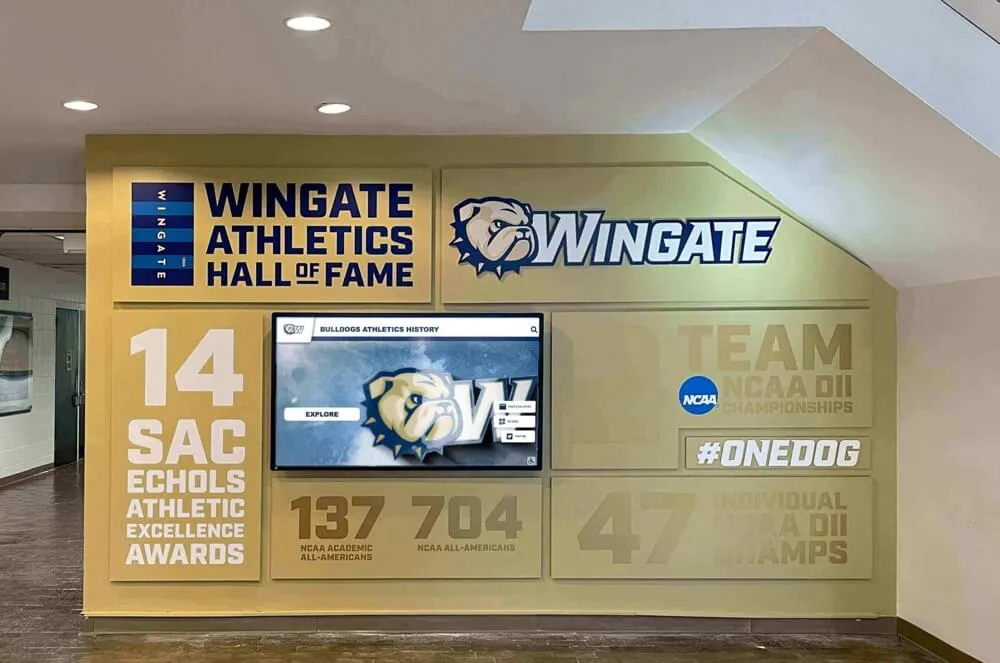
Educational institutions deploy touchscreen kiosks throughout campuses for recognition, wayfinding, and information access
Free Touchscreen Kiosk Browser Apps for Android
Android devices dominate cost-effective kiosk deployments due to hardware affordability and extensive lockdown capabilities built into the operating system.
Rocket Touchscreen Kiosk App (Google Play Store)
The Rocket Touchscreen kiosk app available on Google Play Store represents a purpose-built solution designed specifically for educational institutions, museums, and organizations deploying locked down touchscreen kiosks.
Key Features and Capabilities
- Automatic kiosk mode activation upon launch eliminating complex setup
- Single-touch optimization ensuring functionality on basic touchscreen hardware
- Chromium-based browser engine providing excellent web standards support
- Full-screen locked interface preventing access to Android system functions
- Configurable homepage and allowed website domains
- Session management automatically resetting between users
- Designed specifically for recognition displays and information kiosks
- Free download with no per-device licensing fees
Advantages Over Paid Alternatives
Unlike expensive commercial kiosk software requiring ongoing subscription fees, Rocket Touchscreen provides complete functionality at no cost—making it ideal for budget-conscious schools, nonprofits, and organizations deploying multiple kiosks where per-device licensing quickly becomes prohibitive.
The single-touch optimization proves particularly valuable for educational recognition displays where hardware costs favor basic capacitive touchscreens over expensive multi-touch alternatives. Many kiosk deployments require only tap, scroll, and basic navigation—functionality that single-touch displays provide at substantially lower cost than multi-touch panels.
Ideal Use Cases
- School athletic recognition displays and hall of fame kiosks
- Museum exhibit information and artifact detail presentations
- Library public access terminals and catalog search stations
- Campus directory and wayfinding systems
- Visitor information displays in public buildings
- Corporate lobby information and employee recognition
- Historical timeline presentations and archive exploration
Educational institutions implementing interactive recognition programs discover that purpose-built kiosk software designed specifically for schools eliminates configuration complexity while providing lockdown security appropriate for public student access environments.
Deployment Considerations
The app installs directly from Google Play Store on any compatible Android device—tablets, touchscreen monitors with Android media players, or all-in-one touchscreen computers running Android operating systems. Setup involves installing the app, configuring allowed websites and homepage, and launching into locked kiosk mode.
For permanent kiosk installations, organizations should configure Android device owner mode through mobile device management (MDM) systems or Android’s built-in kiosk provisioning—ensuring the Rocket Touchscreen app launches automatically on boot and prevents users from exiting lockdown through hardware buttons or system gestures.
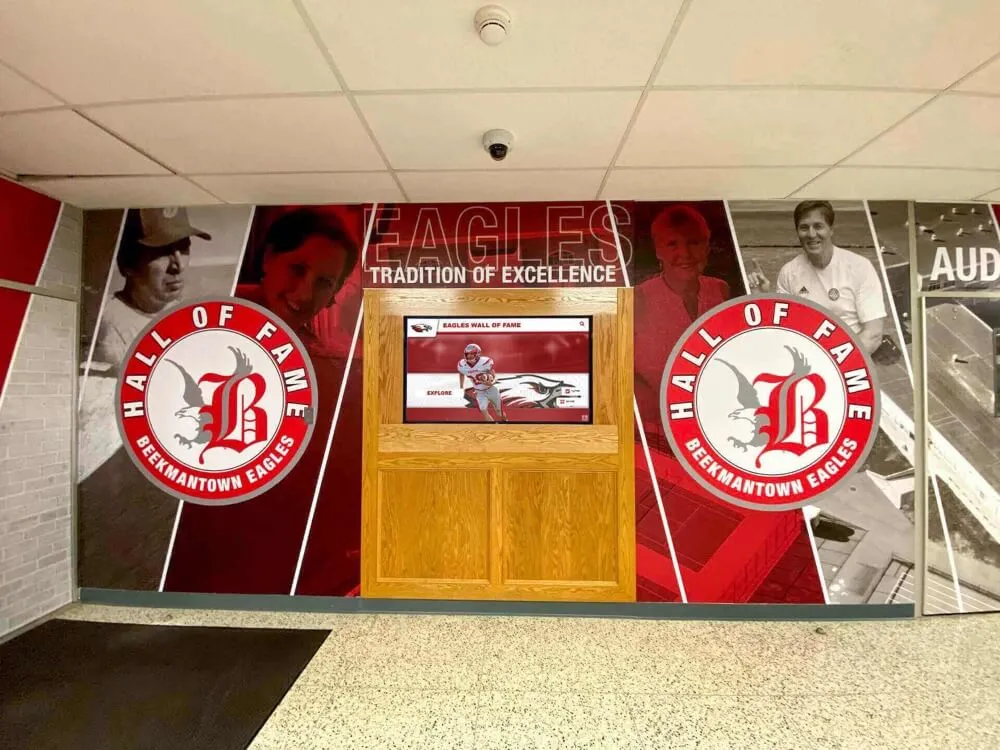
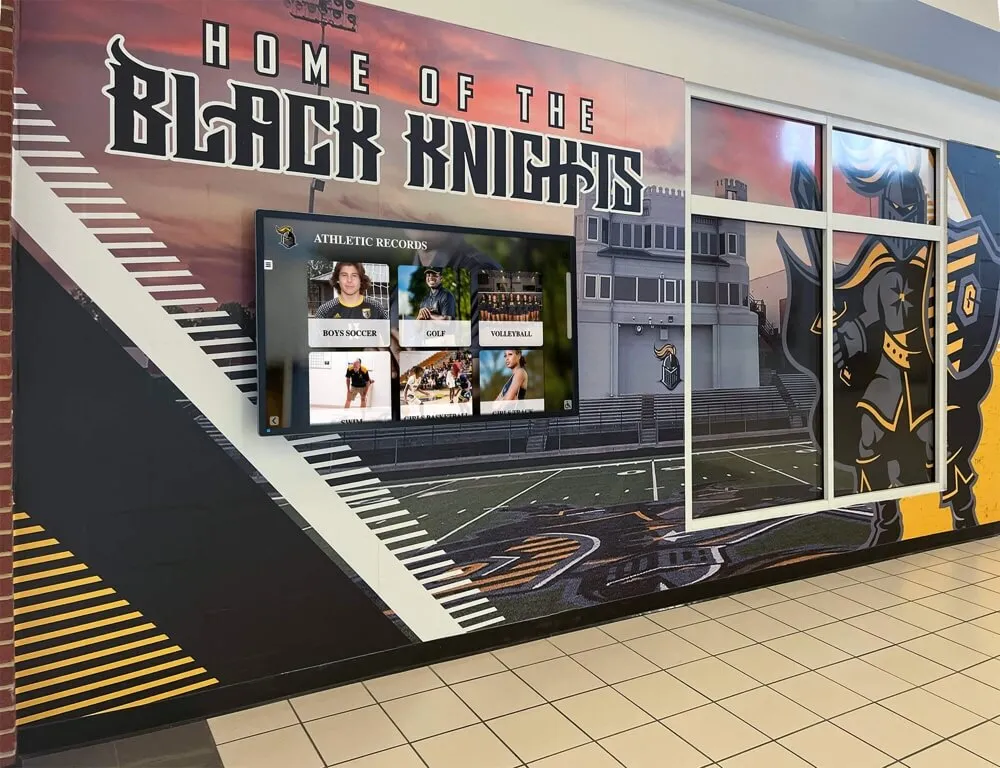
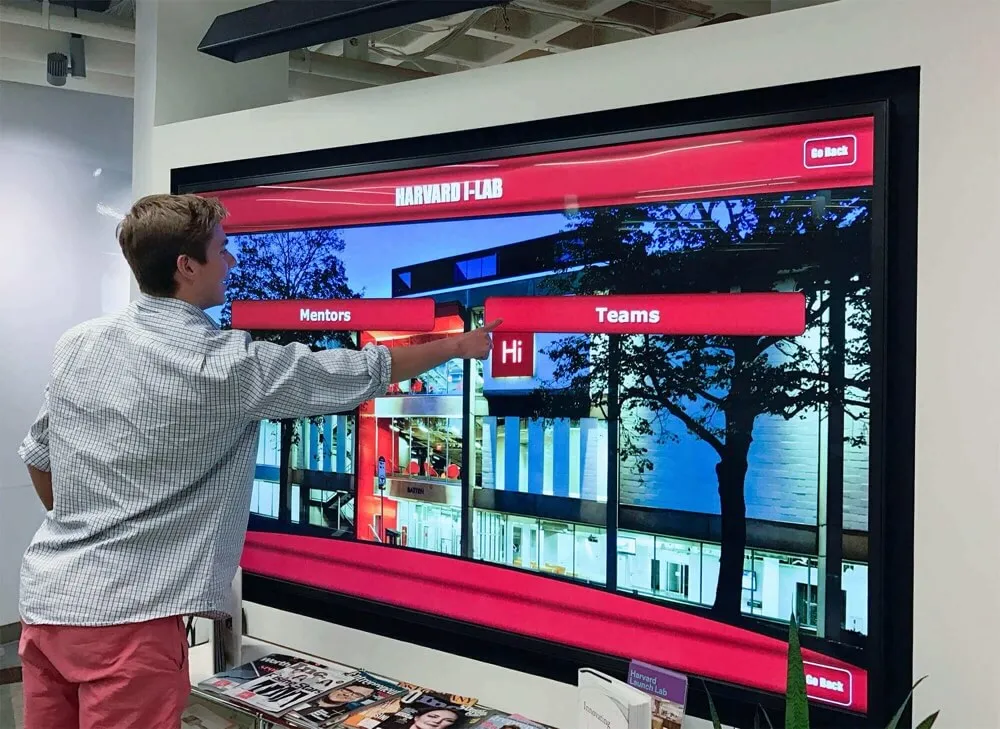
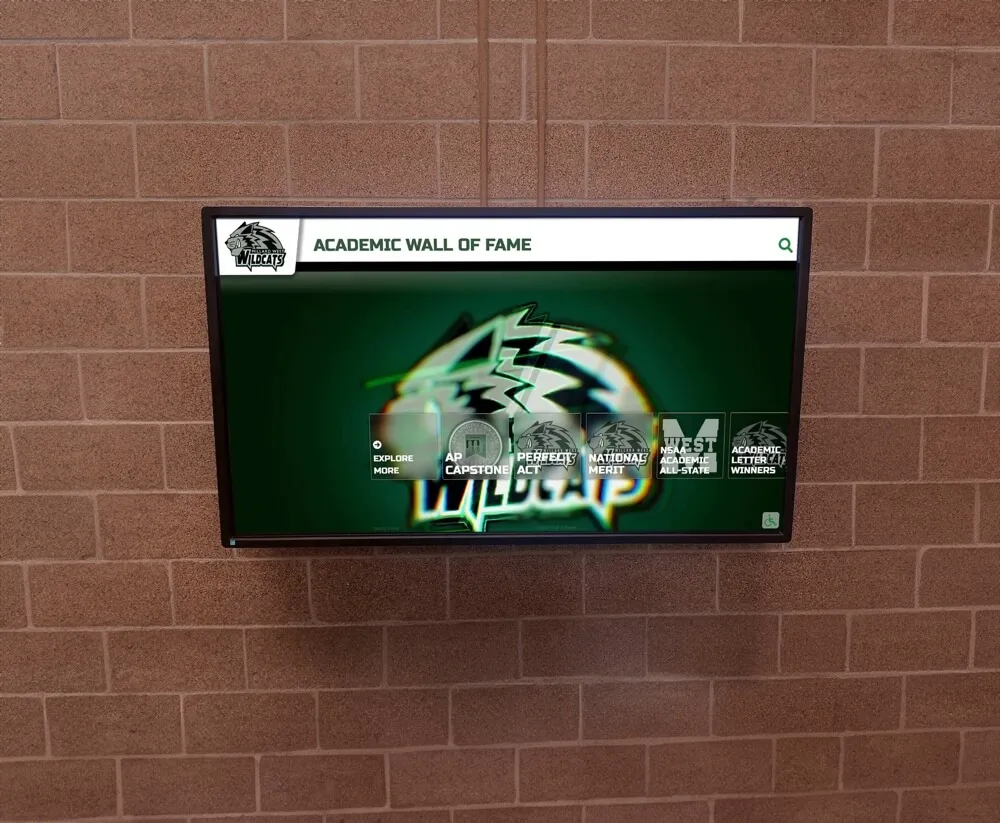
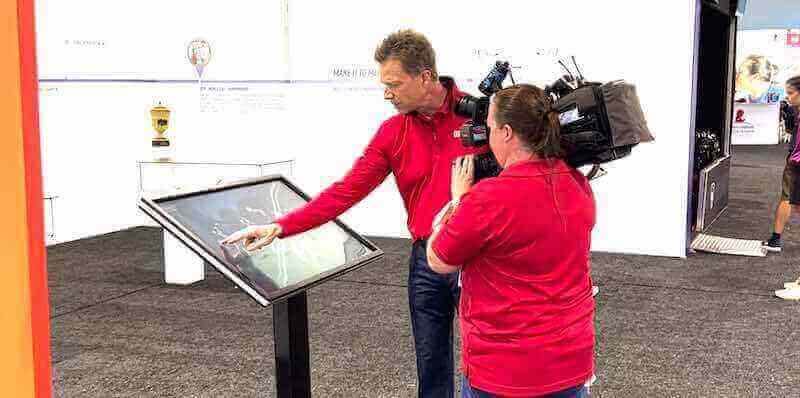
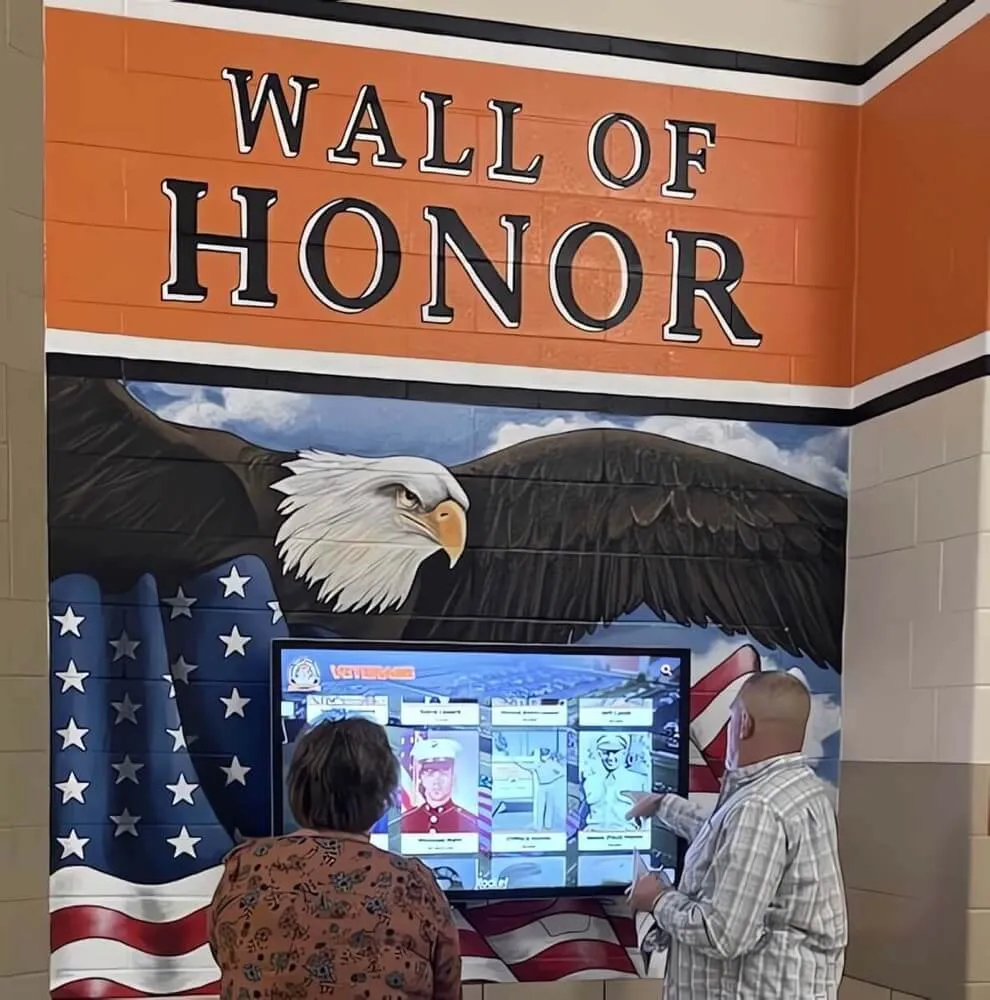
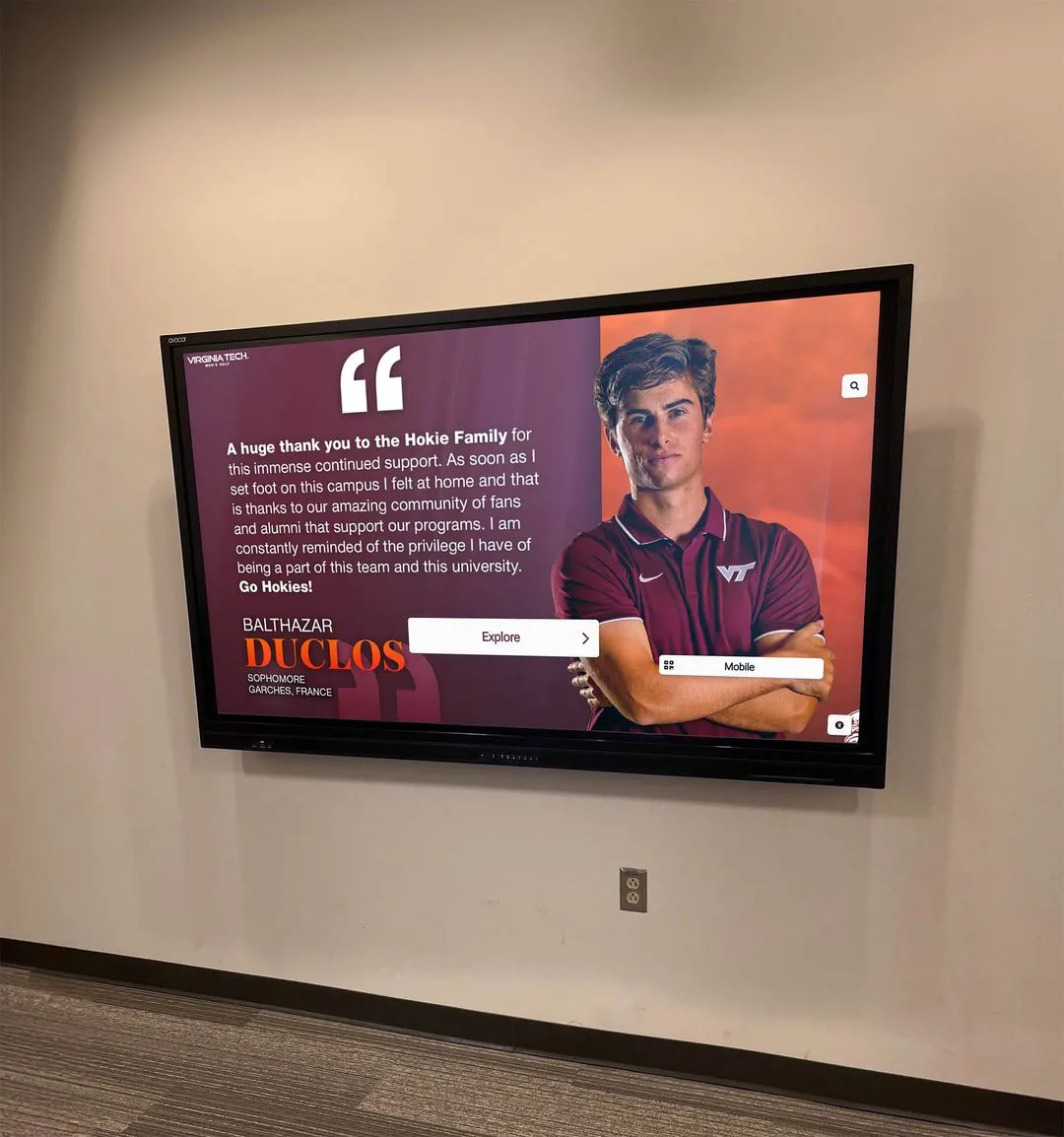
Recognition content displays beautifully on touchscreen kiosks using browser-based platforms accessible through locked down kiosk apps
Fully Kiosk Browser & Lockdown
Fully Kiosk Browser has established itself as a popular solution for Android kiosk deployments, offering both free and paid versions:
Free Version Capabilities
- Basic kiosk mode locking device to browser application
- Website restriction through whitelist and blacklist
- Configurable timeout and homepage reset
- System function blocking and button disabling
- Scheduled screen on/off functionality
- Basic motion detection and proximity sensors
- MQTT integration for smart home and automation systems
Limitations of Free Version
- Feature restrictions compared to paid Plus license ($14.90 one-time)
- Occasional promotional messages about paid upgrade
- Limited remote management capabilities
- Reduced motion detection sensitivity
- Missing advanced scheduling features
- No commercial use license without payment
Plus License Benefits
- Complete feature access including advanced motion detection
- Commercial use licensing for business deployments
- Remote administration panel managing multiple devices
- Advanced REST API for custom integrations
- Priority support and troubleshooting assistance
- Lifetime updates and improvements
Fully Kiosk Browser represents mature, feature-rich kiosk software with extensive configuration options—though complexity may overwhelm organizations seeking simpler turnkey solutions. The paid Plus license provides excellent value for organizations needing advanced features like remote management across distributed kiosk fleets.
Organizations deploying touchscreen information systems in multiple locations should carefully evaluate whether Fully Kiosk’s remote management justifies licensing costs versus free alternatives adequate for basic lockdown requirements.
STAROS Kiosk Lockdown (Glory Star)
Glory Star’s STAROS kiosk mode comes pre-installed on Glory Star touchscreen computers and is available free on compatible Android devices:
STAROS Features
- Multiple operating modes: browser, full-screen browser, media player, app, multi-app
- Flexible content presentation supporting various use cases
- Built-in scheduled content switching
- Remote management through Glory Star cloud platform
- Hardware integration with Glory Star touchscreen displays
- Touch gesture optimization for kiosk interactions
- License-free on Glory Star hardware
Hardware Integration Advantages
- Optimized performance on Glory Star touchscreen computers
- Pre-configured kiosk mode eliminating setup complexity
- Integrated hardware and software support
- Commercial-grade touchscreen displays rated for continuous operation
- Turnkey solutions combining display, computer, and kiosk software
Glory Star provides complete touchscreen kiosk solutions where hardware and software integration eliminates compatibility concerns—though hardware lock-in limits flexibility compared to software-agnostic alternatives running on any Android device.
Kiosk Browser Lockdown by PROCOIT
Kiosk Browser Lockdown offers professional kiosk functionality for Android devices:
Key Features
- Full device lockdown restricting access to configured webpages
- Whitelist and blacklist URL filtering
- Customizable browser controls and navigation options
- Session timeout and automatic reset
- Branding customization with logos and colors
- Remote configuration through admin console
- Commercial licensing required for production use
Trial and Licensing
- Free trial enabling feature evaluation
- Commercial licensing for ongoing production use
- Volume discounts for multiple device deployments
- Cloud-based management console
- Technical support and updates included
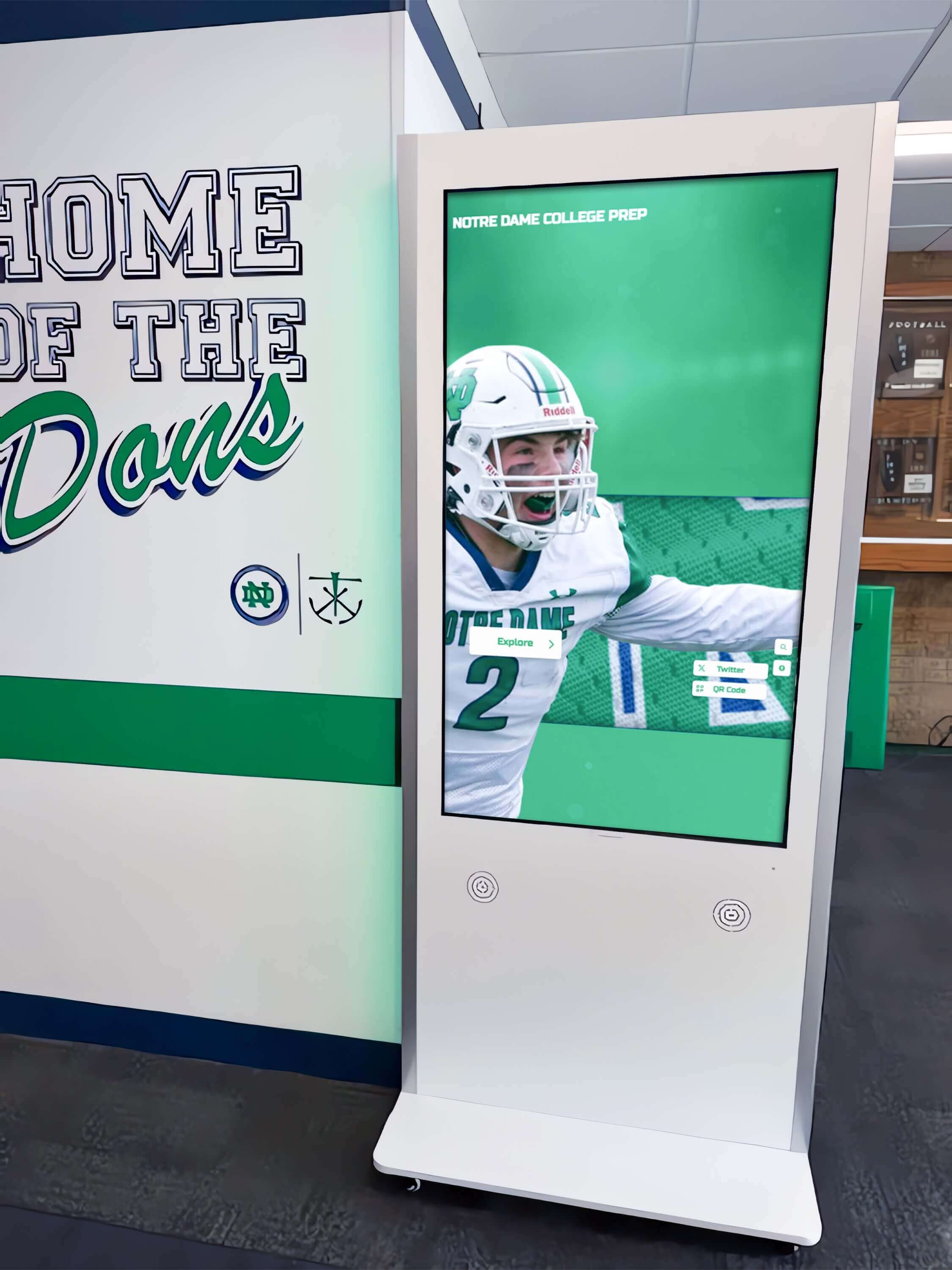
Professional floor-standing kiosk enclosures house Android tablets or computers running locked down browser software
PROCOIT targets commercial deployments requiring professional support and enterprise management features—making it suitable for organizations prioritizing vendor relationships and ongoing technical assistance over zero-cost alternatives.
Free Kiosk Browser Software for Mac Computers
Mac-based touchscreen kiosks require specialized software addressing macOS lockdown challenges and external touchscreen driver requirements.
Rocket Touchscreen for Mac App Store
The Rocket Touchscreen Mac app available in the Mac App Store provides turnkey kiosk functionality specifically designed for Mac computers:
Mac-Specific Features
- Automatic kiosk mode launching directly into locked browser
- Chromium browser engine ensuring web compatibility
- Single-touch optimization for basic touchscreen hardware
- macOS security integration and system lockdown
- Simple installation through Mac App Store
- No complex terminal commands or system modifications required
- Purpose-built for educational and museum kiosk deployments
Addressing Mac Kiosk Challenges
Traditional Mac kiosk deployments require extensive technical knowledge—configuring launchd scripts, editing property lists, implementing keyboard shortcut disabling, and troubleshooting macOS security restrictions. Rocket Touchscreen eliminates this complexity through automatic configuration, making Mac touchscreen kiosks accessible to non-technical administrators.
External touchscreen monitors connected to Mac computers typically require third-party driver software like Touch-Base UPDD since macOS lacks native external touchscreen support. Organizations planning Mac kiosk deployments should verify touchscreen hardware compatibility with Mac drivers before purchasing displays.
Mac Kiosk Use Cases
- School recognition displays leveraging existing Mac infrastructure
- Museum exhibits where Mac aesthetic matches facility design
- Corporate lobbies with Mac-centric IT environments
- Retail information stations in Apple-focused businesses
- Library public access terminals using Mac hardware
- Campus directories and wayfinding systems
Educational institutions with existing Mac computer deployments can repurpose older Mac Mini or iMac systems into locked down touchscreen kiosks—extending hardware lifecycle while implementing interactive display systems without requiring new hardware purchases.

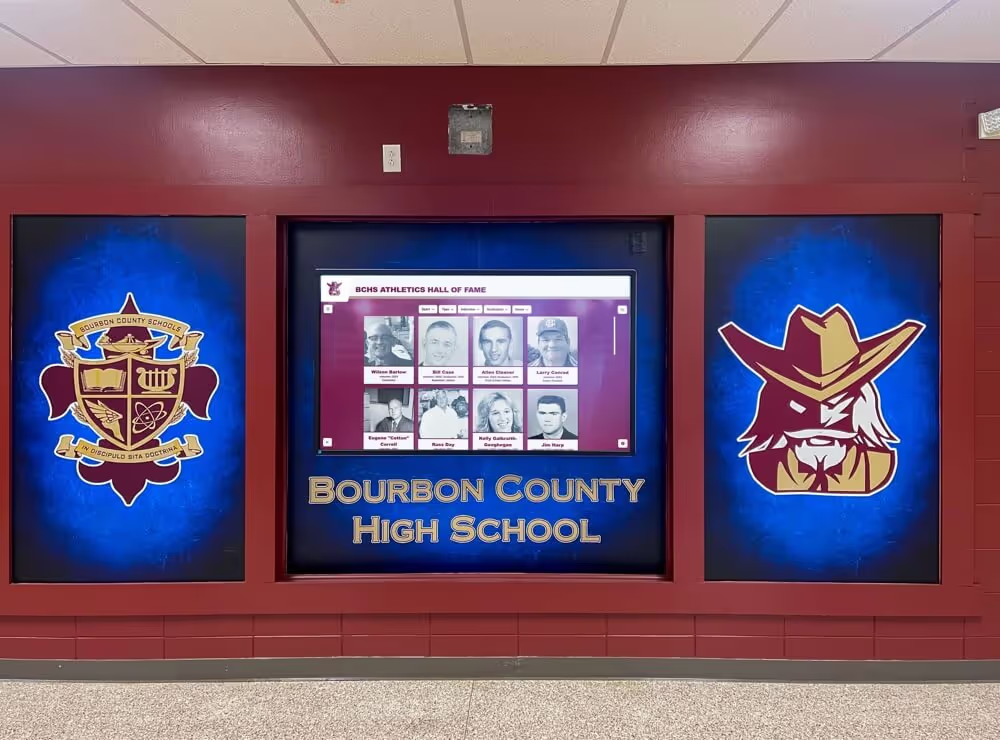
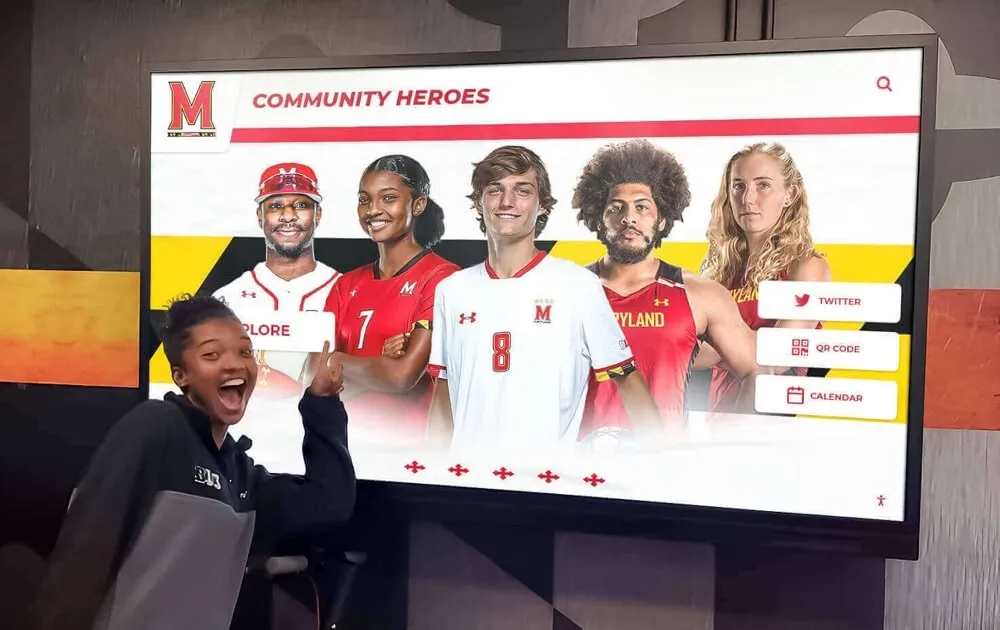
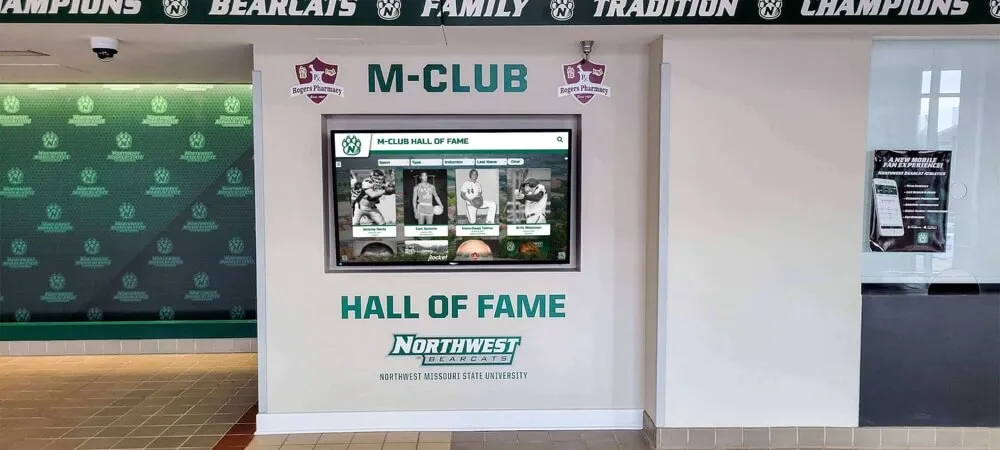
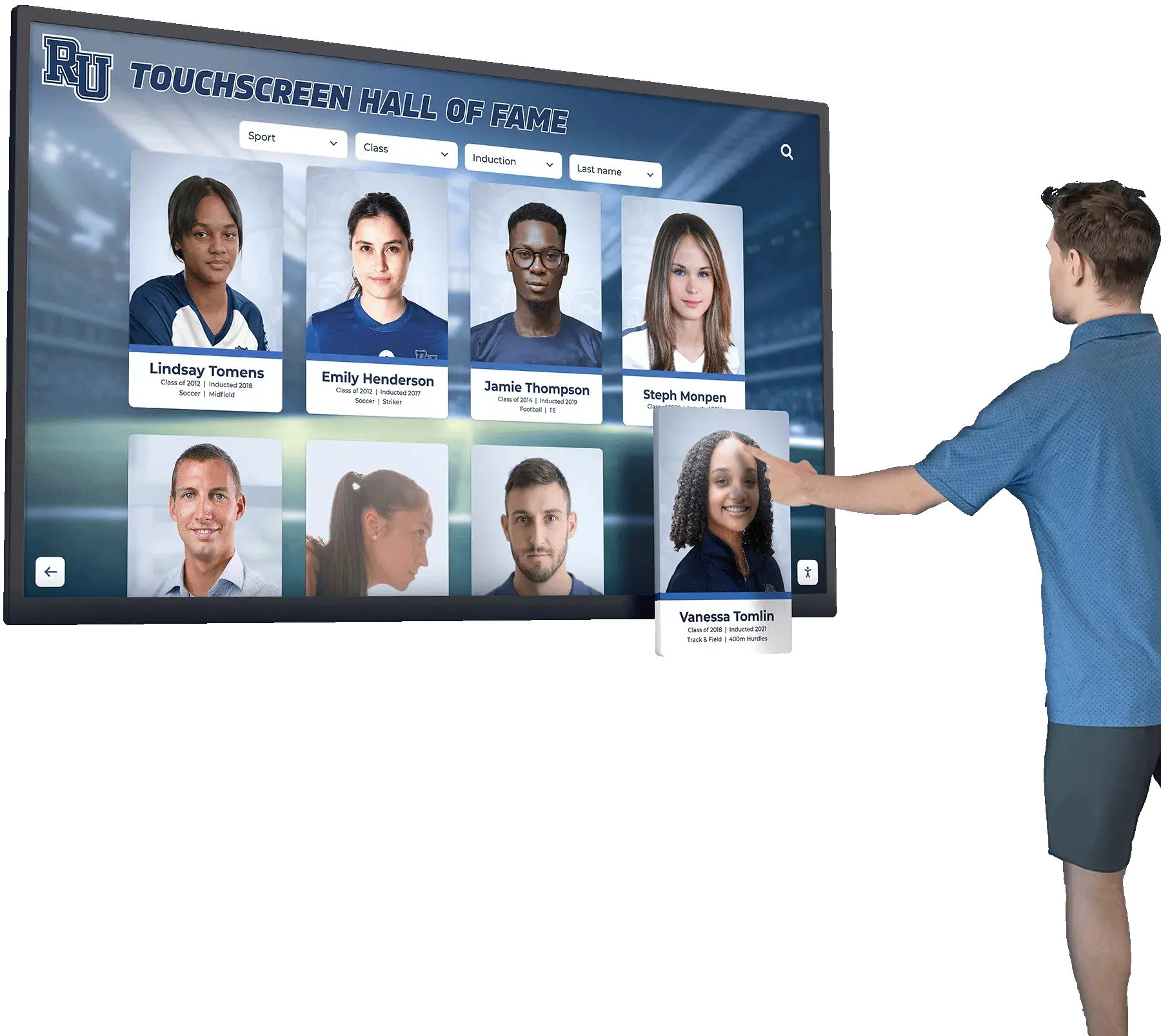
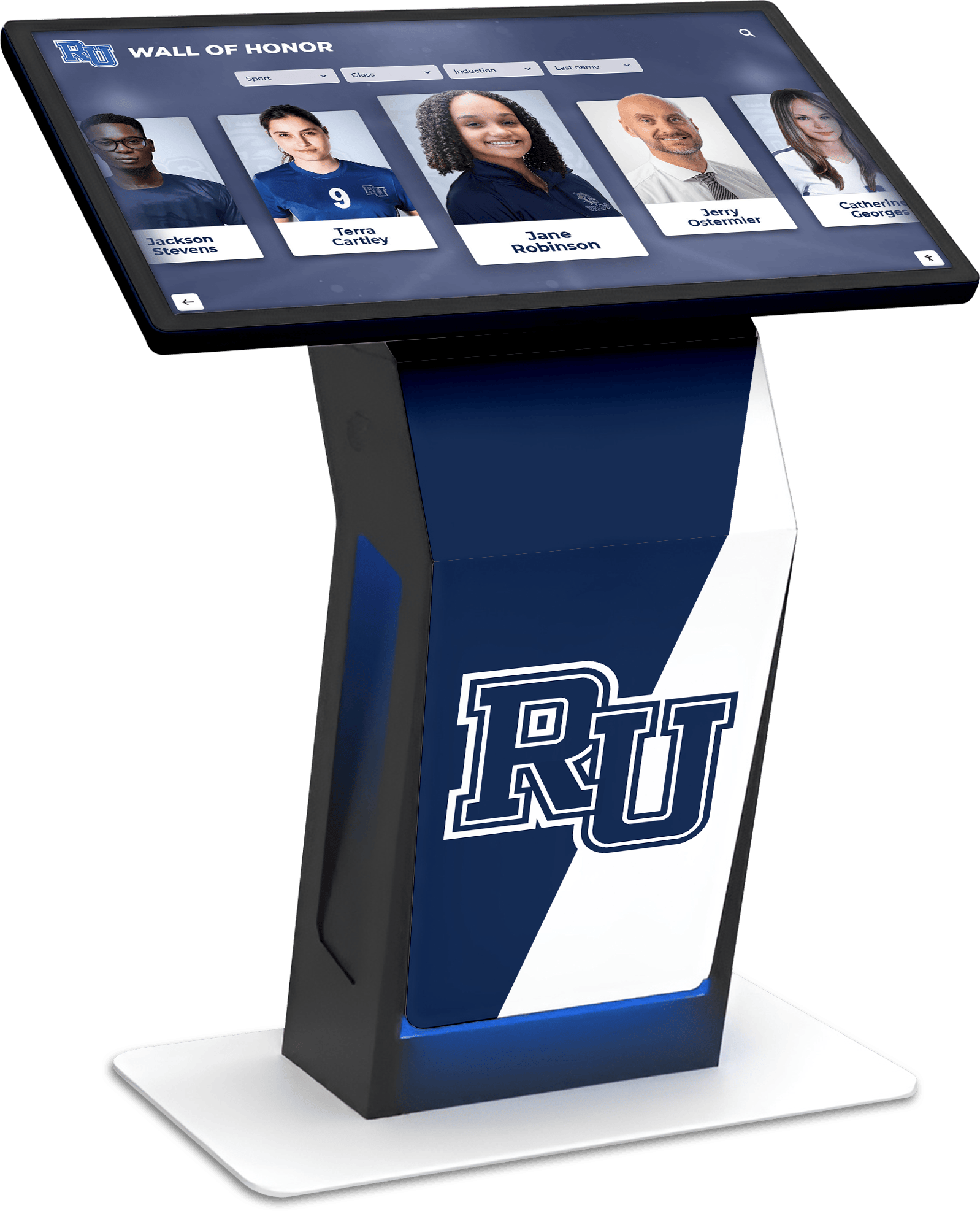
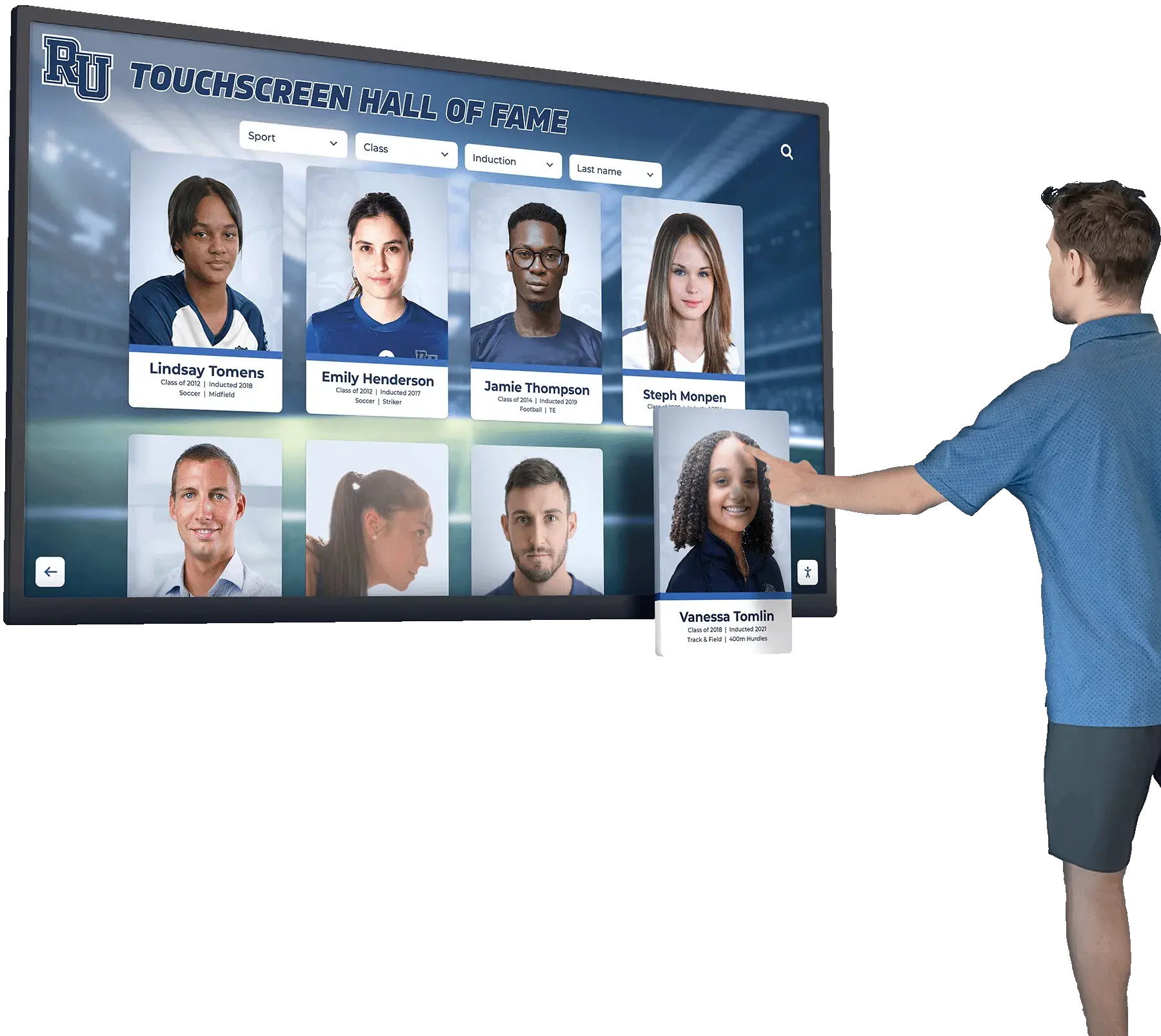
Card-based interfaces enable intuitive browsing of recognition content, achievements, and biographical information
Google Chrome Kiosk Mode (Command-Line)
Google Chrome includes built-in kiosk mode accessible through terminal commands—providing zero-cost Mac kiosk functionality for technically capable organizations:
Chrome Kiosk Implementation
/Applications/Google\ Chrome.app/Contents/MacOS/Google\ Chrome --kiosk --app=https://example.com
Capabilities and Limitations
- Launches specified URL in full-screen chromeless window
- Removes browser controls, address bar, and navigation interface
- Requires terminal launch or automated startup script
- No built-in session cleanup or timeout functionality
- Users can exit through keyboard shortcuts without additional lockdown
- Needs launchd configuration for automatic startup on boot
- Requires separate tools for comprehensive system lockdown
Chrome’s native kiosk mode provides functional browser lockdown at zero software cost but demands technical expertise implementing startup automation, preventing unauthorized exit, and managing session cleanup—challenges that purpose-built kiosk apps handle automatically.
Organizations with capable IT staff can build robust Mac kiosk systems around Chrome kiosk mode combined with additional security configurations—achieving results similar to commercial software through greater implementation effort. However, schools and smaller organizations lacking dedicated technical resources typically find purpose-built kiosk apps more practical despite modest licensing costs.
eCrisper: Mac Public Access Kiosk Software
eCrisper offers comprehensive Mac kiosk functionality designed for public access deployments:
eCrisper Capabilities
- Full-screen browser with configurable controls
- Automatic session cleanup removing browsing data
- Inactivity timeout returning to homepage
- Multiple access control modes (unlimited, timed, account-based)
- Website filtering through whitelist/blacklist
- Mac-optimized implementation using Apple technologies
- Used across schools, museums, hotels, churches, and libraries
Licensing and Pricing
- Paid software with various licensing tiers
- Perpetual licenses or subscription options
- Volume discounts for multiple installations
- Technical support and updates included
- Free trial period for evaluation
eCrisper balances feature richness with usability—providing more functionality than Chrome’s basic kiosk mode while remaining simpler than enterprise device management systems. Organizations requiring robust session management, multiple access modes, or time-limited kiosk access may find eCrisper’s paid licensing justified by included features.
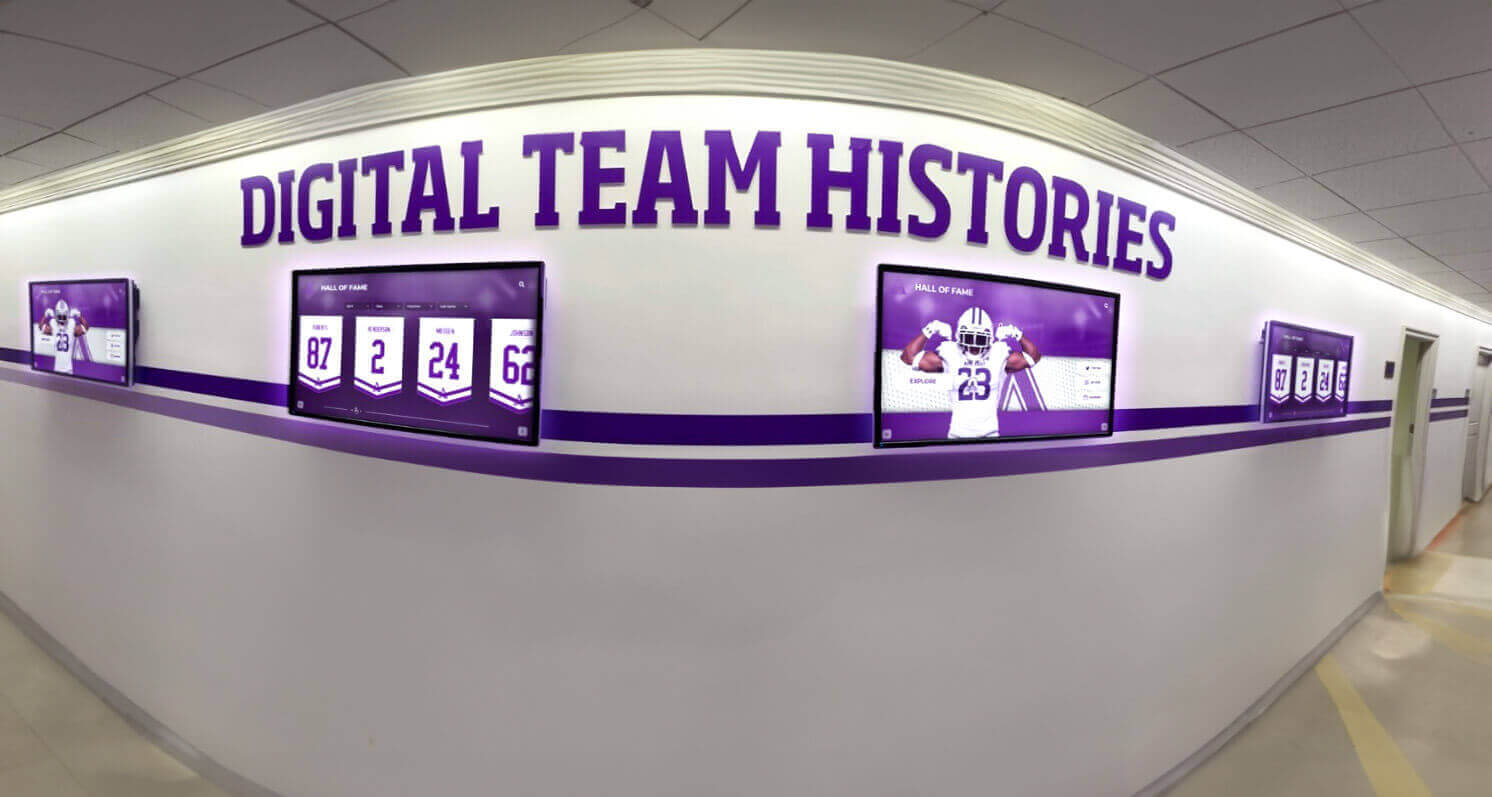
Organizations often deploy multiple touchscreen kiosks throughout facilities requiring consistent software and centralized management
Cross-Platform Kiosk Software Solutions
Several kiosk platforms support multiple operating systems—providing consistency across mixed device deployments.
Porteus Kiosk (Linux-Based)
Porteus Kiosk provides a lightweight Linux operating system restricted exclusively to browser functionality:
Porteus Kiosk Characteristics
- Dedicated Linux distribution designed specifically for kiosk use
- Chromium or Firefox browser embedded in secure OS
- Complete system lockdown preventing unauthorized access
- Persistent or non-persistent mode options
- Network boot capability for centralized management
- Open-source with free and commercial versions
- Cross-platform support (x86 and ARM processors)
Deployment Approach
- Boots from USB drive, network, or installed on hard drive
- Replaces existing operating system with dedicated kiosk OS
- Centralized configuration through web-based wizard
- Remote management of distributed kiosk installations
- Automatic updates and security patches
Porteus Kiosk suits organizations comfortable with Linux deployment and seeking maximum security through dedicated kiosk operating systems. The approach eliminates vulnerabilities inherent in general-purpose operating systems by providing only essential kiosk functionality—though it requires dedicated hardware or willingness to replace existing operating systems.
Schools and libraries with older computers unsuitable for modern operating systems can repurpose hardware into secure web kiosks through lightweight Porteus Kiosk installations—extending equipment lifecycle while implementing public access terminals at zero software cost.
KioWare Kiosk Software
KioWare provides professional kiosk software for Windows, Android, and cloud deployments:
KioWare Features
- Comprehensive lockdown across Windows and Android platforms
- Cloud-based remote management and monitoring
- Customizable interface and branding options
- Session management and automatic reset
- Payment processing integration for commercial applications
- Health monitoring and automatic recovery
- Enterprise-grade support and SLAs
Free vs. Paid Tiers
- Limited free version with periodic popup notifications
- Professional licenses for production deployments
- Cloud-based management subscriptions
- Volume licensing for large installations
- Technical support and training packages
KioWare targets commercial deployments requiring professional vendor relationships, comprehensive support, and advanced features like payment integration—justifying higher costs through reduced internal IT burden and enterprise-grade reliability.
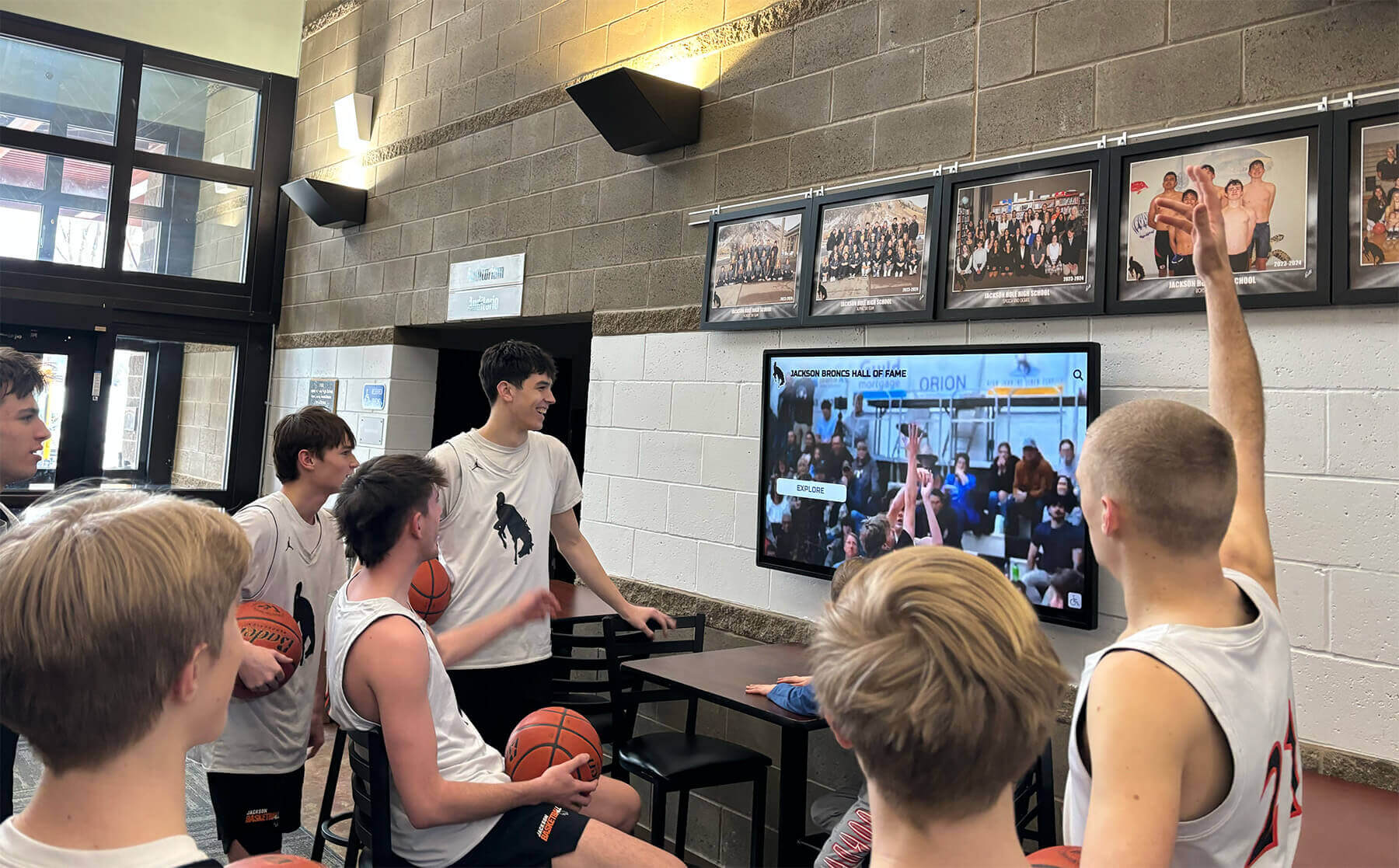
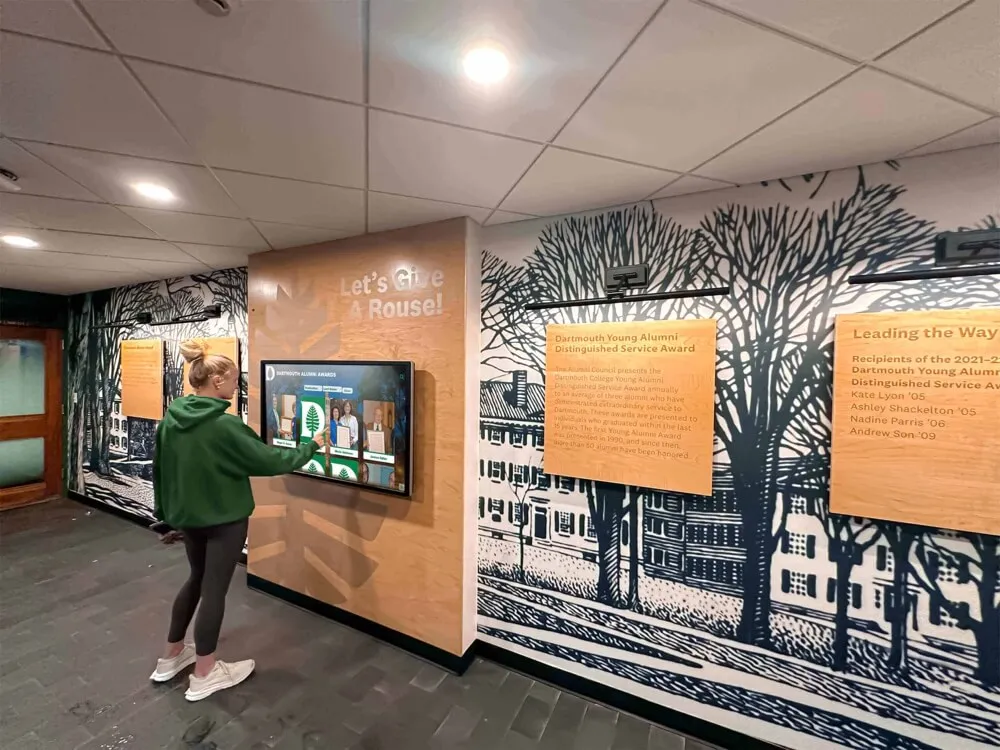
Touchscreen kiosks create engaging gathering points where students explore achievements, view highlights, and celebrate successes
Comparing Free Kiosk Apps vs. Paid Alternatives
Understanding trade-offs between free and commercial kiosk software helps organizations make informed decisions balancing cost against capability.
When Free Kiosk Apps Provide Adequate Functionality
Suitable Use Cases for Free Solutions
- Single-location deployments with limited devices
- Basic website display and navigation requirements
- Organizations with technical staff for manual configuration
- School and nonprofit applications with tight budgets
- Simple information kiosks without complex interactions
- Internal-use kiosks with lower security requirements
- Temporary or pilot deployments evaluating kiosk viability
Many touchscreen kiosk deployments require only fundamental lockdown preventing system access and browser restrictions limiting navigation to approved websites. Free kiosk apps deliver this core functionality adequately—particularly for smaller organizations deploying handful of kiosks where manual configuration and maintenance remains practical.
Schools implementing student recognition displays in single lobby locations often find free kiosk software perfectly adequate—saving licensing fees for investment in hardware, content development, and display quality that directly impact visitor experience.
When Commercial Software Justifies Investment
Scenarios Favoring Paid Solutions
- Multi-location deployments requiring centralized management
- Organizations lacking internal technical expertise
- Commercial applications needing vendor support and SLAs
- Complex integrations with payment, authentication, or business systems
- Regulatory compliance requiring documented security controls
- High-traffic public kiosks demanding maximum reliability
- Deployments where downtime creates significant business impact
Professional kiosk software providers offer value beyond basic lockdown functionality—remote management reducing IT burden, technical support resolving issues quickly, compliance documentation satisfying auditors, and service level agreements ensuring reliability. Organizations deploying large kiosk networks often discover that licensing costs pale compared to internal IT time required maintaining free solutions.
Businesses implementing retail information kiosks or service automation may find commercial software justified through superior uptime, professional support, and advanced features enabling revenue generation that free alternatives cannot match.
Total Cost of Ownership Analysis
Free Software Costs
- Zero licensing fees
- Internal IT time for setup and configuration (4-8 hours per device)
- Ongoing maintenance and troubleshooting (1-2 hours monthly per device)
- Manual updates and security patches
- Limited or community-based support
- Potential security vulnerabilities in unmaintained projects
Commercial Software Costs
- Licensing fees ($50-200 annually per device typical)
- Reduced setup time through automated configuration (1-2 hours per device)
- Lower maintenance burden through remote management (minimal monthly time)
- Automatic updates and security patches
- Professional technical support included
- Service level agreements ensuring uptime
- Compliance documentation and audit support
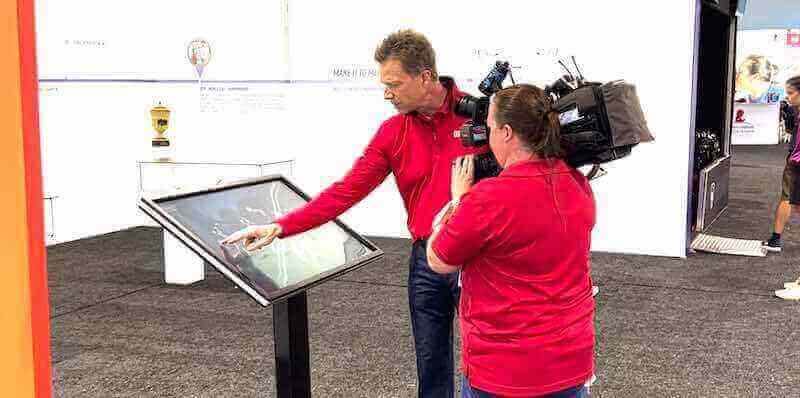
Professional kiosk deployments often justify commercial software investment through superior reliability and support
Organizations should calculate complete five-year total cost of ownership including licensing, internal IT time, support costs, and business impact of downtime. Small deployments often favor free solutions where per-device effort remains manageable, while larger installations frequently discover commercial software reduces total costs through operational efficiency despite licensing fees.
Deployment Best Practices for Touchscreen Kiosk Apps
Successful kiosk implementations require attention to configuration, security, content, and maintenance beyond simply installing lockdown software.
Initial Configuration and Setup
Device Preparation
- Factory reset devices ensuring clean starting point
- Apply latest operating system updates and security patches
- Configure network connectivity (prefer wired Ethernet over WiFi)
- Set timezone, language, and regional settings appropriately
- Disable unnecessary system services reducing attack surface
- Configure power management preventing unexpected shutdowns
- Document configuration settings for replication
Kiosk App Installation and Configuration
- Install chosen kiosk app from official sources (Play Store, App Store)
- Configure allowed websites through whitelist or homepage settings
- Set appropriate timeout periods balancing convenience and privacy
- Test lockdown thoroughly attempting all possible exit methods
- Configure startup launch ensuring kiosk app loads automatically
- Implement MDM or device owner mode for permanent installations
- Create backup configurations enabling rapid restoration
Educational institutions should conduct extensive testing with actual student users before full deployment—identifying usability issues, confusion points, and unintended exit methods that might not be obvious during administrative testing. Schools implementing campus directory systems discover that real-world student testing reveals assumptions that don’t hold under actual use conditions.
Security Hardening and Access Control
Physical Security Measures
- Secure mounting preventing device theft or unauthorized removal
- Cable management protecting power and network connections
- Port blocking preventing USB device connections
- Screen protectors maintaining touch while preventing vandalism
- Surveillance camera coverage deterring abuse
- Tamper-evident seals alerting to unauthorized access attempts
Network Security Configuration
- Isolate kiosks on guest network VLANs separate from internal systems
- Implement firewall rules restricting unnecessary network access
- Configure content filtering blocking inappropriate websites
- Enable HTTPS-only access preventing insecure connections
- Monitor network traffic detecting anomalous behavior
- Implement intrusion detection alerting to attack attempts
- Document security controls for compliance audits
Access Management
- Physical locks securing administrative access
- Strong passwords protecting configuration settings
- Multi-factor authentication for remote administration
- Role-based permissions limiting administrative capabilities
- Regular password rotation following security policies
- Audit logging tracking configuration changes
- Incident response procedures addressing security events
Organizations deploying public kiosks bear responsibility for protecting both the kiosk hardware and preventing misuse that could reflect poorly on the institution or create liability. Schools must ensure student-accessible displays implement appropriate content filtering, privacy protections, and usage monitoring meeting educational technology standards and district policies.
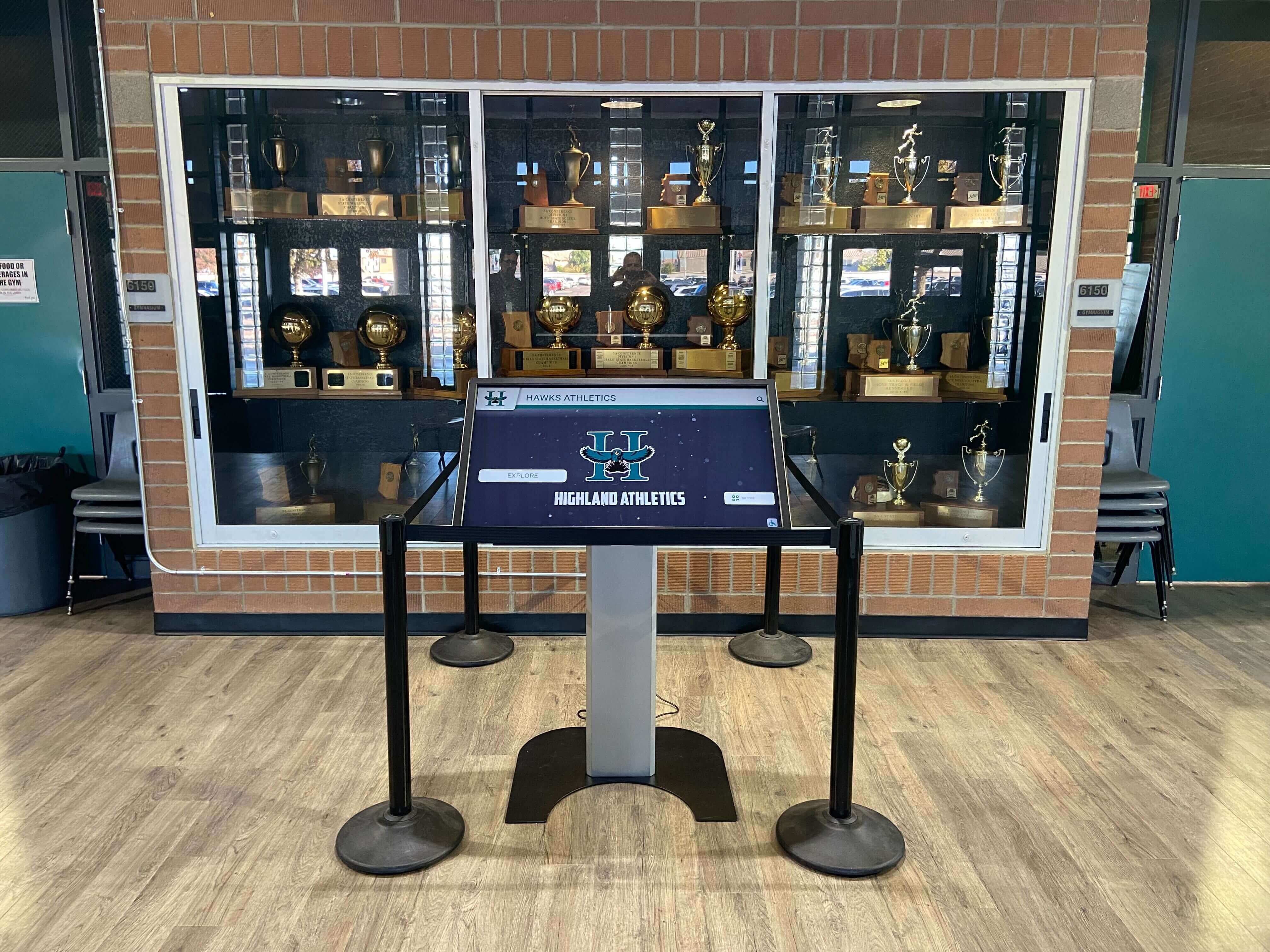
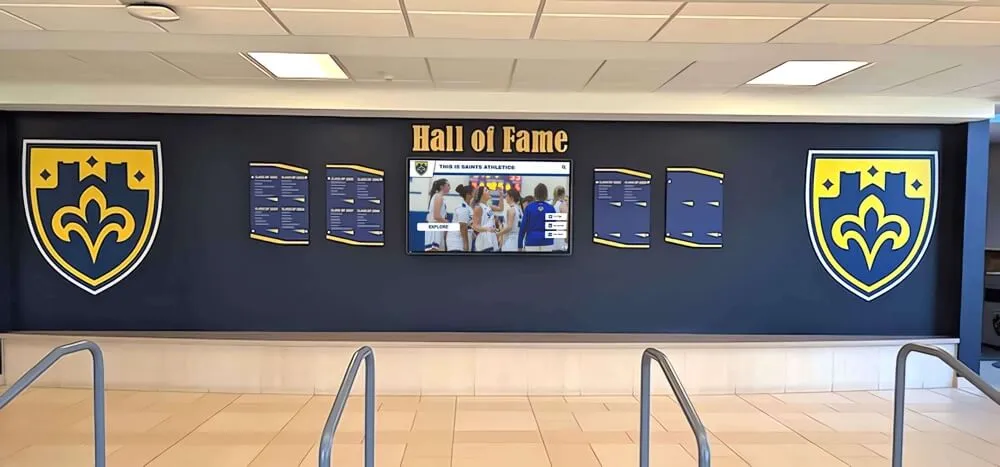
Kiosk deployments integrate with existing facility elements like trophy cases creating cohesive recognition environments
Content Strategy and User Experience
Interface Design Principles
- Clear visual hierarchy emphasizing primary navigation
- Touch targets sized appropriately (minimum 44×44 pixels)
- High-contrast color schemes ensuring readability
- Obvious interactive elements with clear affordances
- Minimal text focusing on essential information
- Consistent navigation patterns throughout experience
- Accessibility compliance supporting diverse users
Content Organization
- Shallow navigation hierarchies (maximum 3 levels deep)
- Multiple pathways to popular information
- Robust search functionality for content discovery
- Featured content highlighting most important information
- Breadcrumb navigation showing current location
- Home button always visible enabling easy restart
- Help information explaining kiosk functionality
Engagement and Usability
- Attract mode drawing attention when idle
- Clear instructions for first-time users
- Responsive feedback confirming touch registration
- Loading indicators during content retrieval
- Error messages explaining issues and recovery
- Privacy notices informing appropriate use
- Multilingual support serving diverse audiences
Organizations should invest in professional content design ensuring touchscreen kiosks deliver positive experiences encouraging engagement rather than frustrating visitors with confusing interfaces. Schools implementing historical timeline displays discover that intuitive navigation and compelling content directly determine whether students actually explore recognition content versus quickly abandoning frustrating interfaces.
Ongoing Maintenance and Monitoring
Preventive Maintenance Schedule
- Daily automated testing verifying kiosk functionality
- Weekly physical inspection checking for damage or issues
- Monthly deep cleaning maintaining professional appearance
- Quarterly software updates applying security patches
- Annual hardware inspection identifying wear requiring replacement
- Regular backup of configuration and content
- Documentation of maintenance activities and findings
Performance Monitoring
- Uptime tracking measuring availability and reliability
- Usage analytics revealing visitor engagement patterns
- Error logging identifying recurring technical issues
- Network monitoring detecting connectivity problems
- Resource utilization tracking memory and storage consumption
- User feedback mechanisms capturing visitor experience
- Benchmark testing comparing performance over time
Proactive Issue Resolution
- Automated alerts notifying administrators of offline kiosks
- Remote troubleshooting diagnosing issues without site visits
- Spare hardware inventory enabling rapid replacement
- Vendor relationships for specialized technical support
- Escalation procedures addressing critical problems
- Post-incident reviews improving future reliability
- Continuous improvement based on usage patterns and feedback
Educational institutions should establish clear maintenance responsibilities—designating specific staff for routine inspections, cleaning, and basic troubleshooting while maintaining vendor relationships for complex technical issues beyond internal capabilities. Schools implementing multi-location display networks often assign building-level staff for daily monitoring while centralizing technical support at district level.
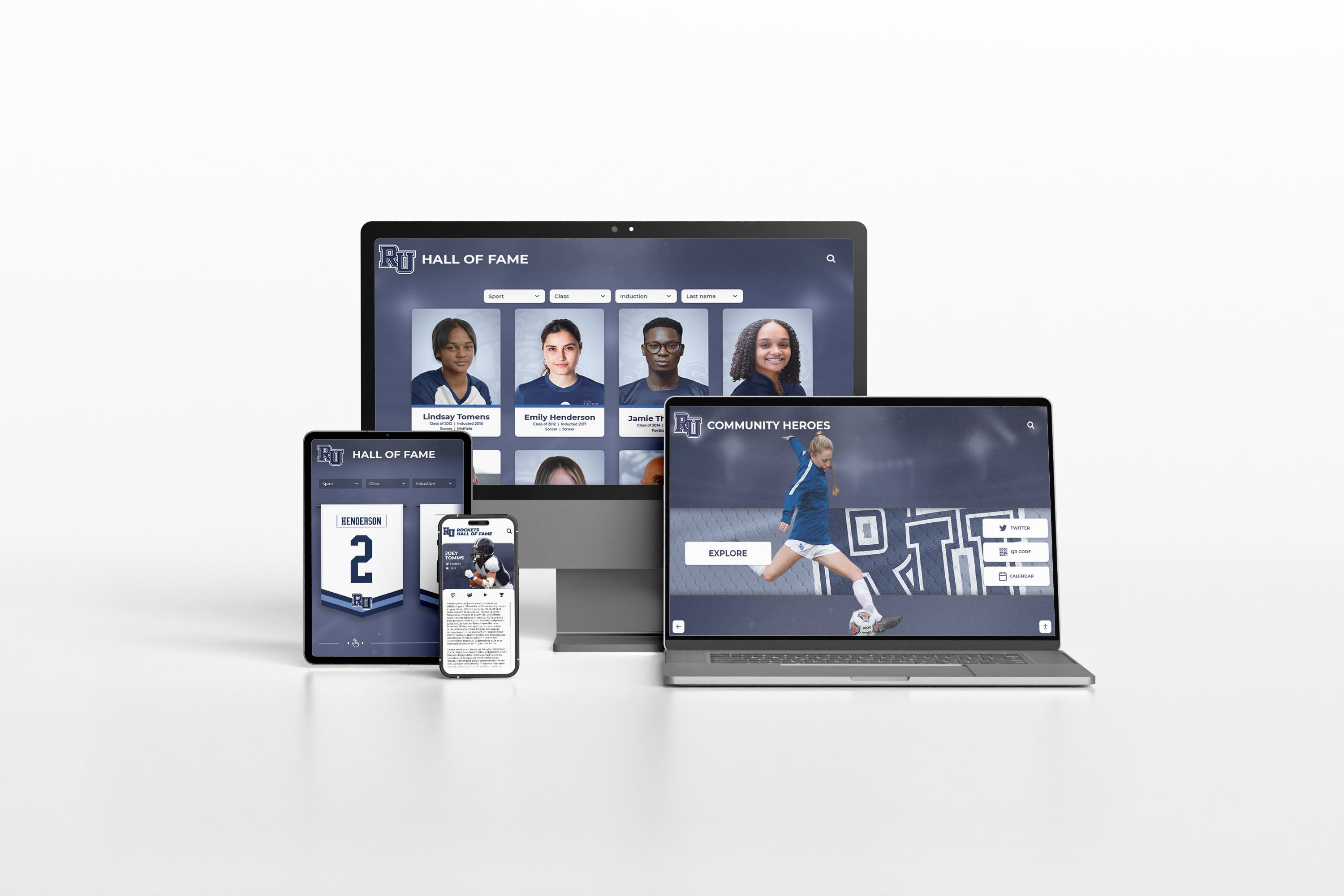
Modern recognition platforms extend beyond physical touchscreens to responsive web access across all devices
Selecting the Right Free Kiosk Browser for Your Needs
Systematic evaluation across essential criteria ensures optimal software selection matching organizational requirements and technical capabilities.
Decision Framework
Technical Capability Assessment
- Internal IT staff availability and expertise level
- Comfort with manual configuration and troubleshooting
- Ability to implement custom scripts or automation
- Time available for learning new systems
- Capacity for ongoing maintenance and support
Organizations lacking dedicated IT staff should prioritize turnkey solutions with automatic configuration like Rocket Touchscreen apps over command-line approaches requiring extensive technical knowledge. The time saved in setup and maintenance often exceeds costs of commercial alternatives—particularly when calculating opportunity cost of staff time diverted from core responsibilities.
Deployment Scale Considerations
- Number of kiosks planned for initial deployment
- Geographic distribution across locations
- Future expansion requirements
- Budget available for software and management
- Remote management necessity based on location distribution
Single-kiosk deployments may thrive with free solutions where manual configuration remains practical, while organizations planning dozens of distributed kiosks typically discover centralized management capabilities of commercial platforms justify licensing investment through operational efficiency.
Platform and Hardware Constraints
- Existing device inventory (Android, iOS, Mac, Windows, Linux)
- New hardware purchase plans and platform preferences
- Touchscreen capabilities (single-touch vs. multi-touch)
- Budget constraints affecting hardware selection
- Aesthetic requirements matching facility design
Schools with existing Android tablets can repurpose devices into kiosks through free Android kiosk apps, while institutions standardized on Mac computers require Mac-compatible kiosk software. Organizations purchasing new hardware benefit from selecting kiosk software first—then choosing compatible hardware rather than discovering software limitations after hardware acquisition.
Feature Requirements Analysis
- Basic browser lockdown versus advanced functionality
- Remote management necessity
- Session cleanup and privacy requirements
- Content filtering and website restriction needs
- Integration with existing systems
- Analytics and usage tracking importance
- Support and maintenance expectations
Create detailed requirement lists documenting must-have features versus nice-to-have capabilities—then systematically evaluate whether free alternatives provide essential functionality or whether gaps justify commercial software investment. Organizations often discover they overestimate feature requirements, finding simple free solutions adequately address actual needs.
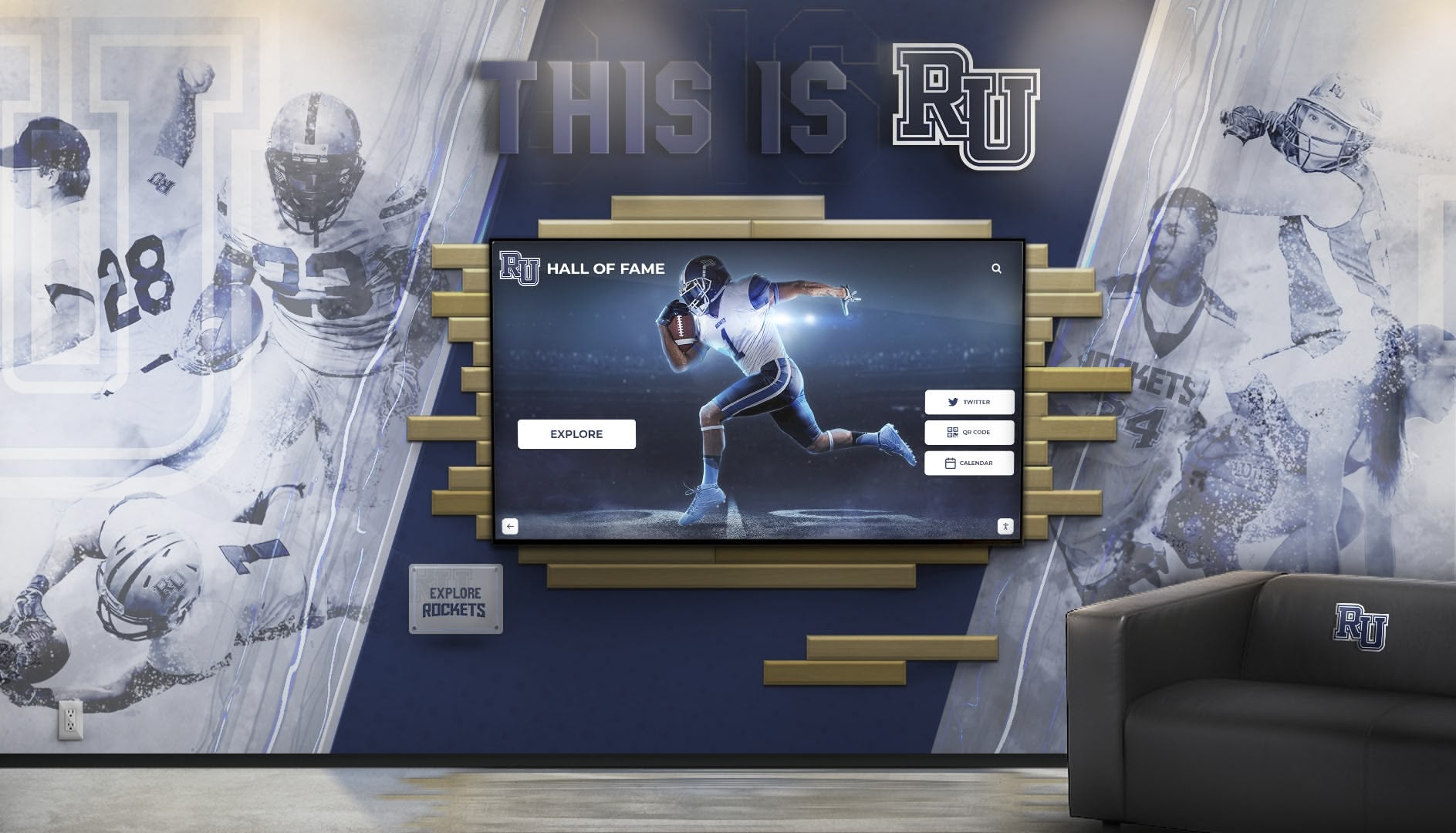
Purpose-built recognition platforms combine locked down kiosk software with engaging content creating memorable visitor experiences
Recommended Solutions by Use Case
Schools and Educational Institutions
For school recognition displays, athletic halls of fame, and campus directories:
- Primary Recommendation: Rocket Touchscreen (Android or Mac) for turnkey simplicity and single-touch optimization
- Alternative: Fully Kiosk Browser free version for basic deployments accepting occasional promotional messages
- Advanced: Fully Kiosk Browser Plus for multi-location schools requiring remote management
Educational institutions benefit from purpose-built solutions designed for school contexts—providing appropriate lockdown for student access while remaining simple enough for non-technical staff to maintain. Schools implementing comprehensive athletic recognition discover specialized platforms reduce administrative burden through automatic content organization and school-specific templates.
Museums and Cultural Institutions
For exhibit information, artifact details, and visitor engagement:
- Primary Recommendation: Rocket Touchscreen for museum-specific content display with appropriate lockdown
- Alternative: eCrisper (Mac) for timed access control and session management
- Advanced: Commercial museum-specific platforms for specialized exhibit integration
Museums require reliable kiosk software supporting diverse content types—video, high-resolution images, multilingual support, and accessibility compliance. Free alternatives adequately serve basic information display while specialized commercial platforms justify investment for sophisticated interactive exhibits requiring custom development.
Libraries and Public Access
For public internet access, catalog search, and information services:
- Primary Recommendation: Porteus Kiosk for maximum security through dedicated OS
- Alternative: Fully Kiosk Browser for Android-based public access terminals
- Advanced: Commercial library-specific kiosk software with print management and time controls
Libraries implementing public internet access prioritize security, privacy, and session cleanup—ensuring patron information remains protected while preventing device misuse. Dedicated kiosk operating systems like Porteus provide maximum security through minimal attack surface compared to general-purpose OS with lockdown software layered atop.
Corporate and Business Applications
For lobby information, employee recognition, and visitor management:
- Primary Recommendation: KioWare for professional features and support
- Alternative: Rocket Touchscreen for simple information display and recognition
- Advanced: Integrated digital signage platforms combining kiosk and passive content
Businesses often justify commercial kiosk software through professional support, service level agreements, and advanced features like payment integration—though simple information displays may adequately function using free alternatives. Corporate employee recognition systems benefit from platforms designed specifically for workplace contexts with appropriate content templates and management workflows.
Conclusion: Transforming Devices into Secure Touchscreen Kiosks
Deploying professional touchscreen kiosks no longer requires choosing between expensive commercial software and inadequate free alternatives. Modern free kiosk browser apps like Rocket Touchscreen deliver enterprise-grade lockdown functionality, comprehensive session management, and user-friendly configuration—democratizing secure kiosk technology for schools, museums, libraries, and organizations managing limited technology budgets.
The Rocket Touchscreen app available on Google Play Store and Mac App Store represents purpose-built solutions specifically designed for educational recognition displays and information kiosks—providing automatic kiosk mode, single-touch optimization, and Chromium-based web rendering at zero licensing cost. This approach eliminates both configuration complexity and recurring software fees that make traditional commercial kiosk software prohibitive for budget-conscious organizations.
Ready to Deploy Professional Touchscreen Kiosks?
Discover how free kiosk browser software combined with comprehensive recognition platforms transforms tablets and touchscreens into engaging display systems celebrating achievements and preserving institutional heritage—without expensive software licenses.
Explore Touchscreen Recognition SolutionsAlternative free solutions like Fully Kiosk Browser, Porteus Kiosk, and platform-native kiosk modes provide viable options across diverse deployment scenarios—each offering distinct advantages balancing ease of use, feature richness, and technical requirements. Organizations with capable IT staff may find command-line approaches adequate, while those lacking dedicated technical resources typically discover turnkey applications like Rocket Touchscreen more practical despite potentially fewer advanced features.
The optimal kiosk software selection depends on your specific context—deployment scale, platform preferences, technical capabilities, feature requirements, and budget constraints. Small single-location deployments often thrive with free solutions where manual configuration remains manageable, while larger distributed installations may justify commercial platform investment through remote management efficiency and professional support reducing total cost of ownership.
Successful touchscreen kiosk implementations share common characteristics: appropriate software matching organizational technical capabilities, robust hardware suitable for continuous public access, engaging content designed for touch interaction, comprehensive security hardening protecting both devices and users, and sustainable maintenance procedures ensuring long-term reliability. The comprehensive understanding of free kiosk browser options provided throughout this guide empowers you to make informed decisions creating professional touchscreen kiosks serving your organization’s needs for years.
Whether deploying your first information kiosk or expanding existing recognition display networks, free kiosk browser apps transform the economic equation—enabling schools, nonprofits, and budget-conscious organizations to implement secure, professional touchscreen systems previously accessible only to well-funded institutions with substantial technology budgets. Download these free alternatives, test them thoroughly with your specific use cases, and discover how modern kiosk software eliminates traditional barriers to implementing engaging touchscreen experiences throughout your facilities.
Sources:
- Fully Kiosk Browser & App Lockdown
- Best Fully Kiosk Browser Alternatives 2025 | Capterra
- Kiosk Browser Lockdown - Google Play Store
- 5 Best Kiosk Apps for Android (Free & Paid)
- Porteus Kiosk - Linux Based Kiosk Software
- Glory Star Kiosk Mode (STAROS)
Disclaimer: This comparison is based on publicly available information as of November 2025. All product names and trademarks belong to their respective owners including Fully Kiosk Browser, KioWare, Porteus Kiosk, PROCOIT, Glory Star, Google, Apple, and others mentioned herein. Rocket Alumni Solutions is not affiliated with or endorsed by these companies. Comparative statements reflect Rocket Alumni Solutions’ interpretation of available data and may change over time. This content was produced by Rocket Alumni Solutions to provide educational information about touchscreen kiosk software options.