A school sports slide scanning workflow is a sequential process — assess, configure, scan, name, identify, verify, and archive — that converts 35mm athletic slides into high-resolution digital files with consistent filenames, complete athlete metadata, and clear rights documentation, so that recovered images can power hall-of-fame displays, alumni profiles, and touchscreen exhibits rather than remaining inaccessible in a storage box.
The direct answer: scan athletic slides at 2,400 DPI minimum (4,000 DPI for archival masters), save lossless TIFF master files, name files using a structured sport-year-event-sequence convention before the batch is processed, and run athlete identification during the scanning session while visual cues from the slide mount label and adjacent yearbooks are still at hand.
This guide serves school administrators, athletic directors, IT and facilities teams, archives staff, alumni relations leaders, and booster organizations managing collections of 35mm sports slides that represent decades of athletic history. It delivers a complete eight-step workflow, a resolution reference table, a file naming template, and an athlete identification protocol that integrates with existing recognition programs.
Why 35mm Athletic Slides Present a Unique Digitization Challenge
School sports photography from the 1960s through the early 1990s was dominated by 35mm slide film. Coaches, school photographers, local sports photographers, and yearbook advisers all used slides as their primary capture medium because the format offered fine grain, accurate color, and easy projection at school assemblies and awards programs. Many of these slides have never been properly scanned, and the schools that hold them often underestimate what they contain.
Three factors make athletic slides a higher-stakes digitization project than equivalent print photographs:
Image quality exceeds any print in the collection. A properly scanned 35mm slide at 4,000 DPI yields roughly 24 megapixels of data — more detail than most prints made from that slide. The original slide is frequently the highest-resolution source in the archive for content from that era.
Slides deteriorate silently. Color dyes in Kodachrome, Ektachrome, and other slide films fade over time, with warm storage conditions accelerating the process. Unlike print photos that show obvious surface fading, slide deterioration is only visible when the image is projected or scanned. A mount that looks intact may contain significantly shifted color or reduced shadow detail.
Athlete identification is harder without a contact sheet. Prints from a school photographic archive often carry handwriting on the back identifying athletes, dates, and events. Slides typically carry only what fits on a 2×2-inch mount label — and many were mounted with no label at all. If the original photographer or coach is no longer available, the identification window for unlabeled slides may close permanently once the scanning project ends.
Running a structured school sports slide scanning workflow addresses all three challenges in sequence, before the identification window closes and before further deterioration reduces what the scanner can recover.

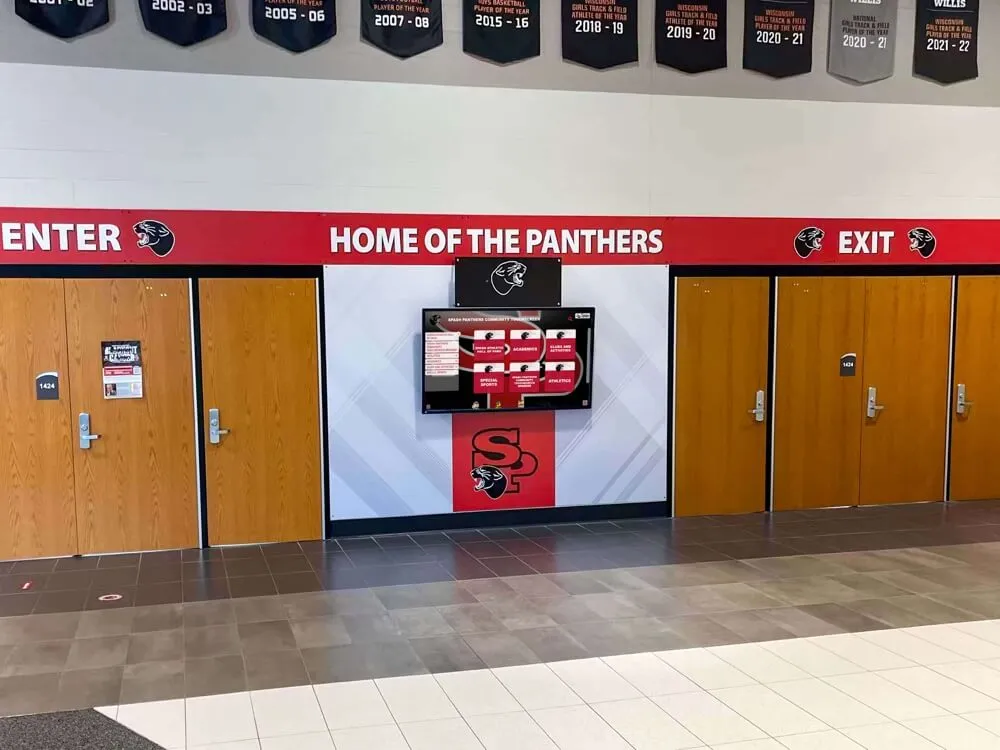
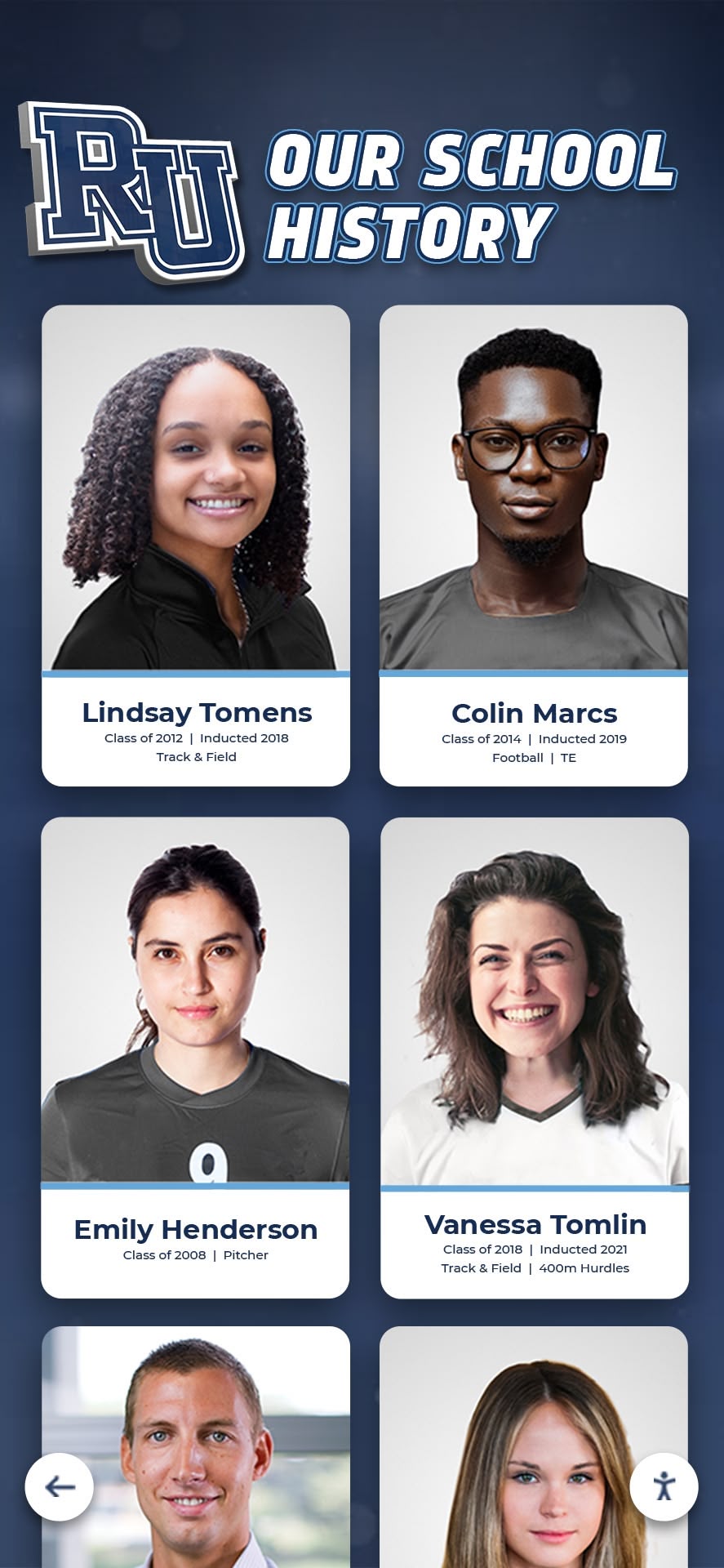
A completed school sports slide scanning workflow produces searchable athlete portrait cards — turning unlabeled slide collections into organized digital records that serve hall-of-fame displays, alumni platforms, and yearbook archives
Who This Workflow Serves
This workflow is designed for the teams who encounter school sports slides in practice:
- Athletic directors receiving donated slide collections from retiring coaches or alumni photographers and needing a consistent intake process
- School administrators and IT staff managing digitization projects that involve coordination between the scanner operator, archivist, and recognition platform
- Facilities and records staff responsible for physical collections that may include hundreds or thousands of slides accumulated across multiple sport seasons
- Archives staff and library professionals maintaining institutional records that include slide collections alongside other athletic history materials
- Alumni relations leaders and booster organization officers seeking to recover athletic content for hall-of-fame inductions, reunion programs, and donor recognition materials
The Eight-Step School Sports Slide Scanning Workflow
Step 1: Assess and Sort the Slide Collection
Before any slide goes near a scanner, complete a collection assessment. The assessment determines the scope of the project, flags slides requiring priority handling, and establishes the categories that drive your file naming and workflow structure.
Collection Assessment Checklist
- Count all slides in the collection and record the total before any handling begins
- Sort by sport or event category if grouping information is available on mount labels, trays, or carousels
- Sort chronologically within each sport category where year or season can be determined from mount labels or adjacent documentation
- Identify slides with existing label information — record date, sport, event, and any athlete names present on the mount
- Flag slides with visible color shifts (magenta, cyan, or yellow cast visible when held up to light) for priority scanning
- Flag slides with physical damage — mold, scratches on the film surface, cracked or broken mounts — for immediate handling
- Flag slides with no mount label for the identification session in Step 4
- Create a tray map if slides arrived in a carousel or multi-tray system — document tray and position number for each slide before removing them from the carousel
Scope the budget before committing to a timeline. A collection of 500 slides scanned at archival resolution, with proper file naming and metadata, requires substantially more time and resources than a quick digitization pass. An athletic archive digital preservation budget template helps administrators quantify staff time, equipment costs, and storage requirements before the project begins.
Step 2: Configure the Scanner and Choose Resolution
Film scanning requires a flatbed scanner with a transparency adapter or a dedicated film scanner. Standard document scanners cannot scan slides. The resolution you choose at scan time is the ceiling for every downstream use — images cannot be enlarged beyond the resolution captured at the original scan.
Resolution Reference: 35mm Athletic Slides
| Use Case | Minimum DPI | Recommended DPI | Output Pixels (35mm frame) | Notes |
|---|---|---|---|---|
| Web thumbnails and small preview images only | 1,200 | 1,200 | ~1,200×1,700 | Adequate for small digital display thumbnails; insufficient for print or large screens |
| Digital displays and recognition platforms | 2,400 | 2,400 | ~2,400×3,360 | Equivalent to ~8MP; suitable for most hall-of-fame and touchscreen kiosk uses |
| Archival master — general collection | 2,400 | 4,000 | ~4,000×5,600 | Future-proof; supports large-format print and technology migrations |
| Archival master — significant slides | 4,000 | 4,000 | ~4,000×5,600 | Use for championship seasons, hall-of-fame inductees, and sole-copy content |
| Slides with active color deterioration | 4,000 | 4,000 | ~4,000×5,600 | Capture maximum detail before further dye fade reduces recoverable information |
Color depth: Scan in 48-bit color (16 bits per channel) for archival masters of athletic slides with significant color content. This preserves the full color latitude of the slide, which matters for faded slides where subtle color shifts carry identification information. 24-bit color is acceptable for access copies and for slides with minimal fading.
Color profile: Set your scanner to Adobe RGB (1998) or capture in the device’s native color space and convert during post-processing. The wider Adobe RGB gamut preserves the saturated reds and blues common in athletic photography — team uniforms, track surfaces, gymnasium floors — that sRGB can clip.
Save to TIFF: TIFF is the archival standard for film scans. It is lossless, widely supported, and recommended by the Library of Congress for institutional digital preservation. For guidance on managing master files and planning migration strategies over time, a comprehensive file formats master, access, and migration reference covers the practical decisions around maintaining TIFF archives alongside access copies in an institutional context.
Step 3: Establish File Naming Conventions Before Scanning Begins
File naming decisions made before the first slide is scanned determine whether your archive is searchable and manageable for the next several decades. Decisions made after scanning — renaming thousands of files retroactively — are significantly more costly.
File Naming Convention for School Sports Slides
| Field | Format | Example | Notes |
|---|---|---|---|
| School code | 3–4 uppercase letters | WHS | Use a consistent abbreviation for your school; avoid spaces |
| Sport code | 2–3 uppercase letters | FB, BB, TRK, SOC | Establish a master sport code list before scanning begins |
| Season year | 4-digit year | 1988 | Use the year the season ended for cross-season sports |
| Material type | Abbreviated type code | SLD | Distinguishes slide scans from prints, programs, and other material types |
| Sequence number | 4-digit zero-padded integer | 0047 | Allows up to 9,999 files per category; extend to 5 digits for large collections |
| Extension | Format-appropriate extension | .tif | Master files in .tif; access copies in .jpg |
Full filename example: WHS-FB-1988-SLD-0047.tif
What to avoid in filenames: Spaces, special characters (ampersands, slashes, parentheses, commas), and non-ASCII characters all create problems in file systems, digital asset management tools, and recognition platform upload processes. Replace spaces with hyphens. Use only alphanumeric characters and hyphens.
Include event context in the filename where known. For slides where the event is clearly identified on the mount label — a specific game, a championship, a tournament — adding an event code between the year and the material type code makes the file self-describing: WHS-FB-1988-STATES-SLD-0047.tif. Establish event codes as part of the same master code list used for sport codes.
Do not incorporate athlete names into the master filename. Athlete names belong in metadata fields, not filenames. Filenames with athlete names create issues when multiple athletes are pictured, when name spellings are uncertain during the identification phase, and when files need to be renamed after a post-scanning identification session.
Create derivative access copies with the same base name. When you produce JPEG access copies from TIFF masters, use the same base filename with the .jpg extension: WHS-FB-1988-SLD-0047.jpg. This makes it simple to locate the TIFF master when a recognition platform requests a higher-resolution version of a specific image.
Step 4: Identify Athletes During the Scanning Session
Athlete identification is the most time-sensitive step in the school sports slide scanning workflow. The scanning session itself — when each slide is physically in hand and examined under magnification before placing it in the scanner — is the optimal moment to document what is visible, what is legible on the mount, and what can be confirmed by consulting adjacent reference materials.
Athlete Identification Protocol
During the scanning session:
- Read each slide mount label completely and record all text verbatim — exact wording, abbreviations, and handwriting variations
- Use a loupe or the scanner’s preview zoom to examine the slide before scanning; note uniform numbers, jersey details, and distinguishing features while the slide is in hand
- Cross-reference each slide against yearbooks from the identified season, which typically contain team rosters with uniform numbers and individual portrait captions
- Cross-reference against game programs, booster publications, or press clippings from the same season where available
- Record jersey numbers as a separate metadata field from athlete names — jersey numbers may be confirmable even when names remain uncertain
- Flag slides where identification is partially or fully uncertain; use a confidence rating (Confirmed / Probable / Uncertain / Unknown) rather than leaving fields blank or recording guesses as fact
- Record the basis of each identification: “Mount label,” “Yearbook roster cross-reference,” “Jersey number match,” “Identified by [name of staff or alumni consulted],” or “Unknown”
Identification assistance sources:
- Former coaches with memory of the relevant seasons — contact before the scanning session so they can be consulted during or immediately after
- Athletic hall-of-fame rosters and award records, which confirm which athletes were active in a given year
- School newspaper archives and press clippings that may caption photos from the same events
- Alumni networks and booster associations whose members may include athletes from the relevant era
- State athletic association records, which document championship rosters and All-State selections for the relevant seasons
When identified athletes include All-State honorees, national qualifiers, or hall-of-fame inductees, their slides carry particular value for recognition programs. Schools that have connected similar identification workflows to All-State recognition digital displays report that the photograph sourced from a recovered slide is often the only available action image for athletes from that era — yearbook portraits are the alternative, and they rarely capture the athlete competing.
Identification capture format. Maintain a running spreadsheet during the scanning session with one row per slide: filename, mount label text verbatim, sport, year, event, athletes identified (one column per athlete), jersey numbers, identification confidence, identification basis, and a notes field for anything that does not fit the other fields. This spreadsheet becomes the source for metadata import into your recognition platform.
Step 5: Capture and Attach Metadata
Metadata is what makes the scanned slide discoverable, usable, and properly credited when it appears in a recognition program, digital yearbook, or alumni platform years after the scanning project is complete.
Minimum Metadata Fields per Slide Scan
| Field | Required | Notes |
|---|---|---|
| Filename | Required | Assigned in Step 3 |
| Sport | Required | Use the master sport code list from Step 3 |
| Season year | Required | Year the season ended |
| Event | Required if known | Game opponent, tournament name, championship level |
| Athlete names | Required if identified | All confirmed and probable athletes pictured; separate by semicolon |
| Jersey numbers visible | Required if legible | Record numbers present even when names are not yet confirmed |
| Identification confidence | Required | Confirmed / Probable / Uncertain / Unknown |
| Identification basis | Required | Mount label / Yearbook roster / Jersey number match / Named by [person] / Unknown |
| Original film type | Recommended | Kodachrome / Ektachrome / Fujichrome / Other / Unknown |
| Photographer | Recommended | School photographer / Coach name / Alumni photographer / Unknown |
| Rights status | Required | School-owned / Photographer credit required / Rights unclear / Licensed |
| Scan date | Required | Date the master file was created |
| Scanner settings | Recommended | DPI, color depth, color profile, and scanner model |
| Notes | Recommended | Any information that does not fit other fields |
Embed metadata directly in the file where possible. TIFF files support embedded IPTC and XMP metadata fields. Embedding metadata in the file itself ensures that the description, athlete names, and rights information travel with the file even if it is separated from the spreadsheet record. Most scanning software and image editing applications support metadata embedding.
Rights status requires a deliberate decision for each batch. School sports slides produced by a school employee on school time using school equipment are generally school-owned. Slides produced by a coach on personal equipment may carry the photographer’s copyright. Slides donated by a parent or community photographer require a rights transfer or license agreement before the school can publish the images in recognition programs, alumni platforms, or donor materials.
Step 6: Quality Verification
A quality verification pass before files leave the scanning workflow prevents problems that surface later when recognition platforms reject batch uploads or display images that were scanned at the wrong settings.
Quality Verification Checklist
- Open a sample of scans from each batch (minimum 10%) and confirm that image sharpness, color accuracy, and framing match the original slide
- Confirm that TIFF file sizes fall within the expected range for the DPI and bit depth used — unexpected undersized files may indicate the scanner defaulted to a lower setting mid-session
- Check that filenames follow the established convention exactly, with no spaces, special characters, or inconsistent capitalization
- Verify that required metadata fields are populated in the batch spreadsheet for every file — no blank required fields
- Confirm that slides flagged for color deterioration in Step 1 were scanned at the higher 4,000 DPI setting
- Spot-check athlete identification entries — confirm that records marked “Confirmed” have a documented basis and records marked “Unknown” are not left blank or recorded as guesses
- Verify that derivative JPEG access copies have been created from each TIFF master and share the same base filename
- Confirm that TIFF masters and JPEG access copies are stored in separate designated folders
Step 7: Format Conversion — Masters and Access Copies
The TIFF master file is the archive. Every other format is a derivative produced for a specific use case.
Derivative Format Guide
| Derivative Format | Long-Edge Resolution | Primary Use Case |
|---|---|---|
| JPEG — high quality (90+) | 2,000–3,000 px | Upload to recognition platforms, digital yearbook systems, hall-of-fame displays |
| JPEG — web (quality 85) | 1,200–1,600 px | Website galleries, alumni newsletters, email programs |
| JPEG — thumbnail | 400–600 px | Preview thumbnails, contact sheet generation, index pages |
| PNG | Match high-quality JPEG | Uses requiring transparent backgrounds or lossless web delivery |
Produce derivatives from the TIFF master using batch processing software. Avoid re-processing JPEG files from earlier JPEG derivatives — each lossy re-save degrades quality cumulatively, and the TIFF master exists precisely to prevent this.
Step 8: Connect to Recognition and Display Systems
The school sports slide scanning workflow produces organized, identified, and formatted files. The final step is deploying those files in the recognition systems that give them ongoing public value.
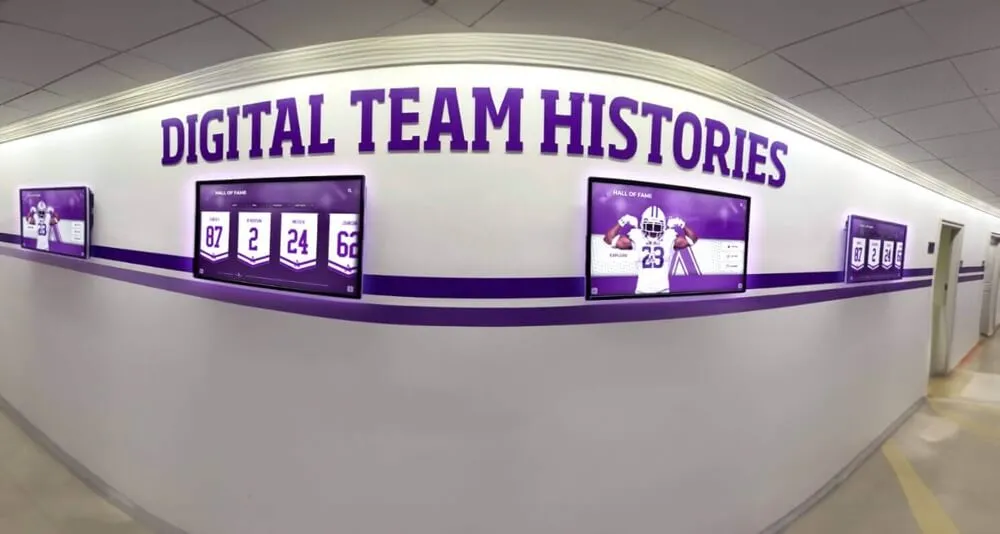
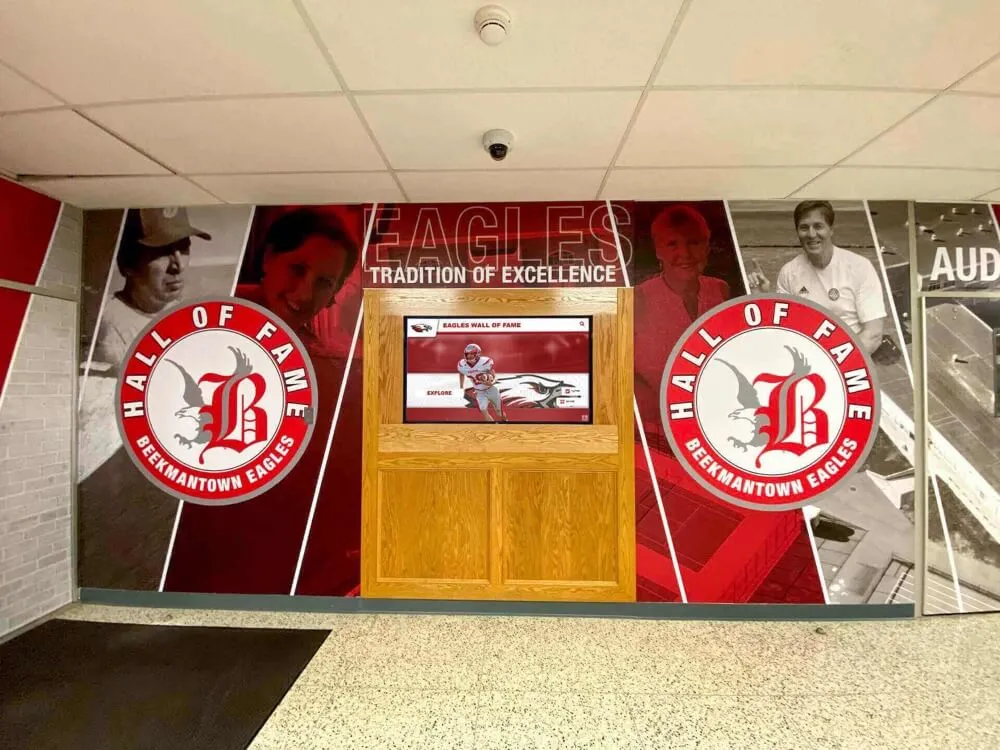
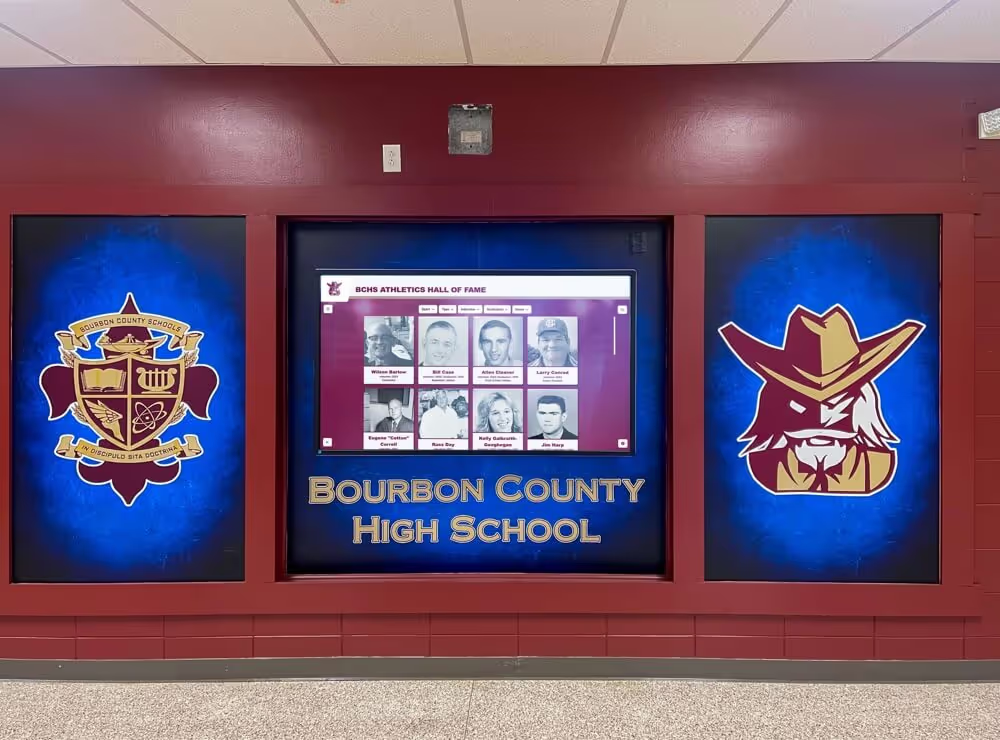
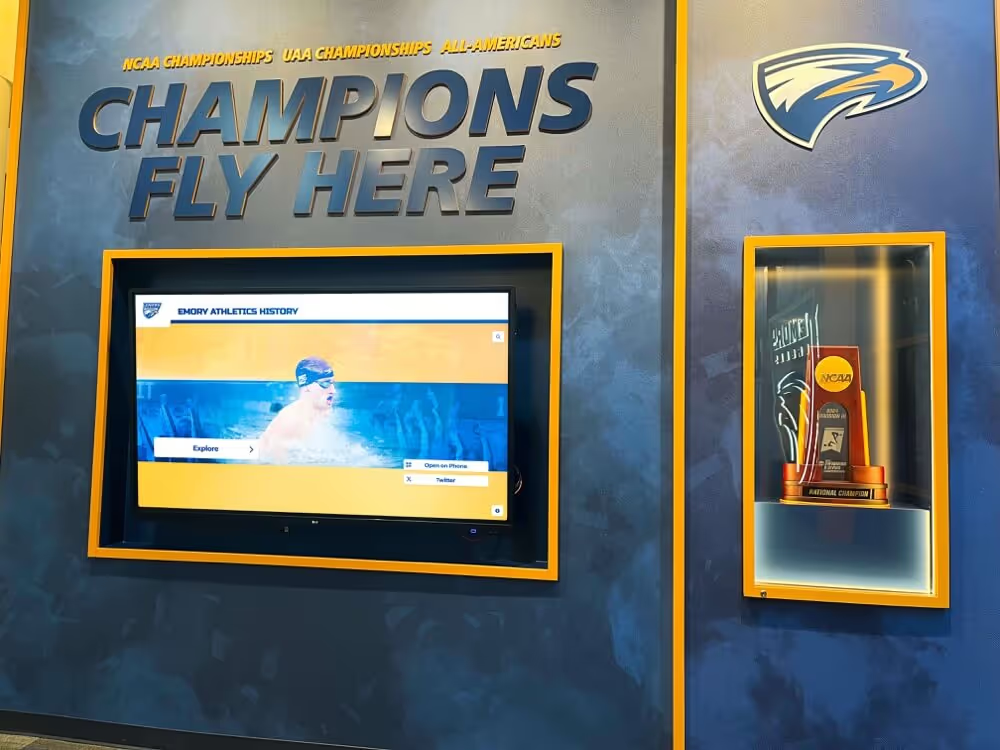
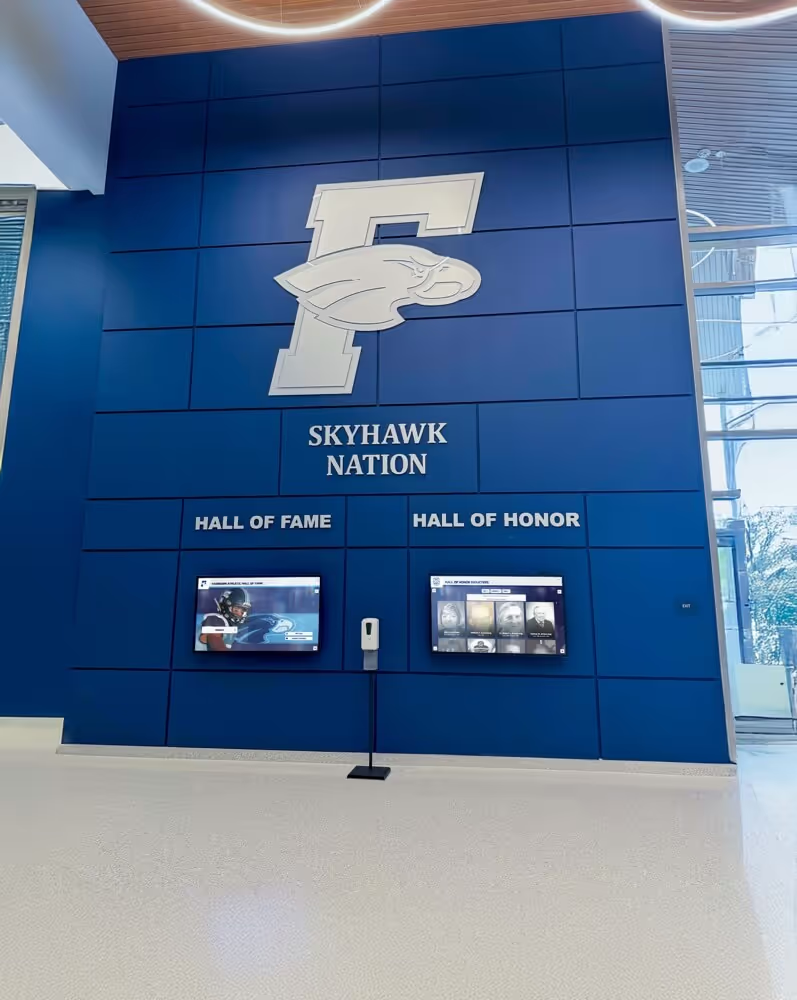
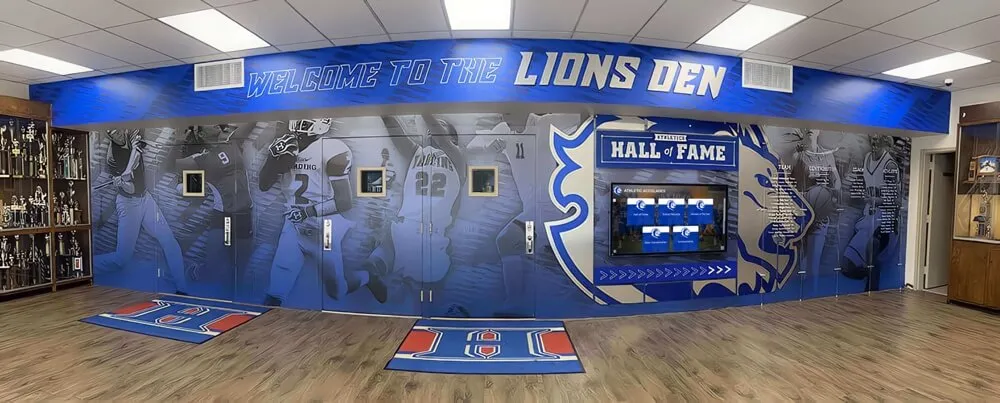
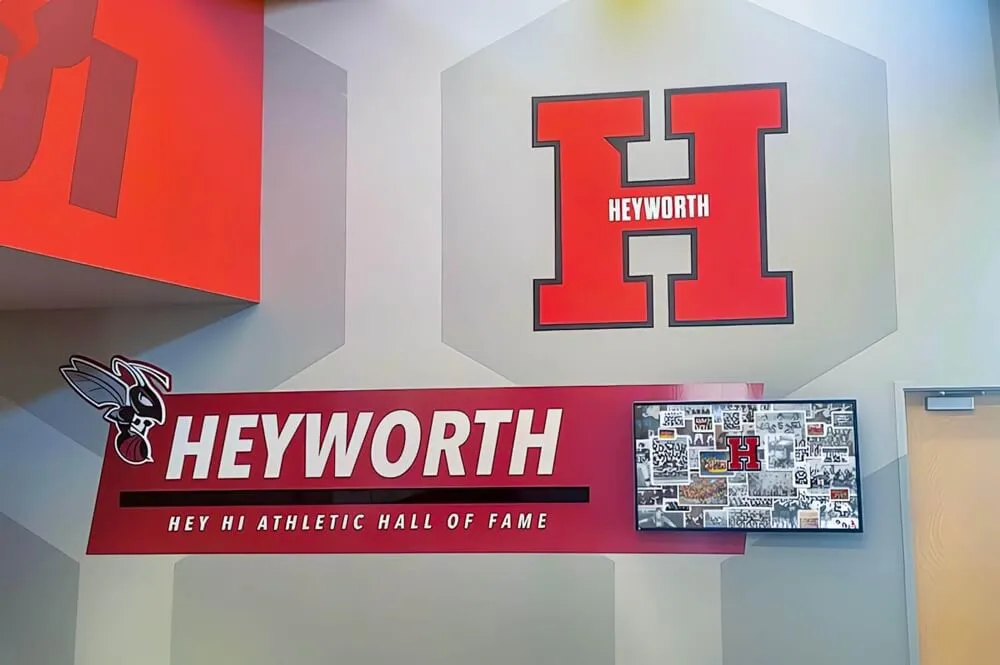
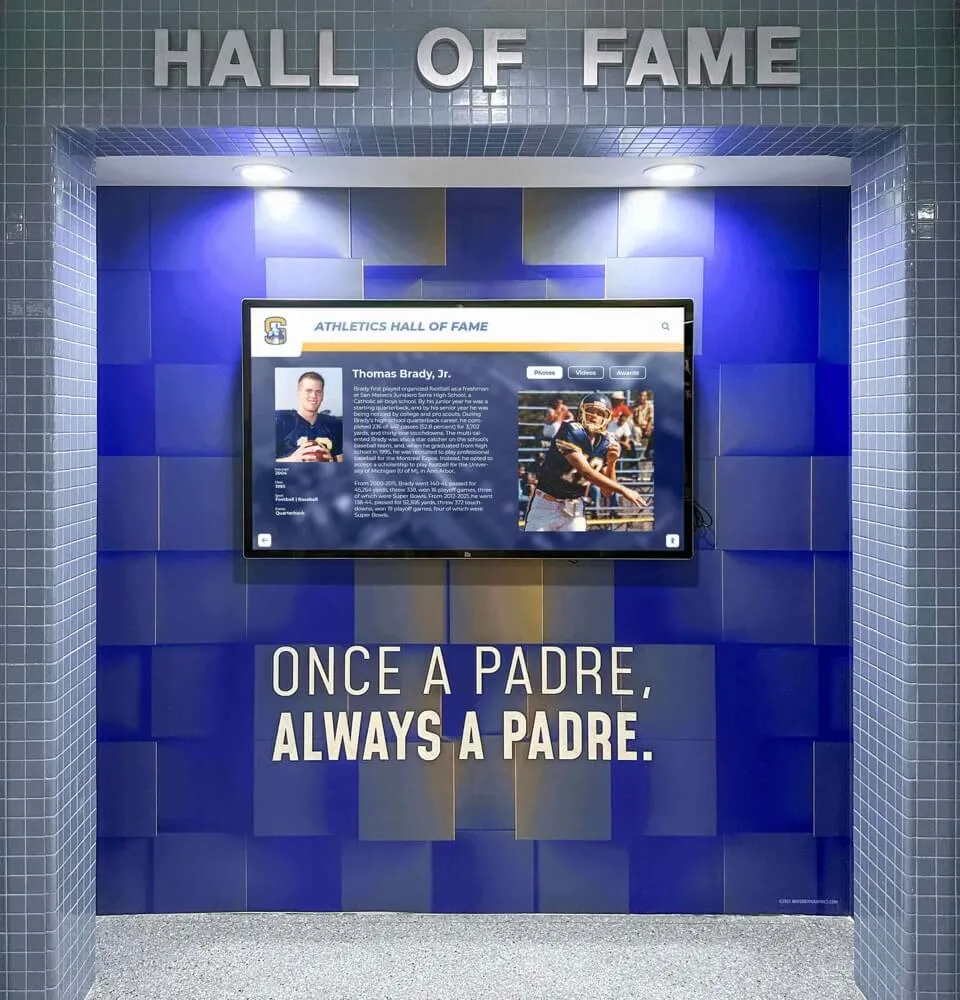
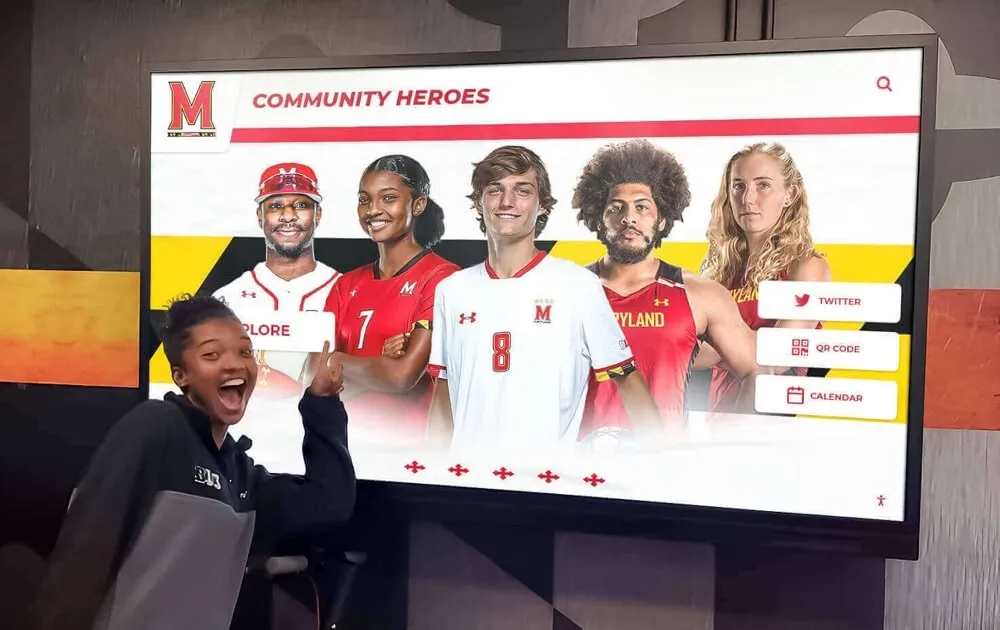
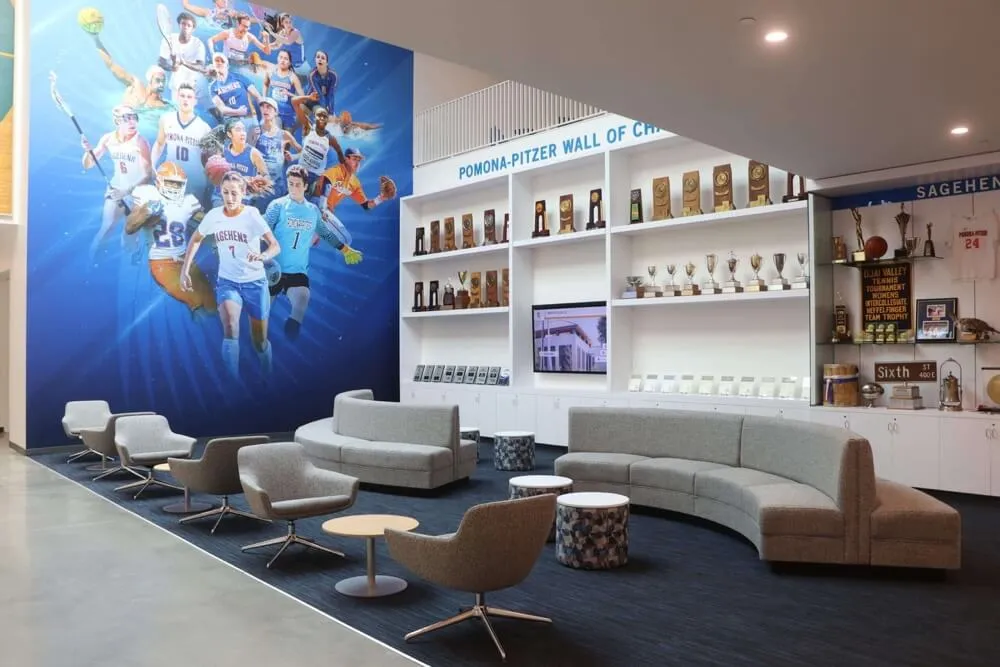
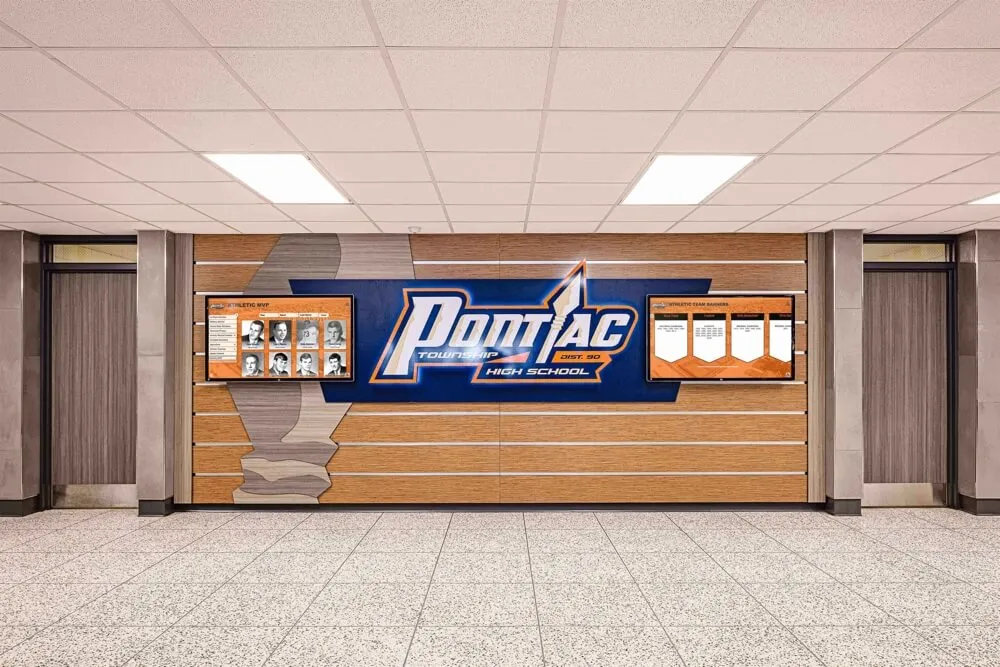
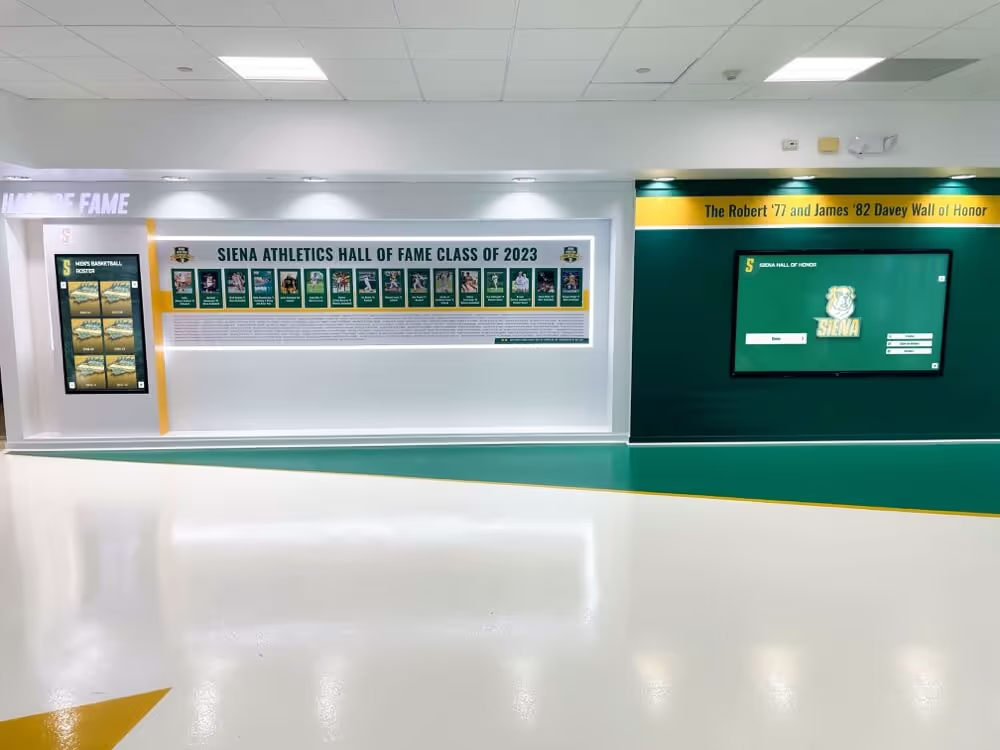
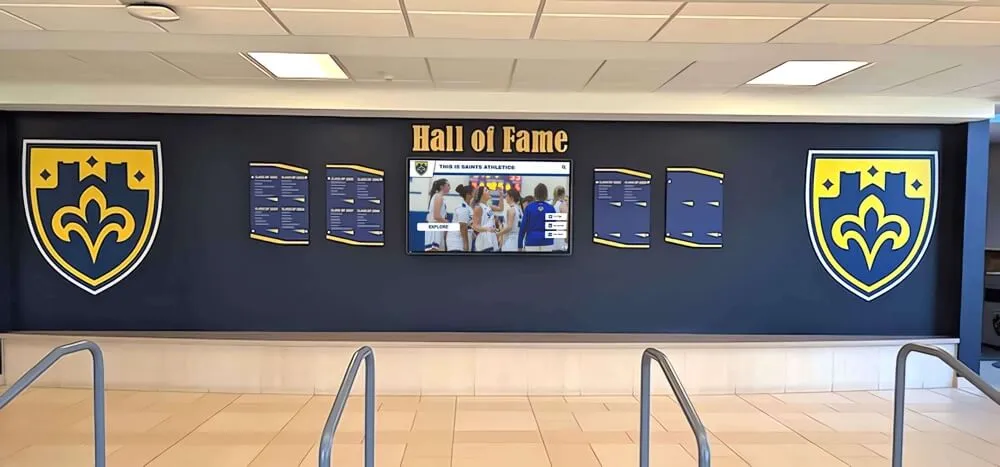
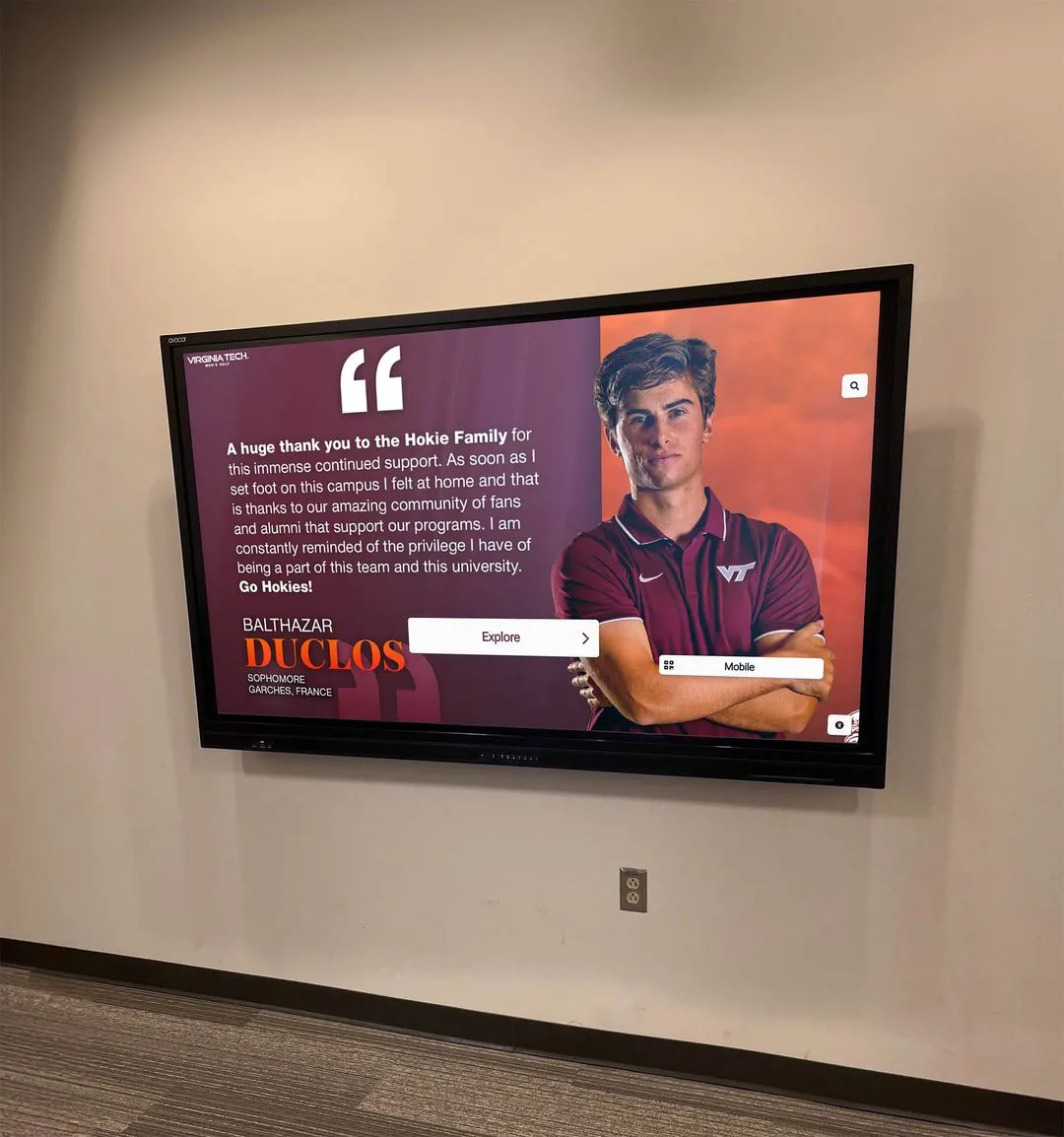
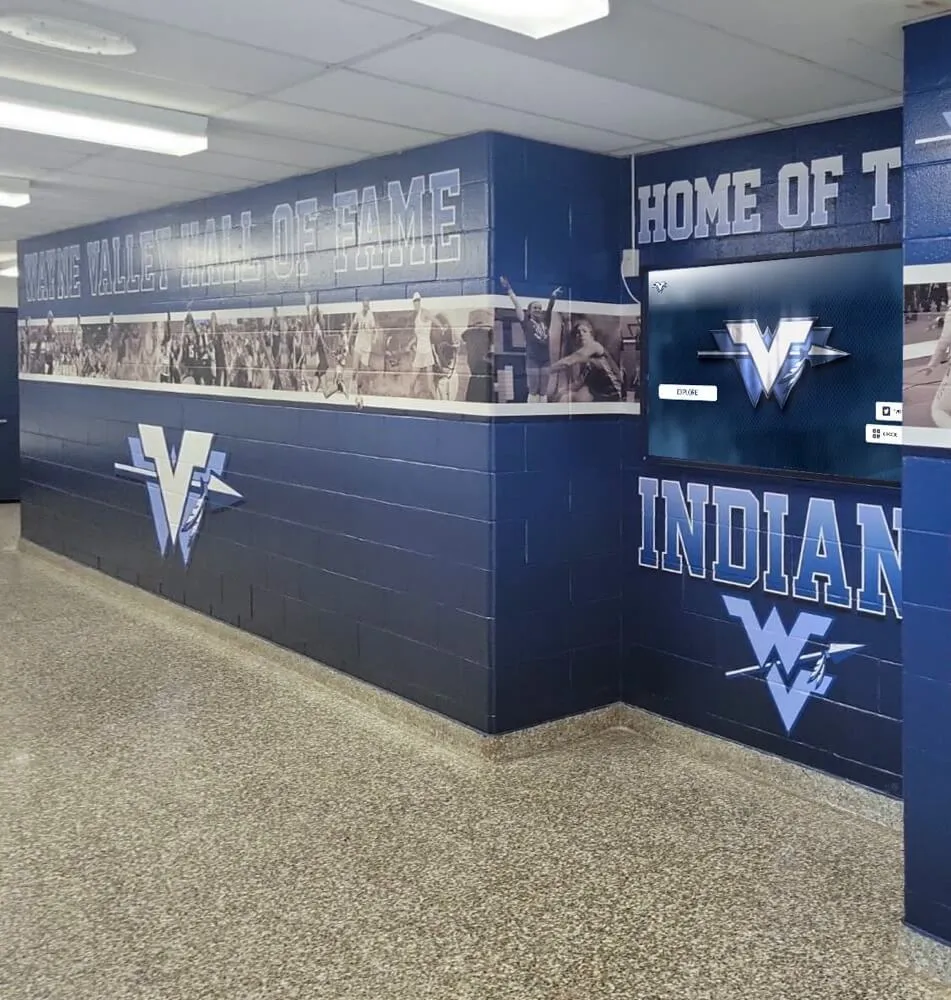
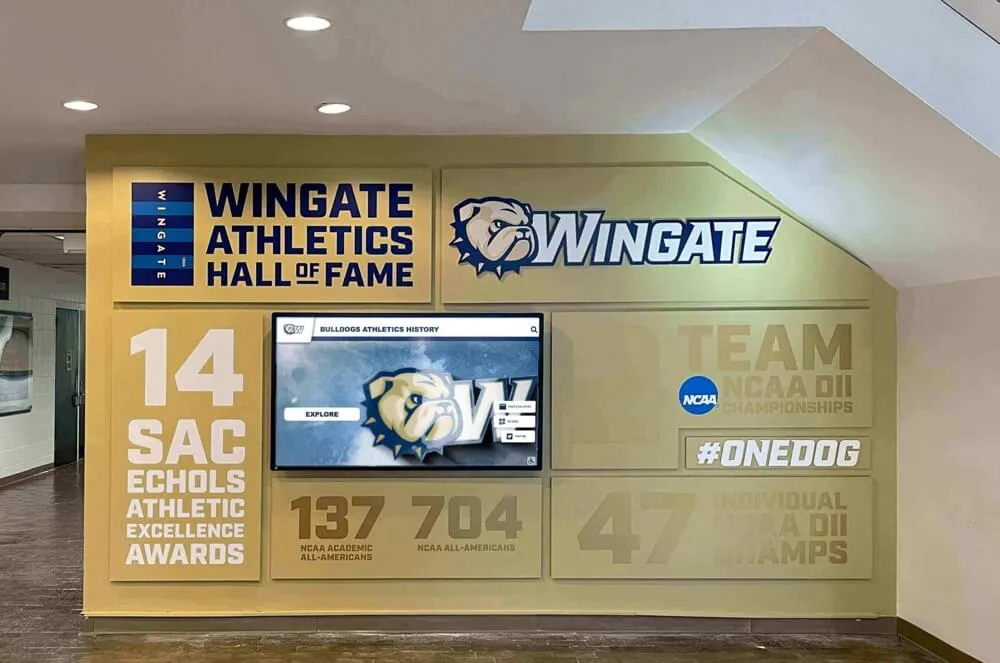
Hall-of-fame and touchscreen displays. Action photographs recovered from 35mm slides — often the only action images available for athletes from the pre-digital era — give hall-of-fame inductee profiles a visual depth that yearbook portraits cannot provide. Schools that have connected similar digitized archives to recognition and All-State athlete programs find that historical slide content generates strong engagement from athletes, alumni, and community members who recognize the era and the individuals pictured.
Alumni reunion programs. Digitized sports slides provide authentic source material for athletic retrospectives during homecoming events, class reunions, and anniversary programs. Schools planning reunion events that span multiple decades can draw on the organized slide archive to create decade-by-decade athletic history displays that ground the event in specific visual memories rather than generic slideshows.
Yearbook and digital archive integration. Identified athlete slides connect directly to the digital yearbook and searchable alumni archive — providing athlete-level search, sport-level browsing, and season-level context that static print yearbooks cannot deliver. Schools building out this integration benefit from having the metadata spreadsheet from Step 5 formatted for direct import into their recognition platform.
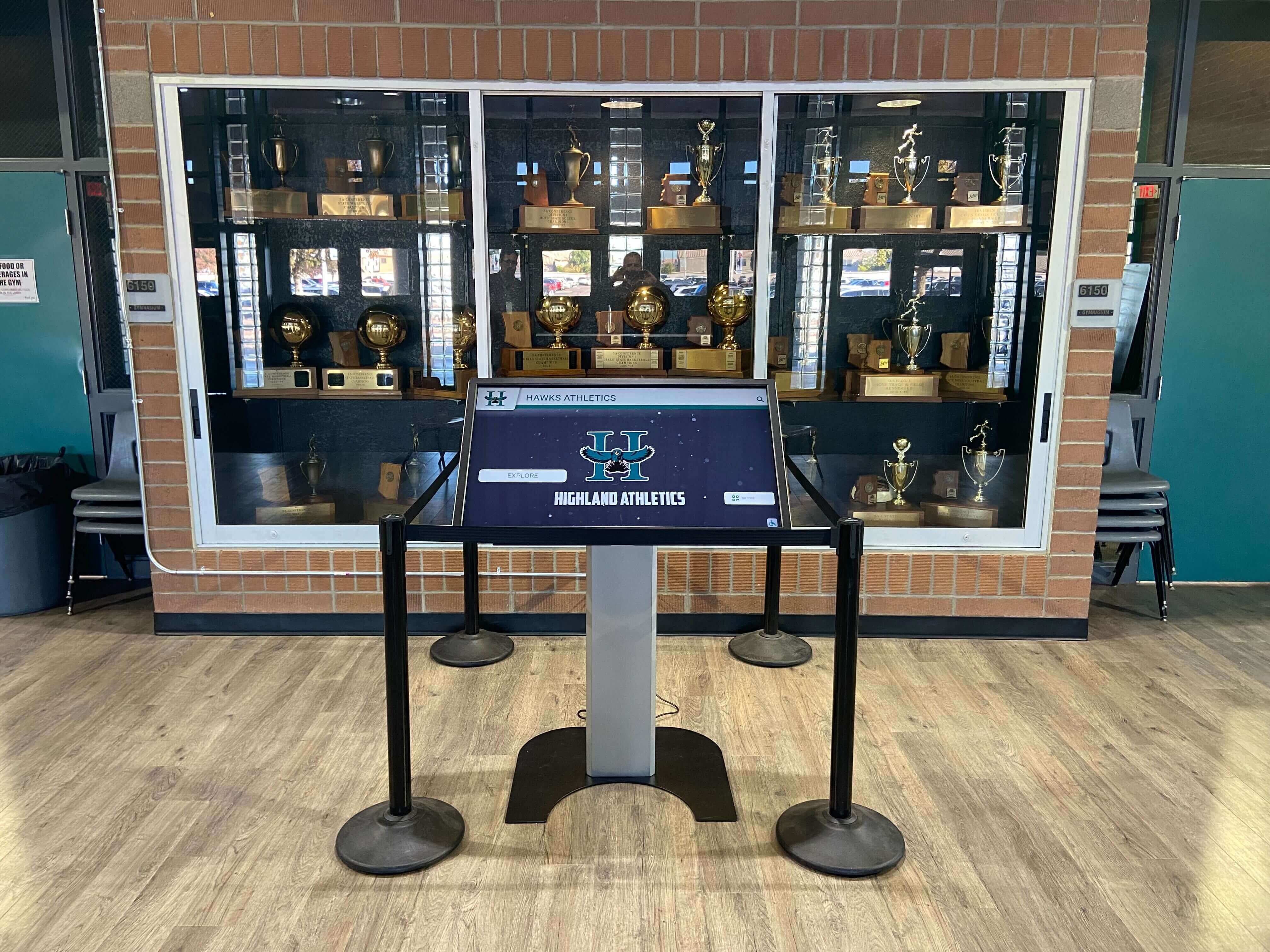
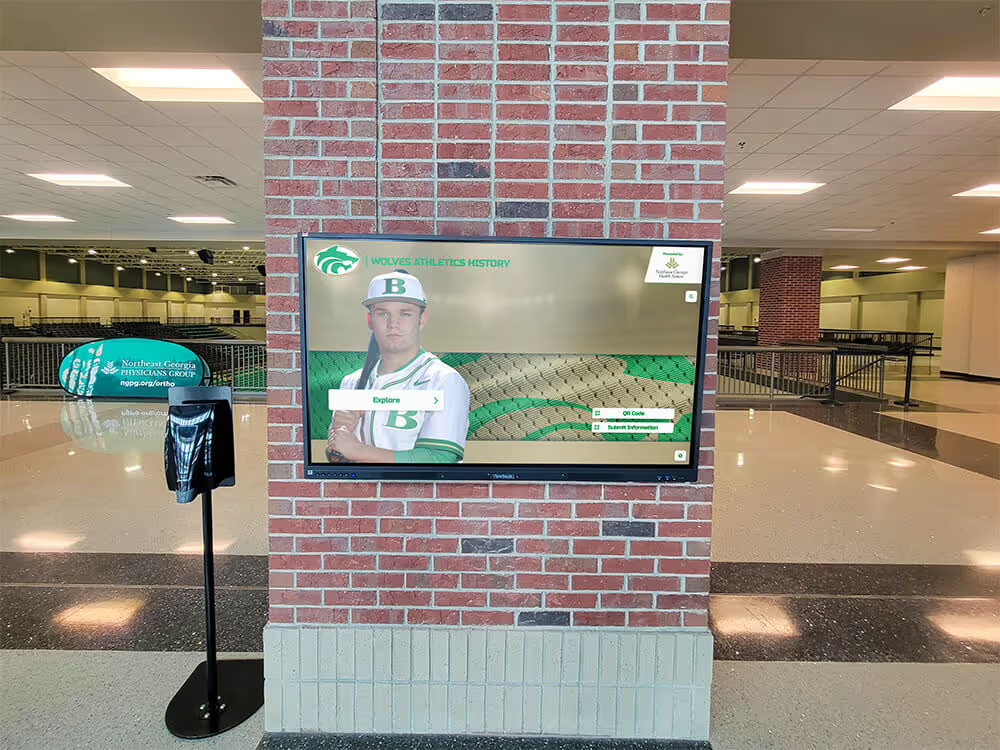
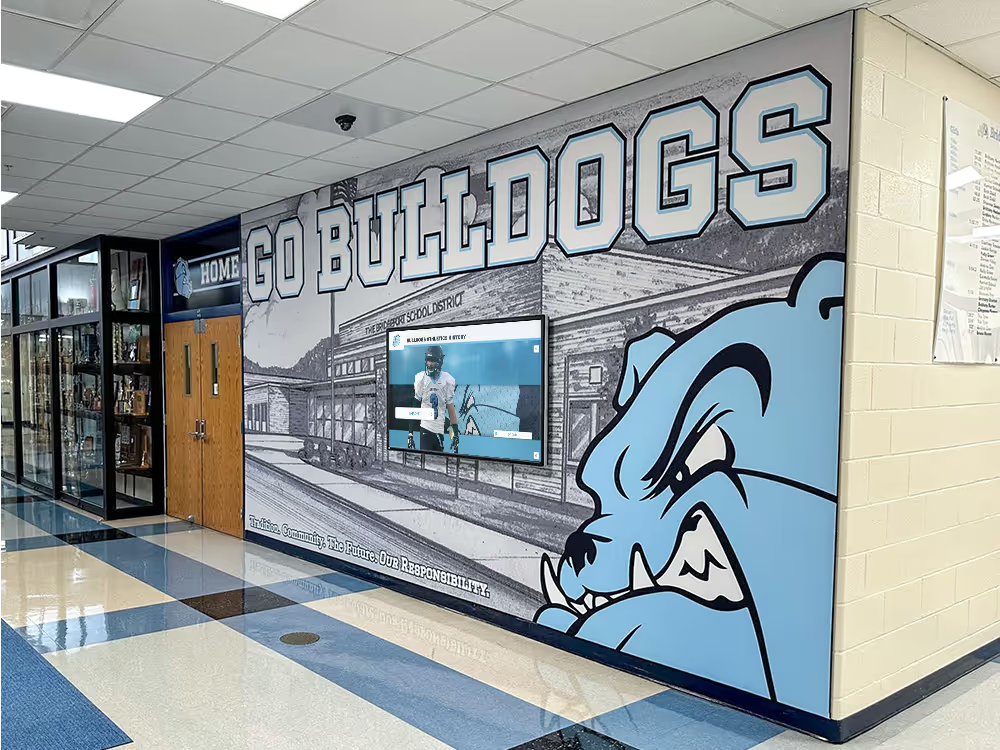
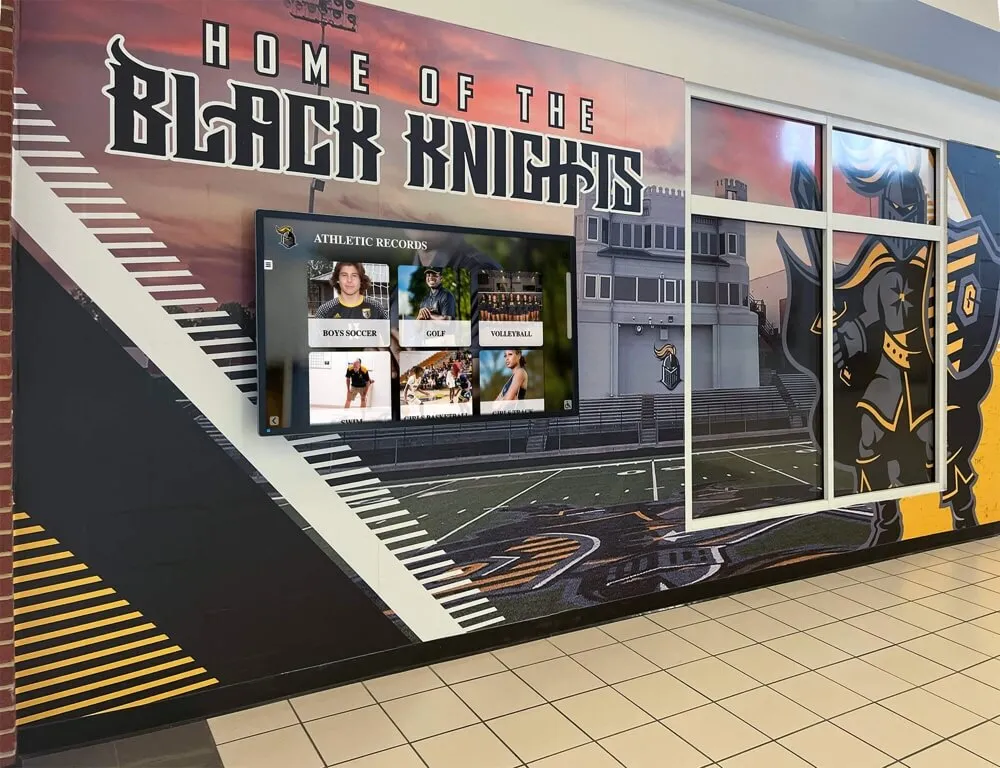
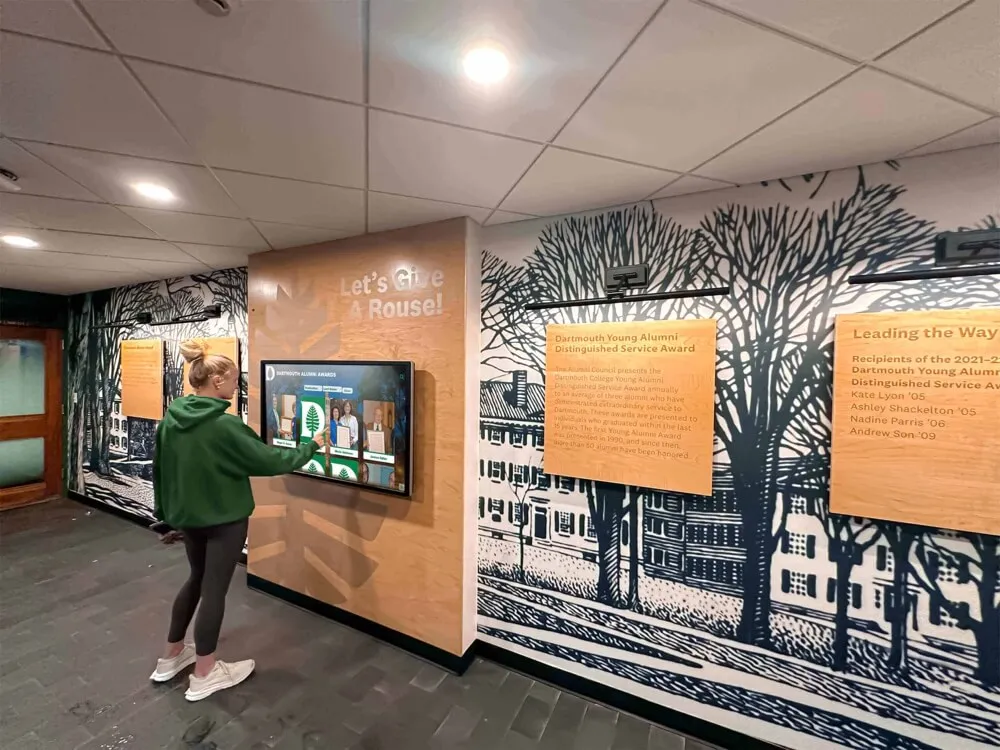
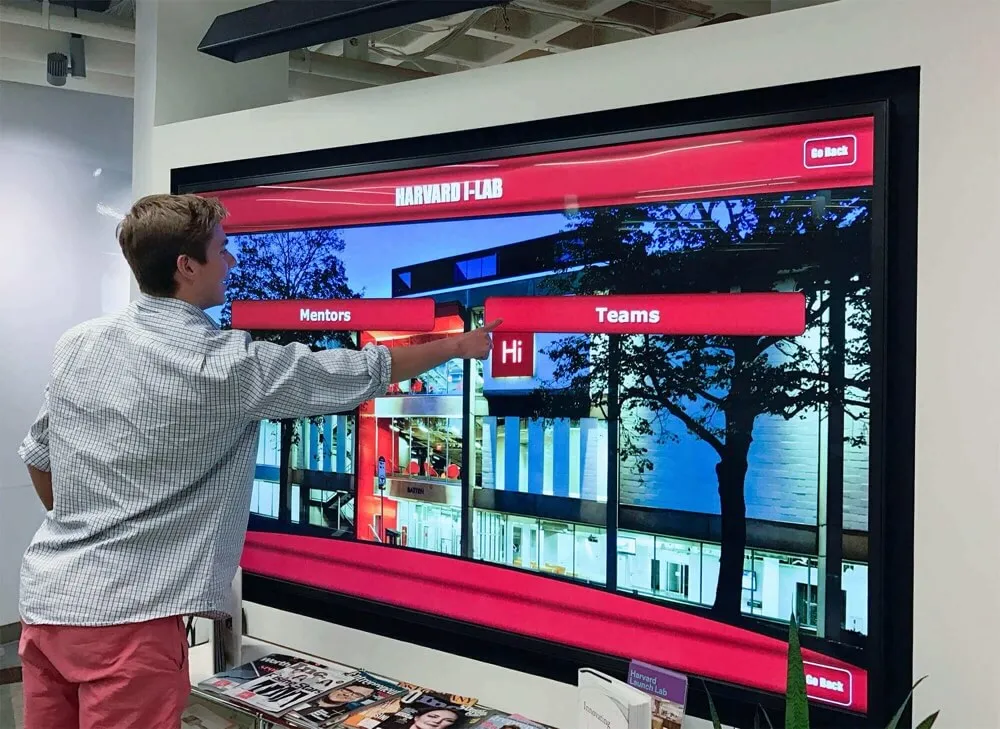
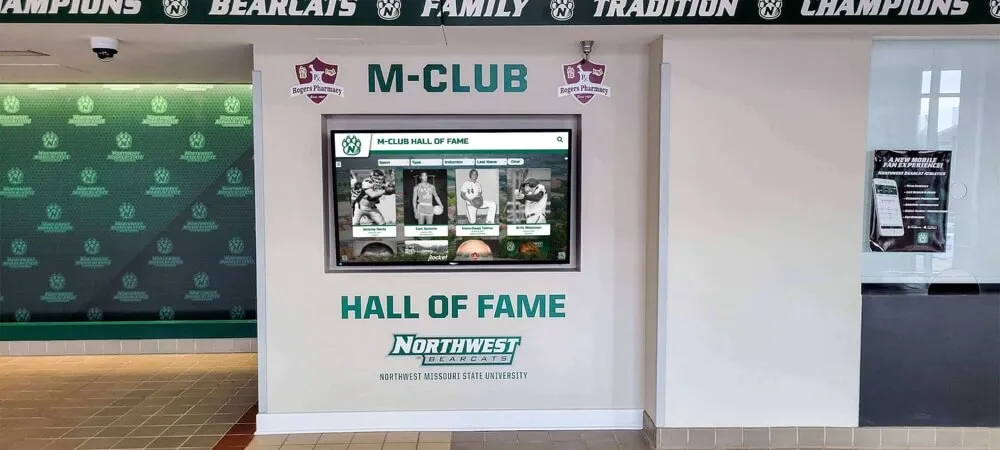
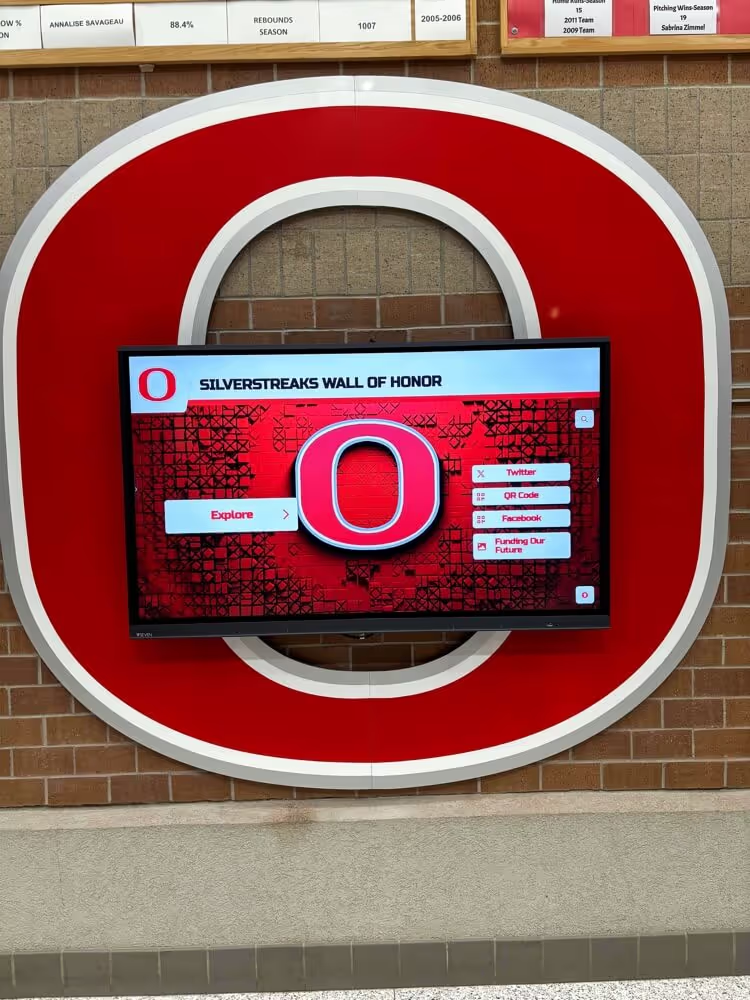
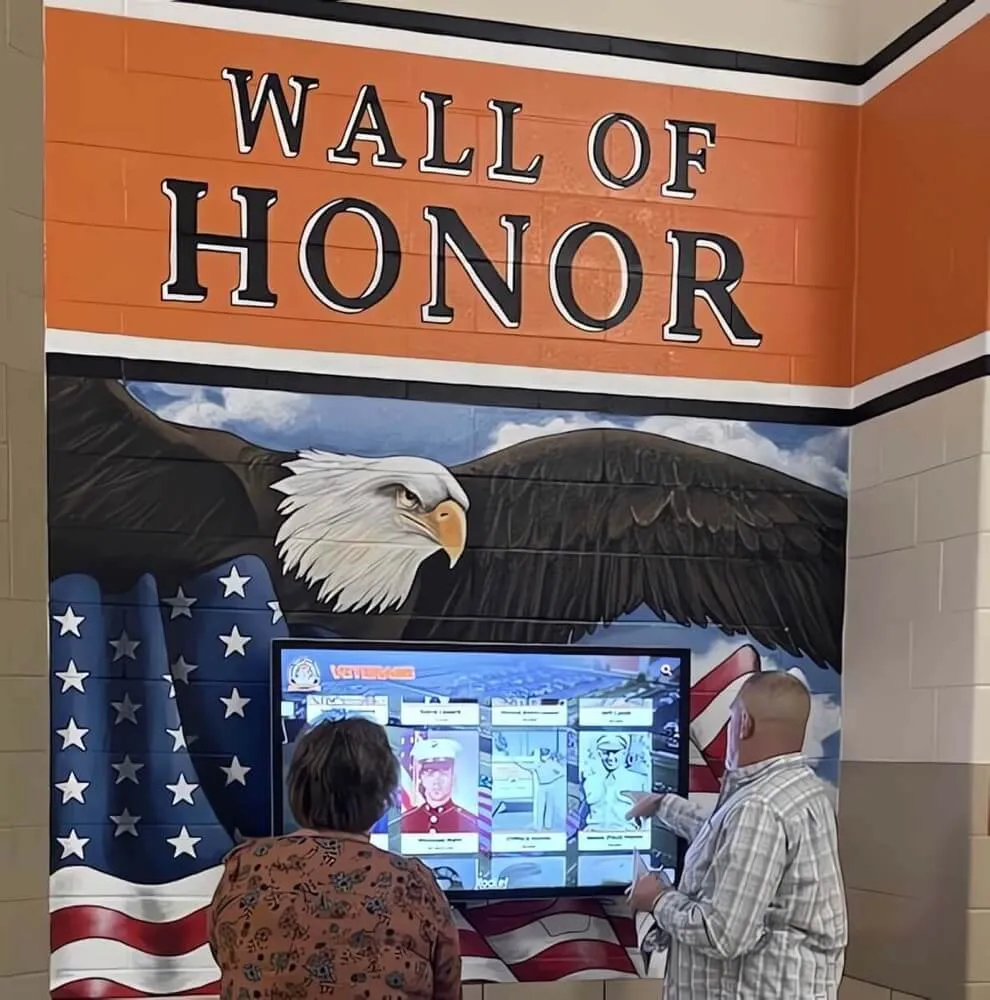
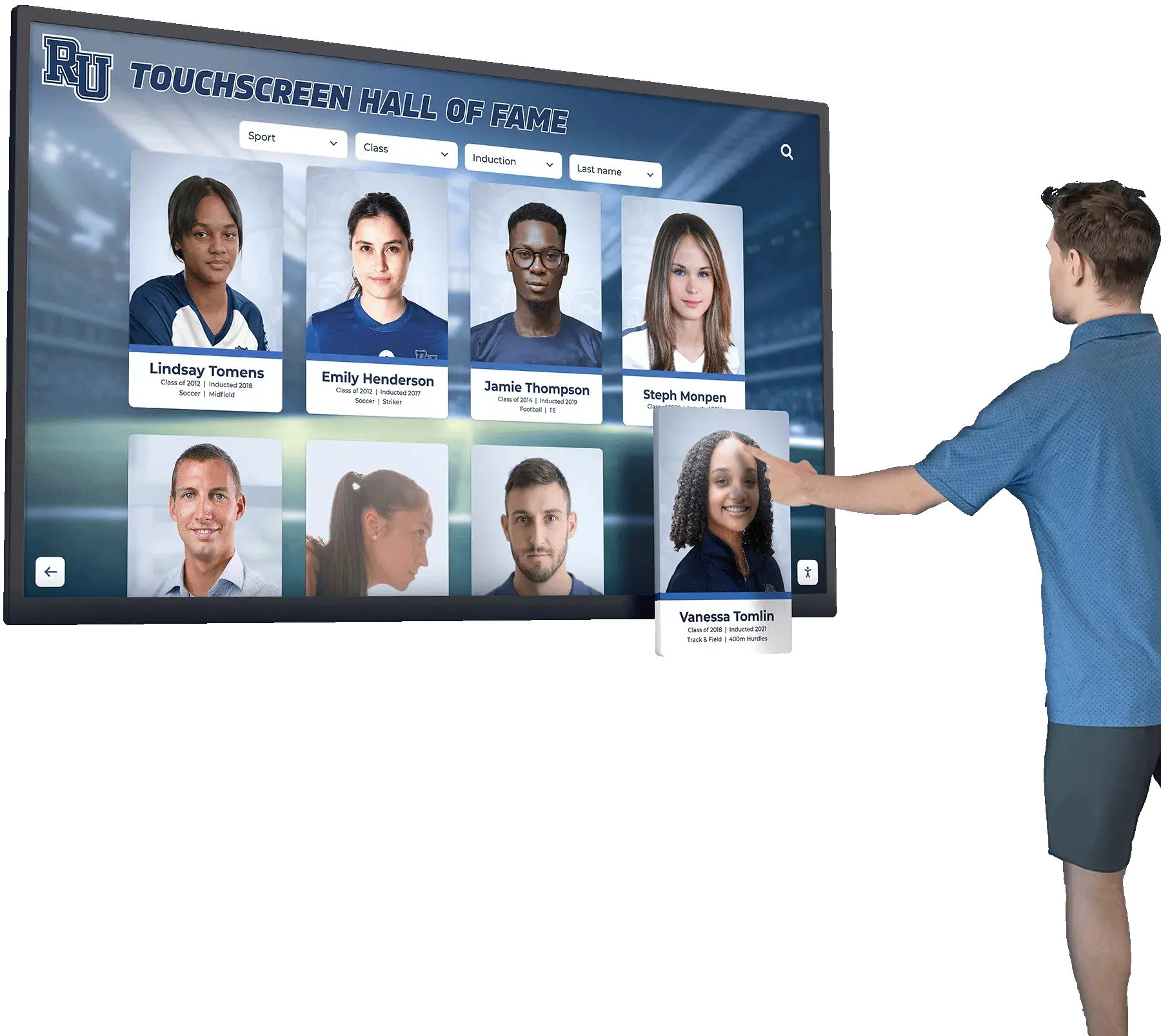
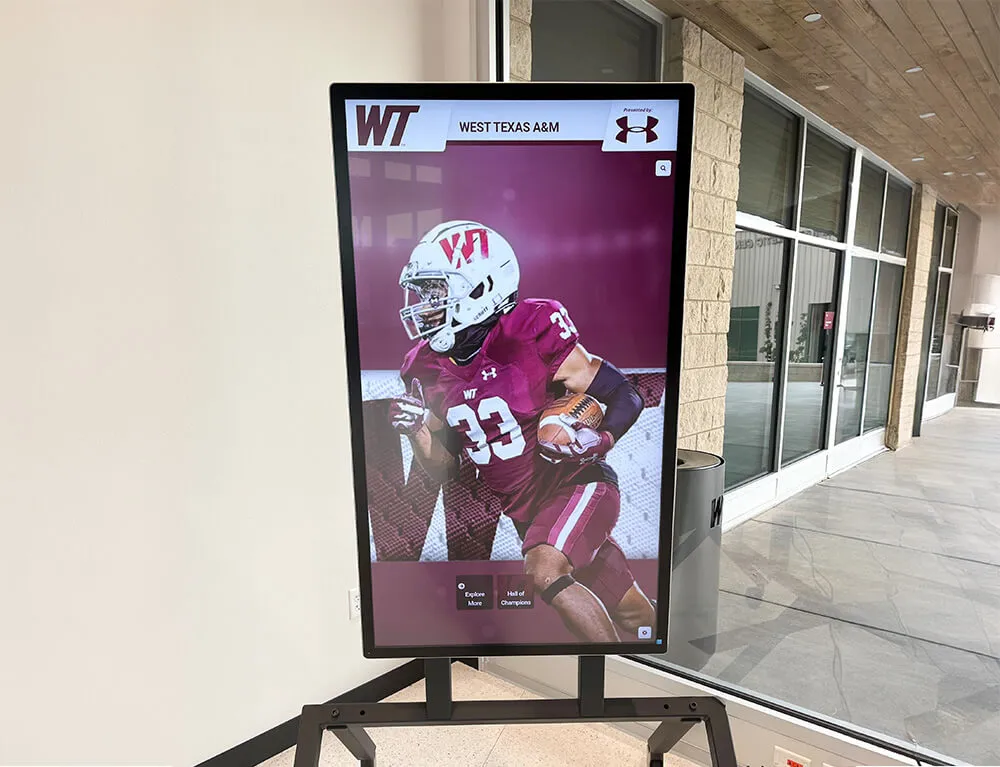
Digitized sports slides feed directly into touchscreen recognition kiosks — providing action images for hall-of-fame inductee profiles that pre-digital era yearbooks could not supply
Booster Organization and Budget Considerations
Many school sports slide scanning projects are funded or co-funded by booster organizations, alumni associations, or athletic foundations rather than the operating budget. When booster funds are involved, tracking actual scanning costs against the approved project budget matters for financial accountability and for justifying future archiving requests to the school administration.
Booster clubs running digitization projects alongside other program responsibilities benefit from clear financial tracking at the project level. A structured booster club budget variance report separates scanning project costs — equipment rental or purchase, staff time, storage media, and software subscriptions — from ongoing athletic program expenses, making it straightforward to report project spending to the organization’s membership and the school administration at the close of the project.
Resolution and File Size Reference
35mm Slide Scan: File Size Estimates by Setting
| DPI | Bit Depth | Approximate TIFF File Size | Approximate JPEG File Size (quality 90) |
|---|---|---|---|
| 1,200 DPI | 24-bit | ~14 MB | ~1.5 MB |
| 2,400 DPI | 24-bit | ~55 MB | ~5 MB |
| 2,400 DPI | 48-bit | ~110 MB | N/A (export as 24-bit JPEG) |
| 4,000 DPI | 24-bit | ~150 MB | ~12 MB |
| 4,000 DPI | 48-bit | ~300 MB | N/A (export as 24-bit JPEG) |
Plan storage accordingly. A collection of 1,000 slides scanned at 4,000 DPI in 48-bit color requires approximately 300 GB of raw storage for TIFF masters before derivatives are added. Network-attached storage or cloud storage with versioning provides the redundancy appropriate for irreplaceable institutional content.
Frequently Asked Questions
Q: We have hundreds of slides with no mount labels at all. Is identification still possible?
Identification without mount labels is harder but not impossible. Begin by grouping unlabeled slides into approximate time periods using visual cues — uniform styles, equipment designs, facility details, hairstyles, and film stock characteristics all changed over decades and narrow the candidate range. Then cross-reference each grouping with yearbooks from candidate years: team photos in yearbooks typically include roster pages with uniform numbers that match what is visible in the slide. Former coaches and alumni with specific recall of practice environments and opponent uniforms often recognize locations and events even when they cannot name every individual pictured. Schedule an identification session with relevant alumni or former staff before the scanning project closes rather than relying on post-project outreach, when the slides are no longer easily accessible.
Q: Should we scan slides in carousel order, or sort them first?
Sort first whenever grouping information is available. Scanning in documented order allows the filename sequence number to reflect the slide’s original position in a tray or carousel, which preserves the original arrangement as archival context — a detail that has interpretive value for future researchers. If slides arrived unsorted in a single box with no clear original order, sort by visible content category (sport, apparent era) before scanning begins.
Q: Our scanner software offers automatic DPI settings that adjust based on subject content. Should we use those?
No. Automatic DPI adjustment produces inconsistent results across a batch, making it impossible to verify that all files in the batch were scanned at the required resolution. Set a specific DPI value for each scanning session based on the workflow settings from Step 2 and confirm it manually before each batch begins. Consistency across the batch is more important than any individual optimization.
Q: Can a drum scanner improve results compared to a flatbed with a transparency adapter?
Drum scanning produces higher optical resolution and sharper results than most flatbed transparency adapters, particularly for slides with high grain or fine detail. It is also significantly more expensive and typically requires professional service bureau access. For a typical school sports slide archive destined for hall-of-fame displays, digital yearbooks, and recognition programs, a quality dedicated film scanner at 4,000 DPI produces results appropriate for those uses. Drum scanning is worth considering for particularly significant individual slides — championship action photographs, inductee portraits — where maximum quality justifies the additional cost.
Q: How do we handle slides that picture identifiable students under FERPA or state privacy rules?
Athletic photographs picturing identifiable current or former students are subject to your school’s FERPA policies and applicable state privacy laws. For slides depicting current students, apply the same access controls and permissions that govern other student records. For slides depicting former adult students used in recognition programs — hall-of-fame displays, alumni platforms, donor materials — consult your district’s legal counsel if there is any uncertainty about the applicable policy for the specific use. Document the rights and privacy basis for each batch in the metadata record, not as an afterthought after publication decisions have already been made.
Q: What should we do with the original slides after digitization is complete?
Retain originals for a defined period — typically three to five years — in archival conditions after digitization. Scanning technology continues to improve, and retaining originals allows future re-scanning if needed. Store slides in acid-free archival sleeves in a cool, dark, stable environment. After the retention period, and after digital masters have been verified through actual use in at least one recognition program, originals can be deaccessioned following your school’s records disposition policy.
Q: Our scanning project identified several athletes who were All-State honorees we had no record of in our current recognition database. What should we do?
Document each newly confirmed honoree in your recognition records before the scanning project closes, while the identification sources — yearbooks, mount labels, alumni who confirmed the identification — are still fresh and accessible. These identified athletes may be candidates for hall-of-fame consideration, recognition display profiles, or alumni outreach programs depending on your school’s criteria. The slide scan, identification confidence rating, and identification basis field from the metadata spreadsheet serve as the primary documentation supporting those entries.
Ready to Turn Your Slide Archive Into a Living Recognition Resource?
A completed school sports slide scanning workflow moves decades of athletic history — action photographs, championship moments, and athlete portraits — from deteriorating film into organized digital files that can power hall-of-fame displays, interactive kiosks, and searchable alumni platforms. Rocket Alumni Solutions works with schools to connect properly scanned and identified athletic archives to recognition platforms that present recovered content to athletes, alumni, and the broader school community in a format they can actually explore.
Request a demo with Rocket Alumni Solutions to see how a structured slide archive — scanned at archival resolution, named consistently, and identified accurately — becomes the foundation for a recognition program your school’s athletic history deserves.