When schools and organizations invest in digital recognition displays, they’re creating centerpieces for their lobbies, hallways, and gathering spaces. These interactive touchscreens showcase achievements, honor contributors, and preserve institutional history. But for roughly 26% of adults in the United States who live with some form of disability, many digital displays create barriers rather than opportunities for engagement.
WCAG 2.2 AA accessibility compliance isn’t just about meeting legal requirements or checking regulatory boxes. Accessible design ensures that every visitor—regardless of vision, hearing, mobility, or cognitive abilities—can fully engage with recognition content, discover their own achievements or those of family members, and participate in the community celebrations these displays facilitate.
This comprehensive guide explains what WCAG 2.2 AA accessibility means for interactive touchscreen displays, why compliance matters for educational institutions and organizations, specific success criteria affecting digital recognition systems, and how thoughtful accessibility implementation creates better experiences for everyone while fulfilling legal obligations and institutional values around inclusion.
Organizations implementing accessible digital recognition report that universal design principles benefit all users, not just those with disabilities. Larger text improves readability in bright lobbies, keyboard navigation helps users with temporary injuries, and clear content structure makes information easier to find for everyone exploring displays during brief visits.

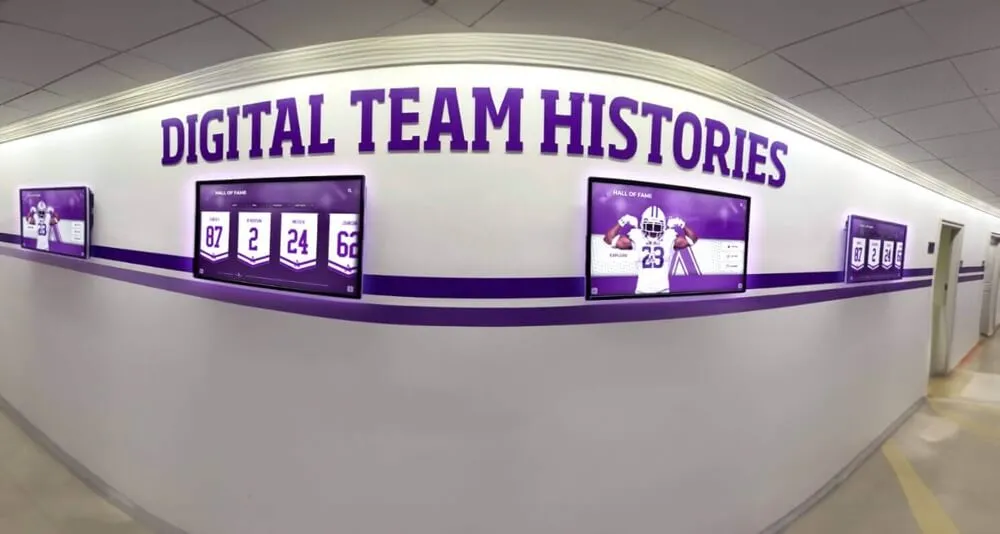
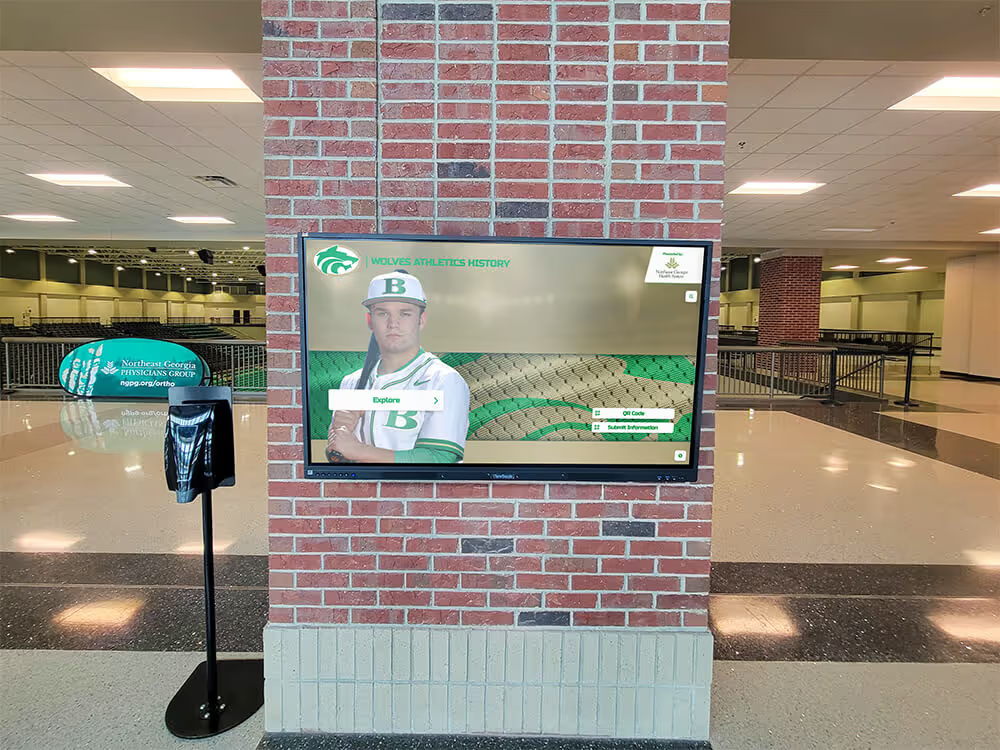
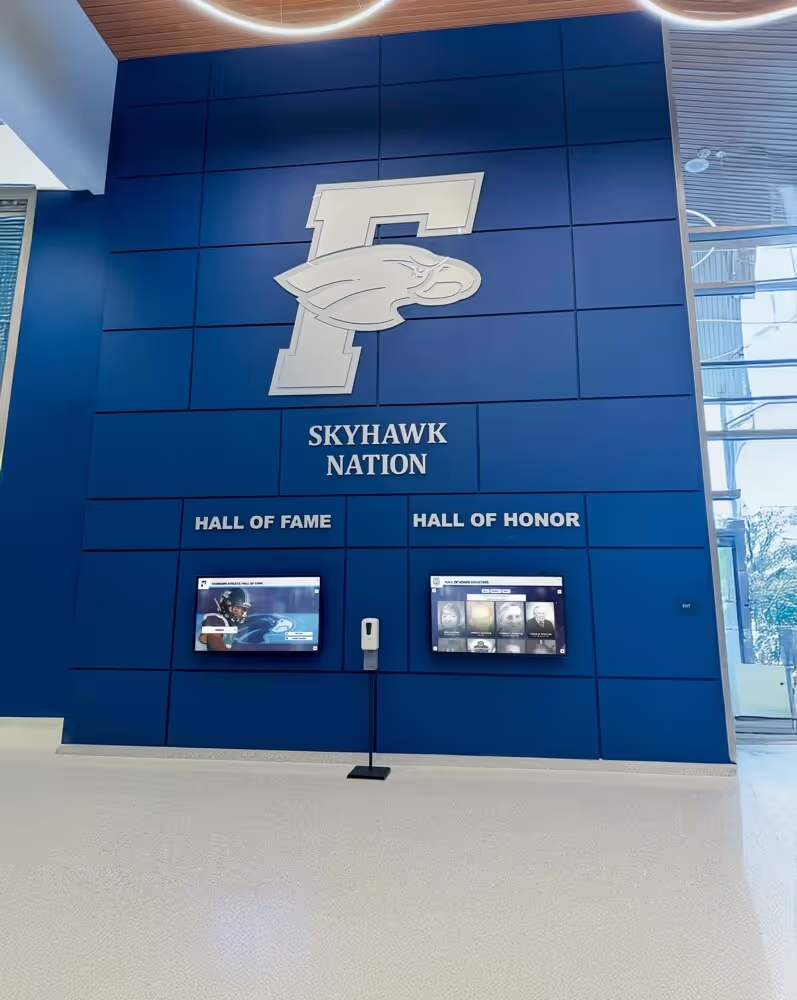
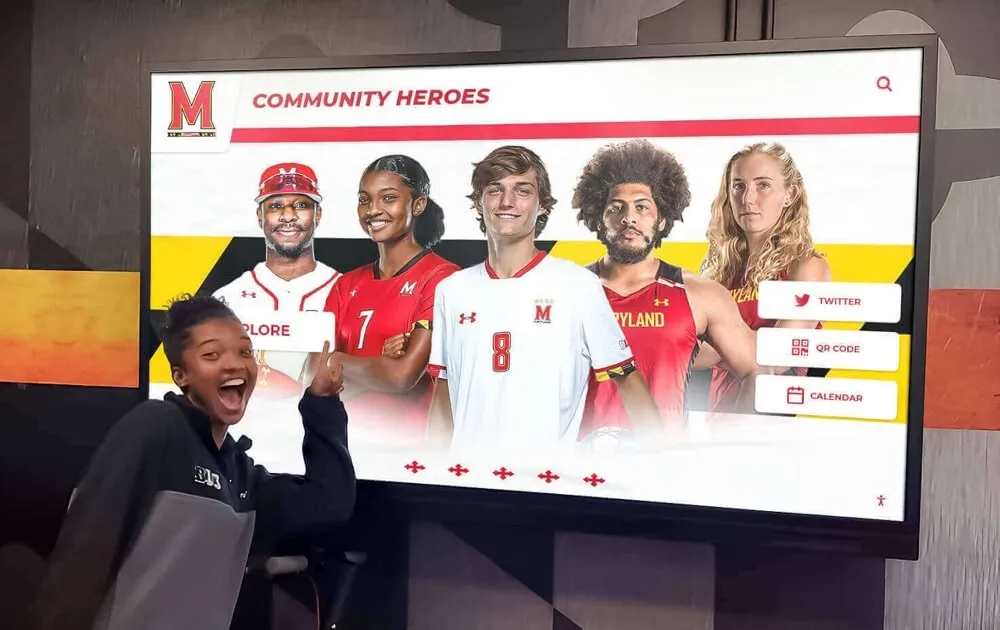
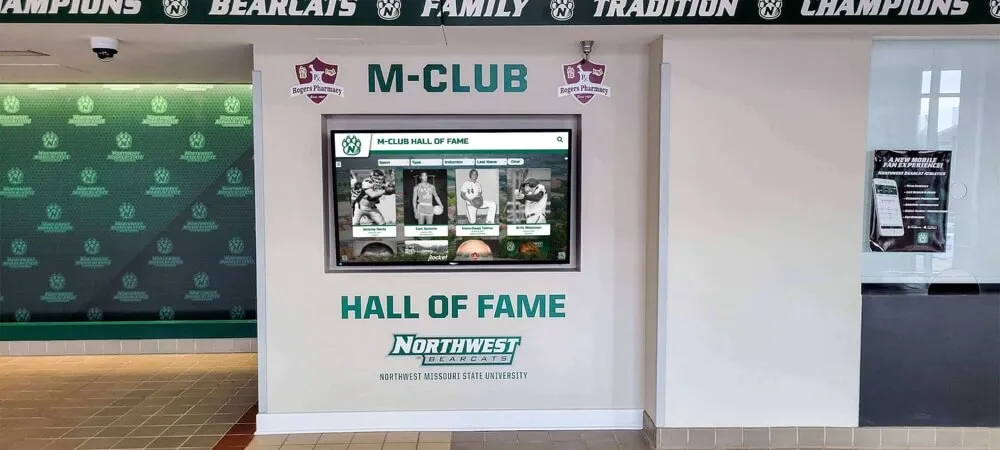
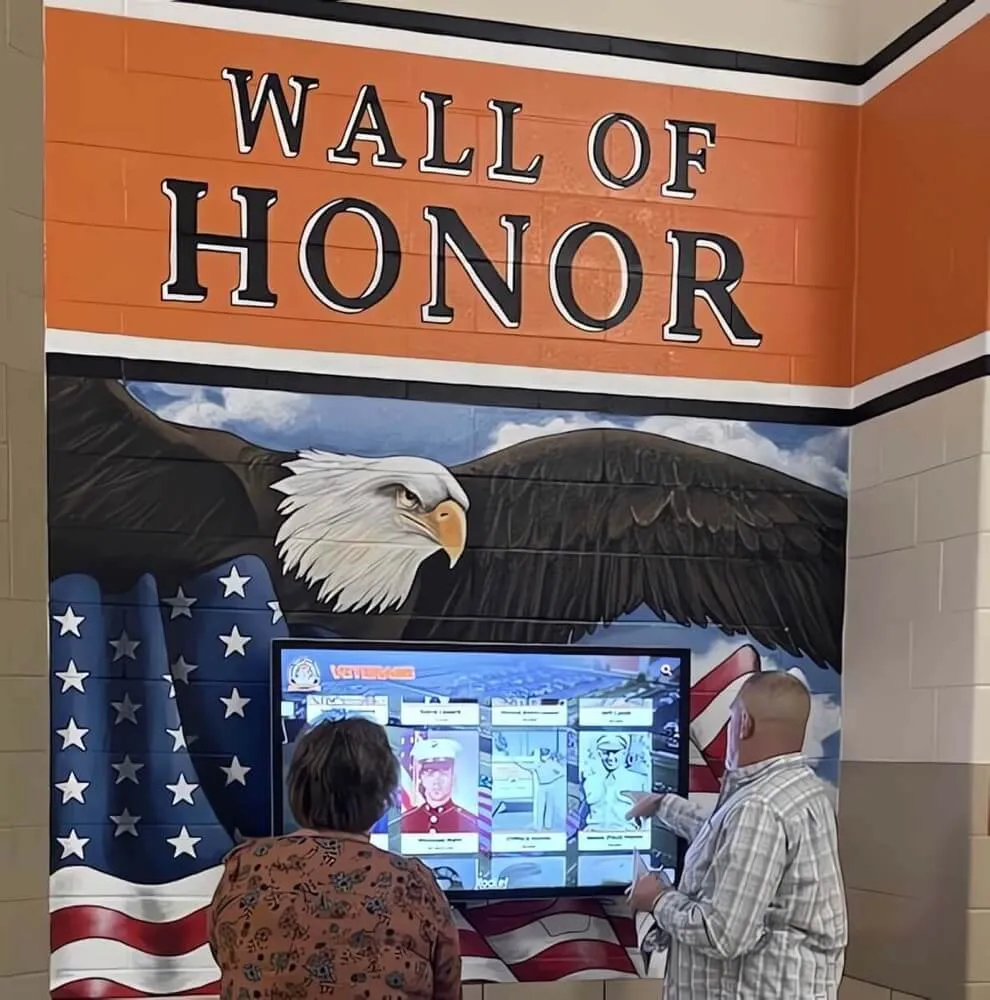
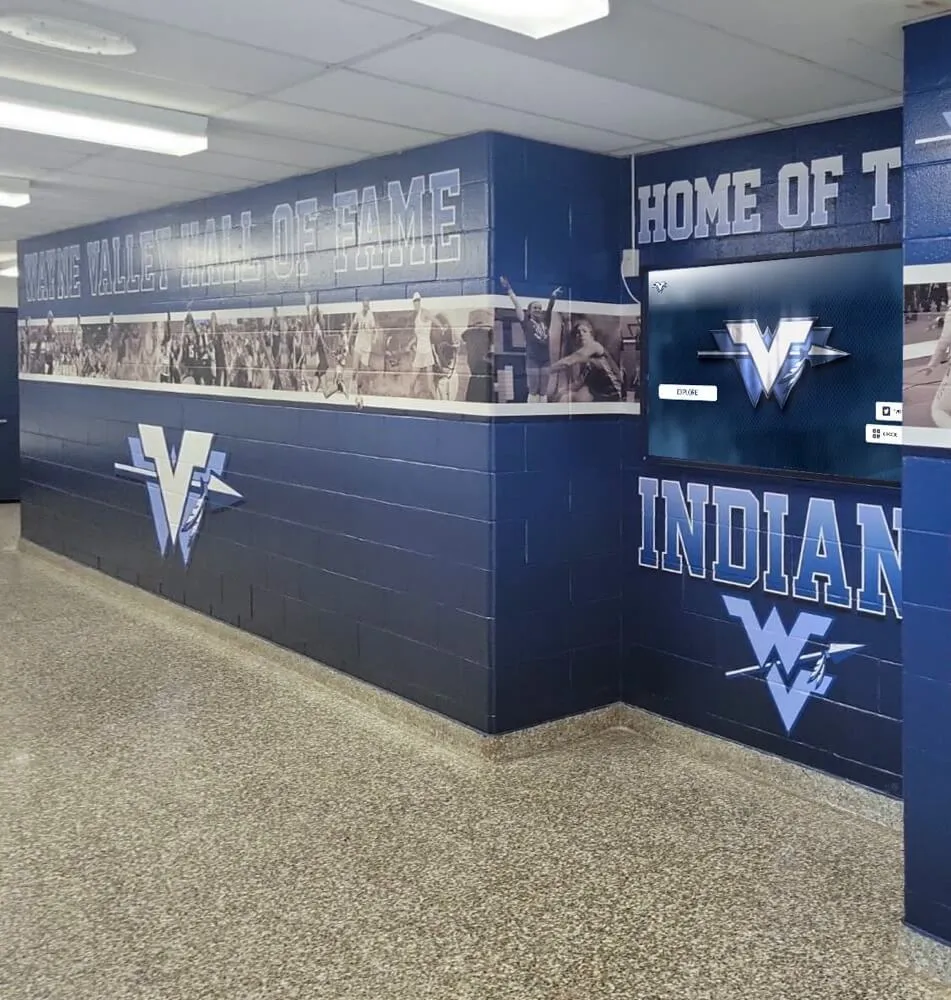
Accessible touchscreen interfaces enable all visitors to explore recognition content through intuitive interactions, clear visual design, and assistive technology compatibility
Understanding WCAG 2.2 AA Accessibility Standards
What WCAG Stands For and Why It Matters
The Web Content Accessibility Guidelines (WCAG) represent internationally recognized standards for making digital content accessible to people with disabilities. Developed through the World Wide Web Consortium (W3C) process involving disability advocates, accessibility experts, and technology professionals, WCAG provides specific, testable criteria ensuring digital experiences work for diverse users.
WCAG Conformance Levels Explained
WCAG defines three conformance levels addressing progressively comprehensive accessibility:
Level A (Minimum): Basic accessibility features providing fundamental usability for people with disabilities. Level A conformance addresses the most severe accessibility barriers but leaves significant obstacles for many users.
Level AA (Standard): Intermediate accessibility that removes substantial barriers for most users with disabilities. Level AA represents the standard most organizations target, balancing comprehensive accessibility with reasonable implementation effort. Many accessibility laws and regulations reference WCAG 2.2 AA as the compliance benchmark.
Level AAA (Enhanced): The highest level of accessibility conformance addressing specialized needs and edge cases. Level AAA requirements prove difficult or impossible to satisfy for some content types and aren’t typically required by regulations, though specific AAA criteria may make sense for certain contexts.
For public-facing digital recognition displays in schools, universities, nonprofits, and organizations, WCAG 2.2 AA conformance represents the appropriate target—providing strong accessibility for diverse users while remaining practically achievable.
WCAG 2.2 vs Earlier Versions
WCAG 2.2, published in October 2023, builds upon WCAG 2.1 (June 2018) and WCAG 2.0 (December 2008) by adding nine new success criteria addressing gaps in earlier versions:
New WCAG 2.2 Success Criteria:
- Focus appearance indicators that remain visible during keyboard navigation
- Dragging movement alternatives ensuring functionality without drag interactions
- Target size requirements for touch interfaces (24x24 CSS pixels minimum)
- Consistent help mechanisms maintaining predictable locations across pages
- Redundant entry elimination reducing repeated information requests
- Accessible authentication avoiding cognitive function tests for verification
These additions particularly impact touchscreen interfaces, mobile experiences, and interactive displays—making WCAG 2.2 especially relevant for digital recognition systems compared to earlier versions.
Organizations implementing digital recognition displays should ensure platforms support WCAG 2.2 AA conformance rather than relying on older 2.0 or 2.1 implementations that miss recent improvements.
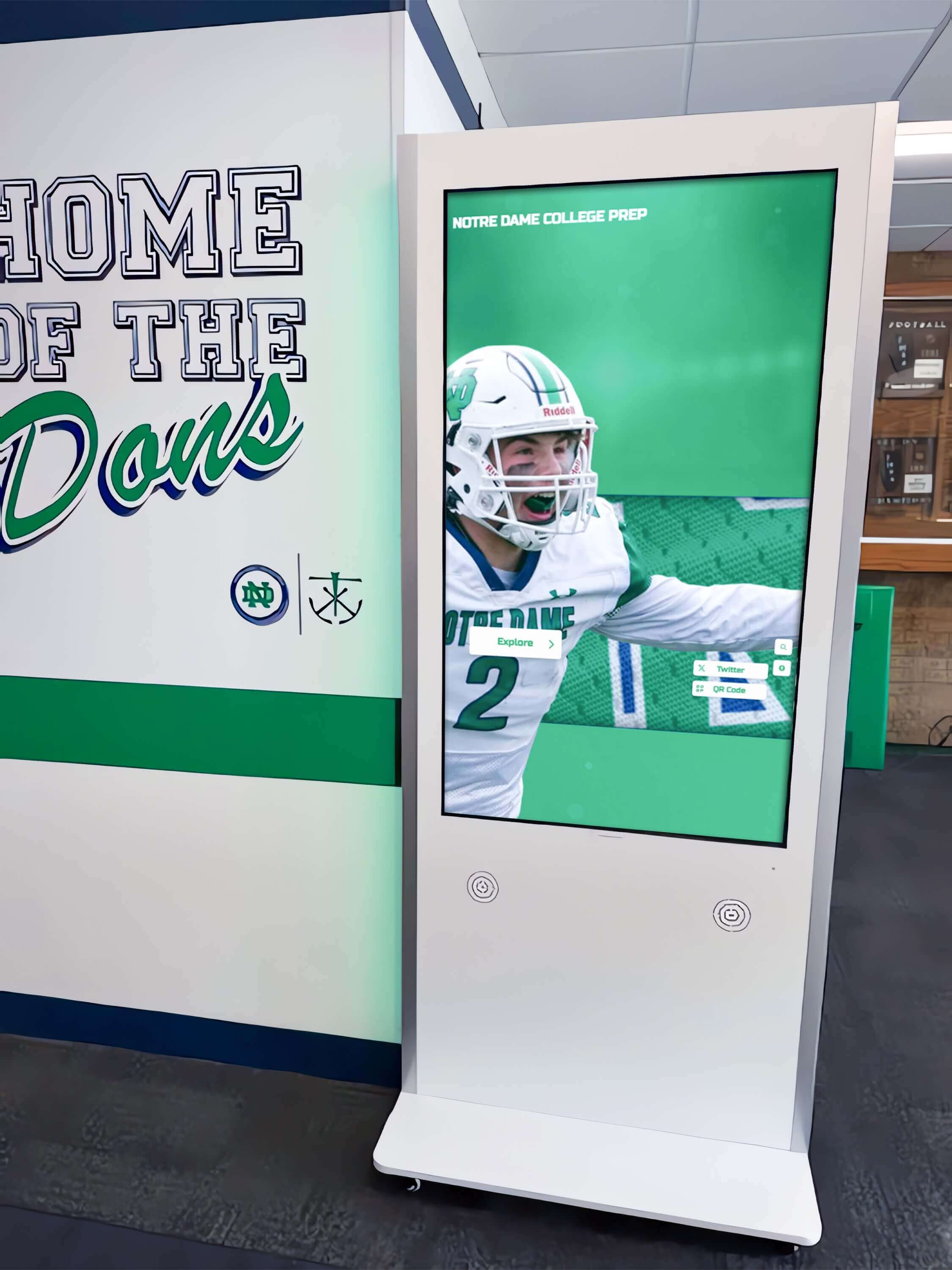
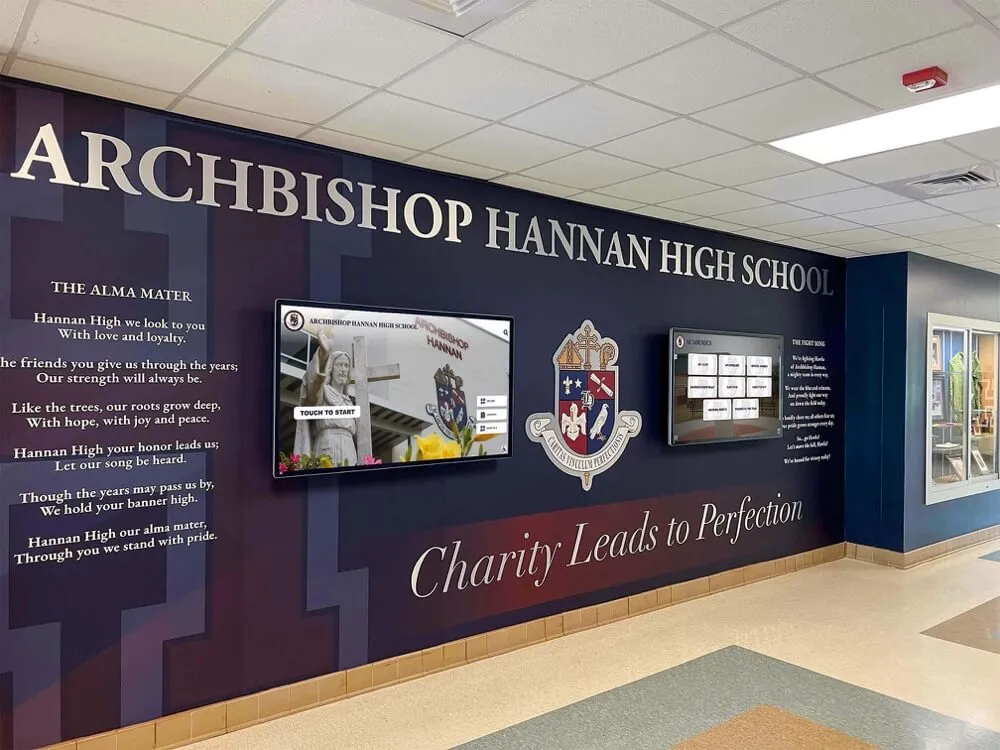
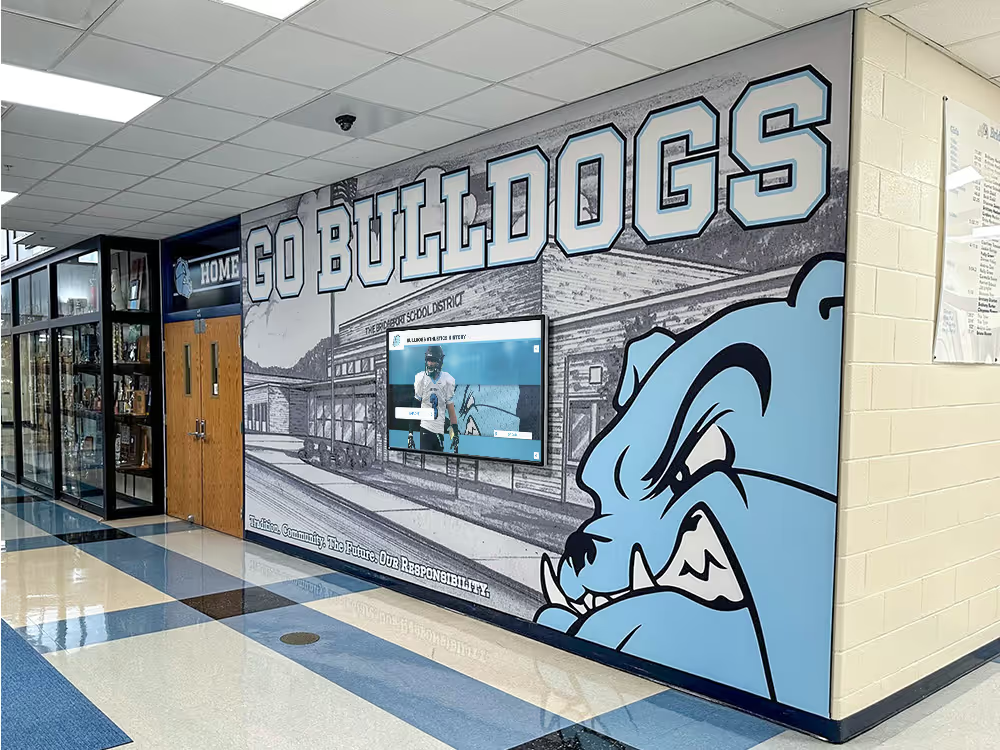
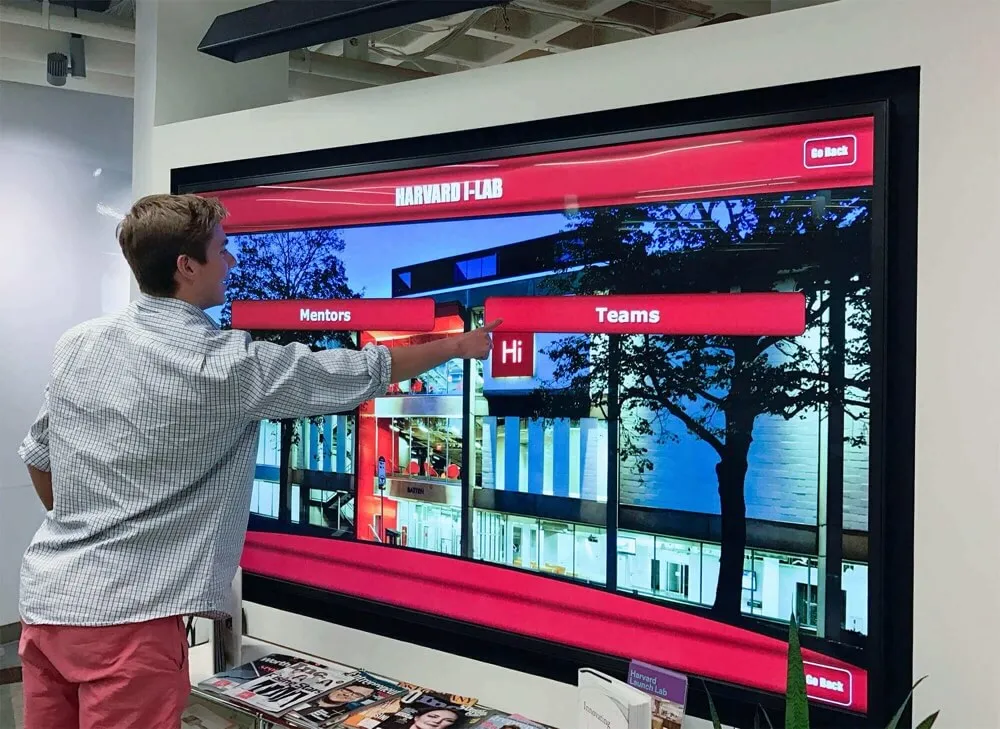
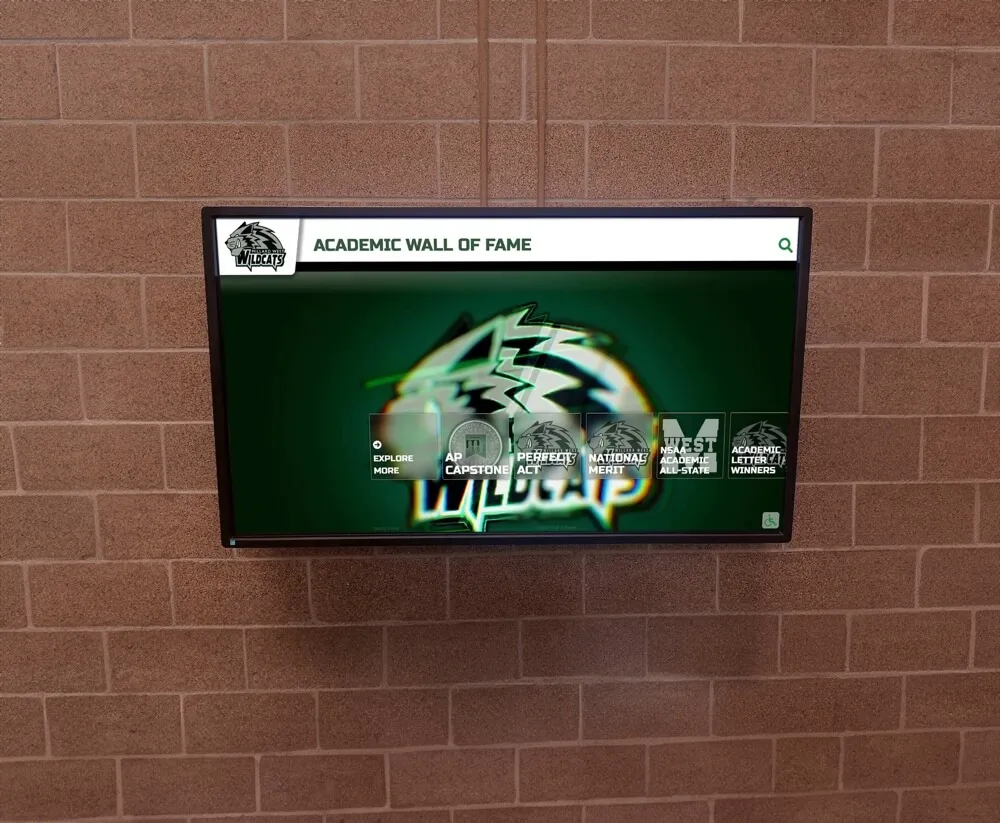
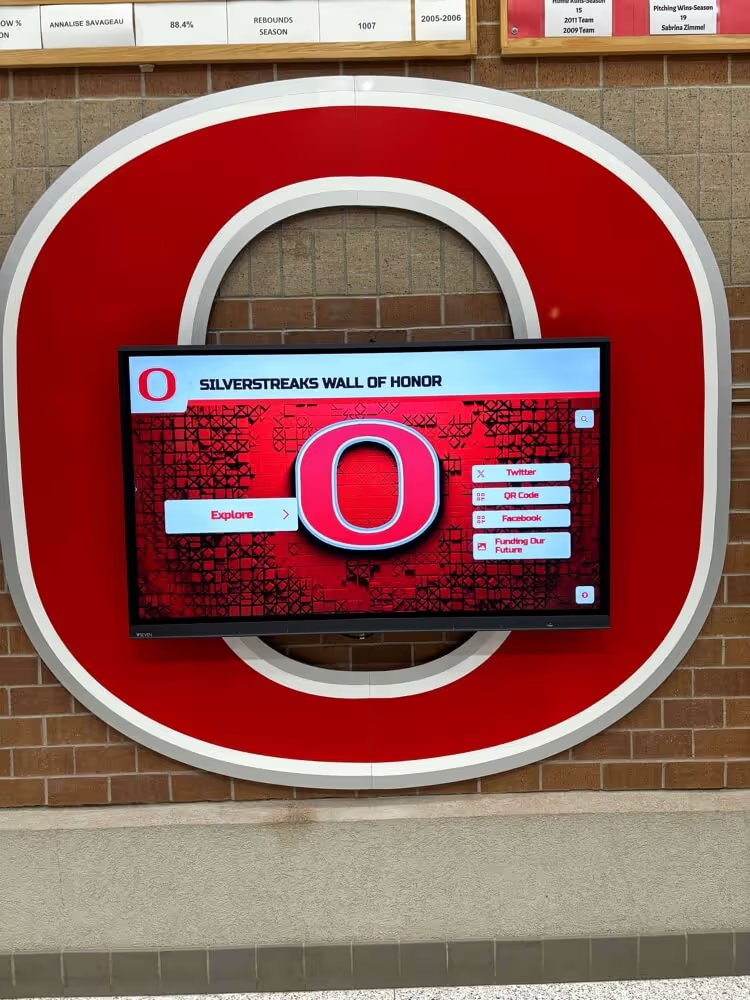
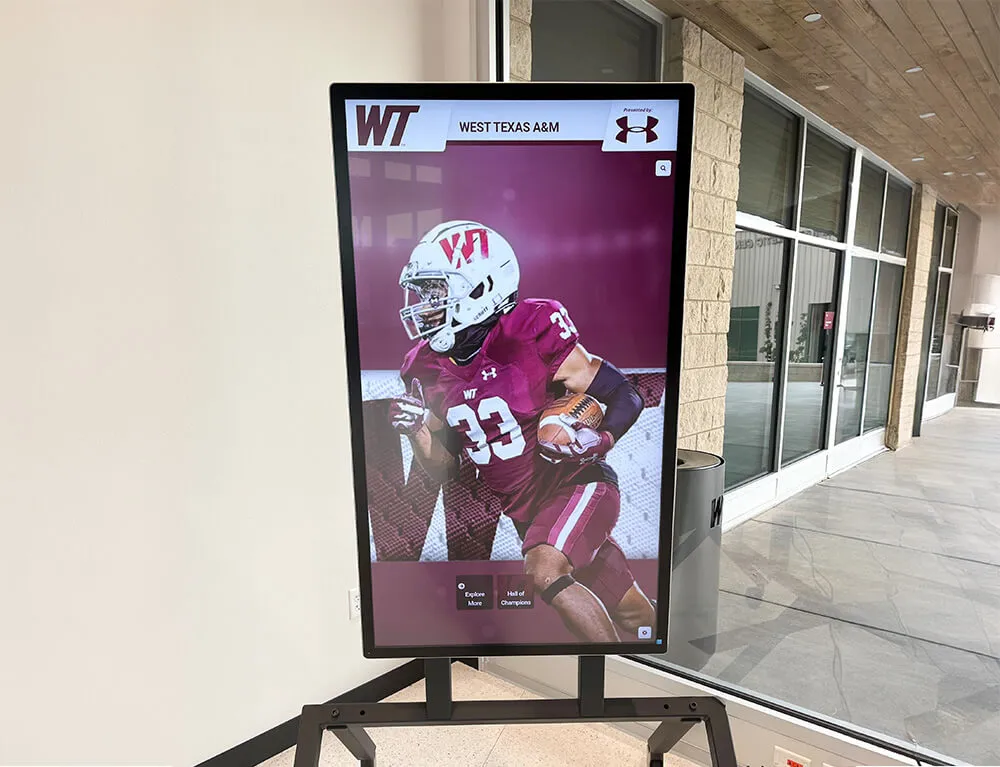
Purpose-built touchscreen kiosks with accessibility features enable comfortable interaction for visitors of all abilities exploring recognition content
Why Accessibility Matters for Digital Recognition Displays
Legal, Ethical, and Practical Considerations
Accessibility compliance serves multiple institutional objectives beyond regulatory requirements:
Legal and Regulatory Requirements
ADA Title II and III Obligations: The Americans with Disabilities Act requires that state and local government entities (Title II) and places of public accommodation (Title III) ensure equal access to programs, services, and activities. While ADA doesn’t explicitly reference WCAG standards, Department of Justice guidance increasingly points to WCAG 2.1 AA as a technical standard, with WCAG 2.2 AA representing current best practice.
Public schools, state universities, and government facilities face clear Title II obligations. Private schools, universities, and nonprofit organizations open to the public typically qualify as places of public accommodation under Title III, creating similar accessibility obligations.
Section 508 Requirements: Federal agencies and entities receiving federal funding must comply with Section 508 of the Rehabilitation Act, which mandates accessible electronic and information technology. Section 508 standards reference WCAG 2.0 Level AA as the technical requirement, though many organizations voluntarily adopt WCAG 2.2 AA as the current standard.
Schools and universities receiving any federal funding—including financial aid, grants, or contracts—face Section 508 obligations that extend to digital recognition displays in the same way they apply to websites and other technology.
State and Local Laws: Many states and municipalities have enacted accessibility laws that go beyond federal requirements, sometimes with stricter standards or expanded coverage. California’s Unruh Civil Rights Act, New York’s Human Rights Law, and similar statutes in other jurisdictions create additional obligations for organizations operating in those locations.
Ethical and Values-Based Imperatives
Inclusion and Equal Access: Educational institutions and nonprofit organizations typically embrace missions centered on community, learning, and service. These values naturally align with accessibility commitments ensuring that recognition of achievements, donors, and contributors remains available to everyone regardless of disability status.
When schools install digital displays honoring student achievements, those students with disabilities and their families should experience equal access to that recognition. When universities celebrate alumni contributions, graduates with vision impairments deserve equivalent access to donor community information. Accessibility transforms abstract inclusion values into concrete action.
Universal Design Benefits: Accessibility improvements create better experiences for all users, not just those with disabilities. Larger touch targets help elderly visitors with reduced dexterity, high-contrast displays improve readability in bright lobbies, keyboard navigation assists users uncomfortable with touch interfaces, and clear content structure helps everyone find information more quickly.
Organizations implementing touchscreen displays for schools discover that accessibility features enhance usability for diverse visitors well beyond the specific disability contexts they were designed to address.
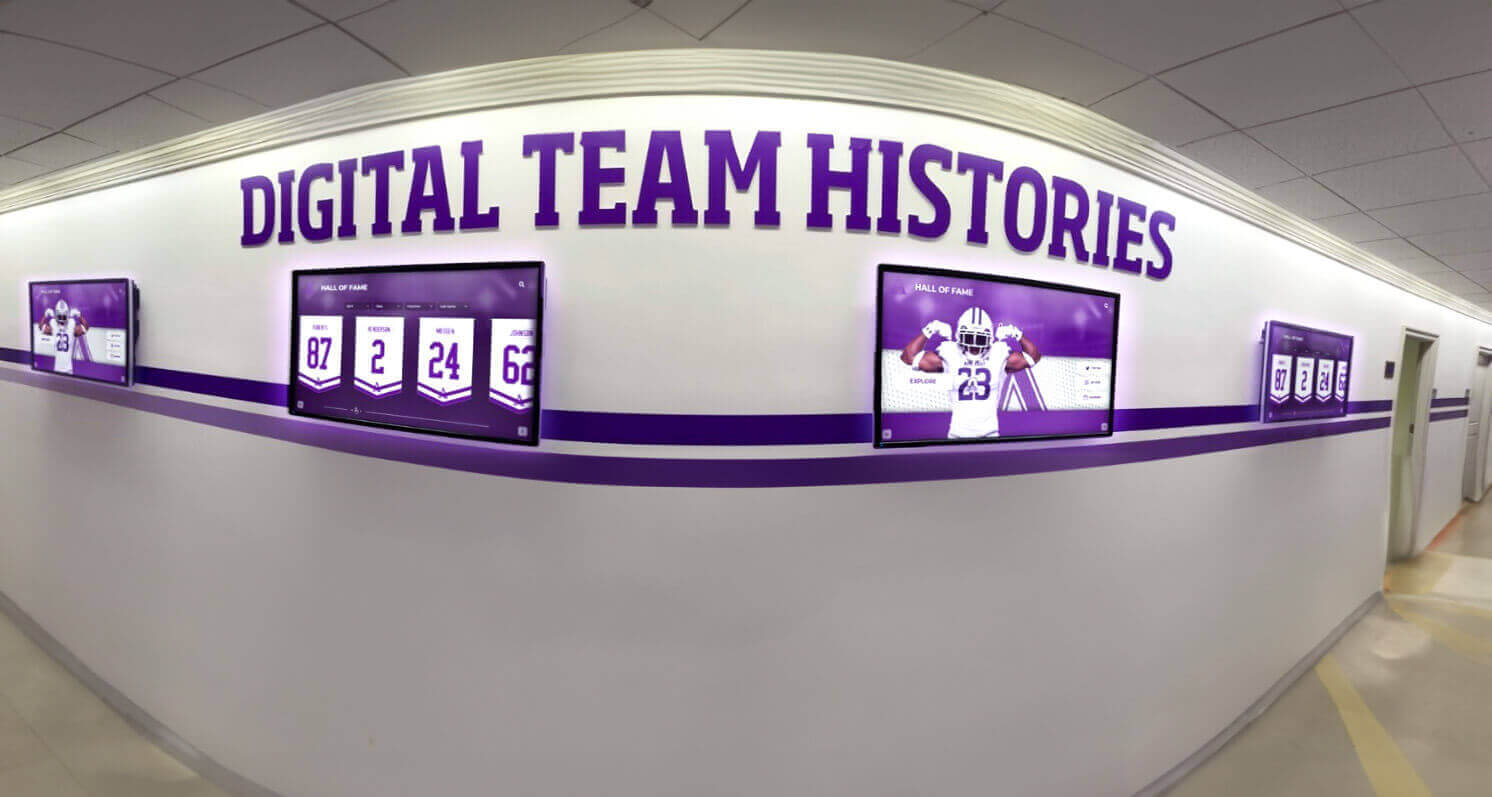
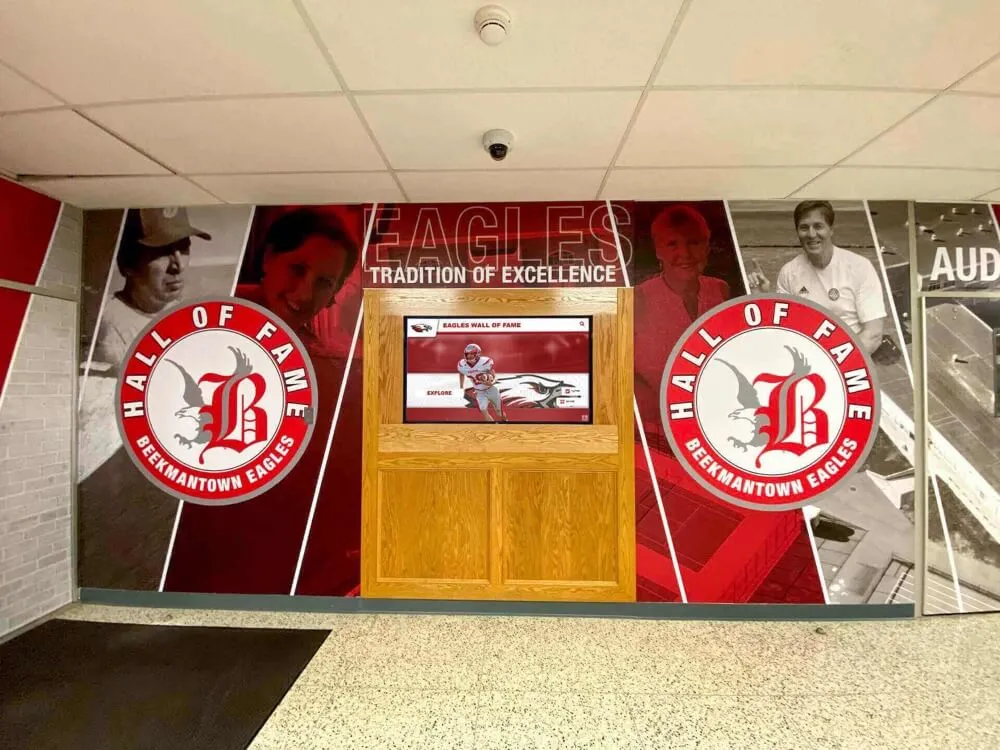
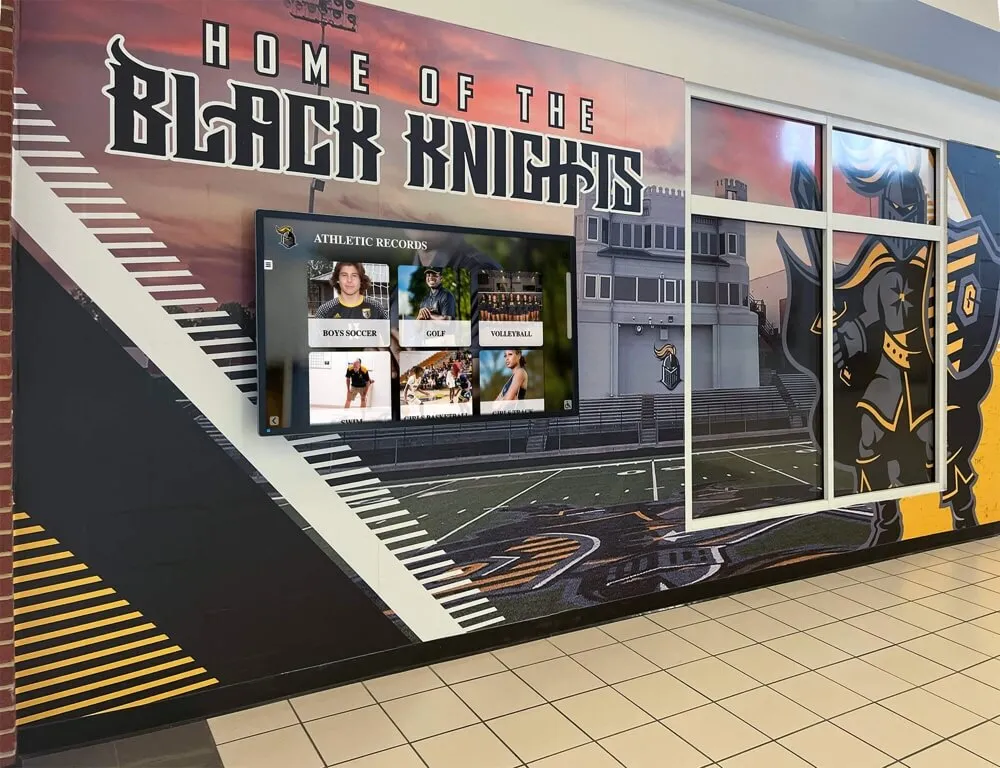
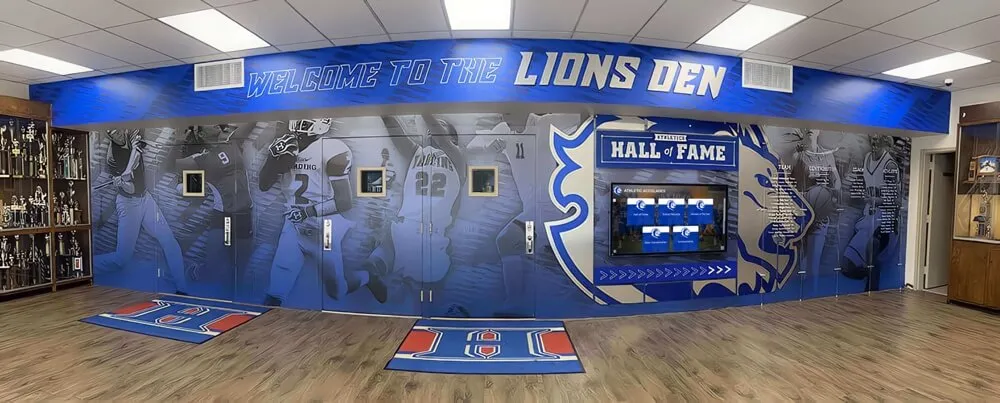
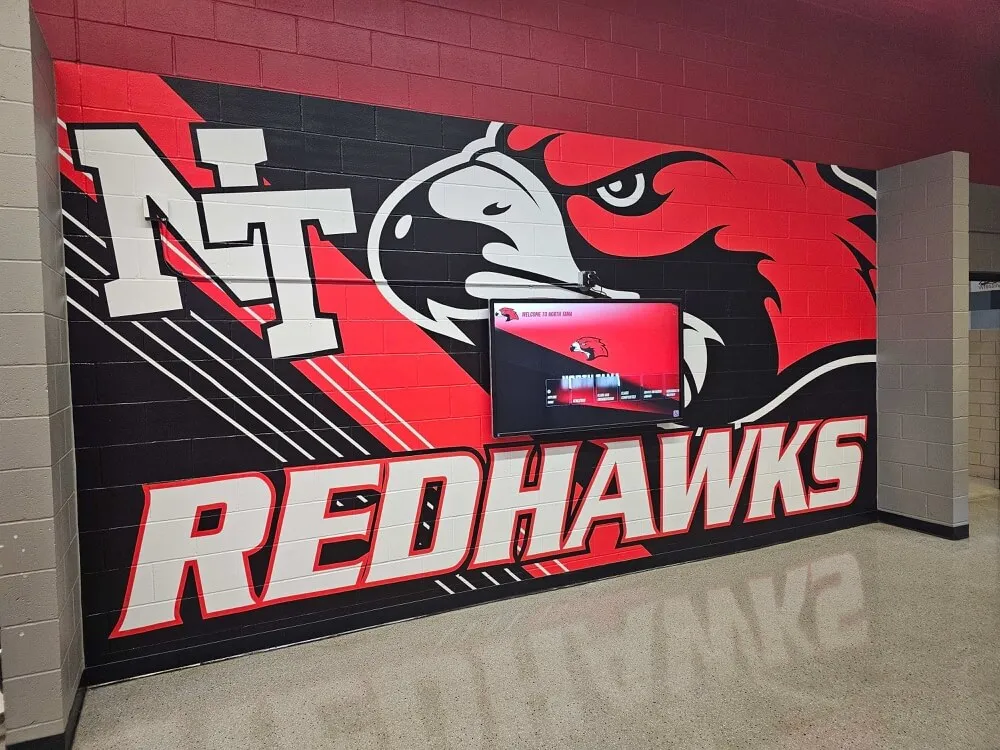
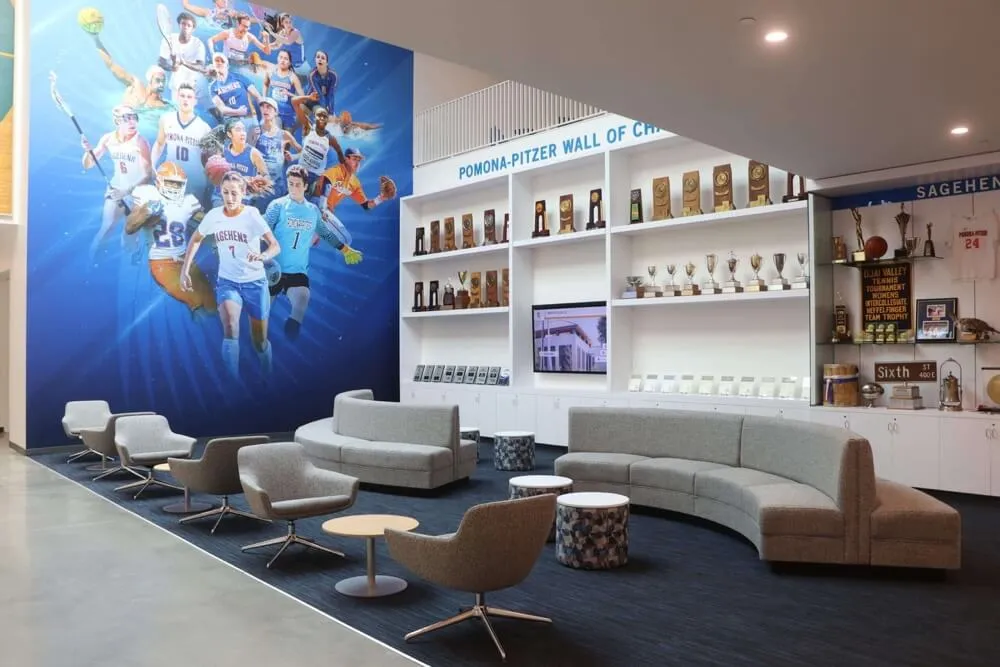
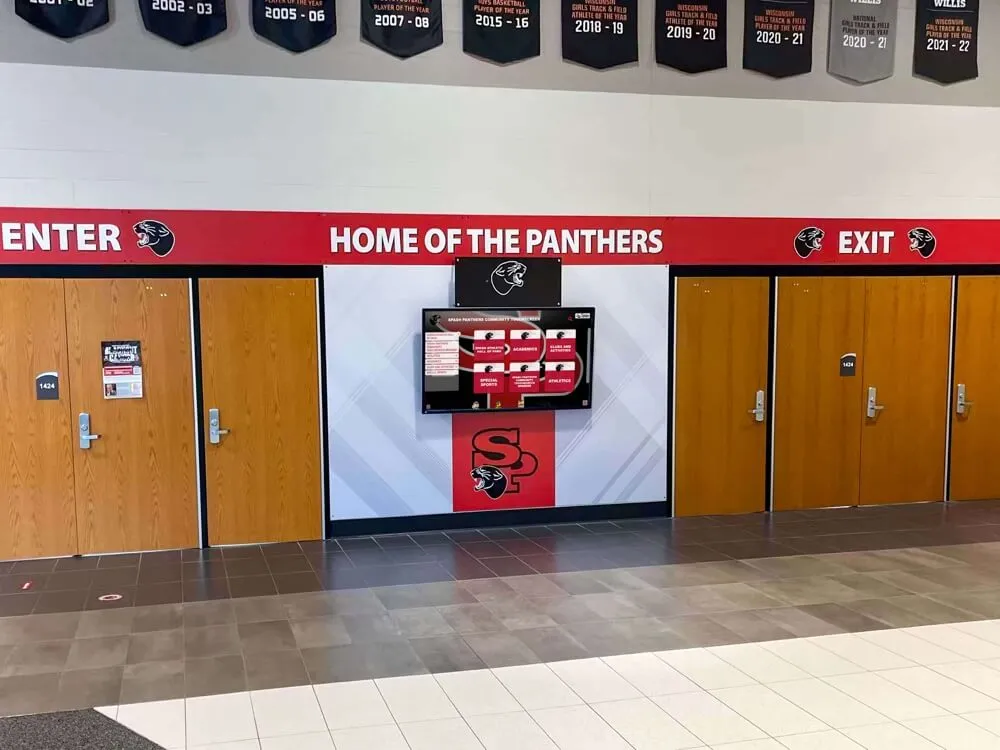
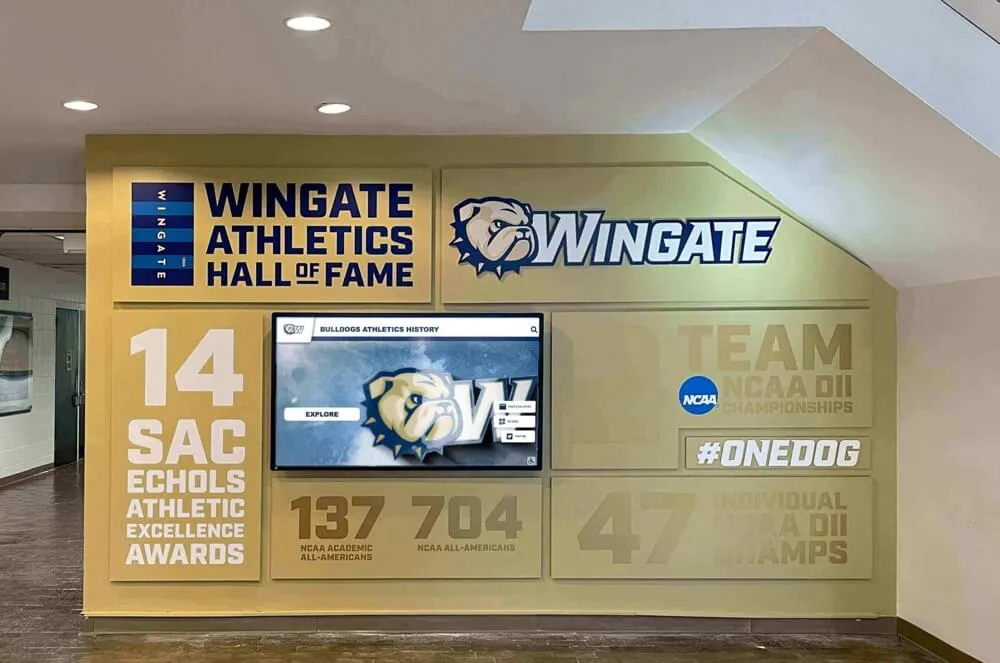
Multiple accessible displays throughout facilities create comprehensive recognition environments that serve diverse visitor needs and preferences
Practical Risk Management
Avoiding Complaints and Legal Action: Accessibility complaints and lawsuits targeting websites and digital properties have increased dramatically over recent years. While physical digital displays in lobbies differ legally from websites, proactive accessibility compliance reduces organizational risk and demonstrates good-faith efforts toward equal access.
Organizations facing accessibility complaints about digital displays may experience legal costs and settlements, negative publicity damaging reputation and recruitment, required retrofitting expenses exceeding proactive implementation costs, and distraction of leadership attention from institutional mission.
Future-Proofing Technology Investments: Digital recognition displays represent significant investments typically expected to function for 5-10 years. Accessibility requirements will only become more stringent over time as technology evolves and awareness increases. Implementing WCAG 2.2 AA conformance from the start protects these investments against obsolescence and ensures systems remain compliant as regulations evolve.
Key WCAG 2.2 AA Success Criteria for Touchscreen Displays
Specific Requirements Affecting Digital Recognition Systems
WCAG 2.2 includes 86 total success criteria, with 50 at Level AA. While all apply to some degree, certain criteria particularly affect interactive touchscreen displays in physical spaces:
Perceivable Content
Success Criterion 1.4.3 - Contrast (Minimum): Text and images of text must have a contrast ratio of at least 4.5:1 for normal text or 3:1 for large text (18pt+ or 14pt+ bold). This ensures readability for visitors with low vision, color blindness, or viewing displays in bright lighting conditions.
Implementation for Recognition Displays:
- Dark text on light backgrounds or light text on dark backgrounds
- Avoid low-contrast color combinations (gray text on white, pastel text on similar pastels)
- Test contrast ratios using tools like WebAIM’s Contrast Checker
- Provide high-contrast mode options for users needing additional assistance
- Ensure institutional branding colors meet contrast requirements
Success Criterion 1.4.4 - Resize Text: Users must be able to resize text up to 200% without loss of content or functionality. Visitors with low vision benefit from larger text sizes they can control based on individual needs.
Implementation for Recognition Displays:
- Use responsive design accommodating different text sizes
- Avoid absolute pixel-based font sizing that prevents scaling
- Test interfaces at 200% zoom ensuring all content remains accessible
- Ensure navigation, buttons, and interactive elements remain functional when enlarged
Success Criterion 1.4.11 - Non-text Contrast: User interface components and graphical objects must have contrast ratios of at least 3:1 against adjacent colors. Buttons, input fields, and interactive elements need sufficient contrast for visibility.
Implementation for Recognition Displays:
- Ensure interactive buttons have clear visual boundaries
- Make focus indicators visible with adequate contrast
- Verify that icons and graphical navigation elements stand out from backgrounds
- Test touch targets for visibility in various lighting conditions
Operable Interfaces
Success Criterion 2.1.1 - Keyboard: All functionality must be available through keyboard interfaces without requiring specific timings for individual keystrokes. While touchscreens are the primary interaction method, accessible systems provide keyboard alternatives for users unable to use touch interfaces.
Implementation for Recognition Displays:
- Provide keyboard or button-based navigation alternatives to touch
- Ensure tab navigation moves logically through content
- Implement visible focus indicators showing keyboard position
- Test all interactive elements for keyboard accessibility
- Consider accessibility overlay buttons for users requesting keyboard modes
Success Criterion 2.4.7 - Focus Visible: Keyboard focus indicators must be visible so users can see where they are while navigating. This helps users with mobility impairments, cognitive disabilities, or those preferring keyboard navigation understand their position within interfaces.
Implementation for Recognition Displays:
- Prominent visual focus indicators (outline, highlight, or border changes)
- Sufficient contrast between focused and unfocused elements (3:1 minimum per WCAG 2.2)
- Consistent focus indicator style throughout application
- Focus indicators that remain visible during all interactions
Success Criterion 2.5.5 - Target Size (Enhanced) / 2.5.8 - Target Size (Minimum): WCAG 2.2 introduces new target size requirements particularly relevant for touchscreens. Success Criterion 2.5.8 (Level AA) requires touch targets be at least 24x24 CSS pixels, with exceptions for inline elements, user-controlled sizing, and essential presentations.
Implementation for Recognition Displays:
- Buttons and interactive elements minimum 24x24 pixels (prefer 44x44 pixels or larger)
- Adequate spacing between touch targets preventing accidental activation
- Larger targets for primary actions and frequently-used functions
- Consider users with reduced dexterity, tremors, or motor impairments
- Test touch interfaces with various hand sizes and interaction approaches
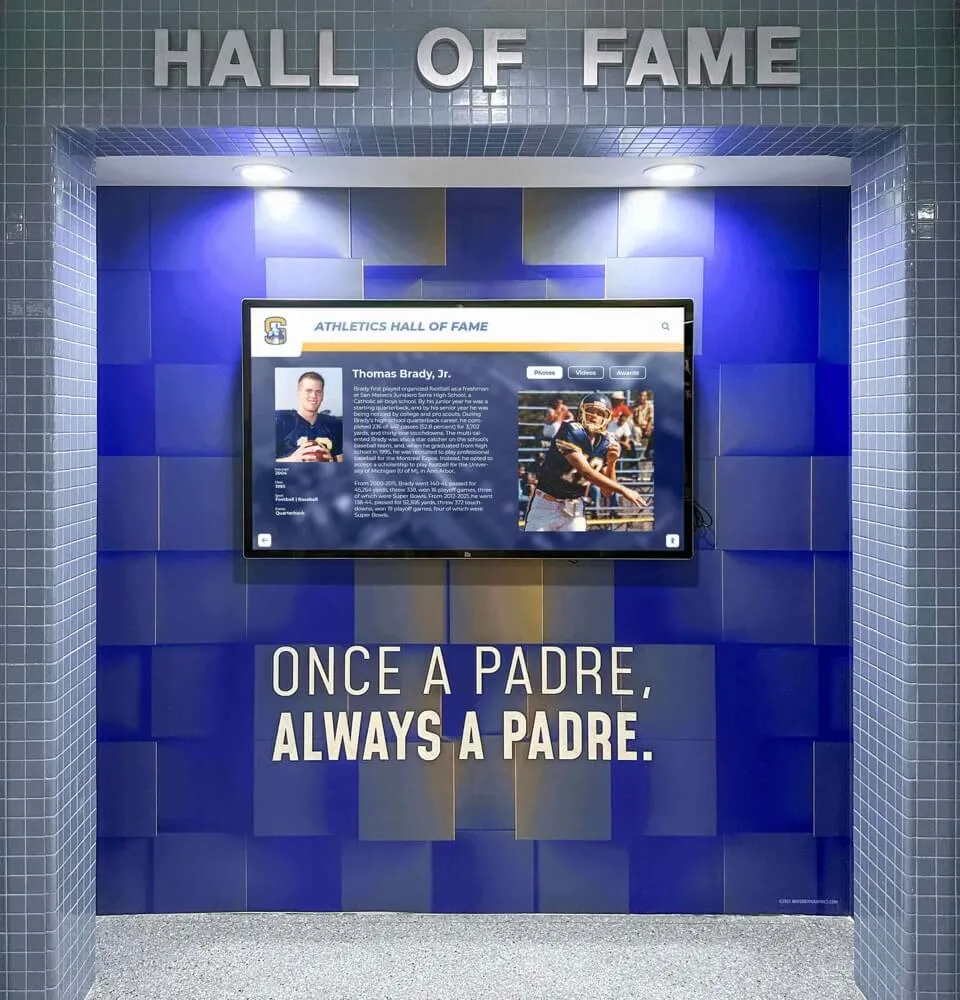
Schools implementing interactive displays for athletic recognition should ensure navigation elements and profile cards meet these minimum target size requirements.
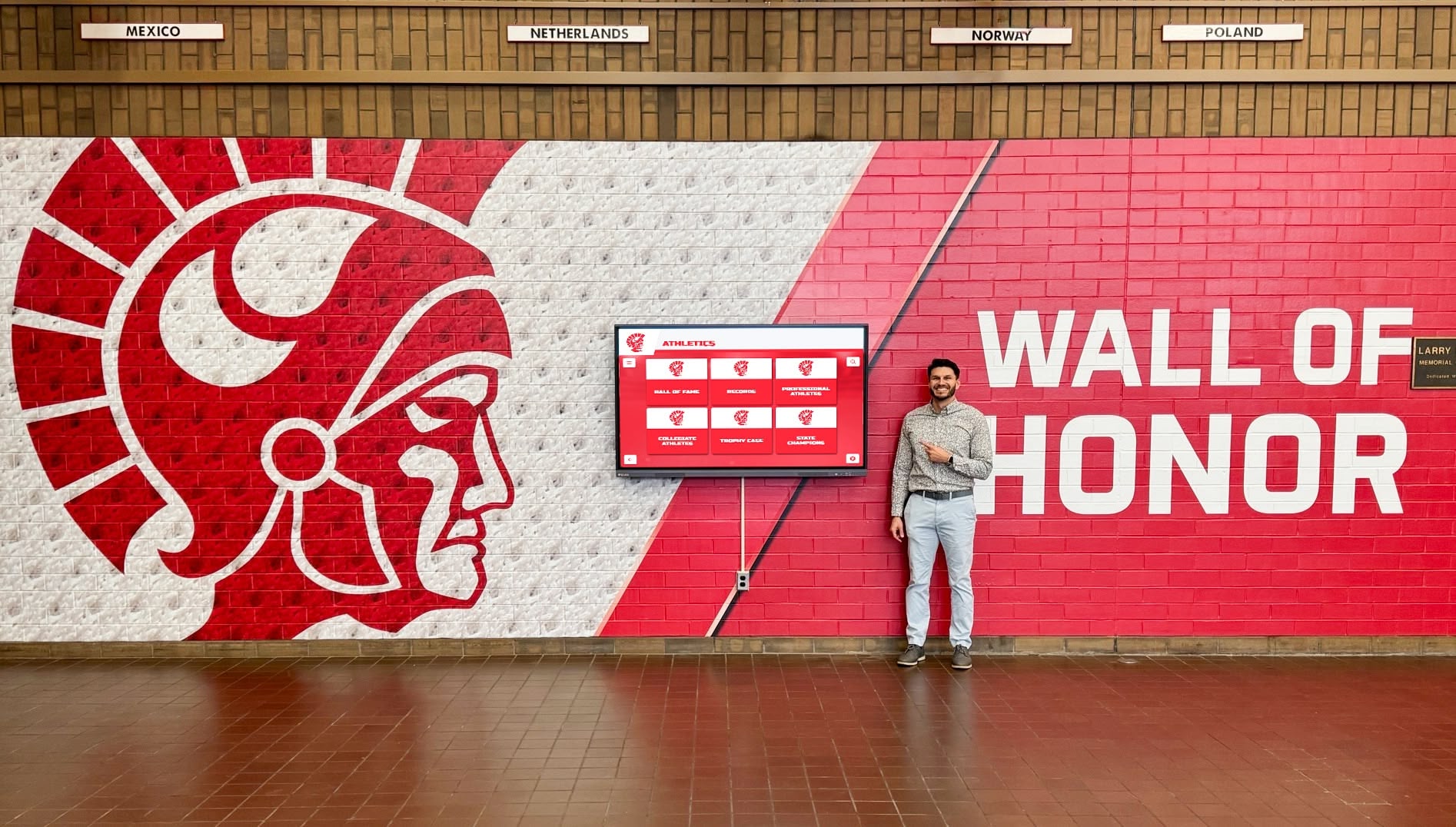
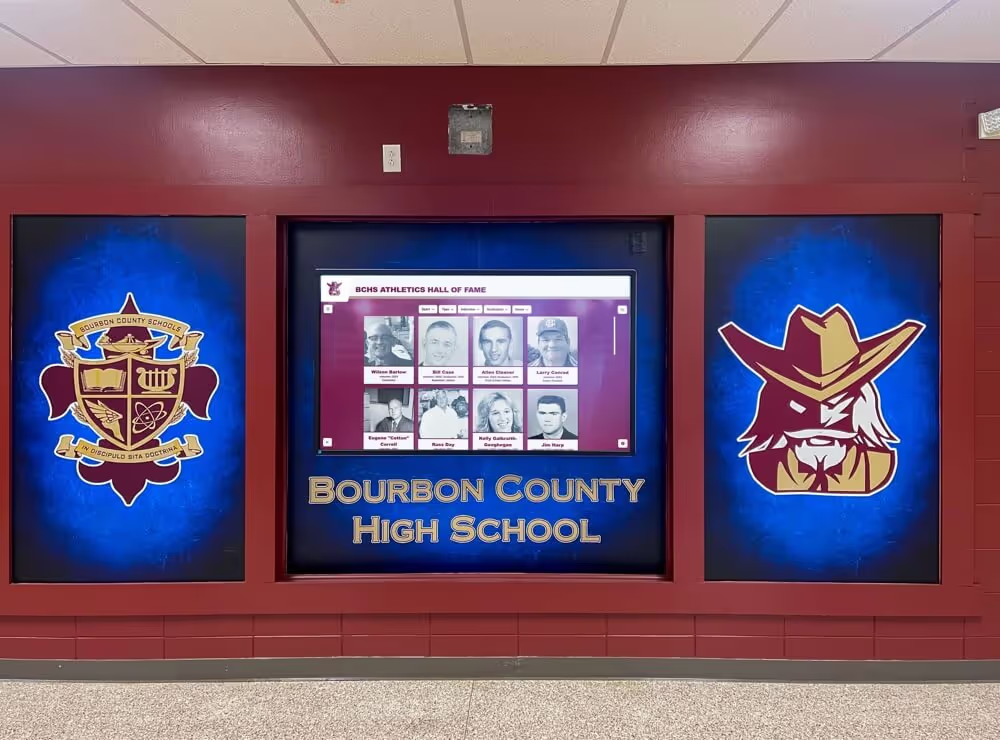
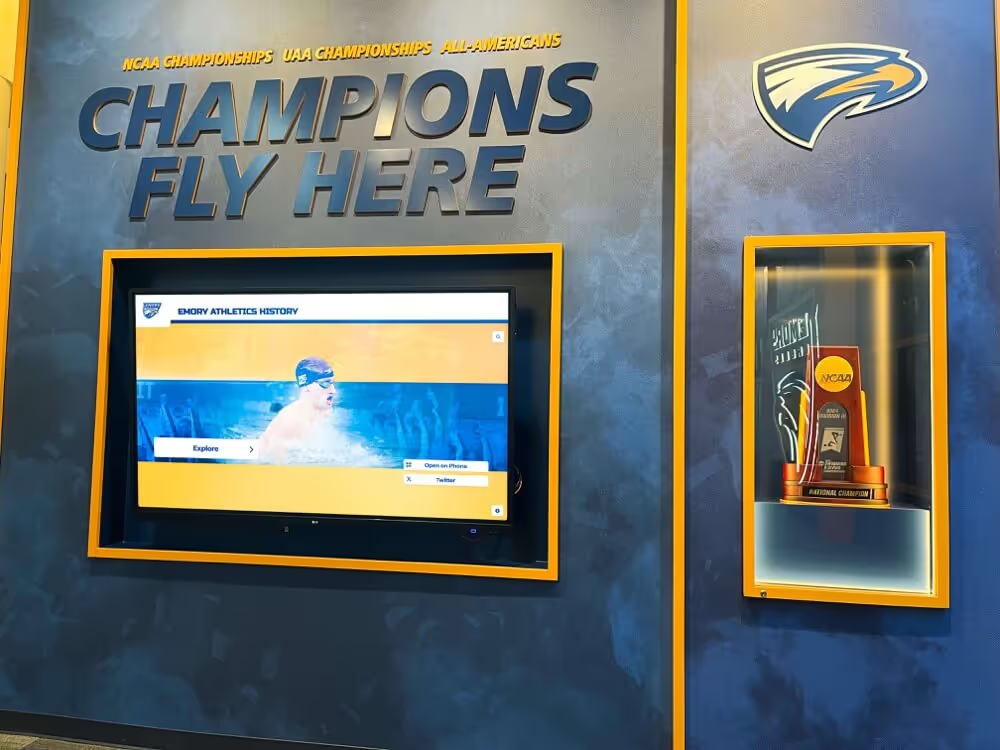
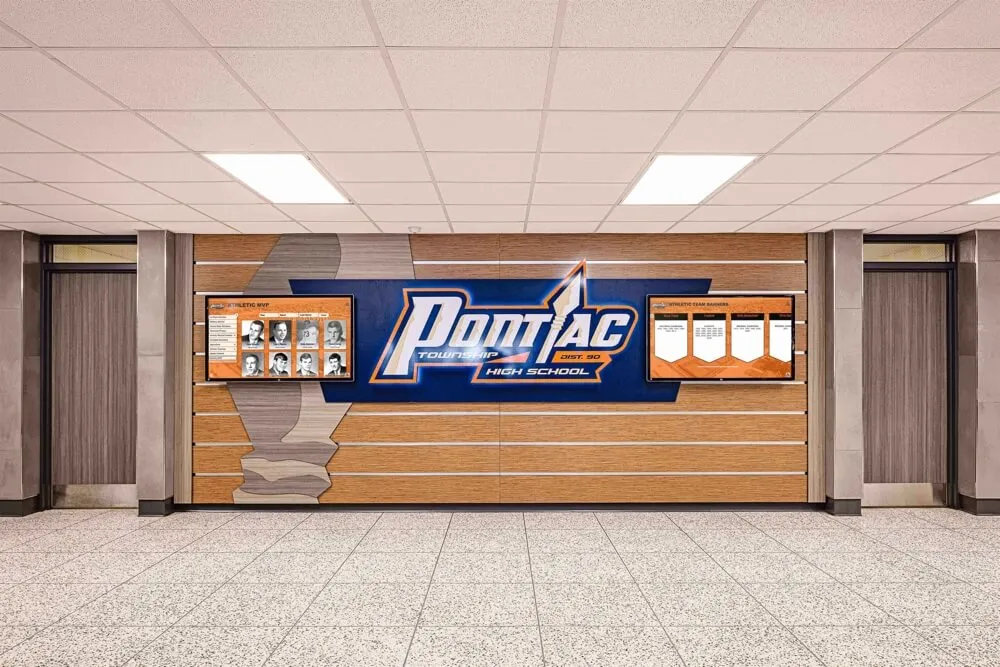
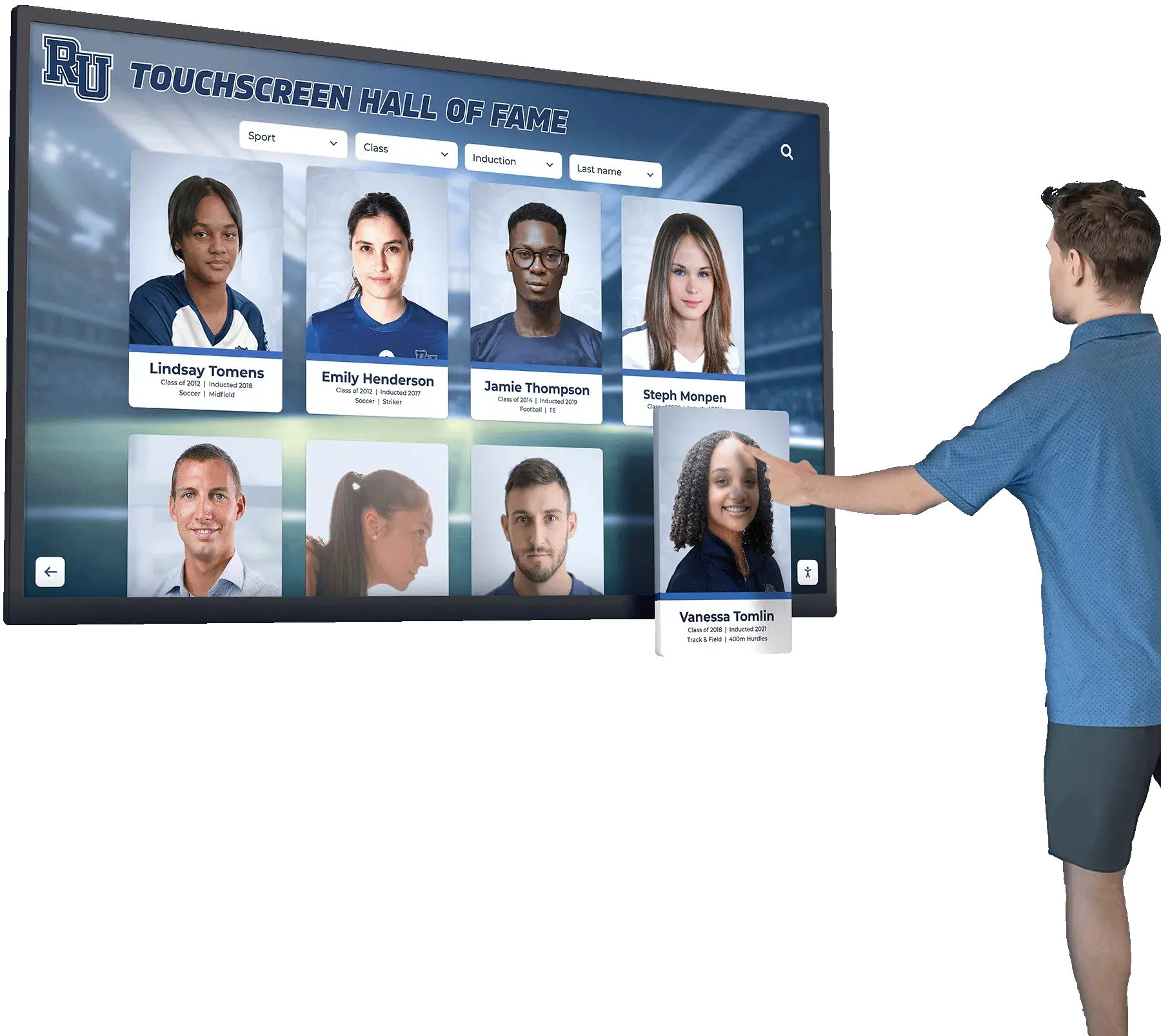
Intuitive touch interfaces with appropriately-sized interactive elements enable comfortable navigation for visitors with diverse abilities and motor skills
Understandable Content
Success Criterion 3.1.1 - Language of Page: The default language of content must be programmatically determined so assistive technologies can properly present content. Screen readers need language information to use correct pronunciation and vocal characteristics.
Implementation for Recognition Displays:
- Declare primary content language in HTML markup
- Identify language changes within content when mixing languages
- Provide language settings for multilingual institutions
- Ensure assistive technologies can accurately present content
Success Criterion 3.2.3 - Consistent Navigation: Navigation mechanisms that appear across multiple pages must occur in the same relative order unless users initiate changes. Predictable navigation helps users with cognitive disabilities, learning disabilities, and visual impairments build mental models of interface structure.
Implementation for Recognition Displays:
- Maintain consistent navigation placement across all screens
- Use the same icons, labels, and interaction patterns throughout
- Place search, home, and navigation controls in predictable locations
- Ensure similar content types follow consistent organizational patterns
Success Criterion 3.3.2 - Labels or Instructions: Labels or instructions must be provided when content requires user input. Clear instruction helps all users but proves essential for people with cognitive disabilities or limited familiarity with digital interfaces.
Implementation for Recognition Displays:
- Clear labels for search fields (“Search by name, year, or achievement”)
- Instructions for interactive features (“Tap a profile to learn more”)
- Help information accessible throughout experience
- Visual cues indicating interactive vs. static elements
- Simple, plain language avoiding technical jargon
Robust Technical Implementation
Success Criterion 4.1.2 - Name, Role, Value: User interface components must have names and roles that can be programmatically determined, and states, properties, and values must be programmatically set and available to assistive technologies including changes to these items.
Implementation for Recognition Displays:
- Semantic HTML markup defining element purposes
- ARIA attributes providing additional accessibility information
- Proper labeling of interactive controls and buttons
- Screen reader-compatible implementations
- Testing with actual assistive technologies (screen readers, switch controls)
Success Criterion 4.1.3 - Status Messages: Status messages must be programmatically conveyed to assistive technology users without receiving focus. Search results, loading indicators, and error messages need announcement to screen reader users.
Implementation for Recognition Displays:
- ARIA live regions announcing dynamic content changes
- Loading state indicators communicated to assistive technologies
- Search result counts announced when searches complete
- Error message communication without requiring focus changes
- Success confirmation for actions like submitting information
Organizations implementing donor recognition displays should ensure these technical requirements are met for contributors exploring philanthropic community acknowledgment.
Accessibility Features in Rocket Alumni Solutions Touchscreens
How Purpose-Built Recognition Platforms Address WCAG Requirements
Solutions designed specifically for recognition contexts can build accessibility into core product design rather than retrofitting features afterward:
Built-In Accessibility Architecture
WCAG 2.2 AA Conformance by Design: Recognition platforms built from the ground up with accessibility requirements integrate conformance into every aspect of user experience rather than treating accessibility as an add-on feature. This approach creates more cohesive, usable interfaces benefiting all visitors while ensuring compliance.
Responsive and Scalable Interfaces: Modern recognition systems use responsive design principles ensuring content adapts appropriately to different screen sizes, orientations, and user preferences. Text scaling, layout adjustments, and flexible navigation work across diverse contexts and user needs.
Assistive Technology Compatibility: Proper semantic HTML markup, ARIA attributes, and thoughtful information architecture ensure recognition content works with screen readers, switch controls, voice recognition software, and other assistive technologies visitors might use.
Practical Accessibility Features
High-Contrast Display Modes: Alternative color schemes providing enhanced contrast ratios help visitors with low vision, color blindness, or viewing displays in challenging lighting conditions. Quick toggles between standard and high-contrast modes accommodate individual preferences.
Adjustable Text Sizing: User-controlled text size adjustments enable visitors to increase font sizes based on personal vision needs without breaking layouts or hiding content. Support for 200% text zoom meets WCAG requirements while improving readability for many users.
Large Touch Targets: Interactive elements designed to meet or exceed 44x44 pixel recommendations provide comfortable touch interactions for visitors with reduced dexterity, motor impairments, or larger hands. Adequate spacing between targets prevents accidental activation.
Keyboard Navigation Support: While touchscreens provide primary interaction, keyboard navigation alternatives ensure accessibility for visitors unable to use touch interfaces. Logical tab order, visible focus indicators, and complete keyboard functionality enable equivalent experiences.
Clear Visual Hierarchy: Thoughtful typography, spacing, and information architecture help all users understand content structure and find desired information quickly. Clear hierarchies particularly benefit visitors with cognitive disabilities or limited time to explore displays.
Simple, Intuitive Interactions: Recognition displays in public spaces serve diverse audiences including elderly visitors, young students, people unfamiliar with touch technology, and users under time pressure. Simple interaction patterns requiring minimal instruction ensure broad usability.
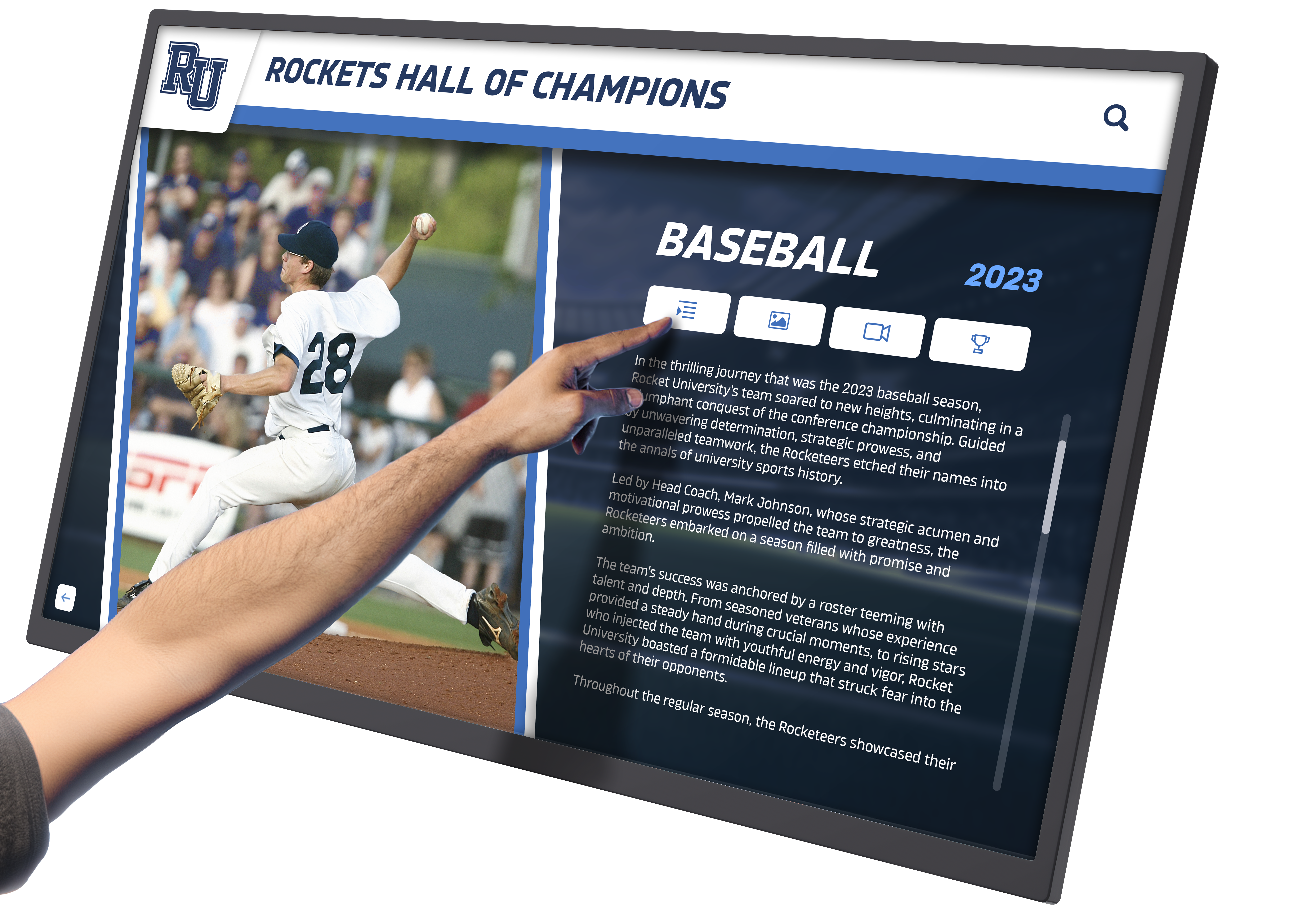
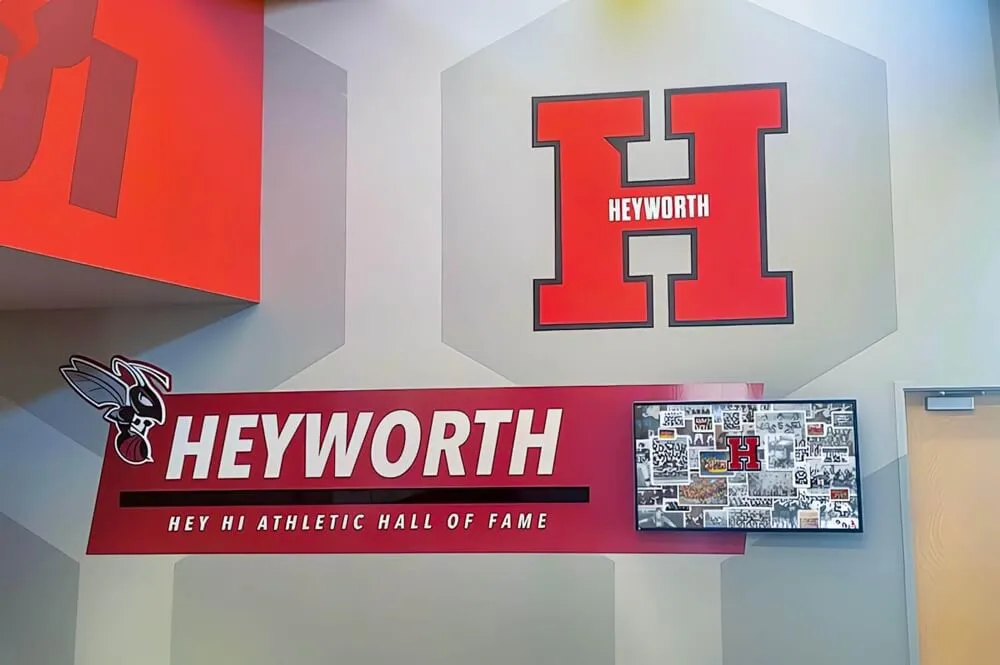
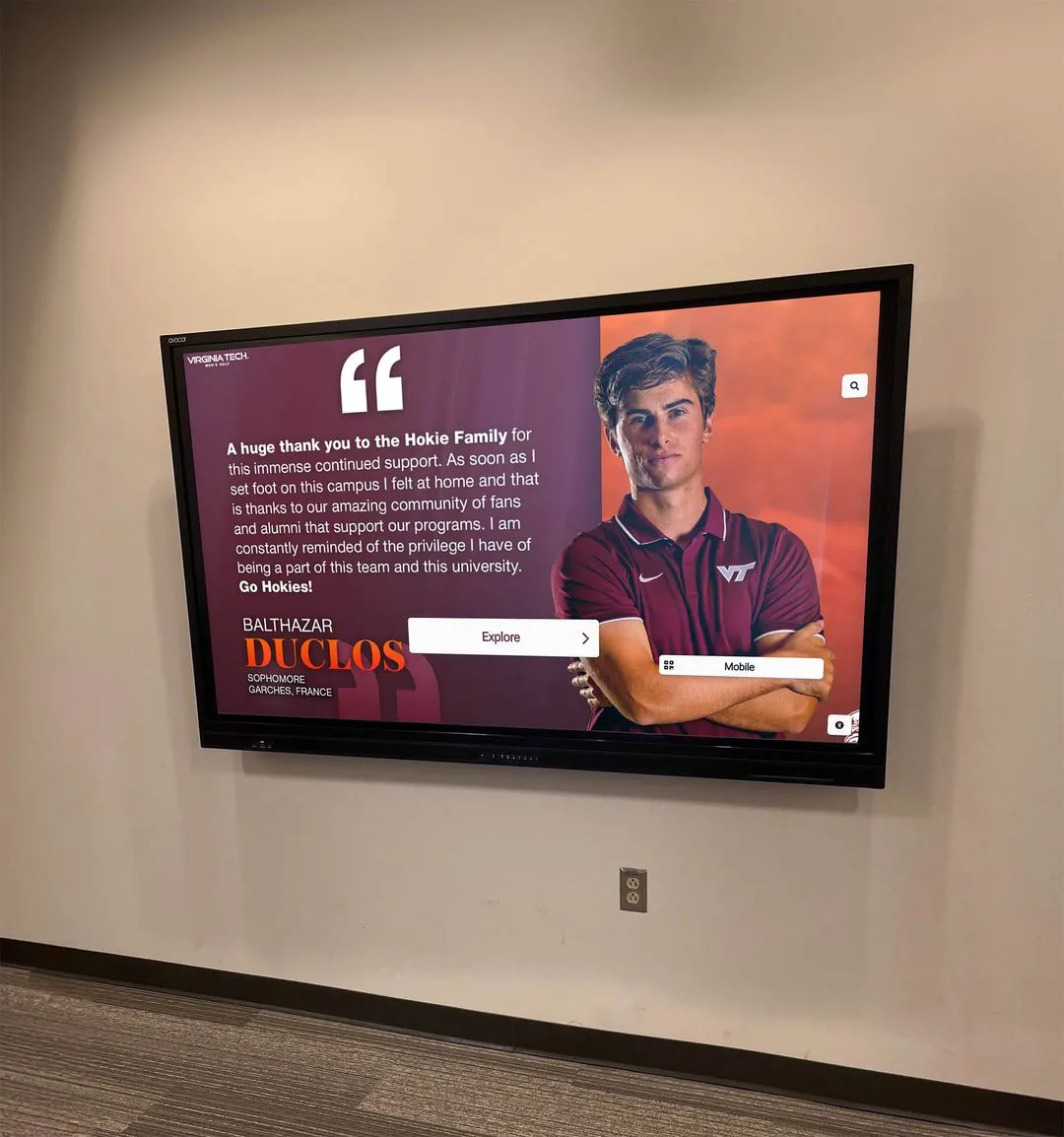

Profile-based interfaces with clear visual design and intuitive navigation enable visitors of all abilities to explore achievement recognition and biographical content
Testing and Validating Accessibility Compliance
Ensuring Your Recognition Display Meets WCAG Standards
Accessibility conformance requires systematic testing and validation using multiple approaches:
Automated Testing Tools
Accessibility Checkers: Software tools can automatically scan interfaces identifying many WCAG violations:
- axe DevTools - Browser extension providing detailed accessibility analysis
- WAVE - Web accessibility evaluation tool showing visual feedback
- Pa11y - Command-line accessibility testing tool
- Lighthouse - Chrome DevTools auditing including accessibility scoring
Limitations of Automated Testing: Automated tools typically identify only 30-40% of accessibility issues. Many WCAG success criteria require human judgment, context understanding, or testing with actual assistive technologies that automated scanners can’t assess.
Manual Testing Procedures
Keyboard Navigation Testing: Disconnect mouse and touchscreen, navigating entire interface using only keyboard. Verify that all functionality remains accessible, focus indicators stay visible, tab order follows logical sequence, and no keyboard traps prevent navigation.
Screen Reader Testing: Test interfaces with actual screen readers (NVDA, JAWS, VoiceOver) ensuring all content reads logically, interactive elements have appropriate labels, status messages are announced, navigation remains clear without visual cues, and alternative text accurately describes images.
Contrast Verification: Use contrast checking tools (WebAIM Contrast Checker, Color Contrast Analyzer) verifying all text, icons, and interface elements meet required ratios. Test in various lighting conditions matching actual installation environments.
Touch Target Measurement: Verify interactive elements meet minimum size requirements using browser developer tools or accessibility overlays showing target dimensions. Test with diverse users including those with motor impairments.
User Testing with People with Disabilities
Real-World Validation: The most reliable accessibility assessment involves testing with actual users who have disabilities. Recruit testers representing diverse disability types (vision impairments, motor disabilities, cognitive disabilities, hearing impairments) and observe interactions, collect feedback on barriers and frustrations, document workarounds users develop, and identify accessibility gaps missed by other testing methods.
Ongoing Testing: Accessibility testing should occur during initial development, before deployment, after content updates, periodically throughout display lifecycle, and whenever platform software updates occur. Continuous assessment ensures maintained accessibility as content and technology evolve.
Organizations implementing school recognition systems should establish testing protocols ensuring accessibility remains consistent across updates and content changes.
Common Accessibility Mistakes and How to Avoid Them
Pitfalls That Undermine WCAG Conformance
Even well-intentioned accessibility efforts can fall short through common oversights:
Insufficient Color Contrast
The Problem: Designers often choose color combinations based on aesthetics without checking contrast ratios. Light gray text on white backgrounds, pastel color schemes, and institutional branding colors frequently fail to meet 4.5:1 contrast requirements.
The Solution: Test all color combinations during design phases using contrast checking tools. Choose text and background colors that provide adequate contrast while maintaining visual appeal. When institutional branding colors prove problematic, use them for accents rather than primary text, implement high-contrast mode alternatives, or adjust color values slightly to meet requirements.
Too-Small Touch Targets
The Problem: Mobile app conventions sometimes translate poorly to public touchscreen kiosks. Small buttons appropriate for smartphones held close to users become difficult to activate on displays viewed from standing distance. Links styled as underlined text rather than buttons often fall below size requirements.
The Solution: Design touch targets specifically for public kiosk contexts rather than adapting mobile interfaces. Maintain 44x44 pixel minimum dimensions for all interactive elements, provide adequate spacing between targets, increase target sizes for primary actions, and test interfaces with users of varying dexterity levels.
Inconsistent Navigation Patterns
The Problem: Different sections of recognition content using varied navigation approaches confuse visitors and particularly challenge users with cognitive disabilities building mental models of interface operation.
The Solution: Establish consistent navigation patterns used throughout entire application. Place controls in the same positions, use the same icons and labels, maintain consistent interaction behaviors, and test navigation flow ensuring predictability across all content areas.
Missing Alternative Text for Images
The Problem: Profile photos, achievement images, and visual content without appropriate alternative text remain inaccessible to screen reader users, creating incomplete experiences for visitors with vision impairments.
The Solution: Provide descriptive alternative text for all images explaining content and context. For profile photos, include person’s name and role (“John Smith, Class of 1995, Athletic Hall of Fame inductee”). For achievement photos, describe what image shows (“Basketball team celebrating state championship victory, 2023”). Mark purely decorative images appropriately so screen readers skip them.
Keyboard Accessibility Oversights
The Problem: Touchscreen-primary interfaces sometimes lack complete keyboard support or implement keyboard navigation as afterthought with poor focus indicators, illogical tab order, or functions accessible only via touch.
The Solution: Design keyboard navigation as equal priority to touch interfaces from project start. Ensure complete keyboard access to all functionality, implement prominent focus indicators, maintain logical tab order, and test thoroughly using only keyboard input.
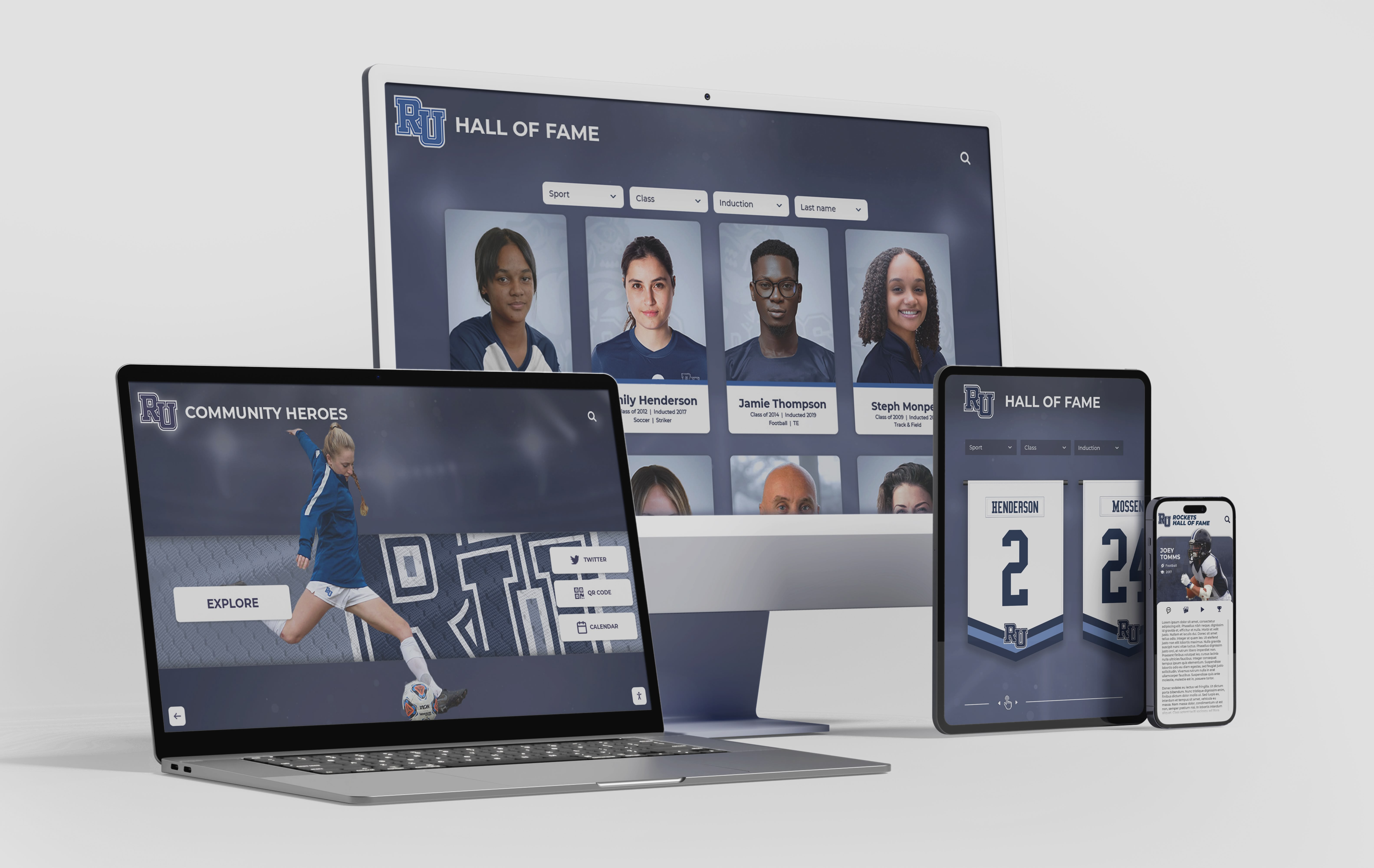
Responsive accessibility implementation ensures equivalent experiences across devices, from large touchscreen kiosks to personal smartphones and computers
Beyond Compliance: Creating Truly Inclusive Experiences
Accessibility as Opportunity Rather Than Obligation
While WCAG conformance provides important baseline requirements, truly excellent recognition displays embrace broader inclusion principles:
Universal Design Philosophy
Designing for Diverse Abilities from the Start: Universal design creates products and environments usable by all people to the greatest extent possible without adaptation. Rather than accommodating disabilities after the fact, universal design builds inclusion into fundamental design decisions:
- Simple, intuitive interfaces requiring minimal instruction
- Flexible interaction options accommodating diverse preferences
- Clear information hierarchy helping all users find content
- Perceptible information presented through multiple sensory channels
- Tolerance for error preventing and minimizing consequences of mistakes
- Low physical effort required for comfortable interaction
- Appropriate size and space for approach and use
Cognitive Accessibility Considerations
Supporting Users with Learning and Cognitive Disabilities: WCAG addresses some cognitive accessibility needs but substantial opportunities exist beyond minimum requirements:
- Plain language avoiding jargon and complex vocabulary
- Consistent terminology and interaction patterns
- Clear instructions and help resources
- Predictable behavior without surprising changes
- Chunked information in digestible segments
- Visual supports reinforcing text content
- Adequate time for reading and interaction without pressure
Cultural and Linguistic Inclusion
Serving Diverse Communities: Accessibility extends beyond disability to include linguistic and cultural diversity:
- Multiple language options for multilingual communities
- Culturally appropriate imagery and content
- Respect for diverse naming conventions
- Gender-inclusive language and design
- Representation reflecting community diversity
- Clear, simple language accessible to non-native speakers
Organizations implementing hall of fame displays that embrace these broader inclusion principles create recognition that truly honors entire communities rather than narrow segments.
Accessibility Documentation and Policies
Communicating Conformance and Commitment
Transparent documentation demonstrates organizational commitment while helping users understand available accessibility features:
Accessibility Statements
Public Conformance Documentation: Accessibility statements posted near displays or linked from recognition websites should include:
- WCAG conformance level and version (e.g., “WCAG 2.2 Level AA”)
- Date of last assessment and testing
- Known accessibility limitations if any exist
- Contact information for reporting accessibility barriers
- Commitment to ongoing accessibility maintenance
- Description of available accessibility features
- Alternative access methods if applicable
User Guidance
Helping Visitors Use Accessibility Features: Brief instructions near displays can help visitors discover and activate accessibility features:
- How to adjust text size or contrast
- Keyboard navigation shortcuts
- Location of accessibility settings or preferences
- Alternative access methods (website, mobile app)
- Contact information for assistance
Staff Training
Ensuring Support for Visitors Needing Assistance: Staff members near recognition displays should understand basic accessibility features, how to help visitors activate accessibility options, alternative access methods for visitors who can’t use touchscreens, who to contact for technical accessibility issues, and organizational commitment to inclusive access.
The Future of Accessible Recognition Technology
Emerging Capabilities and Opportunities
Accessibility technology continues advancing, creating new possibilities for inclusive recognition:
Voice Interaction and Audio Interfaces
Screen-Free Access: Voice-controlled interfaces enable visitors with vision impairments or mobility limitations to explore recognition content through natural language queries. Advanced implementations might include natural language search (“Show me alumni from the Class of 2010 who played basketball”), audio-described profiles with biographical content read aloud, voice navigation through profile collections, and accessibility on-demand activated by verbal request.
Personalized Accessibility Profiles
Remembering User Preferences: Future systems might enable visitors to create accessibility preference profiles saved across sessions through mobile apps or personal devices, automatically loading preferred text sizes, contrast modes, and navigation methods, synchronizing settings across multiple institutional touchscreens, and enabling consistent experiences during return visits.
Enhanced Assistive Technology Integration
Connecting with Personal Devices: Direct integration between recognition displays and visitors’ smartphones or assistive devices could enable personal screen reader compatibility using familiar software, switch control from personal devices, vision enhancement through smartphone camera integration, and content transfer to personal devices for continued exploration.
Artificial Intelligence for Accessibility
Smart Assistance: AI capabilities may enhance accessibility through automatic content description generating image alternative text, simplified language versions of complex content, predictive navigation anticipating user needs, intelligent error prevention and recovery, and personalized interface adaptations based on interaction patterns.
Create Recognition That Honors Everyone
Discover how accessible digital recognition platforms enable your institution to celebrate achievements and honor contributors in ways that serve your entire community. Modern touchscreen systems built with WCAG 2.2 AA conformance ensure every visitor can fully engage with recognition content while meeting legal obligations and demonstrating institutional values around inclusion.
Book a demo to see how purpose-built recognition platforms create accessible experiences honoring your community’s diversity while celebrating achievements and contributions that define institutional identity.
Accessibility as Institutional Priority
WCAG 2.2 AA accessibility for digital recognition displays isn’t optional—it represents legal obligation, ethical imperative, and practical necessity ensuring equal access for all community members. Organizations investing in touchscreen recognition systems must prioritize accessibility from project inception through ongoing operation rather than treating compliance as afterthought or checkbox exercise.
Accessible recognition demonstrates institutional values around inclusion, serves diverse community members with respect and dignity, reduces legal and reputational risk from accessibility complaints, creates better experiences for all visitors regardless of ability, and future-proofs technology investments against evolving requirements and expectations.
The specific requirements—adequate color contrast, appropriately-sized touch targets, keyboard navigation support, assistive technology compatibility, clear content structure, and consistent interaction patterns—flow naturally from human-centered design principles benefiting everyone exploring recognition content in your lobby, hallway, or common space.
When schools honor student achievements through digital displays, those achievements should be equally accessible to students with disabilities, their families, and community members with diverse abilities. When universities recognize donor contributions, every contributor and visitor should enjoy equivalent access regardless of vision, hearing, mobility, or cognitive status. When organizations celebrate their history and heritage, that institutional story should be available to all who share connection to the community.
Accessibility excellence requires intentional planning during platform selection, thorough testing validating conformance, ongoing maintenance as content and technology evolve, staff training supporting visitors who need assistance, clear documentation communicating commitment and capabilities, and organizational culture embracing inclusion as core value rather than compliance burden.
For organizations evaluating recognition technology, WCAG 2.2 AA conformance should rank alongside other critical requirements like content management ease, visual design quality, hardware reliability, and cost-effectiveness. Ask prospective vendors specific questions about accessibility implementation, request accessibility documentation and conformance reports, test platforms with assistive technologies during evaluation, and ensure contracts include accessibility support and maintenance commitments.
Accessible recognition isn’t just about following rules or avoiding problems—it’s about honoring the full diversity of your community through thoughtful design that serves everyone with respect and dignity. Every visitor who approaches your recognition display deserves the opportunity to fully engage with content celebrating achievements, contributions, and the institutional story that connects your community across time and circumstance. WCAG 2.2 AA accessibility helps ensure that promise becomes reality.