Interactive touch screen digital signage has moved from novelty to standard infrastructure at schools, universities, athletic facilities, and civic organizations. A visitor walks into a lobby and immediately browses athlete profiles, reads championship histories, searches for a faculty member’s office, or watches a year-in-review video—all without any staff involvement. The hardware on the wall makes this possible, but knowing why one system works better than another requires understanding what happens beneath the glass.
This guide covers the full picture: the four main touch detection technologies, the hardware stack every installation requires, what software actually runs the experience, network requirements that trip up first-time buyers, installation factors that affect long-term satisfaction, and a practical checklist for making the right purchasing decision. Whether you’re an athletic director considering a recognition wall, an alumni relations coordinator planning a lobby kiosk, or an IT administrator evaluating a campus-wide deployment, you’ll find specific, actionable guidance here.
Understanding interactive touch screen signage starts with a simple question: when you press your finger to that screen, what physically detects it? The answer differs significantly depending on which technology the manufacturer chose—and the choice affects durability, image clarity, touch accuracy, and total cost.

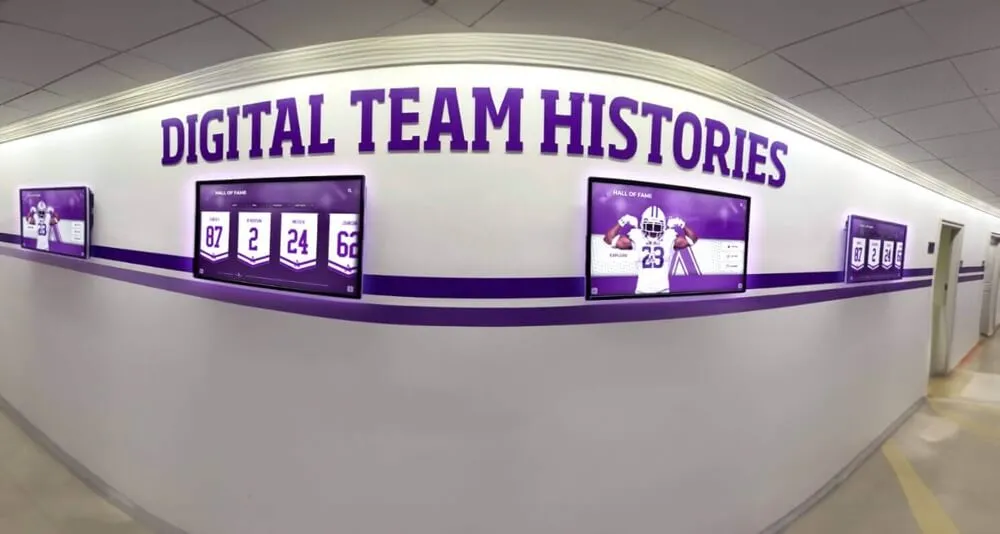
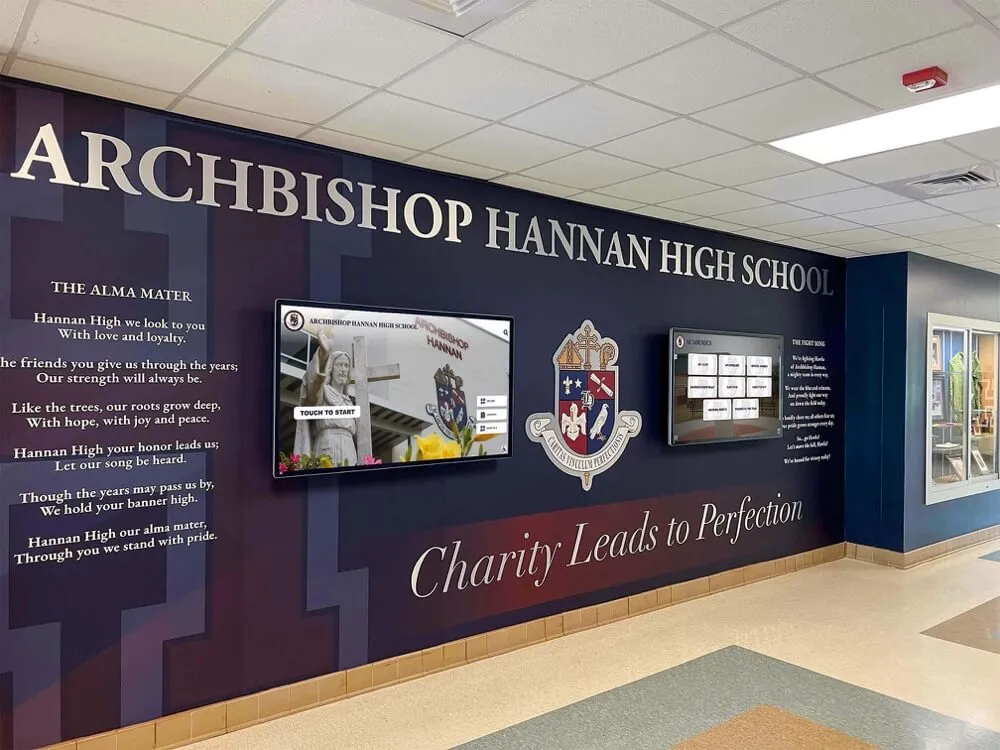
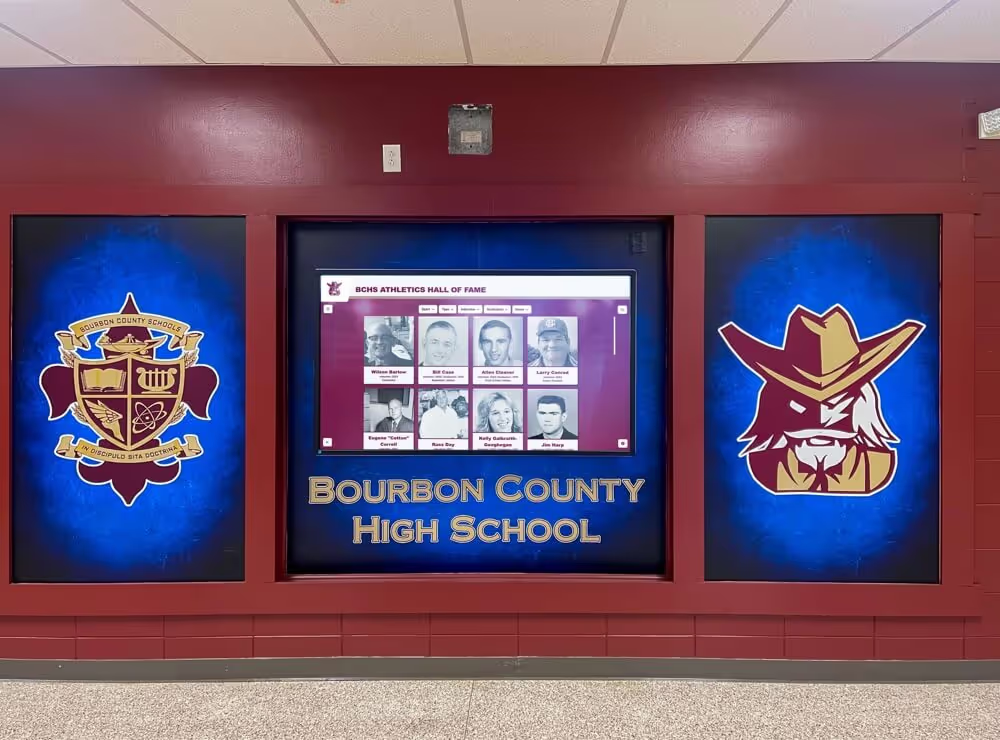
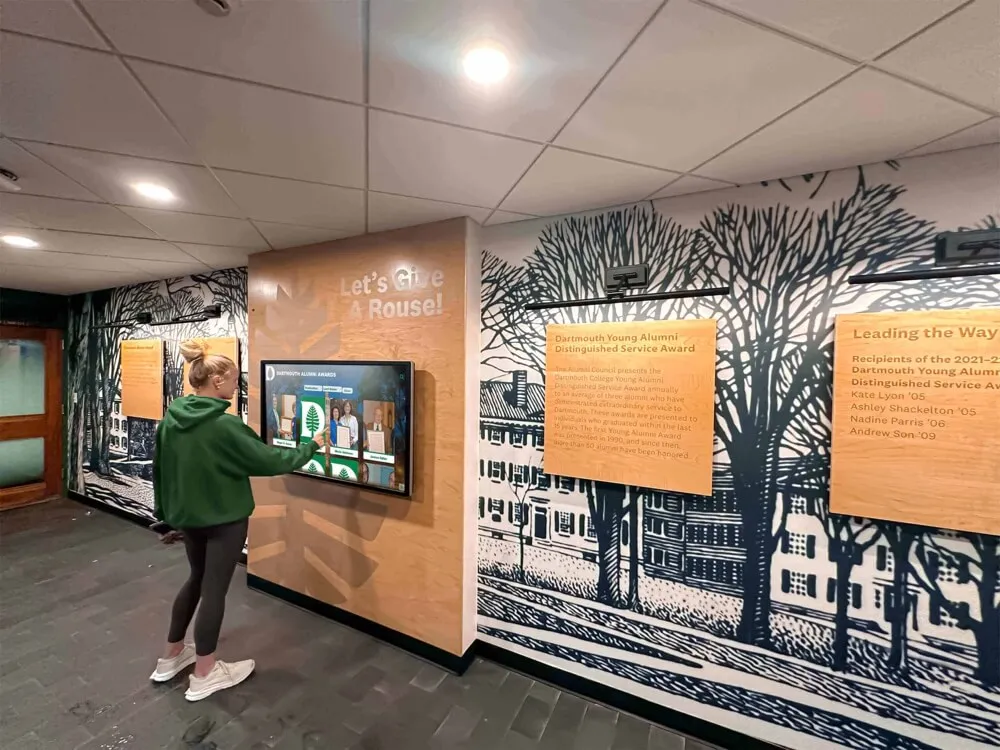
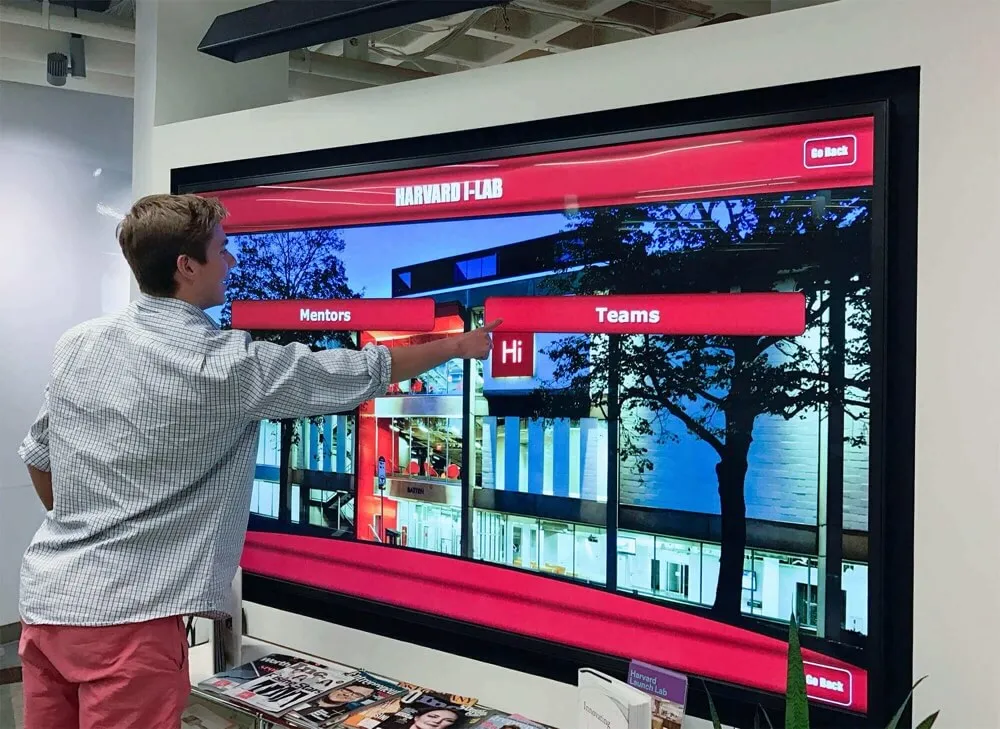
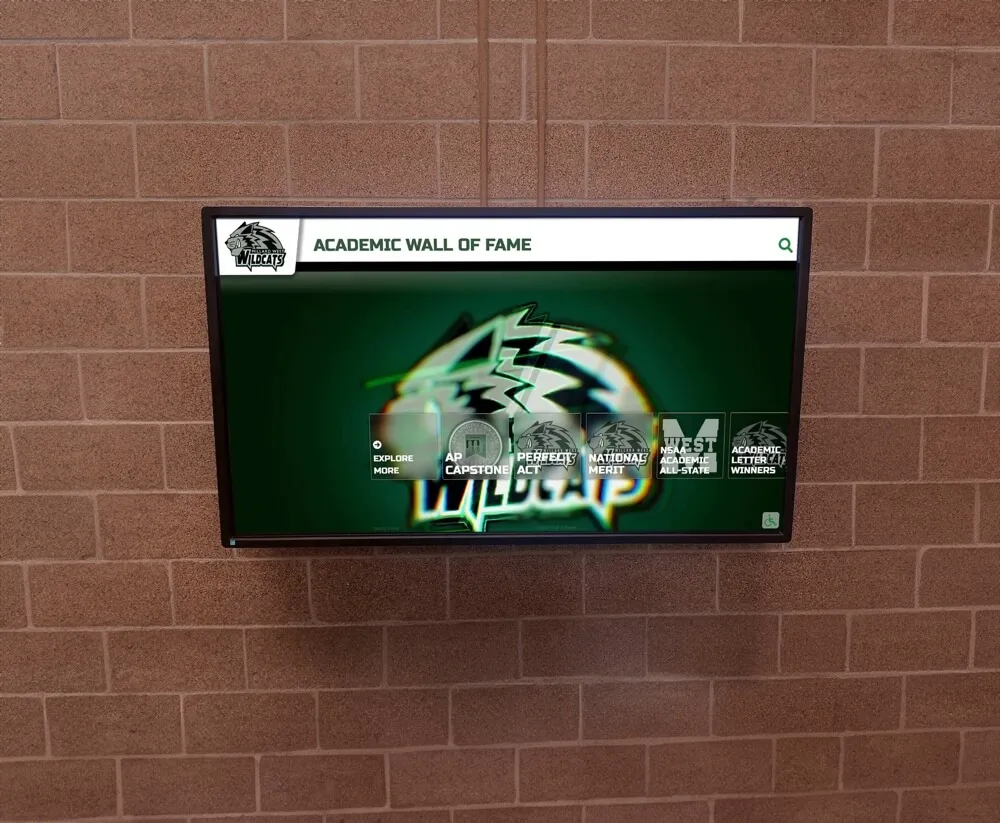
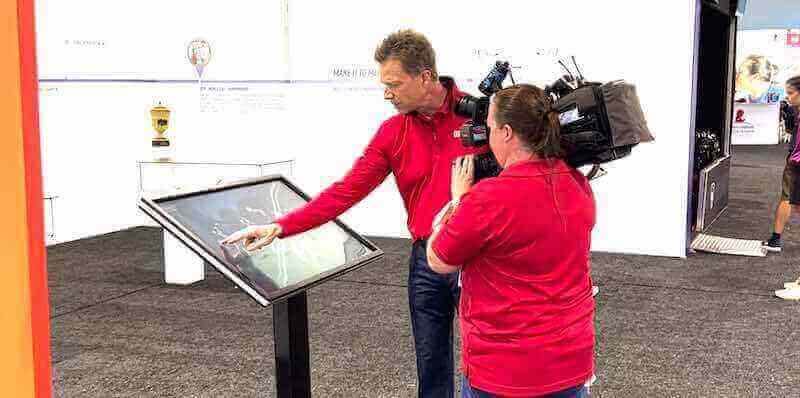
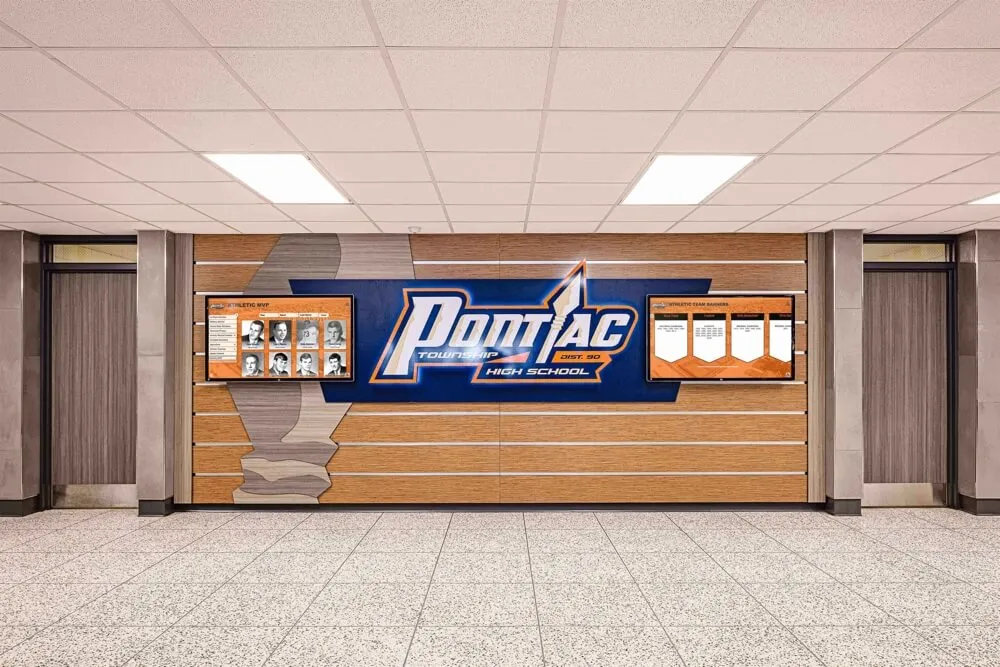
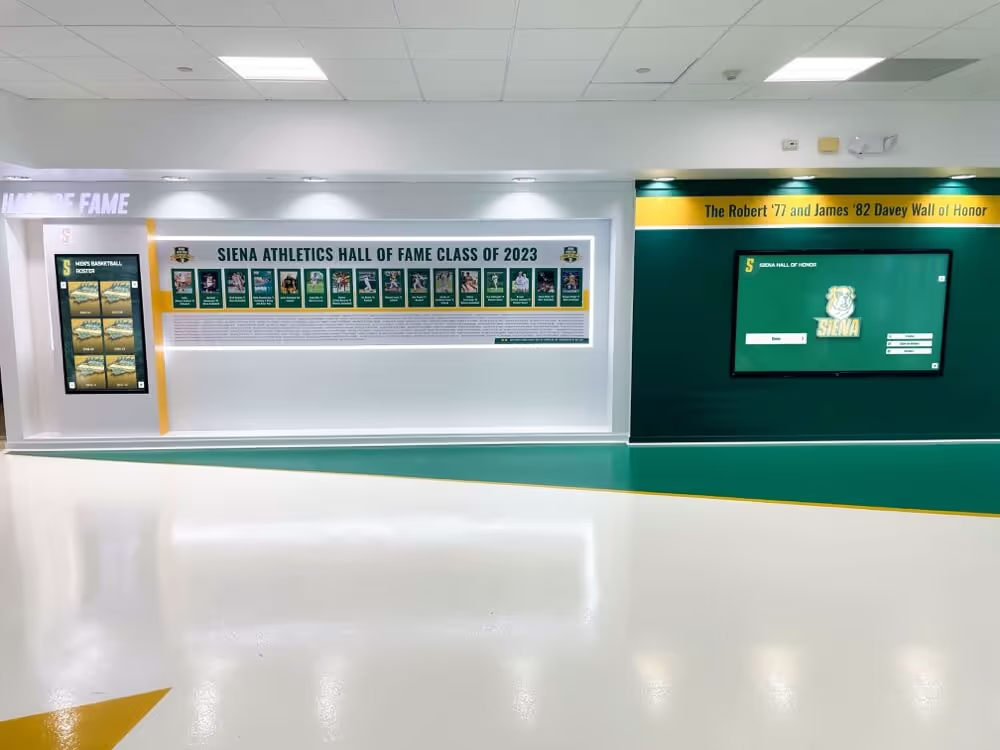
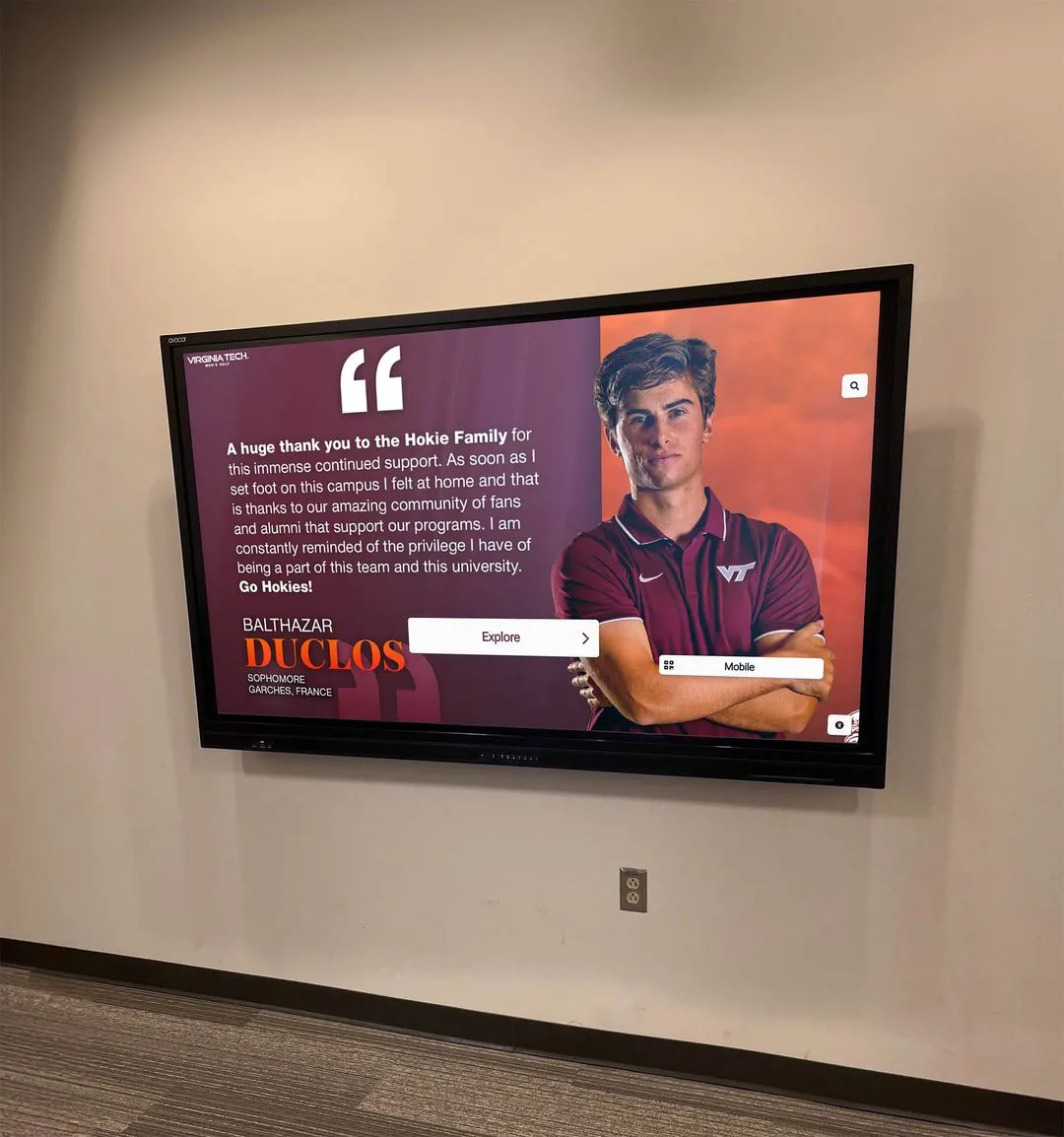
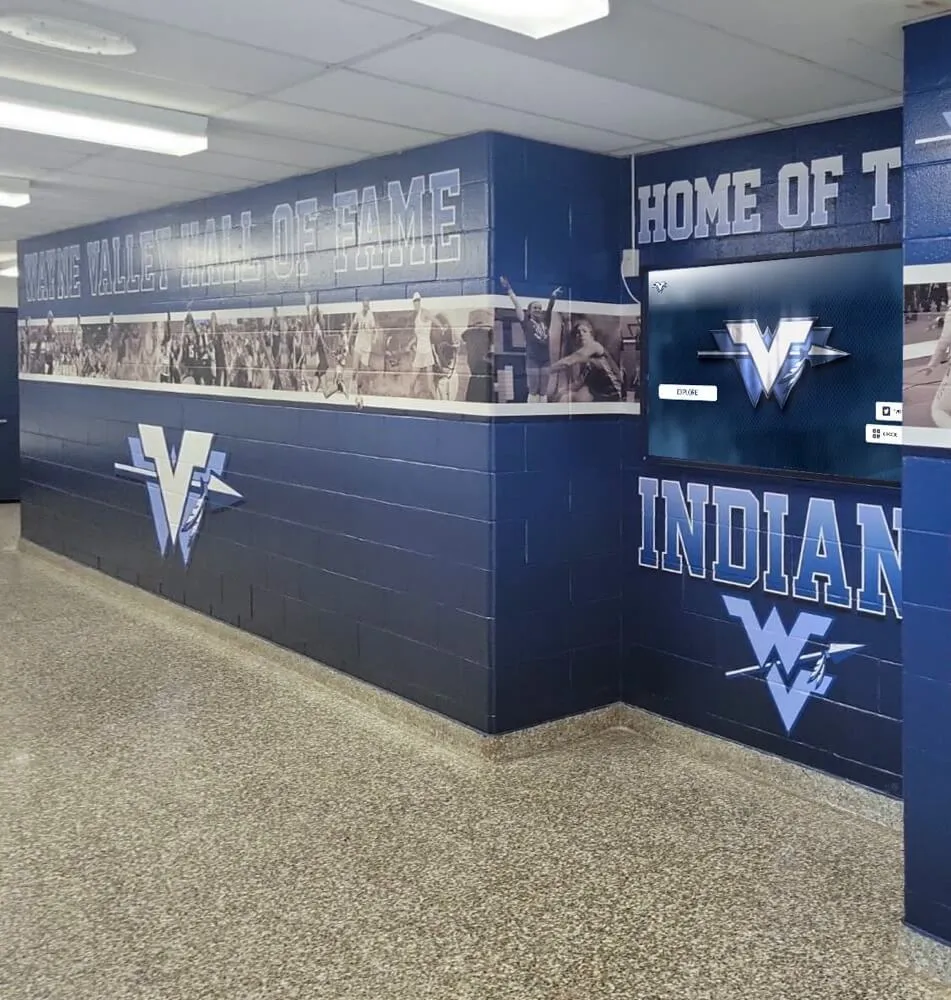
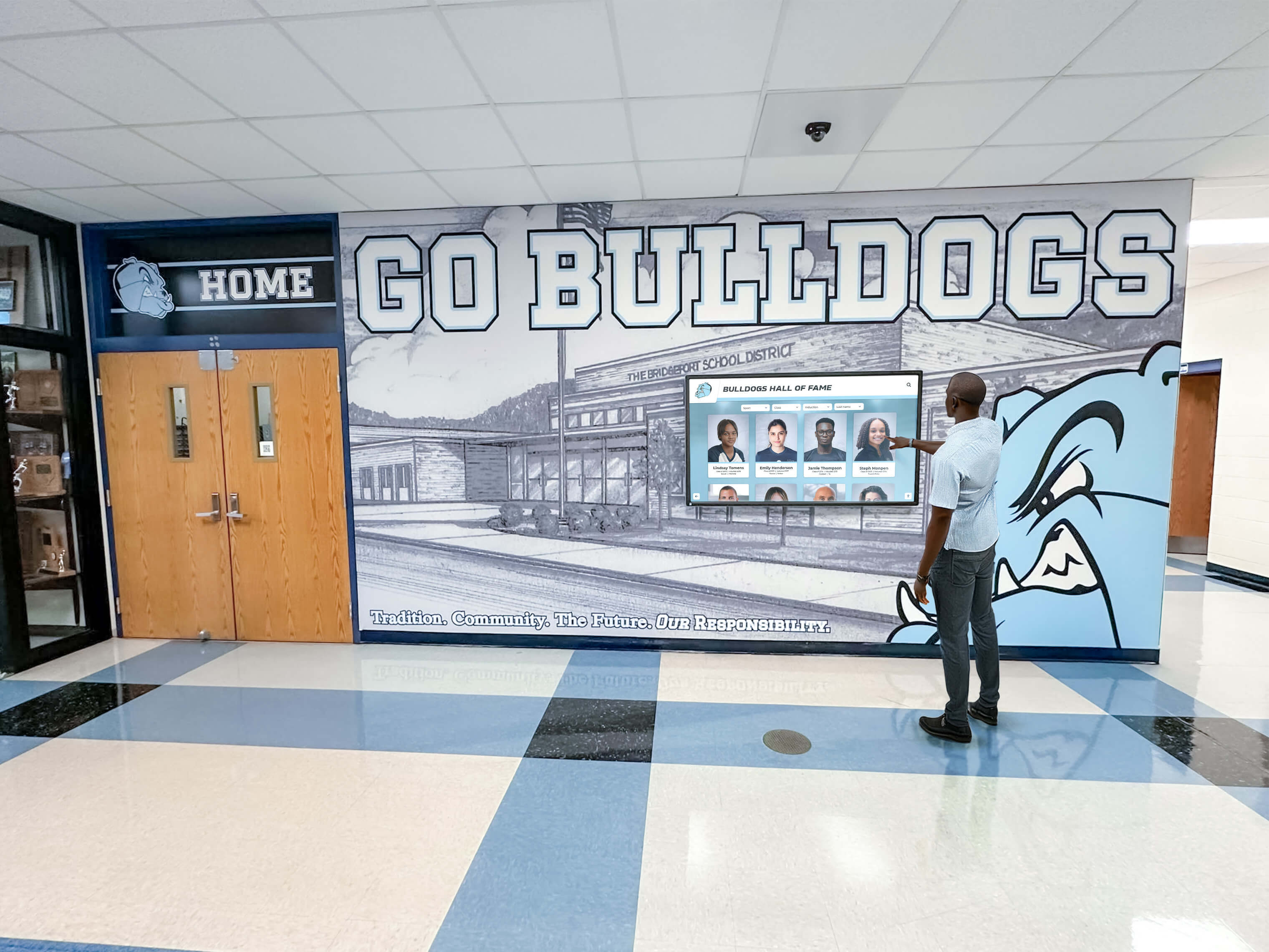
Interactive touch screens placed in school hallways give students, alumni, and visitors direct access to recognition content, history, and information without staff assistance
What Is Interactive Touch Screen Digital Signage?
Standard digital signage plays content on a loop—announcements, schedules, promotional slides—without any user involvement. Interactive touch screen signage adds an input layer. The display responds to touch, enabling visitors to navigate menus, search records, browse profiles, watch videos, or access specific information they want right now rather than waiting for the right slide to appear.
For schools and organizations, this distinction matters considerably. A passive screen showing last year’s championship banner is informative. An interactive display where a prospective student can search the complete hall of fame, watch game footage, and pull up individual athlete profiles across 30 years creates an entirely different experience—one that reflects institutional pride in a concrete, memorable way.
The three most common applications in educational and organizational settings are:
- Recognition and hall of fame displays: Searchable databases of athletes, alumni, donors, and honorees
- Campus directories and wayfinding: Building maps, department listings, and navigation assistance
- Lobby engagement kiosks: History timelines, event calendars, and community content
All three share the same underlying hardware and software architecture, even though the content looks completely different.
How Touch Screen Technology Works: The Four Main Types
Infrared (IR) Grid Detection
IR touch technology surrounds the display with a frame containing pairs of infrared LEDs and photodetectors. The LEDs project a grid of invisible beams across the screen surface. When your finger enters the screen plane, it breaks one or more beams. The controller calculates which beams were interrupted and translates that into X/Y coordinates.
IR technology works with any object—fingers, gloved hands, styluses, or even a pointer stick. This makes it well-suited for educational environments where administrators or coaches might operate screens while wearing work gloves, or in signage applications where you want visitors to interact without removing hand coverings. Touch resolution depends on the density of the IR grid, typically supporting 10 to 32 simultaneous touch points on modern systems.
The practical limitation: IR systems are sensitive to very bright ambient light, which can cause false readings, and foreign objects on the bezel (water droplets, debris) can temporarily interfere with detection. For well-controlled indoor environments like lobbies and hallways, these issues rarely appear in practice.
Projected Capacitive (PCAP)
PCAP is the same technology found in smartphones and tablets, scaled up to large-format commercial displays. A clear grid of conductive electrodes sits beneath the glass. The controller continuously scans this grid, measuring tiny electrical charges. When a conductive object (a finger, for example) comes close to the surface, it changes the local capacitance pattern. The controller maps these changes to touch coordinates.
PCAP handles multi-touch natively—up to 40 simultaneous points on high-end panels—and delivers very fine positional accuracy. Because the sensing happens through the glass rather than at the surface, PCAP screens can be fully sealed with no exposed mechanical components, making them appropriate for locations that require frequent cleaning or where moisture might be a concern.
The trade-off: PCAP requires a conductive touch. Standard gloves block the signal (though thin gloves labeled “touchscreen compatible” have conductive fingertips). It also costs more than IR at equivalent screen sizes.
Resistive Touch
Resistive panels use two flexible conductive layers separated by tiny spacer dots. Pressing the screen physically pushes the layers together at the contact point, completing a circuit that the controller reads as a touch position. Resistive technology works with anything that applies pressure—a fingernail, a stylus, a pen cap, or a gloved hand.
Resistive systems appear less frequently in new installations today because the extra layers reduce display brightness and sharpness, and they typically support only single-touch input. They remain in use where durability under harsh physical use is the priority, or where the system must work regardless of what the user touches it with.
Surface Acoustic Wave (SAW)
SAW technology uses piezoelectric transducers to send ultrasonic waves across the screen’s glass surface. When something absorbs part of the wave energy, the system triangulates the touch position. SAW screens offer excellent image clarity because there are no coatings or overlays affecting the display—the glass surface is the screen surface.
The significant limitation for busy public installations: SAW is sensitive to water, dust accumulation on the transducers, and surface contaminants. A lobby display in a high-traffic area may require more maintenance attention with SAW than with IR or PCAP.
For school and organizational applications—particularly recognition displays and lobby kiosks—IR and PCAP are the two technologies you’ll encounter most often. Large-format displays (65" and above) commonly use IR due to manufacturing cost; mid-size displays in the 32"–55" range often use PCAP for image quality and multi-touch precision.
You can explore the full range of types of screens used for digital signage to understand how display panel technology interacts with touch layers when selecting hardware.
The Four Hardware Components Every Installation Requires
1. Display Panel
The display is what visitors see. For public-facing interactive installations, commercial-grade displays differ from consumer televisions in ways that matter for long-term use:
Brightness: Commercial displays typically output 400–700 nits (some outdoor models exceed 2,000 nits). Consumer TVs often run at 200–300 nits. In bright lobbies with overhead lighting or windows, higher brightness prevents washed-out images.
Duty cycle: Commercial panels are engineered for 16/7 or 24/7 operation. Consumer TVs are built for 4–8 hours of daily use; running them continuously causes premature failure.
Resolution: Full HD (1920×1080) works well for most recognition content. 4K (3840×2160) panels justify the added cost when displaying high-resolution photography or when visitors stand close to large installations.
Panel size: 55" is the most common size for standalone recognition kiosks. Larger installations (65"–98") work for multi-panel walls or main lobby displays. Smaller sizes (32"–43") suit counter-mounted directories or secondary information points.
2. Touch Sensor or Overlay
In some product lines, the touch sensor is built directly into the display during manufacturing. In others, an IR or PCAP overlay can be added to an existing commercial display. Built-in touch typically produces a cleaner installation with fewer cables, while overlay systems sometimes allow organizations to upgrade existing displays rather than replacing them entirely.
When evaluating this component, ask specifically about:
- Maximum supported touch points
- Touch response latency (under 10ms is typical for quality systems)
- Whether the touch layer requires recalibration over time
- How the touch data connects to the computing hardware (USB is standard; some use vendor-specific connectors)
3. Computing Hardware
Something has to run the software that makes the screen interactive. The options fall into three categories:
Built-in SoC (System on Chip): Some commercial displays include computing hardware running Android or Linux. These all-in-one units reduce cable complexity but offer limited processing power, which can create sluggish performance on content-heavy interactive applications.
External media player: A dedicated device (often Windows or Android-based) connects to the display via HDMI and handles all software processing. External players allow more powerful hardware and easier replacement when upgrading computing capability without replacing the display.
Full PC or mini PC: For complex interactive applications—particularly searchable databases with large photo libraries—a full Windows or Linux mini PC provides the processing power needed for smooth performance. This is common in purpose-built recognition systems where the software must handle real database queries across thousands of records.
Key specifications to evaluate: CPU speed (at least quad-core for interactive content), RAM (8GB minimum for database-driven applications), storage (SSD preferred, 64GB+ for offline content caching), and connectivity options.
4. Enclosure, Mount, and Power
How the hardware reaches visitors matters as much as the hardware itself. The three primary mounting approaches are:
Wall-mounted flush installation: The display attaches to the wall on a VESA-compatible arm or recessed mount. Clean appearance, appropriate for hallway recognition displays.
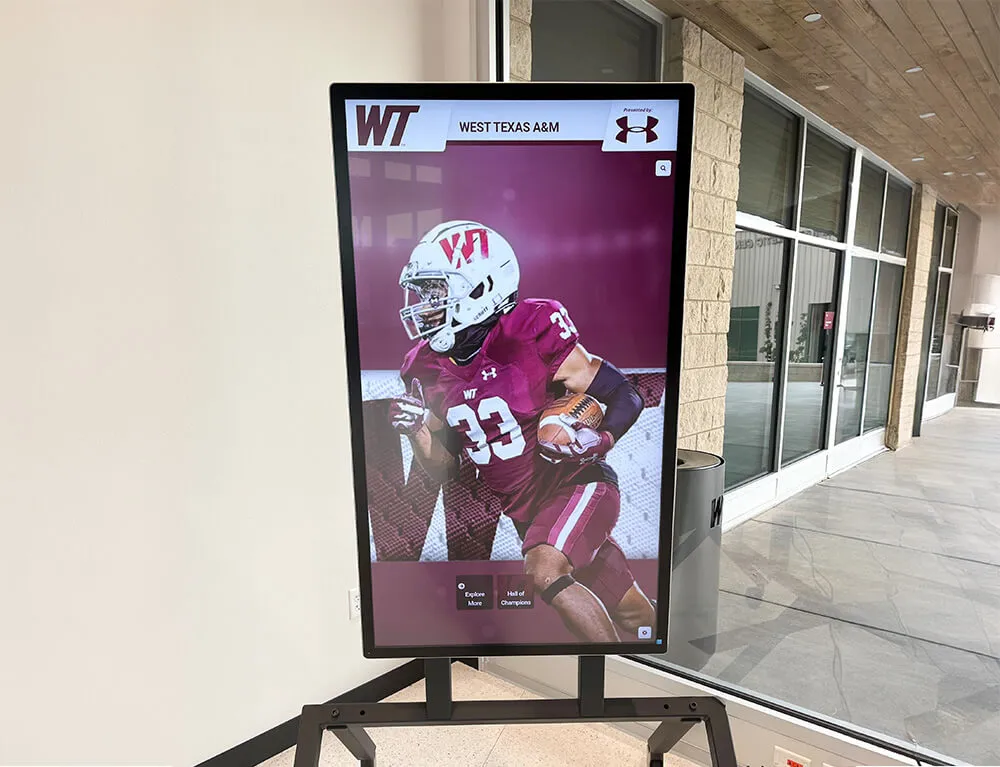
Free-standing floor kiosk: A pedestal or cabinet holds the display at the correct viewing height. Moveable, appropriate for lobbies where you might reposition for events. Good kiosk enclosures manage cable routing internally and may include UPS backup power.
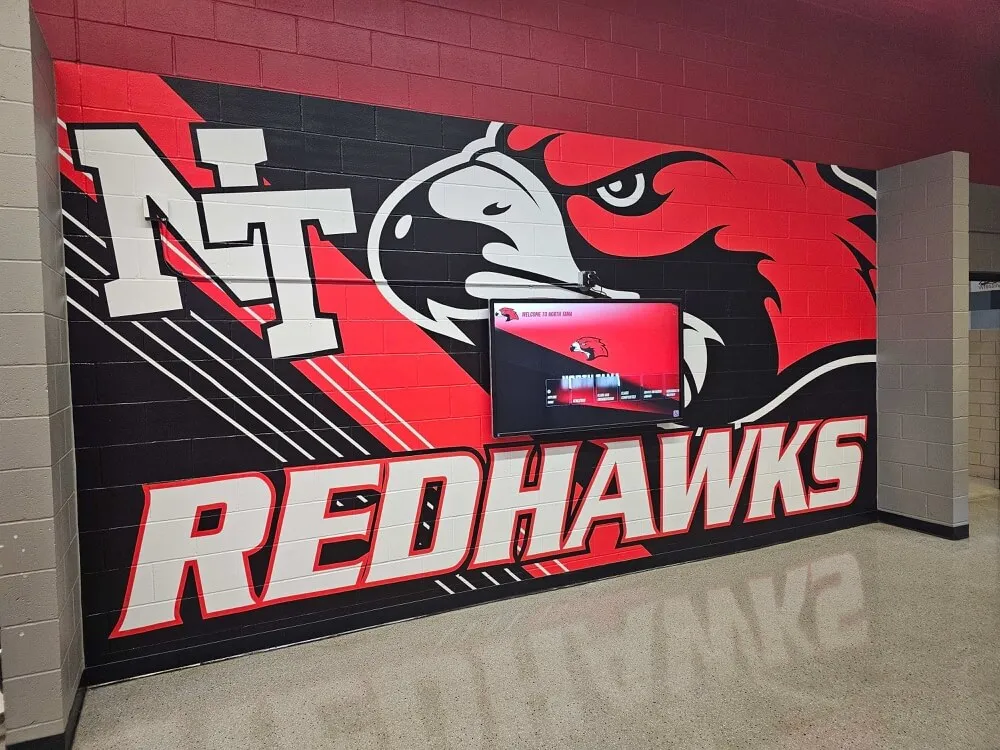
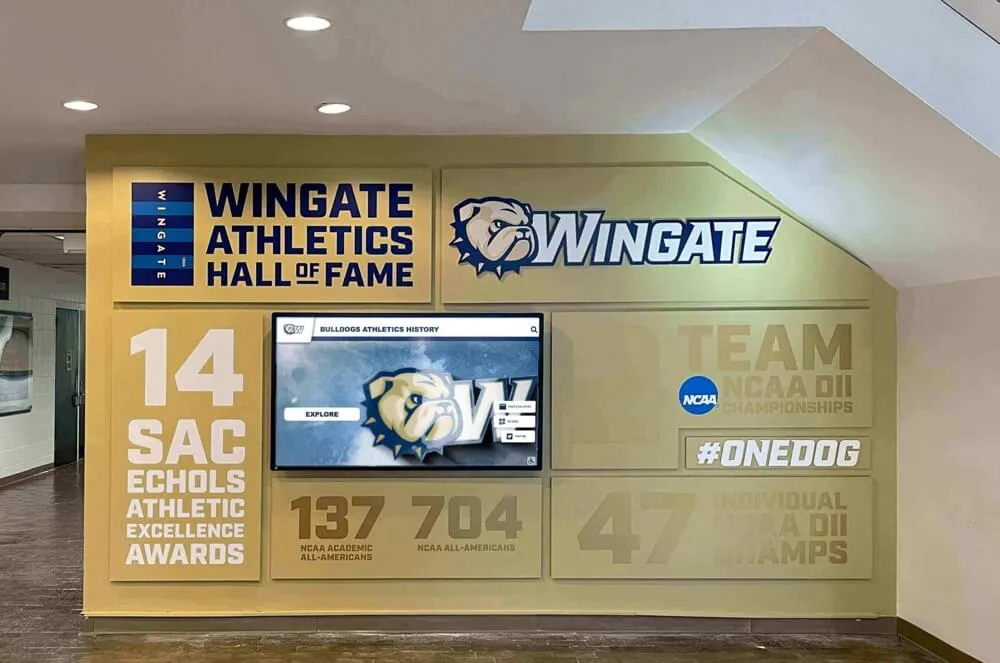
Custom architectural installation: Displays built into a larger wall system, surrounded by graphics, murals, or trophy cases. This creates the most impressive visual impact for athletic recognition and alumni installations. Requires detailed planning during design.
For ADA compliance in any public-facing installation: usable controls must be accessible to users in wheelchairs. Primary interactive elements should fall within the 15"–48" height range from the floor, with the ideal interactive zone centered around 42"–44" for comfortable standing use while remaining reachable from seated positions.
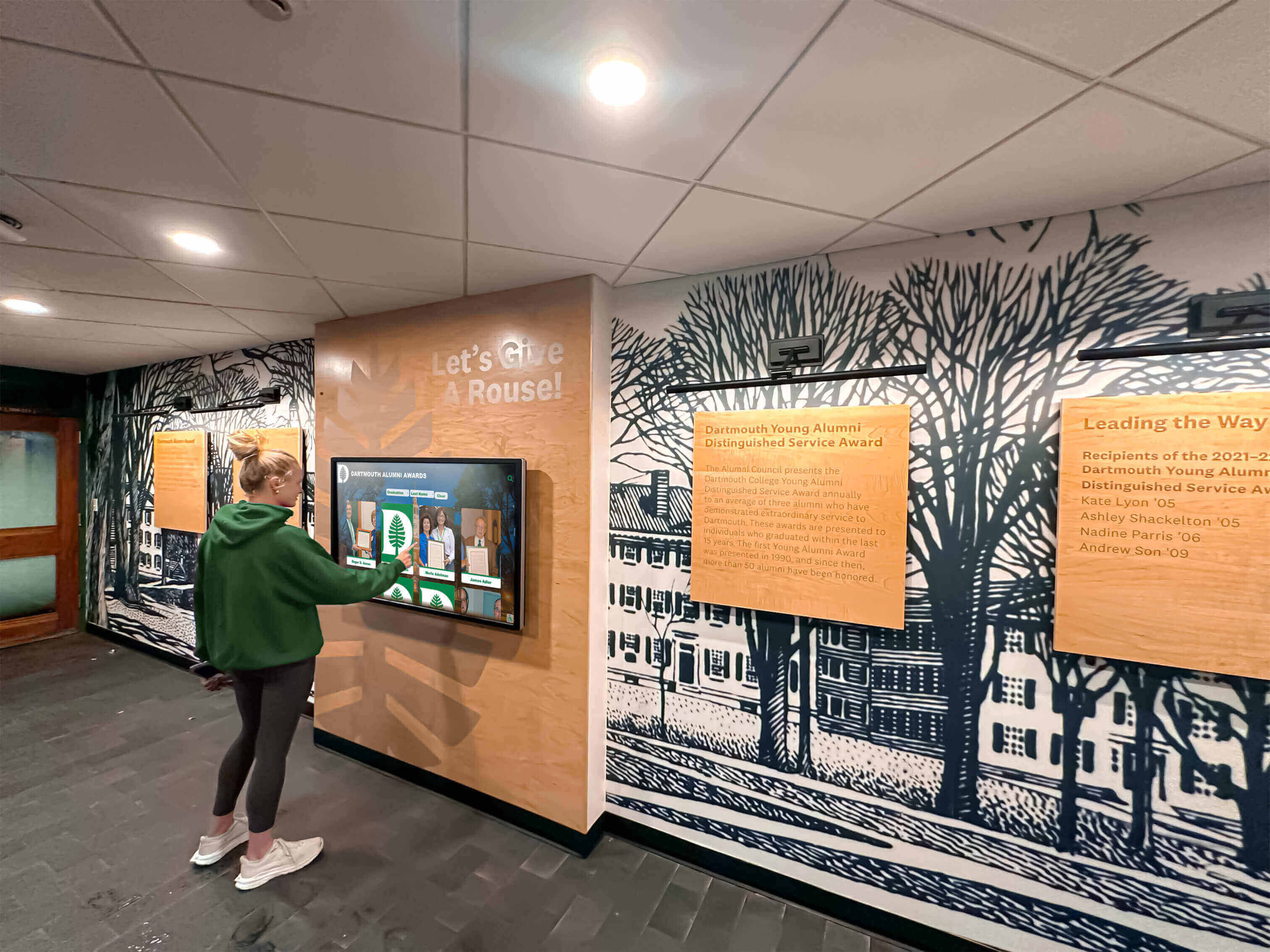
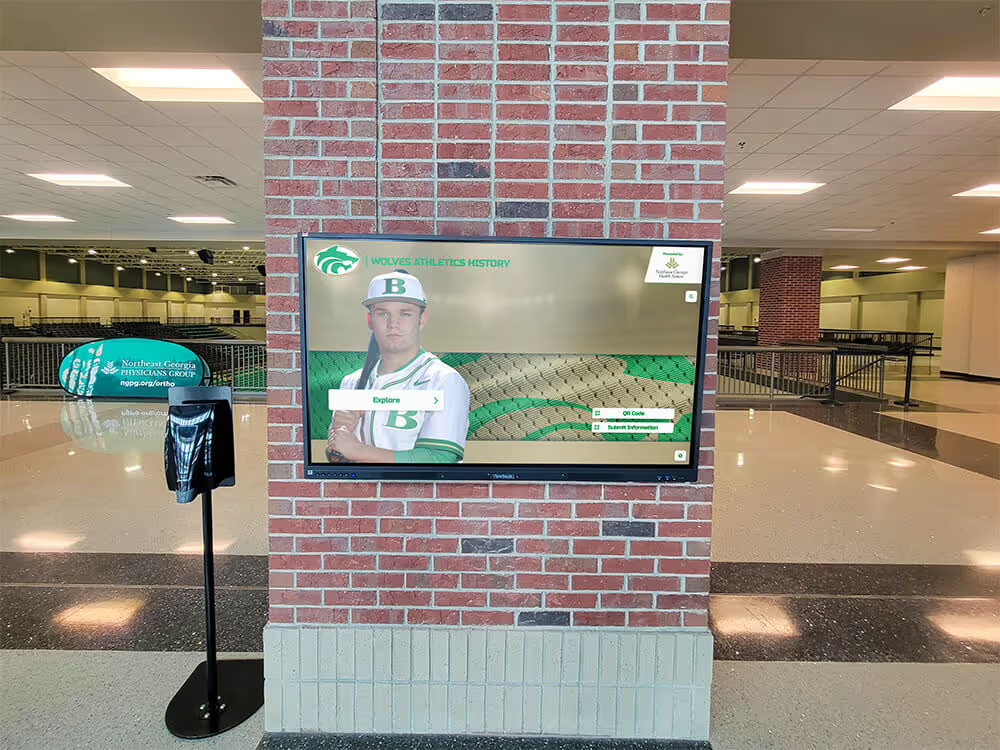
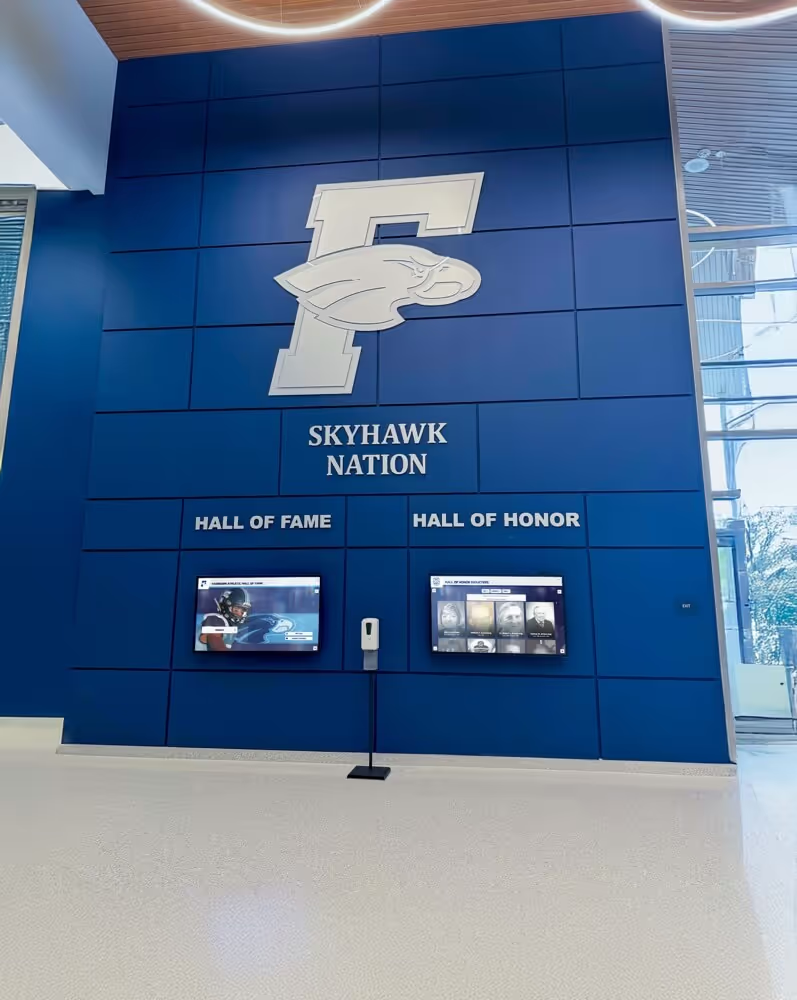
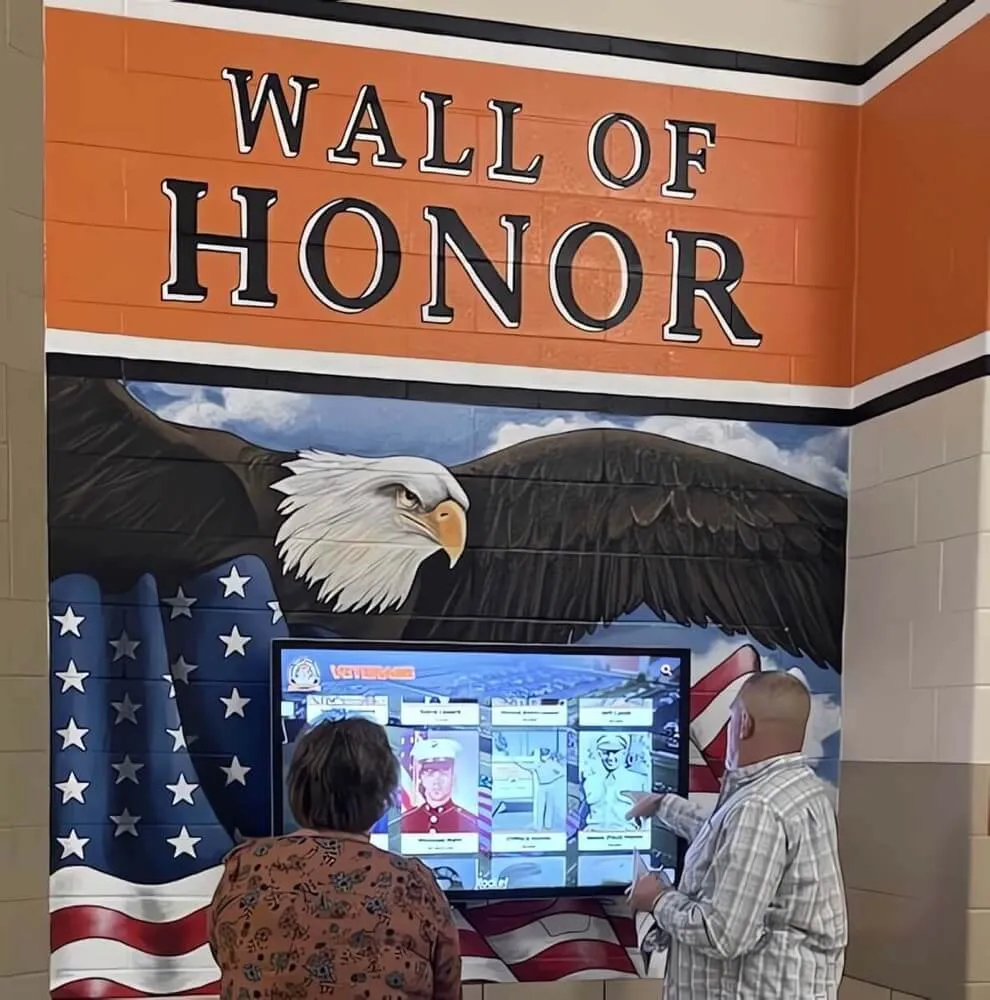
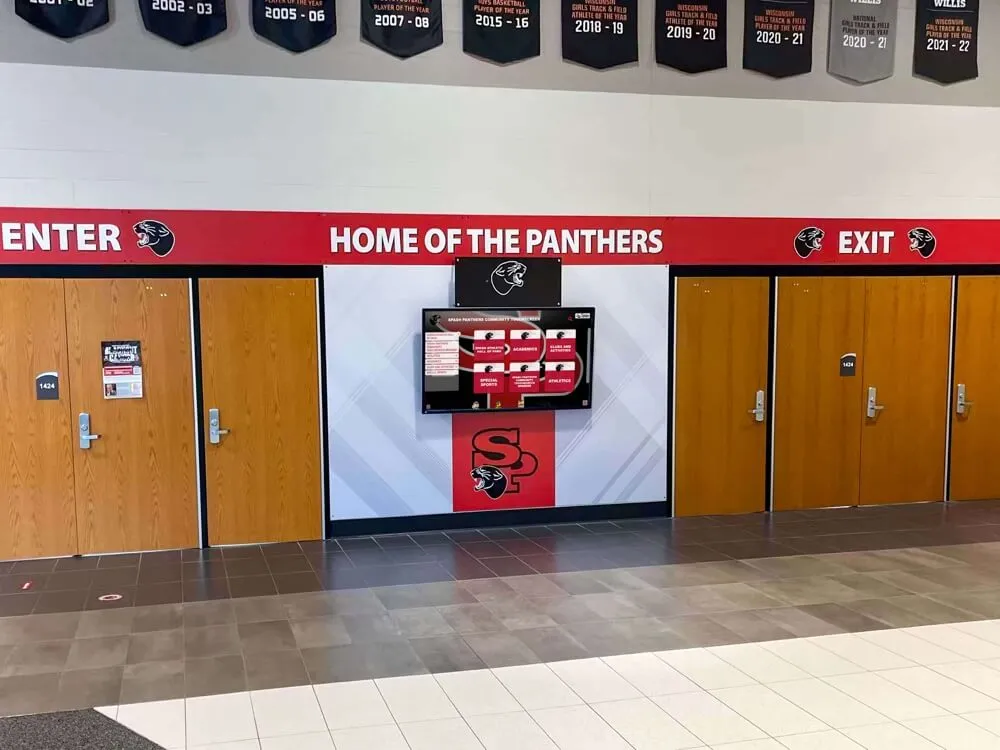
Well-positioned interactive displays at appropriate heights invite spontaneous engagement from students, visitors, and community members across age groups
Software: What Actually Runs the Experience
Hardware delivers the touch capability. Software determines what that experience looks and feels like.
Operating System Layer
Most commercial interactive installations run on Windows 10/11 IoT, Android, or Linux. Windows offers the broadest software compatibility and easiest connection with enterprise IT environments. Android has a large pool of kiosk-mode applications and lower hardware cost. Linux is common in purpose-built appliance systems.
For educational and organizational recognition systems, Windows-based systems tend to offer better connection with content management workflows and more sophisticated interactive application options.
Player Software
Player software manages what appears on screen when no one is touching it (passive mode) and what happens when the system returns to its idle state after a user walks away. Good player software handles:
- Content playlist scheduling (different content at different times of day)
- Graceful timeout and reset to home screen
- Offline content caching so the display works even when the network is temporarily unavailable
- Health monitoring and remote alerts when something goes wrong
Content Management System (CMS)
A CMS lets staff update content without touching the physical hardware. Through a web interface, administrators add new honorees to a hall of fame, update schedules, change promotional content, or upload new photos—and those changes appear on the display automatically.
The quality of the CMS often determines long-term satisfaction with an interactive signage system. Questions to ask:
- Can non-technical staff update content without specialized training?
- Does the system support role-based permissions (who can publish, who can only draft)?
- How are updates delivered to offline or intermittently connected displays?
- What happens if the network connection drops mid-update?
Schools implementing interactive touch screens in education consistently cite CMS usability as the factor that most affects whether staff actually keep content updated over the long term.
Interactive Application Layer
This is the software visitors actually use. For a hall of fame system, it might be a searchable database with athlete profiles, career statistics, and photo galleries. For a campus directory, it navigates building maps and department listings. For a lobby engagement kiosk, it might present a historical timeline that visitors can scroll through by decade.
Purpose-built interactive applications for schools and organizations include features that general-purpose signage software cannot match:
- Search functionality: Visitors find specific individuals, years, or achievements without browsing hundreds of records
- Filter and sort controls: Browse by sport, year, award type, or other categories
- Multimedia support: Play video clips, photo galleries, or audio alongside text profiles
- Passive display mode: When no one is touching the screen, the display cycles through recognition content automatically, then returns to interactive mode when someone approaches
Organizations considering touchscreen kiosk solutions for schools and organizations designed specifically for educational settings typically find that purpose-built platforms reduce implementation time and produce better end results than adapting general-purpose tools.
Network and Connectivity Requirements
A common planning mistake: underestimating what the network needs to support.
Minimum connectivity for a managed interactive display: A stable connection to the management server for content updates and health monitoring. The bandwidth required depends entirely on the size and frequency of content updates. A system receiving small text updates daily needs minimal bandwidth. A system regularly receiving new video files or large photo libraries needs substantially more.
Wired vs. wireless: Wired Ethernet (Cat5e or Cat6) provides the most consistent connection. WiFi works for many installations but introduces risk: interference, access point failures, and channel congestion can all cause connectivity problems. For high-visibility installations, wired connections are strongly preferred.
Offline operation capability: Well-designed systems cache content locally so the display continues working during network outages. When evaluating systems, confirm exactly what happens when connectivity is lost—does the display continue showing the last cached content, show an error message, or go blank?
Remote management access: IT administrators typically need to manage these systems without physically visiting each display. Look for systems with secure remote access options, preferably using standard protocols rather than requiring VPN tunnels or vendor-bundled remote control software that creates IT security concerns.
Firewall and port requirements: Ask vendors for specific network requirements before purchase. Some systems use non-standard ports or require outbound connections to cloud services that may conflict with institutional firewall policies. Getting this information upfront prevents delays during installation.
Placement and Environmental Factors
Where you put a touch screen display significantly affects both usage rates and hardware longevity.
Traffic flow: High-traffic areas generate more interactions but also more wear on the touch surface. Position displays where visitors naturally pause—near building entrances, lobby seating areas, adjacent to trophy cases—rather than in corridors where people are moving purposefully.
Ambient lighting: Direct sunlight on touch screens causes glare that makes content unreadable and, in some cases, interferes with IR touch detection. Position displays perpendicular to windows or use anti-glare screen treatments. PCAP screens generally handle bright ambient light better than IR systems.
Viewing height and angle: Most visitors interact with displays between 42"–60" from the floor. The optimal mounting angle for wall-mounted displays is straight-on (0°) to slightly downward-tilted (5°–10°). Very high or ceiling-mounted placements discourage interaction.
Temperature and humidity: Standard commercial displays operate safely within 32°F–104°F (0°C–40°C) and 20%–85% relative humidity (non-condensing). Hallways near exterior doors, gymnasium entrances, or areas with poor climate control may push these limits. Check manufacturer specifications for your specific environment before installation.
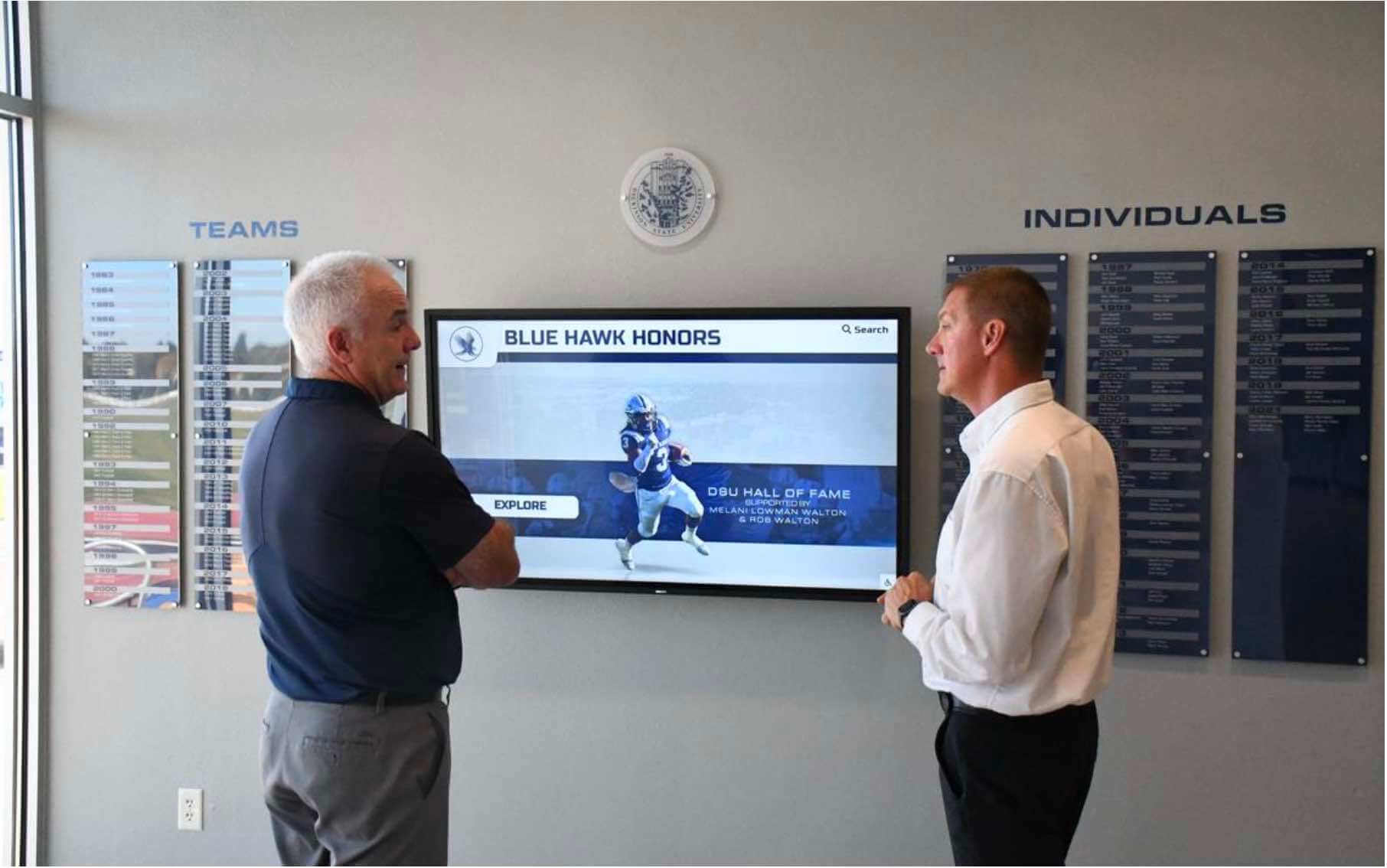
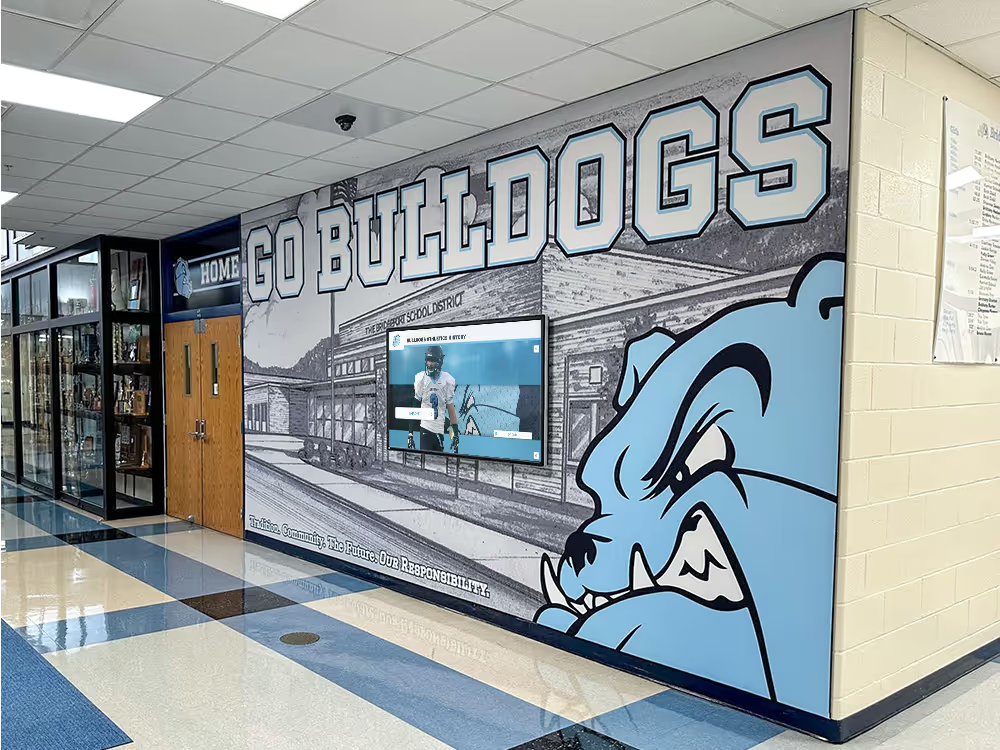
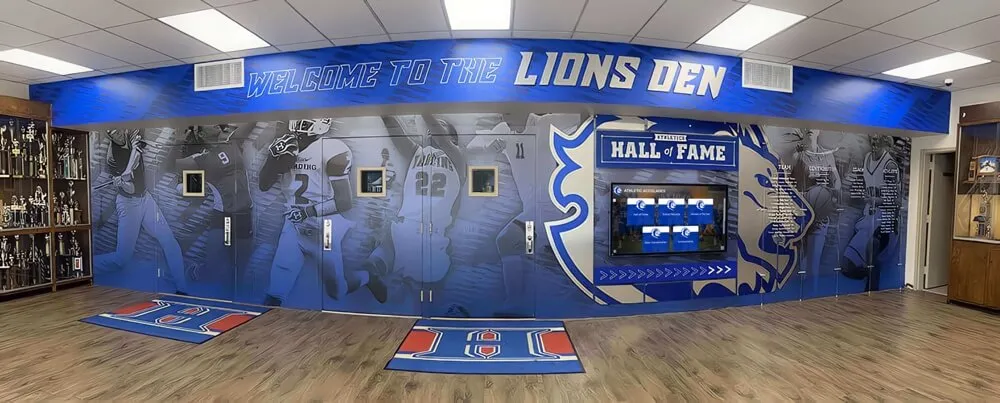
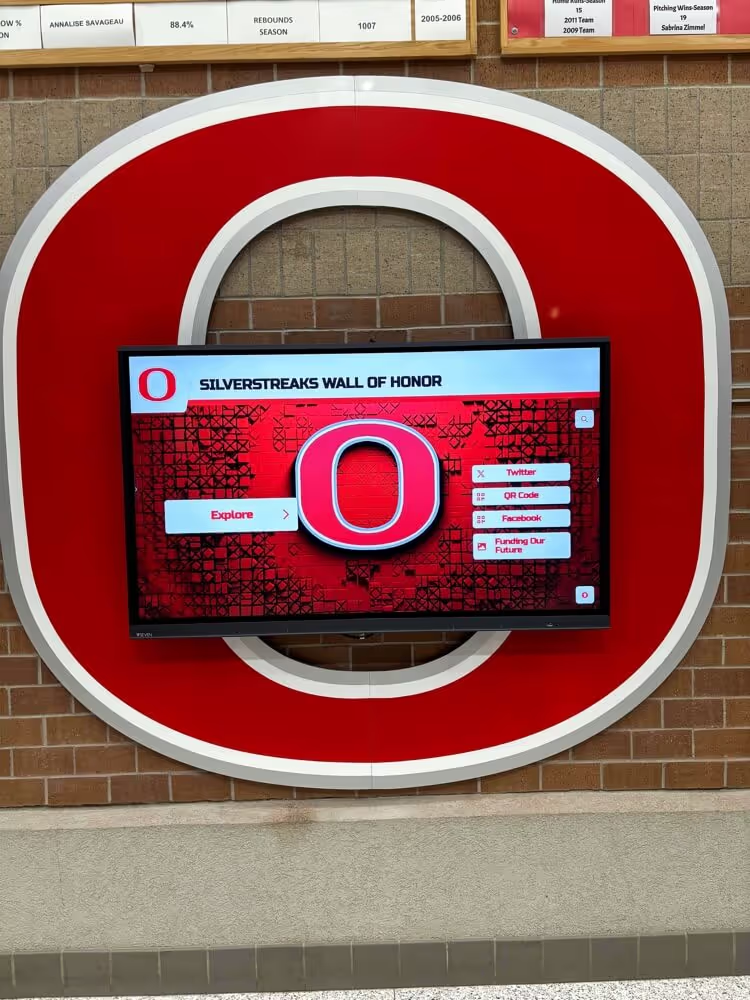
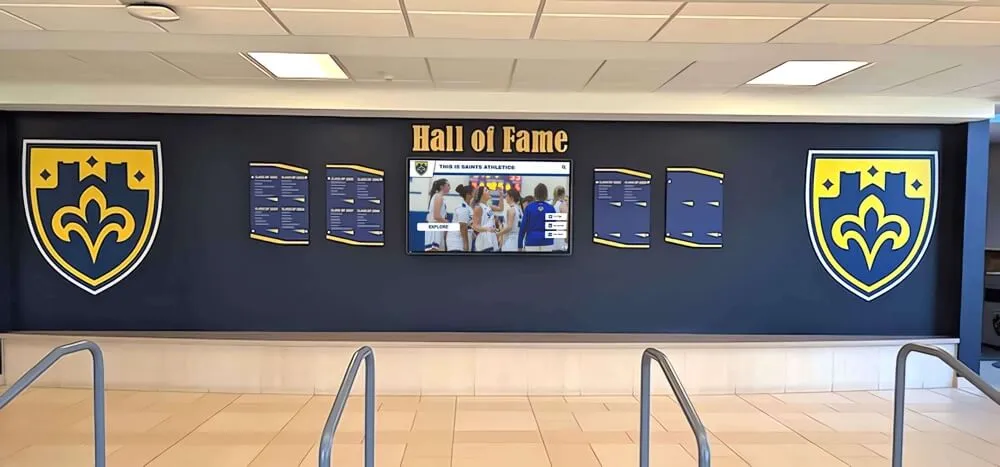
Well-placed interactive displays draw visitors into natural engagement with recognition content and institutional history
Use Cases in Schools and Organizations
Athletic Recognition and Hall of Fame Displays
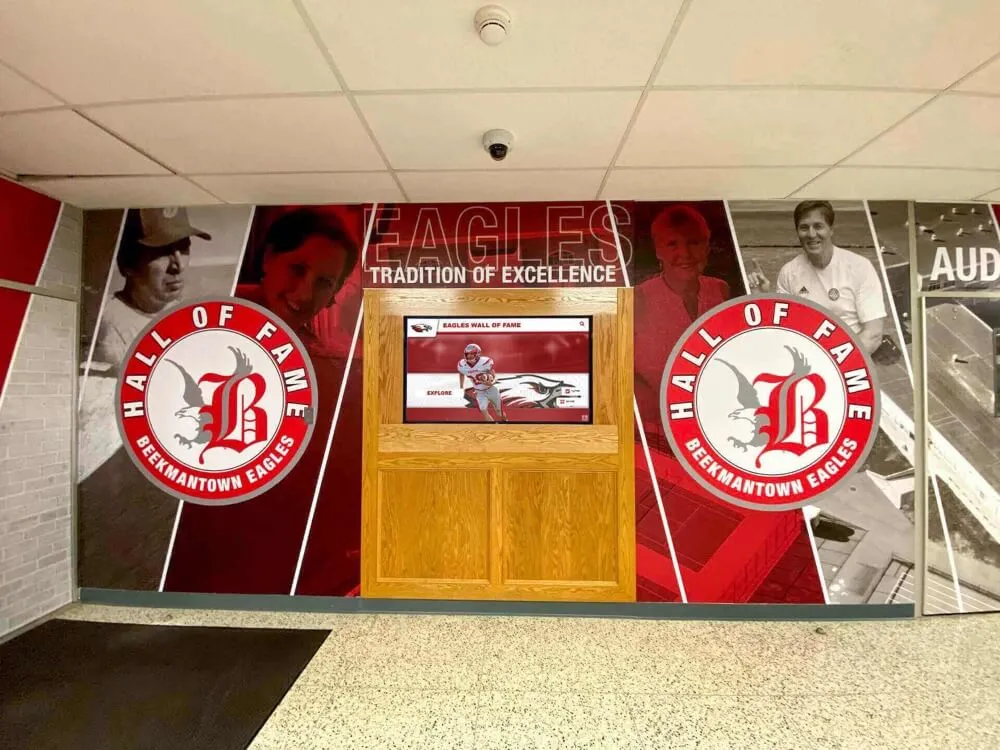
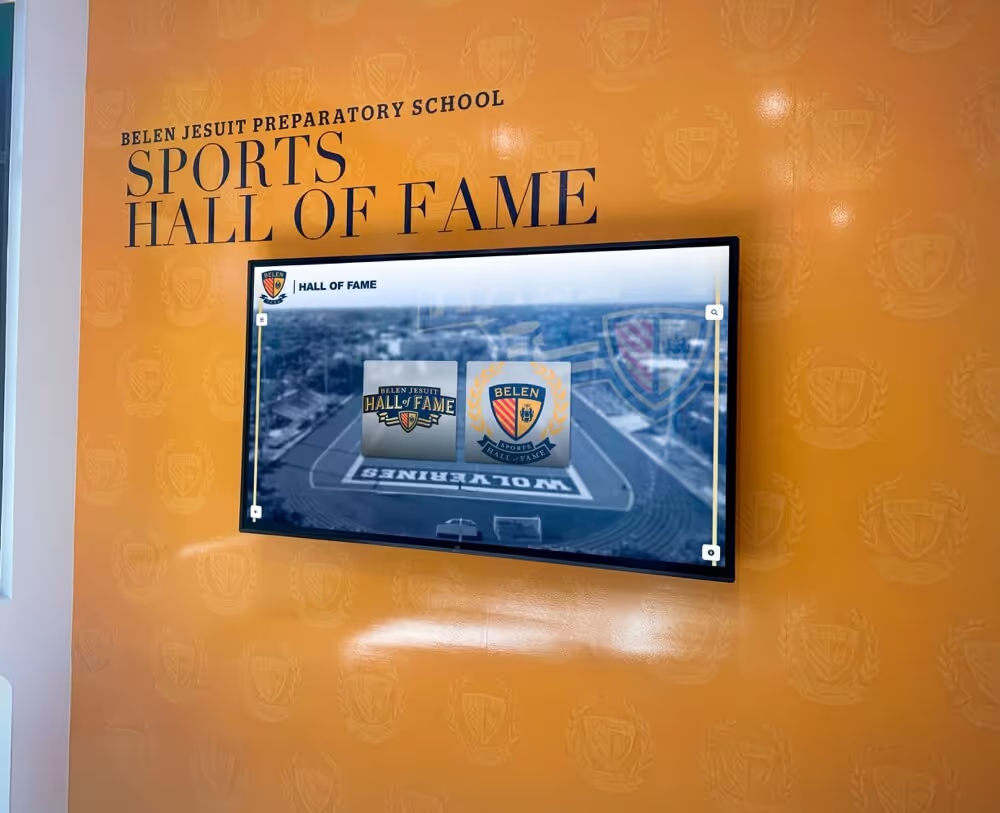
The most common application in educational settings: a dedicated touch screen display in an athletic facility, gym lobby, or main hallway where visitors can browse the complete history of the athletic program. A well-built system lets visitors search by name, sport, year, or award; view career statistics and photos; watch recorded game footage; and explore championship histories going back decades.
These installations serve functional purposes beyond recognition. Prospective student-athletes and their families visit athletic facilities during recruitment; an interactive hall of fame that immediately displays the program’s history and culture makes a lasting impression. Touch wall displays at high schools have become increasingly common as districts recognize the dual purpose these displays serve for both community recognition and prospective student recruitment.
Alumni Engagement and Donor Recognition
Interactive displays in alumni centers, development offices, and main lobbies can present donor recognition in a format that goes far beyond a static plaque wall. Donors can be recognized with photos, biographical notes, giving impact summaries, and acknowledgment of named spaces or endowments. The display format accommodates growing donor lists without requiring physical renovation.
Interactive touchscreen installations in museums and galleries follow similar principles to what schools and universities use for donor recognition—presenting content in ways that invite exploration rather than passive reading.
Campus Directories and Wayfinding
Interactive directories at building entrances and visitor centers let people search for offices, find faculty members, navigate to specific rooms, and access campus maps. When connected to live data sources—directory systems, room booking software—these displays always reflect current information without manual updates.
Events and Community Engagement
For schools hosting tournaments, alumni events, reunions, or community ceremonies, interactive kiosks serve as contextual information hubs. Attendees browse event programs, view participant profiles, access schedules, and explore institutional history that connects the current event to the organization’s broader story. Interactive touchscreen kiosks at events and exhibitions demonstrate how adaptable these systems become when content management allows rapid configuration changes between events.
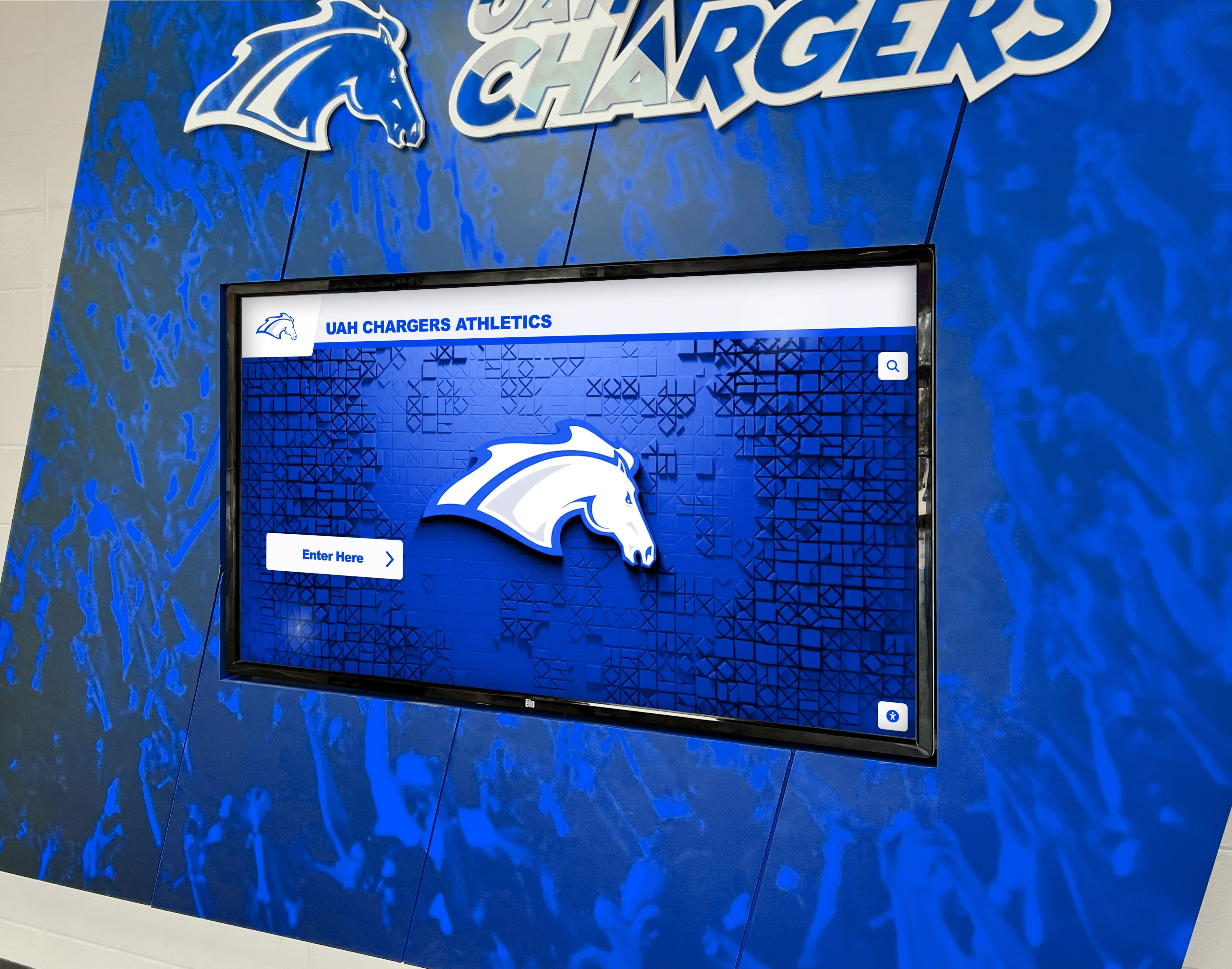
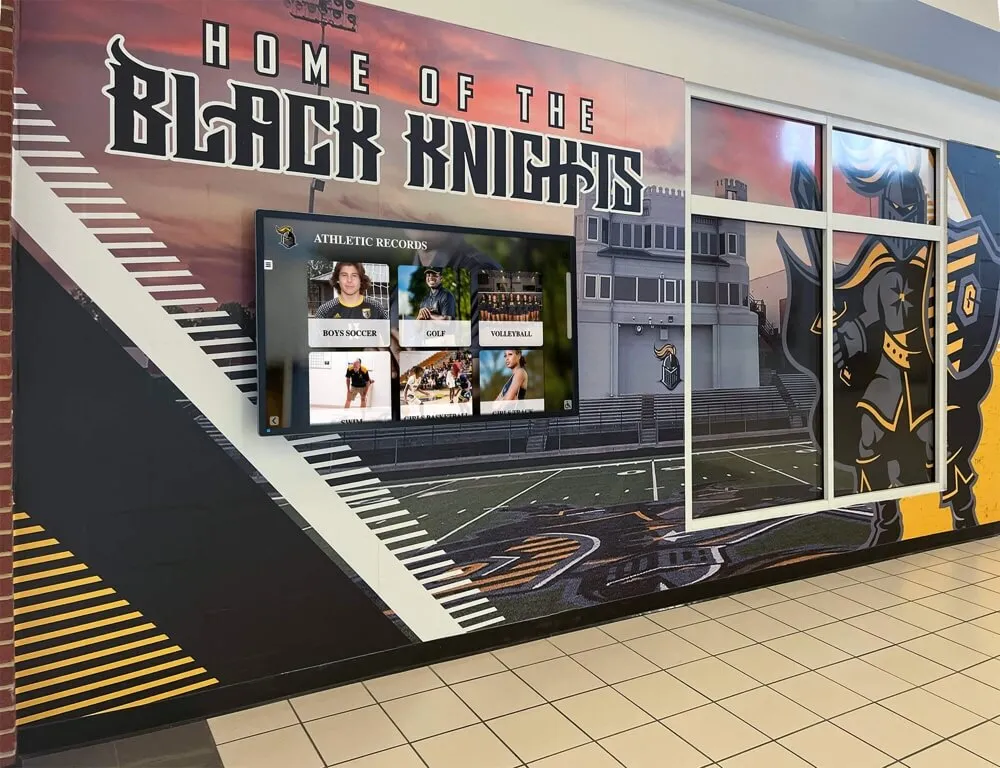
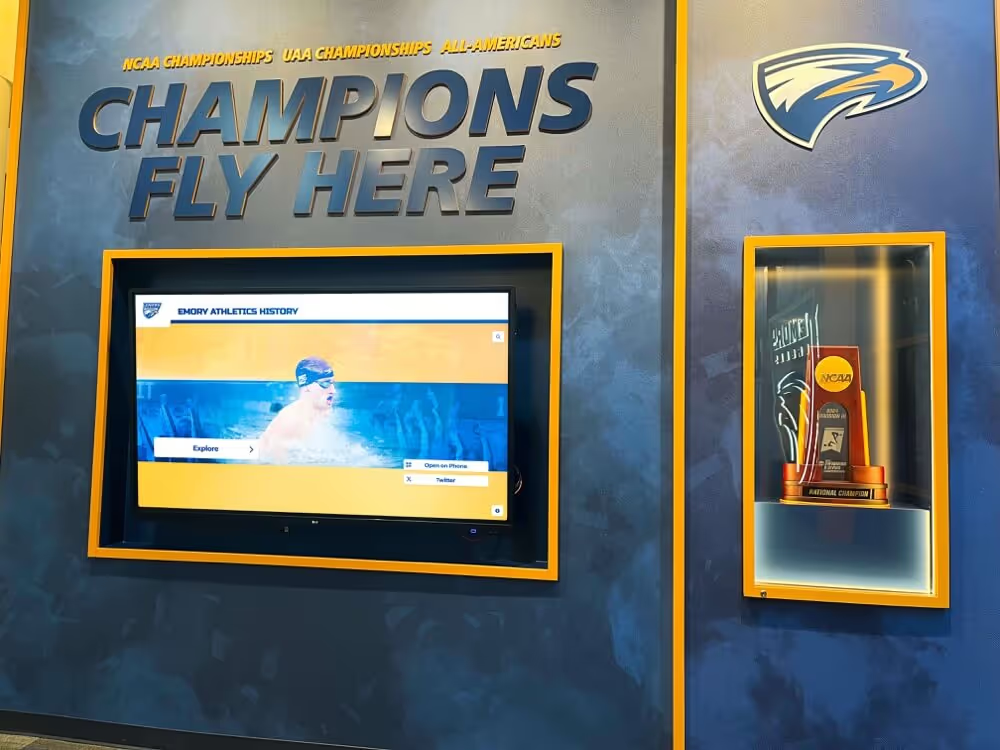
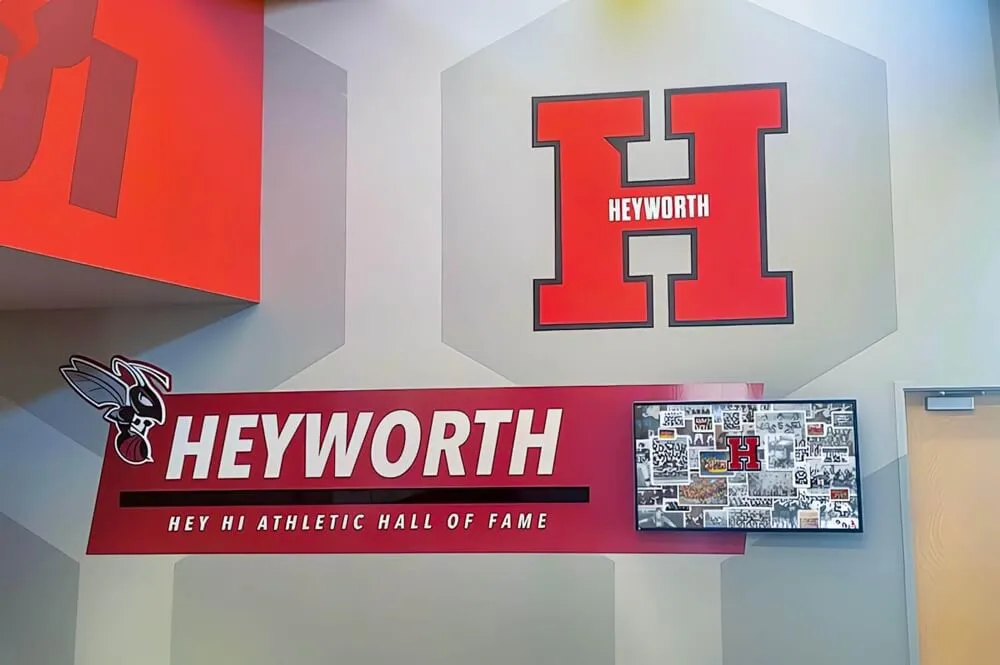
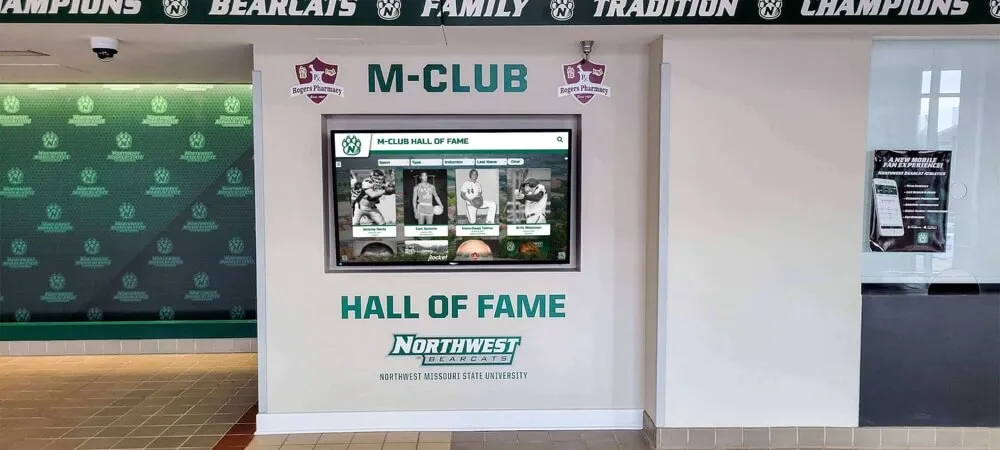
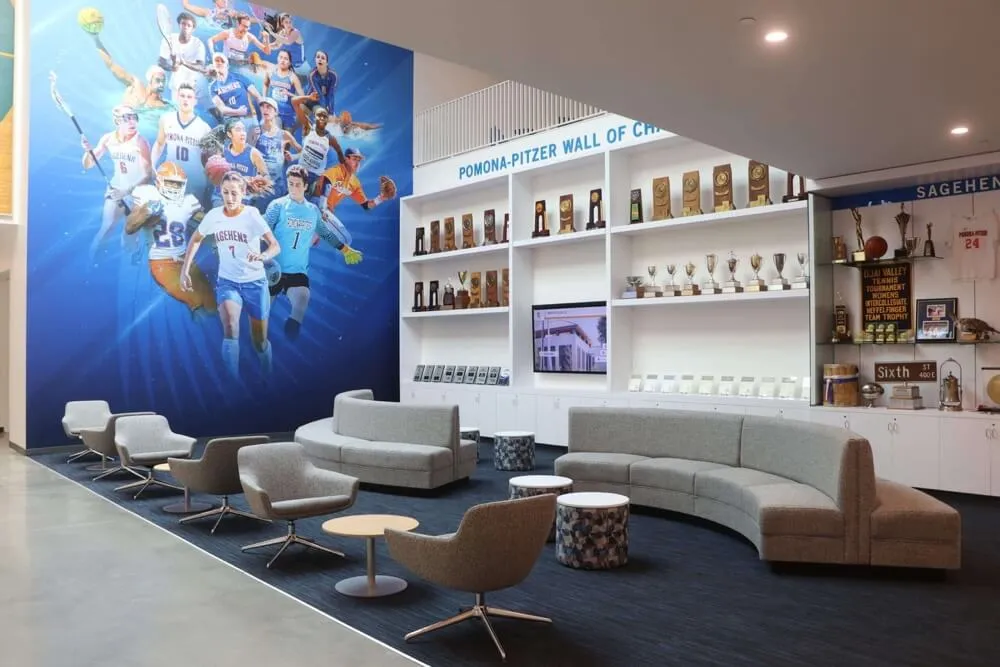
Digital displays in athletic facilities present program identity and recognition content to visitors, recruits, and community members throughout the year
Content Strategy for Touch Screen Signage
Hardware and software create the possibility. Content creates the value. The most common mistake with interactive touch screen installations: spending heavily on hardware and then neglecting content strategy.
For recognition-focused displays, the content hierarchy matters:
High-visibility passive content: What plays when no one is touching the screen. This should represent the best of what the system contains—compelling photography, featured honorees, championship moments. It functions as the advertisement for the interactive experience.
Organized search and browse structure: How visitors navigate the full content library. Prioritize by what visitors most commonly look for (a specific person, a specific team, a specific year), not by what’s easiest to organize on the back end.
Individual record depth: The information on each honoree’s profile page. At minimum: name, years active, key achievements. Better: career statistics, biographical narrative, photos across multiple years. Best: video clips, quotes, and where-are-they-now information.
Regular updates: Recognition systems that stop reflecting new achievements lose credibility quickly. Plan for how new content enters the system—who enters it, how often, and what approval process it goes through.
Content rotation schedules make passive display modes more compelling:
| Content Type | Update Frequency |
|---|---|
| Announcements and schedules | Daily |
| Featured honoree spotlights | Weekly or monthly |
| Season records and statistics | Each season |
| Historical profiles and achievements | Ongoing as added |
| Championship video content | Annually or as earned |
For passive content zones (content shown when the screen is not being actively used), update frequency matters. Content cycling through the same five slides for months loses viewer attention. Aim for quarterly refreshes at minimum, tied to seasons, academic calendars, or recognition program milestones.
ADA Compliance Checklist
Interactive touch screens in public-facing facilities have accessibility requirements under the Americans with Disabilities Act. Key requirements for kiosk and interactive display installations:
- [ ] Height: Operable parts (touch areas visitors use) must fall within 15"–48" from the floor
- [ ] Reach range: The usable interface should be accessible from a forward or side approach in a wheelchair
- [ ] Screen legibility: Text should meet minimum contrast ratios (4.5:1 for normal text, 3:1 for large text) per WCAG guidelines
- [ ] Alternative access: Where touch-only operation would exclude users with motor disabilities, consider audio options or companion web access to the same content
- [ ] Clear floor space: At least 30"×48" of maneuvering room in front of floor-standing kiosks
- [ ] Non-slip surfaces: Floor surfaces around kiosks should not create trip or slip hazards
Some specialized recognition display platforms address ADA requirements through companion web platforms—visitors who cannot easily interact with the physical touch screen access the same content through a QR code linking to a mobile-accessible website.
Total Cost of Ownership: What to Actually Budget
First-time buyers frequently underestimate total cost of ownership by focusing only on hardware purchase price. A more accurate picture includes:
Hardware: Commercial-grade display + touch layer + computing hardware. Entry-level installations start around $2,000–$4,000 for hardware alone; larger format or higher-specification systems run $5,000–$15,000+.
Software licensing: Annual or perpetual licenses for player software, CMS, and the interactive application layer. Some vendors bundle this into a subscription that also covers content management support.
Installation: Mounting, cable management, electrical work, and network connection. Complex architectural installations (flush-mount or recessed into custom walls) cost significantly more than simple wall-mount installations.
Content creation and migration: The time and cost to build the initial content library. For athletic hall of fame systems, this often means digitizing historical photos, compiling career statistics, and writing or editing biographical content. This is frequently the most time-consuming part of the project.
Ongoing maintenance: Screen cleaning, software updates, hardware warranties (typically 1–3 years from manufacturer; extended warranties available), and occasional recalibration.
Staff time: Someone needs to maintain the content. For systems without a strong CMS, this may require technical staff. For purpose-built platforms with accessible management tools, administrative staff can typically handle updates without IT involvement.
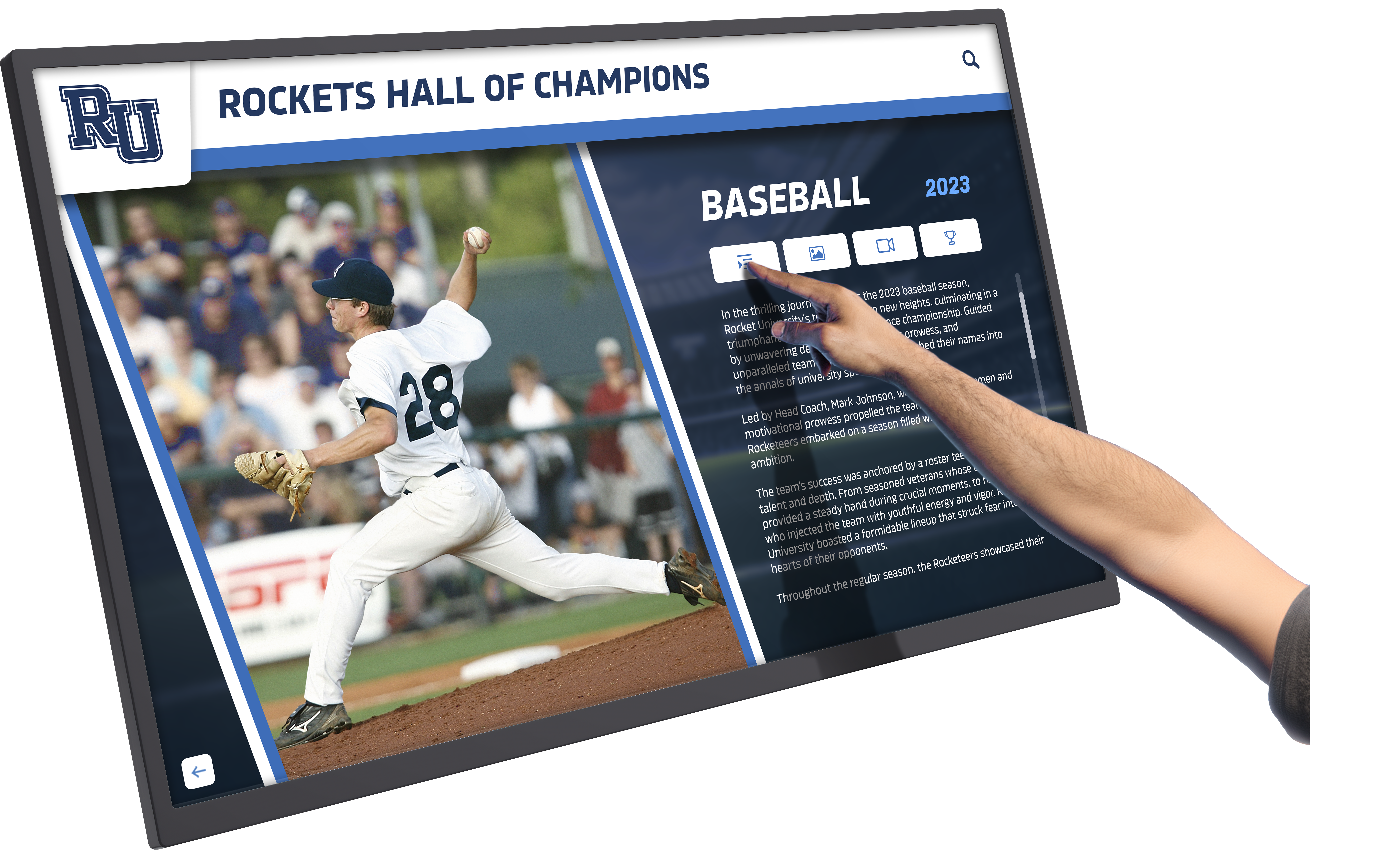
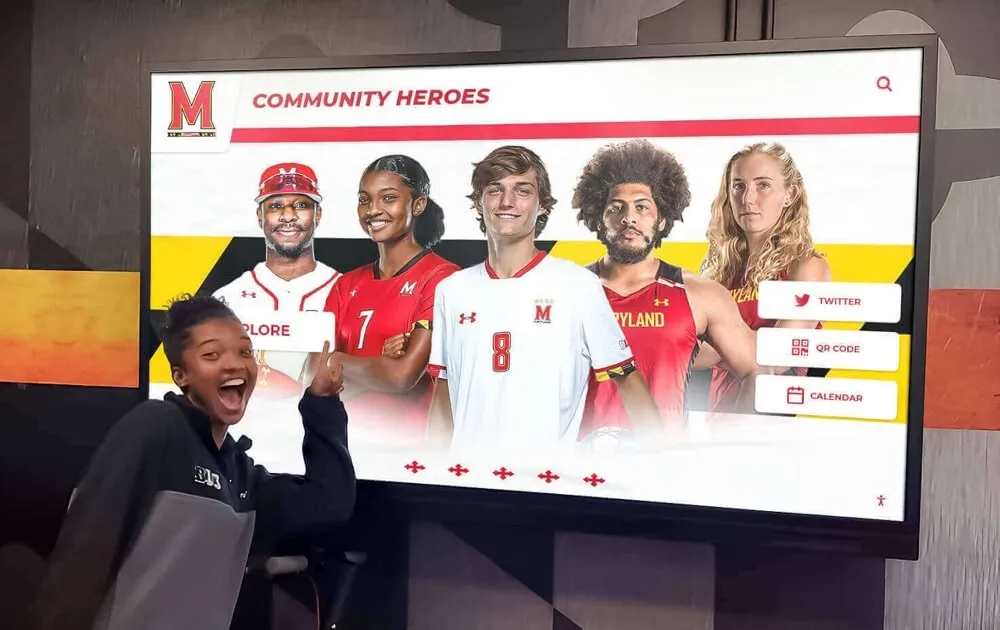
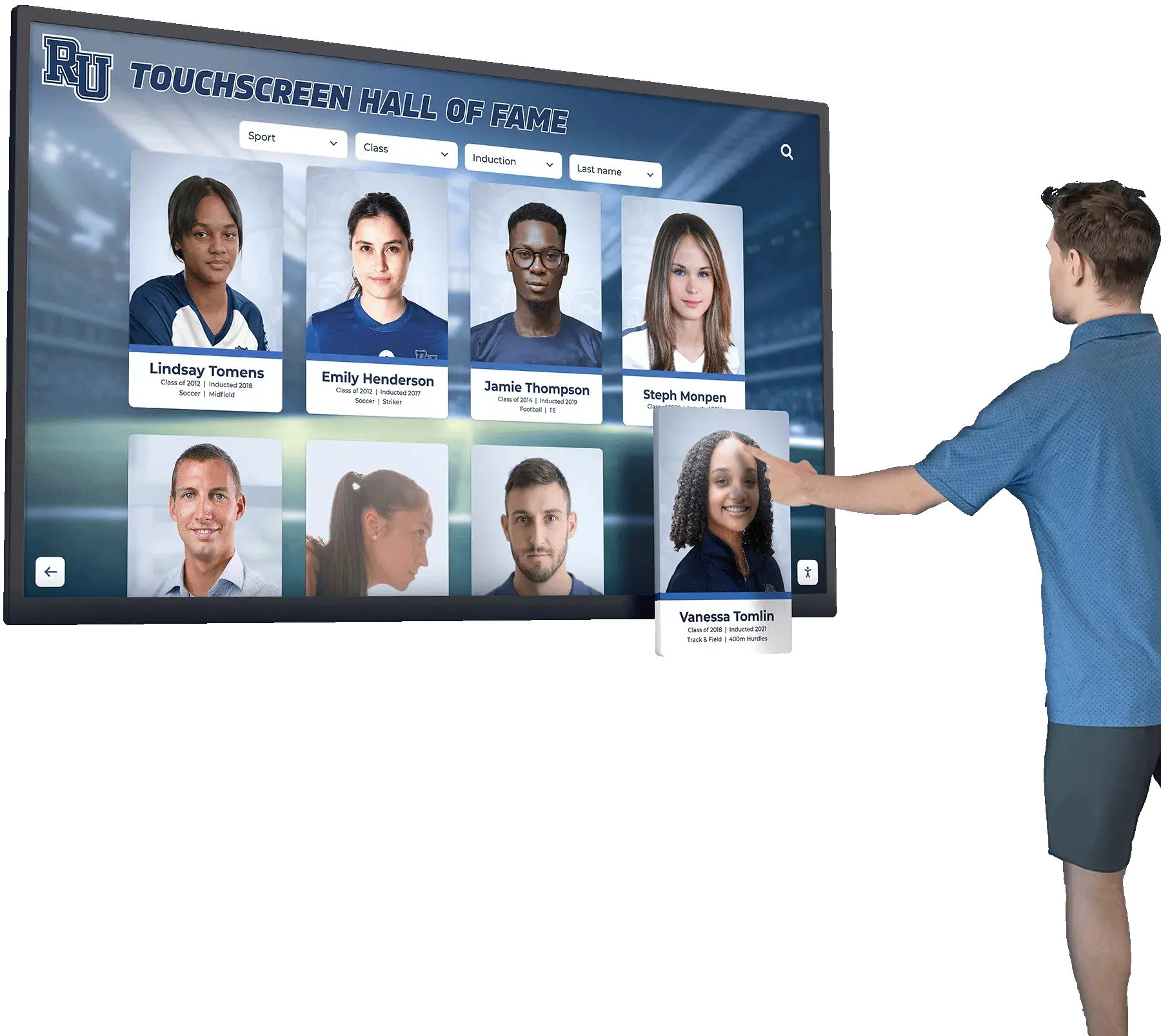
Purpose-built interactive recognition displays make content browsing straightforward for visitors of all ages and technical backgrounds
The Complete Buyer’s Checklist
Before committing to any interactive touch screen digital signage system, work through these questions:
Touch Technology
- What touch technology does this system use (IR, PCAP, resistive)?
- Is the touch detection appropriate for how the location is used (gloves, high ambient light, outdoor)?
- How many simultaneous touch points does it support?
- What is the touch response latency?
Display Hardware
- Is this a commercial-grade display rated for continuous operation?
- What is the brightness rating (nits)? Is it appropriate for the installation environment?
- What resolution does the display offer?
- What mounting options are compatible with the installation location?
Computing and Software
- What OS platform does the system run?
- Can non-technical staff update content through a web-based CMS?
- Does the system support offline operation when network connectivity is unavailable?
- What analytics does the system provide about usage and interactions?
Network and IT
- What are the specific network port and firewall requirements?
- How is remote management handled?
- What security certifications or compliance documentation does the vendor provide?
Content and Recognition Features
- Does the platform support searchable databases rather than just slide playlists?
- Can the system display rich media including video, photo galleries, and statistics?
- What does the passive display mode look like when no one is interacting?
- How quickly do content updates appear on the display after publishing?
Support and Lifecycle
- What is the hardware warranty period?
- Does the vendor provide installation support, or is that a third-party arrangement?
- What does software support include—updates, bug fixes, feature additions?
- How does the vendor communicate product roadmap changes to customers?
Comparing options across these dimensions—rather than just display size and price—identifies which system actually fits your context. Comparing touchscreen options for schools across display quality, software, and support gives a practical starting point for structured vendor evaluation.
Passive Signage vs. Interactive Touch Screen: When Each Makes Sense
Not every situation calls for an interactive touch screen. A hallway display cycling through student achievements, athletic records, and event announcements serves a real purpose without requiring visitor interaction. The question is whether your use case benefits from giving visitors control.
Interactive touch screens are the right choice when:
- Content depth exceeds what passive rotation can reasonably show (thousands of athlete profiles, a 40-year donor wall)
- Visitors have specific information needs that passive display cannot address (finding a specific person, navigating to a specific office)
- You want to create a distinctive engagement experience that reflects the organization’s values
- The installation will be in a high-visibility location where visitor engagement directly influences impressions of the institution
Passive digital signage is often the better choice when:
- Content is primarily announcements and schedules with no browsing need
- The location has very high foot traffic with short viewing windows (cafeteria line, main corridor)
- Budget is constrained and the primary goal is replacing static printed displays
- IT resources to manage interactive software are unavailable
Many successful installations combine both: a large-format interactive kiosk in a primary location paired with passive display screens in secondary locations, all managed through the same CMS.
Understanding the full spectrum from passive display to fully interactive kiosk—and how interactive touch screen kiosk technology works in educational and organizational settings—helps organizations make purchasing decisions that match actual needs rather than buying the most impressive-looking system that ultimately goes underused.
Why Rocket Alumni Solutions Excels for Schools and Organizations
For schools, universities, athletic programs, and community organizations, most general-purpose digital signage platforms require significant customization before they can deliver a quality recognition or alumni engagement experience. The software wasn’t designed for searchable athletic hall of fame databases, multi-decade photo archives, or alumni profile management—so organizations end up either settling for basic slideshow functionality or spending heavily on custom development.
Rocket Alumni Solutions takes a different approach: purpose-built software for exactly this use case, paired with hardware that has been selected and tested for educational environments. The platform includes:
- Searchable recognition database with support for athletes, donors, alumni, staff, and community honorees—not just static slides
- Accessible content management designed for administrative staff, not IT departments
- Both touchscreen and web access so recognition content reaches people who cannot visit the physical location
- Unlimited screen licensing without per-display fees that create cost barriers to expanding installations
- Installation support from a team experienced specifically with how schools manage facility projects, budget cycles, and IT approval processes
For teams that want to see how purpose-built recognition software differs from general digital signage in daily practice, See Rocket in action to understand the content, management, and visitor experience differences firsthand.
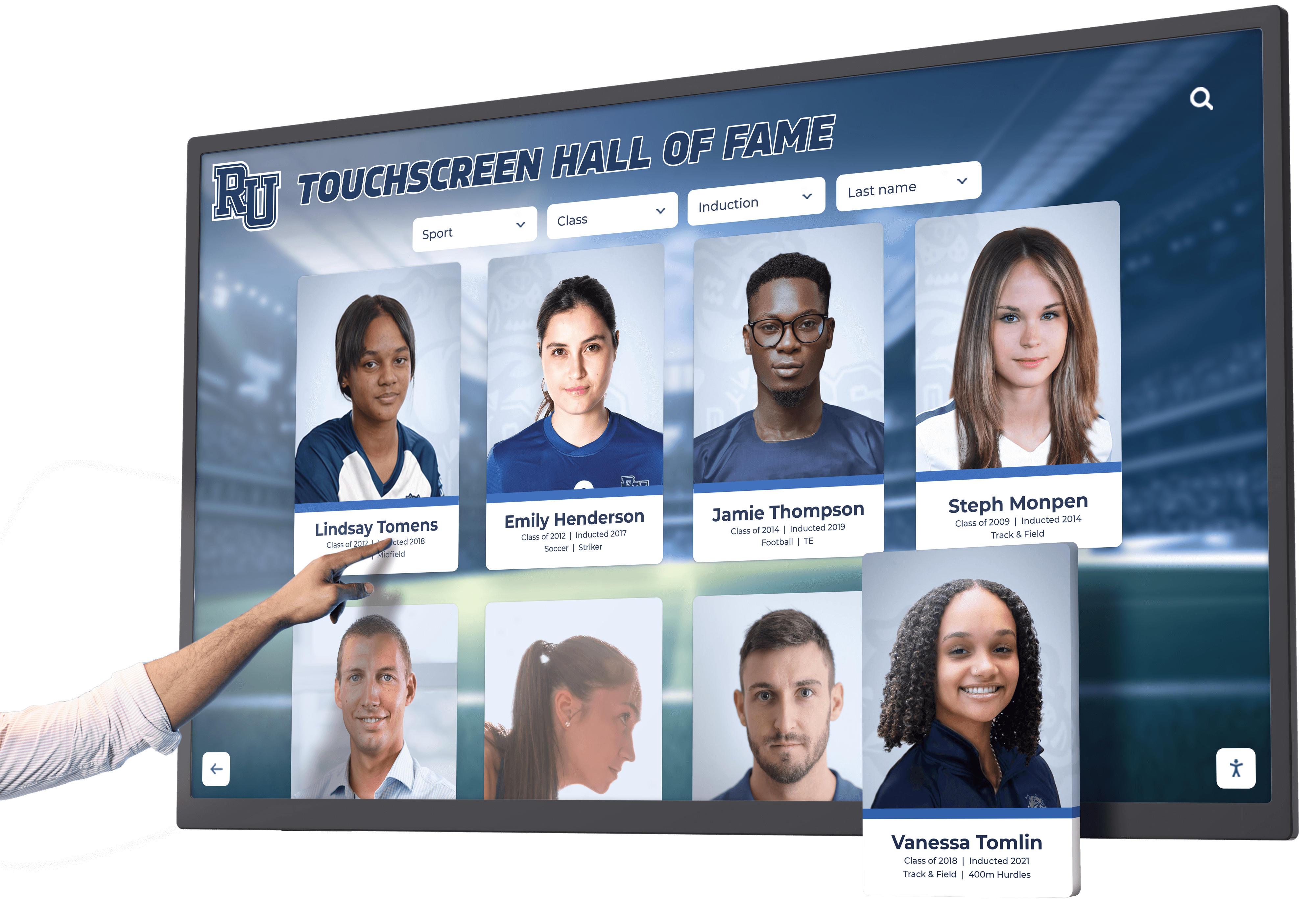
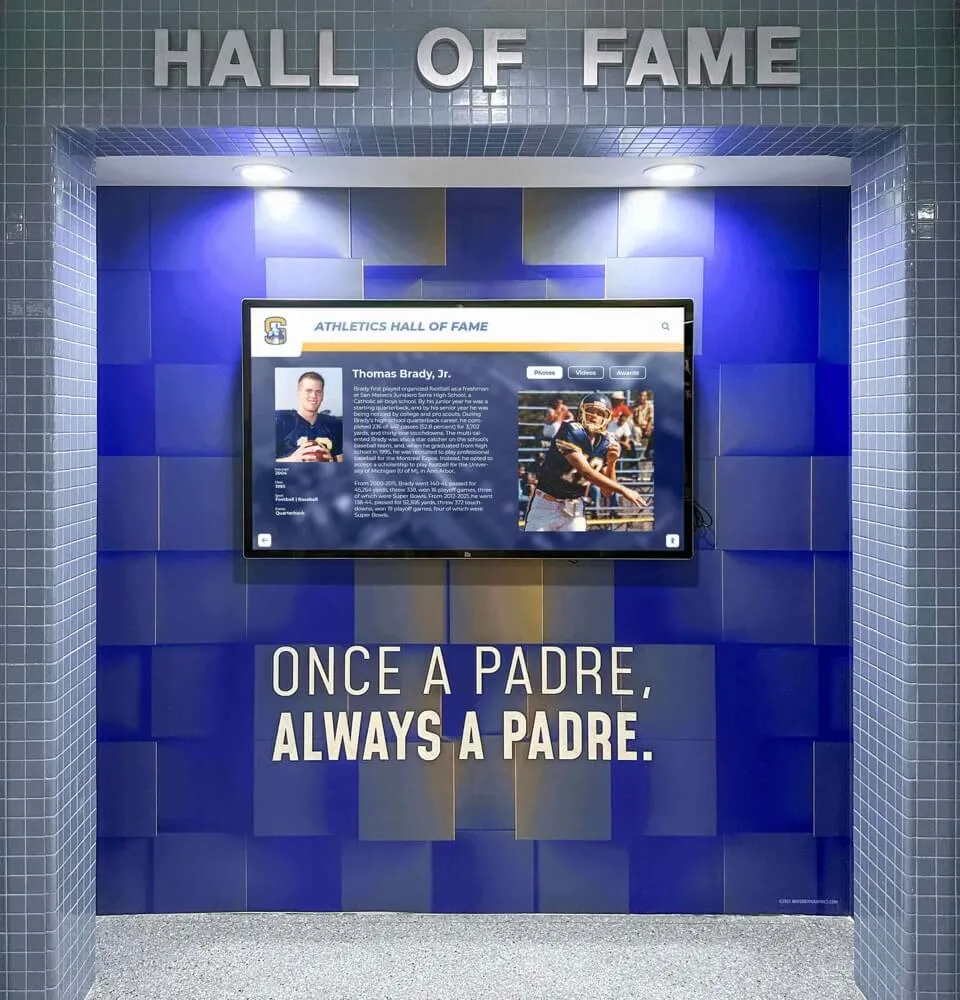
Purpose-built recognition platforms display rich athlete profiles with photos, career statistics, and achievement histories that general signage platforms cannot easily replicate
Bringing It Together: The Decision Framework
Selecting the right interactive touch screen digital signage system comes down to three clear questions:
1. What is the primary use case? Recognition databases with thousands of records require different software than a campus directory. Know what the system needs to do before evaluating hardware.
2. Who maintains the content? If the answer is “IT staff only,” you’ve created a content bottleneck that will hurt the system’s long-term value. The right platform lets departmental staff manage content day-to-day.
3. What does the five-year cost look like? Hardware, software, installation, content creation, and ongoing maintenance together determine whether the system fits the budget over time—not just at purchase.
Organizations that answer these questions clearly before entering vendor conversations make better decisions, experience fewer surprises after installation, and get more value from their investment.
Interactive touch screen digital signage is a mature technology with well-understood components, clear trade-offs between technology choices, and a defined set of questions that distinguish appropriate systems from poor fits. The hardware and software exist at practically any scale. What varies is whether the system is purpose-built for your use case or adapted from a more general application—and in educational and organizational recognition settings, that distinction drives the quality of what visitors actually see and interact with.
Book a demo to see how Rocket Alumni Solutions approaches interactive recognition displays for schools, athletic programs, and alumni organizations—and what purpose-built software looks like compared to general digital signage tools.