School history, shared
Athletic Archive Rights Metadata Guide: Track Permissions Before Publishing School History
Before you publish a single photo, video clip, or statistical record to a digital hall of fame or touchscreen display, you need to know who owns it and what permissions your school holds. Rights metadata—structured fields that record ownership, license terms, and usage restrictions for each asset—gives athletic programs a repeatable way to make that determination without relying on memory or guesswork.
This field guide walks athletic directors, archivists, and communications staff through the exact metadata fields to capture, how to apply them to the three main asset types in a school sports archive (photos, video, documents), and how to build a lightweight tracking workflow that holds up when a parent, photographer, or news organization asks where your rights documentation lives.
What Rights Metadata Actually Is—and Why Archives Need It
Rights metadata is a set of structured data fields attached to each file in your archive that answers three core questions:
- Who created or owns this asset?
- What usage rights does the school hold?
- Are there restrictions on where, when, or how the asset can appear publicly?
Without that information recorded at the file level, every publishing decision—adding a photo to a touchscreen hall of fame, scanning yearbook portraits for a lobby display, uploading game footage to a web archive—requires a fresh ownership investigation. Multiply that by thousands of assets accumulated across decades and you get a bottleneck that stalls projects and creates legal exposure.
A well-built rights metadata system converts that repeated investigation into a one-time data-entry task per asset, with clear fields your entire team can read and trust.

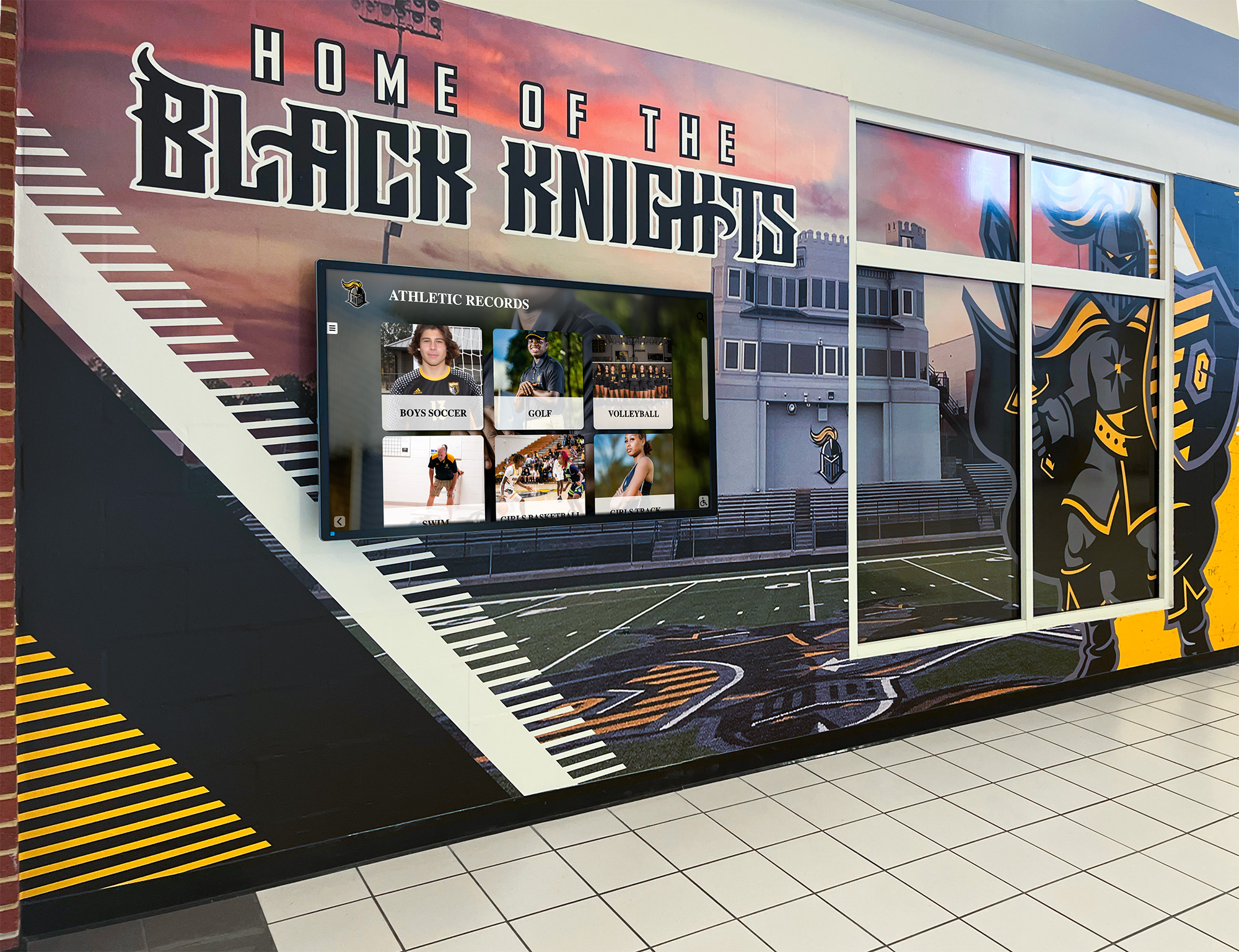
Digital athletic displays draw on decades of archive assets—every image, record, and document needs documented rights before it appears on screen
The Core Rights Metadata Fields
The table below defines the fields every athletic archive asset should carry. You can implement these fields in a spreadsheet, a digital asset management (DAM) platform, or embedded IPTC/XMP metadata inside image files. The field names are the same regardless of tool.
| Field | What to Record | Example Value |
|---|---|---|
| Asset ID | Unique identifier linking physical and digital records | ATH-PHOTO-1987-0042 |
| Asset Type | Category of content | Photo / Video / Document / Trophy Image |
| Title / Description | Short descriptive label | “Girls varsity basketball team, 1987 state champions” |
| Creator Name | Person or organization who made the asset | “John Rivera, staff photographer” |
| Creator Type | Employment relationship at time of creation | School Employee / Independent Contractor / Student / Parent / News Media / Unknown |
| Creation Date | Year or full date the asset was made | 1987 or 1987-03-14 |
| Publication Date | When and where it was first published | “1987 school yearbook, page 34” |
| Copyright Holder | Who holds copyright today | “Riverside High School” or “Rivera Photography LLC” |
| Rights Basis | How the school claims the right to use it | Work for Hire / Written License / Release Form / Implied License / Fair Use Claim / Public Domain |
| License Terms | Specific scope granted if a license exists | “Yearbook use only” / “Unlimited school use” / “Non-commercial educational use” |
| Usage Restrictions | Anything the school cannot do with the asset | “No third-party redistribution” / “Remove from display if alumni requests” |
| Permission Status | Current clearance state | Cleared / Pending / Restricted / Unknown |
| Permission Document | File path or folder location of the signed release, contract, or license | /rights-docs/Rivera_1987_contract.pdf |
| Expiration Date | When the license or release expires, if applicable | None or 2030-12-31 |
| FERPA Flag | Whether the asset includes identifiable student data requiring FERPA review | Yes / No |
| Opt-Out on Record | Whether any depicted individual has requested removal | No / Yes — see opt-out log |
| Reviewed By | Staff member who completed the rights review | “M. Chen, Athletic Director, 2026-05-01” |
| Notes | Any context that doesn’t fit other fields | “Original negative held in vault B, shelf 3” |
Step-by-Step: Building Your Rights Metadata Workflow
Step 1 — Audit What You Have Before You Record Anything
Before tracking rights, you need to know what assets exist. Walk through your archive and create an asset inventory spreadsheet with one row per distinct item. At minimum record Asset ID, Asset Type, Title/Description, and Creation Date. Leave all rights fields blank for now.
For large collections—decades of photo prints, VHS footage, scrapbooks—group assets by decade and photographer. A rough inventory of 50–200 groupings is more useful than a precise inventory of 10,000 individual photos you cannot actually review before a project deadline.
Step 2 — Classify the Creator Relationship
The most important rights determination is whether the creator was a school employee at the time of creation. If yes, work-for-hire doctrine usually gives your school copyright ownership without any additional paperwork.
Use this decision tree:
- School employee, photography part of job duties → Mark Copyright Holder as school, Rights Basis as “Work for Hire,” Permission Status as “Cleared.”
- Independent contractor (e.g., yearbook photography company) → Pull the original contract. If it assigns copyright to the school or grants unlimited license, mark accordingly. If it limits use to yearbook printing only, mark Permission Status as “Restricted” and note the limitation.
- Student or parent contributor → Mark Rights Basis as “Unknown” unless a submission release was signed. Research your submission policies from that era.
- News media or wire service → Mark Permission Status as “Restricted.” News organizations rarely transfer rights; contact them for a reprint license before publishing.
- Unknown creator → Mark Permission Status as “Unknown” and pursue the remaining steps below before publishing.
Step 3 — Locate and Digitize Permission Documents
For every asset not clearly covered by work-for-hire, find the paper trail. Search:
- Photography company contracts in your school’s vendor files
- Employment records confirming photographer job duties
- Photo release forms collected during events or team photo days
- Yearbook submission policies printed in the yearbook itself
- Correspondence with freelancers or news outlets
Scan each document, name the file with the Asset ID, and store it in a rights-docs folder with the same folder structure as your asset archive. Record the file path in the Permission Document field.
If no documentation exists, do not guess. Mark the field as “Not Found — research needed” and do not move that asset to “Cleared” until documentation is either located or a written determination is made by legal counsel or your district’s compliance office.
Step 4 — Apply FERPA and Opt-Out Flags
FERPA review is a separate layer from copyright. Even an asset your school owns outright may require a FERPA flag if it contains identifiable student information—grades, disciplinary status, medical information—in conjunction with a student’s name or image.
For most athletic archive photos and videos, FERPA exposure is low. The fields to check:
- Does the asset show a student who was a minor at the time? If yes, flag it and note the publication date because FERPA protections for former students differ from current students.
- Has any depicted individual submitted a removal or opt-out request? Cross-reference your opt-out log and mark the field accordingly.
Maintaining a running opt-out log—a simple list of names and dates of requests received—lets you apply those flags retroactively whenever a new batch of assets is reviewed.
Step 5 — Assign Permission Status and Route for Approval
Once you have completed fields for Creator Type, Rights Basis, and Permission Document, assign one of four Permission Status values:
- Cleared — Rights are documented and the asset is approved for the intended use (e.g., digital display, web archive).
- Pending — Rights research is in progress. Do not publish.
- Restricted — Rights exist but the license excludes the intended use. Publishing requires renegotiation or a new license.
- Unknown — No documentation found. Escalate to legal review or treat as restricted.
Route all “Restricted” and “Unknown” assets to your district’s legal counsel or compliance officer. Do not self-clear assets in these categories.
Step 6 — Embed Metadata in the File (Not Just the Spreadsheet)
A spreadsheet is your operational record, but embedded metadata travels with the file. Use a tool such as Adobe Bridge, ExifTool, or your DAM platform to write key fields into the image’s IPTC or XMP data:
- IPTC Copyright Notice ← Copyright Holder
- IPTC Rights Usage Terms ← License Terms + Usage Restrictions
- IPTC Creator ← Creator Name
- XMP dc:rights ← Rights Basis summary
When you export a photo for a display or archive platform, the embedded metadata comes with it—visible to anyone who inspects the file properties. That makes your rights documentation discoverable even if the spreadsheet is lost.
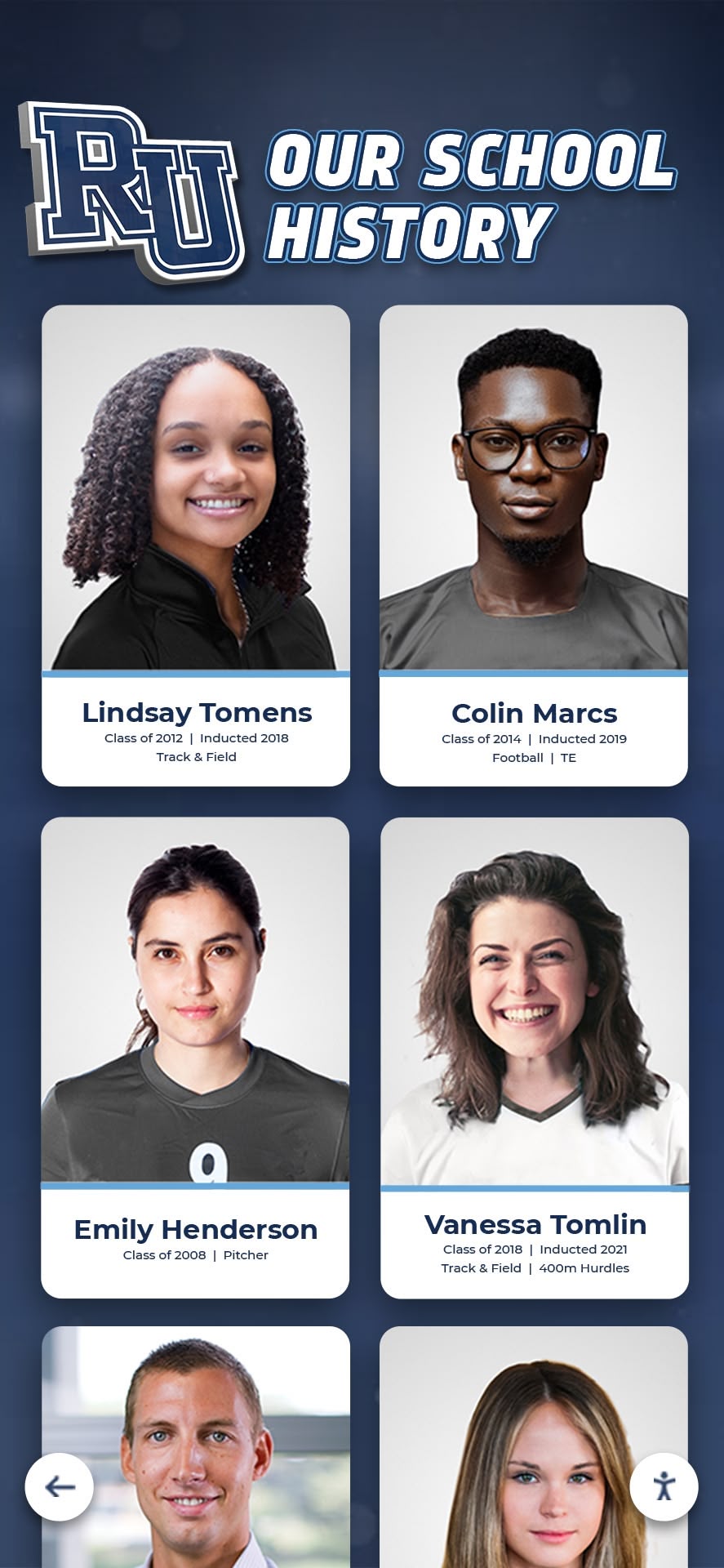
Digitizing historical athlete portraits is only half the work—rights metadata ensures each image is cleared for display before it reaches a public screen
Rights Metadata for Three Common Athletic Archive Asset Types
Photos
Photos are the highest-volume asset type and the most common source of rights questions. Beyond the core fields, add:
- Original Format (print / slide / digital file) — affects digitization workflow and provenance
- Resolution at Acquisition — determines usability for large-format display
- Depicted Subjects — names of identifiable athletes or coaches, useful for opt-out cross-referencing
For online yearbook and historical photo archives, photos also need a Web Use Approved boolean field because online publication often falls outside licenses granted only for physical yearbooks.
Video and Game Footage
Video carries the most complex rights landscape because it can involve broadcaster rights, music licensing (if commercial music plays in the background), and multiple creators (camera operator, editor, graphics team). Add:
- Broadcast Rights Holder — name of any TV station, streaming service, or broadcast partner who filmed the game
- Background Music — if audible commercial music appears in the clip, mark it as requiring a sync license or mute the audio
- Release Version — note whether a clean version (no commercial audio, broadcast graphics removed) exists for archive use
Do not assume that footage filmed by a school’s own camera operator is automatically cleared if it was live-streamed through a partner platform—check the platform’s terms of service for archive and redistribution rights.
Documents and Statistical Records
Game programs, press clippings, score sheets, and award certificates raise their own issues. Add:
- Document Source — School-generated / News Media / Third-Party Organization
- Clipping Rights — for newspaper articles, note the publication and whether the school holds a clipping license through a service like NewsBank or Gale
School-generated documents (rosters, award lists, championship programs your athletic department produced) are almost always owned by the school, but third-party content reprinted inside those programs—photographer credits, sponsor logos, news excerpts—carries separate ownership.
Example: Applying the Fields to a 1993 State Championship Photo
| Field | Value |
|---|---|
| Asset ID | ATH-PHOTO-1993-BBALL-001 |
| Asset Type | Photo |
| Title | “Boys varsity basketball, 1993 state championship team portrait” |
| Creator Name | “Metro Yearbook Photography” |
| Creator Type | Independent Contractor |
| Creation Date | 1993 |
| Publication Date | 1993 yearbook, page 22 |
| Copyright Holder | Metro Yearbook Photography |
| Rights Basis | Written License |
| License Terms | “Print yearbook use only — no digital republication” |
| Usage Restrictions | No web or digital display use without written approval |
| Permission Status | Restricted |
| Permission Document | /rights-docs/metro-yearbook-contract-1993.pdf |
| Expiration Date | None stated |
| FERPA Flag | No |
| Opt-Out on Record | No |
| Reviewed By | J. Paulson, Athletic Director, 2026-06-10 |
| Notes | Contact Metro (now operating as Central School Photos) to request digital license |
This asset is not cleared for a touchscreen hall of fame display. The correct next step is to contact the successor photography company and negotiate a one-time digital republication license—a routine request that most professional school photography companies grant for nominal or no fee when approached with a documented request.
Integrating Rights Metadata into a Digital Hall of Fame Workflow
Rights metadata only protects your school if it is checked before assets go live. Build the check into your publishing workflow with a simple gate:
- Asset requested for display → Look up Permission Status in rights tracking spreadsheet or DAM
- Cleared → Asset proceeds to design/display team
- Pending or Unknown → Hold asset; assign rights research task to archivist
- Restricted → Hold asset; initiate license negotiation or substitute a cleared asset
When evaluating digital hall of fame platforms, ask vendors whether their system supports custom metadata fields or integrates with a DAM—platforms that allow you to attach rights status directly to display-ready assets significantly reduce the friction of running the gate check at scale.
For large archive projects—multi-year digitization initiatives covering thousands of items—consider appointing a dedicated rights coordinator rather than distributing the research task across coaching staff. The consistency and institutional knowledge that a single coordinator builds over time is worth far more than the apparent efficiency of distributed task assignment.
The same metadata discipline that protects athletic archives applies to related school history projects. Campus ministry and student life photo archives follow identical rights-clearance logic, so a school that builds the process once can apply it across departments.
Handling Gaps in Historical Documentation
Most athletic archives have periods—often the 1970s through early 1990s—where contracts were informal, photo submission policies were unwritten, and photographers were paid in gift cards or complimentary yearbooks rather than formal vendor agreements. Rights documentation for these eras is thin or absent.
Practical approaches for undocumented assets:
- Attempt creator identification — Review photo credits, bylines, and purchase order records. Even a partial name is enough to begin a search.
- Contact the creator or their estate — A straightforward letter or email explaining the school’s archive project and requesting a retroactive license often produces permission at no cost.
- Apply the publication date rule conservatively — Works published before 1928 are in the U.S. public domain. Works from 1928–1963 may have entered the public domain if copyright was not renewed; search the U.S. Copyright Office renewal records to confirm before treating them as cleared.
- Evaluate risk in proportion to exposure — A photo appearing on a touchscreen accessible only to students in a school building presents lower exposure than the same photo on a public website. Your legal counsel can help calibrate the risk level for each use case.
- Build a documented good-faith record — Record every search step, every contact attempt, and every determination made. A documented good-faith effort is meaningful context if a rights dispute arises later.
Building a Sustainable Rights Tracking Habit
Rights metadata is not a one-time project—it is an ongoing practice. Build these habits into your regular archive operations:
- New assets get rights fields on intake — Any photo, video, or document entering your archive receives a rights metadata record at the moment of acquisition, not retroactively years later.
- Contracts specify digital rights explicitly — When contracting with photographers for current events, ensure the agreement includes language covering digital display, web publication, and long-term archive use. Coaches and athletic directors can learn from coaching career documentation best practices that clear documentation protects everyone involved.
- Annual review of restricted assets — Set a calendar reminder to revisit assets with Permission Status of Restricted or Unknown. Permissions that were unavailable a year ago may now be obtainable.
- Display systems surface rights status — Whether you use a spreadsheet, a DAM, or a purpose-built archive platform, make Permission Status visible to everyone who selects assets for display—not just the archivist.
For schools building out hallway and lobby displays, the complete guide to school hallway displays covers physical installation and design considerations that work alongside a rights-cleared asset library.
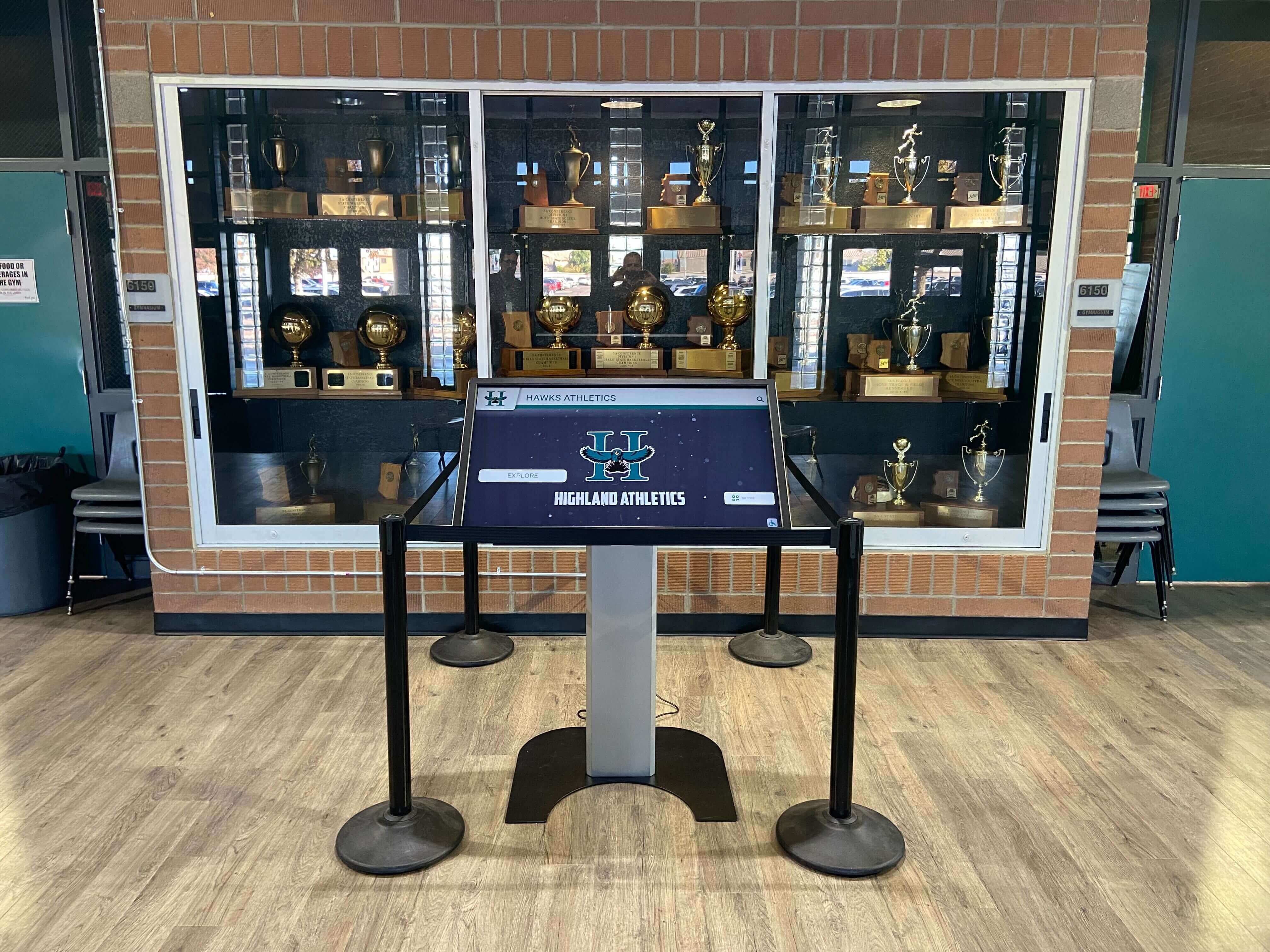
A touchscreen kiosk in your trophy case is only as strong as the rights-cleared asset library behind it
Frequently Asked Questions
Do we need rights metadata for every asset, or only the ones we plan to publish?
Start with assets you intend to publish—that is where legal exposure exists. Over time, extend metadata coverage to your full archive because publication plans change and an undocumented asset discovered mid-project causes delays. A rolling intake process (adding fields at acquisition) is more efficient than a periodic retroactive audit.
Our school photographer has worked here for twenty years. Do we still need documentation?
Yes. Work-for-hire protection is strong, but it depends on the photographer’s classification as an employee and photography being part of their job responsibilities. If those facts are clear in employment records, a brief written confirmation note in your rights tracking system is sufficient—you do not need a formal rights agreement. But you do need the record.
A parent donated a box of 35mm slides from 1980s games. Who owns those?
Unless the parent signed a donation agreement transferring copyright, they likely retain copyright even after donating the physical slides. A donation agreement or copyright assignment form—even signed after the fact—gives your school documented rights. Without one, treat the slides as restricted for public display purposes.
What happens if we publish something and the rights owner contacts us?
Respond promptly, acknowledge the concern, and temporarily remove the asset from display while you investigate. In most cases, good-faith removal and a sincere inquiry into licensing options resolves the issue without litigation. Your documented rights metadata record showing the search steps you took before publishing is valuable evidence of good-faith effort.
Can our hall of fame platform handle rights metadata fields?
Platform capability varies. Some purpose-built digital hall of fame systems include custom metadata fields or DAM integrations; others are display-only tools that require you to manage asset data separately. Ask vendors specifically about metadata field support and DAM connectivity before selecting a platform.
Conclusion: Rights Metadata Is Operational Infrastructure, Not a Legal Formality
The schools that successfully publish rich athletic archives—decades of team histories, hall of fame inductee profiles, championship records—are not the ones with the cleanest legal situations. They are the ones with the most systematic rights documentation, because documentation lets them make confident publishing decisions quickly and address the occasional challenge without operational disruption.
Building an athletic archive rights metadata guide for your own institution starts with the fields in this article, one asset type at a time. Start with your highest-visibility assets—hall of fame inductee photos, championship team portraits, display-ready records—and build backward from there. A manageable first batch of 50–100 fully documented assets teaches your team the workflow and produces immediate publishing confidence on the content that matters most.
Ready to Publish Your School's Athletic History with Confidence?
Purpose-built digital recognition platforms designed for school athletics help you move from archive to display with the rights infrastructure and content management tools your team actually needs. See how a structured recognition system handles the workflow from asset intake to public display.
Request a DemoReady to see this for your school?
Picture your collection in a custom mockup
Start with your yearbook collection and digitization goals, then request a custom digital mockup for your school.