School history, shared
Athletic Archive File Format Validation Checklist for Photos, Video, and Records

A file with the wrong extension, a video container that refuses to open, or a photo saved at screen resolution instead of print resolution can quietly corrupt years of athletic archive work long before anyone notices. School athletic archives collect content from dozens of sources—booster photographers, student journalists, streaming platforms, vendor exports, and donated scrapbooks—each with its own format assumptions. Without a systematic validation step, mislabeled files, unsupported codecs, and format mismatches enter the archive undetected and surface at the worst possible moment: a hall-of-fame induction, a donor recognition event, or a digital yearbook publication deadline.
An athletic archive file format validation checklist gives your team a repeatable inspection process. Work through it before loading new content into your archive, before handing files to a display vendor, and before publishing assets to a digital yearbook platform or recognition kiosk. The checklist covers photos, video, documents, and structured data records—the four asset types most school athletic archives manage.

Recognition displays and digital yearbooks depend on archive files that are correctly formatted, fully intact, and supported by the platform rendering them — format validation catches problems before they become display failures
What File Format Validation Catches That Visual Inspection Misses
Visual spot-checking—opening a sample of files and confirming they display correctly—is not file format validation. A JPEG that previews perfectly on a desktop may be stored at 72 DPI, far below the 300 DPI minimum required for print-quality hall-of-fame programs or large-format recognition signage. A video file may open in a consumer player while containing a codec that a professional display system or yearbook platform cannot render. A spreadsheet of season statistics may open in Excel while containing formula errors that corrupt the values when the file is imported into a recognition database.
File format validation inspects what the file actually is, how it is encoded, and whether its technical parameters meet the requirements of the systems that will use it—before those systems reject or corrupt the file.
Four categories of problems format validation catches:
- Extension-content mismatch. A file named
team-photo.jpgthat is actually a PNG, TIFF, or even a Word document renamed with a.jpgextension. The rename bypasses consumer-level previews but causes failures at the ingest layer of professional platforms. - Unsupported codec or container. A video file in a
.mp4container using a codec—H.265/HEVC, AV1, ProRes—that the target display platform does not support. The file plays locally but fails on the kiosk. - Parameter violations. Images below minimum resolution, audio files below the sample rate required for broadcast-quality archiving, or documents saved in a format version not supported by the target system (PDF/A-1 versus PDF/A-2, for example).
- Corruption masked by format. Files that open but contain internal errors—truncated image data, incomplete video streams, mismatched checksum blocks—that cause rendering failures partway through playback or export.
The Athletic Archive File Format Validation Checklist
The checklist is organized by asset type. Run validation in this order: photos first, then video, then documents and records. Complete each phase before moving to the next to avoid importing invalid files into your active archive.
| Phase | Asset Type | Typical Volume | Validation Tools |
|---|---|---|---|
| Phase 1 | Photos and scanned images | Hundreds to tens of thousands | ExifTool, JHOVE, ImageMagick |
| Phase 2 | Video clips and full recordings | Dozens to hundreds | MediaInfo, FFmpeg, JHOVE |
| Phase 3 | Documents (PDFs, certificates, programs) | Dozens to hundreds | JHOVE, Adobe Preflight, veraPDF |
| Phase 4 | Structured records (CSV, XML, database exports) | Varies | OpenRefine, Excel data validation, custom scripts |
Phase 1: Photo and Scanned Image Validation
Athletic photo archives include team portraits, action shots, scanned game programs, award certificates, and digitized yearbook pages. Each asset type has distinct format requirements for archival storage versus display use.
Step 1.1 — Confirm the file format matches the stated extension.
Use a tool like ExifTool (free, cross-platform command-line) or DROID (free, National Archives UK) to read the actual file signature—the internal byte sequence that identifies a file’s true format—and compare it to the file’s extension. A genuine JPEG begins with the bytes FF D8 FF; any file named .jpg that does not start with those bytes is mislabeled.
Phase 1 — Photo Validation Checklist
- Verify file extension matches the actual format using ExifTool or DROID
- Confirm all archival master files are TIFF (lossless) or high-quality JPEG (quality 90+ or equivalent)
- Confirm all scanned images meet minimum resolution: 300 DPI for printed materials; 600 DPI for text documents and certificates
- Confirm color mode: RGB for display use; CMYK for print-ready assets (if applicable)
- Check that photos intended for large-format display signage meet the minimum pixel dimensions required by the vendor
- Flag files saved as PNG with transparency if the target platform requires a white or solid background
- Identify WebP, HEIC/HEIF, or AVIF files that may not be supported by older display hardware or legacy archive software
- Open a 10% random sample to visually confirm correct rendering with no truncation, color shift, or artifact blocking
- Verify that scanned documents are not inverted, rotated, or cropped incorrectly
Supported and unsupported photo formats by use case:
| Format | Archival Master | Display / Web | Print / Signage | Notes |
|---|---|---|---|---|
| TIFF (uncompressed) | Preferred | Not practical | Yes (via conversion) | Largest files; best long-term preservation choice |
| JPEG (quality 90+) | Acceptable | Preferred | Yes (if high-res) | Most common; lossy but practical for large collections |
| PNG | Acceptable | Yes | Yes | Lossless; useful for graphics with transparency |
| HEIC / HEIF | Not recommended | Limited support | Not recommended | Modern iPhone default; convert before archiving |
| WebP | Not recommended | Yes | Not recommended | Convert to JPEG or PNG for archive masters |
| RAW (CR2, NEF, ARW, etc.) | Excellent | No | Via conversion only | Requires conversion for any non-specialist use |
| GIF | Not recommended | Limited (animation only) | No | Low color depth; avoid for athletic photography |
| BMP | Not recommended | No | No | Uncompressed but no metadata support |
Schools with archives spanning multiple decades often hold a mix of original digital files and scanned prints. The guidance on digitizing yearbooks and hall-of-fame materials without damaging originals covers scanning resolution and format decisions that apply equally to athletic photo archives—use TIFF at 600 DPI for text-heavy materials and JPEG at 300 DPI or better for photographic prints.
Phase 2: Video File Validation
Video is the fastest-growing asset type in school athletic archives. Modern programs collect game film, highlight reels, interview footage, ceremony recordings, and archived broadcast content. Video validation is more complex than photo validation because it involves both the container format (the file wrapper) and the codec (the encoding algorithm inside it).
Step 2.1 — Identify the container and codec for every video file.
Use MediaInfo (free, cross-platform, GUI and command-line) to read the technical profile of each video file. MediaInfo reports the container format, video codec, audio codec, resolution, frame rate, bit rate, and duration. This is the foundational step that catches codec mismatches before the file reaches a display system.
Step 2.2 — Validate against the target platform’s supported specifications.
Every recognition display system, digital yearbook platform, and video archive tool has a supported codec list. Collect that list before running validation and compare it against your MediaInfo output.
| Container | Common Codec | Archive Use | Display Support | Notes |
|---|---|---|---|---|
| MP4 (H.264) | H.264 / AVC | Acceptable | Universal | Broadest compatibility; acceptable for most school archives |
| MP4 (H.265) | H.265 / HEVC | Good compression | Limited on older hardware | Check display system compatibility before adopting |
| MOV (ProRes) | Apple ProRes | Excellent | Mac-dependent | High quality; large files; best for production masters |
| MXF | Various | Preferred (broadcast) | Specialized | Library of Congress recommended for long-term video |
| AVI | Various | Not recommended | Legacy only | Aging container; fragmentation issues |
| WMV | Windows Media | Not recommended | Windows-only | Avoid for new archive additions |
| WEBM | VP8 / VP9 / AV1 | Not recommended | Web-only | Not suitable for offline display systems |
| FLV | H.263 / VP6 | Not recommended | Largely obsolete | Convert existing FLV holdings immediately |
Phase 2 — Video Validation Checklist
- Run MediaInfo on every video file; export results to a spreadsheet
- Confirm the container format is on the target platform’s supported list
- Confirm the video codec is on the target platform’s supported list
- Confirm the audio codec is on the target platform’s supported list (AAC is the safest choice for broad compatibility)
- Verify minimum resolution: 720p (1280 × 720) for recognition clips; 1080p (1920 × 1080) for display-quality highlight reels
- Check frame rate is consistent: 24, 25, 29.97, or 30 fps are all acceptable; mixed frame rates within a single collection create editing problems
- Flag files with a duration reported as 0:00 — these are truncated or corrupt
- Flag files with a bit rate below 2,000 kbps — these are likely heavily compressed and may not render well on large display screens
- Play the first and last 10 seconds of a 10% sample to confirm no truncation at start or end
- Confirm all game recordings include audio — silent video files from digitized tapes may indicate an audio track failure during transfer
Schools that are actively migrating VHS or DVD archives to digital formats will encounter the widest range of codec issues. The practical guide to digitizing vintage school yearbooks and preservation materials addresses the workflow decisions involved in format conversion that apply equally to digitized video—particularly the choice between creating a high-quality production master and a smaller access copy for display use.
Phase 3: Document and Certificate Validation
School athletic archives hold a significant volume of non-image documents: award certificates, hall-of-fame nomination packets, game programs, newspaper clippings (digitized), statistical summaries, and event programs. PDF is the dominant format, but the specific PDF variant matters for long-term preservation and platform compatibility.
Step 3.1 — Distinguish PDF from PDF/A.
Standard PDF is a display format. PDF/A is an ISO-standardized archival subset of PDF that prohibits features that create long-term accessibility problems: encryption, external dependencies, embedded audio/video, and proprietary extensions. For archival documents intended to be readable in 20 or 50 years, PDF/A-1b or PDF/A-2b is the appropriate standard.
Use veraPDF (free, open-source) or Adobe Acrobat’s Preflight function to validate whether a PDF file claims PDF/A conformance and whether that claim is accurate. Many PDFs are incorrectly labeled as PDF/A by the creating software without meeting the full specification.
Phase 3 — Document Validation Checklist
- Verify all archival documents are saved as PDF/A-1b or PDF/A-2b (not standard PDF) using veraPDF or Adobe Preflight
- Check that no PDFs require a password to open — encrypted PDFs cannot be reliably preserved or migrated
- Confirm that certificates and award documents contain searchable text (OCR applied), not image-only scans
- Flag DOC, DOCX, ODT, and RTF files — convert to PDF/A before archiving
- Flag XPS, Publisher, and InDesign files that are not natively accessible without the creating software
- Confirm scan resolution for digitized paper documents: minimum 300 DPI; 400 DPI for documents with fine print
- Verify that multi-page PDFs (game programs, annual report packages) are complete — compare page count to original where possible
- Open every PDF in a non-Adobe reader (Preview on macOS, Sumatra on Windows) to confirm rendering does not depend on Adobe-specific extensions
Athletic programs that share recognition documentation with booster associations, donor stewardship contacts, or school board communications will also benefit from validating documents against the formats those external parties can reliably open. The overview of booster club dual-signature policies notes how documentation shared between program administrators and booster leadership needs to be both archivally sound and immediately accessible without specialized software—a case where PDF/A serves both goals.
Phase 4: Structured Records Validation
Athletic archives hold structured data: season statistics exports, roster CSVs, hall-of-fame nomination spreadsheets, award logs, and database exports from registration platforms. These files are easy to overlook in a format validation workflow because they open without obvious errors even when their data is corrupted.
Step 4.1 — Validate structure before validating content.
A CSV file with an inconsistent number of columns per row, a spreadsheet with merged cells in the data range, or an XML export with mismatched tags will fail silently when imported into a recognition database or statistical display—often producing garbled output rather than an error message.
| Format | Validation Tool | Common Problems | Archive Recommendation |
|---|---|---|---|
| CSV | OpenRefine, Python pandas, Excel Power Query | Inconsistent column counts, encoding issues (UTF-8 vs. Latin-1), quoted fields with unescaped commas | UTF-8 CSV without BOM; plain text |
| XLSX | Excel Data Validation, OpenRefine | Merged cells in data range, formula dependencies, proprietary formatting | Convert to CSV for archival; keep XLSX as working copy |
| XML | xmllint, Oxygen XML Editor | Mismatched tags, missing namespace declarations, invalid characters | Validate against a schema (XSD) if one exists |
| JSON | JSONLint, jq | Missing brackets, trailing commas (invalid per spec), encoding issues | Validate against a schema where applicable |
| Access MDB / ACCDB | Access built-in repair; export to SQL or CSV | Corruption, relational integrity errors, version-lock | Export to open format immediately; do not archive in MDB |
Phase 4 — Structured Records Validation Checklist
- Open each CSV in a text editor (not a spreadsheet application) to confirm consistent column count per row
- Verify character encoding: UTF-8 is the standard for new files; Latin-1/Windows-1252 may appear in older exports and cause character corruption when imported
- Confirm that numeric fields (statistics, years, jersey numbers) contain only numeric values — text values in numeric fields cause import failures
- Check date fields for consistent formatting: ISO 8601 (YYYY-MM-DD) is the most portable; mixed date formats in a single column cause sorting and import errors
- Validate XML and JSON files using a linter before archiving
- Flag Access database files and export their tables to CSV or SQL immediately
- Compare row counts against known totals (e.g., a roster CSV for a 28-player team should have exactly 28 data rows plus a header)
- Confirm that column headers are present in the first row and contain no special characters that will be misinterpreted by import tools
File Format Validation Table: Quick Reference by Asset Type
| Asset Type | Preferred Archive Format | Minimum Resolution / Quality | Common Problem Formats to Convert | Validation Tool |
|---|---|---|---|---|
| Team and athlete photos | TIFF or JPEG (quality 90+) | 300 DPI minimum; 600 DPI for scanned text | HEIC, WebP, BMP, GIF | ExifTool, DROID |
| Scanned game programs | TIFF at 400 DPI or PDF/A | 400 DPI | JPG (low-res scans), PNG (low-res) | JHOVE, ExifTool |
| Award certificates | PDF/A-1b or PDF/A-2b | OCR-applied; 300 DPI minimum | DOC, DOCX, Publisher, XPS | veraPDF, Adobe Preflight |
| Video highlights (display) | MP4 (H.264), 1080p minimum | 2,000 kbps minimum bit rate | WMV, FLV, AVI, WEBM | MediaInfo, FFmpeg |
| Video masters (archival) | MXF or MOV (ProRes) | Full frame rate and bit rate preserved | Compressed MP4 (low bit rate) | MediaInfo |
| Season statistics | UTF-8 CSV | Consistent schema; ISO 8601 dates | XLSX (formulas), MDB, XLS | OpenRefine |
| Roster records | UTF-8 CSV or PDF/A | Header row present; consistent columns | DOCX, printed scans (unOCR’d) | xmllint, OpenRefine |
| Hall-of-fame nomination packets | PDF/A-2b | Searchable text; no encryption | Standard PDF, DOC | veraPDF |
| Scanned newspaper clippings | TIFF at 400 DPI | OCR applied for searchability | Low-res JPEG, GIF | JHOVE |
| Audio (ceremony recordings) | WAV (uncompressed) or FLAC | 44.1 kHz / 16-bit minimum | MP3, WMA, AAC | MediaInfo |
Integrating Validation into Your Annual Archive Workflow
A one-time format audit is a good start but not a sustainable practice. File format validation is most effective when it is built into the recurring events that already drive athletic archive activity.
At every ingest event. Every time new files enter the archive—end-of-season photo submissions, donated scrapbook scans, video exports from a streaming platform—run the relevant checklist phases before the files are moved to the main collection. Pre-ingest validation prevents invalid files from contaminating an otherwise clean archive.
Before any platform migration. Moving from a local server to cloud storage, from one display vendor to another, or from a legacy database to a new recognition system is a high-risk moment for format compatibility failures. Validate all files against the new platform’s supported specifications before migrating. Schools undertaking display platform transitions will find the complete guide to displaying school history on recognition walls useful for understanding what format requirements modern display systems typically impose.
Before recognition events. Run a targeted validation pass on all files scheduled for use in an upcoming induction ceremony, donor recognition event, or digital yearbook publication. This is a focused check—not a full archive audit—and can be completed in a few hours by administrative staff using the tools listed in the checklist phases above.
During annual archive review. Schedule a full format validation pass once per year, ideally during the summer when athletic department and IT staff have more availability. Use the results to identify format families that need conversion (aging FLV video holdings, HEIC photo backlogs), update your archive format policy, and document any files that could not be validated.
Schools that have built out recognition infrastructure—including touchscreen hall-of-fame displays that draw directly from the athletic archive—find that an annual format validation cycle also serves as the content quality check that keeps display content current, accurate, and visually consistent across an entire recognition program.
Common Validation Failures and How to Resolve Them
| Failure Type | Symptom | Resolution |
|---|---|---|
| Extension-content mismatch | File opens correctly in consumer software but fails at archive ingest | Use ExifTool to identify the true format; rename or convert as needed |
| HEIC photos from iPhones | Photos fail to display on Windows systems or older display hardware | Batch-convert to JPEG using ImageMagick or a free HEIC converter |
| Low-resolution scans entered as masters | Archive photo prints poorly on signage or recognition displays | Re-scan at appropriate resolution; flag original scan for replacement |
| Codec not supported by display system | Video file plays locally but fails on recognition kiosk or yearbook platform | Re-encode to H.264/MP4 using FFmpeg or HandBrake |
| PDF requires password | Document cannot be migrated, searched, or rendered by archive tools | Contact original creator for an unlocked version; re-export if accessible |
| CSV encoding mismatch | Athlete names with accents or special characters display as garbled text | Convert file encoding to UTF-8 without BOM using Notepad++ or iconv |
| Merged cells in spreadsheet | Import tool reports unexpected column count or skips rows | Unmerge cells in Excel before exporting to CSV |
| Truncated video file | MediaInfo reports duration significantly shorter than expected | Attempt recovery with FFmpeg; re-acquire from source if possible |
| PDF/A non-conformance | File is labeled PDF/A but fails veraPDF validation | Re-export from the creating application with correct PDF/A settings |
Athletic programs that manage shared archive access across athletic department staff, booster leadership, and communications teams will encounter format inconsistencies introduced at every access point. Establishing clear submission guidelines—preferred formats, minimum resolution, naming conventions—before a season begins reduces validation failures at ingest. The booster club event cancellation policy framework offers a useful model for how programs can document submission expectations in a way that volunteers and external contributors can follow reliably.
Connecting a Validated Archive to Recognition Programs
Format validation is preparation work. Its value is realized when a validated archive powers the recognition programs that give athletic history ongoing public purpose.
Hall-of-fame displays require files that meet the specific resolution, codec, and color profile requirements of the display vendor. A validated archive—where every file’s format is confirmed against a known specification—simplifies the file package handoff and reduces the revision cycles that consume staff time before an installation. Schools building new recognition environments will find physical inspiration for those spaces in resources covering gym murals and large-format athletic displays and wall decal systems that complement digital recognition elements—all of which depend on high-quality digital originals from a validated archive.
Digital yearbooks ingest photos and video that need to render correctly across devices, screen sizes, and output contexts. A validated archive prevents the corrupted image or unsupported video codec from reaching the yearbook production platform, where it would require manual intervention at the busiest point in the publication calendar.
Honor walls and academic recognition programs share some file format requirements with athletic archives. Schools that maintain both athletic and academic recognition archives—including national merit scholar displays and programs honoring academic semifinalists—benefit from applying the same format validation standards across all recognition content rather than maintaining separate validation policies.
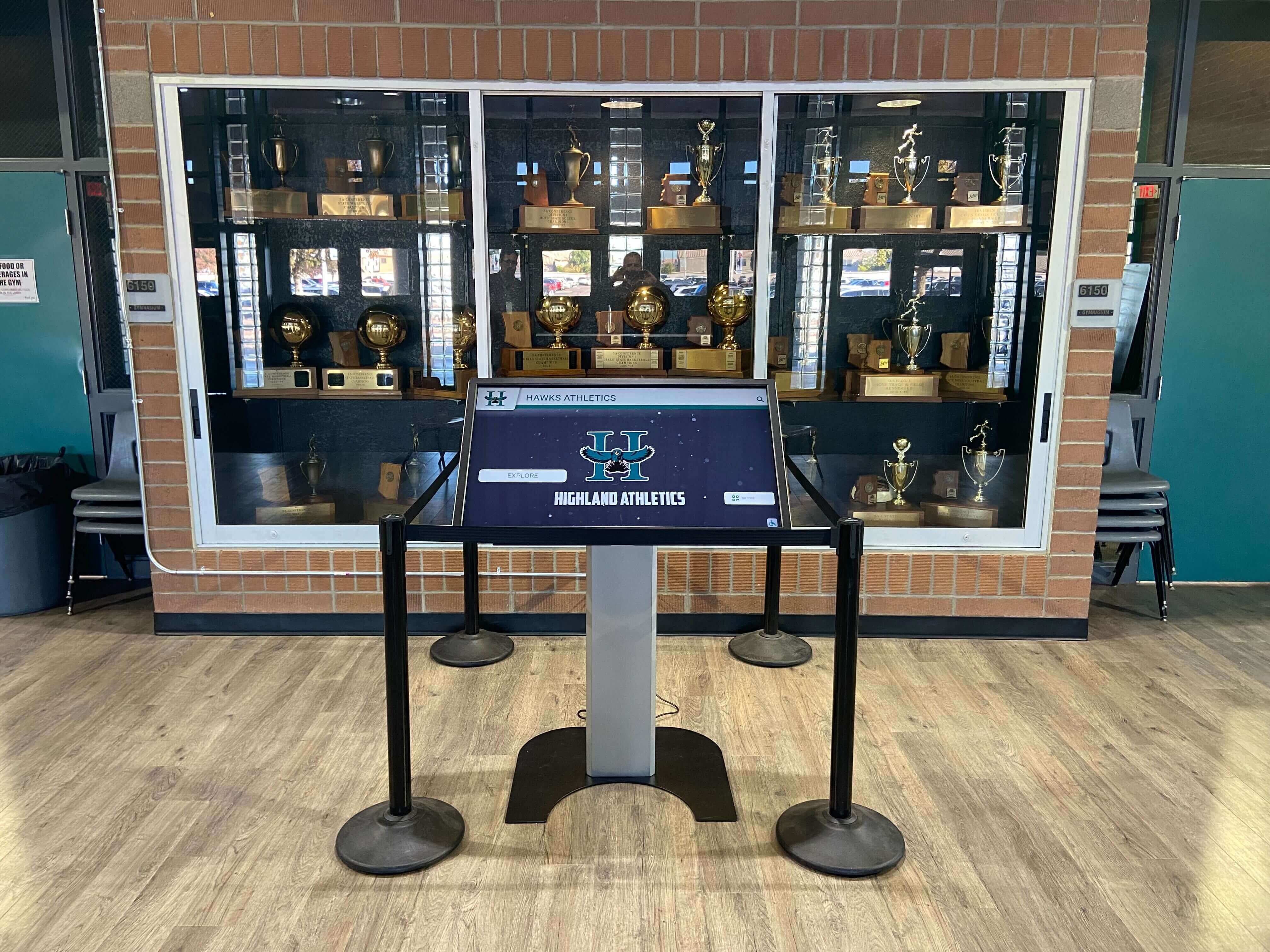
Touchscreen recognition displays depend on archive files that meet the platform's format requirements — a validated archive eliminates the compatibility problems that cause display failures during induction events
Frequently Asked Questions
Q: How do we know which file formats a display vendor or digital yearbook platform supports?
Request a technical specification document from the vendor before signing a contract. Reputable platforms will provide a supported format list covering video codecs, image formats, and document types. If a vendor cannot provide this document, ask specifically whether H.264/MP4 video and JPEG/PNG images at 300 DPI are supported — these are the baseline formats most school archives already use.
Q: Does format validation catch file corruption, or is that a separate process?
Format validation and checksum verification are complementary but distinct. Format validation confirms that a file’s format is correct and its parameters meet specifications. Checksum verification confirms that a file’s binary content has not changed since a baseline was established. A corrupted file may still pass format validation if the corruption does not affect the format header — this is why both processes are needed in a complete preservation workflow.
Q: Our archive includes photos from over 20 years ago saved in formats we no longer use (BMP, GIF, older TIFF variants). Do we need to convert everything?
Prioritize conversion for files with active display or publication use — those appearing in hall-of-fame kiosks, digital yearbooks, or donor communications. Historical files with no current use can be flagged for future conversion during an annual review cycle. The principle is to convert at the point when a file transitions from passive archive storage to active use, rather than converting everything at once, which is a significant staff-time investment.
Q: Can our IT department run this validation automatically, or does it require manual review?
Many validation steps can be automated: ExifTool scripts can batch-report on file formats and parameters; MediaInfo command-line runs can flag codec mismatches; veraPDF can process an entire document folder. Automated runs generate reports; human review resolves the flagged exceptions. A realistic workflow uses automation for discovery and manual review for decision-making — which files to convert, which to re-acquire, and which are acceptable as-is.
Q: What should we do with files that fail validation and cannot be recovered?
Document the failure in your archive records: filename, original location, the nature of the format failure, and the date it was identified. If the file represents historically significant content — a state championship photo, a hall-of-fame inductee’s profile image — make a note in the archive log and begin outreach to the community. Alumni, retired coaches, and local media often hold copies of materials that schools do not have. A published digitization or preservation project frequently surfaces community-held copies through the same alumni engagement channels that recognition programs already use.
Q: Do we need to validate files that were already validated in a prior year?
Files that have not moved, been edited, or been migrated since a prior validation pass do not need to be re-validated for format correctness — their format will not have changed. However, if your archive has undergone a storage migration, a platform change, or a batch file operation since the last validation, re-validate any files affected by those processes. Format validation is an event-driven process as much as a calendar-driven one.
Q: Are there free tools that handle all four validation phases, or do we need separate tools for each asset type?
No single free tool covers all four phases comprehensively. JHOVE (Harvesting Object Validator and Extractor, from the Harvard Library) handles photos, video, audio, and documents in one tool, but it requires some technical comfort to interpret its output. For most school archive teams, a combination of ExifTool (photos), MediaInfo (video), and veraPDF (documents) covers the most common validation needs with readable output. OpenRefine handles structured data validation. All four are free and cross-platform.
Turn a Validated Archive Into a Recognition Program Athletes and Alumni Remember
File format validation protects the archive. Connecting that archive to an interactive recognition system — visible on lobby displays, searchable at induction events, accessible to alumni — is where the preservation work pays off in community value.
Rocket Alumni Solutions helps schools transform validated athletic archives into hall-of-fame displays, digital yearbooks, and alumni engagement platforms that honor every athlete, every season, and every milestone your program has built.
Schedule a demo with Rocket Alumni Solutions to see what an archive-powered recognition program looks like for your school.
Ready to see this for your school?
Picture your collection in a custom mockup
Start with your yearbook collection and digitization goals, then request a custom digital mockup for your school.