Timecode looks like a clock on the screen, but it does not behave like a clock unless you choose the right type — and for the game video that fills school athletic archives, choosing wrong means every clip, every caption, and every catalog timestamp is slightly off in ways that compound over a three-hour recording. An athletic archive drop-frame timecode workflow is a documented, repeatable process for identifying the timecode type embedded in each video file, standardizing it across the collection, and ensuring that captions, highlight clips, interview segments, and catalog records all reference accurate positions in the footage.
The short answer: use drop-frame timecode (indicated by a semicolon separator — 01:02:03;04) for any video recorded or derived from NTSC 29.97 fps sources, which includes VHS transfers, broadcast recordings, MiniDV camcorder footage, and most consumer digital video produced in North America from the 1970s through the 2010s. Use non-drop-frame timecode (colon separator — 01:02:03:04) for 24 fps film transfers, PAL content at 25 fps, or true 30 fps progressive recordings. The expanded workflow below covers how to audit an existing video library, identify timecode type in files, standardize naming and metadata, synchronize captions, extract accurate highlight clips, and connect the cataloged archive to a school’s recognition programs.
Who This Workflow Serves
School athletic video collections grow faster than the systems used to manage them. Camcorder tapes from the 1990s sit alongside broadcast recordings pulled from a cable DVR and recent high-definition game clips from a booster volunteer’s camera. Each source type carries different timecode assumptions, and those mismatches become visible problems when any of these situations arise:
- Athletic directors building highlight reels for hall-of-fame ceremonies who need clip in/out points that match the source file
- IT and media teams processing donated VHS tape transfers where timecode type was never specified during digitization
- Coaching staff reviewing game film with timestamped notes that must align with the video for meaningful replay
- Communications teams adding closed captions to uploaded game video for ADA compliance — captions that drift are a legal liability, not just an inconvenience
- Archivists and records staff creating catalog entries with timecode-based access points for long-form game recordings that span multiple hours
- Recognition-program owners producing sports banquet video montages that pull specific plays from a full season’s footage
If any of these workflows appear in your athletic department, this guide provides the timecode standards and decision tools to run them without accumulating errors that grow harder to correct over time.
Drop-Frame vs. Non-Drop-Frame: The Decision Table
NTSC video runs at exactly 29.97002997 frames per second — not 30. If you label every 30 frames as one second of timecode, the label drifts from actual wall-clock time by approximately 3.6 seconds per hour. Over a three-hour football game, that is nearly 11 seconds of label offset: a caption written for the second-quarter buzzer will appear almost 11 seconds early by the time the game ends.
Drop-frame timecode (DF) compensates by skipping frame count numbers 00 and 01 at the start of every minute, except at every tenth minute (:00, :10, :20, :30, :40, :50). The frames themselves are never removed — only the numbering is adjusted. This produces timecode that stays within fractions of a frame of real wall-clock time across any recording length. According to SMPTE ST 12-1, the technical standard that defines timecode, drop-frame is the required format for any SMPTE-compliant NTSC production intended to match real-world time.
| Video Source | Frame Rate | Timecode Type | Separator | Notes |
|---|---|---|---|---|
| VHS, Betamax, U-matic (NTSC) | 29.97 fps | Drop-frame | ; | Virtually all North American consumer and broadcast tape |
| MiniDV, Digital8 (NTSC mode) | 29.97 fps | Drop-frame | ; | Most camcorder footage 1995–2010 |
| Broadcast recording (NTSC cable/OTA) | 29.97 fps | Drop-frame | ; | Check original embedded timecode if the broadcast file is preserved |
| DVD-ripped game video | 29.97 fps | Drop-frame | ; | DVD NTSC uses 29.97 fps |
| Modern HD/4K game video (NTSC region) | 29.97 fps | Drop-frame | ; | Confirm in MediaInfo before assuming |
| 16mm or 8mm film transfer | 24 fps | Non-drop-frame | : | Film runs true 24 fps; no drift compensation needed |
| PAL game video (European tournaments) | 25 fps | Non-drop-frame | : | 25 fps is an integer rate; drop-frame is irrelevant |
| 30 fps progressive (some modern cameras) | 30.00 fps | Non-drop-frame | : | True 30 fps; no drift |
| 23.976 fps (“24p” NTSC) | 23.976 fps | Non-drop-frame | : | Use 23.976 NDF, not drop-frame |
When to choose NDF over DF: If your school’s video collection consists entirely of 24 fps film transfers or PAL recordings, non-drop-frame is correct and drop-frame is irrelevant. If your collection is mixed — which is common for programs that have recorded games across several decades — establish drop-frame as the default standard and treat NDF content as a clearly labeled exception in the catalog.
Step 1: Audit Your Athletic Video Library
Before standardizing timecode, map the collection. A one-page spreadsheet with one row per physical tape or digital file is sufficient for collections under several hundred items.
Columns to capture:
- Source type: VHS, MiniDV, broadcast recording, digital file, DVD rip, film transfer
- Format and frame rate: Use MediaInfo (free, cross-platform) to confirm
- Approximate date of recording
- Timecode type if embedded: DF or NDF; “unknown” is a valid entry when the source tape provides no indication
- Duration of recording
- Current storage location: Tape, external drive, NAS folder, cloud storage
- Catalog priority: High (championship games, milestone moments), Standard (regular season), Low (practice footage not intended for permanent archive)
This audit surfaces the most common timecode problem before it becomes a production issue: a mixed collection where VHS-era recordings have been labeled with NDF timecode by the digitization hardware because the operator did not set the correct output standard.

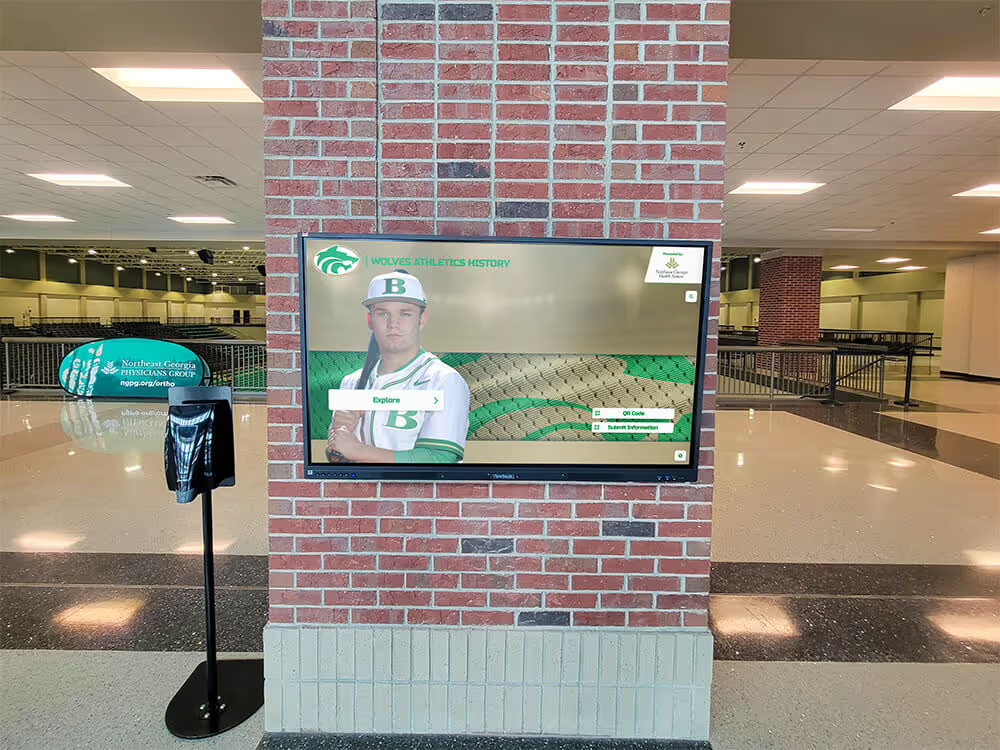
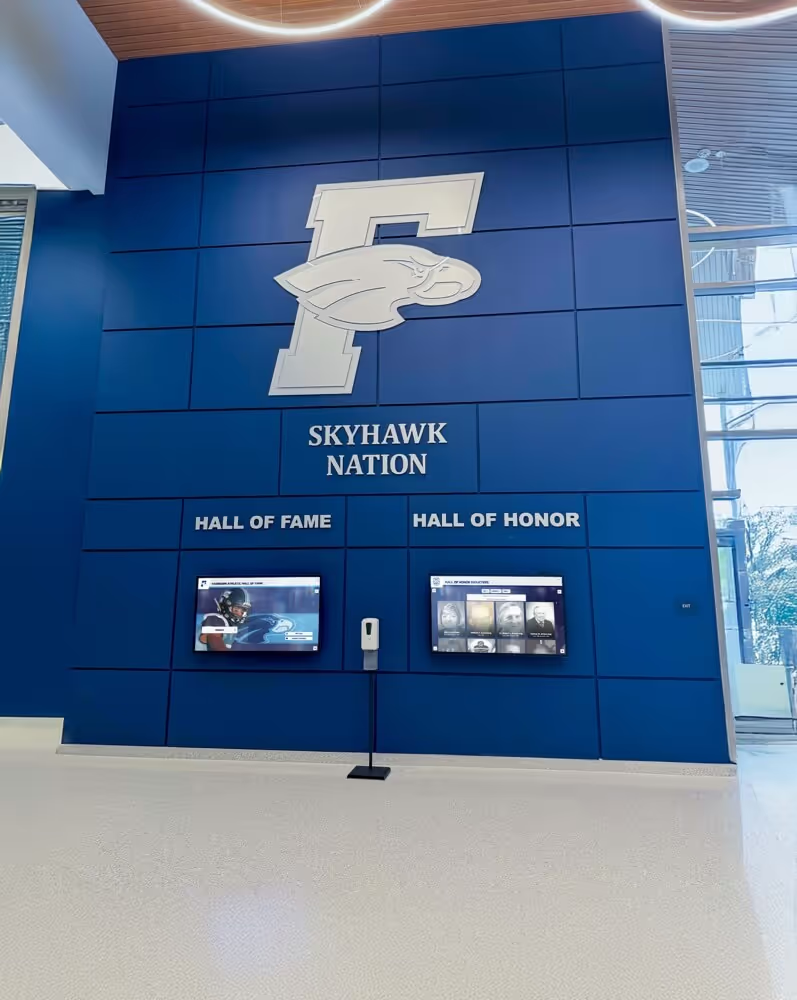
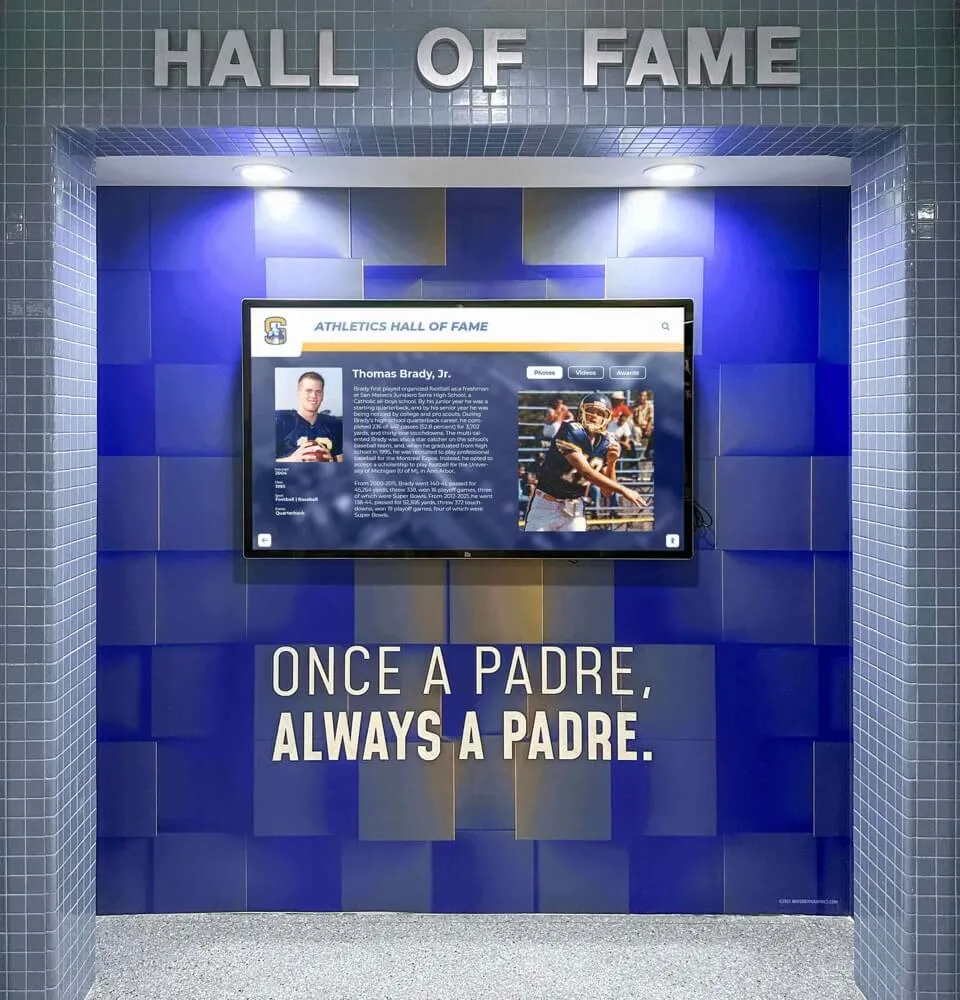
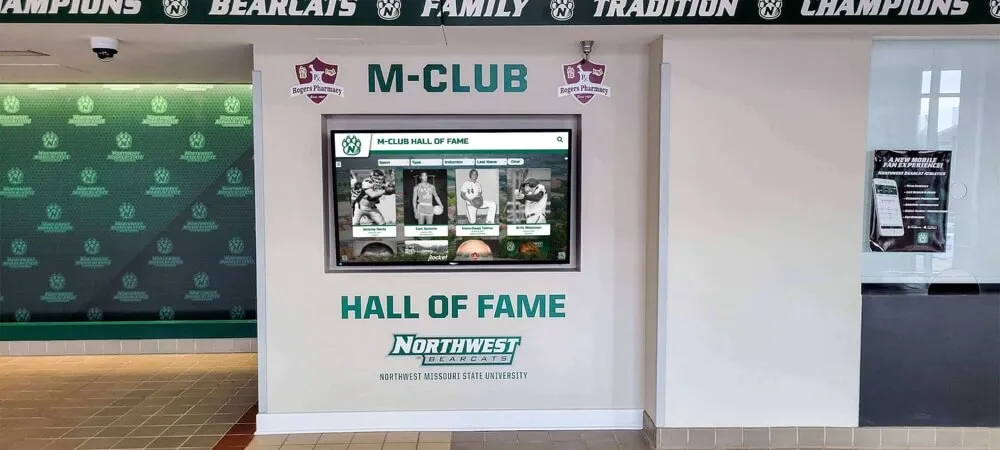
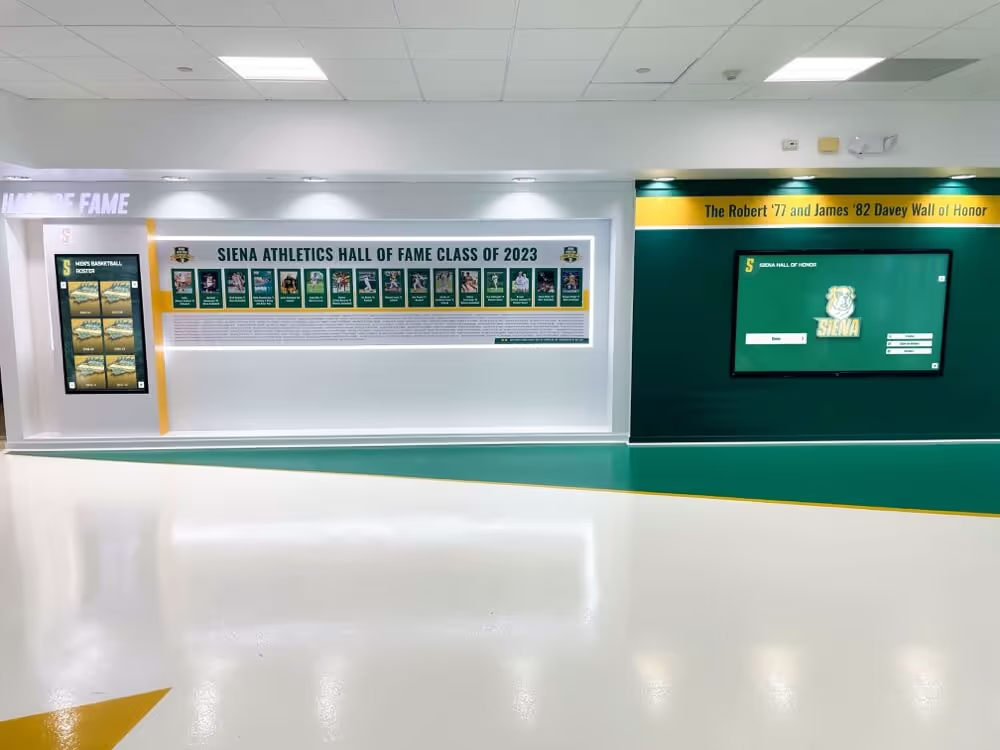
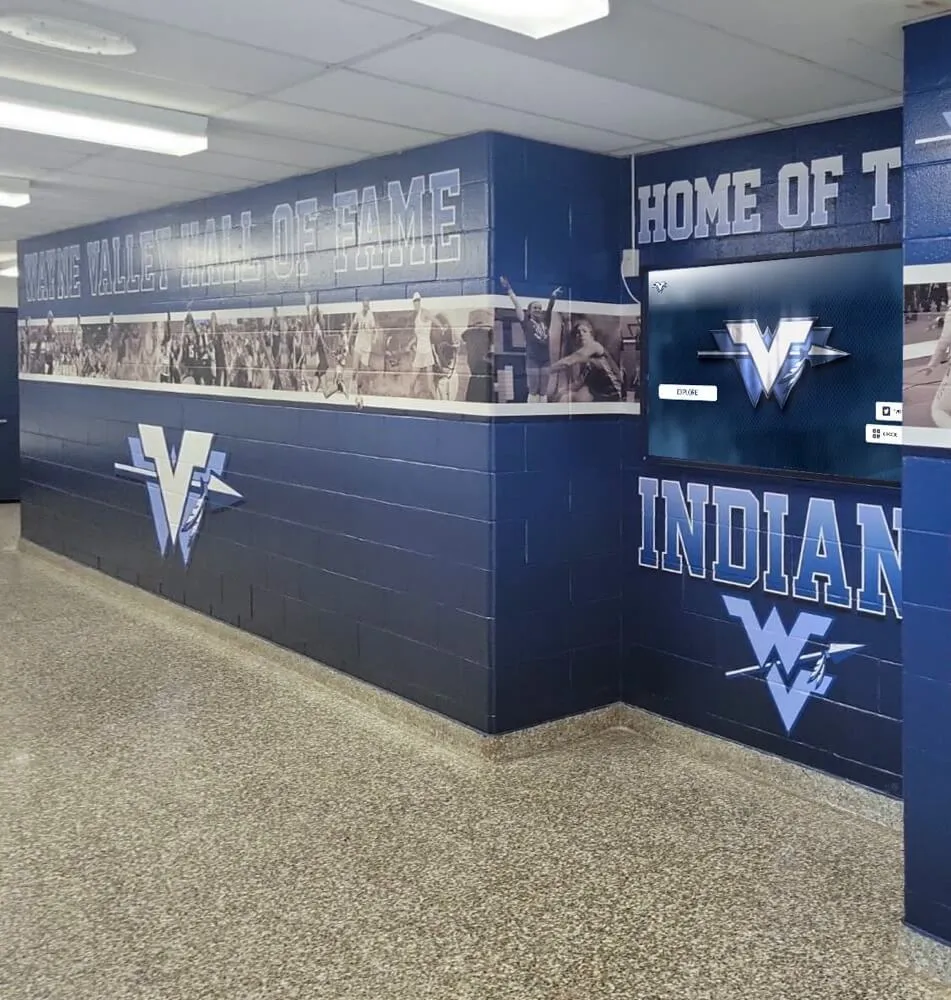
Lobby highlight displays and hall-of-fame systems draw clips directly from the game video archive — timecode accuracy in the source file determines whether those clips land on the correct play
Step 2: Identify Timecode Type in Each File
The fastest tool for checking timecode in a digital video file is MediaInfo, a free open-source application available for Windows, macOS, and Linux. Open any video file in MediaInfo and look for these fields in the Video track:
- Frame rate: A value of 29.970 or 29.97 confirms NTSC speed and that drop-frame is the correct standard
- Time code: If embedded timecode is present, MediaInfo displays it; the separator character —
;for drop-frame,:for non-drop-frame — identifies the type immediately
For files where MediaInfo shows no embedded timecode — common with MP4 files converted from DVD or ripped from VHS captures using consumer software — the timecode type was either stripped during conversion or never embedded. In these cases:
- Check the frame rate. If it shows 29.97, apply drop-frame as the catalog standard going forward
- Verify the recording duration against an independent source (game clock, original tape label, broadcast schedule) to confirm whether drift has accumulated from a prior conversion using the wrong timecode standard
For tape-based materials that have not yet been digitized, confirm the timecode type during the digitization step. Most professional digitization decks display the embedded timecode type on the control panel. Set the output encoder to match the source timecode type before the capture begins, and document the setting in the capture log.
Step 3: Establish Archive Naming and Timecode Standards
Inconsistent timecode standards in an archive are nearly impossible to detect visually — the timestamps look plausible until a caption lands on the wrong moment or a highlight clip cuts to the wrong play. Prevent the problem at intake with a documented standard applied before files enter the collection.
Recommended standard for NTSC-dominant school archives:
- Default timecode type: Drop-frame for all 29.97 fps content
- File-naming convention:
SCHOOLCODE_Sport_Year_Opponent_GameType.mp4Example:WHS_Football_2019_RiversideHS_StateChampionship.mp4 - Companion sidecar file: one
.txtmetadata file per video recording the timecode type, frame rate, source format, duration, and any timecode discontinuities noted during digitization
When to create a timecode discontinuity note: A timecode discontinuity occurs when a tape was paused and restarted during recording, causing the timecode counter to reset or jump. Mark the timestamp of every discontinuity in the companion file so that catalog records and captions do not reference positions across a discontinuity boundary.

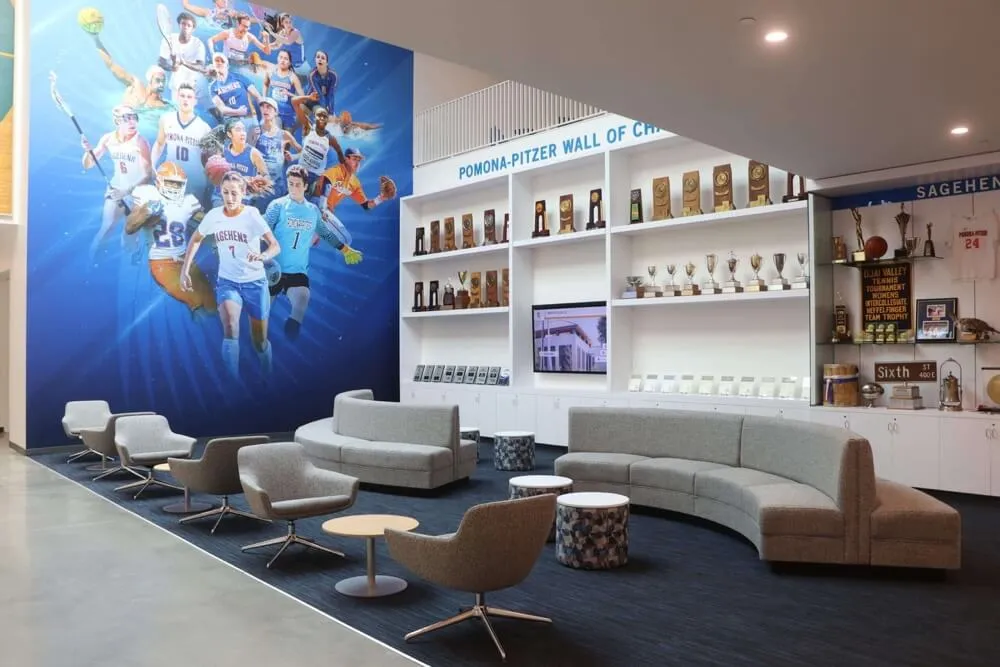
Documenting the timecode type at the point of capture — whether at a game, an induction ceremony, or an alumni event — eliminates the guesswork that causes downstream synchronization errors
Timecode Standards Quick Reference
NTSC sources (VHS, MiniDV, broadcast, most HD):
- Frame rate: 29.97 fps
- Timecode type: Drop-frame
- Separator:
;(semicolon) - Display format:
HH:MM:SS;FF
Film transfers (16mm, 8mm):
- Frame rate: 24.00 fps
- Timecode type: Non-drop-frame
- Separator:
:(colon) - Display format:
HH:MM:SS:FF
PAL sources (European tournaments, international exchange):
- Frame rate: 25.00 fps
- Timecode type: Non-drop-frame
- Separator:
: - Display format:
HH:MM:SS:FF
Step 4: Synchronize Captions to Drop-Frame Timecode
Closed captions and open captions for athletic video are stored in text-based formats — most commonly SRT (SubRip Text), WebVTT, or SCC (Scenarist Closed Captions). Every caption entry includes a timestamp marking when each line should appear. When that timestamp is based on the wrong timecode standard, captions drift visually: a coach’s half-time statement appears after the coach has already finished speaking, or a touchdown call caption lands a shot late.
Accumulated drift between NDF and DF in NTSC recordings:
| Recording Duration | Accumulated Timecode Drift (NDF at 30 fps vs. DF at 29.97 fps) |
|---|---|
| 30 minutes | 1.8 seconds |
| 1 hour | 3.6 seconds |
| 2 hours | 7.2 seconds |
| 3 hours (full game) | 10.8 seconds |
| 4 hours | 14.4 seconds |
The formula is straightforward: Drift (seconds) = Recording duration (hours) × 3.6
How to align captions to drop-frame timecode:
- Confirm the timecode type of the source video (Step 2)
- In the caption file, verify that all timestamps were authored against the same standard as the source video — if the caption editor used a 30 fps NDF preview and the source is DF, the accumulated offset must be corrected
- For a three-hour recording where the caption file was authored against 30 fps NDF timecode, apply a global offset correction of approximately 10.8 seconds before making frame-level adjustments
- Use a captioning tool such as Subtitle Edit (free, open-source) or a command-line approach with
ffmpegto apply the offset - Spot-check synchronization at three points in the recording: early (before the first quarter-hour), mid-recording, and near the end — drift is cumulative, so the end of a long recording is where errors are largest
For ADA-compliant video publishing, captions that drift significantly from the dialogue they reference may not satisfy WCAG 2.1 Success Criterion 1.2.2 on Captions (Prerecorded). Timecode-accurate caption synchronization is both a practical archive requirement and a compliance consideration for schools publishing game video on district websites.
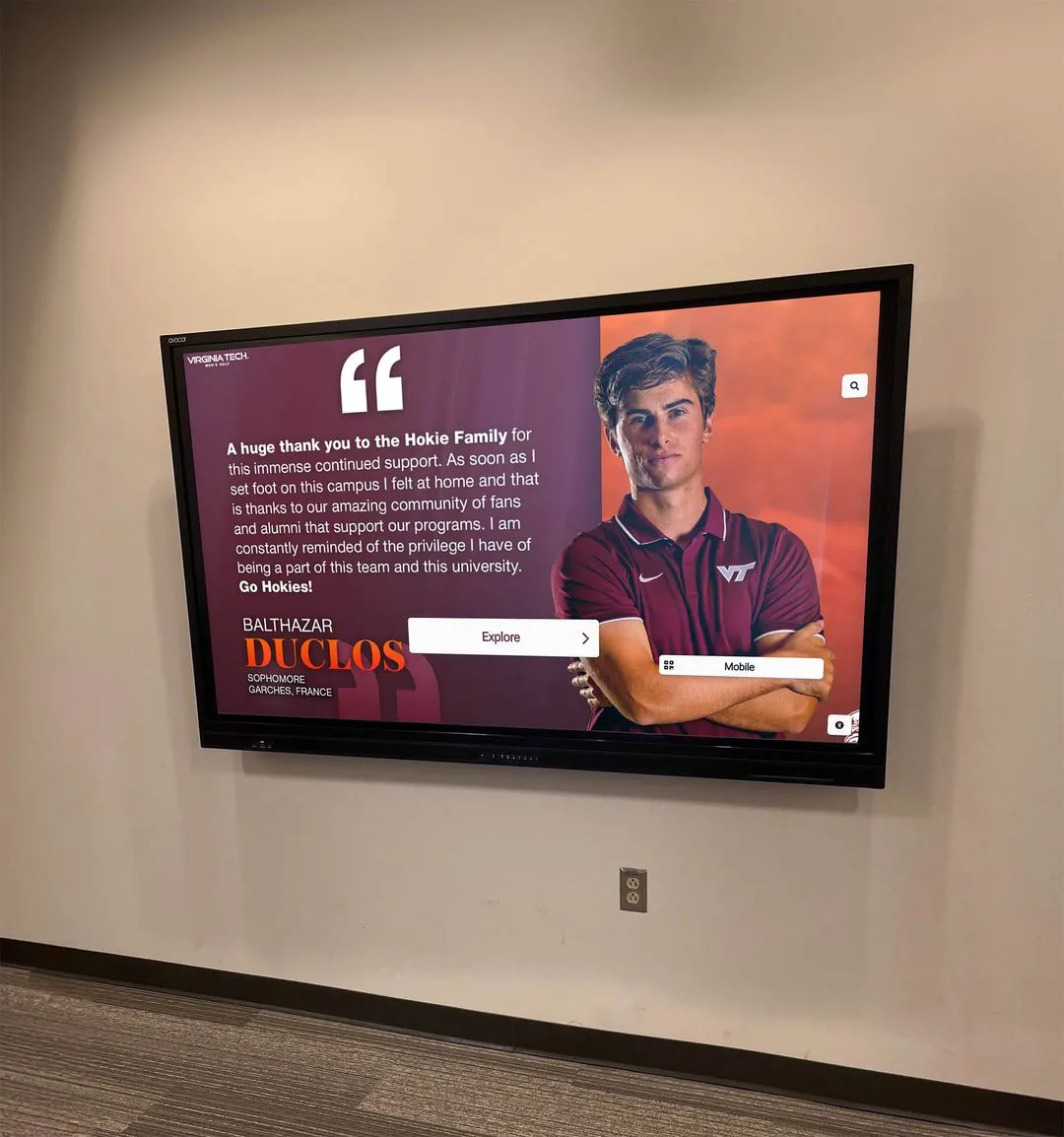
Schools building recognition displays that feature video alongside athlete profiles need caption accuracy across all video segments featured in public installations.
Step 5: Extract Highlight Clips with Accurate In/Out Points
A highlight reel for a hall-of-fame ceremony or a sports banquet presentation depends on clips landing on the correct play. If the source video has 10.8 seconds of accumulated drift from a timecode mismatch, a coach specifying “start at timecode 02:45:12” in a three-hour game recording will extract the wrong moment — unless the archiving system has compensated for the drift.
Highlight extraction workflow:
- Open the source video in a non-linear editing application — DaVinci Resolve (free version) reads embedded timecode and displays it accurately in the timeline
- Confirm the timecode display in the editor matches the type embedded in the source file; if the editor is set to NDF and the file is DF, the timeline timestamps will not correspond to catalog records authored against the actual footage
- Mark in/out points using the timecode display, not the running-time display; running time does not differentiate DF from NDF
- Export each clip with the timecode type preserved — set the export to embed the same timecode type as the source rather than resetting to 00:00:00;00
- Log each exported clip in a clip record before archiving
| Clip Log Field | Example Entry |
|---|---|
| Source File | WHS_Football_2019_RiversideHS_StateChampionship.mp4 |
| Timecode Type | Drop-frame (29.97 fps) |
| In Point | 02:44:58;12 |
| Out Point | 02:45:09;22 |
| Clip Duration | 00:00:11;10 |
| Export File Name | WHS_Football_2019_Highlight_TDPlay_Q4.mp4 |
| Intended Use | Hall-of-Fame Induction Ceremony |
| Exported By | M. Thompson |
| Export Date | 2026-09-15 |
For schools that use game video in alumni recognition spotlights that surface a graduate’s key plays alongside their current career, clip-level catalog precision is what makes those programs feasible years after the original game.
Step 6: Synchronize Multi-Camera and Interview Footage
Many athletic programs record home games with multiple cameras — a primary wide angle at the press box, a sideline camera, and sometimes a streaming camera operated by a booster club volunteer. Each camera establishes its own timecode independently unless a timecode slate or timecode generator was used to synchronize them at the start of recording.
Multi-camera sync workflow:
- Identify a common event visible on all cameras — a kickoff, a tip-off, a referee’s opening whistle — and note the timecode of that event on each camera
- Calculate the offset between each camera’s timecode and the primary camera’s timecode:
Offset = Primary TC − Secondary TC - Apply the offset when importing secondary camera files into the editing project so all cameras align to a common timeline
- Confirm that all cameras used the same timecode type — if one camera was set to NDF and the primary to DF, the offset will drift over the duration of the game and cannot be corrected with a single constant value; it requires a frame-rate conversion step before the offset is applied
Interview footage recorded at post-game press conferences, induction ceremonies, or alumni events typically starts with a fresh timecode (00:00:00;00) and runs independently of the game. Catalog interview footage by subject name, date, and event rather than by game-referenced timecode. Cross-reference the catalog record to the related game file where the interview discusses a specific game or season.
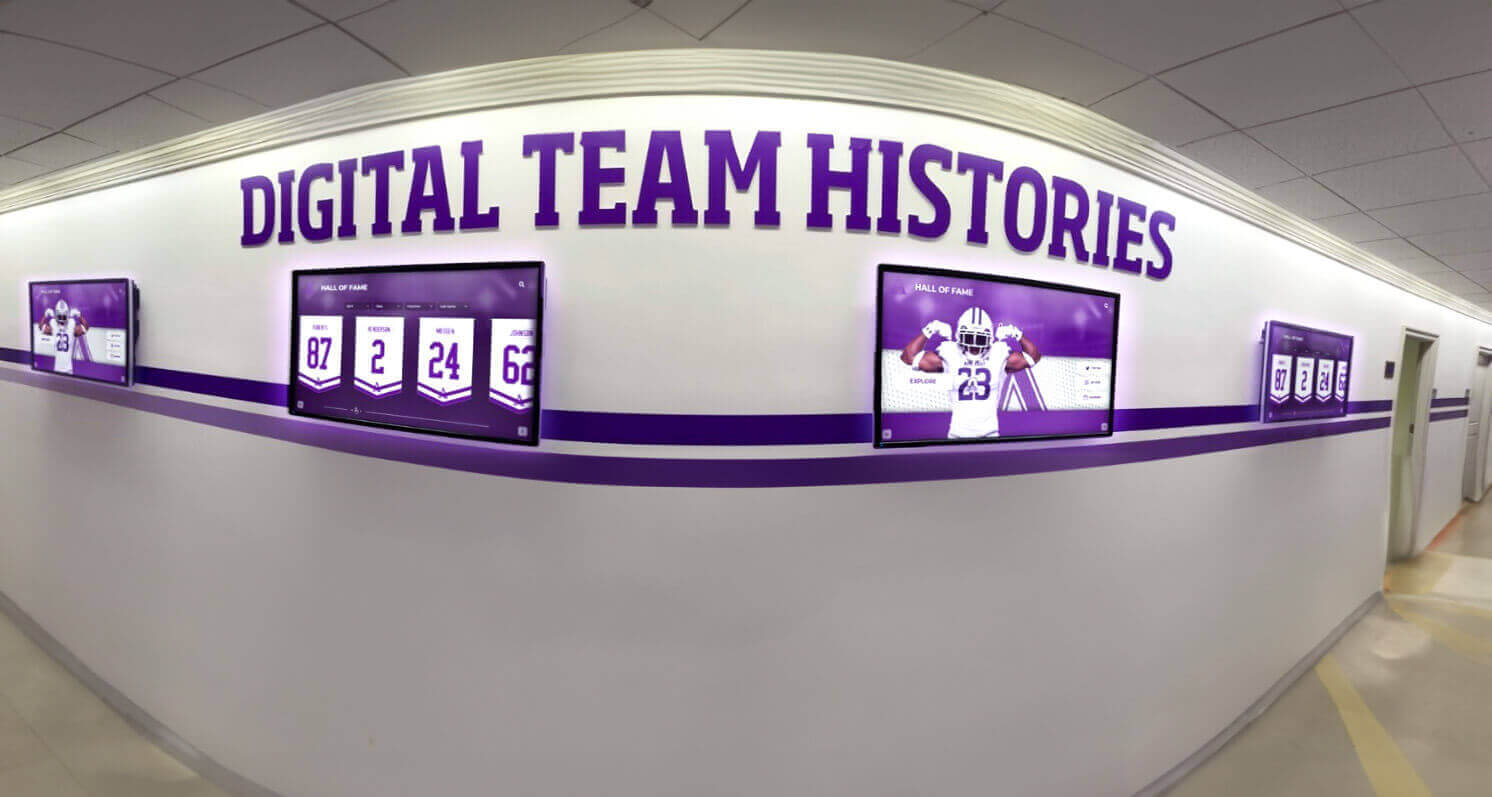
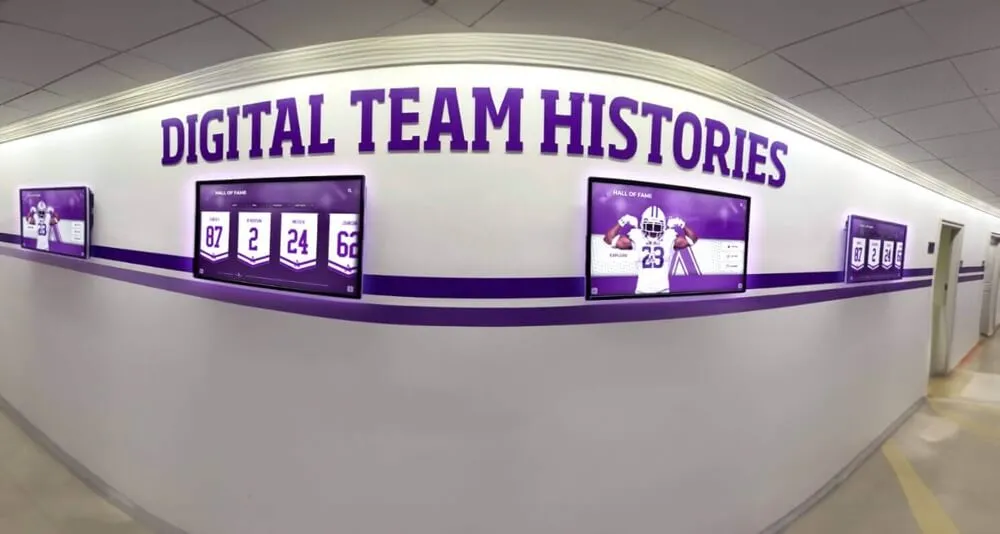
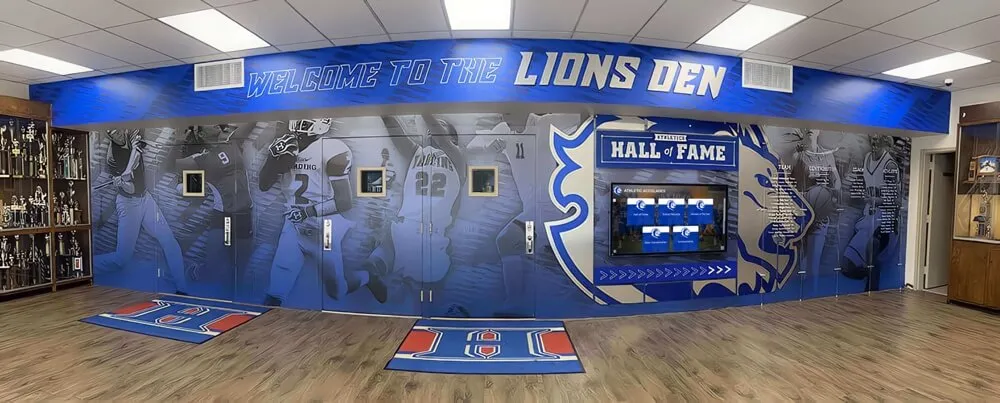
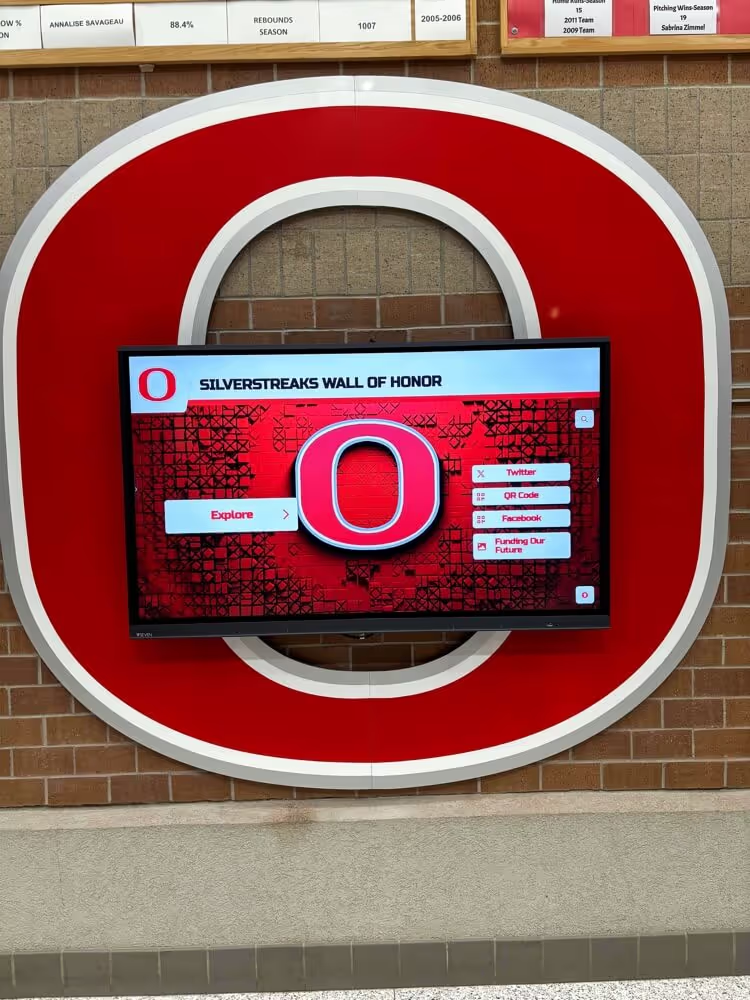
Hallway recognition displays and team history installations present information drawn from the underlying archive — timecode consistency is what allows clip-level access points to remain accurate across years of collection growth
Step 7: Build the Video Catalog Record
A video catalog record is the bridge between the footage and everyone who will access it: coaching staff pulling game film, communications teams creating highlight reels, and recognition programs surfacing historical clips at induction ceremonies or sports banquets.
Each catalog record should capture:
| Field | Example |
|---|---|
| File Name | WHS_Football_2019_RiversideHS_StateChampionship.mp4 |
| Source Format | MiniDV transfer |
| Frame Rate | 29.97 fps |
| Timecode Type | Drop-frame |
| Duration | 03:14:22;05 |
| Timecode Discontinuities | None |
| Sport | Football |
| Season | Fall 2019 |
| Opponent | Riverside High School |
| Game Type | IHSA Class 4A State Championship |
| Venue | Memorial Stadium |
| Key Events with Timecode | Opening kickoff 00:04:12;00 / Halftime 01:34:10;18 / Game-winning TD 03:06:44;22 |
| Caption File | WHS_Football_2019_RiversideHS_StateChampionship.srt |
| Caption Sync Status | Verified (DF-aligned) |
| Catalog Date | 2026-08-27 |
| Cataloged By | Athletic Office |
Schools building digital athletic recognition programs that present historic game moments alongside current athlete profiles find that timecode-indexed catalog records make clip retrieval feasible years after the original game, without requiring staff to manually scrub through hours of footage to locate a specific play.
For schools that store award and recognition records alongside video, reviewing how school award records are structured for long-term access offers a useful model for the catalog structure that makes video equally retrievable.
Common Drop-Frame Timecode Mistakes to Avoid
Assuming all digital video is non-drop-frame. Many video editing applications default to non-drop-frame when creating a new timeline or converting a file from one format to another. If the source video is NTSC 29.97 fps, this default creates a mismatch that accumulates throughout the recording. Always confirm the timecode type of the source before creating a new sequence.
Stripping timecode during format conversion. When converting VHS captures or MiniDV transfers to MP4 or H.264 for web delivery, many consumer encoding tools do not preserve embedded timecode. The resulting file has no timecode — all downstream catalog records and caption files must use running time, which may be NDF-interpreted, creating hidden drift. Use a professional encoding workflow that explicitly preserves or re-embeds timecode, or document in the catalog that no timecode is embedded and that all timestamps are running-time references.
Mixing DF and NDF timestamps in the same catalog. If some catalog records use DF-formatted timestamps (semicolon separator) and others use NDF (colon separator), a staff member reading an old record cannot tell which standard was used and may extract the wrong clip. Choose one format for your catalog and enforce it across the entire collection.
Applying a caption file authored against a different timecode standard. Caption files authored against a 30 fps NDF edit of a 29.97 fps recording will drift by 3.6 seconds per hour. For a two-hour game, captions will be visibly late in the second half. Always confirm that the caption authoring timeline used the same timecode type as the distribution file.
Ignoring timecode discontinuities. When a tape was paused and restarted during recording, the timecode counter may reset to 00:00:00;00 or jump forward. Catalog records that reference timecodes after a discontinuity will produce incorrect seek positions if the discontinuity is not documented and handled in the editing or playback system.

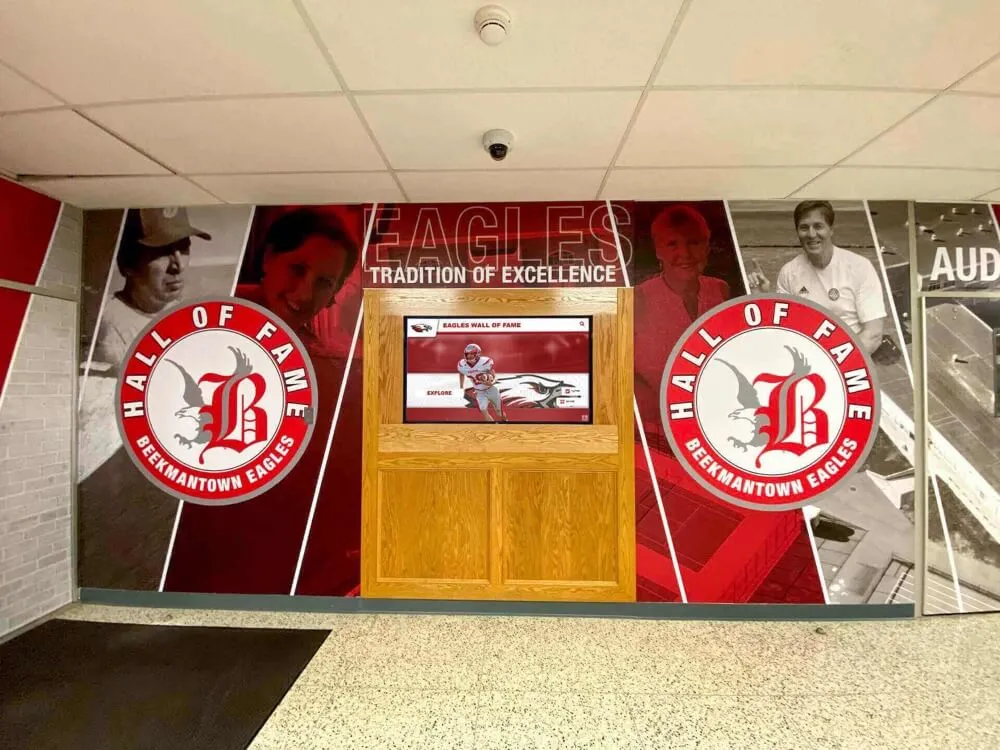
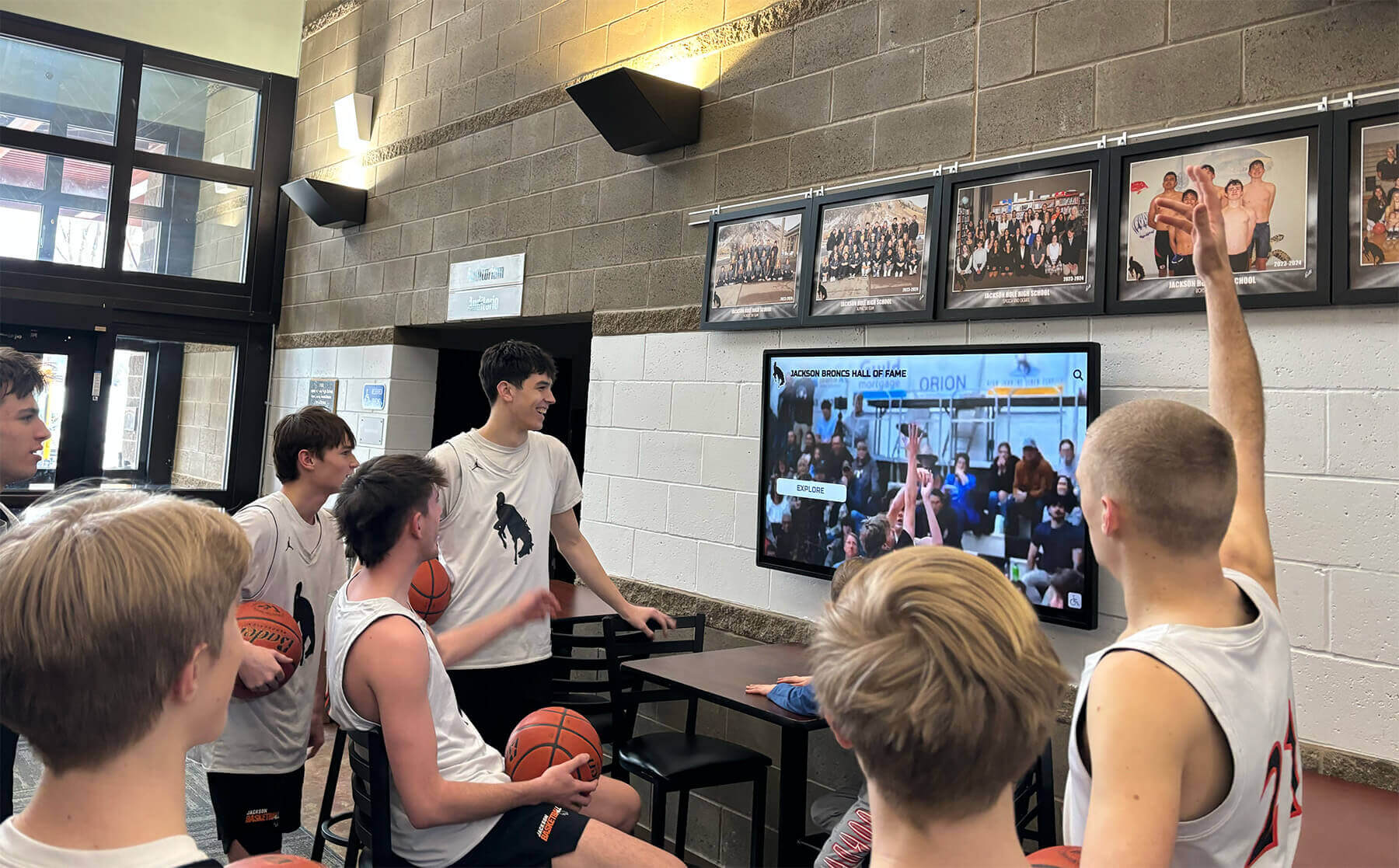
Athletic recognition displays present the highlights that timecode-accurate clip extraction makes possible — every play, every milestone, and every moment tied to the exact timestamp cataloged in the archive
Athletic Archive Drop-Frame Timecode Workflow Checklist
Use this checklist when adding a new video file to the athletic archive or initiating a digitization project for tape-based footage.
Intake and Identification
- Source format identified: VHS, MiniDV, broadcast, digital, film transfer
- Frame rate confirmed using MediaInfo or equivalent tool
- Timecode type identified (DF/NDF) or documented as unknown
- Recording duration verified against independent source (game notes, broadcast schedule, tape label)
- Timecode discontinuities noted during playback or deck output
Standardization
- File named using archive naming convention
- Companion metadata sidecar file created with timecode type, frame rate, source format, and discontinuity locations
- Archive catalog row created with all required fields
Caption Synchronization
- Caption file authored against the same timecode standard as the source video
- Accumulated drift calculated if caption file was created against a different standard
- Global offset applied and spot-checked at early, mid, and late recording positions
Highlight Clip Extraction
- Editing application set to match source timecode type (DF or NDF)
- In/out points recorded in the clip log using timecode display, not running time
- Each exported clip logged with source file name, timecode in/out, and intended use
- Exported clip embedded with source timecode type preserved
Catalog Record
- Full catalog record created with timecode type, frame rate, duration, and key event timestamps
- Caption file linked in the catalog record with sync status noted
- Record reviewed by a second staff member before filing
Frequently Asked Questions: Drop-Frame Timecode for School Athletic Video
What is drop-frame timecode in plain language?
Drop-frame timecode is a counting method for labeling video frames that compensates for NTSC video’s actual speed of 29.97 frames per second. Because 29.97 is not an integer, a simple label of “30 frames = 1 second” would drift from wall-clock time by 3.6 seconds every hour. Drop-frame timecode corrects this by skipping two frame count numbers — 00 and 01 — at the start of each minute, except every tenth minute. The frames themselves are never removed; only the numbering is adjusted. The result is timecode that matches real time closely enough for all broadcast and archival purposes, as specified in SMPTE ST 12-1.
How do I tell if a video file uses drop-frame timecode?
The separator character tells you: a semicolon (;) between the seconds and frames fields — 01:00:00;00 — indicates drop-frame timecode. A colon (:) throughout — 01:00:00:00 — indicates non-drop-frame. In MediaInfo, the “Time code” field in the video track will display the embedded timecode value with the correct separator if timecode is present in the file.
Does timecode type matter for short athletic videos?
For video under 15 minutes, the accumulated drift between NDF and DF is under one second and is negligible for most practical purposes. The drift becomes consequential at game-length durations — 90 minutes to four or more hours — where the gap reaches several seconds and is visible in caption synchronization and clip extraction. A brief interview or a short highlight clip from an already-extracted source does not require the same timecode discipline as a long-form game recording.
Our video archive has files with no embedded timecode. Can we still catalog them?
Yes. Files without embedded timecode use running time as the reference. Document in the catalog record that no timecode is embedded and that all timestamps are running-time references. Running time is unambiguous for files that will not be re-edited into a frame-accurate timeline. If a file without embedded timecode will be imported into a professional editing timeline, treat its frame rate as 29.97 fps and work in a drop-frame sequence to avoid compounding errors with any downstream exports.
Do we need professional editing software, or can free tools handle this workflow?
Free and open-source tools are adequate for most steps: MediaInfo for timecode identification, DaVinci Resolve (free version) for timecode-accurate editing and clip extraction, Subtitle Edit (free) for caption synchronization, and FFmpeg for batch format conversion with timecode metadata preservation. Professional tools like Adobe Premiere Pro add team collaboration features and broader codec support but are not required for a single-operator school archive workflow.
How does this workflow connect to the recognition programs we’re building for athletes?
Recognition programs that surface specific game moments — a championship-winning play, a record-breaking performance, an athlete’s career highlight — depend on clip-level access points in the archive. If those access points reference timecodes authored against the wrong standard, the clips extracted for a hall-of-fame ceremony or a sports banquet montage will land on the wrong moments. An athletic archive drop-frame timecode workflow ensures that every catalog record, every caption, and every clip reference stays accurate regardless of when the footage was captured or how long the recording runs.
Connecting Video Archives to School Athletic Recognition
Long-form game video holds the raw documentation of every accomplishment your school’s athletic programs have earned — championship plays, record-breaking performances, coaching milestones, and the moments that define a program across decades. Timecode accuracy is what makes that footage navigable: without it, finding a specific play in a four-hour recording requires manual scrubbing rather than a precise catalog lookup.
Once video assets are cataloged with accurate timecode references, they connect naturally to a school’s broader recognition infrastructure:
Hall-of-fame installations can surface clip-level highlights alongside athlete profiles — a touchscreen display showing a runner’s record-breaking performance alongside the actual footage of the event, pulled from a catalog record with a verified timecode in/out point.
Sports banquet presentations draw on timecode-indexed clips to build montages that place each honoree’s key plays in context. A banquet video that cuts to the correct moment every time — rather than approximating from a running-time estimate — produces a presentation quality that matches the significance of the recognition event.
Alumni engagement programs benefit from searchable video records that graduates can access to revisit their athletic careers. Schools developing collegiate-style experiences for high school athletes increasingly include verified video access as part of the recognition package offered to standout alumni.
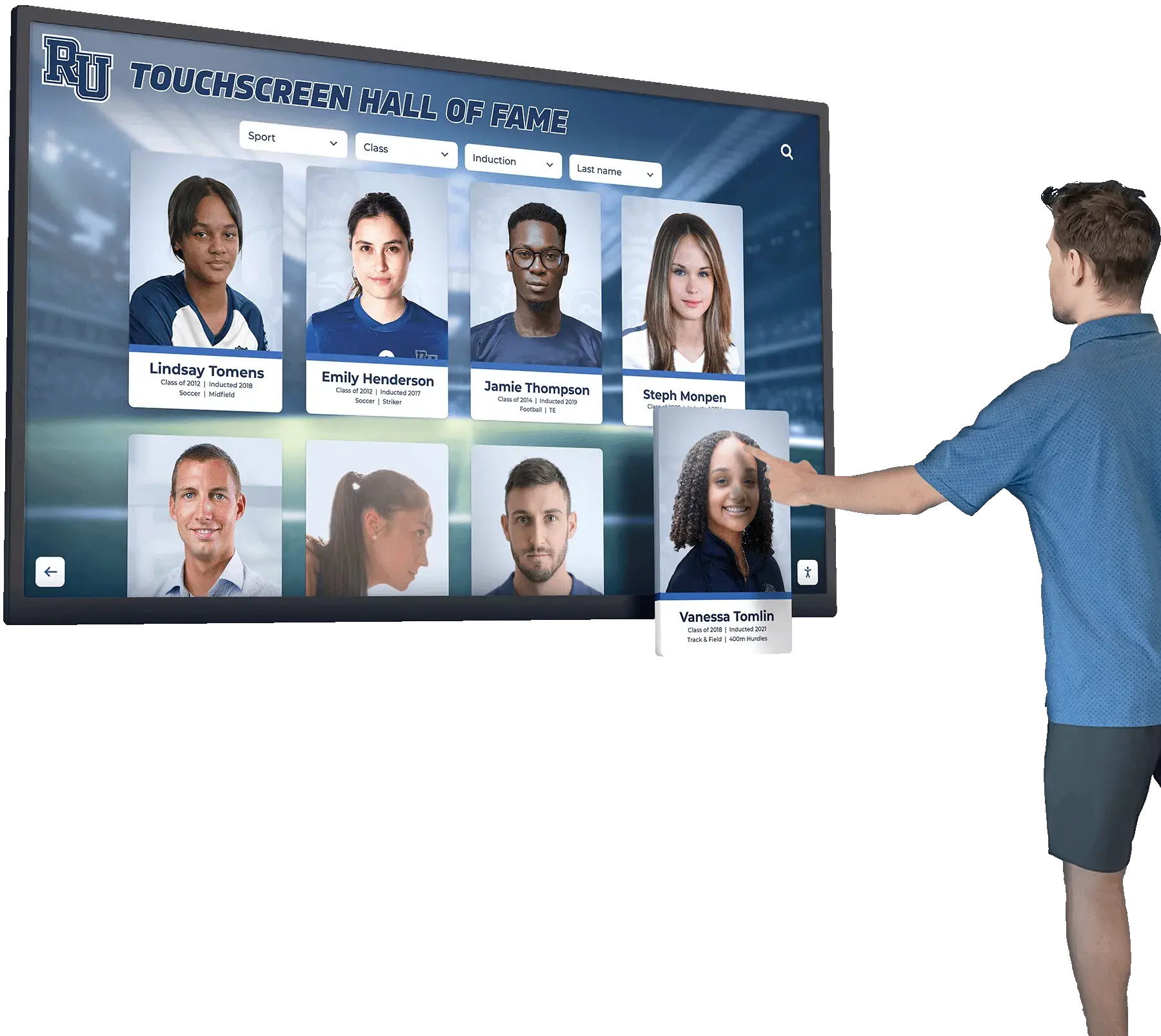
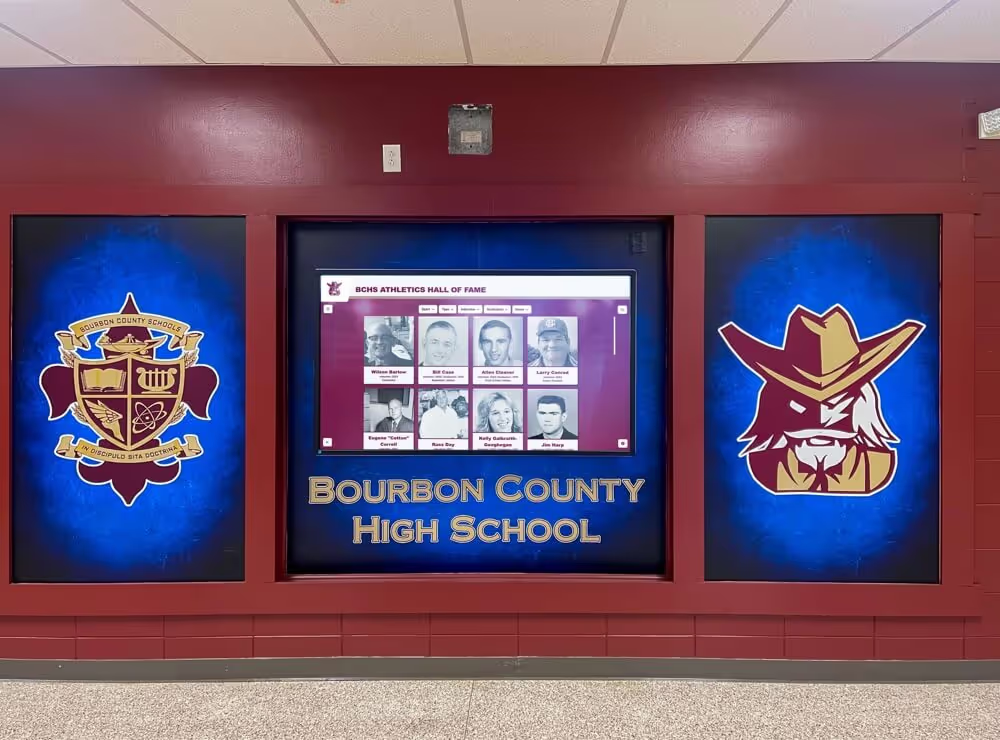
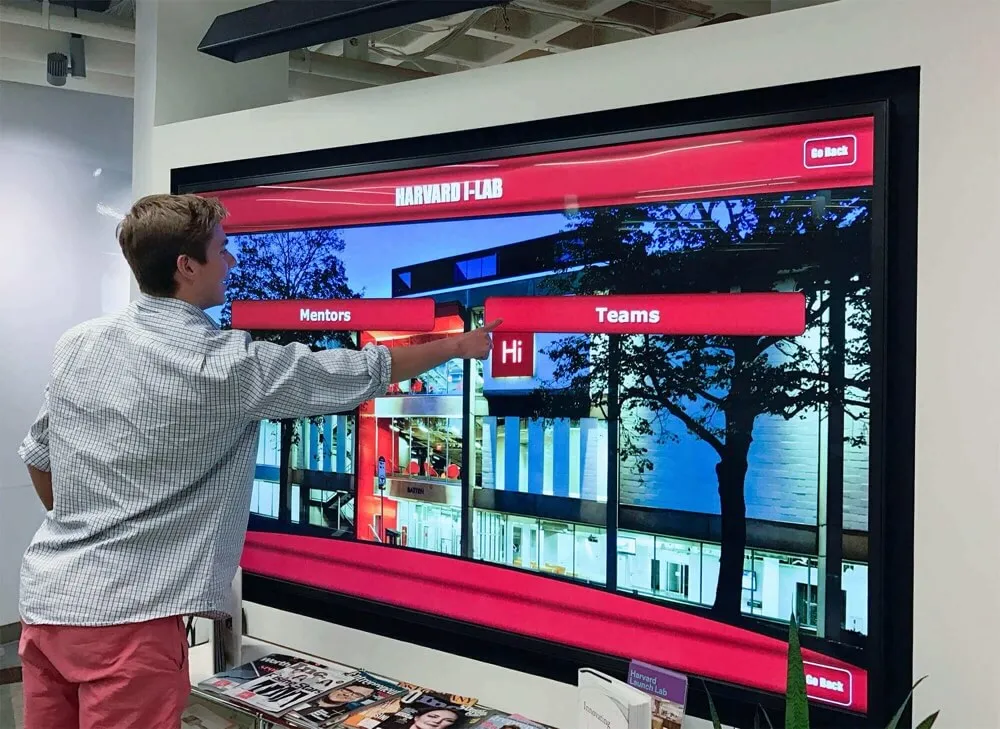
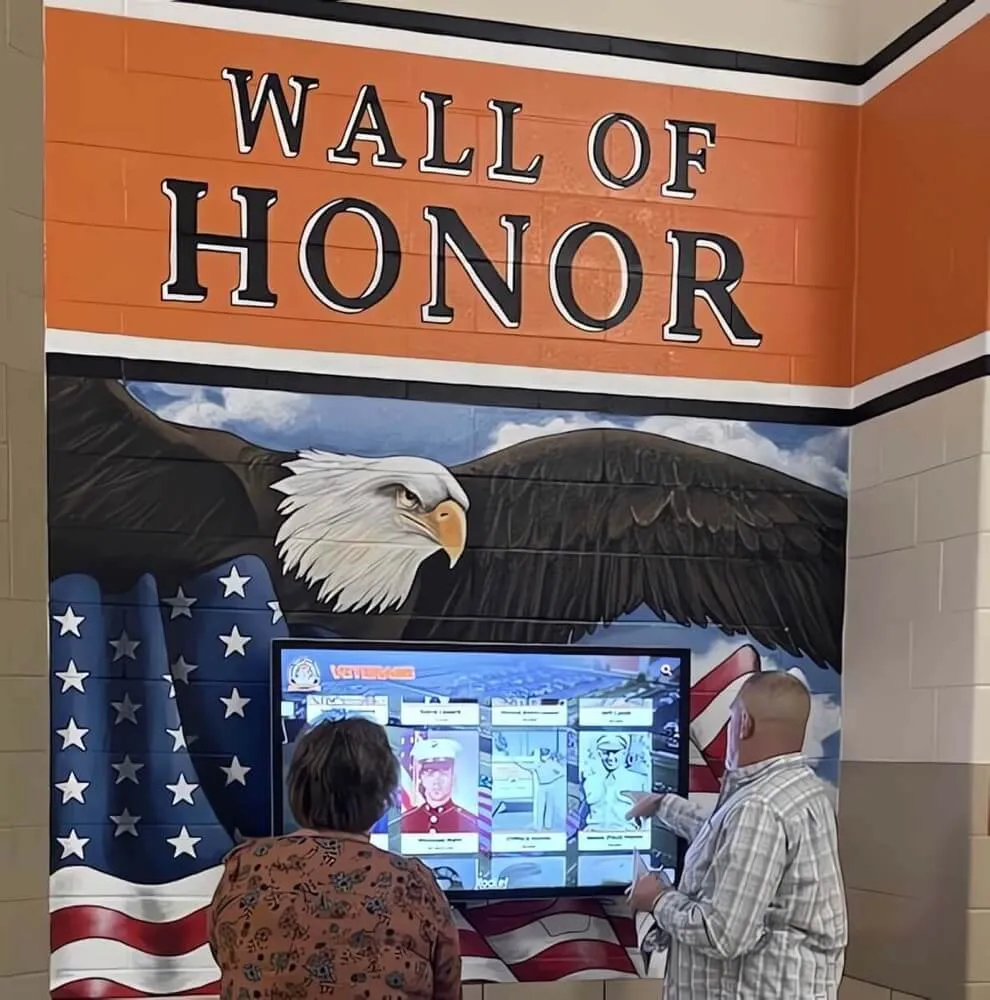
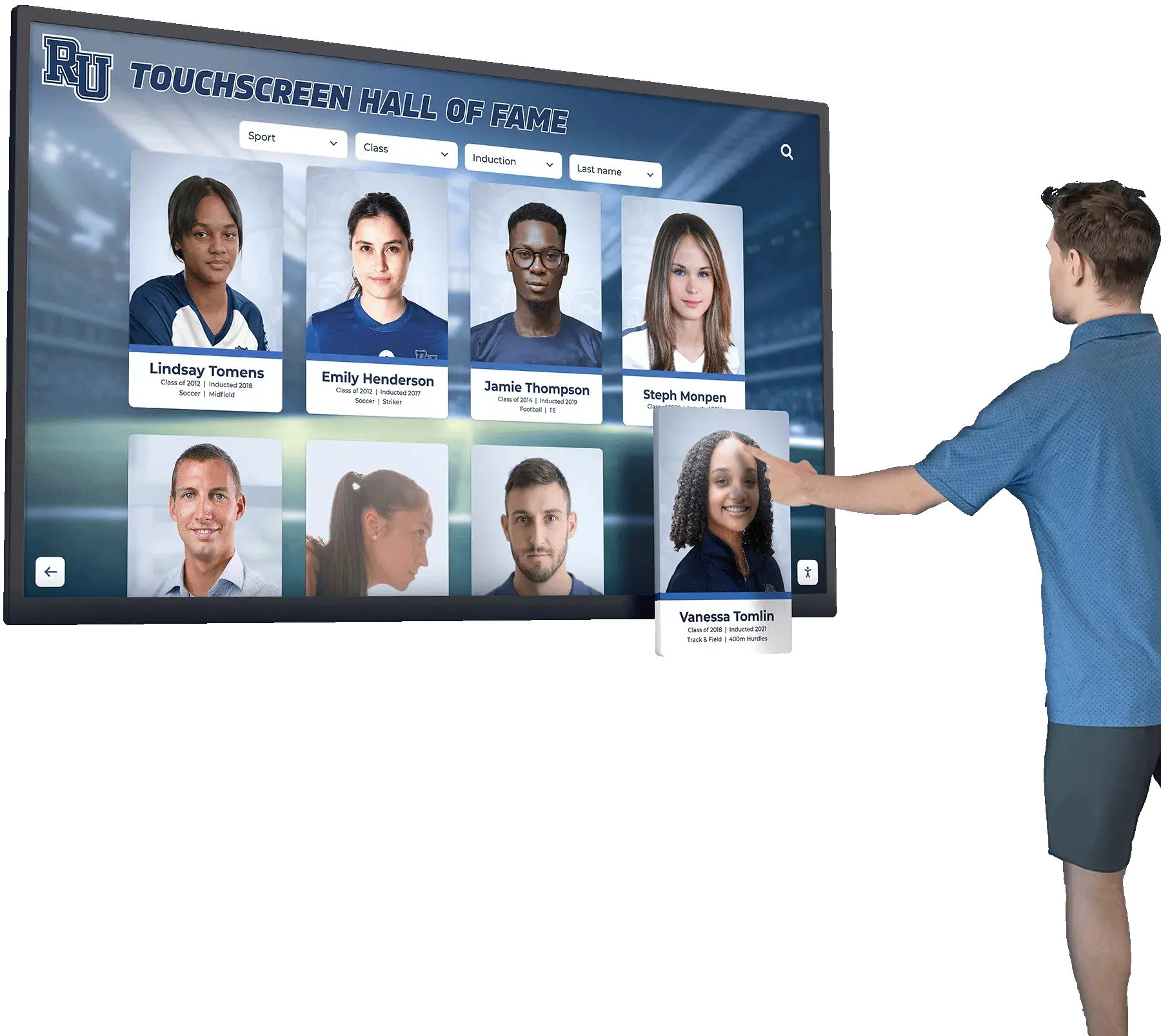
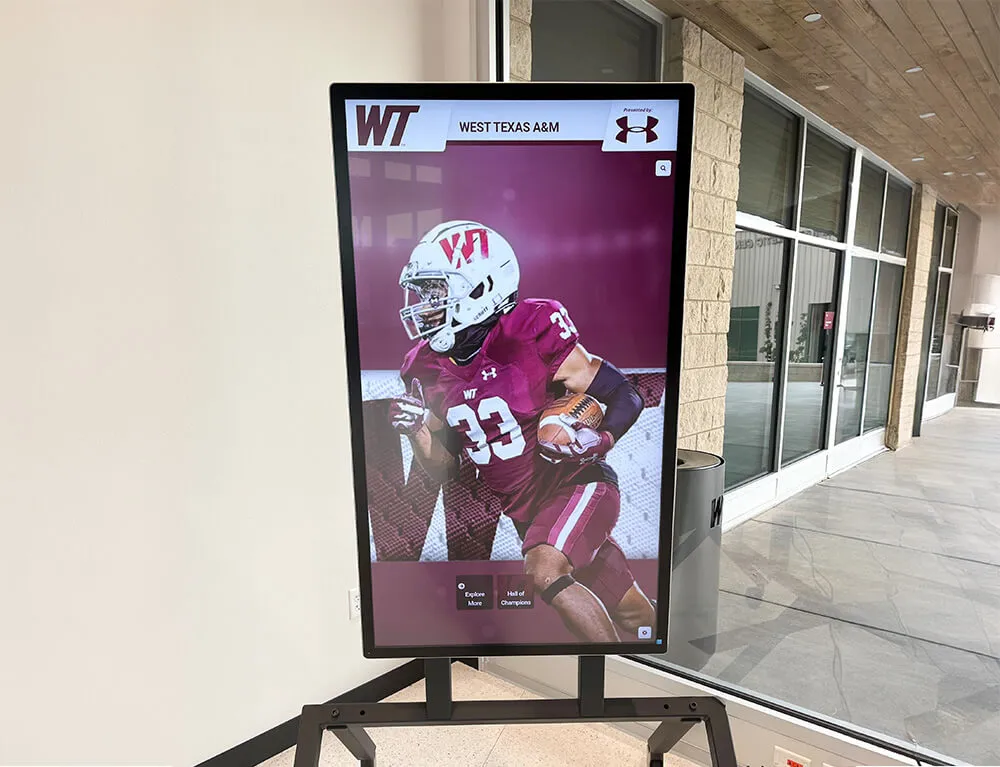
Touchscreen recognition systems can surface specific game clips alongside athlete profiles when the underlying video archive maintains timecode-accurate catalog records for every recording
Track-and-field, cross-country, and individual-sport archives — where a single meet recording may contain dozens of events across several hours — depend most critically on timecode accuracy. A catalog record for a state-qualifying high jump attempt needs a timecode-accurate in/out point to be useful in a track-and-field recognition and banquet context where specific moments are featured in the awards presentation.
For schools preserving student achievement records across disciplines, the timecode workflow described here applies equally to academic competition recordings, fine arts performances, and club activity documentation — any long-form video where timestamp accuracy determines whether specific moments can be reliably located and presented years later.
Ready to Turn Your Athletic Video Archive Into a Living Recognition Program?
Rocket Alumni Solutions helps schools connect cataloged athletic video — game highlights, hall-of-fame moments, championship plays — to interactive recognition installations that bring that footage in front of students, alumni, and families. From touchscreen hall-of-fame displays to digital yearbook platforms, the right infrastructure makes decades of game video visible to the people who lived it.
Request Your Free DemoConclusion: Timecode Accuracy as an Archive Foundation
An athletic archive drop-frame timecode workflow is not a production luxury reserved for broadcast professionals — it is a basic requirement for any school that wants its game video to remain useful beyond the season it was recorded. Captions that drift, clips that cut to the wrong play, and catalog records that reference timestamps nobody can reliably reproduce are not documentation failures; they are timecode failures, and they are preventable at the point of digitization and intake.
The steps in this guide — auditing the library, identifying timecode type in each file, establishing archive naming standards, synchronizing captions, extracting highlight clips with accurate in/out points, synchronizing multi-camera footage, and building complete catalog records — give school athletic departments a repeatable process that scales from a small collection of digitized VHS tapes to a comprehensive multi-decade video archive.
Video archives managed with timecode discipline become assets that recognition programs can draw on for years: hall-of-fame inductions that feature the actual play that defined a career, sports banquet presentations that cut to the precise moment of a championship, and alumni engagement programs that let graduates revisit the moments that connected them to their school’s athletic tradition.
Sources
- SMPTE ST 12-1 — Television — Time and Control Code — Society of Motion Picture and Television Engineers standard defining drop-frame and non-drop-frame timecode for NTSC productions
- MediaInfo — Open-Source Video Analysis Tool — Free tool for reading timecode type, frame rate, and encoding metadata from video files
- WCAG 2.1 Success Criterion 1.2.2 — Captions (Prerecorded) — W3C Web Content Accessibility Guidelines on caption accuracy for prerecorded video
- Library of Congress — Sustainability of Digital Formats: Video — Format guidance for long-term video archiving in educational and institutional contexts