Athletic archive chroma delay correction is the process of identifying and fixing a timing misalignment between the color signal and the brightness signal in analog game footage — a defect that causes team uniform colors, jersey numbers, school banners, and court markings to appear shifted horizontally from their correct position on every display that plays the affected file. Composite analog video encodes brightness (luminance, Y) and color (chrominance, C) as separate signal components that must arrive in precise synchronization. When the capture deck, the tape mechanism, or the time base corrector introduces a timing offset between those two components — even by a few hundred nanoseconds — the chroma channel drifts sideways relative to the luma channel, creating color fringing along every high-contrast edge in the frame. On a lobby kiosk or hall-of-fame screen, this looks like a red or blue shadow beside a white jersey number, or school color bleeding slightly away from the correct position in a banner or court logo.
Chroma delay error is extremely common in VHS, S-VHS, and Hi8 footage from school athletic archives — the formats that cover most of the game video recorded between the 1980s and early 2000s. Unlike some video defects, it is fully correctable at the point of capture using hardware time base correctors or adjustable decks, and partially correctable in software after the fact. Left uncorrected, it enters the archive permanently. Every display, yearbook highlight reel, and hall-of-fame installation that sources footage from the affected files will show the offset to every viewer who watches.
This guide gives school administrators, athletic directors, AV coordinators, and IT staff a step-by-step workflow for identifying chroma delay errors across an existing collection, measuring the offset, applying hardware and software corrections, validating the output, and setting intake standards that prevent the problem in new acquisitions.

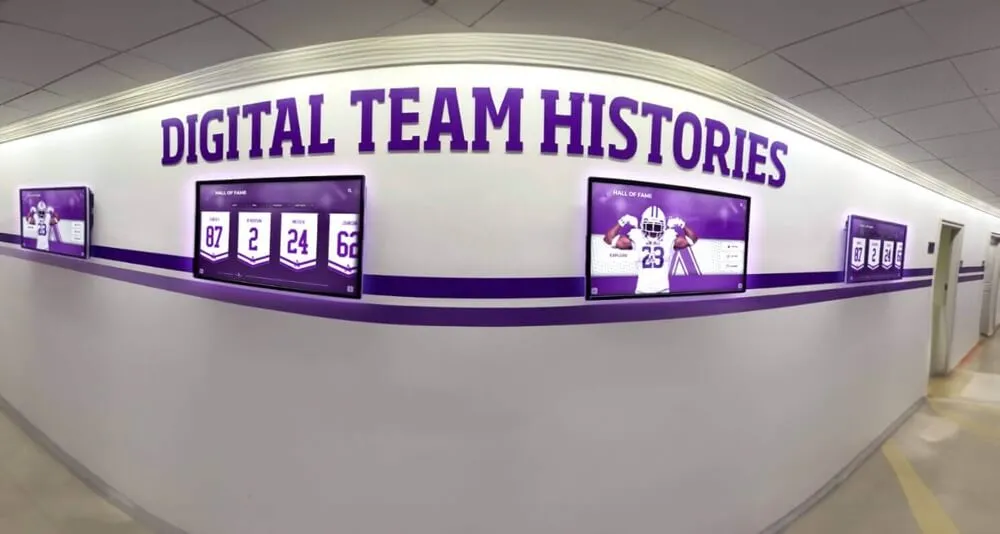
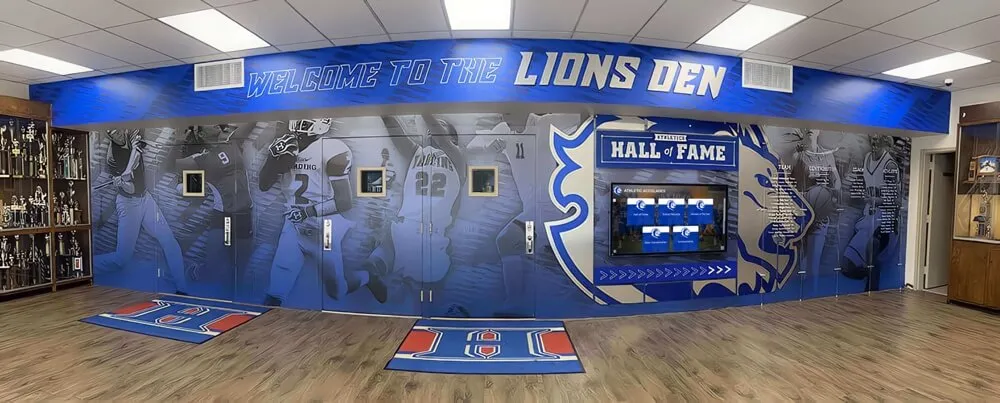
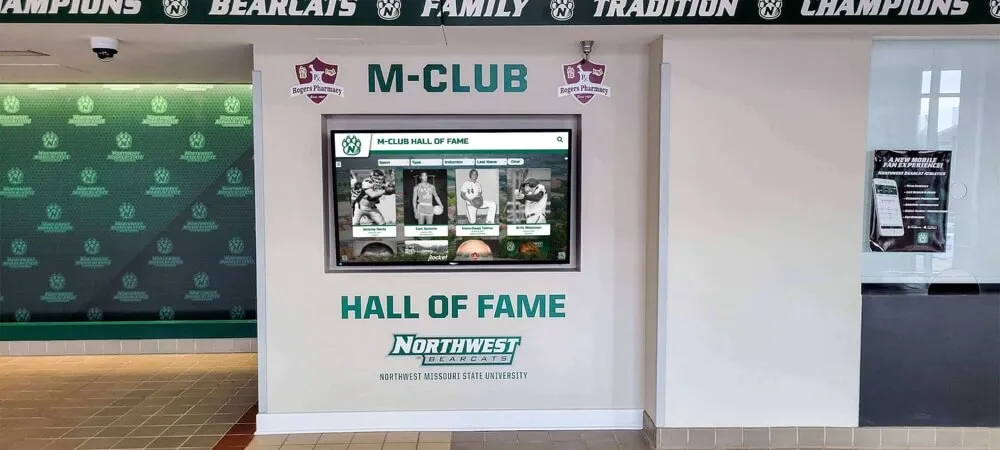
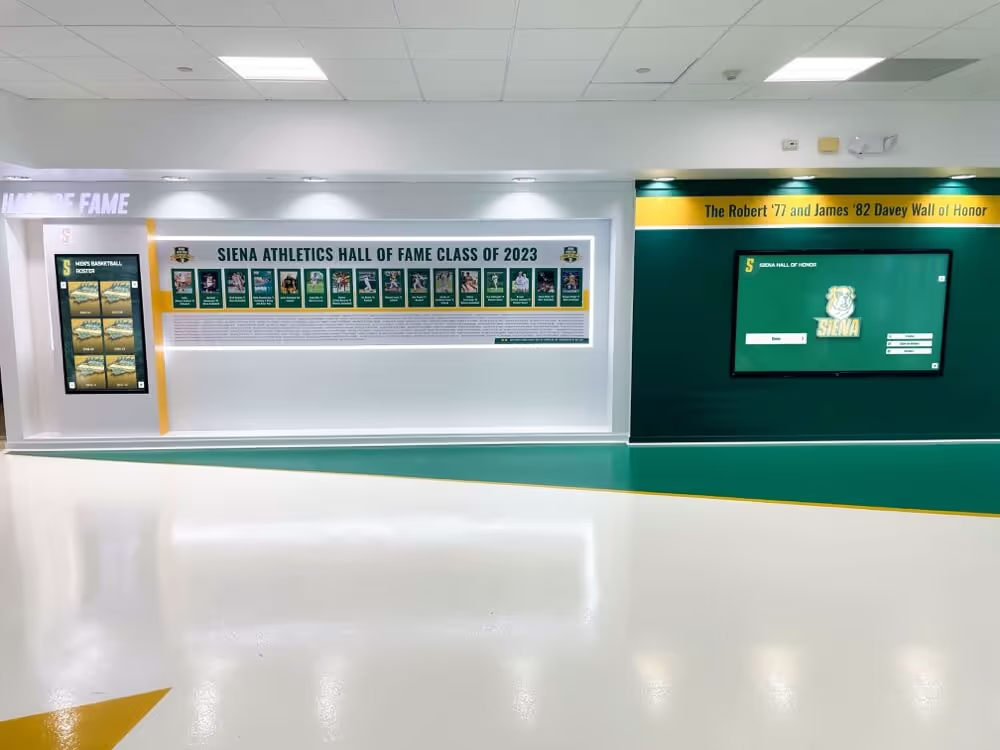
School hallway recognition displays surface historic game footage to students and visitors — chroma delay correction performed before a file enters the archive determines whether team colors and school markings appear precisely placed or visibly offset on every screen that plays them
What Chroma Delay Is and Why Athletic Archives Are Vulnerable
In composite analog video — NTSC and PAL signals recorded on VHS, S-VHS, Betamax, Hi8, and 3/4" U-matic tape — the video signal carries brightness and color information together on a single wire, encoded as separate components at different frequencies. During playback and digitization, these two components must be recombined in correct timing alignment. Chroma delay is the term for a condition where the chrominance signal reaches the digitizer a measurable number of nanoseconds before or after the luminance signal.
The effect is spatial, not spectral. Because video is scanned horizontally line by line, a timing offset between chroma and luma translates directly into a horizontal pixel shift of the color information relative to the brightness information. A chroma delay of 100 nanoseconds in an NTSC signal at 720 pixels per line corresponds to a color shift of approximately one to two pixels. A delay of 500 ns shifts color by five to ten pixels — a shift visible to any viewer as a distinct color shadow or fringe beside every sharp edge in the frame.
Why school athletic archives are particularly vulnerable:
- VHS recording format separation. VHS records luminance and chrominance through separate signal paths in the record/playback process. Even in a well-maintained deck, head alignment variations and tape transport irregularities introduce small timing differences between the Y and C paths.
- Decades of tape degradation. Magnetic oxide layers on tapes recorded in the 1980s and 1990s shed and deform unevenly over time. Where oxide loss or deformation is uneven across a recorded track, the effective timing of the chroma signal varies frame by frame.
- Consumer-grade capture hardware defaults. Many USB capture cards and low-cost capture devices apply no chroma delay compensation by default. They pass the raw combined signal to the digitizer and encode whatever timing the tape and deck produce, including any systematic delay.
- Mismatched deck families. A tape recorded on a Panasonic deck played back on a JVC deck — or a professional S-VHS deck with different internal timing characteristics than the original record deck — introduces deck-level chroma delay that is independent of tape condition.
- TBC bypassed or absent. Time base correctors stabilize the horizontal sync of analog video and, on units with chroma processing capability, also compensate for chroma delay. Digitization workflows that bypass or omit a TBC lose the opportunity to correct delay before encoding.
The practical consequence for athletic archives is straightforward: VHS game footage captured without chroma delay correction has a high probability of containing visible color fringing on exactly the content that matters most — jersey numbers, school color banners, court logos, and the score graphics that accompany key plays.
Chroma Delay Susceptibility by Source Format
| Source Format | Era in School Archives | Chroma Delay Risk | Primary Visual Symptom | Correction Approach |
|---|---|---|---|---|
| VHS (standard play) | 1980s–2005 | High | Red/blue fringe on white jersey numbers and banner edges | Hardware TBC with chroma delay control; software filter |
| S-VHS | 1987–2005 | High | Same as VHS; higher luma resolution makes fringe more visible | Hardware TBC with chroma delay control |
| Hi8 / Video8 | 1989–2005 | High | Color smear on bright uniform areas; logo edge color drift | Hardware TBC or software correction |
| Betamax / Beta Hi-Fi | 1975–1988 | Moderate | Subtle chroma lag on horizontal color edges | TBC processing; verify during capture |
| 3/4" U-matic | 1970s–1990s | Moderate | Color fringe visible in close-up sequences | Professional TBC typically included in broadcast workflow |
| Betacam SP | 1986–2000s | Low | Component recording separates Y and C — less susceptibility | Maintain format integrity during transfer |
| MiniDV / Digital8 | 1995–2010 | Very low | All-digital recording eliminates analog Y/C timing error | No chroma delay correction needed |
| HDV / AVCHD | 2003–present | None | Digital format; no analog chroma delay applies | Not applicable |
The dividing line is the transition from composite analog to component or digital recording. Any format where the video signal was encoded as a composite (Y/C combined) at the point of original recording carries the possibility of chroma delay during playback. Once the signal is recorded digitally — on DV, HDV, or any subsequent format — the chroma delay mechanism does not apply.
For most school athletic archives, this means the chroma delay correction workflow applies specifically to VHS, S-VHS, Hi8, and legacy tape formats — the exact sources that cover the decade-by-decade game footage from the period when most programs built their athletic identities.
Step 1: Identify Chroma Delay Errors in Existing Footage
The first step in the workflow is determining which files in the archive actually contain chroma delay errors visible enough to warrant correction. Not every VHS capture will show the problem — a capture workflow that included a properly calibrated TBC may have already compensated. Visual inspection is the primary identification tool.
What to look for during playback review:
Open each candidate file in a full-screen video player — VLC media player on Windows or macOS is suitable — and pause the video on frames that contain:
- White or light jersey numbers against a saturated team color background
- School mascot logos on a gymnasium floor or court
- Banner text photographed at close range
- Scoreboard graphics against a high-contrast background
- Close-up sequences of officials’ uniforms or penalty flags
Step through these frames one by one and look at every high-contrast edge. Chroma delay produces a specific pattern: the color component of the image shifts to one side of the luminance edge, creating a narrow band of saturated color on one side and a washed-out band on the other. It often appears as a red or orange fringe on the right side of a bright object and a cyan or blue fringe on the left — or vice versa depending on the direction of the delay.
Confirming the error is chroma delay and not another defect:
Several video defects produce edge color errors. Distinguish chroma delay from alternatives before choosing a correction approach:
- Chroma delay: Color shifts consistently in one direction across all edges in the frame. The error is present throughout the entire tape, not in isolated segments.
- Chroma phase error: Colors appear overall incorrect — reds shifted toward orange, blues shifted toward purple — but are not spatially displaced from the brightness edges.
- Video dropout: Colors disappear entirely in brief horizontal bands or random speckling. Not a systematic edge shift.
- Encoding compression artifact: Blocky color irregularities in 8×8 or 16×16 pixel blocks, typically in areas of high motion. Not associated with edge structure.
If the error is consistently directional at high-contrast edges across the entire recording, it is chroma delay. If the color error is present but not directional, test for chroma phase — a different correction.
Schools building digital hall-of-fame installations that pull clips directly from archived game footage will encounter this error most visibly on large-format screens where the fringe is magnified to several pixels’ width.
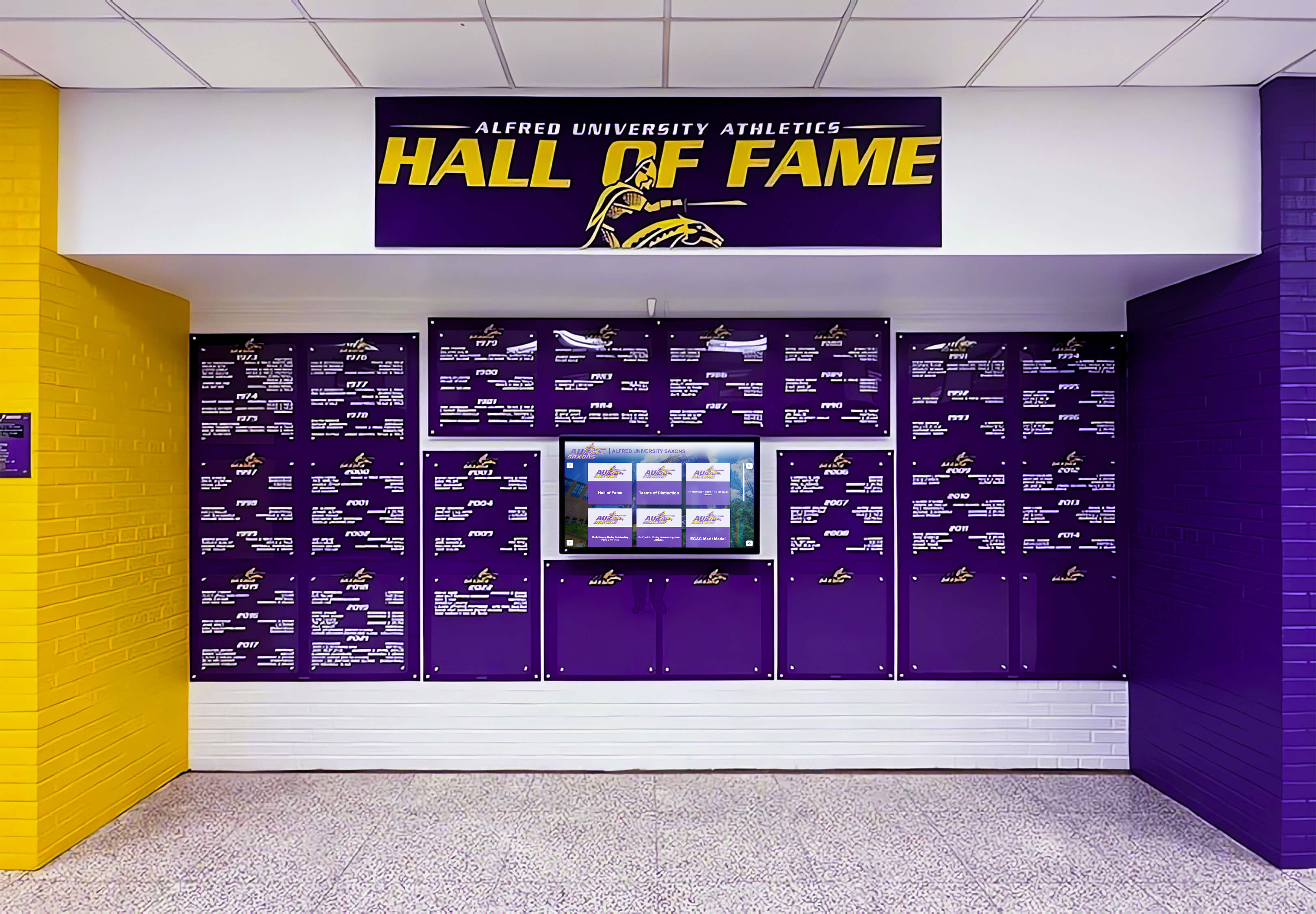
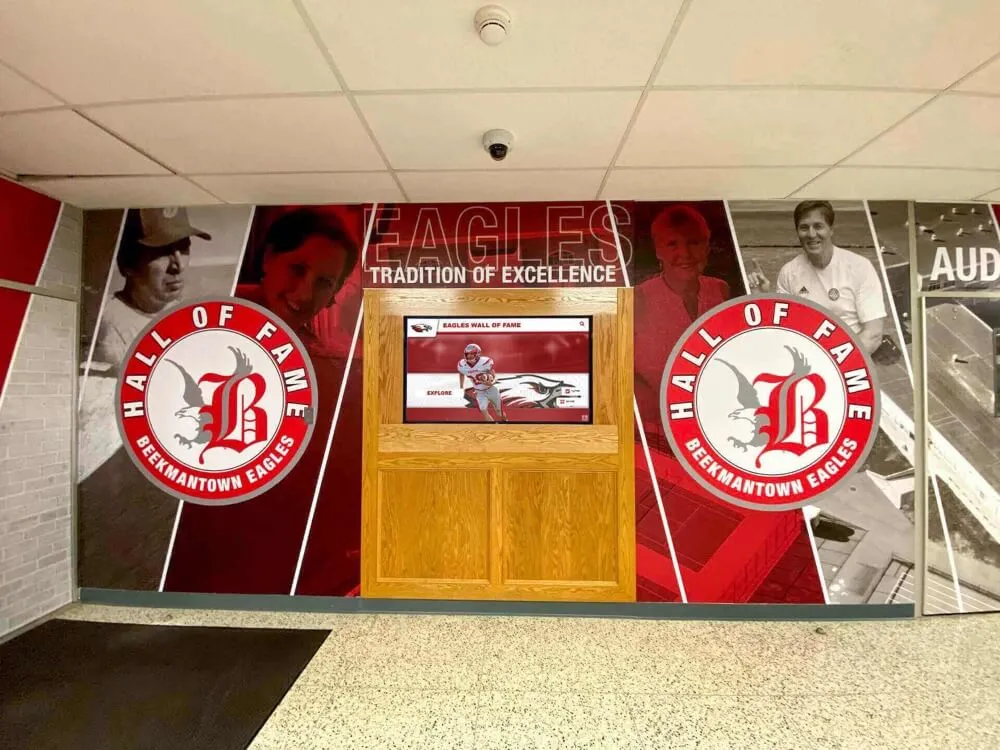
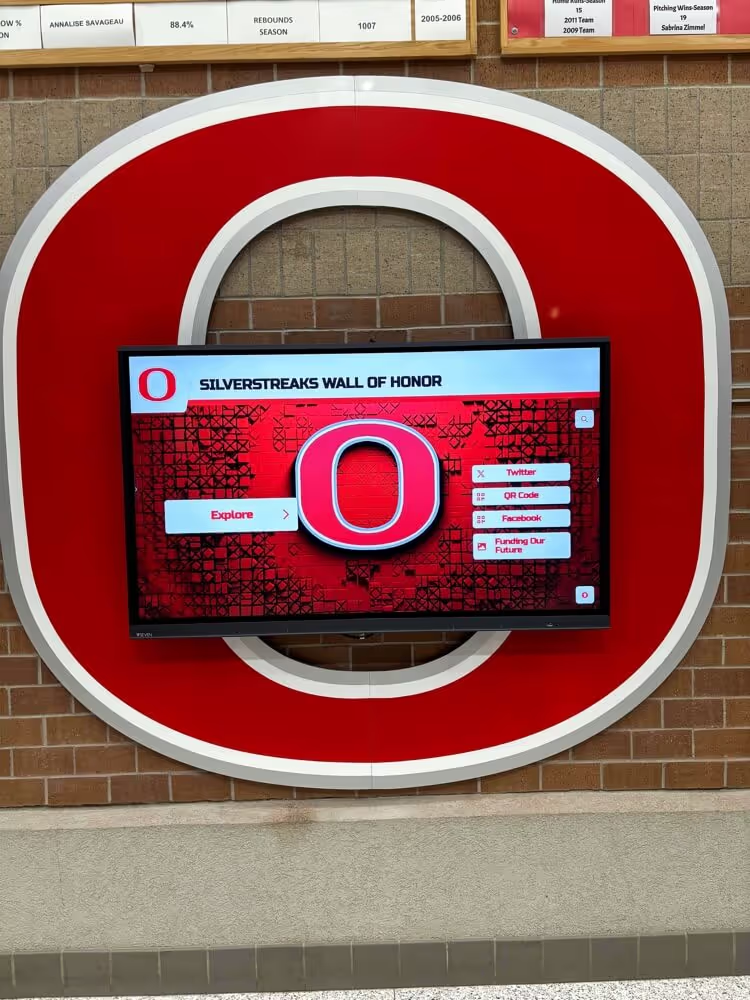
Recognition walls and hall-of-fame displays that feature archived game footage require color-accurate source files — chroma delay correction ensures school colors appear precisely aligned with the brightness structure that defines jerseys, logos, and banners in every frame
Step 2: Measure the Chroma Delay Offset
Once you have confirmed that a file contains chroma delay error, the next step is measuring the offset so the correction can be applied accurately. Chroma delay is measured in nanoseconds of timing difference, but for practical archival correction it is usually expressed in pixels of horizontal shift (left or right).
Visual measurement using frame export:
- Export a single still frame from the affected video file using FFmpeg:
ffmpeg -i source_game_footage.mp4 -ss 00:04:30 -vframes 1 frame_sample.png
- Open the exported frame in any image editor that provides a zoom function — even the built-in Windows Photos app or macOS Preview is sufficient for initial measurement
- Zoom in to 400–800 percent on a high-contrast edge in the frame — the edge of a jersey number against a dark uniform or the edge of a court line against a gymnasium floor
- Count the number of pixels between the luminance edge (the sharp brightness boundary) and the position where the color information begins
- Note the direction: if the color fringe appears to the right of a white object, chroma is delayed (arriving late); if the color fringe appears to the left, chroma is advanced (arriving early)
A pixel count of one to two pixels corresponds to a chroma delay of approximately 50–100 nanoseconds in an NTSC source at 720 pixels per scan line. A count of five or more pixels indicates a delay of several hundred nanoseconds and will be readily visible to any viewer on a standard display.
Measurement using a waveform monitor or analysis software:
Professional capture workflows with access to a waveform monitor or vectorscope can measure chroma delay precisely in nanoseconds. The chroma signal’s subcarrier timing relative to the sync pulse is directly readable on a vectorscope set to display the color burst. For school archives without dedicated video measurement equipment, the pixel-counting method is accurate enough for practical correction purposes.
Step 3: Apply Hardware Correction at the TBC or Deck Level
Hardware correction at the point of capture is the most effective approach because it corrects the signal before the first encode — no recompression is required, and the correction applies to the full signal bandwidth before any lossy encoding occurs.
Using a Time Base Corrector with chroma delay adjustment:
Many standalone TBC units — purpose-built hardware devices that sit between the playback deck and the capture card — include a dedicated chroma delay control. This control adjusts the timing of the chroma path relative to the luma path in real time during playback. Common controls include a coarse adjustment in 100-ns increments and a fine adjustment in smaller steps.
The correction process:
- Connect the VHS or S-VHS deck output to the TBC input (composite or S-Video); connect the TBC output to the capture card
- Begin playback on the deck and open the TBC control panel
- Locate the chroma delay (sometimes labeled “chroma phase delay” or “C delay”) adjustment — it is typically a separate control from chroma phase and color level
- While monitoring the capture preview in the digitization software, advance or retard the chroma delay control while watching a paused frame with high-contrast edges
- Adjust until the color fringe disappears and color aligns with the brightness edge throughout the frame
- Document the final delay setting in the capture log for this tape and deck combination
Using an adjustable S-Video deck with internal chroma delay trim:
Some professional and prosumer S-VHS decks include internal chroma delay adjustment accessible through the service menu. If your playback deck has this capability and the offset is consistent across all tapes from a particular source, adjusting the deck’s internal trim is an efficient alternative to an external TBC.
When hardware correction is not available:
If neither a TBC with chroma delay capability nor an adjustable deck is available, capture the footage at the highest practical quality setting and apply software correction in post (Step 4). Hardware correction is preferred, but software correction applied to a high-quality capture is substantially better than no correction at all.
Schools upgrading athletic facility media infrastructure for display and archival use often encounter the TBC requirement when planning digitization of legacy tape collections — including the TBC specification in any AV equipment budget discussion is worth doing before the digitization phase begins.
Step 4: Apply Software Correction After Capture
When footage has already been captured without chroma delay compensation — or when hardware correction was applied but a residual offset remains — software filters can correct the stored file. Software correction works by retiming the chroma channel within the already-encoded video, which requires a re-encode of the video track.
Using VirtualDub2 with the Chroma Delay filter:
VirtualDub2 (a free, open-source video editing tool for Windows) includes a built-in Chroma Delay filter that shifts the U and V color difference channels independently by a specified number of pixels.
- Open the source file in VirtualDub2 (File → Open video file)
- Navigate to Video → Filters → Add → Chroma Delay
- Set the horizontal offset value to the pixel count measured in Step 2; a positive value shifts chroma right, a negative value shifts it left — use the opposite direction of the visible fringe to correct it
- Enable the video preview and scrub to a high-contrast edge frame to verify the correction
- Set the video compression to a high-quality codec (ProRes or a high-bitrate H.264 setting) before saving
- File → Save as AVI or use the export function for MP4 output
Using FFmpeg with a custom filter graph:
FFmpeg does not include a dedicated chroma delay filter in its standard distribution, but the chromashift filter available in some FFmpeg builds or through the frei0r filter plugin set can apply independent horizontal offsets to color channels. For archives where FFmpeg is the primary processing tool, check whether the installed build includes chromashift:
ffmpeg -filters | grep chroma
If the filter is available, apply a correction of N pixels with:
ffmpeg -i source_captured.mp4 -vf "chromashift=cbh=N:crh=N" -c:v libx264 -crf 15 -c:a copy corrected_output.mp4
Replace N with the pixel offset measured in Step 2, using a positive value for a rightward shift and a negative value for a leftward shift. Adjust the Cb and Cr channel offsets separately if the chroma delay affects the two color channels differently — this is uncommon in standard VHS chroma delay but can occur in more severe cases.
Re-encode quality considerations:
Software chroma correction requires a re-encode of the video track. To minimize additional quality loss:
- Use a high-quality intermediate codec (ProRes 422, DNxHD) for the corrected output rather than a delivery codec like H.264 at moderate bitrate
- Keep the corrected intermediate file as the new archival master; derive display derivatives from it, not from the pre-correction version
- Label the corrected file clearly in the archive metadata — note both the original capture date and the date of chroma correction, and record the offset value applied
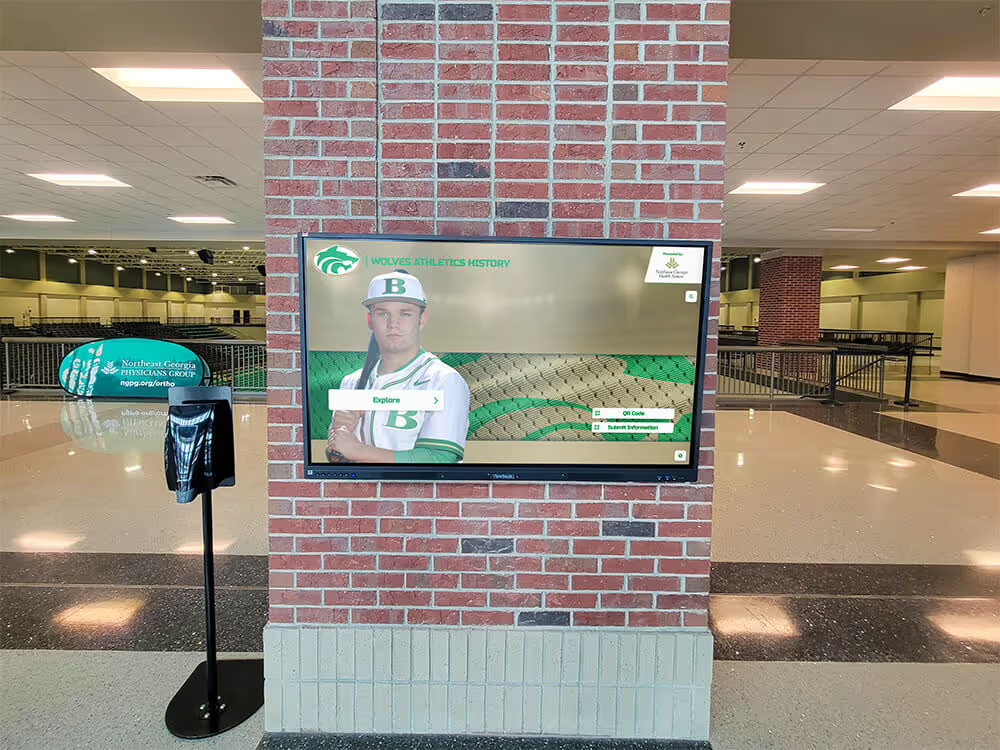
Schools building digital archiving programs that bring institutional history to life for hallway displays and interactive kiosks typically re-encode archived game footage for each display platform — maintaining a chroma-corrected master ensures that every derivative produced from that master carries the corrected color alignment.

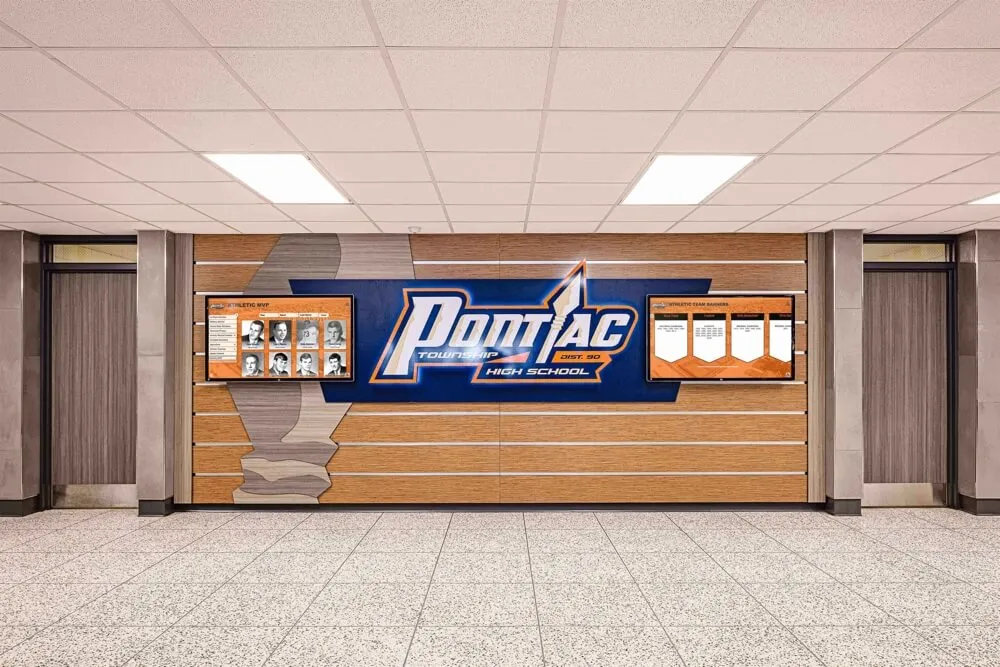
The most effective chroma delay correction happens at the point of capture — a time base corrector between the deck and the digitizer corrects timing before the first encode, eliminating the re-encode quality loss that software post-correction requires
Step 5: Validate the Corrected File
A corrected file must be validated before replacing the pre-correction version in the archive. Visual validation is the most reliable method.
Frame-level visual check:
- Export a still frame from the corrected file using FFmpeg at the same timecode position used for measurement in Step 2:
ffmpeg -i corrected_output.mp4 -ss 00:04:30 -vframes 1 corrected_frame_sample.png
- Open both the original frame and the corrected frame side by side in an image viewer
- Zoom to 400 percent on the same high-contrast edge location used for measurement
- Confirm that the color fringe has been eliminated or reduced to less than one pixel of visible offset
- Check a second and third location in the frame — a correctly set chroma delay correction should eliminate fringing at all edge locations simultaneously; if fringe is reduced at one location but appears worse at another, the offset value may need refinement
Playback review at display scale:
After frame-level validation, play the corrected file at full screen on the largest display available — a lobby screen or presentation display is ideal. Watch at least one minute of game footage including close-up sequences. The color fringe, if present before correction, should be absent. Uniform colors should appear fully enclosed within the brightness boundaries of the jersey design rather than bleeding beyond them.
Audio integrity check:
Software chroma correction re-encodes the video track and, depending on the tool and settings, may re-encode or transcode the audio track. Confirm that the audio in the corrected file is identical in quality to the original capture — compare the audio waveform in an audio editor or confirm that the re-encode settings specified -c:a copy to pass the audio stream without re-encoding.
Step 6: Document Standards for New Acquisitions
The most efficient chroma delay correction is the kind that never needs to happen — because the capture workflow was configured correctly before the tape was played. Establishing and communicating technical standards for all new digitization work prevents the defect from entering the archive.
For in-house digitization:
Document the TBC settings used for each tape type and deck combination. A one-page capture log with fields for deck serial number, TBC unit and firmware version, chroma delay setting applied, and verification frame timecode gives future staff the information they need to replicate the workflow or diagnose inconsistencies.
For external digitization vendors:
Include chroma delay correction in the scope of work for any vendor engagement. A clause requiring “TBC processing with chroma delay correction applied and verified on a representative frame before encode; chroma delay offset value documented in the capture log” gives the vendor a testable technical standard and gives your acceptance review a measurable criterion.
For incoming donations from alumni and community members:
Community donors who submit game footage often provide files exported from consumer software that performs no chroma correction. Include a short note in donation request materials asking for the original camera tape or the highest-quality file available — often the original capture file — rather than a compressed re-export. Receiving the highest-quality source available preserves the option to apply correction before archive ingest.
Schools developing jersey retirement ceremonies and alumni recognition programs that feature archival game footage as part of the ceremony presentation depend on having color-accurate source files — establishing intake standards before a ceremony planning timeline begins avoids last-minute correction work.
Chroma Delay Correction Workflow Checklist
Use this checklist for each tape-based digitization project and when reviewing existing archive files for chroma delay.
Pre-Capture Assessment
- Source format identified (VHS, S-VHS, Hi8, U-matic, other)
- Playback deck identified and operational; heads cleaned within last 25 hours of use
- TBC unit available and connected between deck and capture card
- TBC chroma delay control located and adjustable range confirmed
- Test capture of 30 seconds performed and reviewed for chroma delay symptoms
Measurement
- Representative still frame exported from test capture
- High-contrast edge located (jersey number, court marking, banner text)
- Pixel offset measured and direction noted (chroma left or right of luma edge)
- Delay estimated in nanoseconds and recorded in capture log
Hardware Correction (preferred)
- TBC chroma delay control adjusted to eliminate visible fringe
- Correction validated by visual review of paused frame at correction setting
- Final TBC setting recorded in capture log with tape ID and deck ID
Software Correction (post-capture alternative)
- VirtualDub2 Chroma Delay filter or equivalent loaded with measured pixel offset
- Preview frame reviewed before full encode
- Corrected file encoded at high-quality intermediate settings (ProRes or high-bitrate H.264)
- Audio stream preserved or verified after re-encode
Validation
- Corrected frame exported and compared to pre-correction frame at 400% zoom
- Chroma fringe absent or reduced to sub-pixel level at three test locations
- Corrected file played at full screen on a representative display
- Audio quality confirmed unchanged from pre-correction file
Archive Documentation
- Capture log updated with tape ID, deck, TBC settings, and chroma delay offset applied
- Corrected file labeled in archive metadata with correction date and offset value
- Pre-correction capture file retained or discarded according to archive retention policy
Connecting Chroma-Corrected Video to Recognition Programs
Chroma delay correction is a technical workflow step, but its effect is visible in every recognition context where archived game footage appears. A hall-of-fame induction ceremony that plays a 1994 championship highlight on a lobby screen, a sports banquet video montage drawn from the season archive, or a touchscreen kiosk that lets students browse historic game clips — all of these presentations reveal whether the source footage was corrected or not, at the moment color edges appear on screen.
Schools building college residence hall and campus informational displays alongside their athletic recognition programs encounter the same chroma quality threshold: video that looks acceptable on a 15-inch monitor from three feet away shows its defects clearly on a 55-inch lobby screen from across a hallway. Correcting chroma delay before footage enters the archive eliminates that exposure.
The recognition infrastructure that surfaces the archive to students, alumni, and families is also where athletic recognition display systems are evaluated and adjusted — accurate color in source footage reduces the number of display-level calibrations needed to make historic clips look correct at installation.
Chroma Delay Correction: Quick Reference
Identify the defect:
- Color fringe at high-contrast edges, consistent direction across entire frame
- Distinct from phase error (which shifts all hues) and dropout (which drops color entirely)
Measure the offset:
- Export a still frame; zoom to 400%; count pixels of color-to-luma misalignment
- Note direction: late chroma fringes to the right; early chroma fringes to the left
Correct hardware-first:
- TBC with chroma delay control (preferred)
- Adjustable deck internal trim (where available)
Correct in software (post-capture):
- VirtualDub2 Chroma Delay filter
- FFmpeg chromashift filter (if available in installed build)
Validate before archiving:
- Frame comparison at 400% zoom
- Full-screen playback on target display
- Audio integrity confirmed
Document everything:
- Tape ID, deck ID, TBC settings, offset value applied, validation date
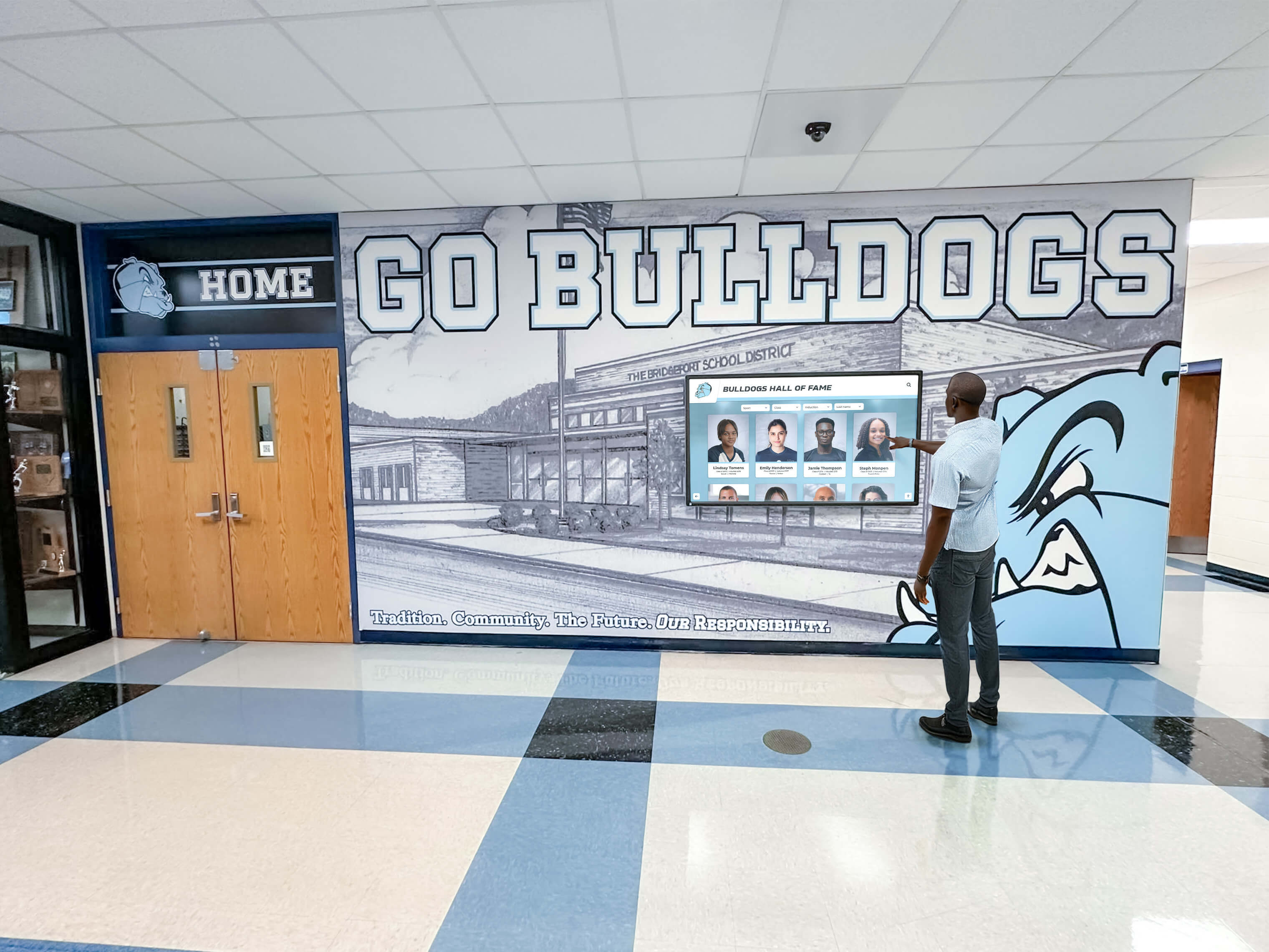
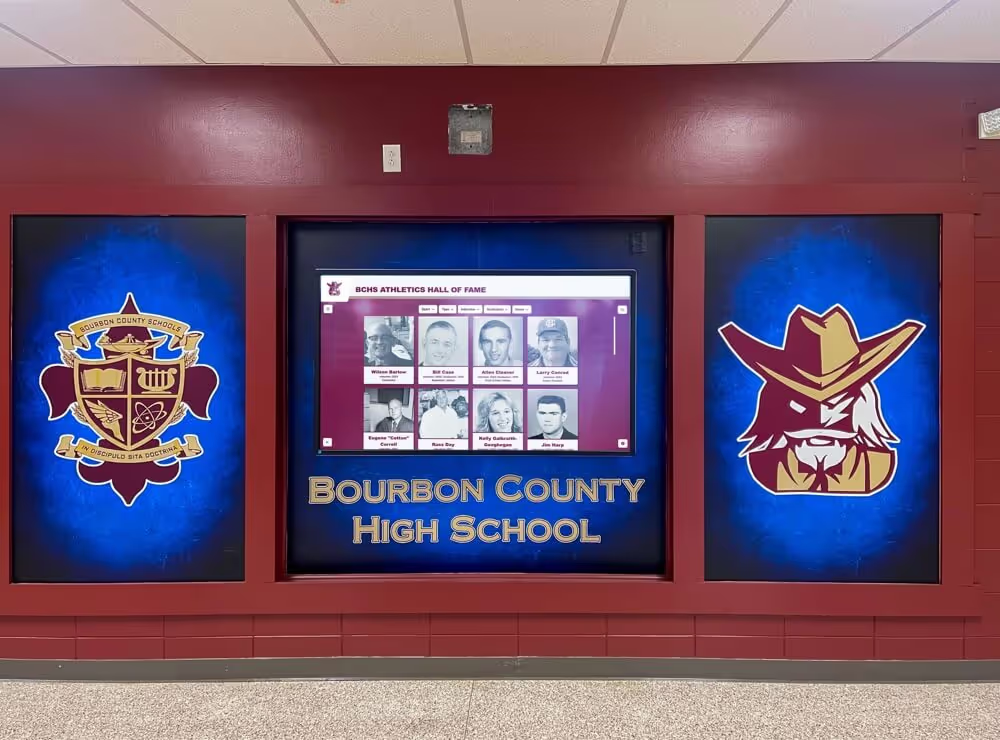
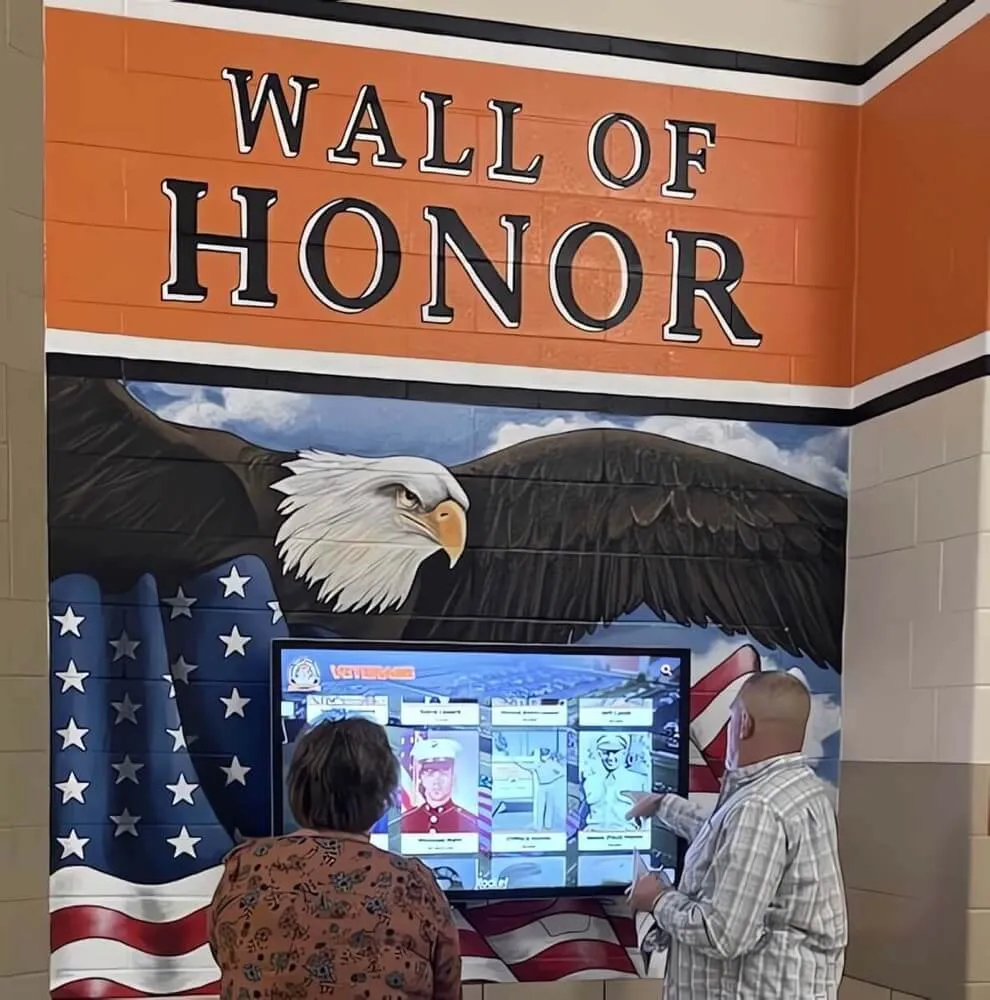
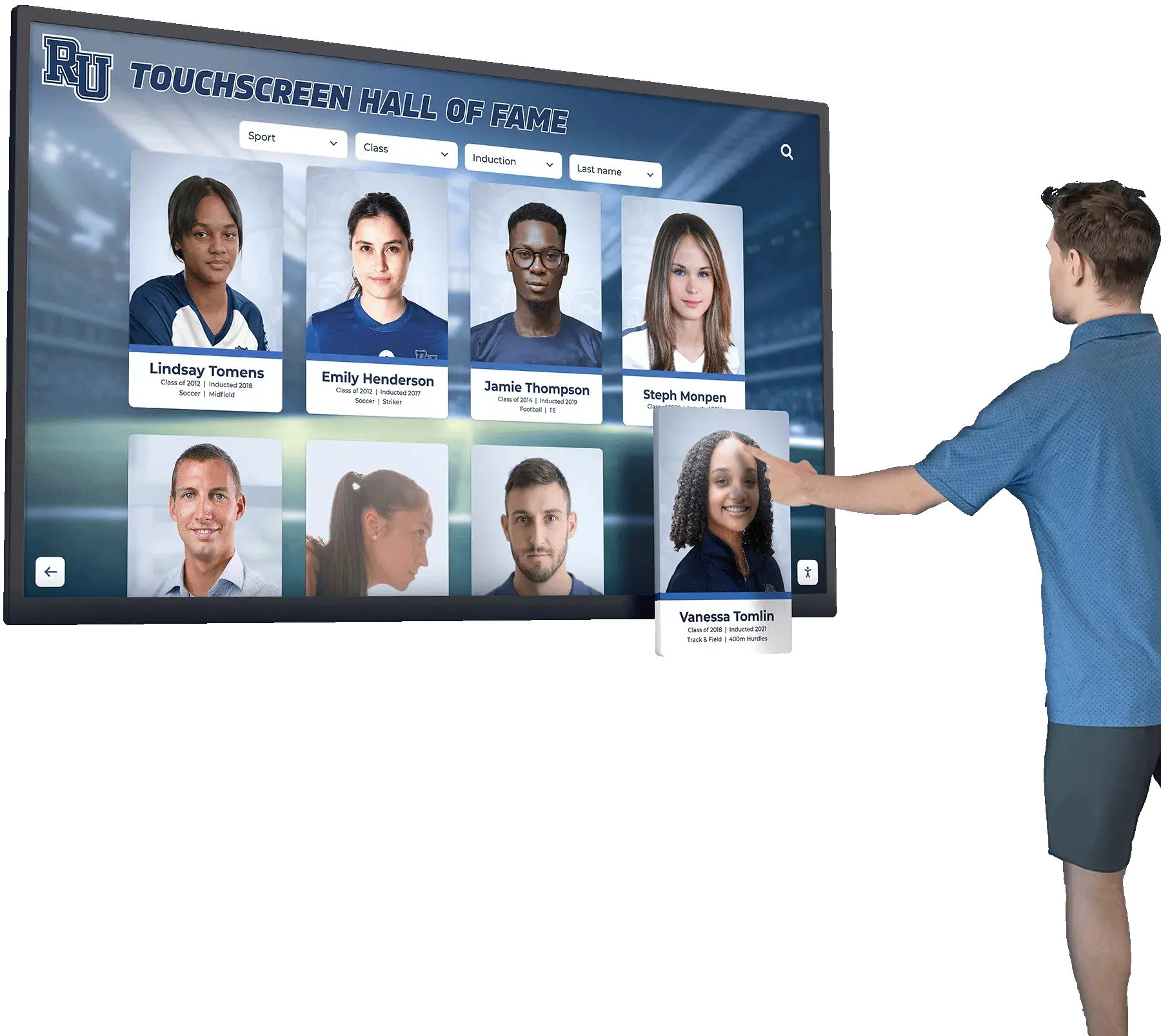
Hall-of-fame touchscreen systems pull directly from the video archive — color alignment in source footage determines whether school markings and uniform details appear precise or fringed at the display resolutions that modern recognition installations use
Frequently Asked Questions
Q: How do I know if our archive already has chroma delay errors in files captured years ago?
Inspect a sample of files from each capture era and capture workstation. Export still frames from scenes with high-contrast edges — white jersey numbers are the most reliable test target — and zoom to 400 percent in an image editor. A chroma delay error will be immediately visible as a narrow colored band offset to one side of the brightness edge. If the collection was captured with a quality TBC workflow, many files may be fine; if it was captured with a consumer USB device and no TBC, a systematic offset is likely across most of the affected era’s footage.
Q: Can chroma delay correction improve footage that has already been compressed to H.264 at low bitrate?
Software chroma correction applied to a low-bitrate H.264 file will eliminate the spatial offset but cannot recover color detail lost to compression. The corrected file will show accurate color alignment at edges, but the reduced color resolution of the original encode limits the quality ceiling. For highest-value footage — championship games, induction ceremony recordings — re-capture from the original tape with hardware correction rather than applying software correction to a compressed deliverable.
Q: Does chroma delay vary within a single tape, or is it consistent throughout?
Both occur. Deck-related chroma delay is generally consistent throughout a tape — a fixed offset from the deck’s Y/C path timing. Tape-related delay (from oxide irregularities and deformation) can vary across a single tape, particularly in tapes that experienced uneven storage conditions. If the delay appears to shift during playback, a hardware TBC with dynamic correction capability handles the variation more effectively than a fixed software offset applied to the entire file.
Q: Our IT team is evaluating video capture hardware for a digitization project. What should they look for related to chroma delay?
Prioritize standalone TBC units with dedicated chroma delay (C delay) controls over all-in-one consumer capture devices. Professional-grade TBCs from broadcast equipment suppliers typically include both chroma phase and chroma delay controls with real-time preview. For budget-constrained projects, any TBC is better than none — even a basic unit without chroma delay control stabilizes sync timing and reduces the range of errors to those correctable in software.
Q: Is chroma delay correction necessary for game footage we plan to display only in low-resolution thumbnails or preview images?
At thumbnail resolution — below 320 pixels wide — a one-to-two-pixel chroma offset is not visible. For thumbnail-only uses, correction is a lower priority. However, the archive should still store the corrected full-resolution file, because display contexts change: a thumbnail preview today may be played full-screen on a lobby kiosk in two years. Correcting at archive ingest is significantly less work than correcting a large collection of files when a display upgrade reveals the defect.
Q: How does chroma delay interact with the chroma subsampling decisions we make at encode time?
They are separate concerns that both affect color quality. Chroma delay is a spatial timing error between the Y and C signals, correctable before or after encode. Chroma subsampling (4:2:0, 4:2:2, 4:4:4) determines how much color information the encoder retains per pixel. Correcting chroma delay on a file that is then encoded at 4:2:0 will produce an accurately aligned but color-reduced result. The ideal workflow corrects chroma delay first, then encodes at 4:2:2 for the archival master — each step is independent and both matter for the final color accuracy of the stored file.
Common Chroma Delay Correction Mistakes to Avoid
Applying a single fixed offset to an entire collection. Chroma delay is specific to the combination of the original recording deck, the playback deck, and the tape condition. An offset of +3 pixels that corrects footage from a particular VHS deck may introduce new fringing on footage captured from a different source. Measure each source type and deck combination independently.
Confusing chroma delay with chroma phase error. Chroma phase error shifts the overall hue of all colors in the frame — greens shift toward yellow, blues toward cyan — without causing spatial displacement. Chroma delay causes spatial displacement without necessarily shifting overall hue. Applying chroma delay correction to a phase error will not improve color accuracy and may introduce new spatial errors. Distinguish the two defects before choosing a correction approach.
Re-encoding the archival master at delivery quality during correction. Software chroma correction requires a re-encode. If the corrected encode is saved as a low-bitrate H.264 file rather than a high-quality intermediate, the correction introduces additional compression loss on top of the original capture. Always use a high-quality intermediate codec (ProRes 422, DNxHD, or high-bitrate H.264 at CRF 15 or lower) for the corrected archival master.
Discarding the pre-correction capture before validating the corrected file. Keep the pre-correction capture file until the corrected version has been fully validated and accepted into the archive. If the correction offset was set incorrectly or the re-encode introduced a problem, the pre-correction file is the recovery option. Once the corrected file passes validation, the pre-correction capture can be evaluated for retention or deletion according to the archive’s retention policy.
Skipping validation after hardware correction. A TBC control adjusted to the correct setting during a preview frame may drift or introduce a different offset on a subsequent tape. Always validate a captured frame from each new tape session — do not assume that a setting verified on one tape is correct for the next.
Turn Corrected Game Footage Into a Living Athletic Recognition Program
Chroma delay correction is the workflow step that makes archived game footage accurate — accurate enough to display in a hall-of-fame installation, a sports banquet montage, or a lobby screen where alumni, students, and families see their school’s history every day.
Rocket Alumni Solutions helps schools connect verified, color-accurate athletic archives to interactive recognition displays designed to surface every athlete, every championship, and every milestone your program has earned.
Schedule a demo with Rocket Alumni Solutions to see how your archive can power recognition infrastructure that honors your school’s history as clearly as it was lived.
Sources
- Library of Congress — Sustainability of Digital Formats: Video — Format guidance for long-term video preservation in institutional and educational contexts
- MediaInfo — Open-Source Video Analysis Tool — Free cross-platform tool for reading video metadata including chroma format and encoding parameters
- FFmpeg Documentation — Video Filters — Reference for FFmpeg filter options including chromashift and related color-processing filters
- VirtualDub2 — Open-Source Video Processing Tool — Free Windows video editor with built-in Chroma Delay filter for post-capture correction