Character encoding normalization is the process of converting all text in your athletic archive to a single, consistent standard — typically UTF-8 — so that names, diacritical marks, punctuation, and special symbols display correctly across every system that reads your data. When an athletic department imports a roster from a 1998 spreadsheet into a modern search platform and sees “José Gutiérrez” appear as “Joséé GutièŔrrez” or a column of question marks, it has an encoding mismatch. The data is there; the software is misreading which characters those bytes represent.
This problem is especially common in athletic archives because the data spans decades, originates from many different sources — hand-keyed spreadsheets, legacy database exports, scanned and OCR-processed programs, and imported statistics feeds — and flows through systems that were built at different points in computing history using different default encoding assumptions. A file saved on a 1990s Windows machine and reopened on a modern database platform may silently corrupt every accented letter, em dash, and special character it contains.
This guide gives athletic directors, archives staff, and school IT coordinators a practical, step-by-step workflow for identifying encoding problems, normalizing your archive to UTF-8, and preventing new encoding errors from entering your records going forward.
When garbled names surface in a hall-of-fame display or a digital recognition screen during an induction ceremony, correcting them requires finding the original source record, identifying the encoding error, and propagating the fix across every system that received the corrupted data. Catching encoding problems before data leaves its source saves that entire recovery cycle.

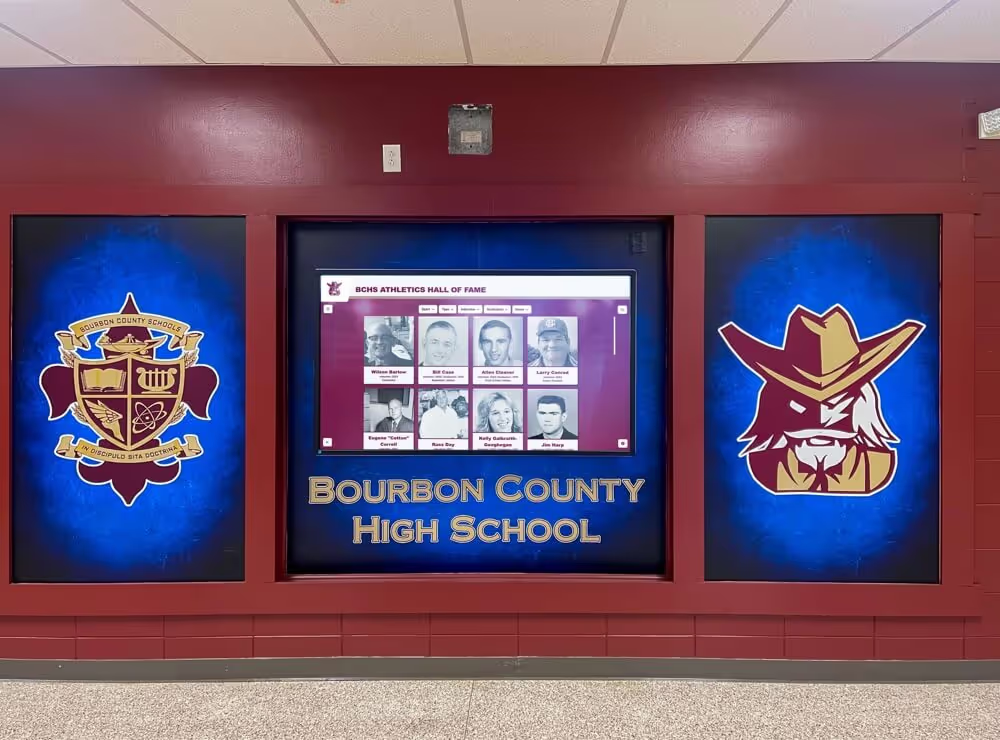
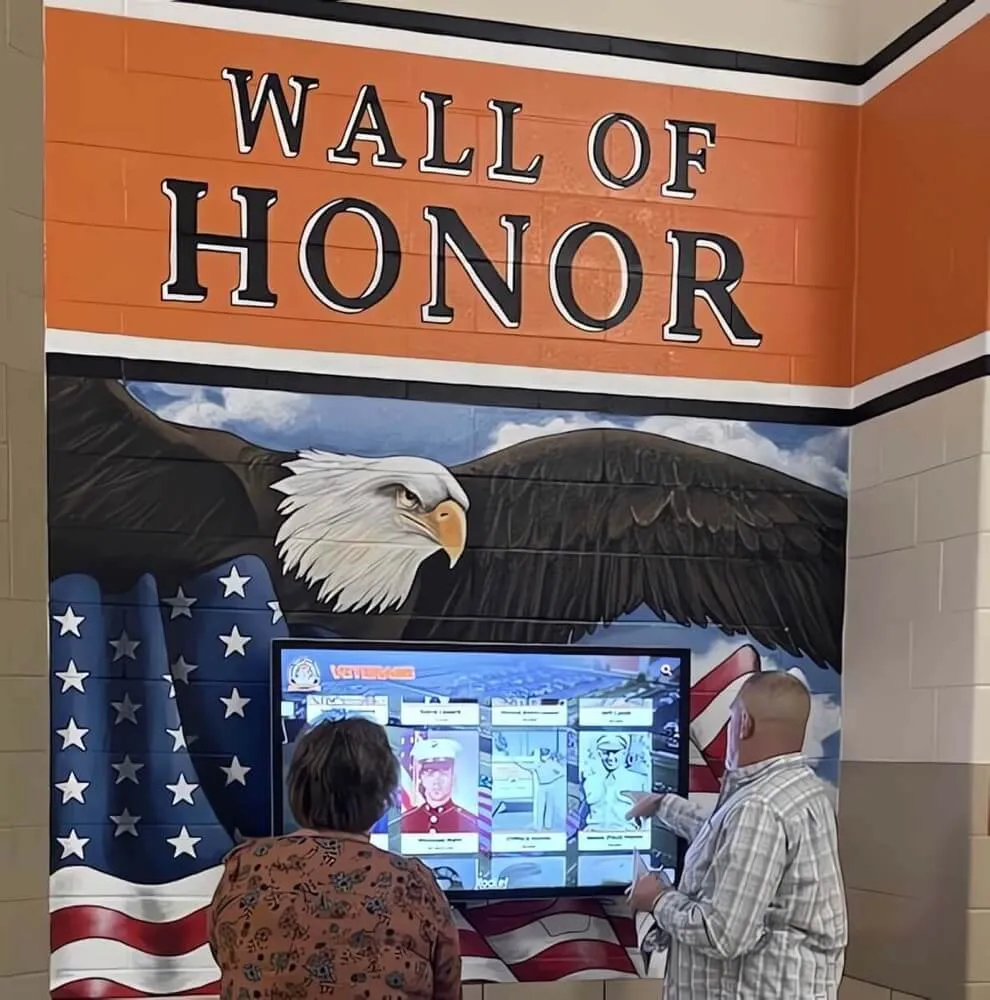
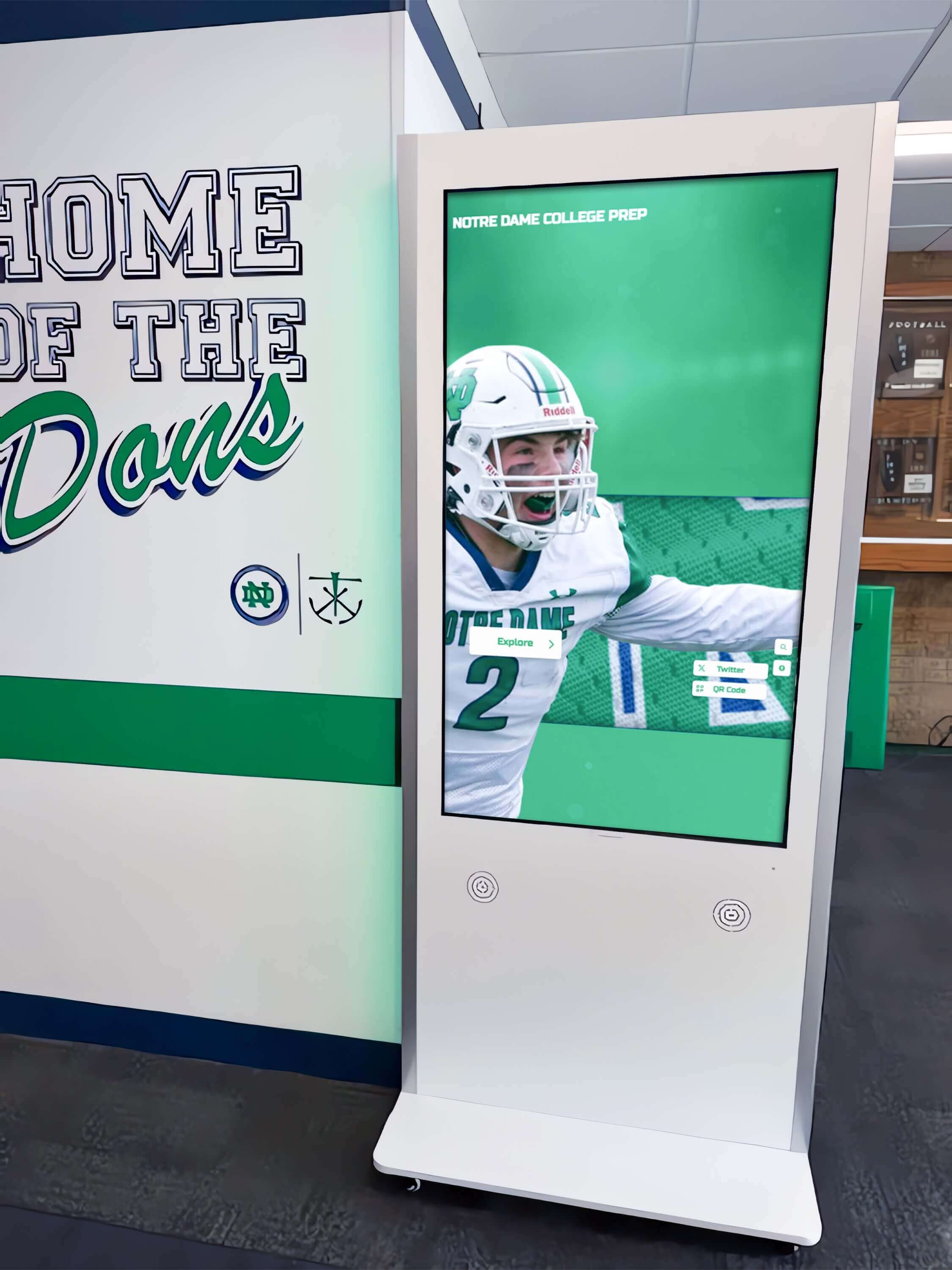
Digital athletic records displays in school hallways, lobbies, and trophy areas draw directly from database exports — making clean character encoding a prerequisite for accurate name presentation at recognition events
What Character Encoding Is and Why Athletic Archives Are Especially Vulnerable
Character encoding is the mapping between the binary data a computer stores and the human-readable characters that data represents. Every letter, number, punctuation mark, and symbol in a digital document is stored as a sequence of bytes. The encoding standard tells the software reading those bytes which character each sequence means.
ASCII, the earliest widely used encoding, covered only 128 characters — sufficient for English text but without room for accented letters, characters from non-English alphabets, or most typographic symbols. As computing spread globally, dozens of competing encoding systems emerged to fill those gaps. Windows-1252 (also called cp1252) became the default on Windows machines in the 1990s and is still the default for many older applications. ISO-8859-1 (Latin-1) was common on Unix and early web servers. Macintosh systems used their own proprietary encoding. Each handled characters beyond the basic ASCII range differently.
UTF-8, introduced in the 1990s and now the universal web standard, encodes all 1.1 million Unicode characters while remaining fully backward-compatible with ASCII. Modern systems assume UTF-8. Legacy systems assume whatever they were built with. When those two systems exchange data without explicit encoding declarations, the result is mojibake — the garbled character strings that appear when bytes written for one encoding are interpreted under another.
Athletic archives are particularly vulnerable to this problem for four reasons:
Data spans encoding eras. A program with records from 1985 through 2026 may contain data created under a half-dozen different encoding defaults, even if every file appears to be a plain spreadsheet.
Multiple source formats. Rosters arrive as Word documents, Excel files, PDF exports, database dumps, CSV files, and copy-pasted web text — each potentially in a different encoding.
OCR output. Scanned programs and rosters processed through optical character recognition sometimes produce encoding-inconsistent output depending on the OCR engine version and settings used at the time of processing.
Staff turnover. When the staff member who built the original filing system moves on, institutional knowledge about how the data was created — including what software and encoding it used — often goes with them.
Common Encoding Error Symptoms: A Diagnostic Table
The first step in any normalization project is recognizing which symptoms indicate encoding problems rather than data entry errors.
| Symptom | Example | Likely Cause |
|---|---|---|
| Accented letters replaced by multi-character strings | “Ramírez” → “RamÃrez” or “Rami?rez” | UTF-8 content read as Latin-1 or ASCII |
| Em dashes and smart quotes appear as boxes or question marks | “1998–2003” → “1998–2003” | Windows-1252 content read as UTF-8 |
| Names truncated at the first special character | “O’Brien” → “O” | Unescaped apostrophe breaking a SQL or CSV parser |
| Degree symbols, trademark signs, copyright marks garbled | “° F” → “°F” | Latin-1/Windows-1252 vs. UTF-8 mismatch |
| Entire name columns display as question marks | “García” → “?????” | Content in an unsupported encoding with no fallback |
| Ligatures broken into two characters | “Æ” → “Æ” | Encoding mismatch at multi-byte character boundary |
| Ellipsis symbol split | “…” → “…” | Windows-1252 ellipsis interpreted as UTF-8 bytes |
| Hash or pipe characters appear mid-name | “Ó’Toole” → “#O’Toole” | Escape character collision in delimited file import |
| Curly quotes replaced by straight quotes or dropped | " Coach " → “Coach” or " Coach " | Smart quote encoding lost on export |
| Non-breaking spaces causing unexpected line breaks | Coach[NBSP]Johnson | Legacy word processor NBSP not normalized |
Any of these symptoms in imported roster data, award records, or display content indicates an encoding mismatch that will propagate to every downstream system — including recognition displays, athletic hall-of-fame platforms, and searchable digital archives.
Understanding the Encoding Landscape in Legacy Athletic Data
Before normalizing anything, it helps to know which encodings are most common in school athletic archives and what each requires during conversion.
| Encoding | Common Source | Era | Notes |
|---|---|---|---|
| ASCII | Early computer systems, simple databases | Pre-1990 | Only 128 characters; safe subset shared by all encodings |
| Windows-1252 (cp1252) | Windows applications, Excel, Word, older CMS exports | 1990s–2000s | Most common legacy encoding in US school data |
| ISO-8859-1 (Latin-1) | Unix systems, older web exports, early email clients | 1990s–early 2000s | Similar to Windows-1252 but differs in 0x80–0x9F range |
| MacRoman | Mac applications, pre-OSX era files | 1990s | Common in files created on early Mac computers |
| UTF-8 | Modern applications, web platforms, Google Sheets | 2000s–present | Current universal standard; backward-compatible with ASCII |
| UTF-16 | Older Microsoft Office formats, some database exports | 2000s | Contains a BOM (byte order mark) at file start |
| ISO-8859-15 (Latin-9) | European-origin systems, some foreign exchange files | Late 1990s–2000s | Added € symbol not in Latin-1 |
| Shift-JIS, EUC-JP | Files from Japanese-language sources | Variable | Rare in US athletic archives; notable if school has exchange programs |
The practical implication: you cannot assume that a legacy file’s encoding matches what your import tool expects. You must detect it, declare it explicitly, and convert it before importing.
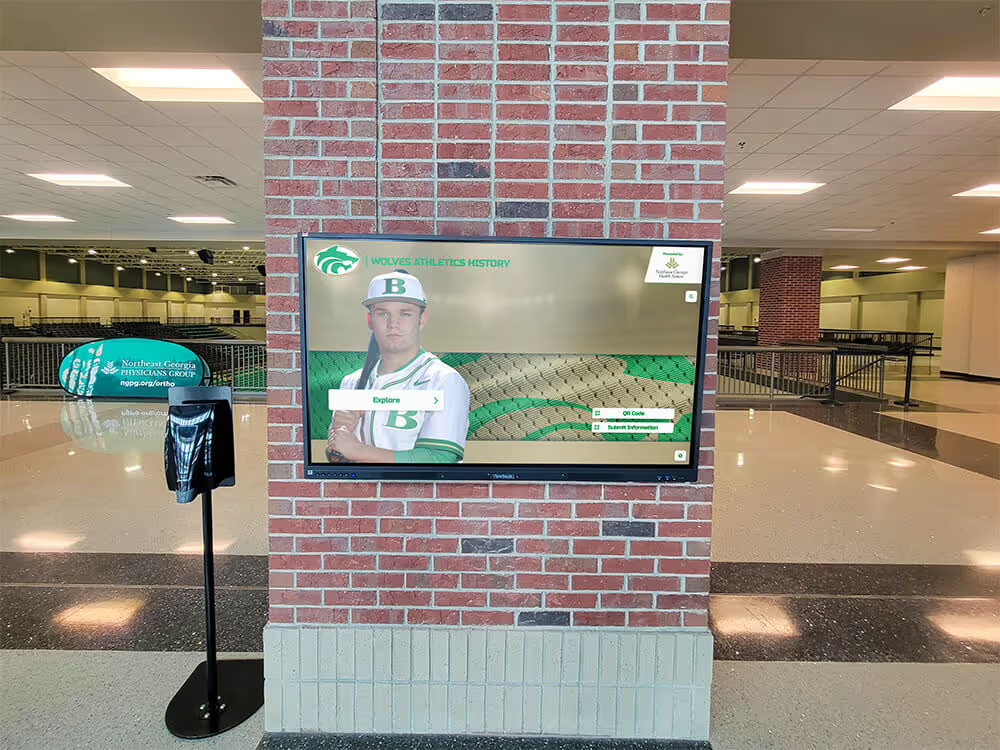
Athletic records displayed on touchscreen kiosks in trophy cases and lobby areas are only as accurate as the encoding integrity of the source data that feeds them — garbled names at a recognition event undermine years of preservation work
The Athletic Archive Character Encoding Normalization Workflow
This workflow moves through seven steps. Each step is designed to be completed in sequence: detecting encoding before converting, converting before validating, and validating before importing into any display or archive platform.
Step 1: Inventory Every File Type and Source in Your Archive
Before touching any files, document what you have. The encoding problem in any collection is the sum of the encoding problems in each individual file, and different file types carry encoding information differently.
For each category of athletic record, note the source application, the approximate era the data was created, and the file format:
| Record Category | Common File Types | Typical Encoding Risk |
|---|---|---|
| Athlete rosters (legacy) | .xls, .xlsx, .csv, .mdb | High — Windows-1252 common |
| Game programs (scanned + OCR) | .txt, .docx, .pdf | Medium — depends on OCR engine |
| Award and honor records | .doc, .docx, .csv, .xlsx | Medium — smart quotes, em dashes |
| Statistical exports | .csv, .txt, .xml | Low to Medium — usually ASCII-safe but check names |
| Hall-of-fame inductee bios | .doc, .docx, .html | High — prose contains em dashes, curly quotes |
| Photo caption spreadsheets | .csv, .xlsx | Medium — special characters in name and location fields |
| Imported web content | .html, .json | Low — modern web is UTF-8; older HTML may use meta charset |
| Booster association records | .xls, .accdb, .csv | High — often maintained in older tools |
Prioritize files that contain athlete names with accented letters, apostrophes, or hyphenated surnames — these are the fields where encoding errors cause the most visible display problems.
Step 2: Detect the Actual Encoding of Each File
Never rely on a file extension or a column label to determine encoding. Use detection tools to inspect the actual byte sequences in each file.
Recommended detection tools:
- chardet / uchardet — open-source libraries available for Python, command line, and most programming environments. Analyze byte patterns and return a confidence-scored encoding guess. Run
chardet <filename>or use the Pythonchardet.detect()function on file contents. - file -i (Linux/macOS) — the built-in
filecommand with the-iflag reports MIME type and charset. Runfile -i roster-1998.csvto see the detected encoding. - Notepad++ (Windows) — open the file and check Encoding menu at the top. Also shows the detected encoding in the status bar.
- iconv –list combined with enca —
encadetects encoding with language-specific heuristics, useful when chardet is ambiguous. - BOM detection — UTF-16 and some UTF-8 files begin with a Byte Order Mark. A file starting with
0xEF 0xBB 0xBFis UTF-8 with BOM;0xFF 0xFEor0xFE 0xFFis UTF-16.
Detection is probabilistic for files that contain only ASCII-safe characters — a file with no special characters can be validly interpreted as any superset of ASCII. Flag these files as “probably safe” but validate after conversion by checking that a few records with known accented characters render correctly.
Build a file manifest during this step: a spreadsheet with one row per file listing its name, path, detected encoding, confidence score, and the presence of BOM. This manifest is the input to Step 3.
Step 3: Convert Files to UTF-8
With the encoding manifest in hand, convert each file to UTF-8. The conversion tool must know both the source encoding and the target encoding to perform a lossless conversion.
Conversion tools by operating system and scale:
iconv (Linux/macOS command line) is the most reliable tool for batch conversion of single files or directory trees:
iconv -f WINDOWS-1252 -t UTF-8 input.csv -o output-utf8.csv
For bulk conversion of an entire directory:
for f in *.csv; do iconv -f WINDOWS-1252 -t UTF-8 "$f" -o "utf8/$f"; done
Python script for programmatic conversion with error logging:
import chardet

def convert_to_utf8(source_path, dest_path):
    with open(source_path, 'rb') as f:
        raw = f.read()
    detected = chardet.detect(raw)
    source_enc = detected['encoding'] or 'windows-1252'
    text = raw.decode(source_enc, errors='replace')
    with open(dest_path, 'w', encoding='utf-8') as f:
        f.write(text)
The errors='replace' argument substitutes a replacement character (U+FFFD) for bytes that cannot be decoded. Log every replacement — it marks a character that could not be automatically recovered and may need manual correction.
OpenRefine (free, GUI-based) is particularly useful for CSV and tabular data. It detects encoding on import, displays a preview of how the data will be interpreted, and exports in UTF-8. Well-suited for non-technical staff handling large roster spreadsheets.
Microsoft Excel requires explicit attention: Excel does not save CSV files in UTF-8 by default on Windows. When exporting a spreadsheet to CSV for import into another system, use “CSV UTF-8 (Comma delimited)” from the Save As dialog (not plain “CSV”), or the BOM will be missing and downstream tools may misread the file.
Important: Always convert to a new file — never overwrite the original. Keep the source file with its original encoding as a preservation copy until the conversion has been validated.
Step 4: Normalize Unicode Characters Within UTF-8
Converting to UTF-8 solves encoding mismatches, but does not address a second category of problems: Unicode normalization form inconsistencies. Within UTF-8, the same visible character can be represented by different byte sequences — for example, an “é” can be a single precomposed code point (U+00E9) or a combining sequence of “e” (U+0065) followed by a combining acute accent (U+0301). Two files that look identical may fail a string comparison if they use different normalization forms.
For athletic archive purposes, normalize all text to NFC (Canonical Decomposition, followed by Canonical Composition) — the form used by most modern web and database systems, and the one that produces precomposed characters where they exist.
Apply NFC normalization in Python using the unicodedata module:
import unicodedata

def normalize_nfc(text):
    return unicodedata.normalize('NFC', text)
Apply this normalization to every name field, caption field, and text column in your archive after UTF-8 conversion. It eliminates invisible differences that cause exact-match searches to fail even when the displayed characters look identical.
Additionally, normalize these common content issues that appear frequently in athletic records migrated from word processors:
| Issue | Original Character | Replace With | Reason |
|---|---|---|---|
| Curly/smart quotes | " " ’ ' | " " ’ ' | Database compatibility, consistent search |
| Em dash from Word | — (U+2014) | — or – | Prevent display gaps in systems without full Unicode support |
| Non-breaking space | (U+00A0) | (U+0020 regular space) | Prevents unexpected line-break behavior in displays |
| Soft hyphen | (U+00AD) | (remove) | Invisible in most contexts but can break string length calculations |
| Ellipsis character | … (U+2026) | … | Cross-platform consistency |
| Zero-width space | (U+200B) | (remove) | Left by some CMS exports; causes invisible spacing issues |
| BOM in mid-string | (U+FEFF) | (remove) | Stray BOMs from concatenated file processing |
Step 5: Validate Converted Data Against Known-Good Records
Automated conversion is not a substitute for human verification. After converting and normalizing, validate a representative sample before importing into any archive or display system.
Validation approach:
Identify a set of “canary records” — athlete names and captions that contain characters likely to be affected by encoding errors. Choose records you can verify against a physical source: a printed program, a trophy inscription, a photograph caption, or an official record from a league or governing body. A useful canary set for a typical school athletic archive includes:
- At least five athlete names with accented letters (common in Spanish, Portuguese, French, Polish, and other surnames)
- At least two names with apostrophes (O’Brien, D’Angelo)
- At least two hyphenated surnames (Johnson-Williams, Smith-Carter)
- Any names with non-Latin characters if your program includes athletes with those backgrounds
- At least three records containing em dashes (year ranges, scores) or degree symbols
- Any caption that used smart quotes or ellipses in the original source
For each canary record, compare the converted output to the verified physical source. Log discrepancies. Any mismatch requires tracing back through the encoding chain to identify where the error was introduced.
Automated validation checks to run on the full converted dataset:
- Scan for replacement characters (U+FFFD) — each one marks a byte that could not be decoded
- Check for stray BOMs in the middle of text fields
- Verify that name fields do not contain control characters (U+0000–U+001F outside of newline and tab)
- Confirm that all records in a CSV export display the correct number of fields when split by the delimiter — an unescaped comma or pipe inside a name field can shift all subsequent columns
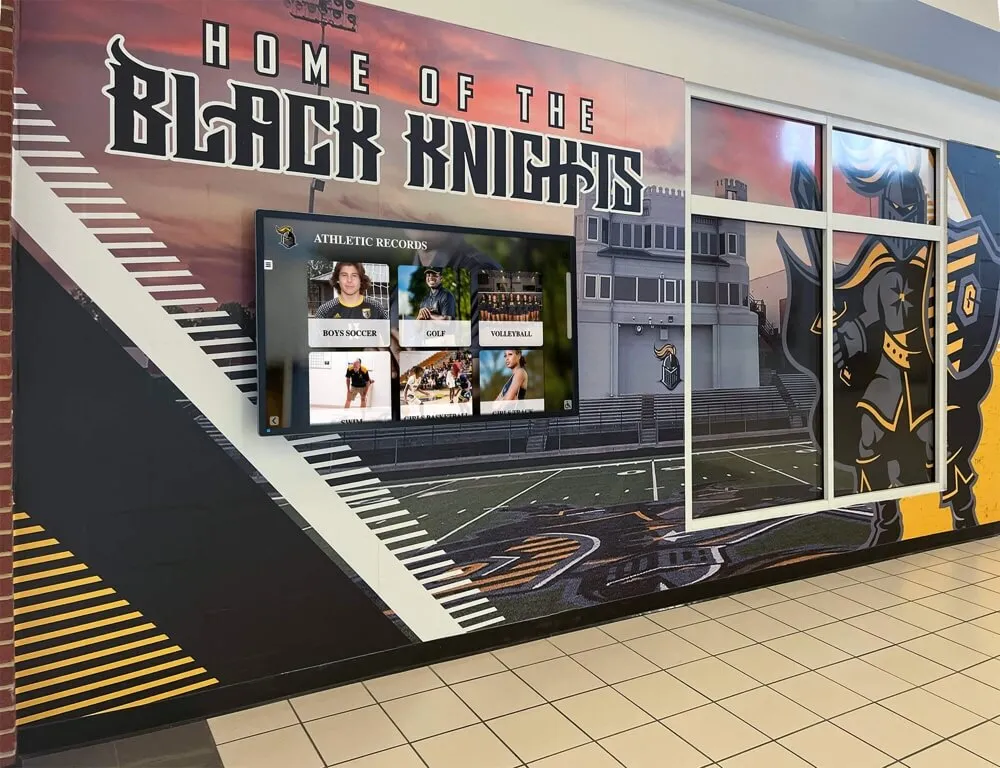
Interactive hallway kiosks displaying program histories and athlete profiles receive their data from archive exports — a character encoding normalization workflow ensures names and results render accurately at the point of display
Step 6: Declare Encoding Explicitly at Every System Boundary
The most common cause of re-introduced encoding errors after a successful normalization project is failing to declare the encoding at the point where data crosses a system boundary. A UTF-8 file interpreted as Windows-1252 by a receiving system produces the same garbled output as the original problem — even after careful conversion work.
Apply explicit encoding declarations at every transfer point:
CSV files: Add a BOM (0xEF 0xBB 0xBF) to UTF-8 CSV files destined for Excel or older applications that expect it. For modern systems and command-line tools, a BOM-less UTF-8 file is preferable.
Database imports: In MySQL and MariaDB, specify CHARACTER SET utf8mb4 COLLATE utf8mb4_unicode_ci on table creation — utf8mb4 is full Unicode UTF-8 (including 4-byte characters); the older MySQL utf8 is limited to 3-byte sequences and will silently corrupt some special characters. In PostgreSQL, the default UTF-8 encoding is full and correct.
XML and HTML files: Include <?xml version="1.0" encoding="UTF-8"?> at the top of XML files. In HTML, set <meta charset="UTF-8"> in the <head>. Omitting these declarations allows browsers and parsers to guess, and older tools often guess wrong.
API calls: Set the Content-Type: application/json; charset=utf-8 header when sending JSON to external systems. Confirm the receiving API documents UTF-8 support before sending non-ASCII content.
Email exports: Athletic records attached to emails as CSV are particularly prone to encoding loss if the email client applies its own encoding to attachments. Use UTF-8 with BOM for any file that will be distributed via email for import by another party.
Step 7: Establish Intake Rules That Prevent Future Encoding Errors
Normalization cleans what you have. Intake rules prevent the problem from re-entering the archive with every new roster, every new season’s statistics, and every new caption file.
Mandatory intake requirements for any file entering the athletic archive:
| Requirement | How to Enforce |
|---|---|
| All submitted files must be UTF-8 | Validate encoding on receipt; reject non-UTF-8 with instructions |
| CSV files must use comma delimiters with proper quoting | Lint with a CSV validator before import |
| Name fields may not contain control characters or stray BOMs | Automated scan on intake |
| Excel files must be exported as “CSV UTF-8” not standard CSV | Document in data submission guidelines; validate received files |
| Photo caption fields must match the roster name exactly | Cross-reference check at intake |
| All text from OCR must pass encoding validation before entering the archive | Require UTF-8 output setting in the OCR workflow |
| Database exports from legacy systems must specify encoding in the export log | Require an encoding declaration document with each export |
Publish these requirements as a one-page data submission standard that any staff member, vendor, or booster volunteer submitting records to the archive can reference. When alumni management software is used to collect athlete updates and biographies, configure its export settings to UTF-8 before any data enters the archive.
Before and After: Real Encoding Error Examples
The following examples show the kind of encoding errors that appear in athletic archives when Windows-1252 content is imported into a UTF-8 system without conversion — and what the corrected output looks like.
| Field Type | Corrupted (Windows-1252 read as UTF-8) | Correct (After Normalization) |
|---|---|---|
| Athlete name | José RamÃrez | José Ramírez |
| Athlete name | Francøis Lévesque | François Lévesque |
| Athlete name | Mikaël Ã…sberg | Mikaël Åsberg |
| Season record | 1998–2003 State Champion | 1998–2003 State Champion |
| Award caption | First Team All-Stateâ„¢ Award | First Team All-State™ Award |
| Score notation | Won 34–31 in overtime | Won 34–31 in overtime |
| Coach name | OâÂÂBrien | O’Brien |
| Academic honor | GPA: 3.9 — Honor Roll | GPA: 3.9 — Honor Roll |
| Venue name | École Arena | École Arena |
| Year range | 2001–02 Championship | 2001–02 Championship |
Each of these errors is deterministic — the same source bytes interpreted under the wrong encoding produce the same corrupted output every time. That predictability is what makes programmatic correction possible: once you identify the source encoding, you can batch-correct every field without manual review.
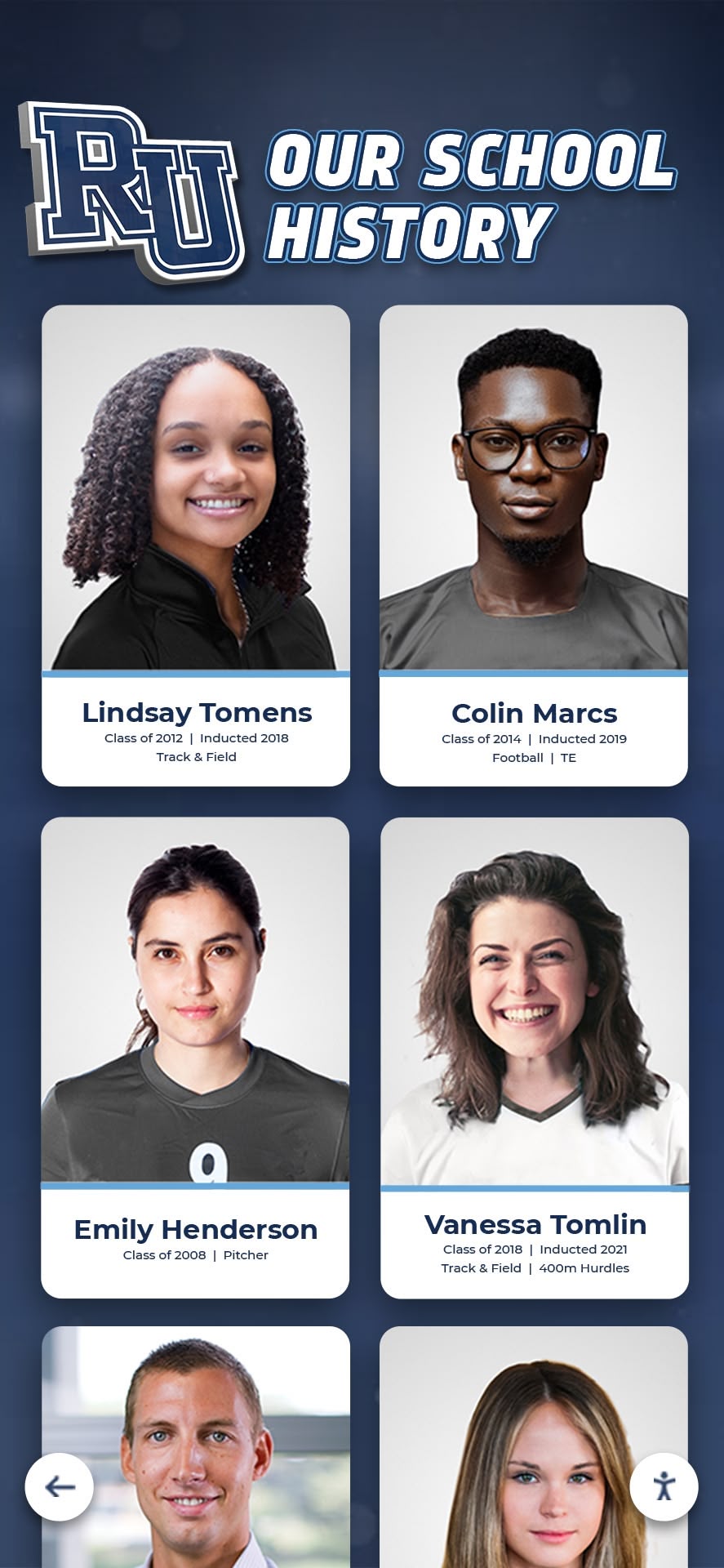
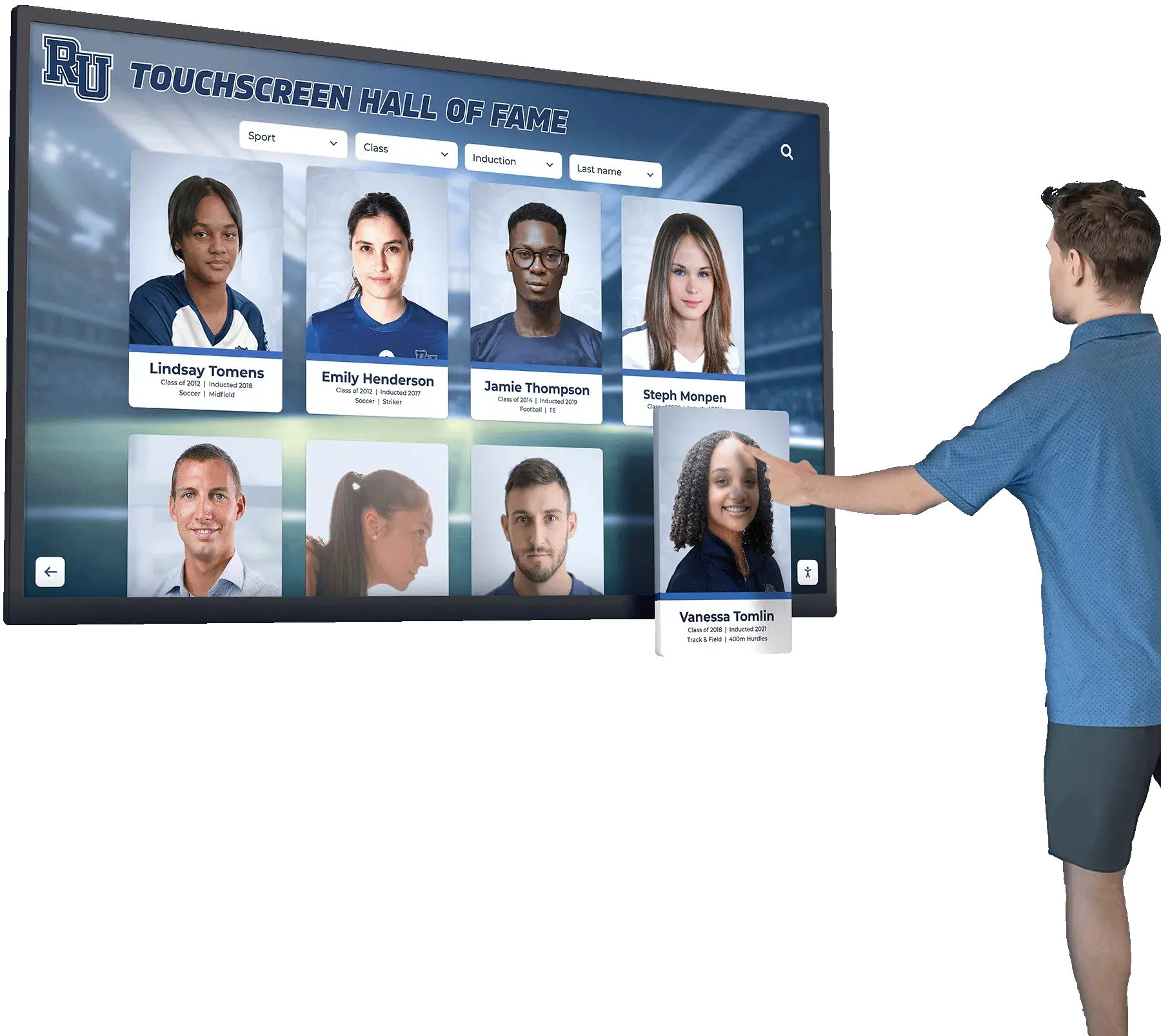
Alumni athlete portrait cards in digital archives rely on accurate name encoding to surface correctly in searches, [championship banner displays](https://touchwall.tv/blog/championship-banner-display-ideas-schools/), and hall-of-fame recognition programs that draw from the same data source
Athletic Archive Encoding Normalization Checklist
Use this checklist at the start of a normalization project and again whenever a significant new batch of legacy records enters the archive.
Phase 1 — Audit
- Inventory all file types and source systems in the archive
- Note creation era and source application for each file category
- Identify records containing accented letters, apostrophes, hyphens, dashes, and typographic symbols
- Run encoding detection (chardet, file -i, Notepad++) on every legacy file
- Build a file manifest documenting detected encoding and confidence score
- Flag files with low-confidence detection for manual review
Phase 2 — Convert
- Back up all source files before any conversion
- Convert each file from detected encoding to UTF-8 using iconv, Python, or OpenRefine
- Log every character that could not be decoded (replacement character U+FFFD)
- Apply NFC Unicode normalization to all converted text
- Replace smart quotes, em dashes, non-breaking spaces, and soft hyphens per normalization table
- Remove stray BOMs and zero-width spaces from all text fields
Phase 3 — Validate
- Assemble a canary record set from verified physical sources
- Compare converted canary records to verified sources field by field
- Run automated scans for replacement characters, control characters, and stray BOMs
- Validate CSV delimiter integrity (no unescaped delimiters in name fields)
- Confirm field count consistency across every row in tabular files
- Log all discrepancies and trace each to its source in the encoding chain
Phase 4 — Import and Declare
- Add UTF-8 with BOM for Excel-destined CSV files; omit BOM for Unix/Linux tools
- Set
utf8mb4charset on MySQL/MariaDB table creation - Include XML encoding declaration in all XML exports
- Set
charset=UTF-8in HTTP Content-Type headers for API transfers - Confirm that the receiving archive or display platform is configured for UTF-8 input
- Verify that name fields render correctly in at least one downstream display after import
Phase 5 — Prevent
- Publish a data submission standard requiring UTF-8 for all submitted files
- Automate encoding validation as part of the archive intake workflow
- Configure OCR software to output UTF-8
- Configure Excel exports to use “CSV UTF-8” not standard CSV
- Train any staff or volunteers who submit records to the archive on the submission standard
- Schedule annual encoding validation sweep of all archived files
How Encoding Errors Affect Recognition Displays and Digital Programs
Encoding problems that seem like a data management concern have direct consequences for the recognition programs that athletic archives serve. Digital hall-of-fame and donor recognition systems draw their name and record data directly from the same database exports and CSV imports that encoding errors corrupt.
When a hall-of-fame inductee’s name displays with garbled characters during an induction ceremony, the error is visible to hundreds of people and reflects on the quality of the athletic program’s historical stewardship. When a decade of roster data migrated from a legacy statistics platform arrives with corrupted accented characters, every athlete with a non-ASCII name in that dataset is affected — and the names most at risk are often those of athletes whose families are most likely to attend recognition events and see the error in real time.
Schools that publish athletic history on interactive lobby displays or searchable archive platforms face a compounding problem: search engines index garbled character strings as distinct text, meaning that a search for “José Ramírez” returns no results if the indexed version of the name is “José RamÃrez.” The athlete effectively disappears from the searchable record. Correcting the display without correcting the underlying database leaves the search problem intact.
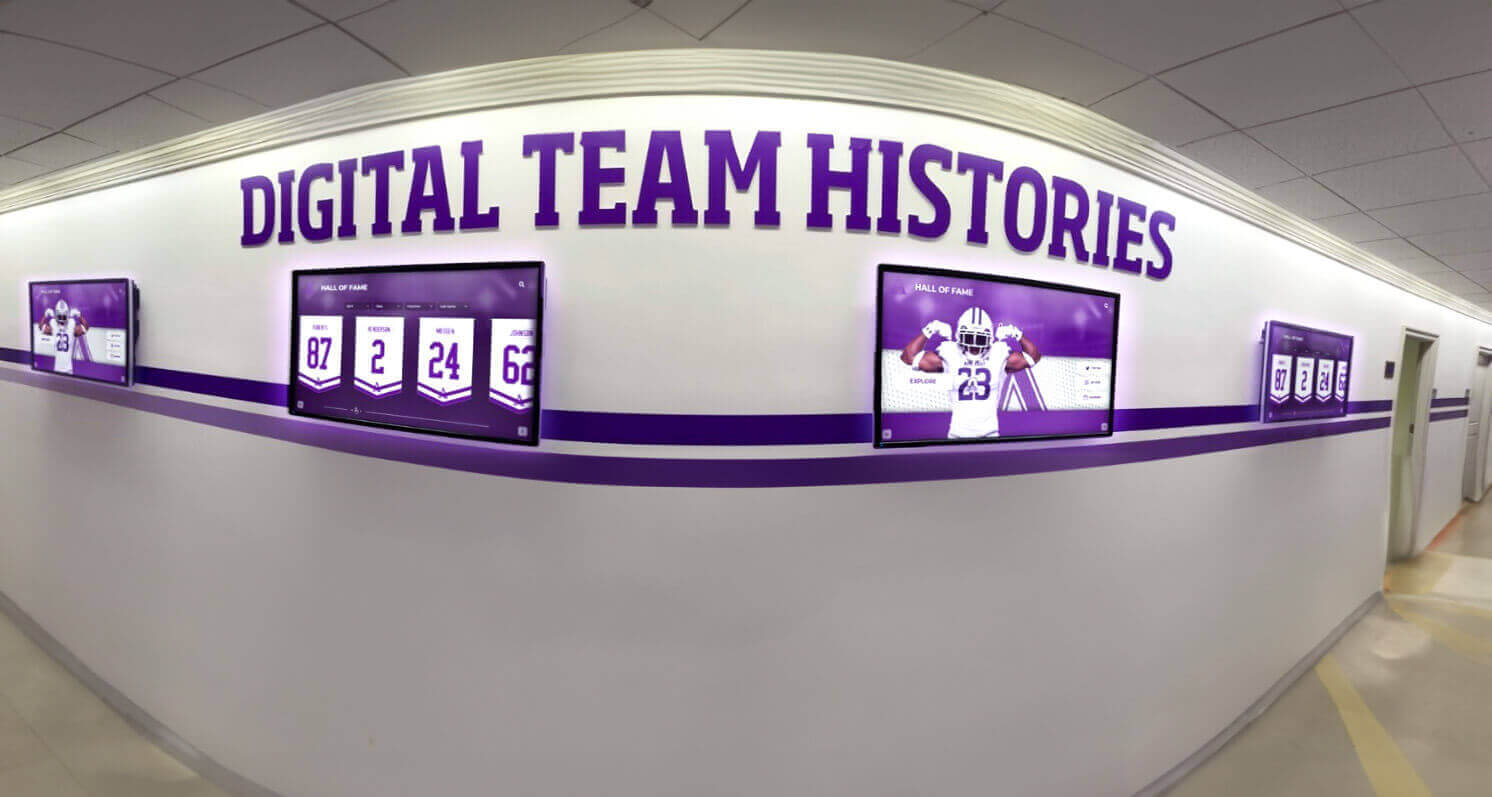
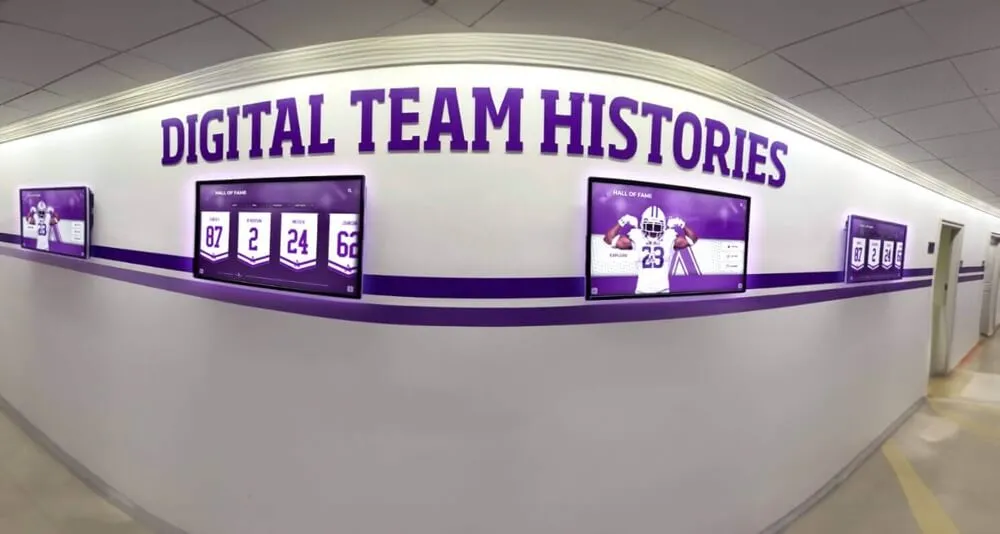
Digital team histories spanning multiple decades require encoding normalization at every source — rosters, programs, statistics feeds, and caption files — to display athlete names accurately across all years represented
Addressing encoding normalization before importing legacy records into recognition platforms is the most cost-effective approach: converting 5,000 roster records in a batch takes hours; correcting 5,000 individual display records manually takes months.
Connecting a Normalized Archive to Recognition Programs
A normalized archive is a usable archive. Once character encoding is consistent and validated across your athletic records, the data becomes a reliable foundation for the recognition programs it was always meant to support.
Schools that maintain normalized athletic archives with consistent UTF-8 encoding find that:
- Alumni management platforms can ingest roster data without manual name correction — a significant time saving when managing large athletic history databases. Review how alumni management software handles encoding on import when evaluating platforms.
- Hall-of-fame nomination workflows can be auto-populated from verified archive exports rather than requiring staff to re-key athlete names from printed records.
- Digital display systems receive clean data from the first import, reducing setup time and eliminating the need for post-import display corrections before a recognition event.
- Academic recognition crossovers — athletes who earned honors in both athletics and academics — can be linked accurately across record types because their names are encoded consistently in both the athletics and academic archives. Student achievement programs like academic student of the month digital displays depend on this same name-match integrity.
- Search and discovery functions return accurate results for every athlete’s name, including those with non-ASCII characters, because the indexed text matches what a user types.
The connection between encoding hygiene and recognition quality is direct: every athlete in your archive deserves to have their name displayed correctly. Character encoding normalization is the technical step that makes that possible.
Frequently Asked Questions
Q: Our archive has tens of thousands of records. Do we really need to check every file?
You do not need to check every record manually, but you do need to run automated detection and conversion across every file. The encoding detection and conversion tools described in Steps 2 and 3 handle large collections efficiently — processing tens of thousands of records takes minutes with command-line tools or a simple script. The manual effort in a large project concentrates on the canary validation set and on any records flagged by the automated scan as containing replacement characters.
Q: We use Google Sheets for roster management. Is encoding still a concern?
Google Sheets stores all data in UTF-8 internally, so active files in Sheets are not subject to encoding problems. The risk appears when you export to CSV (which is correctly UTF-8) and that file is then opened in Excel on a Windows machine, which may display non-ASCII characters incorrectly unless Excel is told to interpret the file as UTF-8. Also, if you import a legacy CSV into Sheets and Sheets misdetects the encoding on import, the garbled characters are now stored in the Sheets file. Validate after any import from a legacy source.
Q: Our athletic records go back to the 1970s and were entered by hand into early database software. How do I know what encoding to assume?
Files from the 1970s and 1980s stored in early database formats are almost always limited to the ASCII character set — 128 characters with no accented letters. If accented letters appear in early records, they were likely substituted with ASCII approximations (e.g., “n” instead of “ñ”) or represented using database-specific escape sequences. Run encoding detection on these files, but also review them manually for systematic character substitutions that detection tools will not flag as errors. Some early systems used custom character sets that do not correspond to any standard encoding, requiring a custom mapping table for conversion.
Q: Is it safe to use a conversion tool that uses errors='replace'?
The errors='replace' option prevents a conversion script from crashing on unrecognized bytes, but every replacement character it produces marks data loss — a character that could not be decoded. In a roster or award record, a replacement character in a name field is a problem that needs human resolution. Use errors='replace' to get a first-pass conversion completed, but treat the log of replacement characters as a required-review queue, not an acceptable final state. For names specifically, trace every replacement character back to the source byte and determine the correct character manually before the record enters the archive.
Q: What happens when an athlete’s name appears in multiple record types — roster, statistics, caption file, hall-of-fame bio — and the encoding is wrong in some but not all?
This is the cascading error scenario that makes encoding normalization a prerequisite for record linking. If the roster contains “José Ramírez” correctly in UTF-8, but the caption file contains “Josà Ramàrez” due to a conversion error, automated record-matching will fail to link them — producing a duplicate rather than a linked record. Normalize all record types before attempting any cross-record linking. The athletic director or archivist responsible for record quality should treat encoding consistency as a prerequisite for any cross-system data integration project.
Q: Do we need to re-run normalization every time we receive new records from an external source?
Yes. Every external source is a potential encoding inconsistency. The intake requirements in Step 7 are designed to establish UTF-8 as a contractual requirement for submitted data, but validation on receipt should always confirm that what was sent as UTF-8 is actually UTF-8. Automate the encoding check as part of the intake workflow so it runs without requiring manual initiation — this is especially important during high-volume periods like end-of-season roster updates or multi-year statistics imports.
Connect Your Normalized Archive to Recognition Displays That Honor Every Athlete
Encoding normalization is the technical foundation. Turning a clean archive into an active recognition resource — visible on interactive lobby displays, searchable by alumni, featured at induction ceremonies — is where the preservation work pays off in lasting community value.
Rocket Alumni Solutions helps schools connect normalized athletic archives to interactive hall-of-fame displays, digital yearbooks, and alumni engagement platforms designed to present athletic history accurately and durably.
Schedule a demo with Rocket Alumni Solutions to see how a clean, normalized archive can power recognition displays that honor every athlete’s name correctly — every season, every milestone, every year.
Maintaining Encoding Integrity Over Time
Encoding normalization is not a one-time project — it is an ongoing operational discipline. The volume of new data entering an athletic archive grows with every season: updated rosters, new statistics exports, additional caption files, expanded hall-of-fame records, and digitized historical materials from newly recovered programs or alumni donations.
Sustaining encoding integrity over time requires three organizational commitments beyond the technical workflow:
Document the standard. Write down the encoding requirements for your archive — UTF-8, NFC normalization, specific substitution rules for typographic characters — and make that document part of the archive’s formal policies. When staff turn over, the institutional knowledge about why UTF-8 matters and how to validate it needs to be in writing, not in one person’s head.
Automate the intake check. Manual encoding validation is sustainable for small batches. For programs receiving continuous data submissions from statistics platforms, student information systems, and external vendors, an automated check that flags non-UTF-8 files on receipt is the only approach that keeps pace with data volume without adding staff time.
Audit annually. Run a full encoding validation sweep of the archive at least once per year, using the same detection tools used in the initial normalization project. Software upgrades, vendor migrations, and new data integrations can reintroduce encoding inconsistencies in ways that are not immediately visible. An annual audit catches drift before it propagates across the archive and before it surfaces in a recognition display at exactly the wrong moment.
Athletic records are evidence of what your program achieved and who contributed to it. Ensuring that every name in those records is encoded correctly is not a technical detail — it is a commitment to accurate historical stewardship. The athletes those names belong to, and the families who come to recognition events to see them honored, deserve nothing less.