Athletic archive aspect-ratio correction is the process of identifying the native frame dimensions of historic sports video and ensuring those proportions are preserved — not distorted — when files are re-encoded, transferred to modern display systems, or integrated into school recognition infrastructure. Most historic school athletic video was captured in 4:3 aspect ratio: the near-square frame standard for broadcast television and consumer camcorders from the 1950s through the mid-2000s. Modern lobby displays, hall-of-fame kiosks, digital yearbook viewers, and recognition platforms default to 16:9 widescreen. When a 4:3 source plays on a 16:9 display without correction, the video stretches horizontally — athletes appear noticeably wider than they were, playing courts and fields look compressed, and scoreboard text and banner lettering become visibly deformed. The visual historical record is misrepresented in exactly the infrastructure built to honor it.
This guide explains how aspect ratio works in video files, how to identify the correct native ratio for every major video source type in school athletic collections, how to choose between pillarboxing, cropping, and letterboxing for different display contexts, and how to produce corrected archive files that display accurately on modern hall-of-fame screens, digital yearbooks, lobby kiosks, and recognition platforms. It is written for school administrators, athletic directors, archivists, and IT staff managing video from VHS tapes, 8mm camcorders, MiniDV, broadcast capture, and early HD cameras across multiple decades of program history.

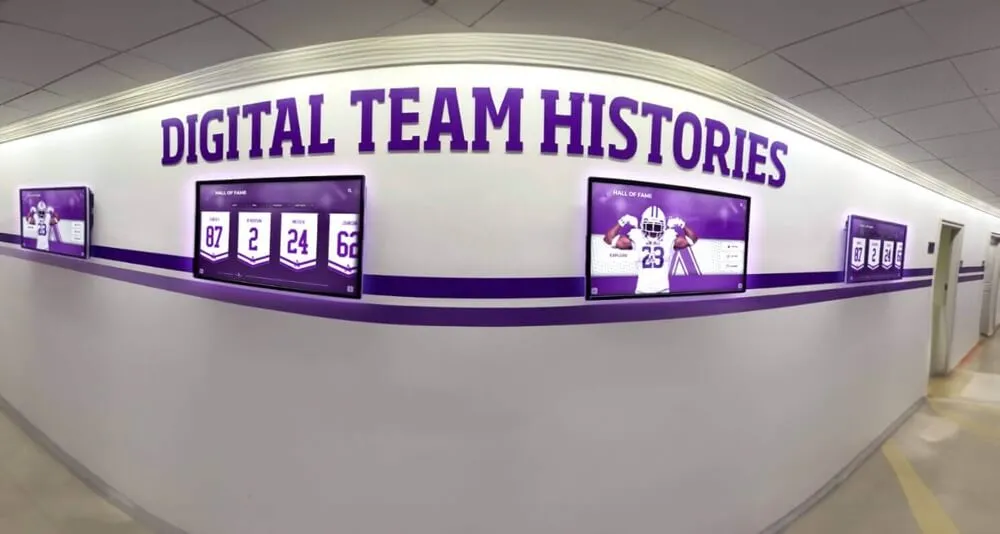
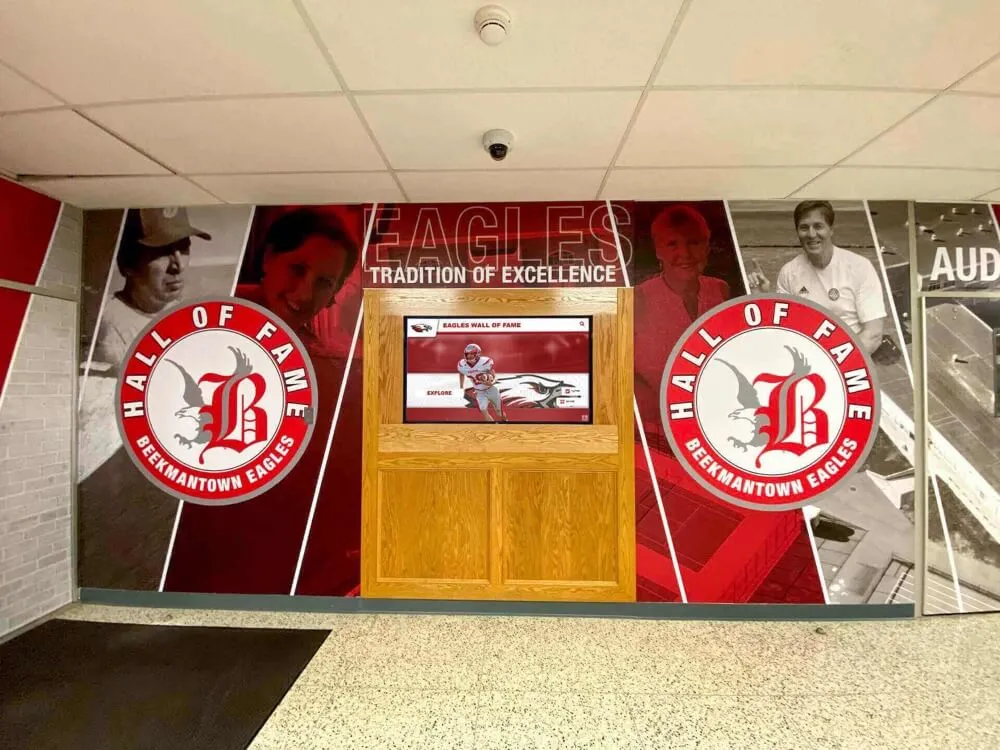
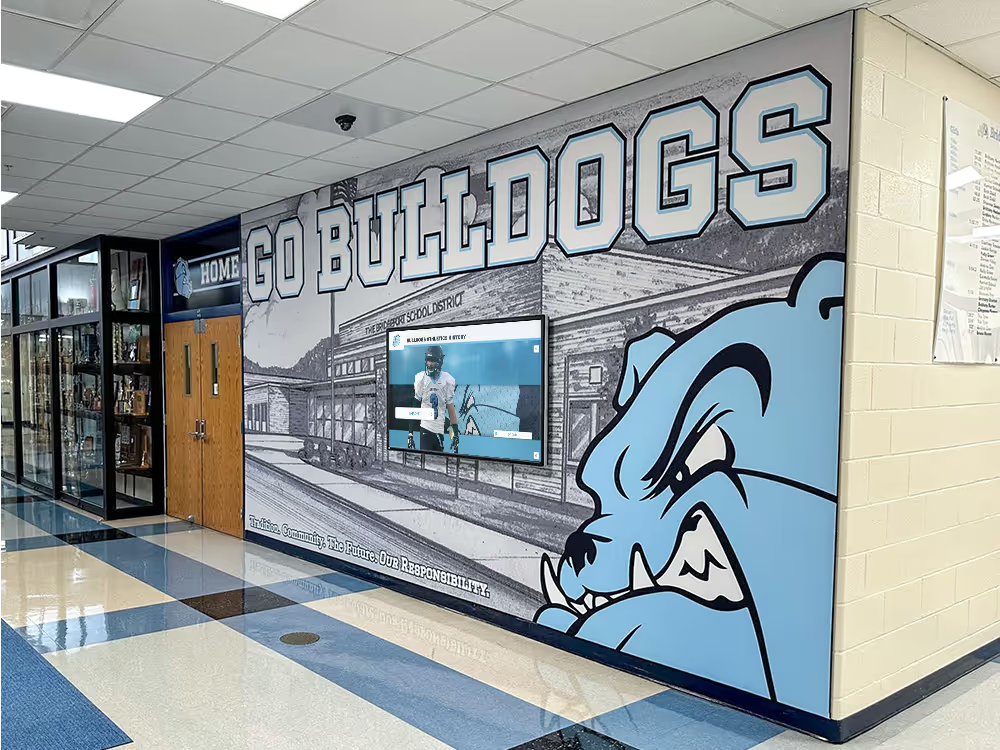
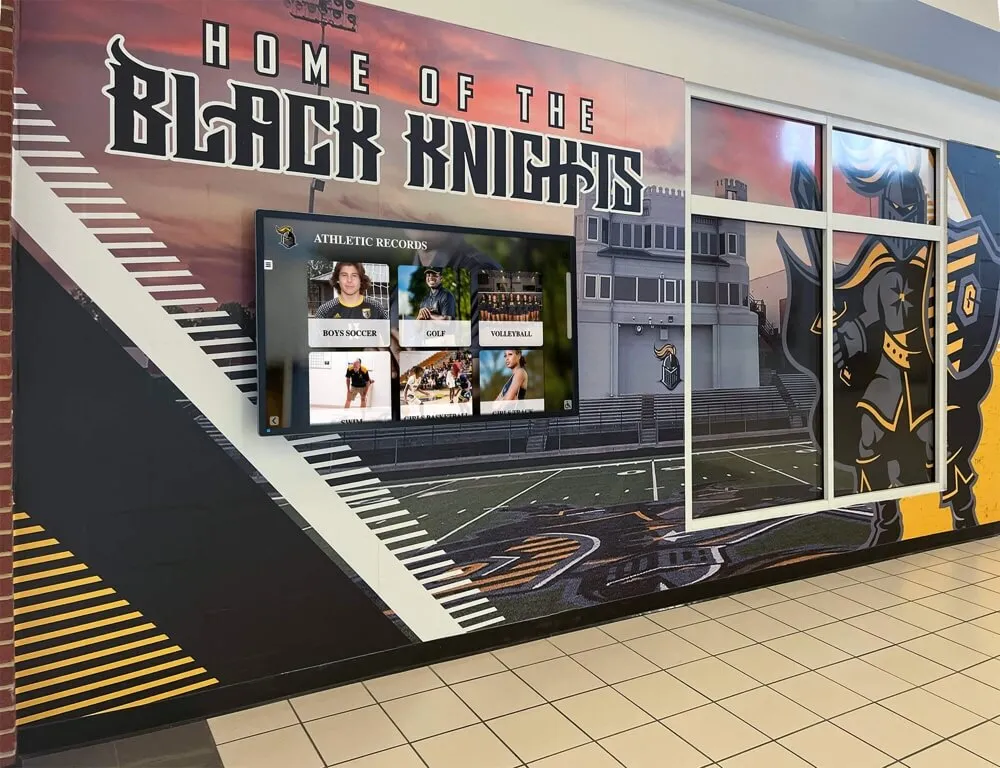
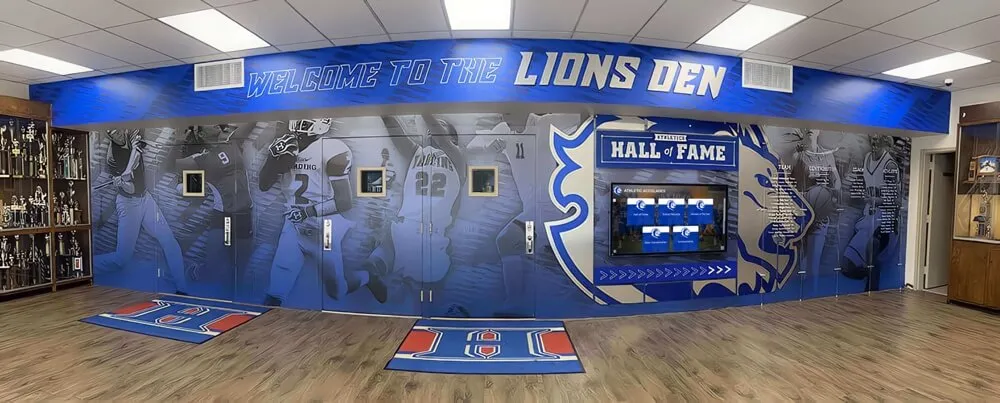
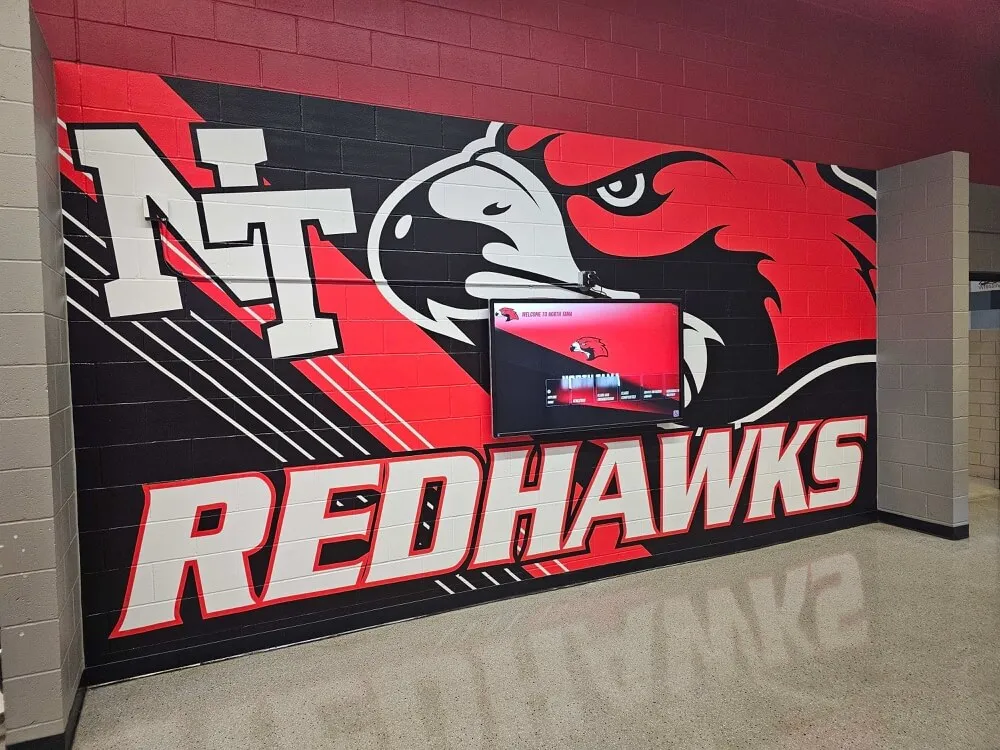
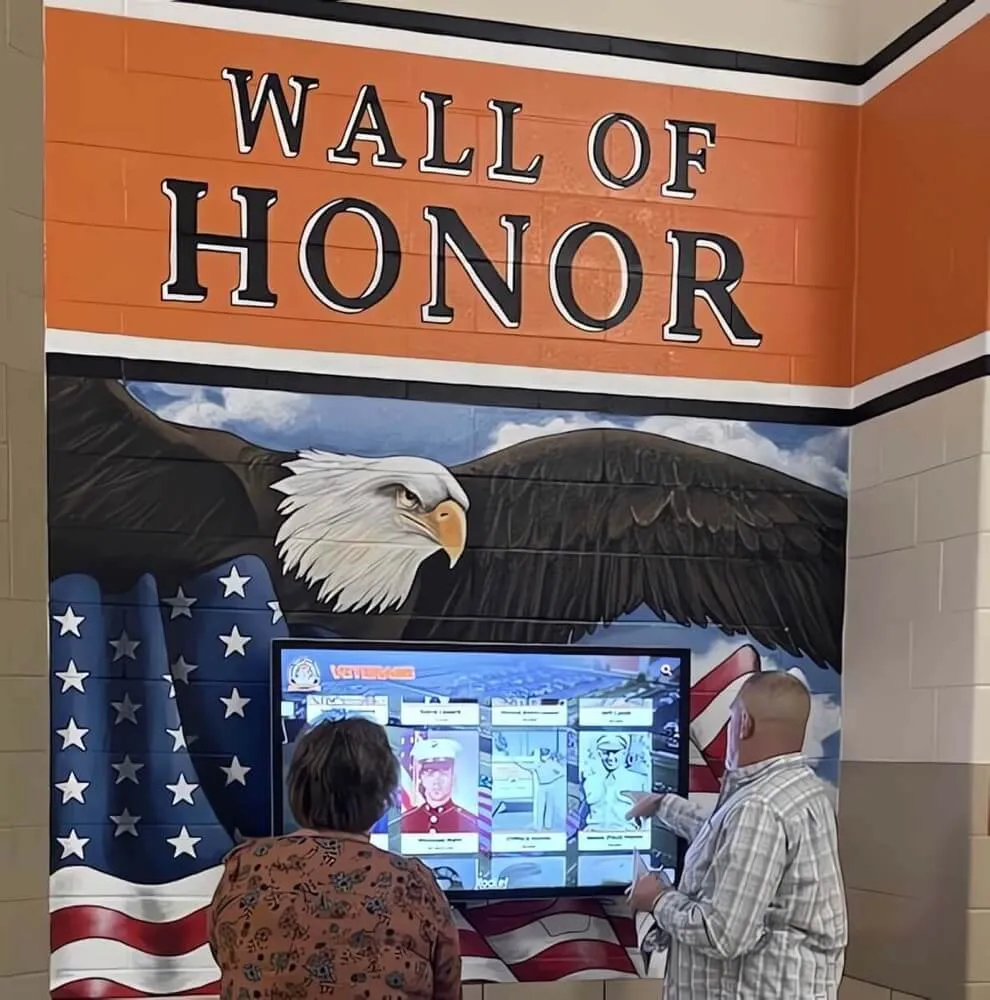
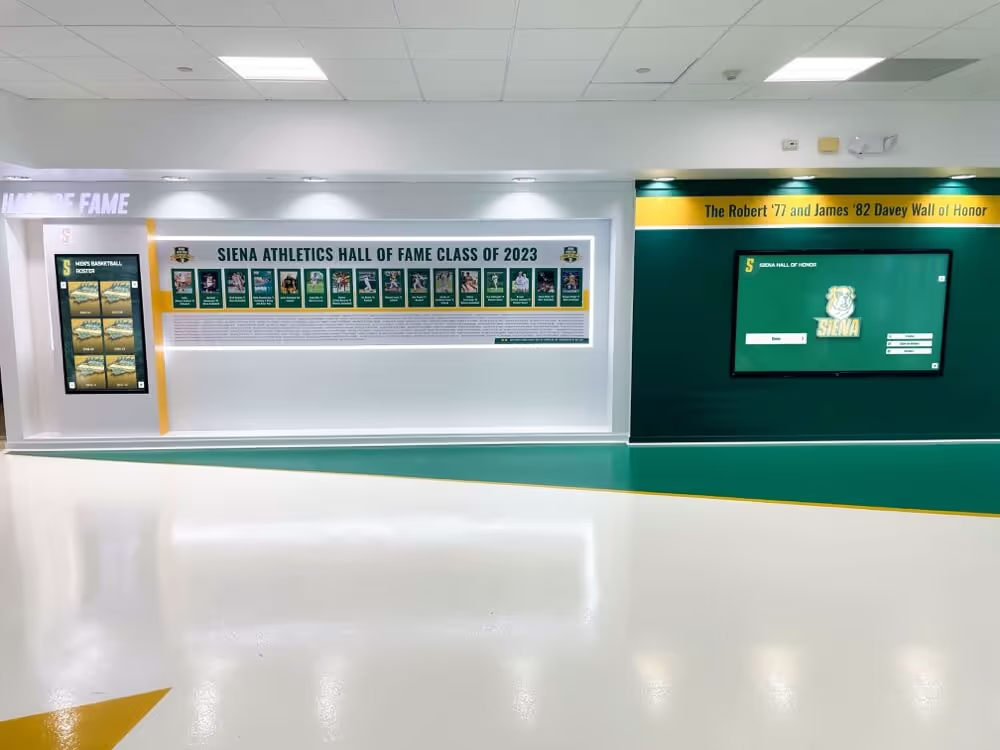
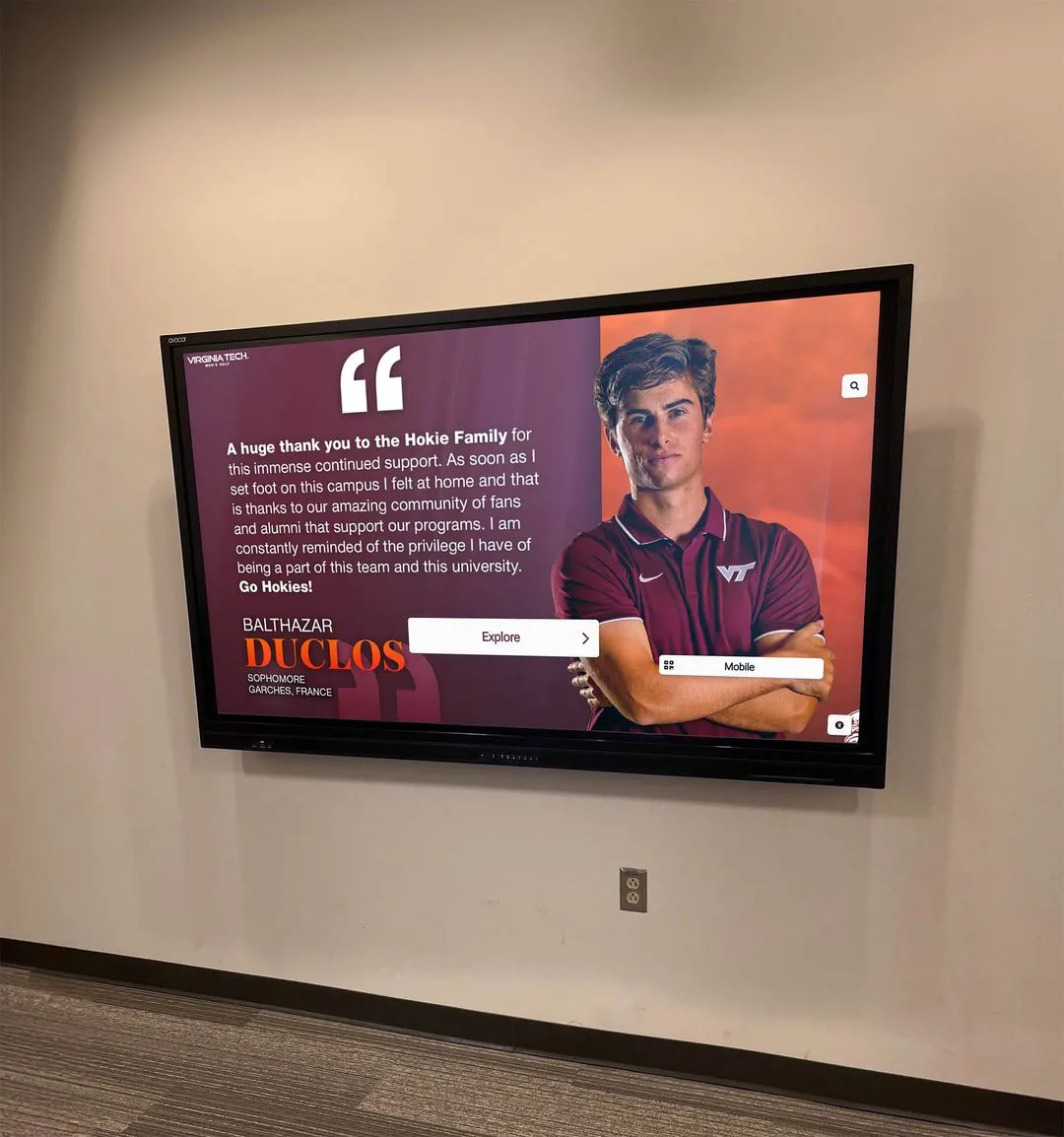
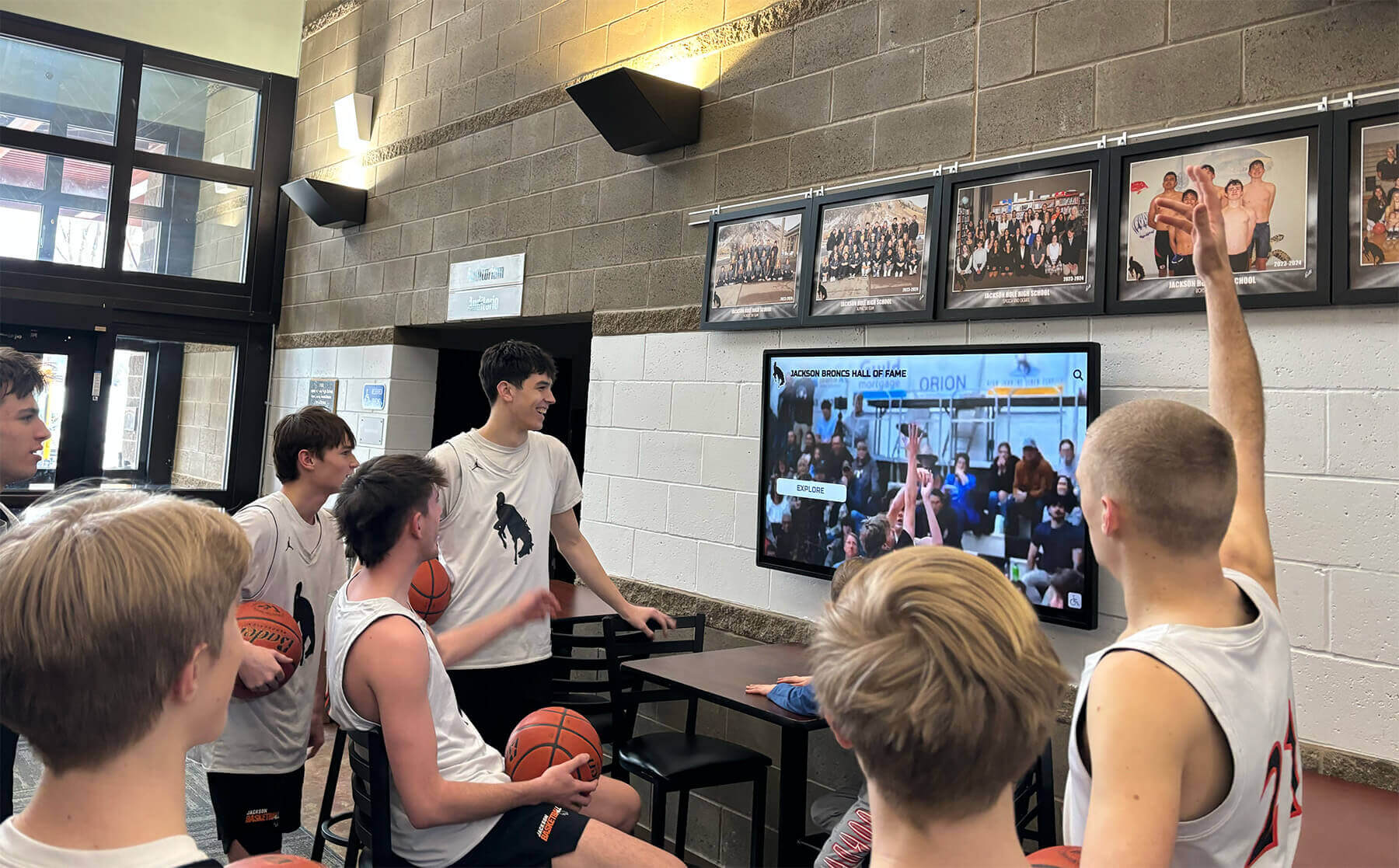
Lobby displays surface athletic archive video to students, families, and visitors — aspect-ratio correction determines whether the historic footage accurately represents athletes and events or distorts proportions to fill the modern 16:9 frame
What Aspect Ratio Means in Athletic Video Archives
Aspect ratio is the ratio of a video frame’s width to its height, expressed as two numbers separated by a colon: 4:3 or 16:9. It describes the shape of every frame in the video and is a property of the original recording format — not a stylistic preference that can be changed without consequence.
A video recorded in 4:3 contains image data structured for a near-square frame. Displaying that video in a different ratio requires one of three trade-offs:
- Pillarboxing (correct for most archival contexts): The 4:3 image is displayed at its native proportions inside a 16:9 container, with black bars filling the unused area on the left and right. No image data is lost. No proportions are distorted.
- Stretching (incorrect — never appropriate for archives): The 4:3 image is scaled horizontally to fill the 16:9 frame. Athletes, courts, equipment, and institutional markings all appear wider than they were. The visual record is inaccurate.
- Cropping: The 4:3 image is scaled to fill the 16:9 frame vertically, and the left and right edges are removed. Original framing and content at the edges of the frame is lost permanently. Appropriate only for specific display derivatives, not for archival masters.
For school athletic archives, the consequences of stretching are particularly visible. An athlete who was 5'10" appears as though they were built considerably wider at the same weight. A basketball court’s lane — exactly 16 feet wide by official standards — looks wider than the paint dimensions suggest. School colors on banners and uniforms appear in frames that no longer match the proportions of the original scene. Every community member and alumnus who watches the video and remembers the actual events perceives the inaccuracy immediately.
Aspect ratio errors are also permanent if not corrected before re-encoding. A 4:3 source stretched to 16:9, then re-encoded at 16:9, then stored as the archival master cannot be unstretched from that file — the original proportions are gone. Correction must happen before re-encoding, not after.
The Primary Aspect Ratios in School Athletic Collections
| Aspect Ratio | Width:Height | Decimal | Era in School Athletics | Display Behavior on Modern 16:9 Screen |
|---|---|---|---|---|
| 4:3 | 4 wide : 3 tall | 1.33:1 | VHS, Betamax, 8mm film, broadcast SD (1950s–2005) | Correct display requires pillarboxing (black bars left and right) |
| 16:9 | 16 wide : 9 tall | 1.78:1 | HDV, AVCHD, DSLR video, modern cameras (2003–present) | Native — fills the screen without adjustment |
| 1.85:1 | Theatrical flat | 1.85:1 | Film transfers, some documentary productions | Slight letterbox required at top and bottom |
| 2.39:1 | Anamorphic scope | 2.39:1 | Wide-format film (rare in school archives) | Significant letterbox required |
| Anamorphic SD | 4:3 container, 16:9 image | — | Some late-SD broadcast cameras with widescreen adapter | Must be flagged with correct display aspect ratio — appears squeezed if played without the flag |
The 4:3 / 16:9 distinction drives the vast majority of aspect-ratio decisions in school athletic archives. Nearly every practical correction task involves determining whether a given source file is genuinely 4:3, how it should display on 16:9 infrastructure, and whether the encode settings correctly communicate that ratio to the player.
4:3 vs. 16:9: A Decision Table for Athletic Archive Output
The correct output aspect ratio for any archived file is the native aspect ratio of the original recording. There is no situation in standard archival practice where it is correct to stretch a 4:3 source to 16:9 or compress a 16:9 source to 4:3.
| Source Format | Native Aspect Ratio | Target Display | Correct Output | Method | Common Mistake |
|---|---|---|---|---|---|
| VHS (standard play) | 4:3 | 16:9 modern display | 4:3 with pillarboxing | Encode at 4:3 with DAR flag; player or display adds side bars | Stretched to 16:9 with display “fill” setting |
| Betamax / Beta Hi-Fi | 4:3 | 16:9 | 4:3 with pillarboxing | Same as VHS | Same stretching error |
| 8mm / Super 8 film transfer | ~4:3 (varies with gate) | 16:9 | 4:3 with pillarboxing | Confirm with transfer vendor — gate aperture may introduce minor crop | Transfer vendor outputting 16:9 by default |
| 16mm film transfer | ~4:3 (varies) | 16:9 | 4:3 with pillarboxing | Confirm framing with vendor; some 16mm was shot for theatrical 1.85:1 | Using theatrical framing for archival video |
| MiniDV / Digital8 (standard mode) | 4:3 | 16:9 | 4:3 with pillarboxing | Verify in camera documentation; standard MiniDV defaults to 4:3 | Assuming MiniDV is 16:9 because it is digital |
| MiniDV (widescreen mode) | 16:9 letterboxed in 4:3 container | 16:9 | 16:9 native | Must be unsqueezed or flagged correctly; MediaInfo will show storage ratio vs. display ratio | Playing the 4:3 container without unsqueezing |
| HDV (1080i / 720p) | 16:9 | 16:9 | 16:9 native — no correction needed | Confirm SAR in MediaInfo shows square pixels for HDV 720p; 1080i HDV is also native 16:9 | None typical |
| AVCHD / consumer HD cameras | 16:9 | 16:9 | 16:9 native | No correction required | None typical |
| Betacam SP (SD broadcast) | 4:3 (or 16:9 with widescreen adapter) | 16:9 | 4:3 with pillarboxing (confirm 16:9 if widescreen adapter used) | Check production documentation for widescreen flag | Treating all Betacam as 16:9 |
| Anamorphic (squeeze-encoded SD) | 4:3 container / 16:9 display | 16:9 | 16:9 unsqueezed | Re-encode with correct DAR flag or unsqueeze to 16:9 | Playing with wrong DAR — appears tall and thin |
The most common mistake in school athletic archives is not a wrong choice between pillarboxing and cropping — it is relying on the display platform to handle aspect ratio without specifying the correct behavior. When a player or display is set to “fill” or “stretch” mode, it overrides correct aspect ratio handling to eliminate pillarboxing. Encoding the source with the correct display aspect ratio (DAR) metadata and setting the player to “fit” or “original” mode resolves this at the source rather than requiring manual intervention each time a clip is played.
Step 1: Determine the Native Aspect Ratio of Your Archive Files
To correct aspect ratio, you must first know what ratio the source file actually contains. Do not rely on file extensions, folder names, or visual inspection of a single frame — SD video in particular frequently contains non-square pixels that cause a 4:3 file to look like a 16:9 file in some players.
Use MediaInfo (free, cross-platform) or ffprobe (included with FFmpeg) to inspect each file:
MediaInfo: Fields to read
- Width / Height — the storage dimensions of the video frame in pixels
- Display aspect ratio — the intended display ratio, which may differ from the storage dimensions if non-square pixels are used
- Pixel aspect ratio (PAR) — the shape of individual pixels; NTSC SD uses 10:11 PAR, meaning pixels are slightly taller than wide; PAL SD uses 59:54 PAR
- Original display aspect ratio — present in some files to distinguish the production ratio from an edited or converted version
ffprobe command:
ffprobe -v quiet -select_streams v:0 -show_entries stream=width,height,display_aspect_ratio,sample_aspect_ratio -of default=noprint_wrappers=1 filename.mp4
For NTSC VHS-sourced video, a common result is: storage 720×480 pixels, sample aspect ratio 10:11, display aspect ratio 4:3. The storage resolution looks nearly square on paper, but the non-square pixels mean the correct display is 4:3 — not the 1.5:1 ratio that the raw pixel dimensions suggest. This non-square pixel situation is the leading cause of aspect ratio errors in VHS-digitized athletic archive files. If your digitization software or re-encoder does not correctly carry the PAR metadata forward, the display platform will interpret 720×480 as 1.5:1 rather than 4:3 and display the video compressed vertically.
Step 2: Check for Sample Aspect Ratio and Display Aspect Ratio Mismatches
SD video from VHS, Betamax, MiniDV, and broadcast tape does not use square pixels. NTSC standard definition uses a 720×480 pixel grid with a sample aspect ratio (SAR) of 10:11 — each pixel is slightly taller than it is wide. When the frame is displayed with those non-square pixels, the effective display width becomes approximately 640 pixels at a 4:3 ratio. The display aspect ratio (DAR) encoded in the file header communicates this to the player.
Common mismatch scenarios:
| Scenario | Storage Dimensions | SAR | Correct DAR | Incorrect Display Result |
|---|---|---|---|---|
| NTSC VHS digitized correctly | 720×480 | 10:11 | 4:3 | — (displays correctly) |
| NTSC VHS — SAR stripped at re-encode | 720×480 | 1:1 assumed | 1.5:1 applied | Video appears horizontally compressed (too tall and narrow) |
| NTSC widescreen MiniDV | 720×480 | 40:33 | 16:9 | Correct when DAR is present; appears squeezed when DAR is absent |
| PAL VHS digitized correctly | 720×576 | 59:54 | 4:3 | — (displays correctly) |
| PAL VHS — SAR stripped | 720×576 | 1:1 assumed | 1.25:1 applied | Video appears slightly compressed horizontally |
| HDV 1080i | 1440×1080 | 4:3 (SAR) | 16:9 (DAR) | Correct with flag; appears tall and squeezed without flag |
When re-encoding, always carry forward both the SAR and DAR values from the source file unless you are explicitly converting to square pixels as part of the encode — which requires recalculating both dimensions. Re-encoding a 720×480 NTSC file with square pixels produces a 640×480 output at the same 4:3 ratio; the pixel count changes, but the display proportions are identical.
Championship banner footage that appears in archived gym video — a common visual reference for school identity — is particularly vulnerable to SAR mismatches because the vertical lettering and horizontal color blocks in banners make horizontal distortion immediately visible to any viewer who knows what the banners look like in person. Schools that have developed championship banner displays for gyms alongside their video archives recognize this as a recurring quality concern that requires explicit verification at the re-encode step.
Step 3: Choose the Correct Display Approach for Each Context
Not every display context calls for the same correction approach. The correct method depends on the display infrastructure, the intended audience, and whether the archive master or a display derivative is being served.
Pillarboxing (black bars left and right): The correct approach for archival masters and for any display where the school controls the player settings. The 4:3 image is presented at its native proportions inside a 16:9 player frame. No image data is lost or distorted. Pillarboxing is visually distinct and familiar to viewers who remember watching 4:3 television — it communicates clearly that the footage is historic without misrepresenting it.
Cropping (zoom to fill): Scales the 4:3 image to fill the 16:9 frame vertically, cropping approximately 12.5% of the image width from each side. Used when the display platform cannot produce pillarboxing or when the specific display context requires a full-frame image. Appropriate for some lobby signage applications but not for archival masters — the cropped version should be a derived file, not a replacement for the 4:3 master.
Stretching (never appropriate): Scales the 4:3 image horizontally to fill 16:9. Always incorrect for athletic archives. Some display platforms default to stretch mode; if your platform does this, check the display settings rather than accepting the distortion as a normal outcome.
Blurred background fill: A display technique where the 4:3 image is placed in the center of the 16:9 frame and the empty side areas are filled with a blurred version of the video content rather than plain black bars. Used in some consumer media players for aesthetic reasons. Not recommended for archival athletic contexts, where the focus should be on the historic footage. If used, it should be implemented at the display platform layer, not baked into the archival master file.

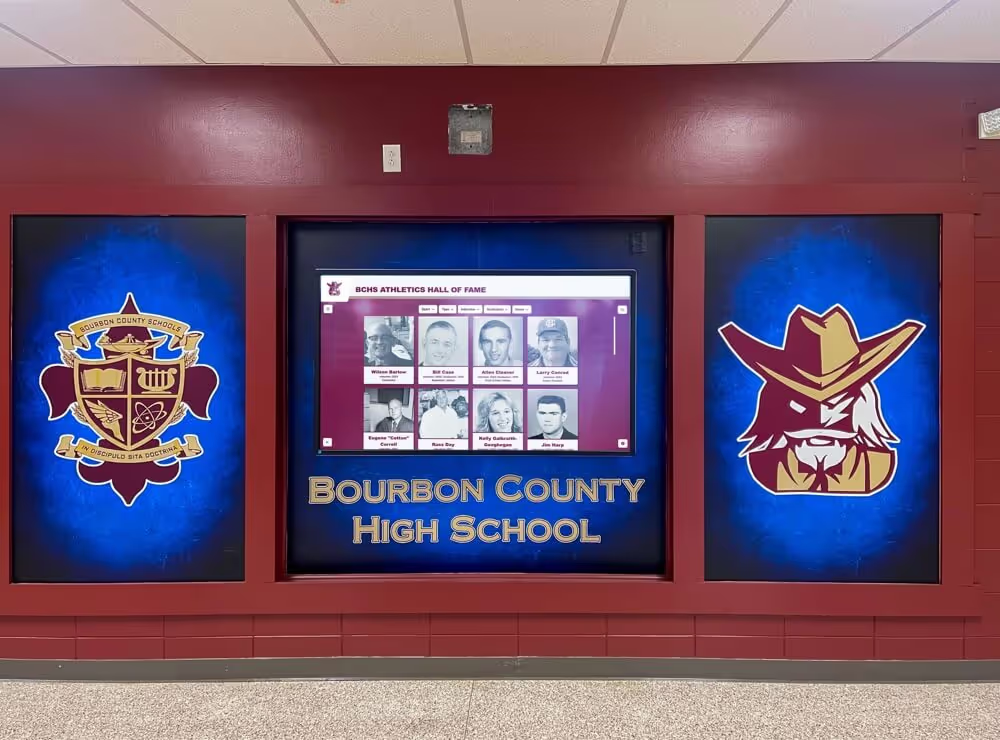
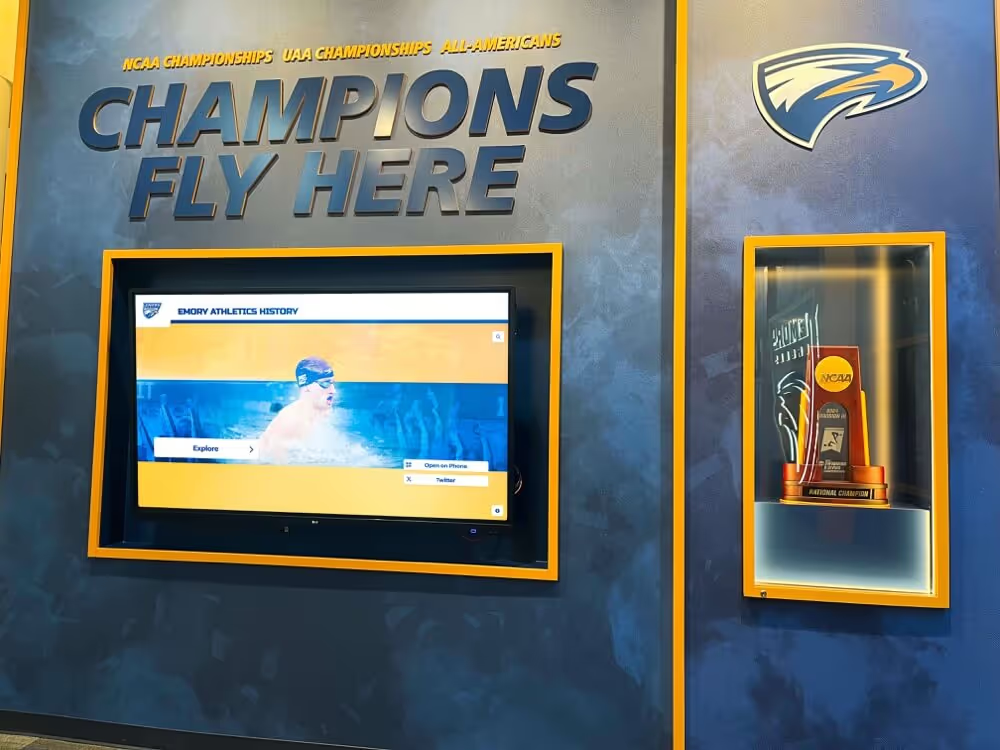
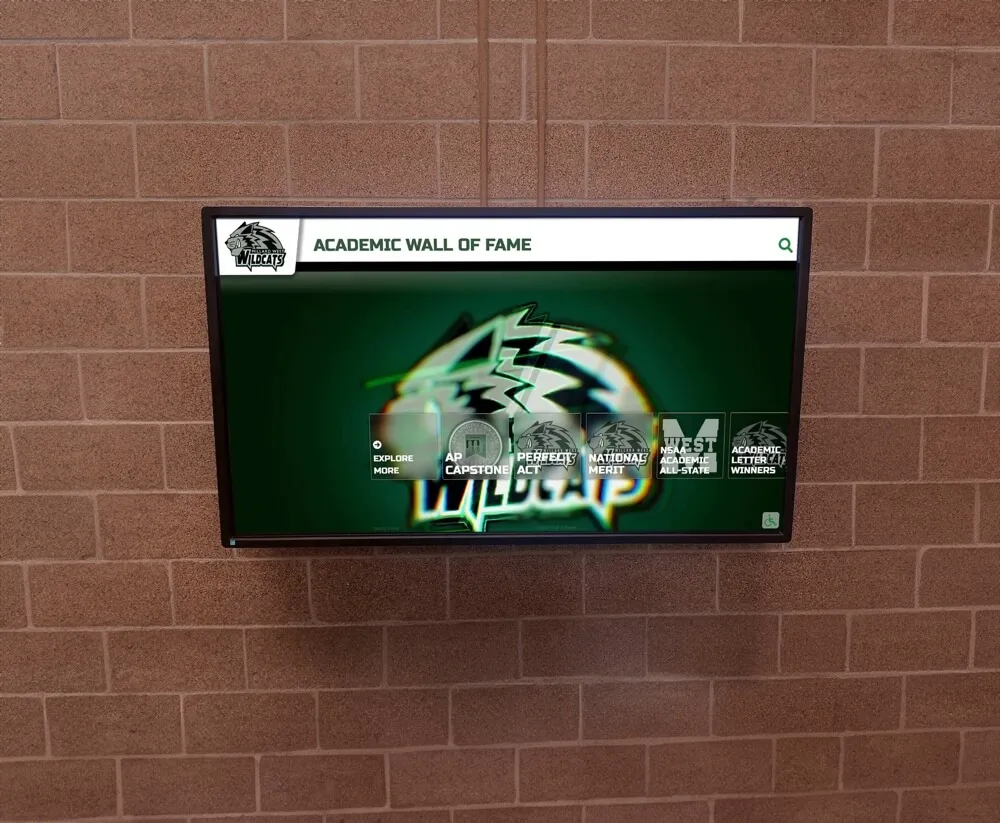
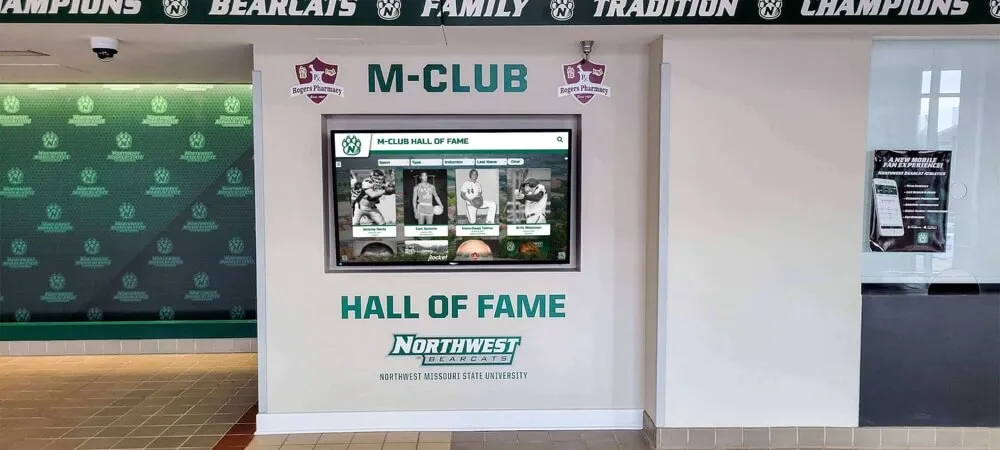
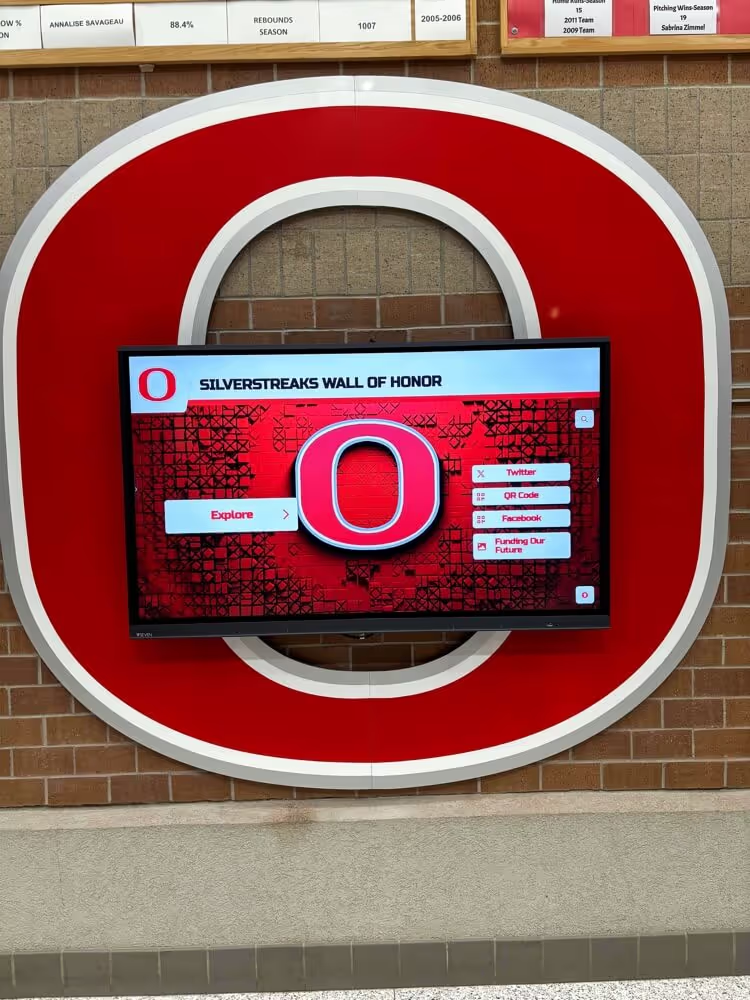
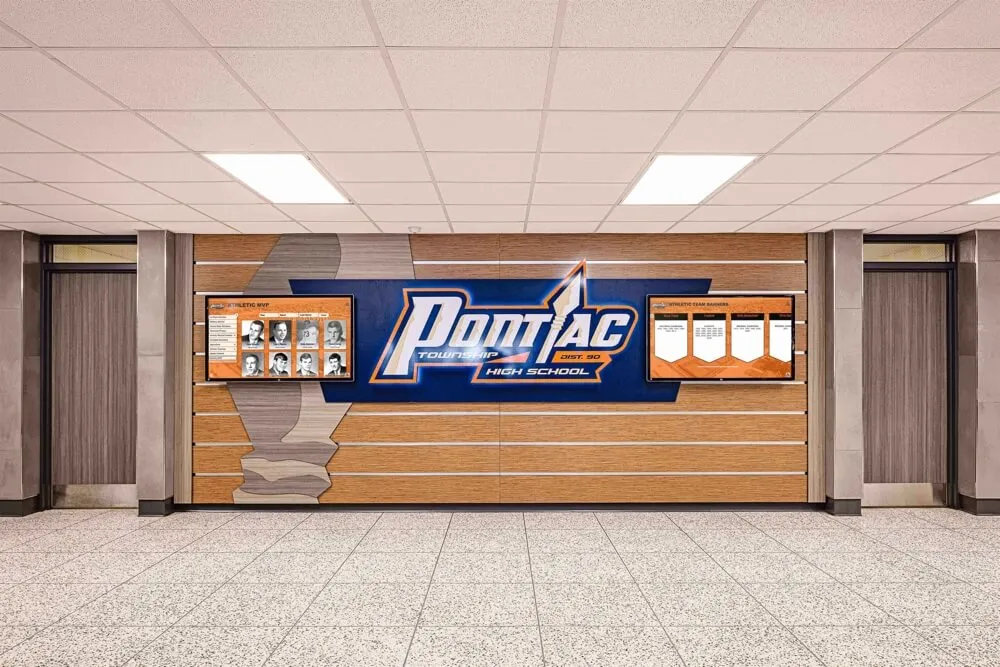
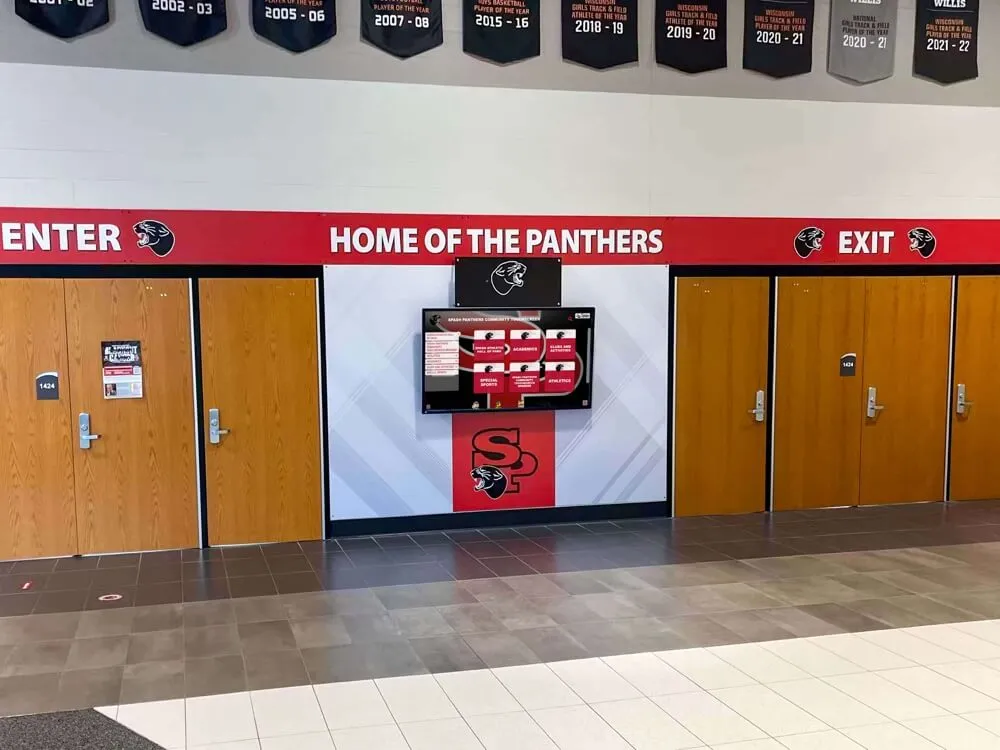
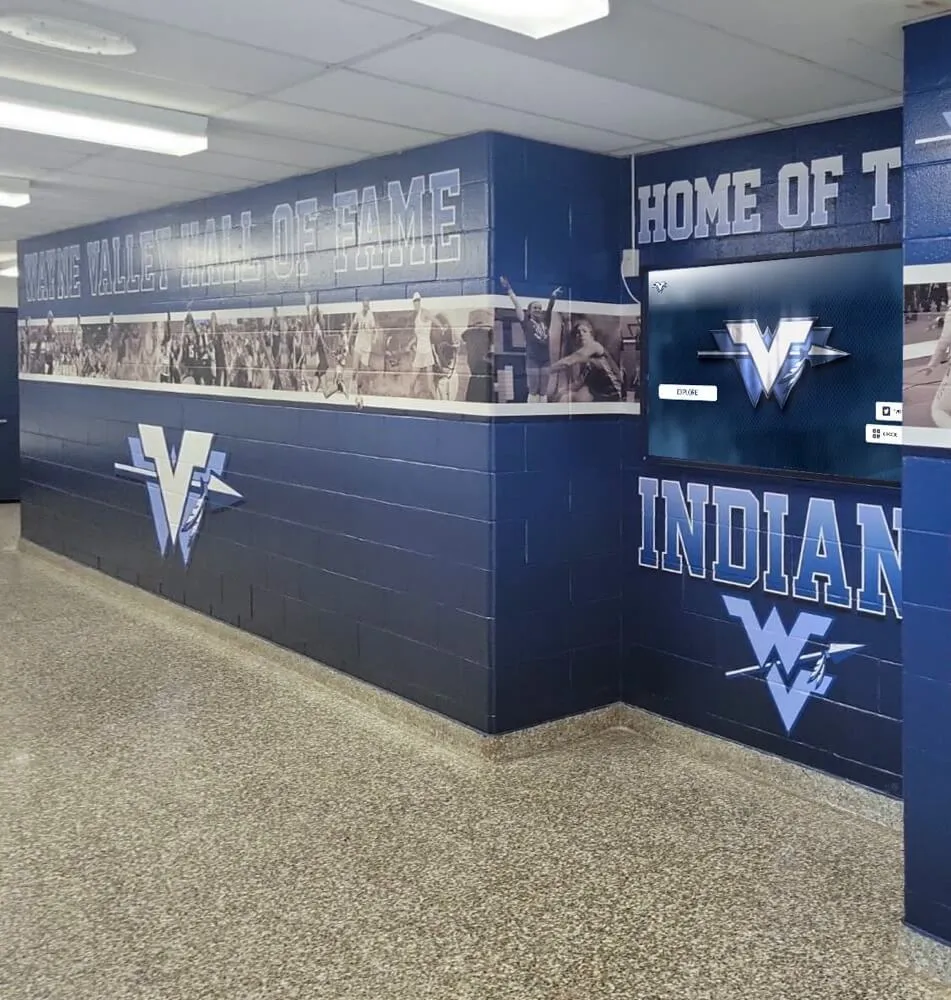
Digital hall-of-fame displays draw from the athletic video archive at screen scale — correct aspect ratio metadata in every archive file determines whether the proportions are accurate or distorted on every display that sources from the collection
Step 4: Encode Corrected Files with Correct Aspect Ratio Metadata
Once you have confirmed the native aspect ratio and chosen the display approach, encode the corrected file with explicit DAR and SAR metadata so that any player, platform, or display reproduces the correct proportions without guessing.
FFmpeg encode examples:
Re-encoding a 720×480 NTSC VHS file to ProRes 422 with correct 4:3 display aspect ratio:
ffmpeg -i source_vhs.mov -c:v prores_ks -profile:v 3 -vf "setsar=10/11,setdar=4/3" -c:a pcm_s16le output_master.mov
Converting a 720×480 NTSC file to square pixels (640×480) for compatibility with platforms that mishandle non-square pixels:
ffmpeg -i source_vhs.mov -c:v prores_ks -profile:v 3 -vf "scale=640:480,setsar=1,setdar=4/3" -c:a pcm_s16le output_master_squarepixel.mov
Producing a 16:9 pillarboxed display derivative from a 4:3 master (for a display platform that requires 16:9 input):
ffmpeg -i master_4x3.mov -vf "scale=1440:1080,pad=1920:1080:240:0:black" -c:v libx264 -profile:v high422 -crf 18 -c:a aac display_derivative.mp4
In the pillarbox derivative encode above, the 4:3 master is scaled to 1440×1080 at its native proportions, then centered in a 1920×1080 frame with 240 pixels of black padding on each side. This produces a 16:9 file that a display platform plays at full screen with correct 4:3 proportions preserved inside the frame.
For platforms where FFmpeg is not available directly, confirm that your encoding tool exposes options for “display aspect ratio” or “pixel aspect ratio” settings — most professional tools (Adobe Media Encoder, Apple Compressor, Blackmagic DaVinci Resolve) provide these. Avoid any workflow that re-encodes 4:3 source files with default 16:9 output settings without an explicit aspect ratio override.
Maintaining correct aspect ratio metadata across all archive files is part of a broader archival standards practice. Schools working on comprehensive athletic award reference data management policies often benefit from including video technical specifications — including required aspect ratio metadata fields — in the same policy documentation that governs photo and document formats.
Step 5: Validate the Corrected Files on Target Hardware
Encoding a file with correct metadata is necessary but not sufficient — you must verify that the file displays correctly on the actual hardware and software that will present it to your audience.
Validation checklist:
- Play the corrected file in the target display platform or player
- Confirm that 4:3 content appears with pillarboxing (black side bars) rather than stretched or cropped
- Verify that a known-proportions reference element — a basketball court lane, a volleyball net post, a standard door frame visible in the footage — appears at correct proportions
- Confirm that uniform numbers are legible and not wider or narrower than expected
- Check the display platform’s aspect ratio settings and confirm it is set to “fit,” “original,” or “maintain aspect ratio” rather than “fill” or “stretch”
- If the platform supports multiple display modes, document the correct setting for athletic archive content and include it in your archive policy
For digital hall-of-fame displays that cycle through historic video alongside photos and text, test the aspect ratio handling for each media type independently. A display platform may handle 16:9 video correctly while defaulting to stretch mode for 4:3 content, or vice versa. The validation should cover every source format type in the collection, not just the most recent footage.
Connecting Aspect-Ratio Correction to Recognition Programs
Aspect ratio accuracy is most visible in the contexts that are also most important to school recognition programs: a hall-of-fame ceremony video played at an induction event, a game highlight reel displayed on a lobby kiosk, a video segment embedded in a digital yearbook, or a multi-screen recognition wall cycling through decades of athletic history.
When 4:3 footage from a 1988 state championship appears on a digital signage system for schools with the proportions intact — pillarboxed, with the original game framing and athlete proportions correct — it communicates care and accuracy about the institution’s history. When the same footage is stretched to fill the screen, alumni who attended that championship notice. The error is not a technical detail; it is a visible misrepresentation of an event the community witnessed.
Schools building recognition display programs that draw from video archives should include aspect ratio correction requirements in their media specifications for the display vendor. Specifying that the platform must support 4:3 content with pillarboxing — and that stretch mode must not be the default for any video content — prevents the most common error before any archive file is displayed publicly.
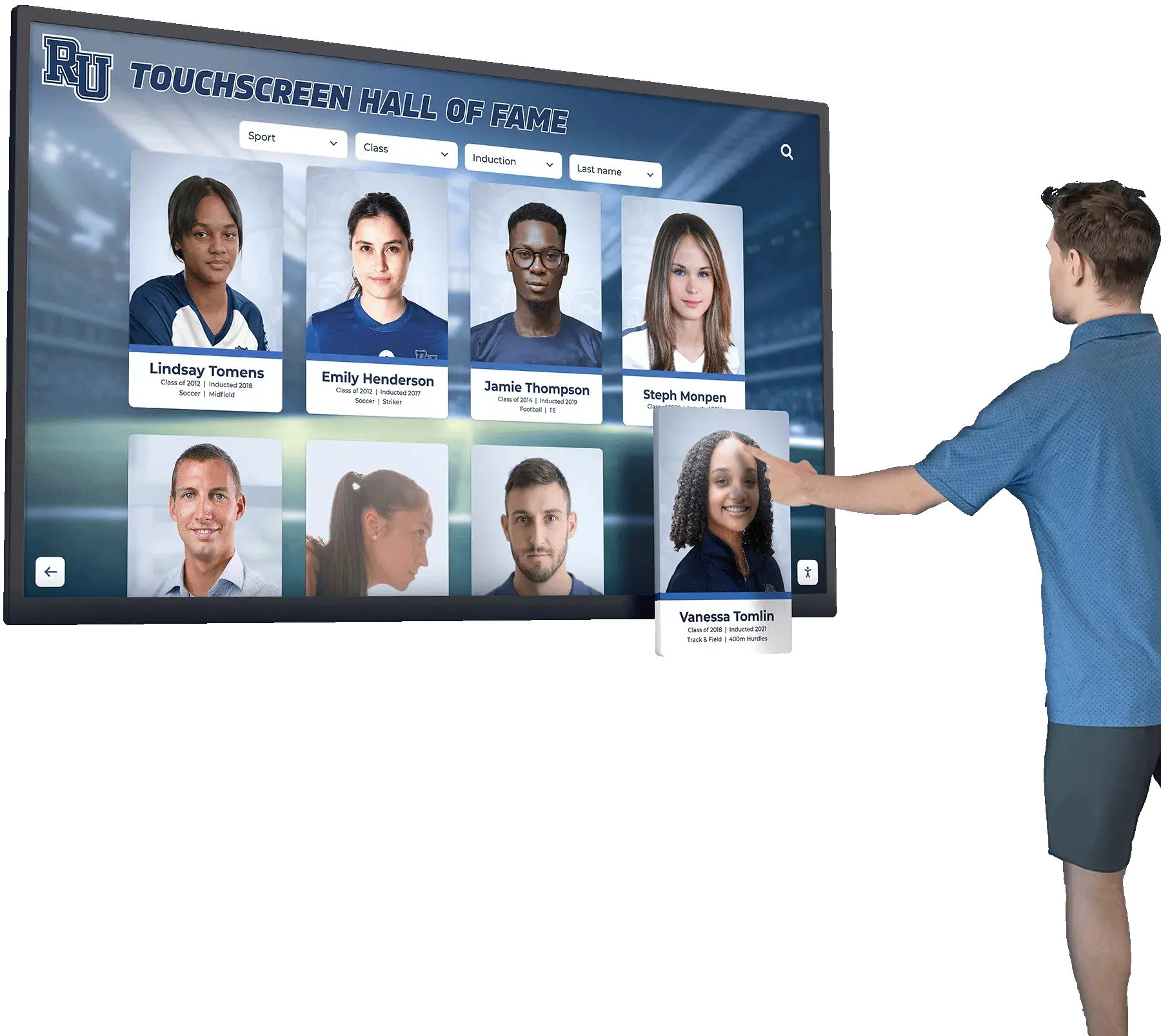
Hall-of-fame touchscreen kiosks present a specific challenge: the user-driven search interface may call up video clips from any era in the collection, meaning the display platform must handle both 4:3 historic content and 16:9 modern content in the same session without human intervention. Platforms that handle this correctly detect the DAR metadata in each file and apply the appropriate display mode automatically. Verify this capability explicitly when evaluating touchscreen recognition platforms.
For programs where booster club funding supports video archive projects — digitization, format migration, or integration with new recognition infrastructure — aspect ratio correction should be included in the scope of work and the project budget. It is less expensive to address during the initial digitization project than to correct retroactively after archive files have been re-encoded and stored with incorrect metadata.
Schools with strong visual branding programs — including those that manage sponsor graphic submission standards for athletic events — recognize that every element of the visual record, including archived video, reflects on the institution’s identity. Aspect ratio correction is the equivalent of ensuring that the school logo is reproduced at its correct proportions: the visual record should represent the program as it actually was, not as it appears after a technical error.

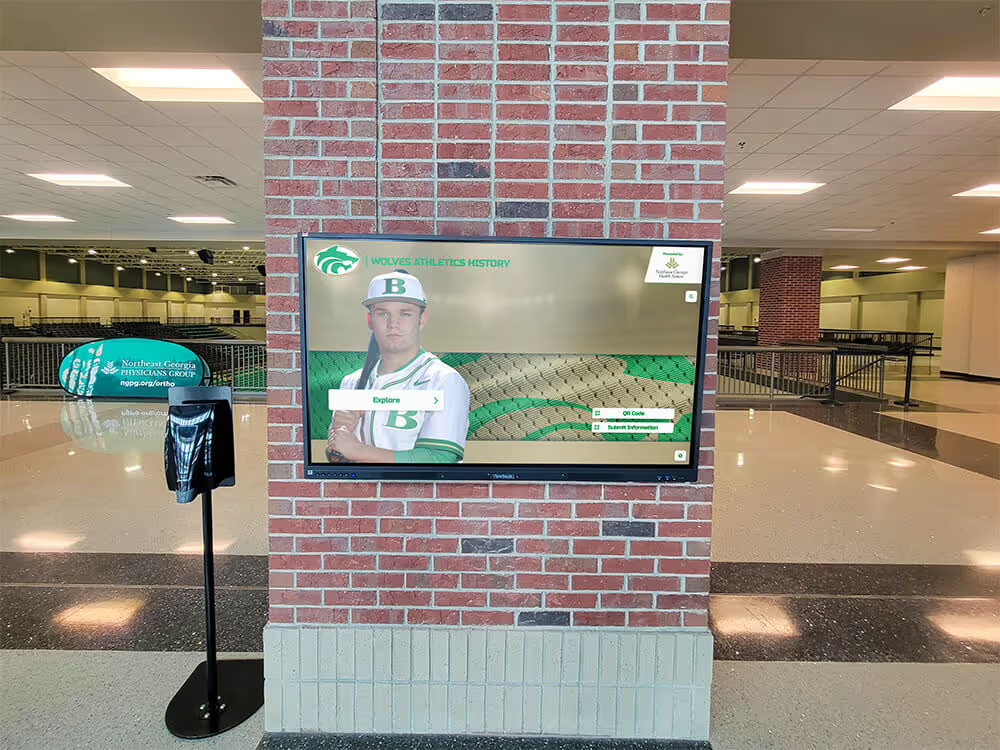
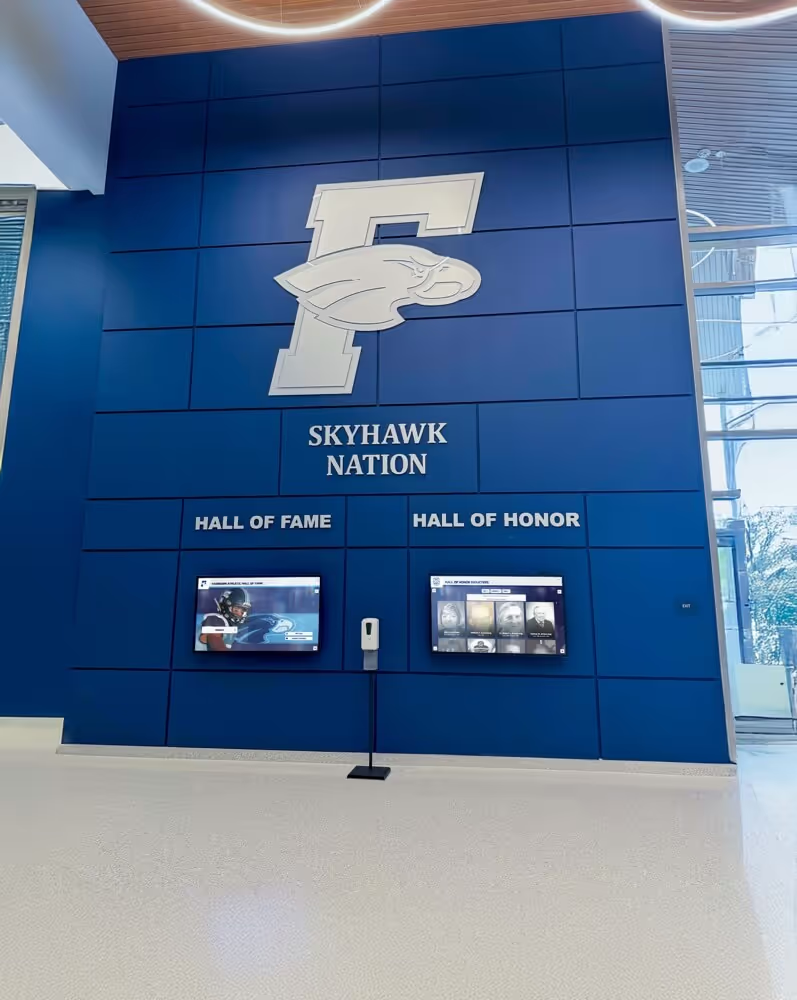
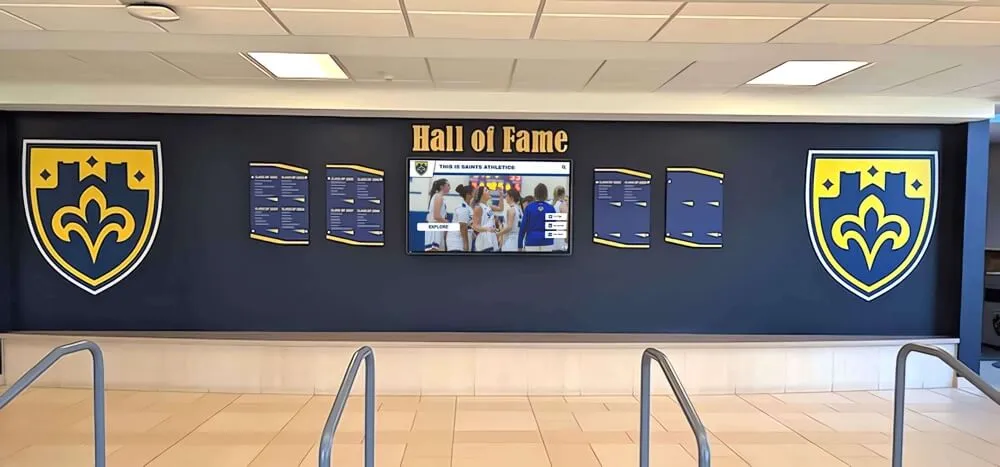
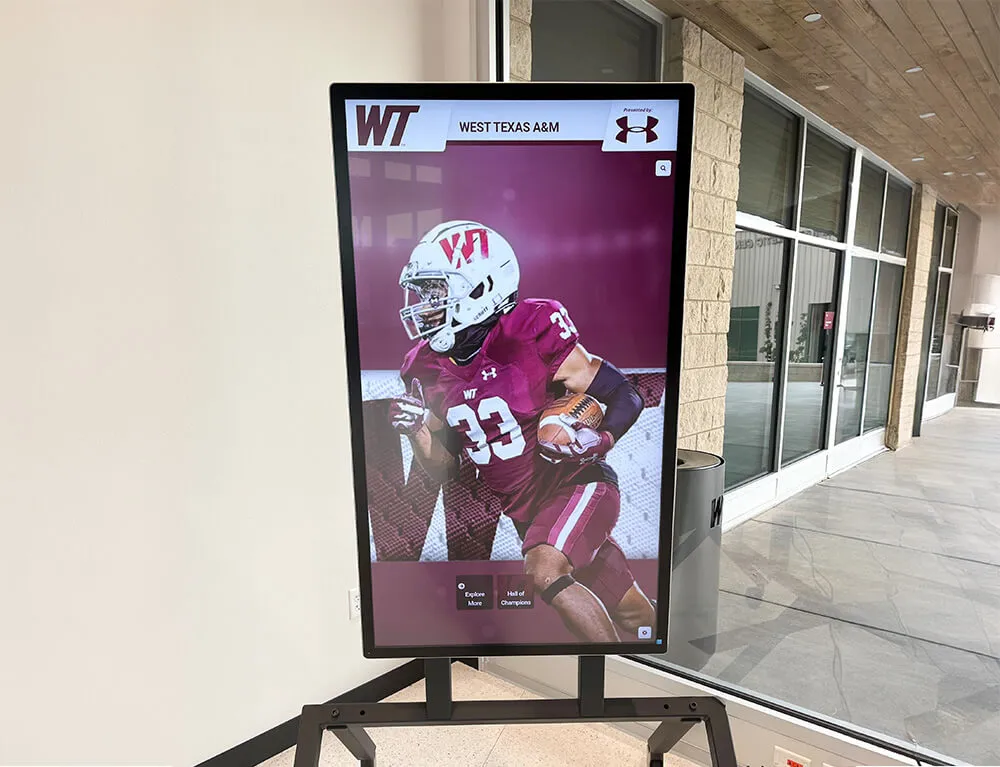
Hall-of-fame kiosks draw from video archives spanning multiple format eras — aspect-ratio correction embedded in the archive files allows the display platform to reproduce each clip at the correct proportions automatically, without distorting the historic record
Frequently Asked Questions
Q: Our display platform says it handles aspect ratio automatically. Can we skip aspect ratio correction in the archive files?
No. Automatic handling means the platform applies a default behavior — typically stretch or fill — when the source file’s aspect ratio metadata is absent or incorrect. If the archive files contain correct DAR metadata, the platform will use it. If they do not, the platform will guess based on the storage dimensions, which for non-square-pixel SD video (720×480 NTSC) produces a 1.5:1 ratio — not 4:3. Correct the metadata in the archive files regardless of the platform’s automatic mode, and then verify the result on the actual hardware.
Q: Is pillarboxing acceptable for a public-facing display, or will it look unprofessional?
Pillarboxing is the correct and expected display of 4:3 historic content on a 16:9 screen. Audiences that grew up with broadcast television before the mid-2000s recognize the side bars as a normal feature of older footage. Stretching 4:3 content to eliminate the bars produces proportions that are visually wrong to anyone who knows how athletes, courts, and equipment actually look — and that error is more visually prominent than the black bars. For public recognition displays where appearance is a priority, consider styling the side bars with a school color or a static logo rather than plain black, if the display platform supports it.
Q: We have a mix of 4:3 and 16:9 video in our collection. How do we handle playback when both types appear in the same display rotation?
Ensure that each file in the collection has correct DAR metadata, then configure the display platform to read and apply that metadata for each clip independently. Most modern media players and digital signage platforms support per-clip aspect ratio handling when DAR is present in the file. Test by placing a known 4:3 file and a known 16:9 file in the same playlist and confirming that the player correctly pillarboxes the 4:3 file and displays the 16:9 file at full frame without human intervention between clips.
Q: Our VHS digitization vendor delivered 16:9 output files. The original VHS content was 4:3. Can we recover the correct aspect ratio?
If the vendor delivered 16:9 files by stretching 4:3 source to fill the frame, the original proportions are gone from those files — you cannot recover them by changing metadata. Contact the vendor and confirm whether the 4:3 source tapes are still available for re-digitization. If re-digitization is possible, request output with the correct DAR metadata specified explicitly in the delivery scope. If the tapes are no longer available and the 16:9-stretched files are the only record, document the distortion in the archive catalog record for those items so that future users understand the limitation.
Q: Some of our MiniDV tapes from the early 2000s make athletes appear tall and thin rather than normal. What is causing this?
The tall-and-thin appearance in NTSC MiniDV footage typically indicates a widescreen (16:9) recording mode captured in a 4:3 container — the camera used an anamorphic squeeze to store the widescreen image in the standard 4:3 DV frame. The correct display requires unsqueezing the image to 16:9. Inspect the file with MediaInfo: if the sample aspect ratio shows 40:33 and the display aspect ratio shows 16:9, the file is correctly flagged and a player that reads DAR will display it correctly. If the DAR is missing or shows 4:3, re-encode with the correct DAR flag (ffmpeg: -vf "setdar=16/9") to restore the correct proportions.
Q: How does aspect ratio correction interact with chroma subsampling and color space decisions for the same archive files?
They are independent properties that must each be addressed separately but that are often resolved in the same encode operation. A file can have correct aspect ratio metadata but use 4:2:0 chroma subsampling (reducing color fidelity) or be incorrectly tagged for color space (shifting team colors). A complete archival video workflow addresses all three: set the correct aspect ratio at the DAR and SAR level, set the correct chroma subsampling (4:2:2 minimum for archival masters), and verify the correct color space tag (BT.601 for SD, BT.709 for HD). The most efficient time to correct all three is during the initial digitization or migration — correcting them in later passes multiplies the risk of generation loss from repeated re-encoding.
Q: We are building a hall-of-fame recognition program that will include historic video clips. What aspect ratio requirement should we give the display vendor?
Specify that the platform must support both 4:3 and 16:9 source content, must read and apply the DAR metadata in each file automatically, and must not default to stretch or fill mode for any video content. Request that 4:3 content be displayed with pillarboxing and 16:9 content be displayed at full frame. Ask the vendor to demonstrate this behavior with sample files from both ratios during platform evaluation. Also confirm that the platform preserves the color space tag (BT.709 for HD, BT.601 for SD) and does not apply a color conversion that shifts school colors during playback.
Preserve the Historic Record Accurately — Then Surface It Where It Matters
A well-corrected video archive, with accurate aspect ratios and correct display metadata throughout, is the foundation on which every recognition program is built. The hall-of-fame induction ceremonies, lobby highlight reels, digital yearbooks, and touchscreen kiosks that surface your athletic history to students, families, and alumni are only as accurate as the archive files behind them.
Rocket Alumni Solutions helps schools connect verified, correctly formatted athletic archives to interactive recognition displays designed to honor every athlete, every championship, and every milestone at the proportions they actually occurred.
Schedule a demo with Rocket Alumni Solutions to see how your archive can power recognition infrastructure that represents your program’s history with accuracy.